Go to login.navigate.uk.com
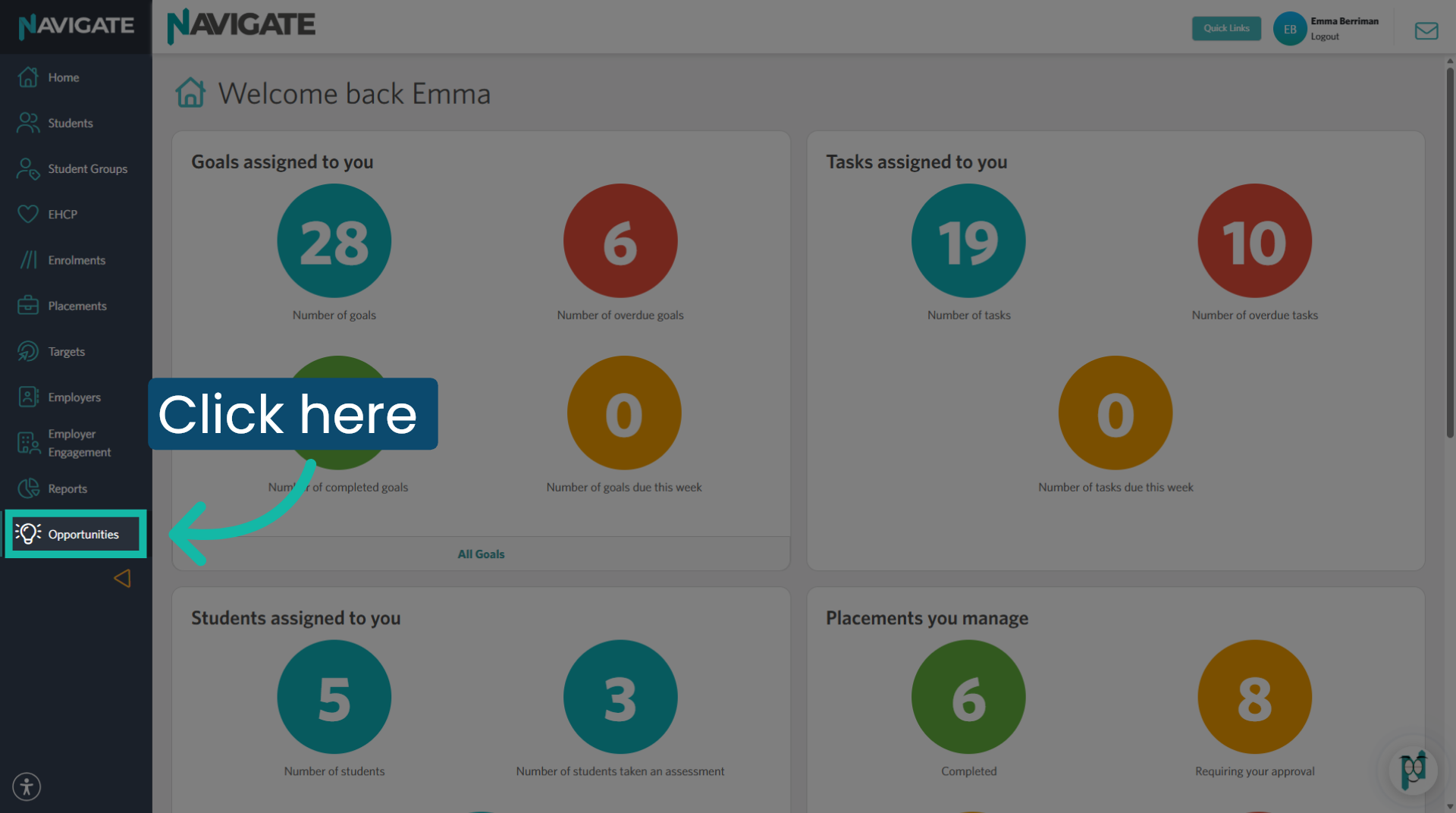
1. Access Opportunities module
Once logged in, open the Opportunities module.
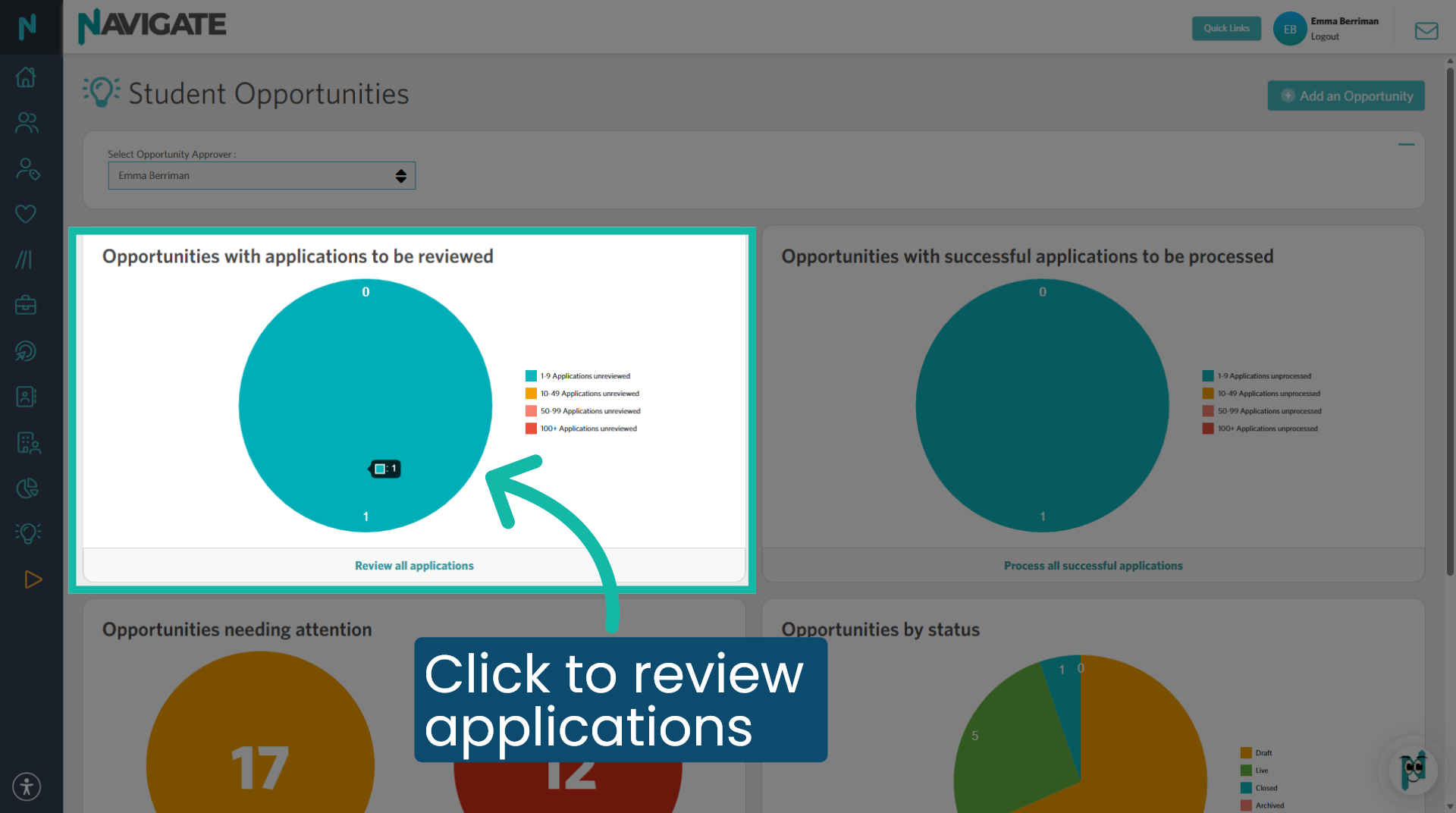
2. Open 'Opportunities to be reviewed'
Click into the bubble to see applications that you have been assigned and are awaiting your approval.
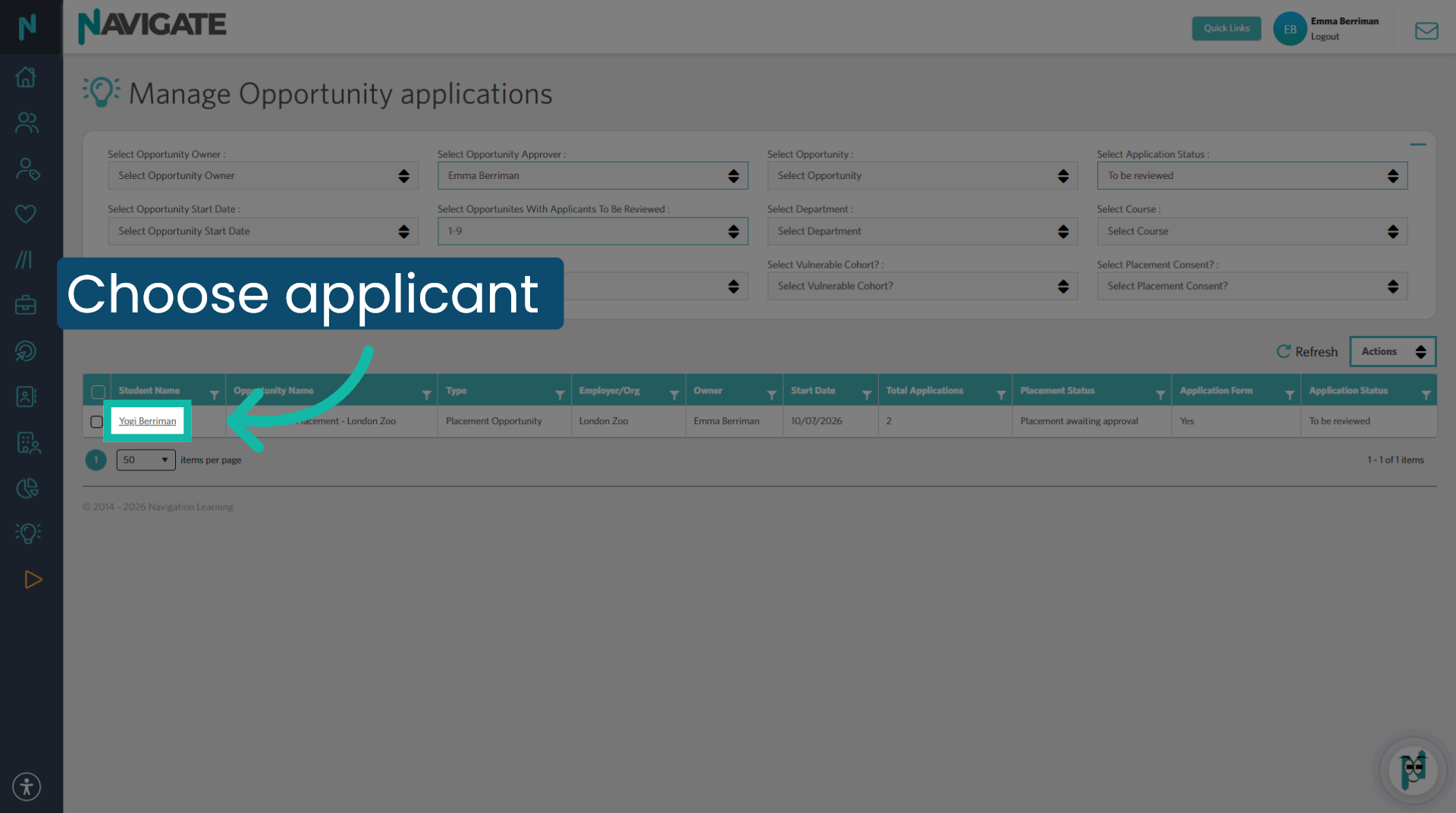
3. Select Application you wish to view
Click on the student name to view the details of their application.
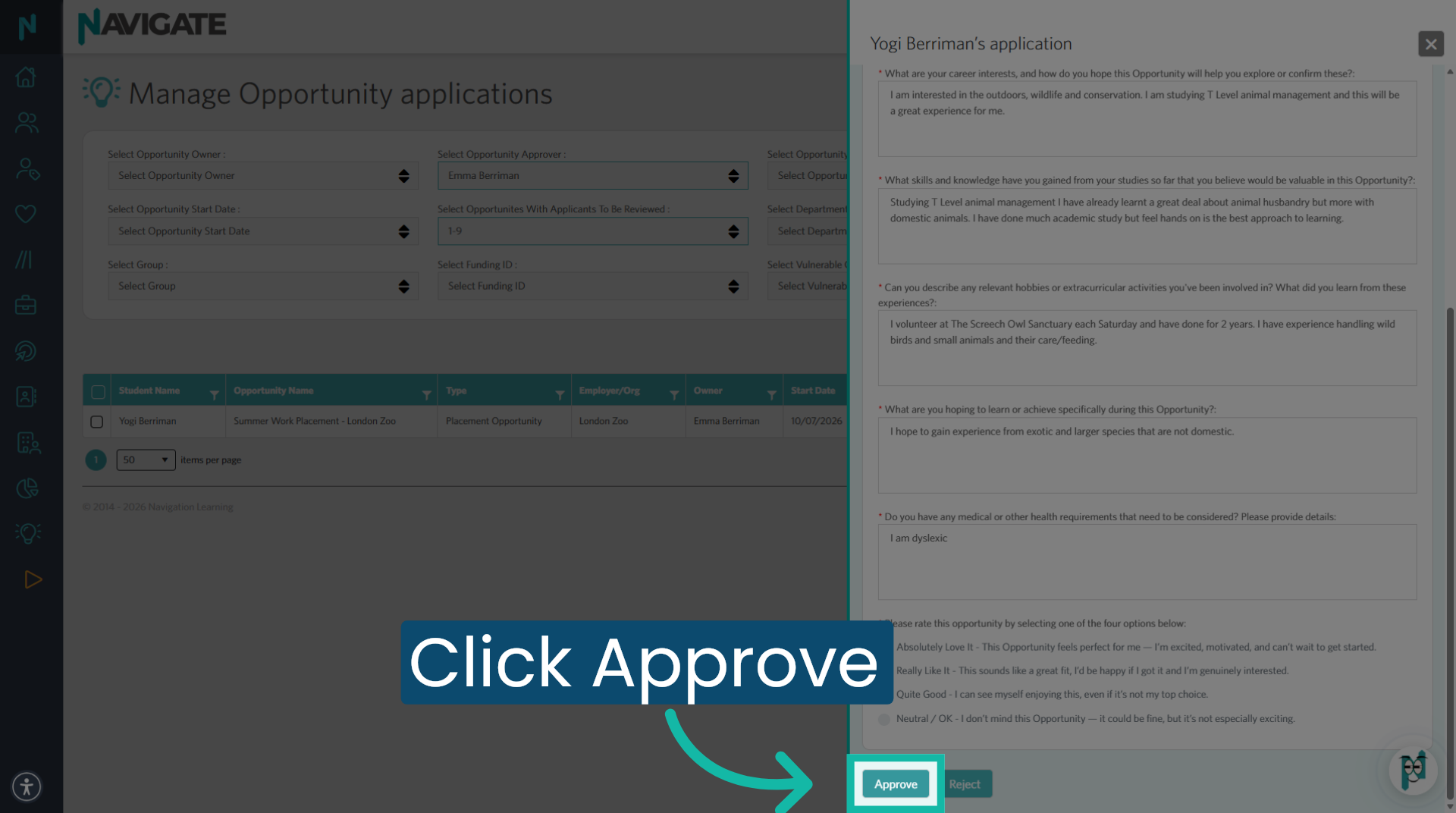
4. Review and approve Application
If this application is suitable to be approved, click 'Approve'.
5. Select a reason for approval
Select the reason for approving the application from the drop-down choices.
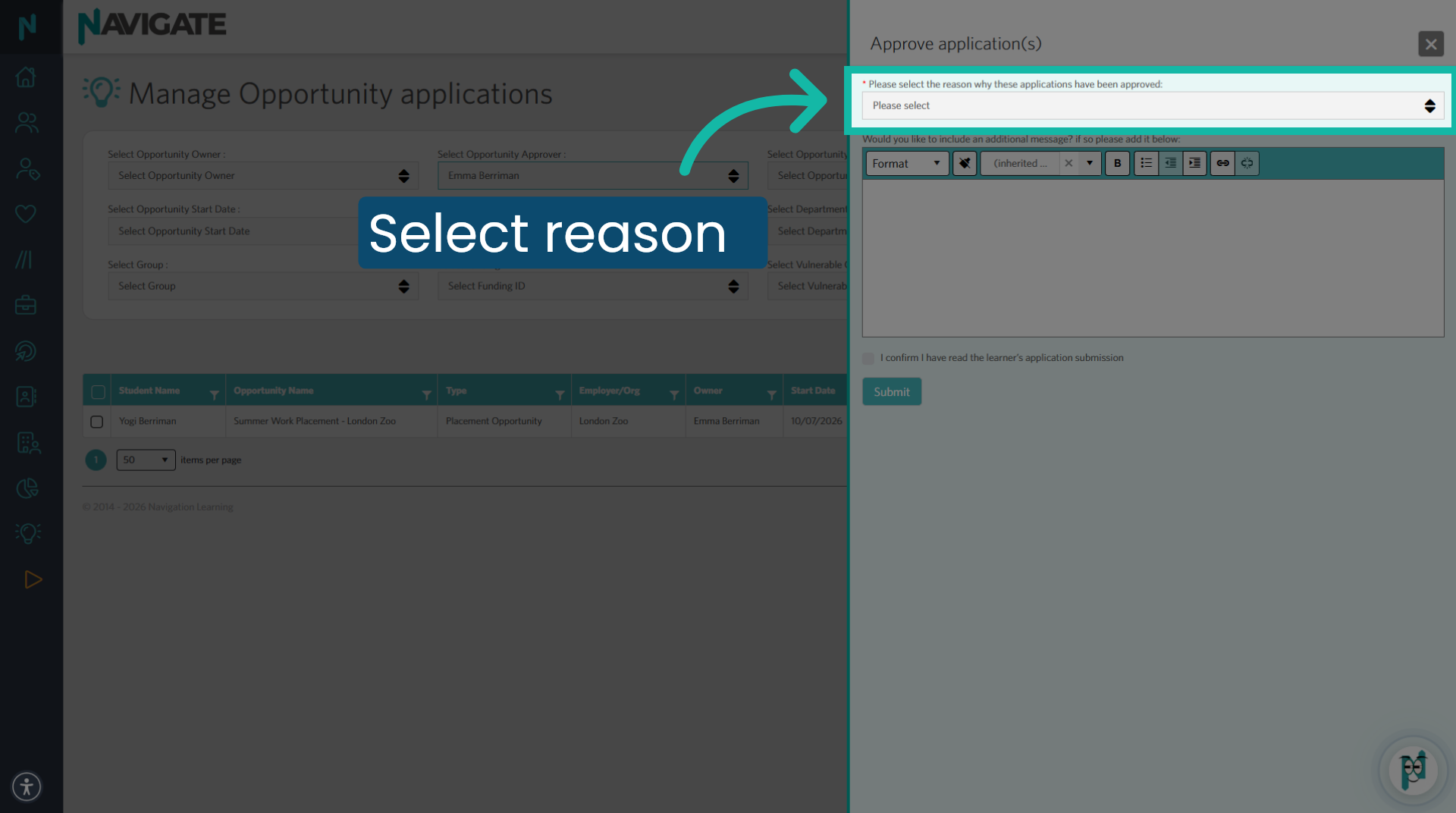
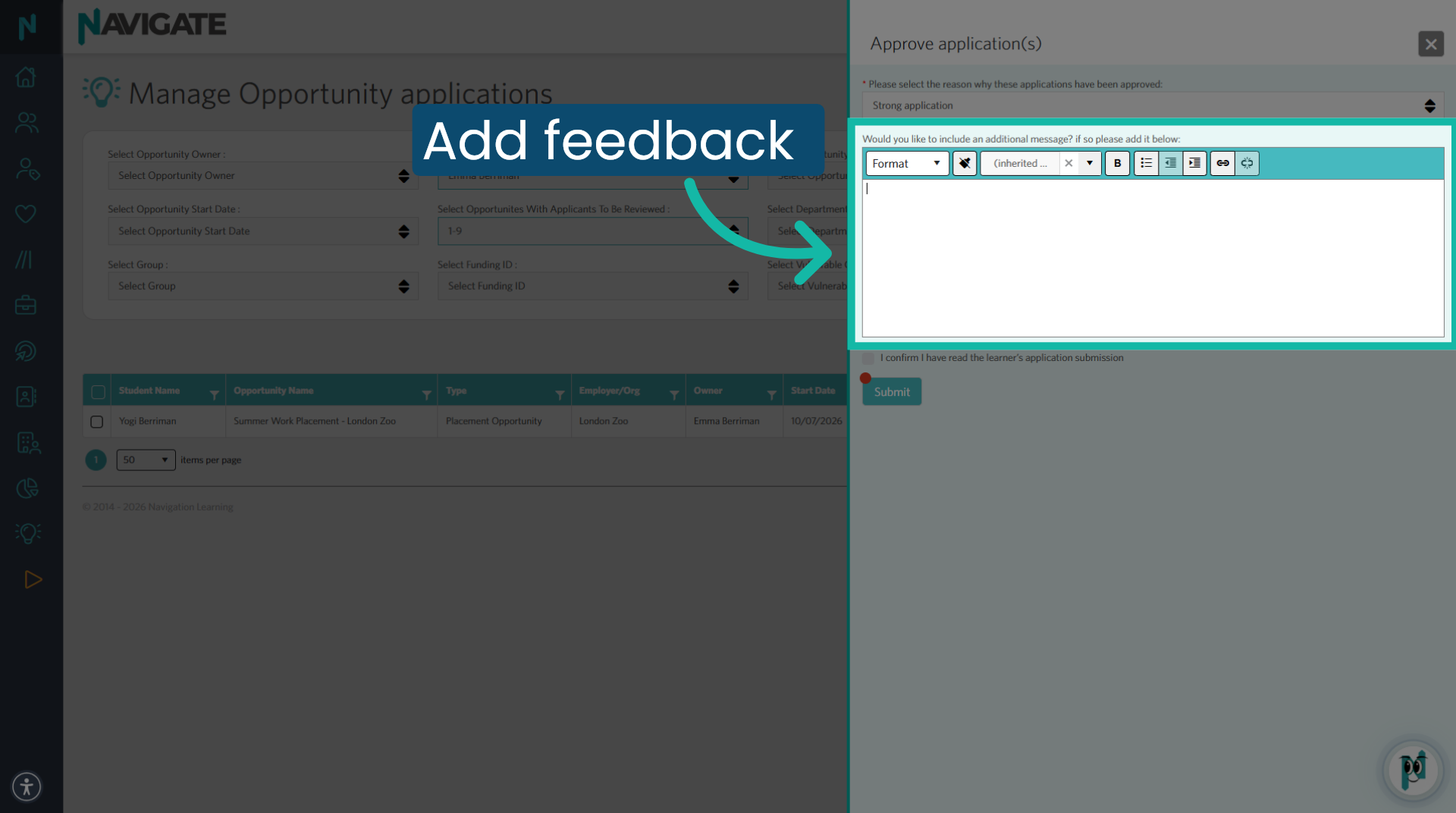
6. Add your own text
If you wish to add further text you can add it here.
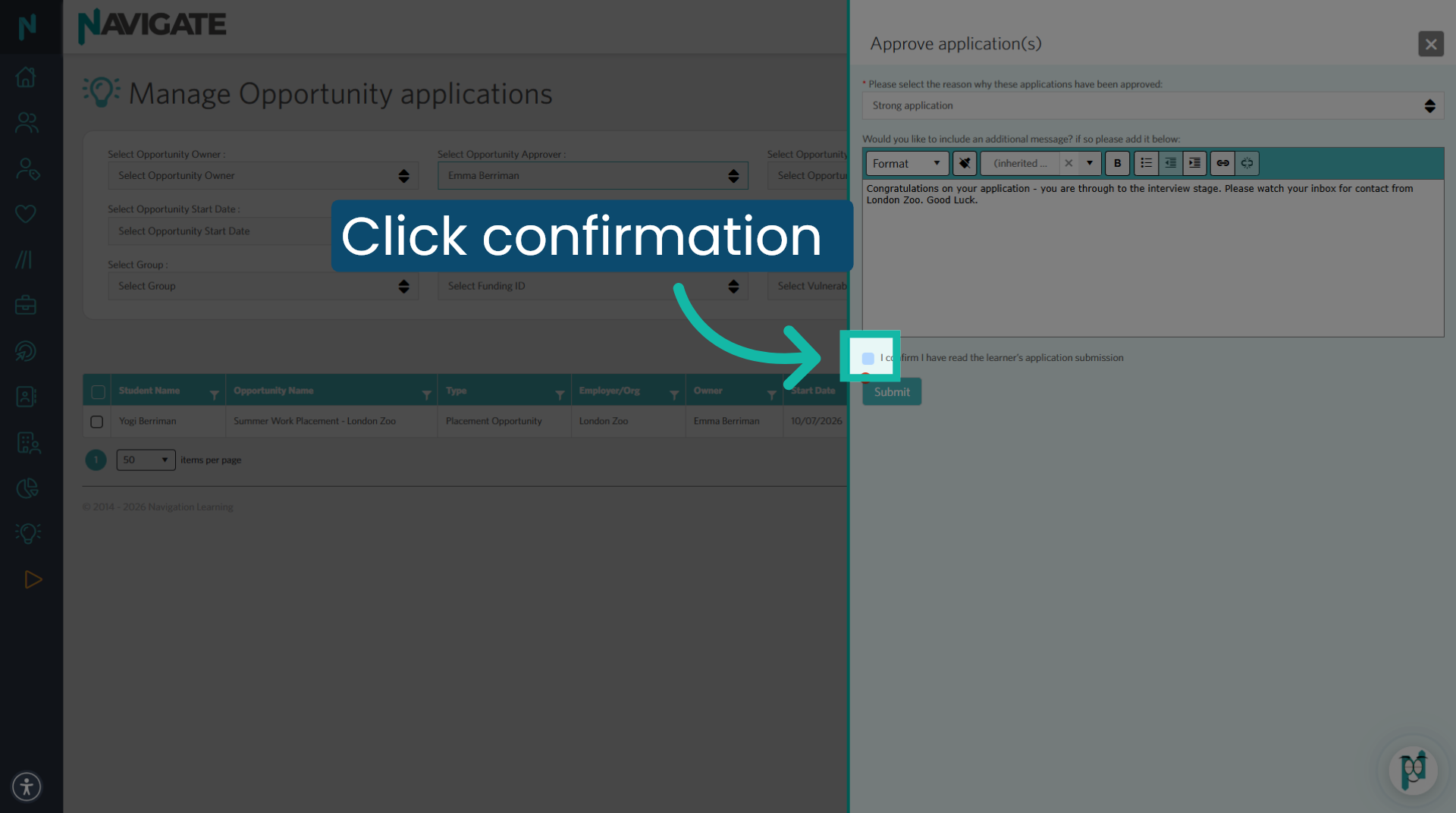
7. Confirm Application Review
Click 'I confirm I have read the learner's application submission' to acknowledge review completion before submitting.
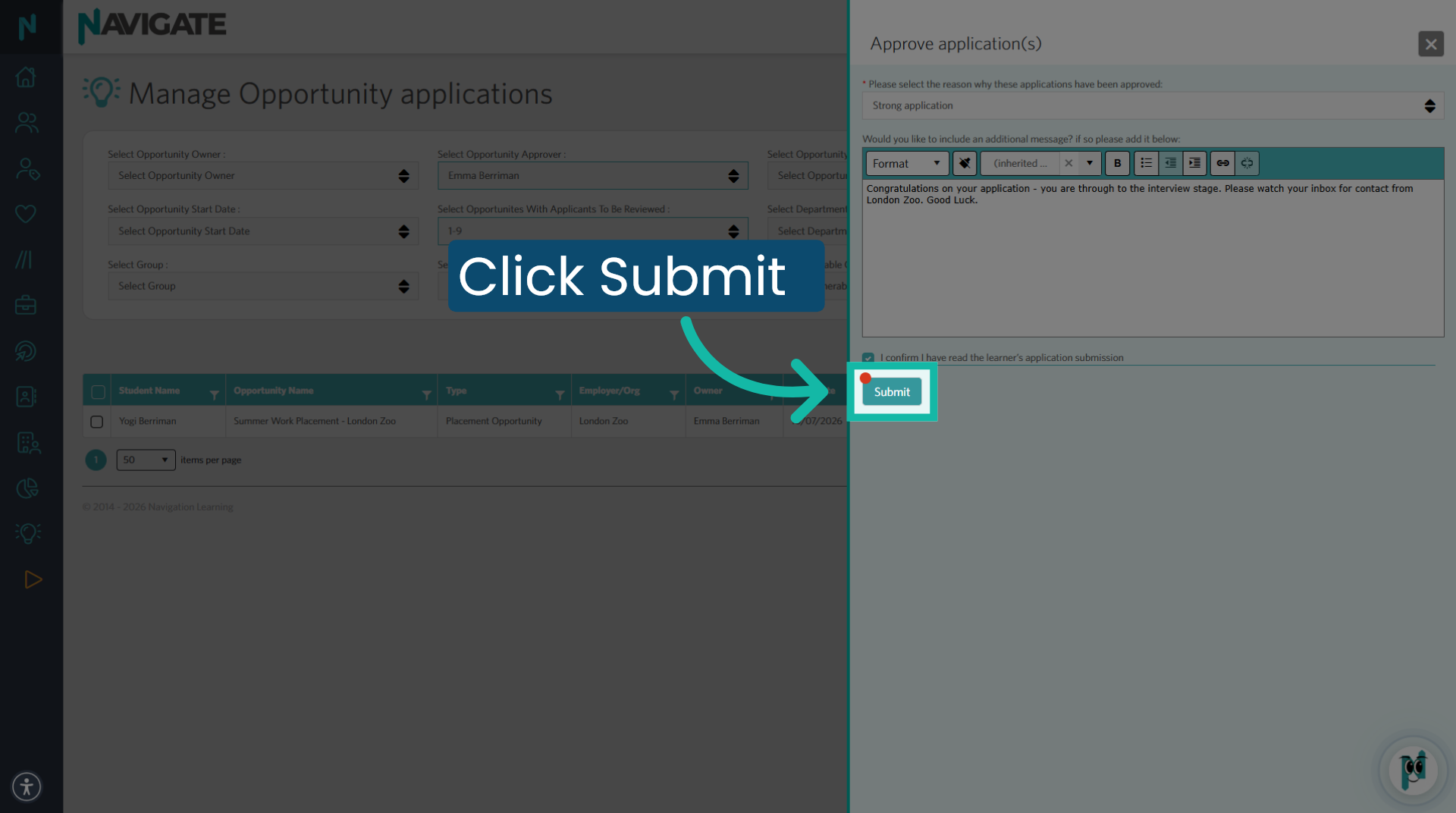
8. Click 'submit'
When you are happy with your approval, click submit.
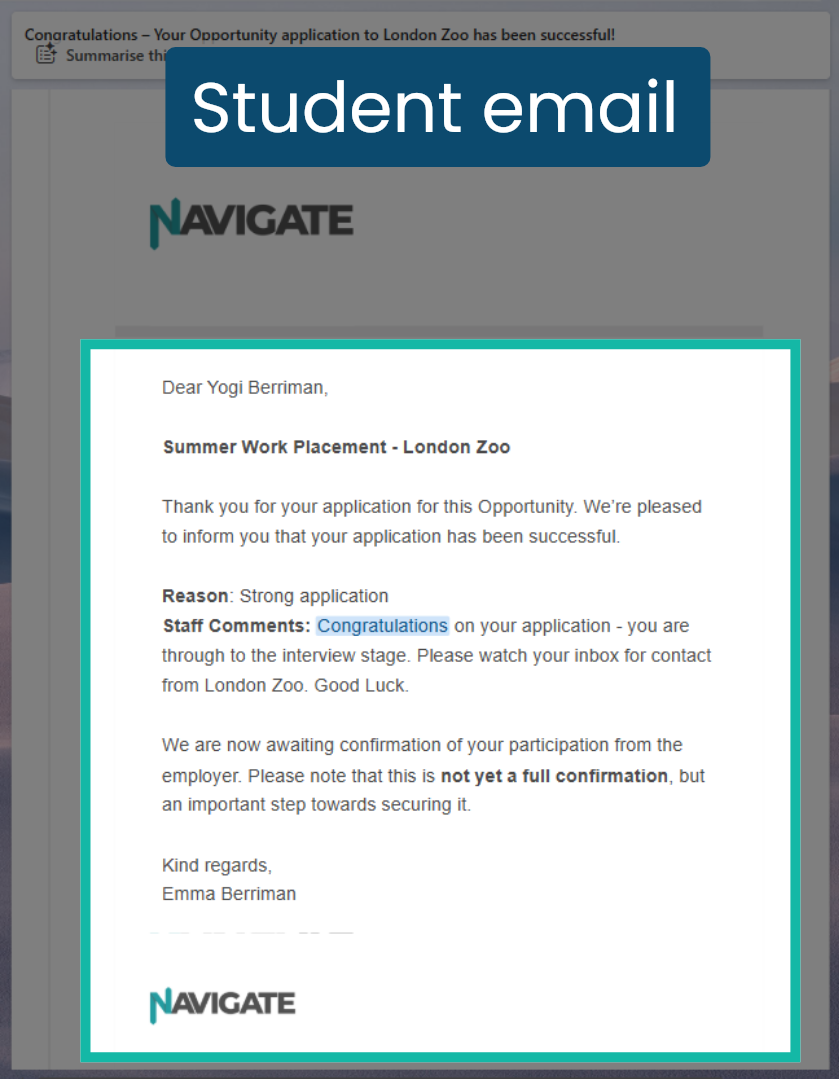
9. Student approval email
The student will receive an email to tell them they were successful in their application. It includes the reason and any comments the staff has added.
Was this article helpful?
That’s Great!
Thank you for your feedback
Sorry! We couldn't be helpful
Thank you for your feedback
Feedback sent
We appreciate your effort and will try to fix the article