Go to login.navigate.uk.com
1. Access View Section
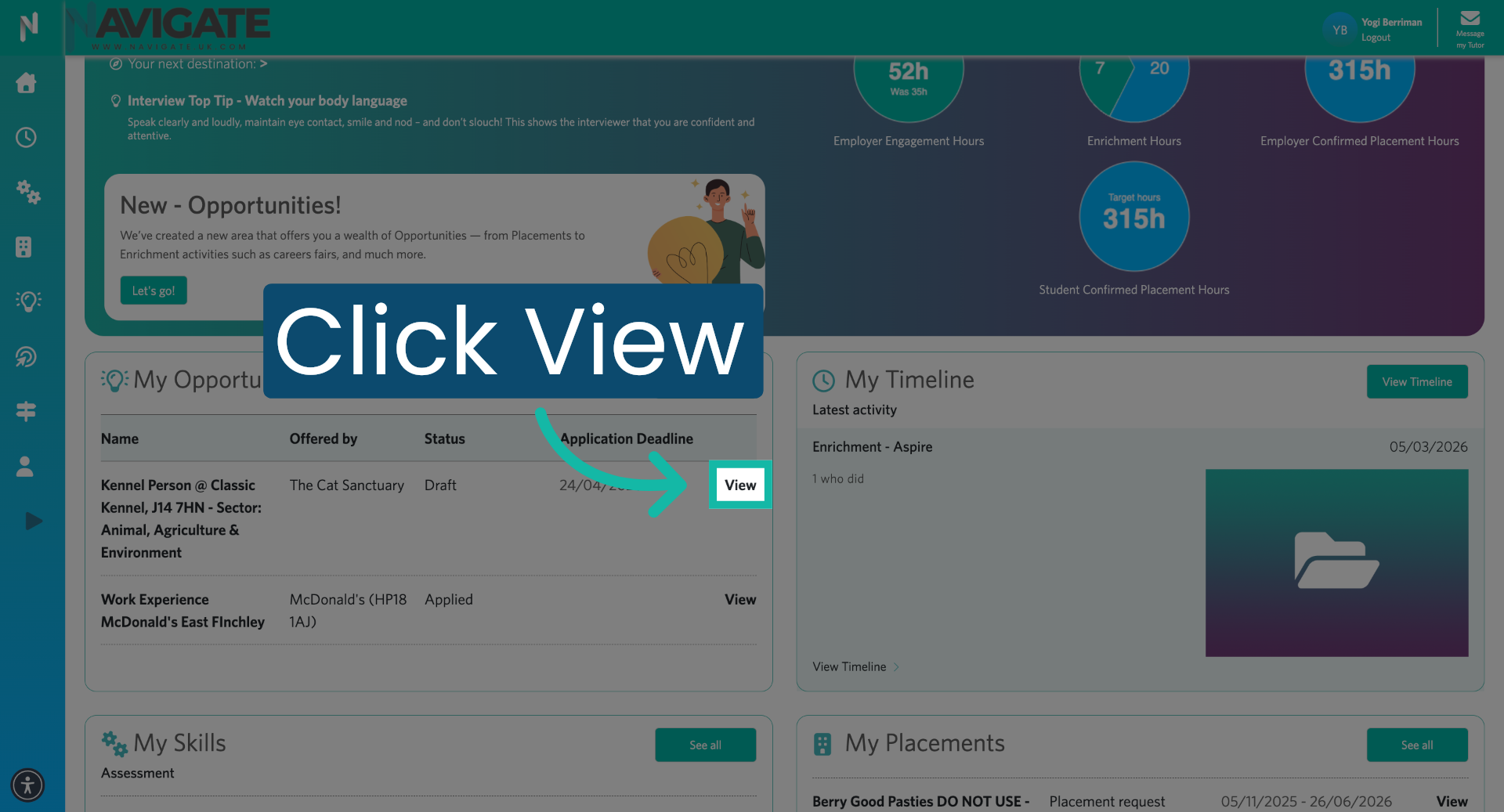
Once logged in, in the opportunity section, click 'view' to access the specific application.
2. Return to Previous Opportunity
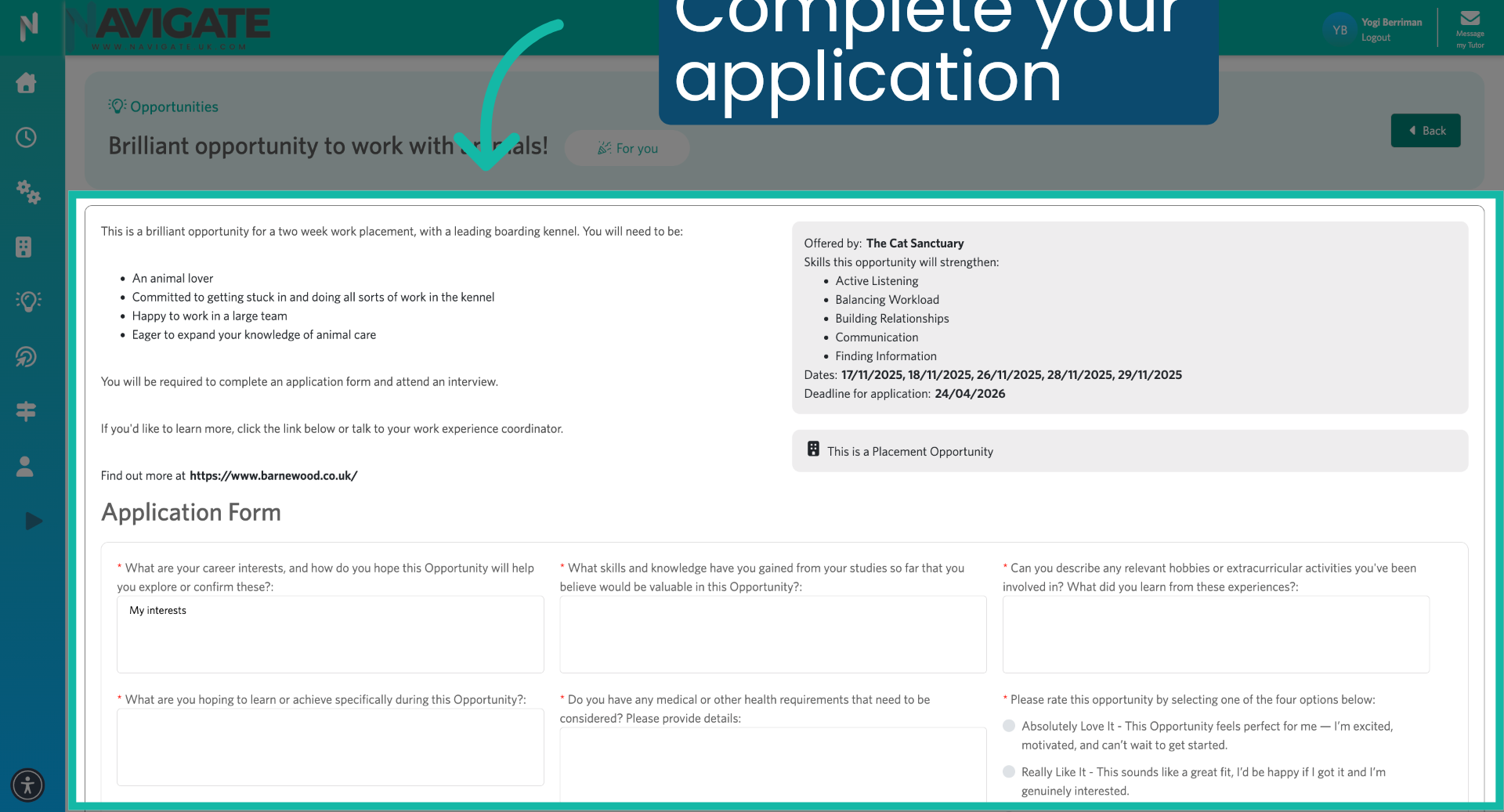
You will see the full application form. You can complete it if it is still in the draft stage and then submit it.
3. Return to Previous Opportunity
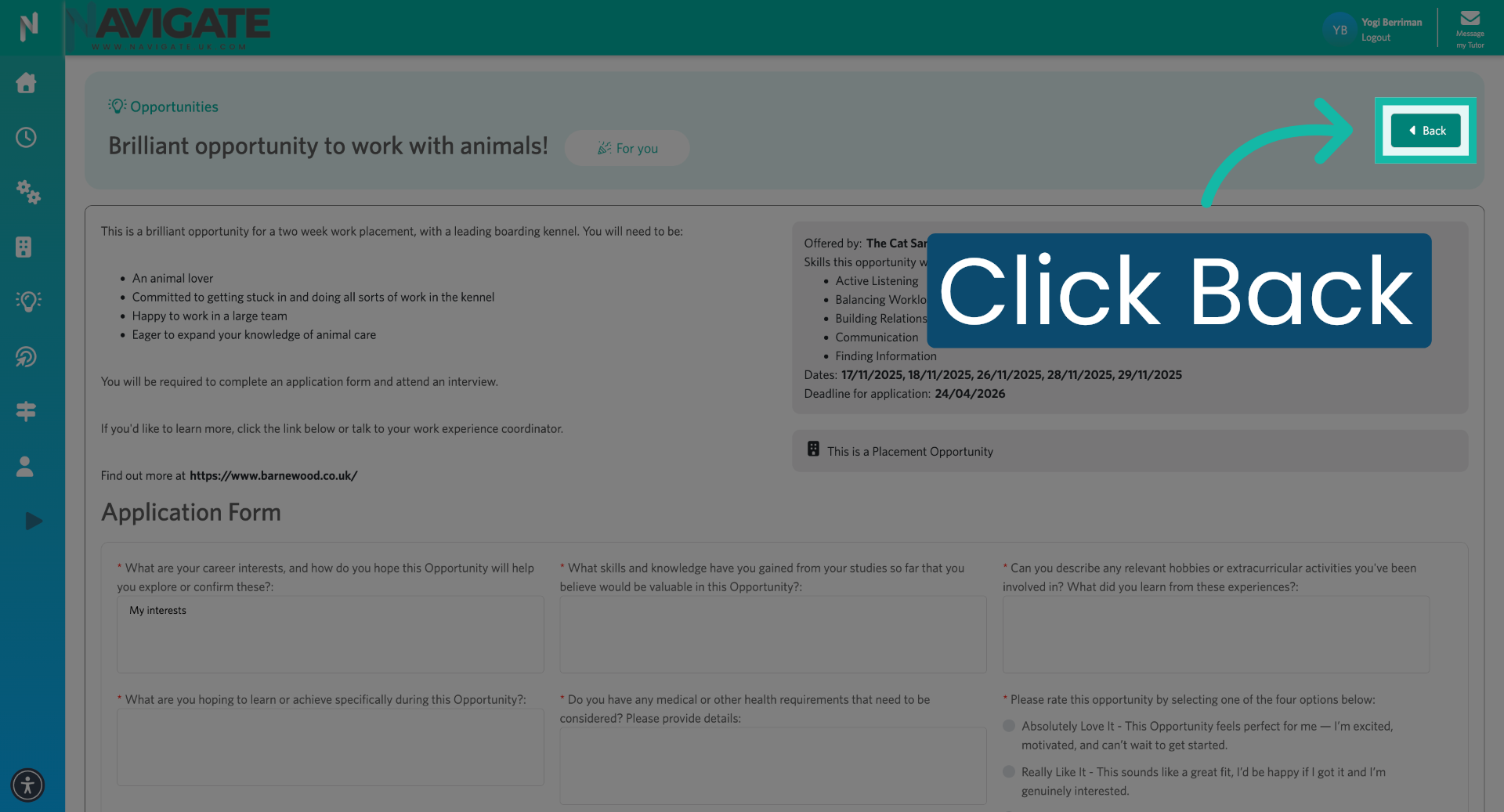
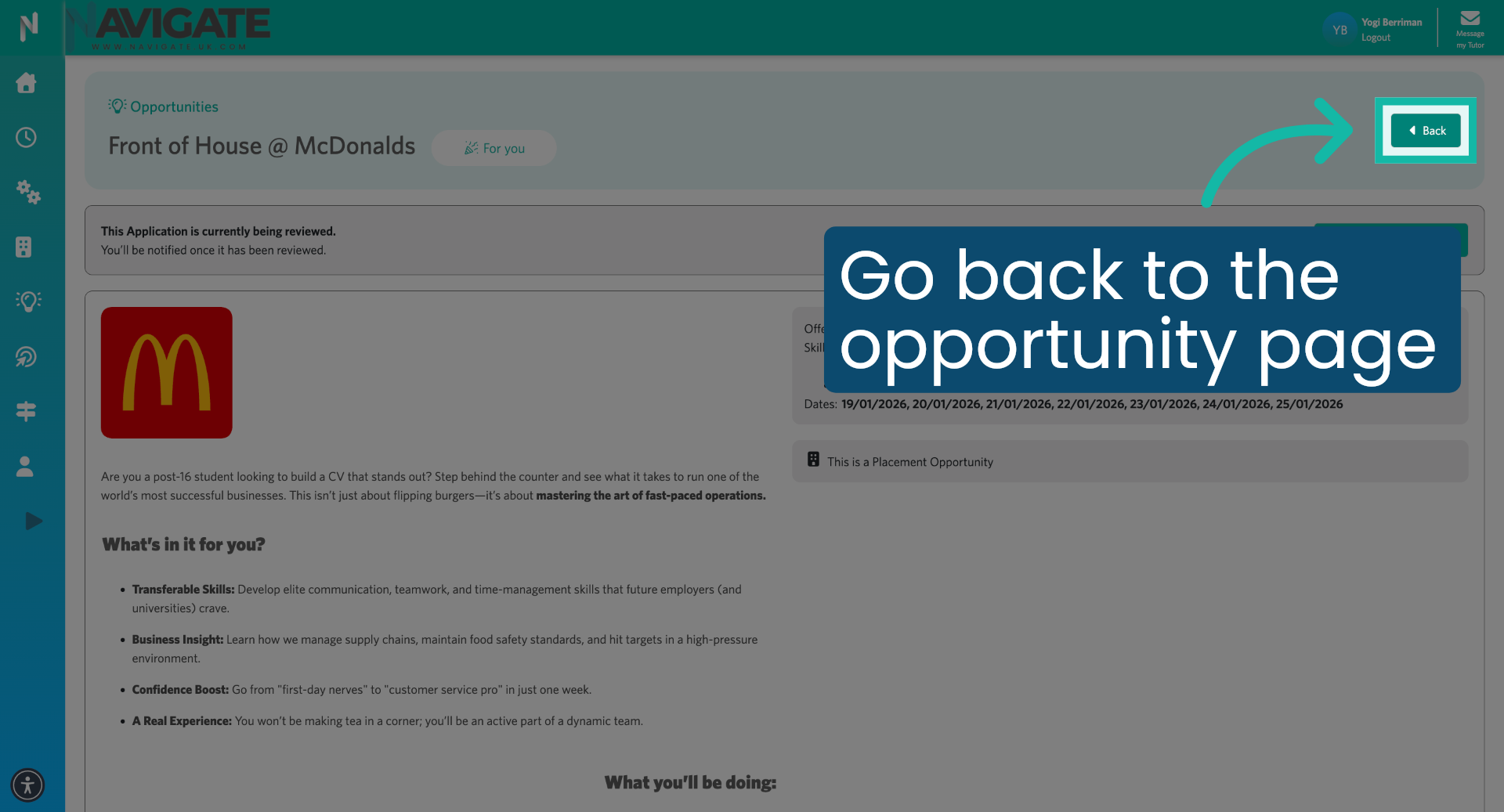
Click back to return to the previous opportunity page.
4. Withdraw Pending Application
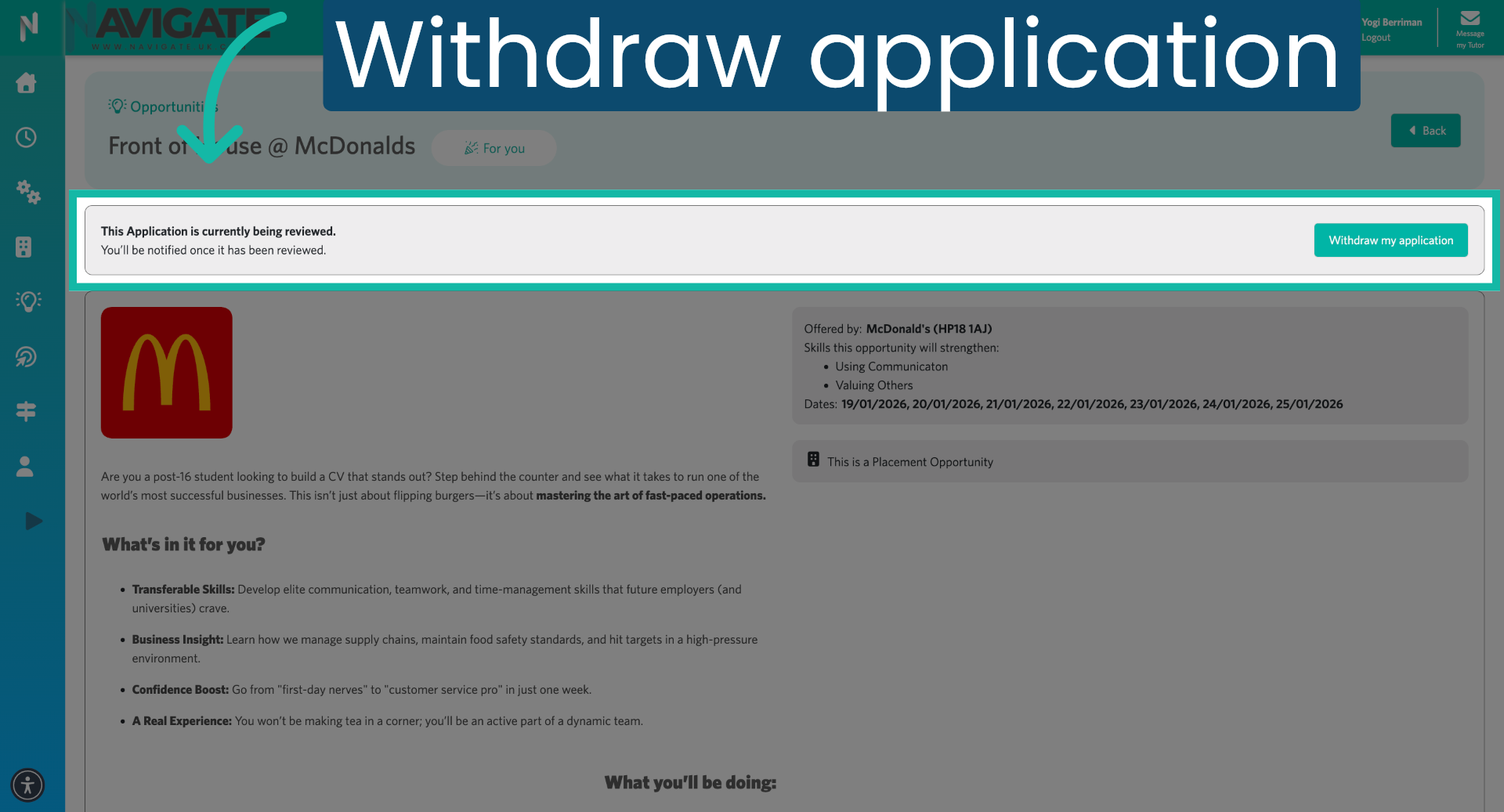
For applications that you have already submitted, you will see a message indicating your application is being reviewed, and you'll be notified once it has been reviewed. You will also see the option to select 'Withdraw my application' to cancel your pending application.
5. Navigate Back to Opportunity
Click back to go back to the opportunity page.
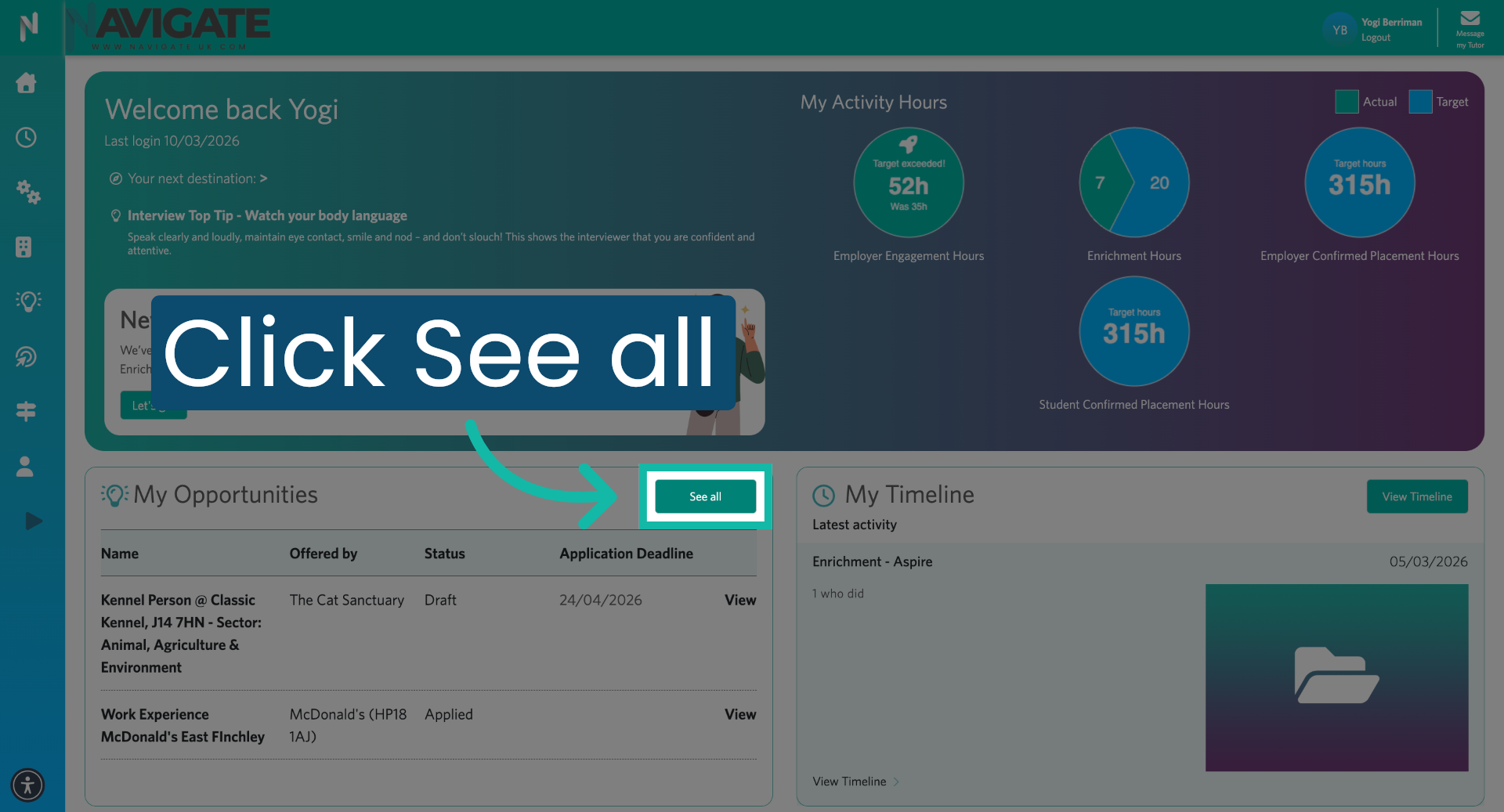
6. View All Opportunities
Click 'see all' in the opportunity section on the homepage to view all the available opportunities.
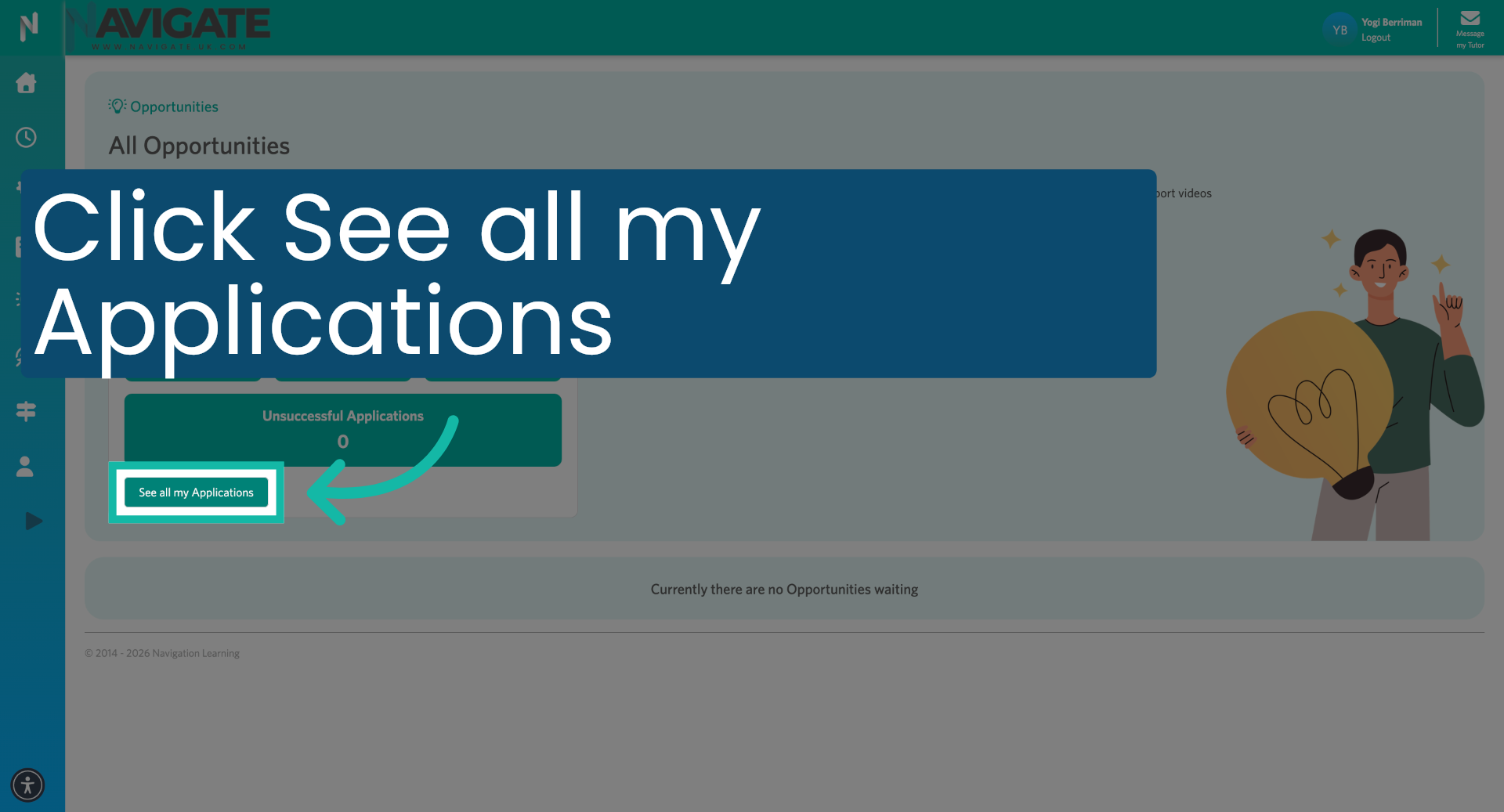
7. Access All Applications
Click 'See all my applications' to access the complete list of your applications.
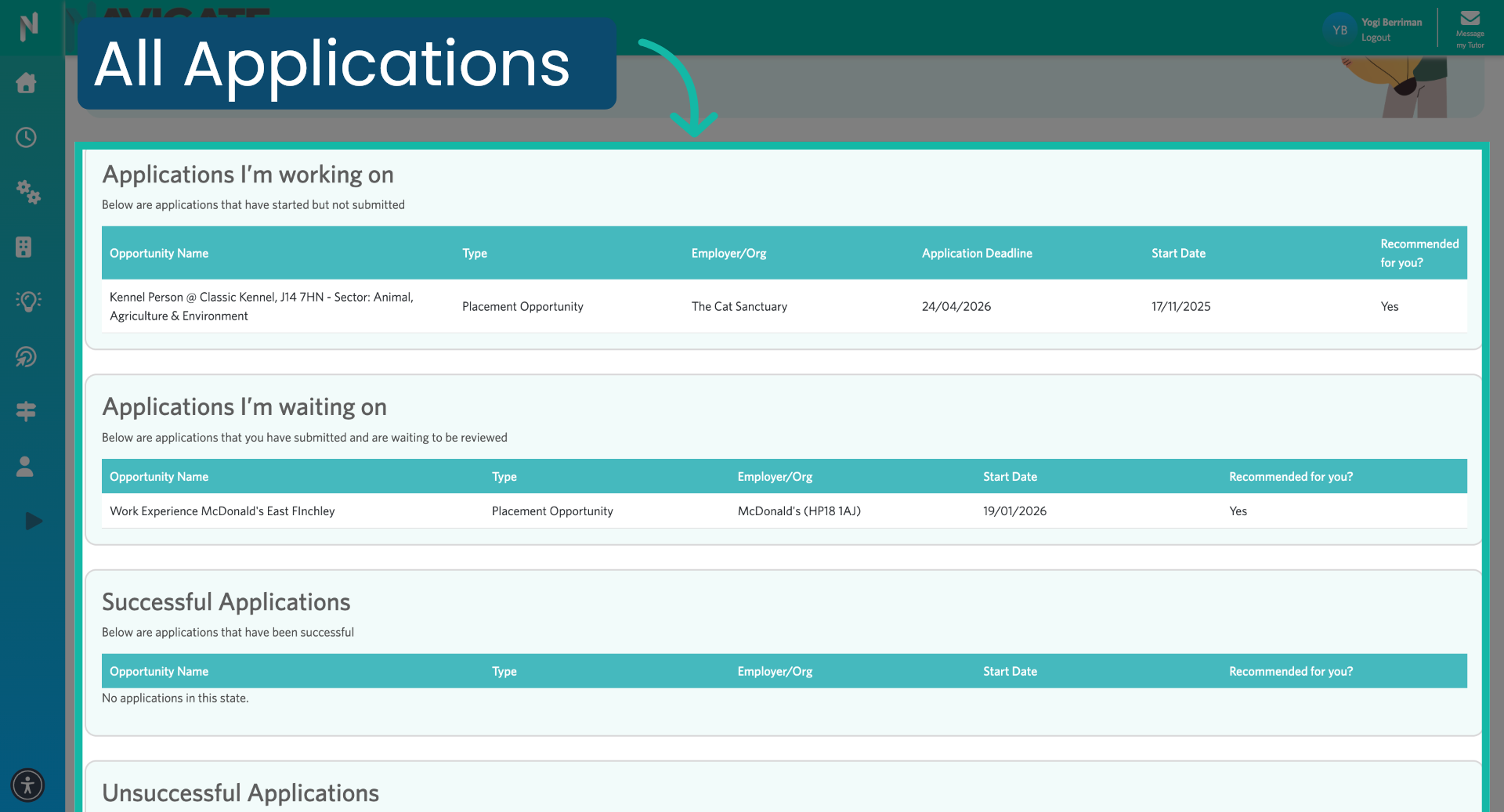
8. Filter Active Applications
You can see all your applications and what stage they are in. Click on any of them to access the details.
Was this article helpful?
That’s Great!
Thank you for your feedback
Sorry! We couldn't be helpful
Thank you for your feedback
Feedback sent
We appreciate your effort and will try to fix the article