Go to login.navigate.uk.com
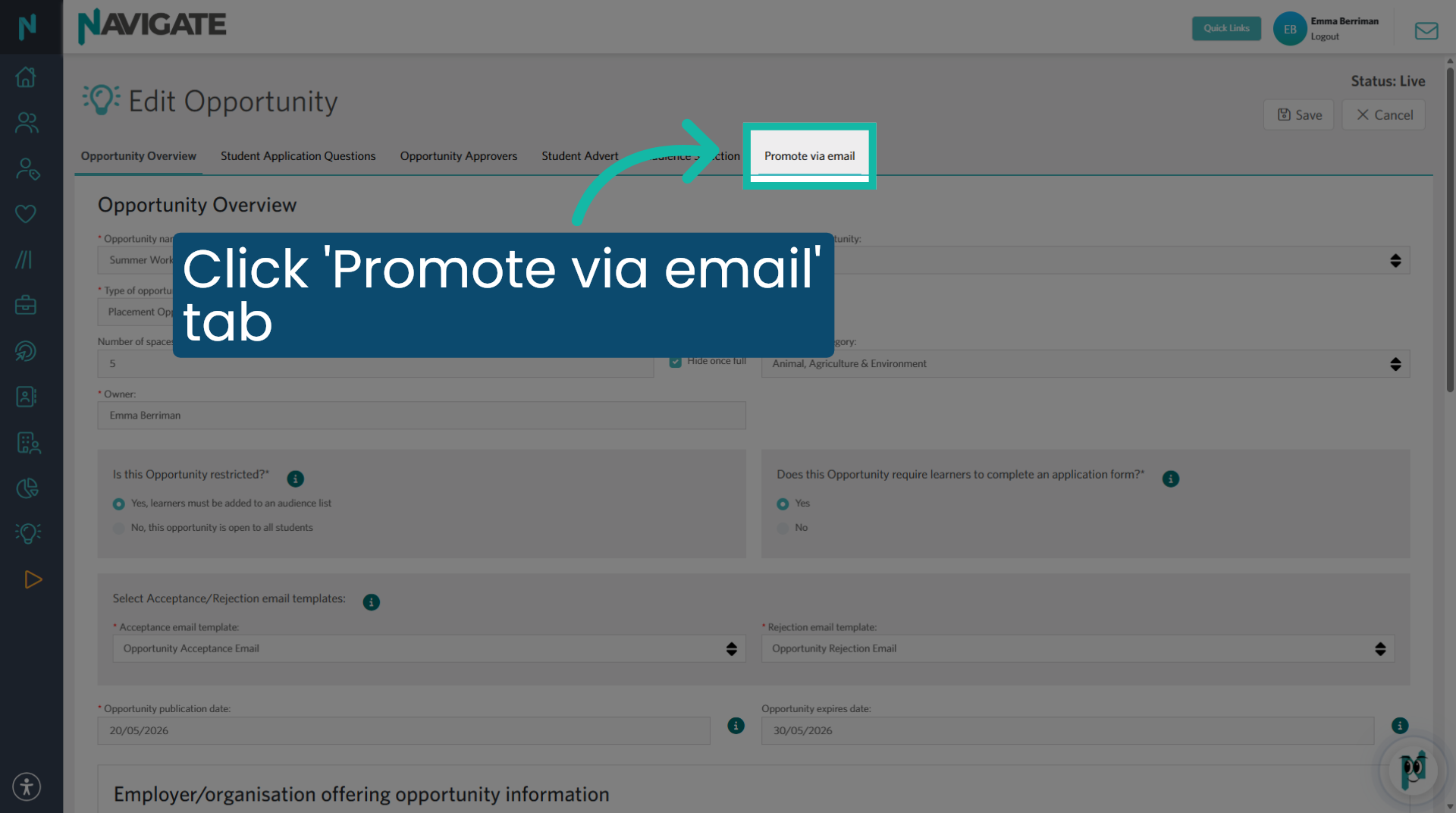
1. Promote via email
Once the opportunity has been created, the opportunity status is live, and the audience selected, click into the 'promote via email' table.
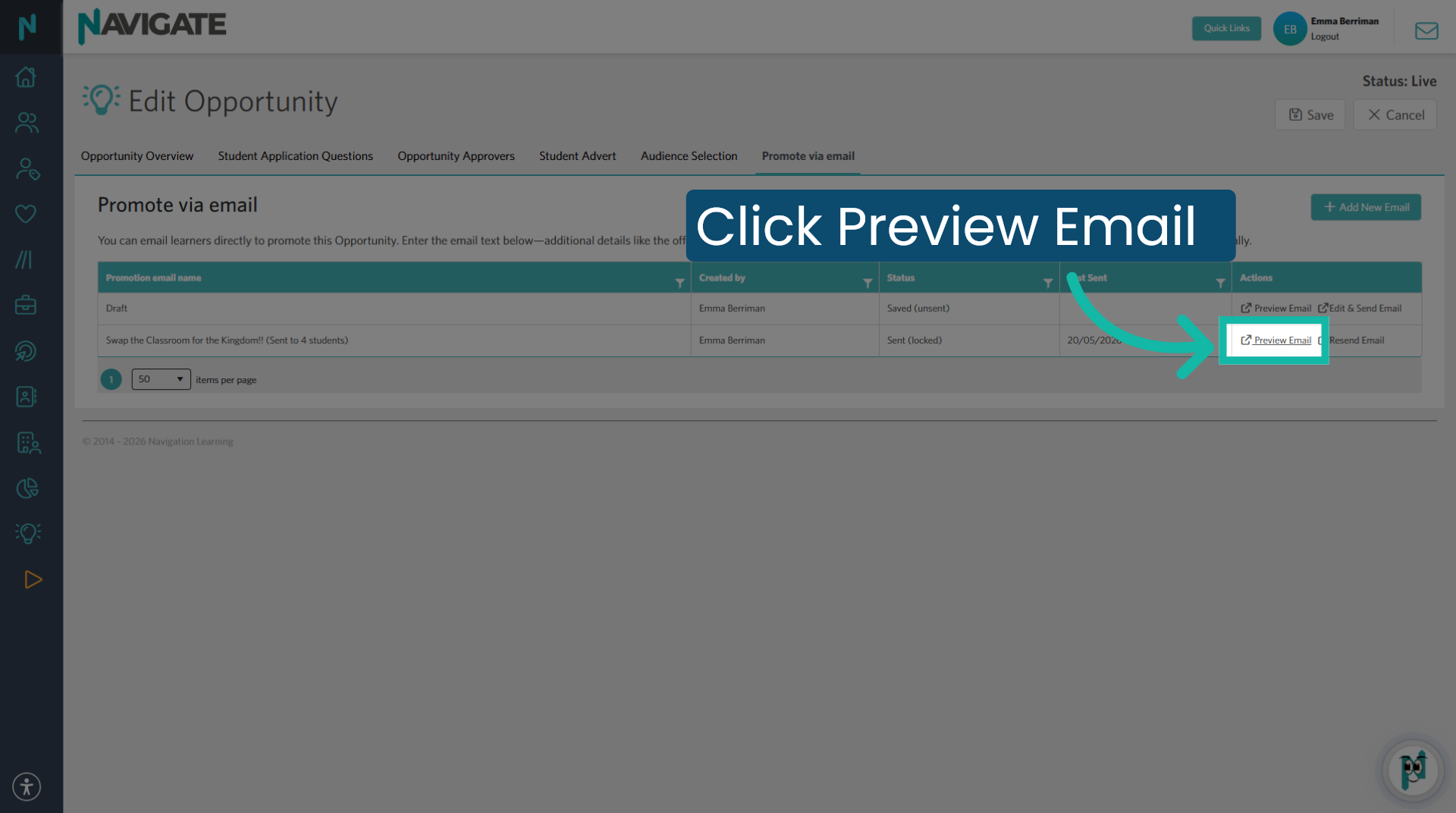
2. Preview Email Content
If you wish to preview the email contents before sending, click preview email.
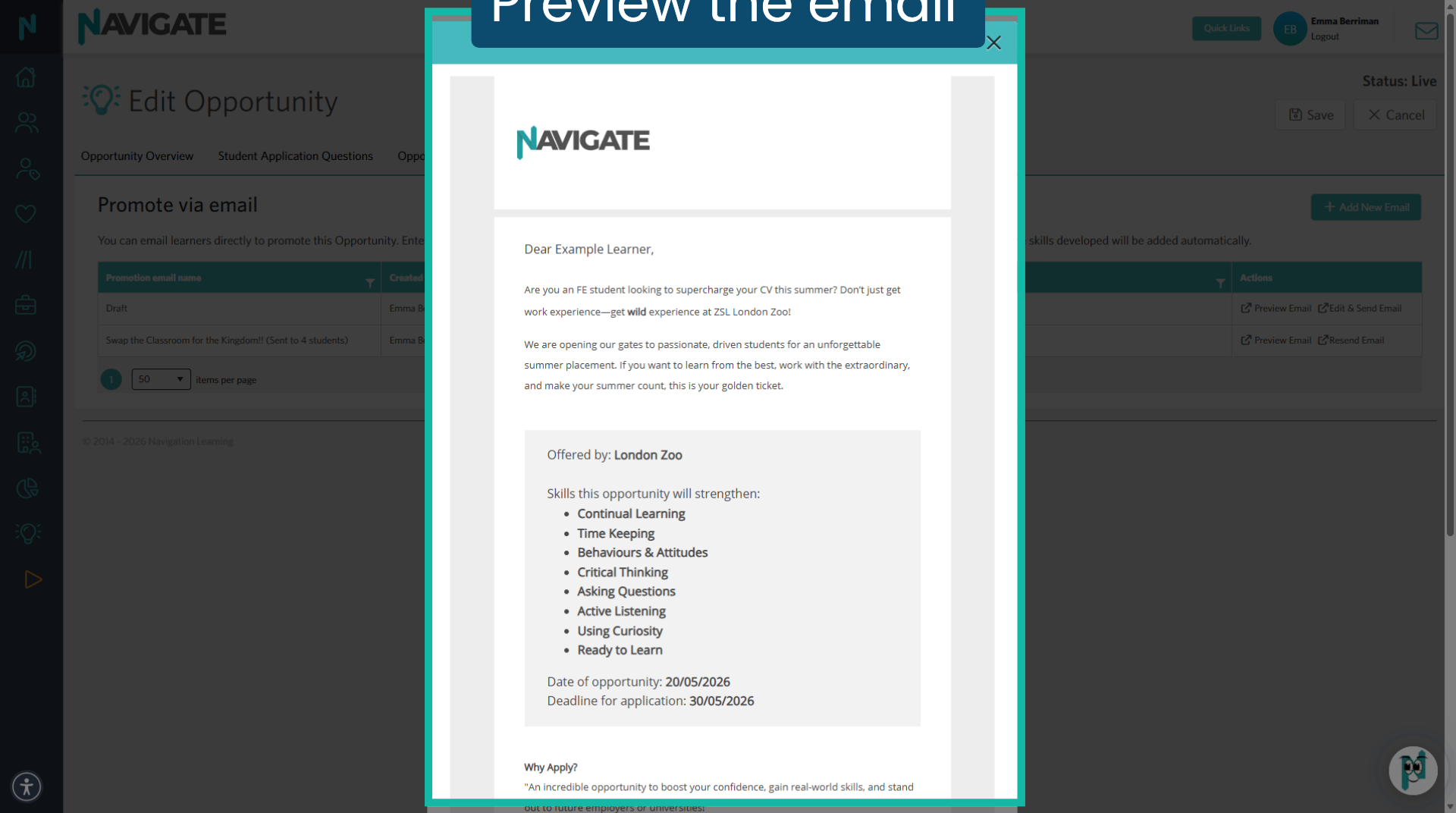
3. Preview the email
You will see a preview of the email the student will receive.
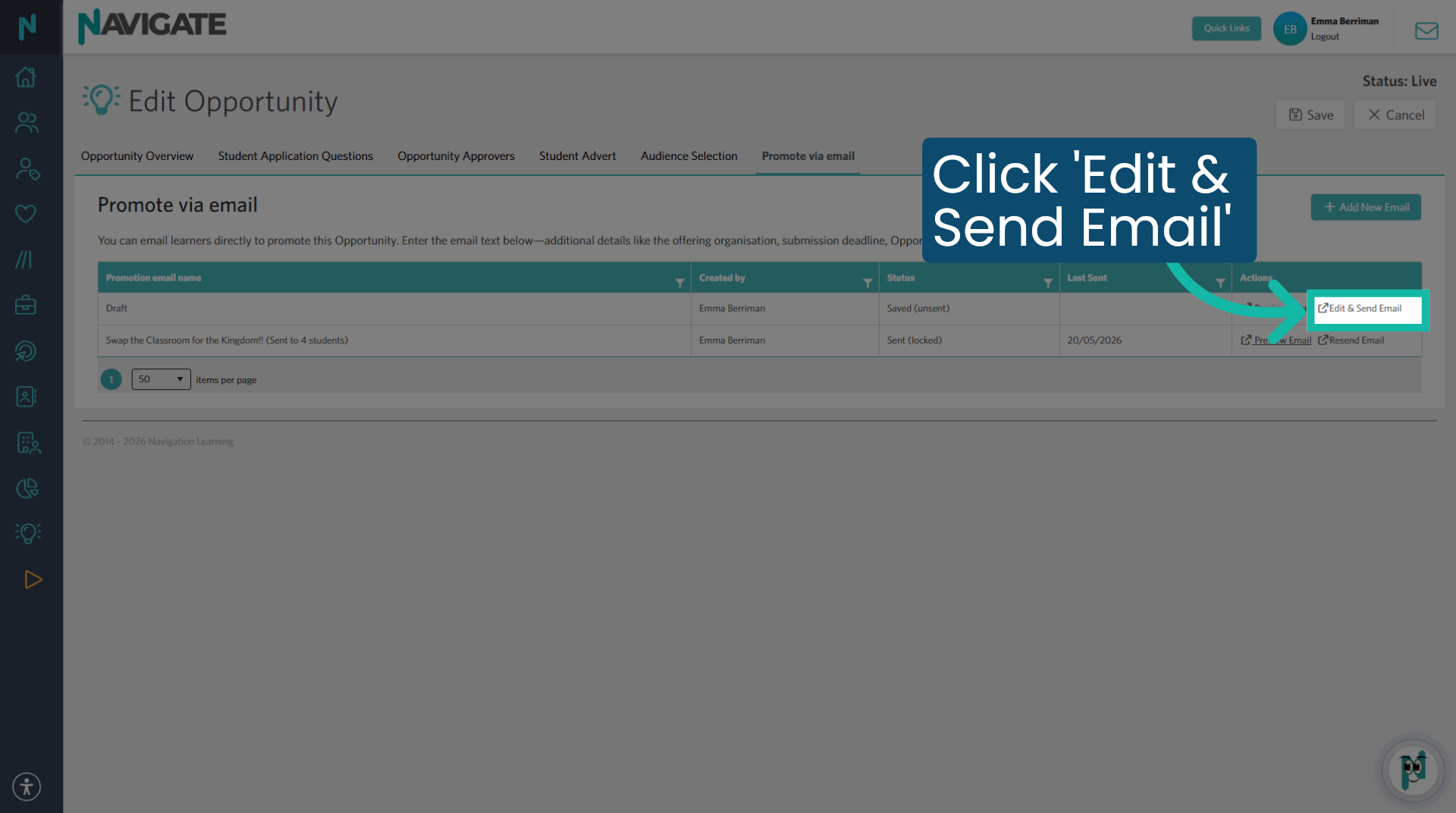
4. Click 'Edit & send email'
Then click edit and send email.
5. Send Email
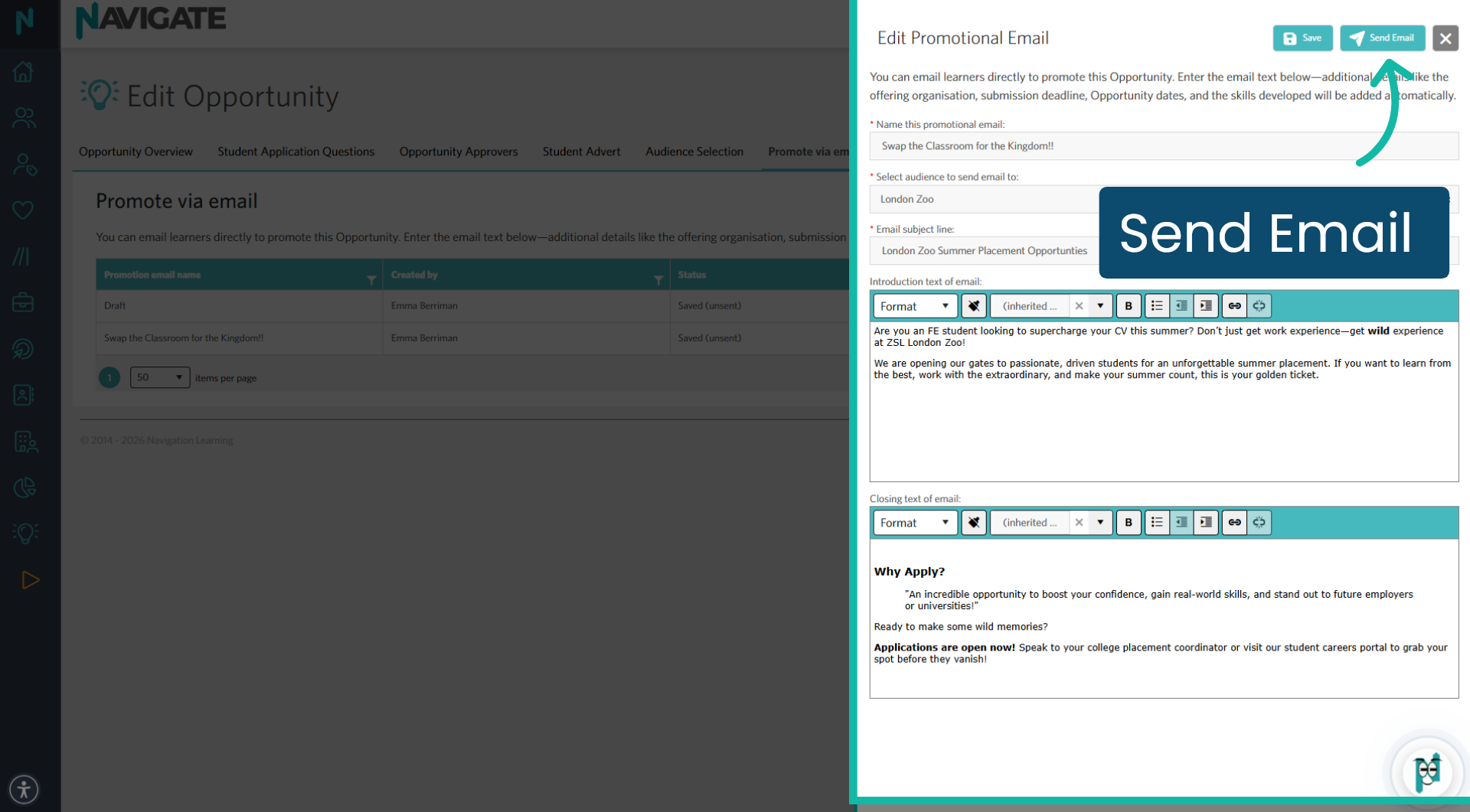
This will display the email where you can make any edits before sending. If you have made any edits, ensure you save before clicking send email.
6. Resend Opportunity Email
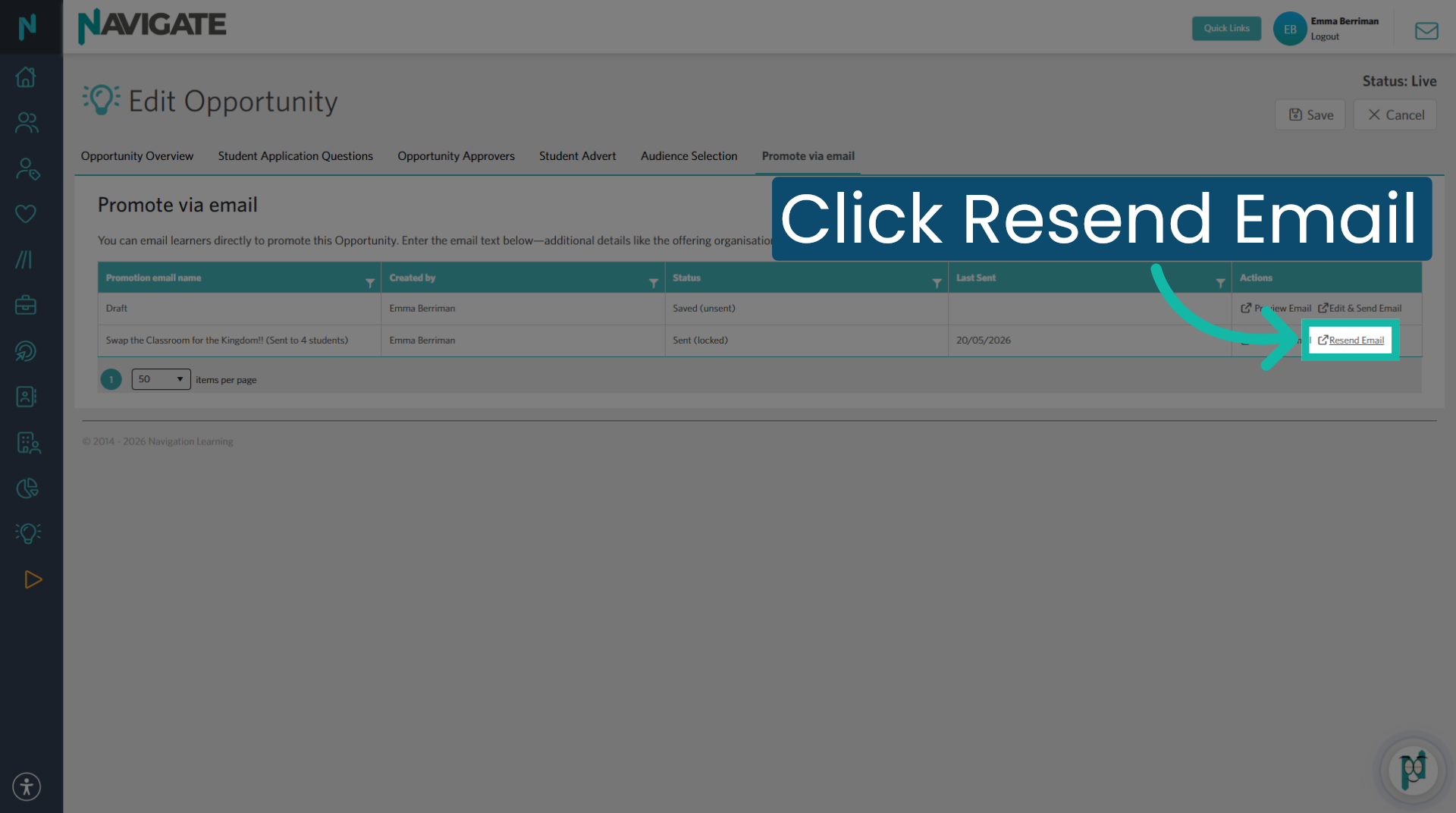
If the email has been sent previously and you wish to resend it, click resend email.
Was this article helpful?
That’s Great!
Thank you for your feedback
Sorry! We couldn't be helpful
Thank you for your feedback
Feedback sent
We appreciate your effort and will try to fix the article