Go to login.navigate.uk.com
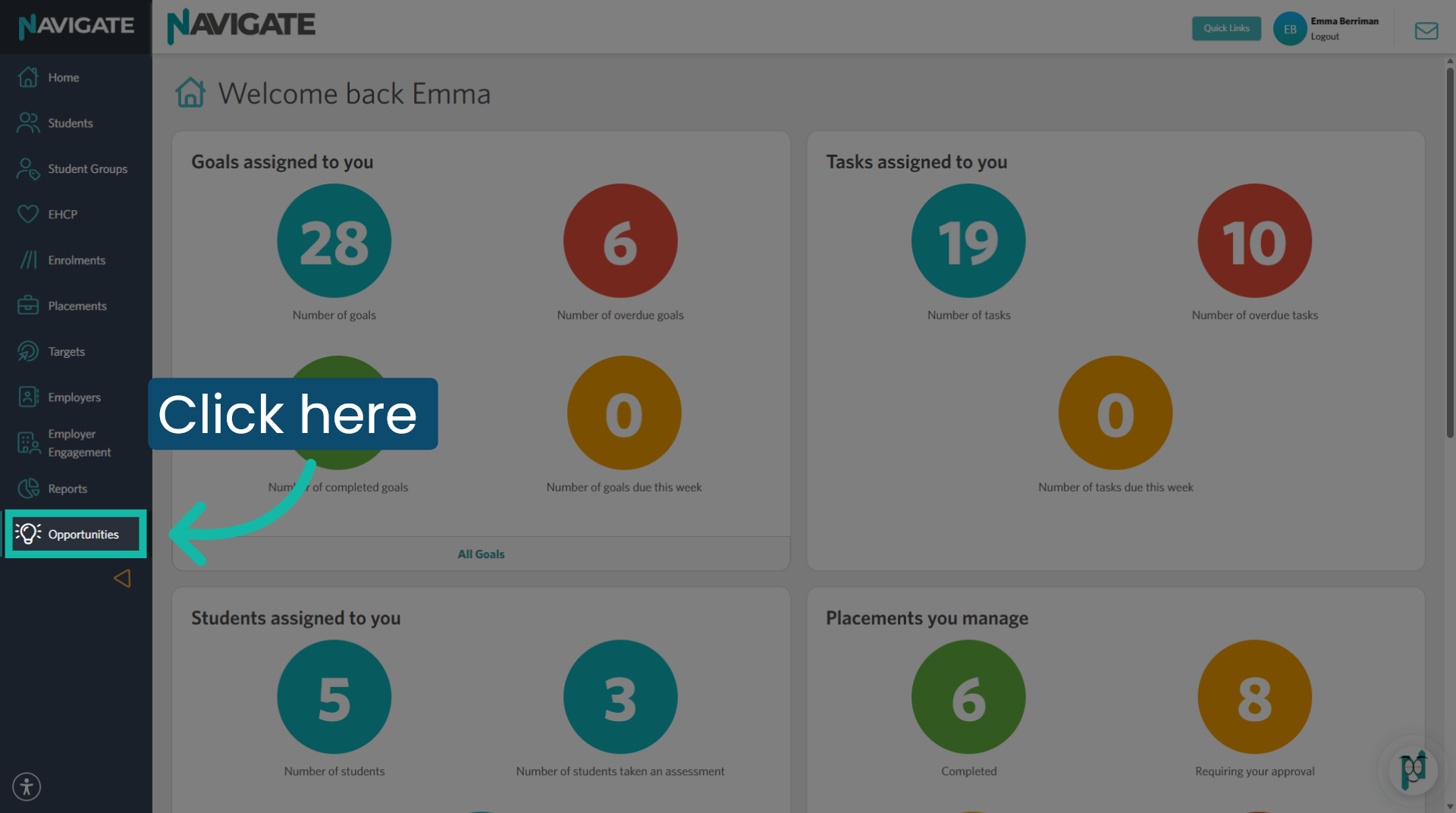
1. Access Opportunities module
Once logged in, open the opportunities module.
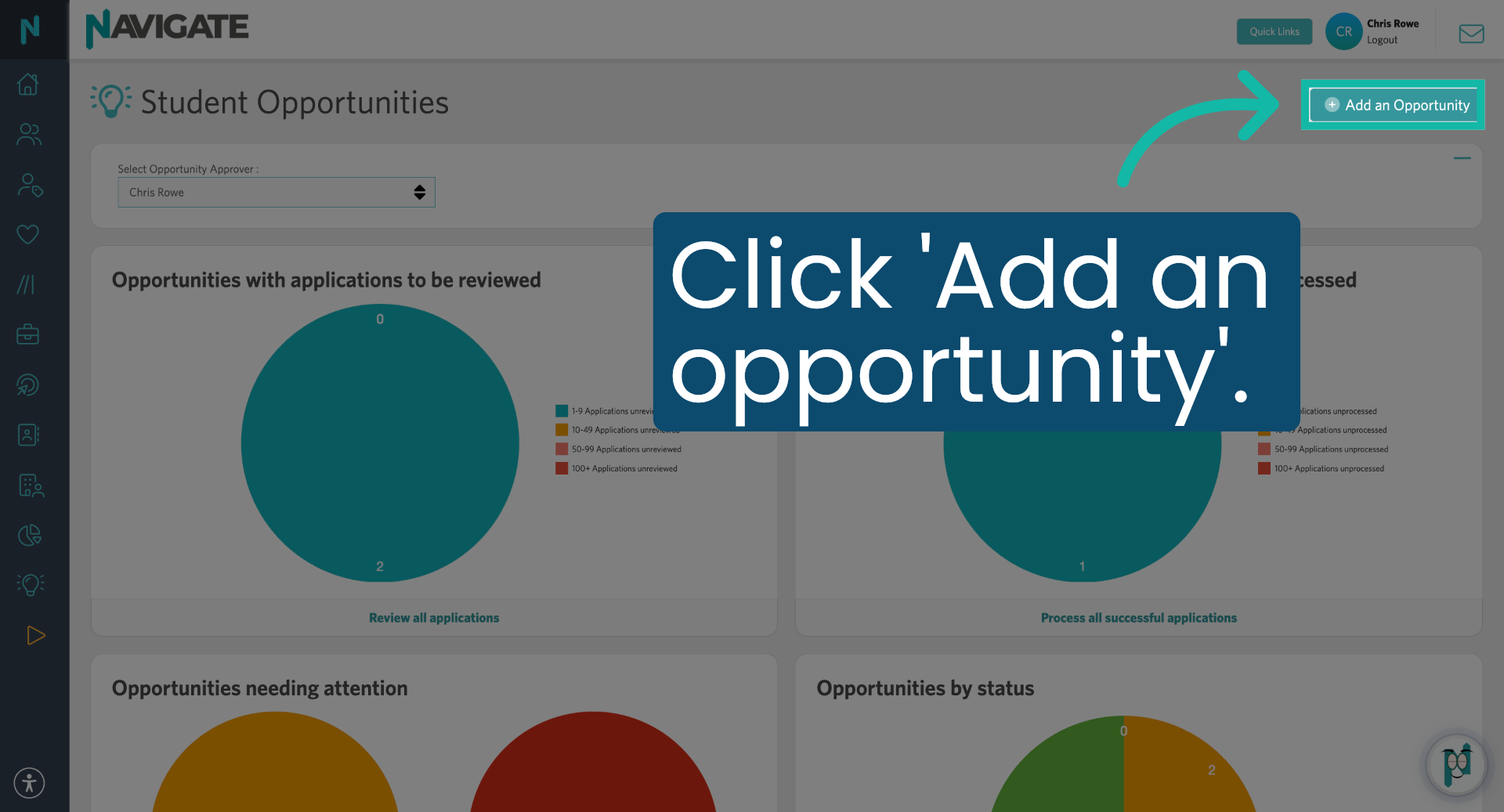
2. Add Opportunity
Click add an opportunity to begin.
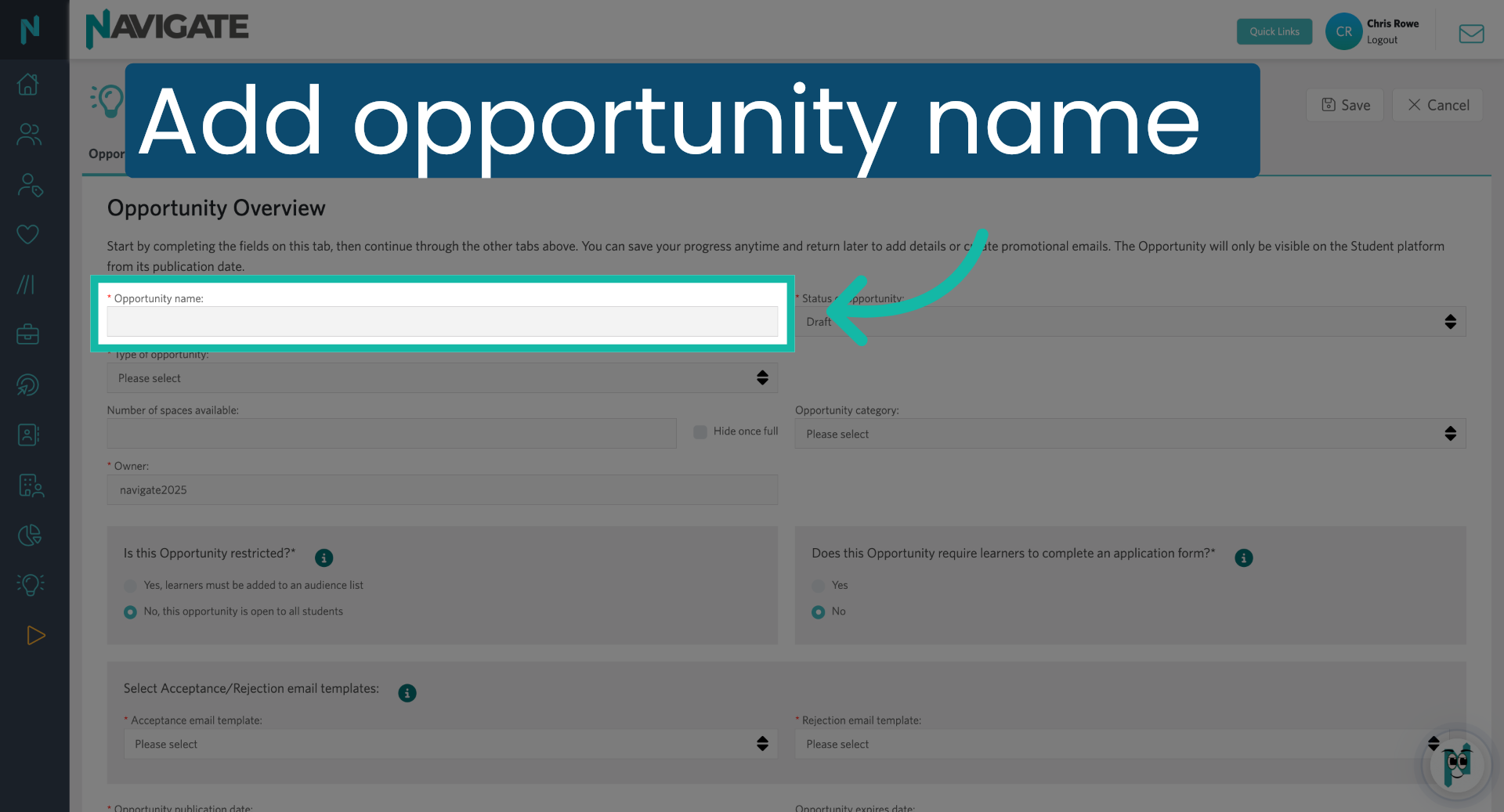
3. Open Specific Opportunity
Click on opportunity name to add the name of the opportunity.
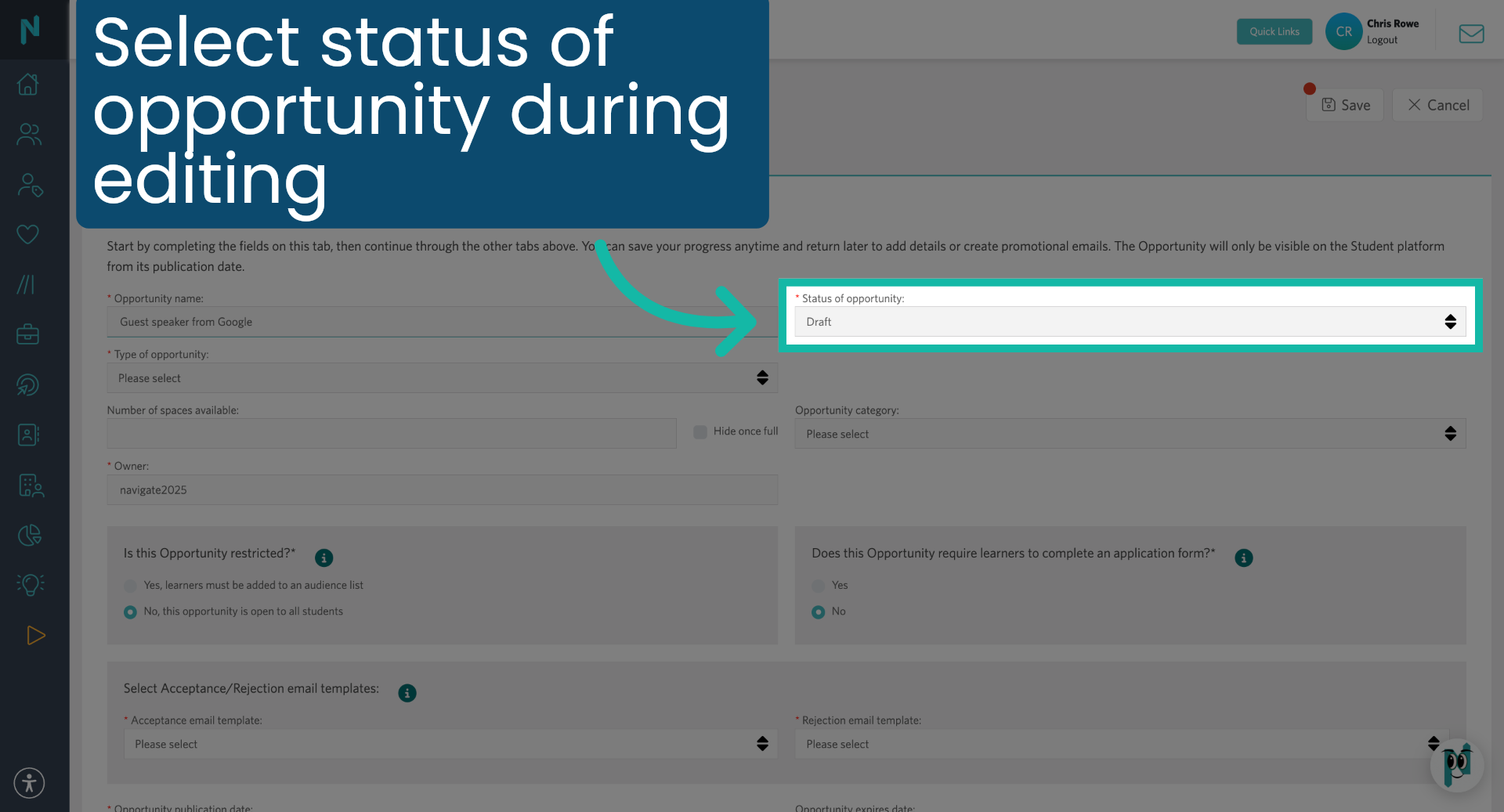
4. Set Opportunity Status
Select the status of the opportunity while standing.
5. Open Category Selection
Select from the drop-down menu the type of opportunity it is.
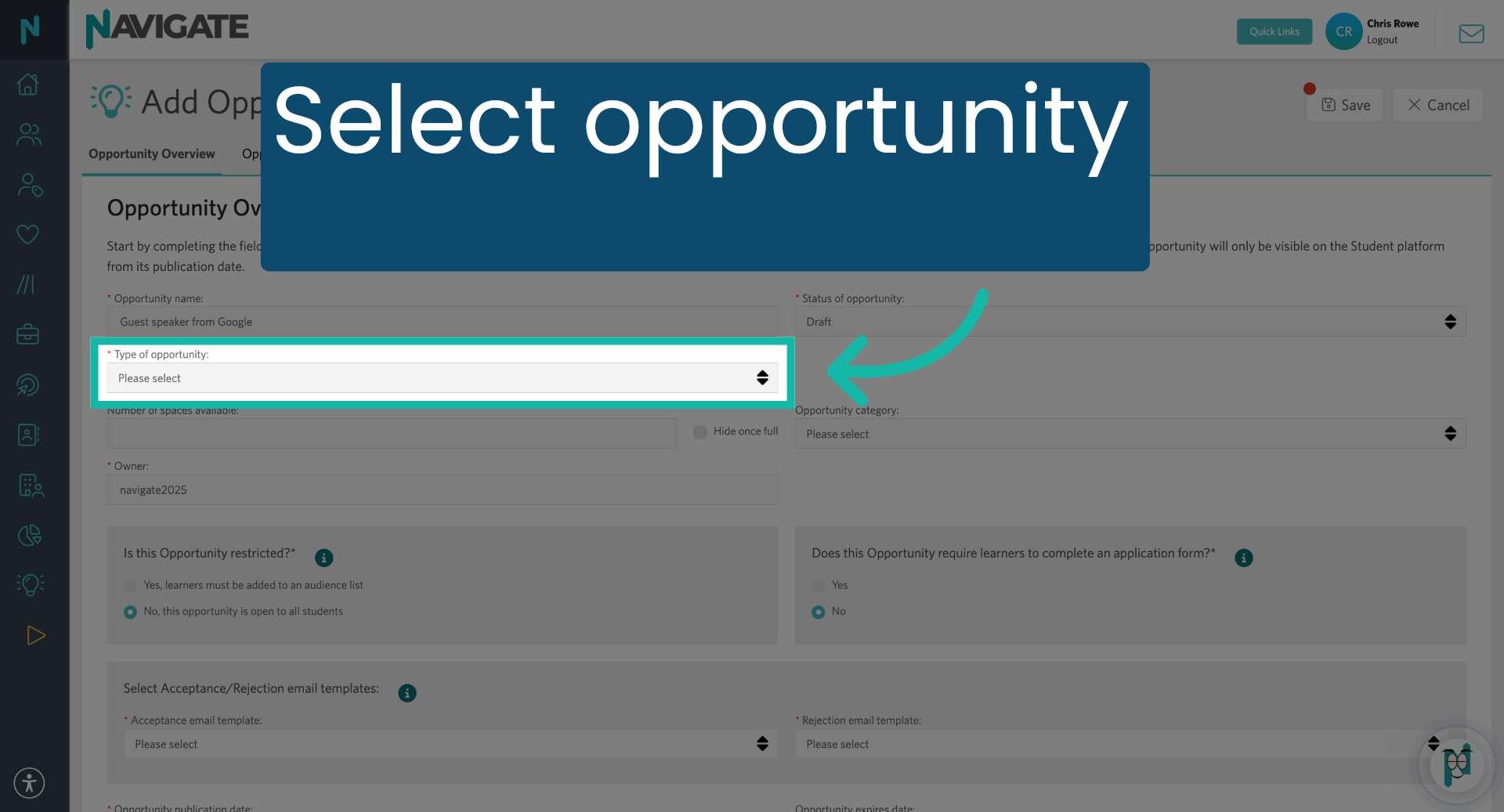
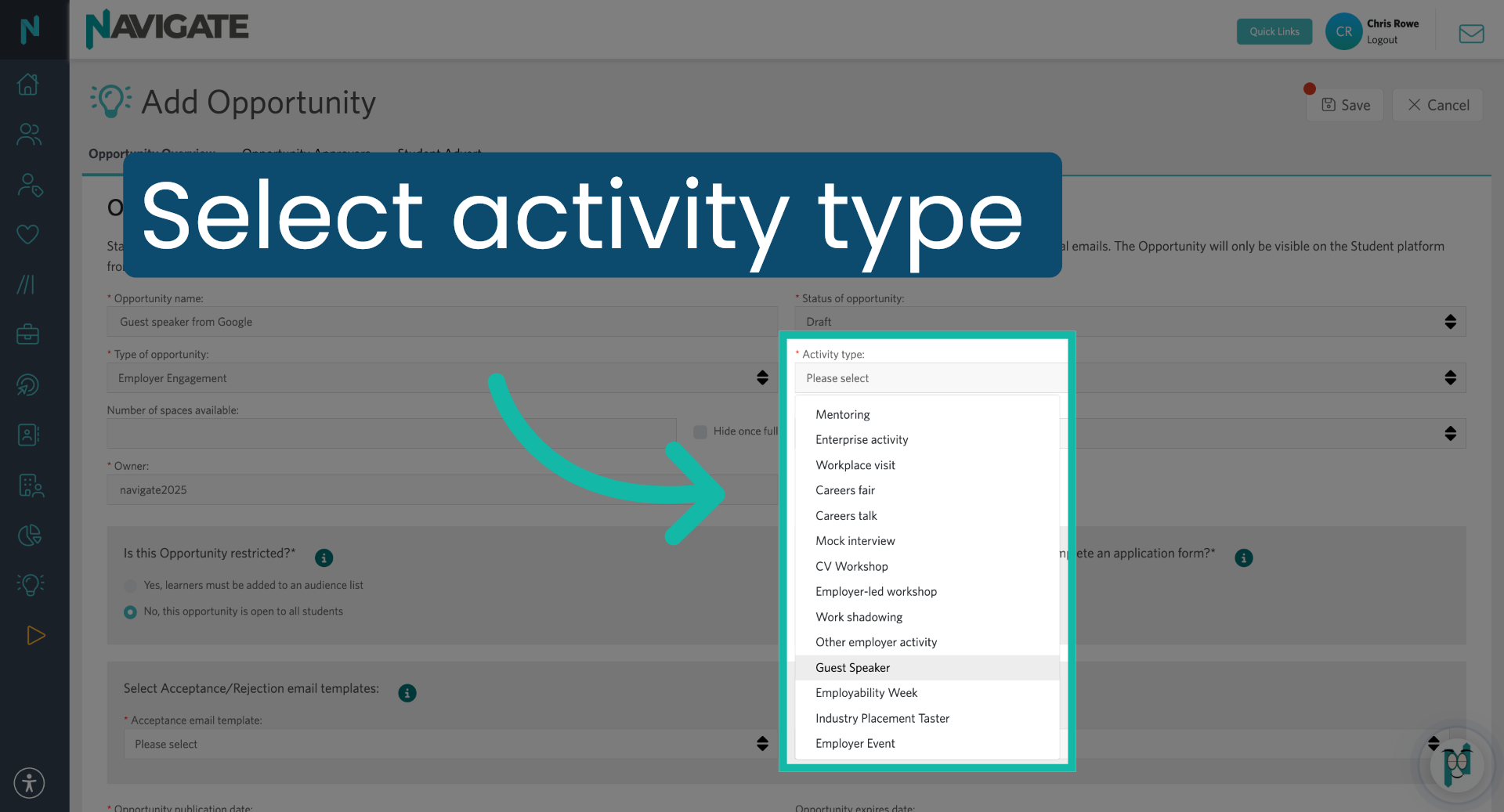
6. Select Activity Type
Select the activity type.
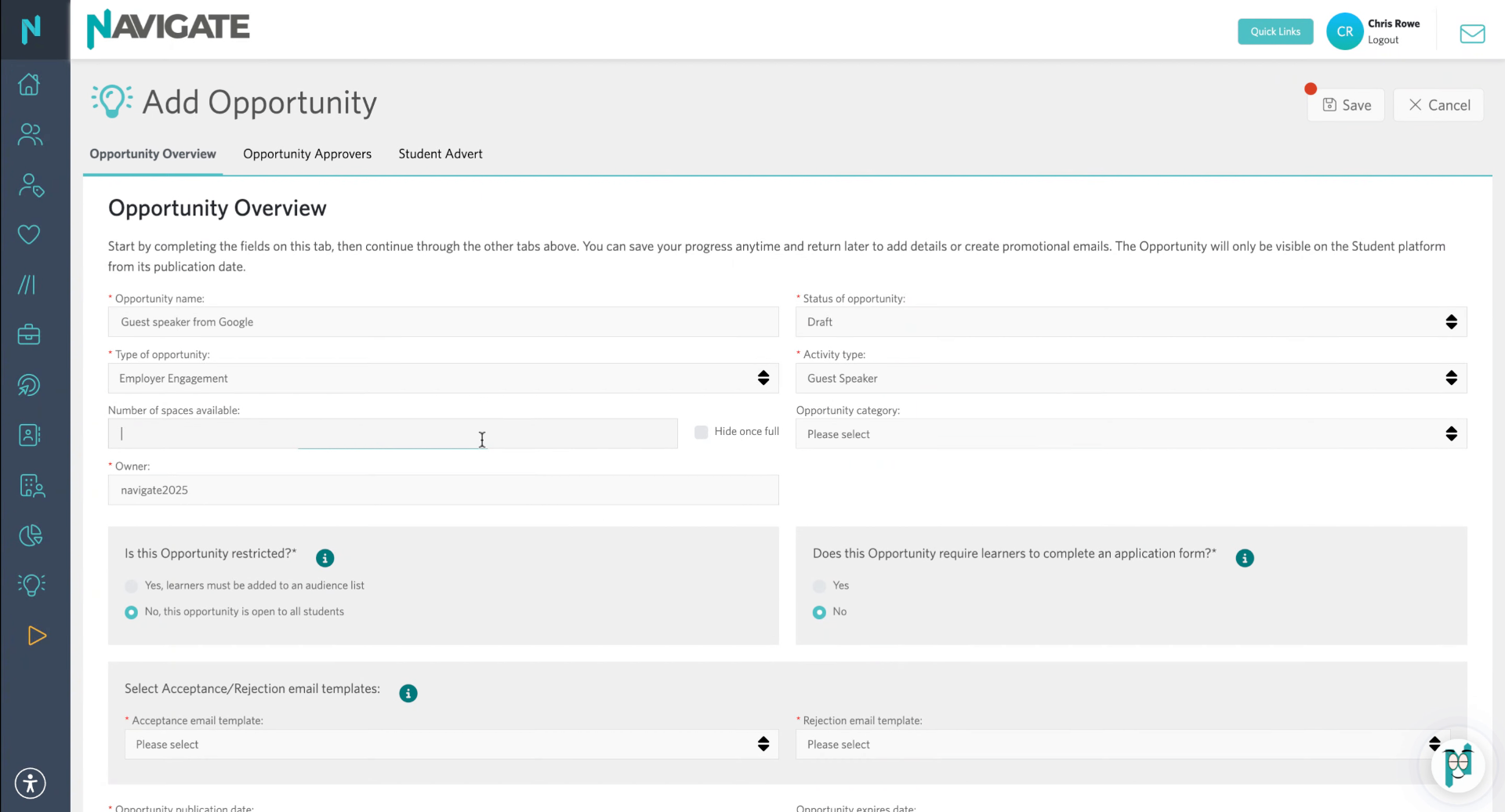
9. Enter Available Spaces
Then fill in the number of spaces available for this opportunity.
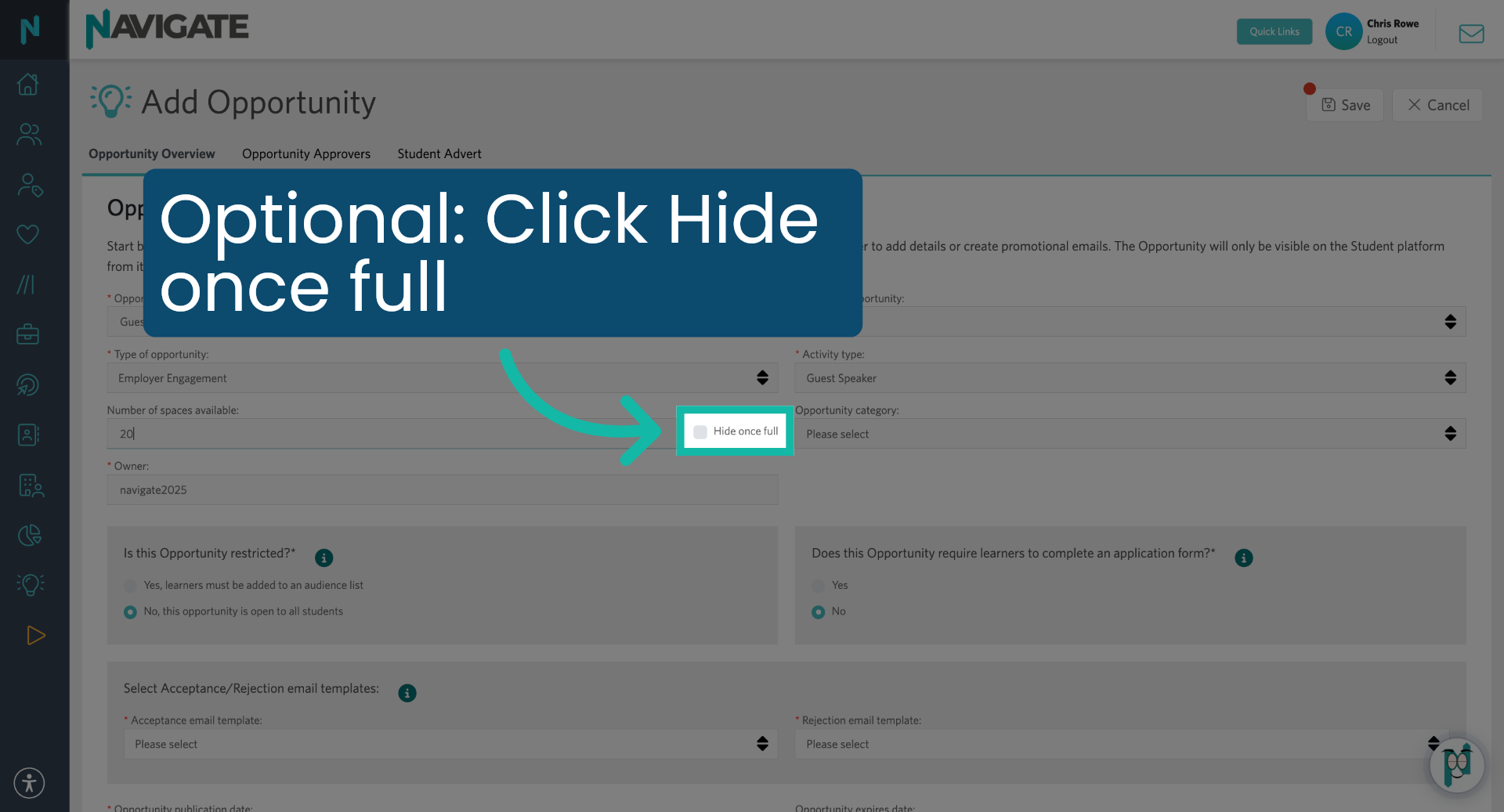
10. Enable Hide When Full
Click 'Hide once full' to enable automatic hiding of the opportunity when full.
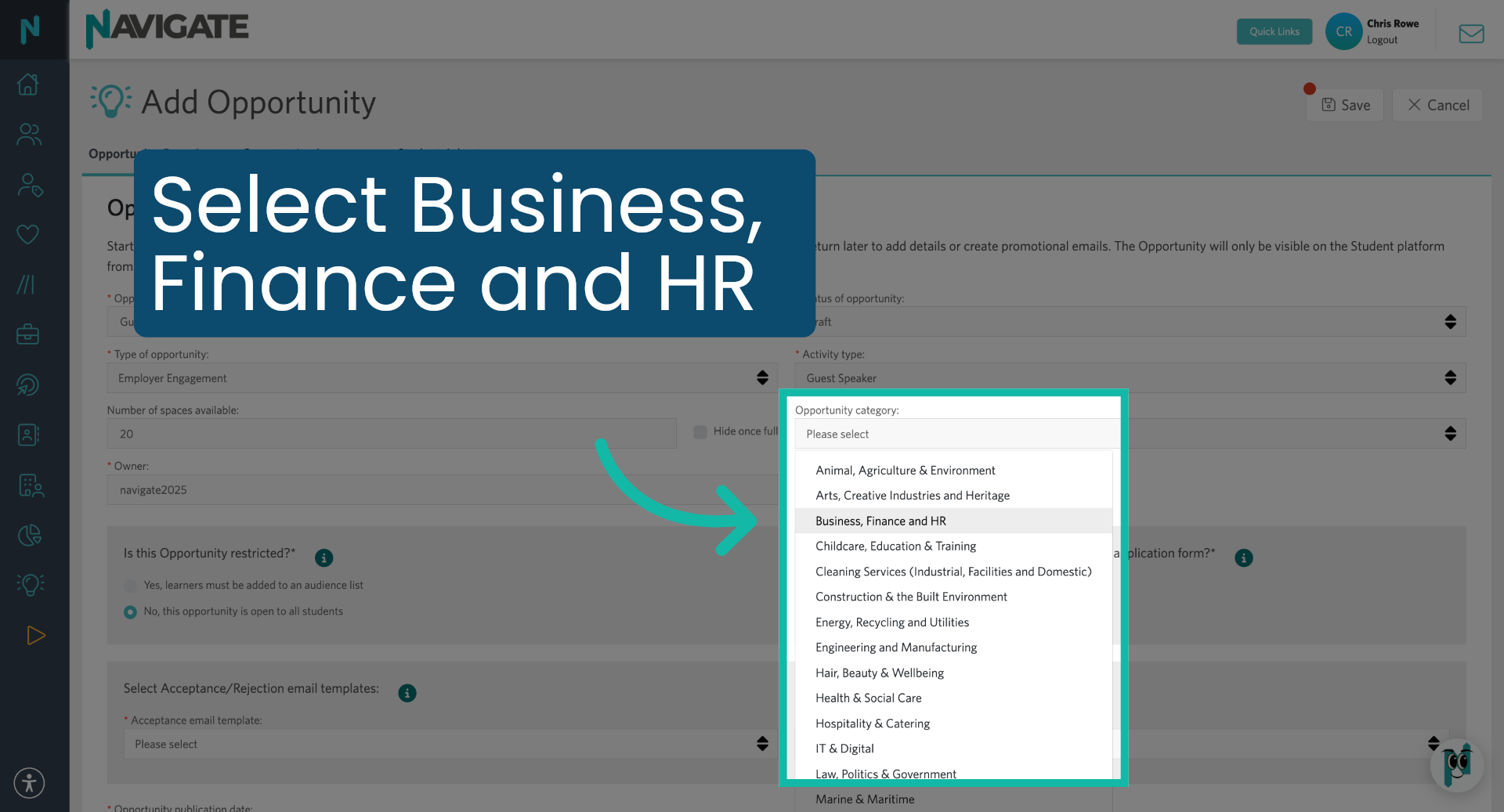
11. Select Opportunity Category
Choose the sector for this opportunity.
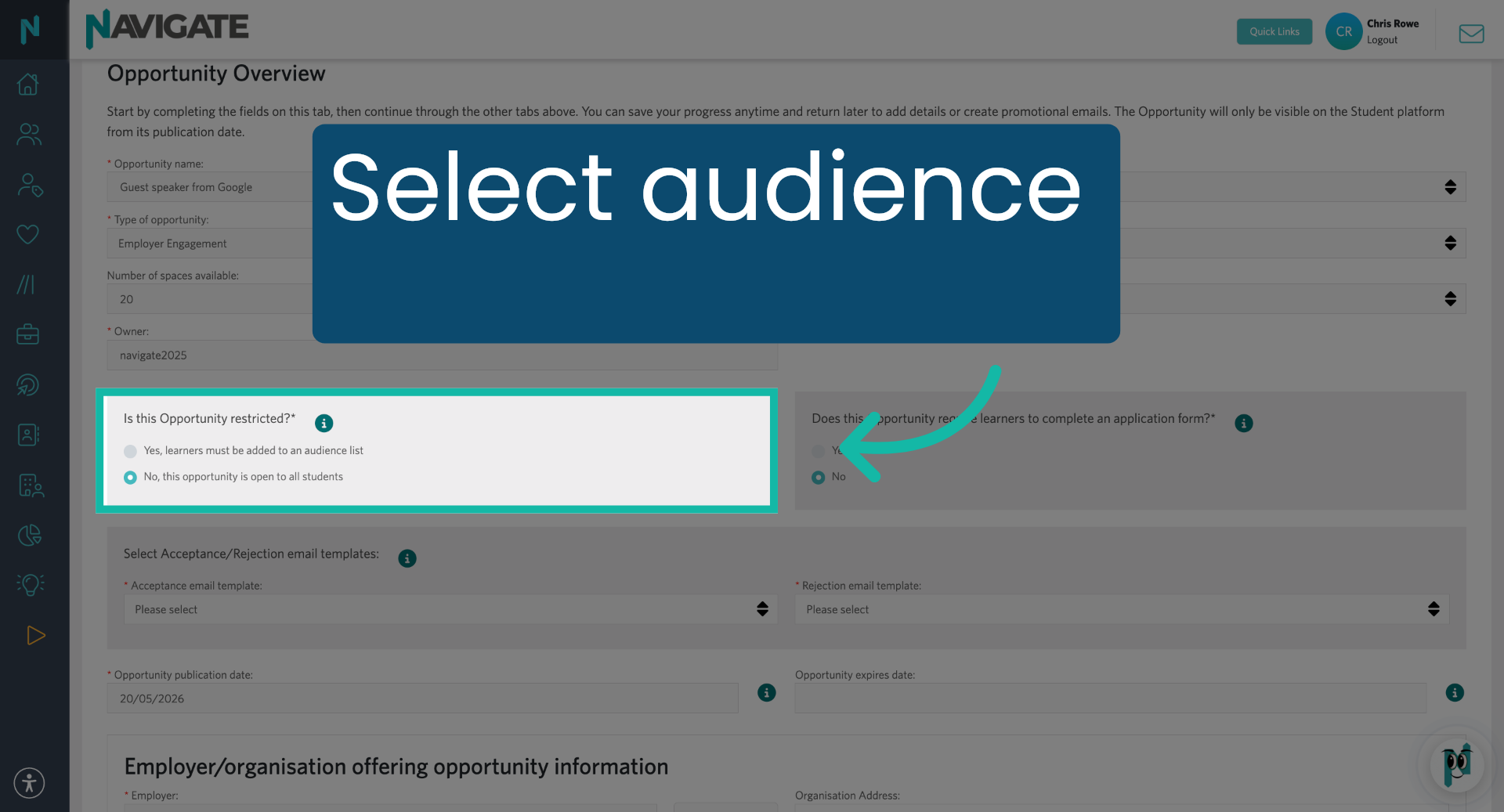
12. Set Visibility
Select who sees this opportunity.
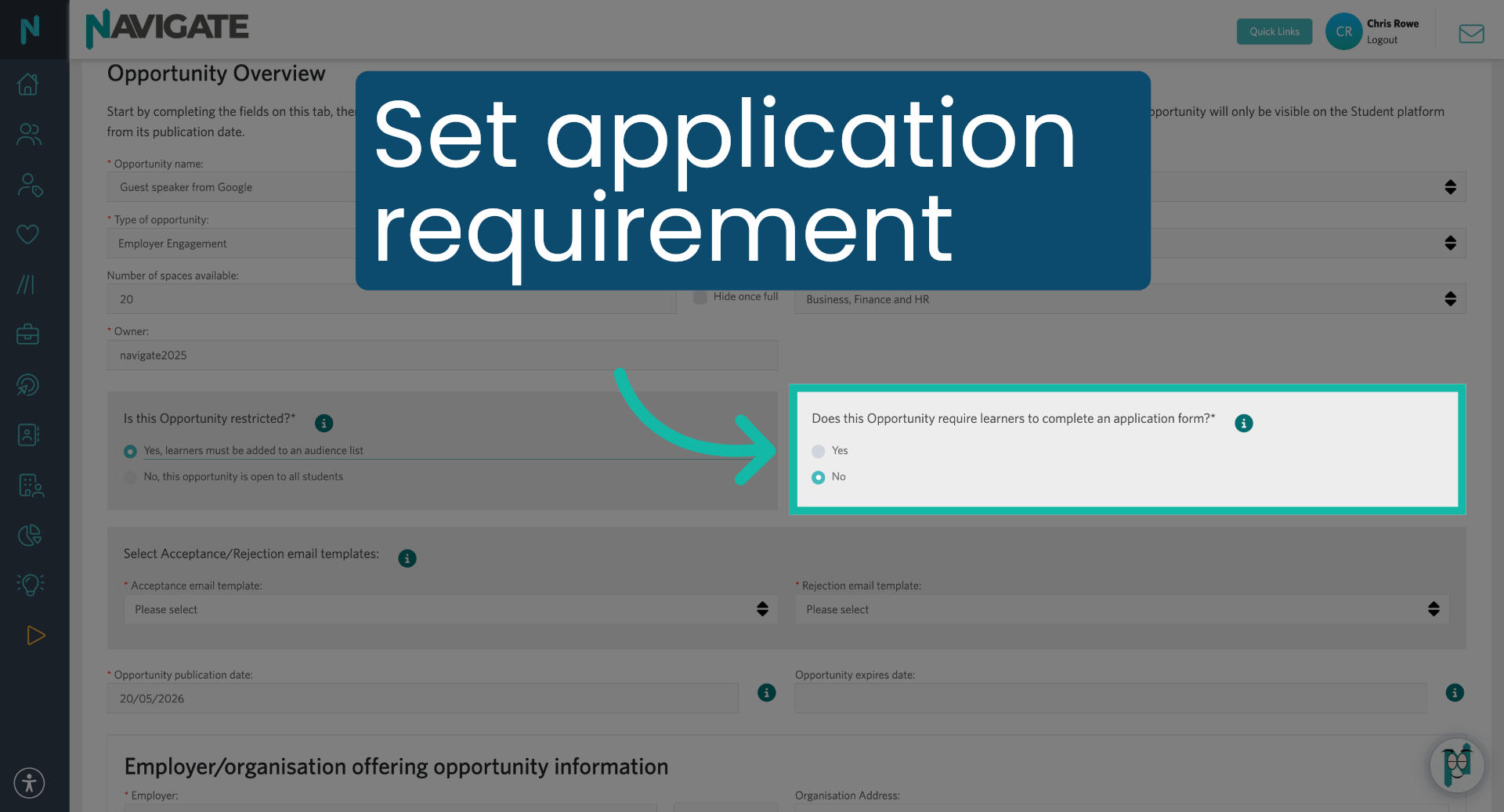
13. Enable Audience List
Select whether this opportunity requires students to complete an application form.
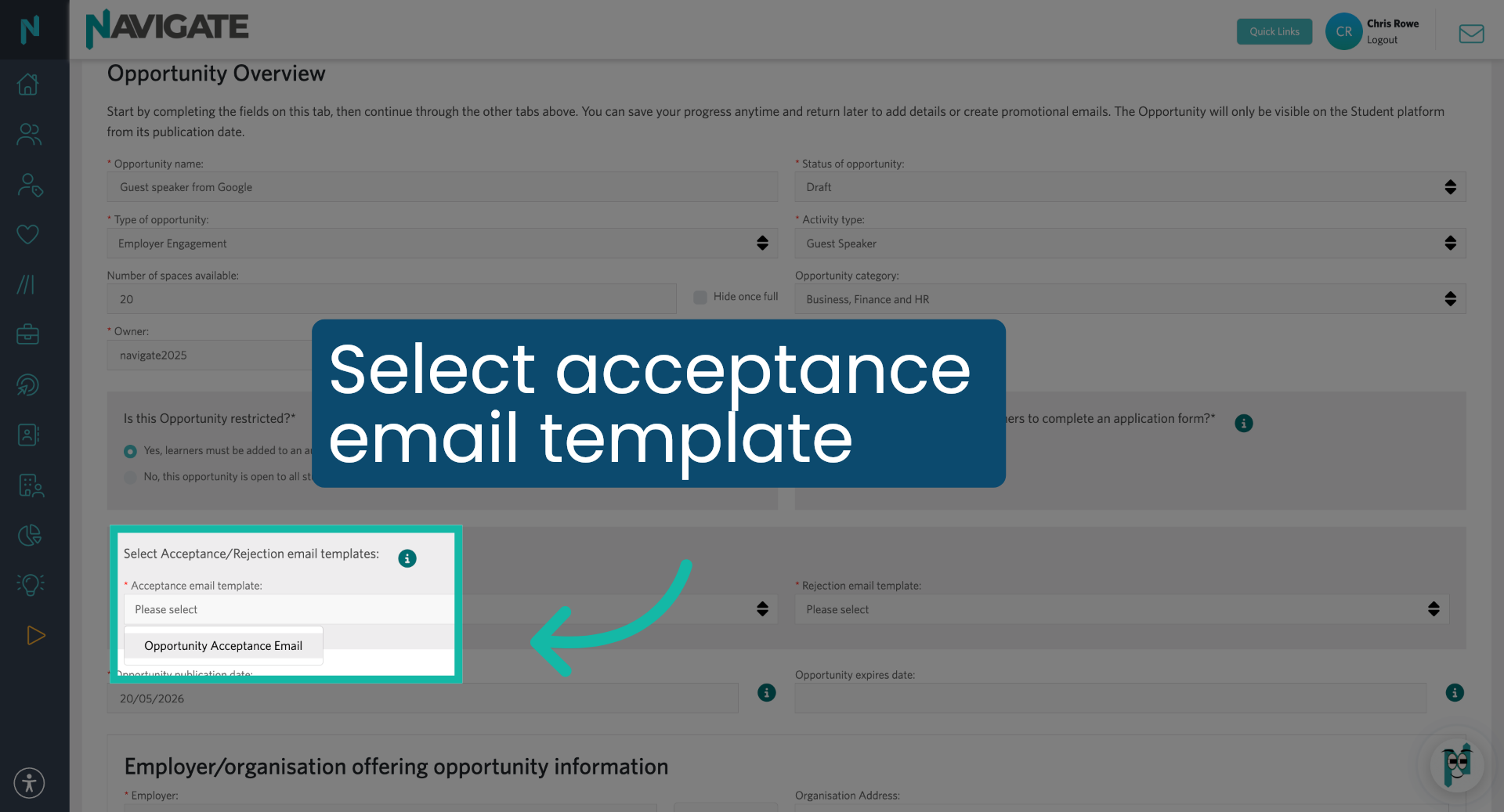
14. Select Acceptance Email Template
Choose the acceptance email template.
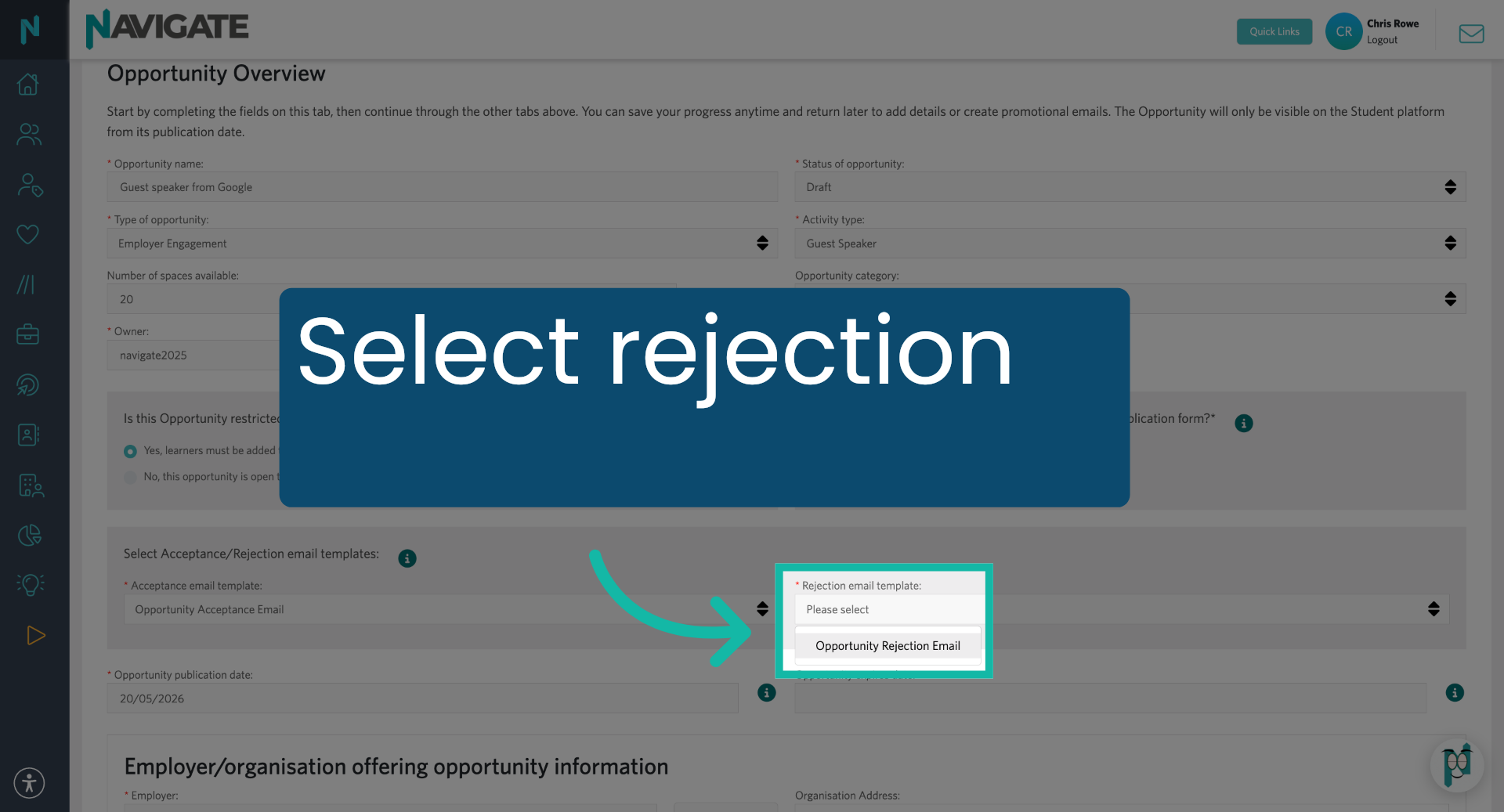
15. Select Rejection Email Template
Select the rejection email template.
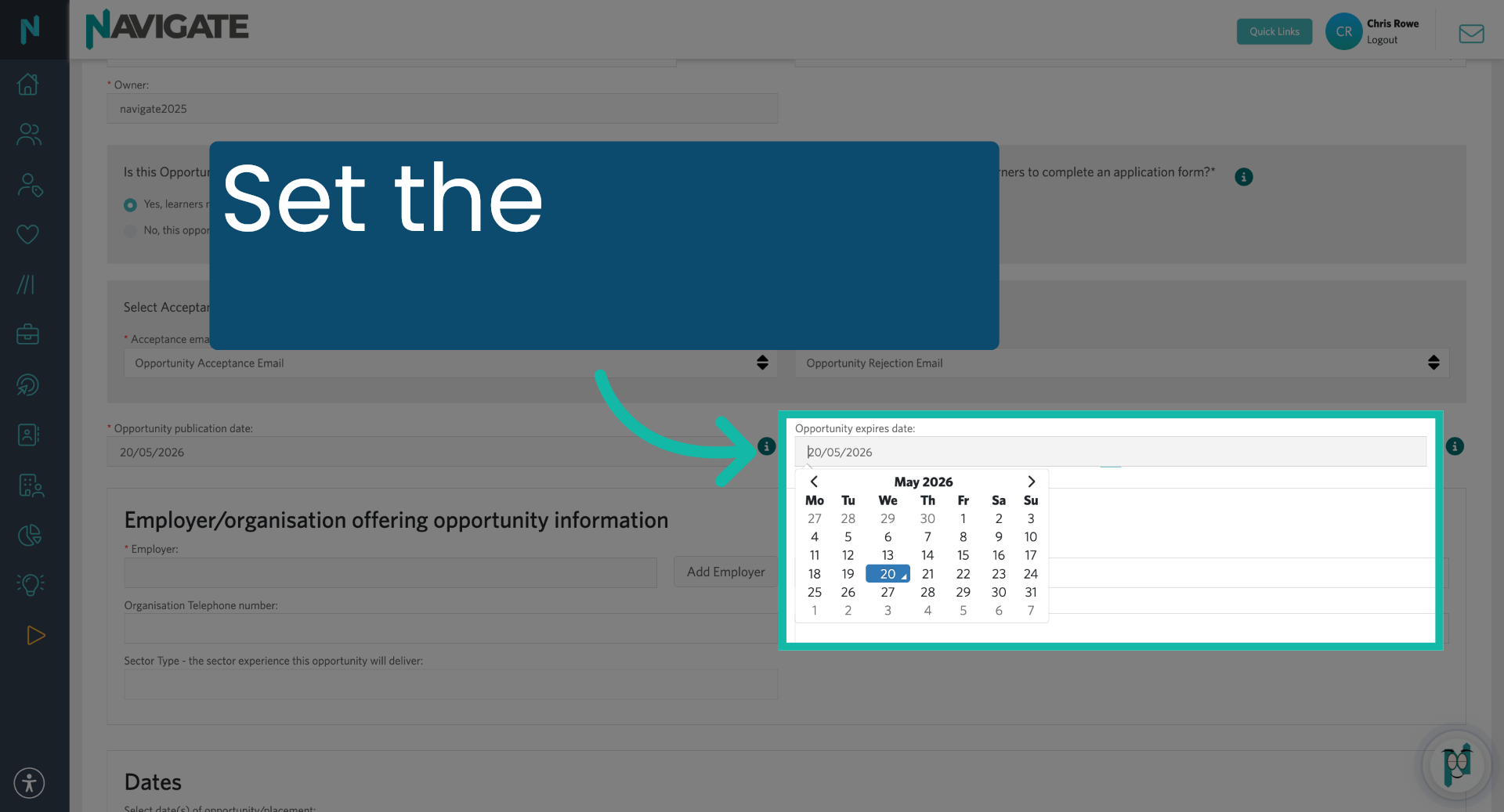
16. Add Opportunity Expiry Date
Set the expiration date for the opportunity.
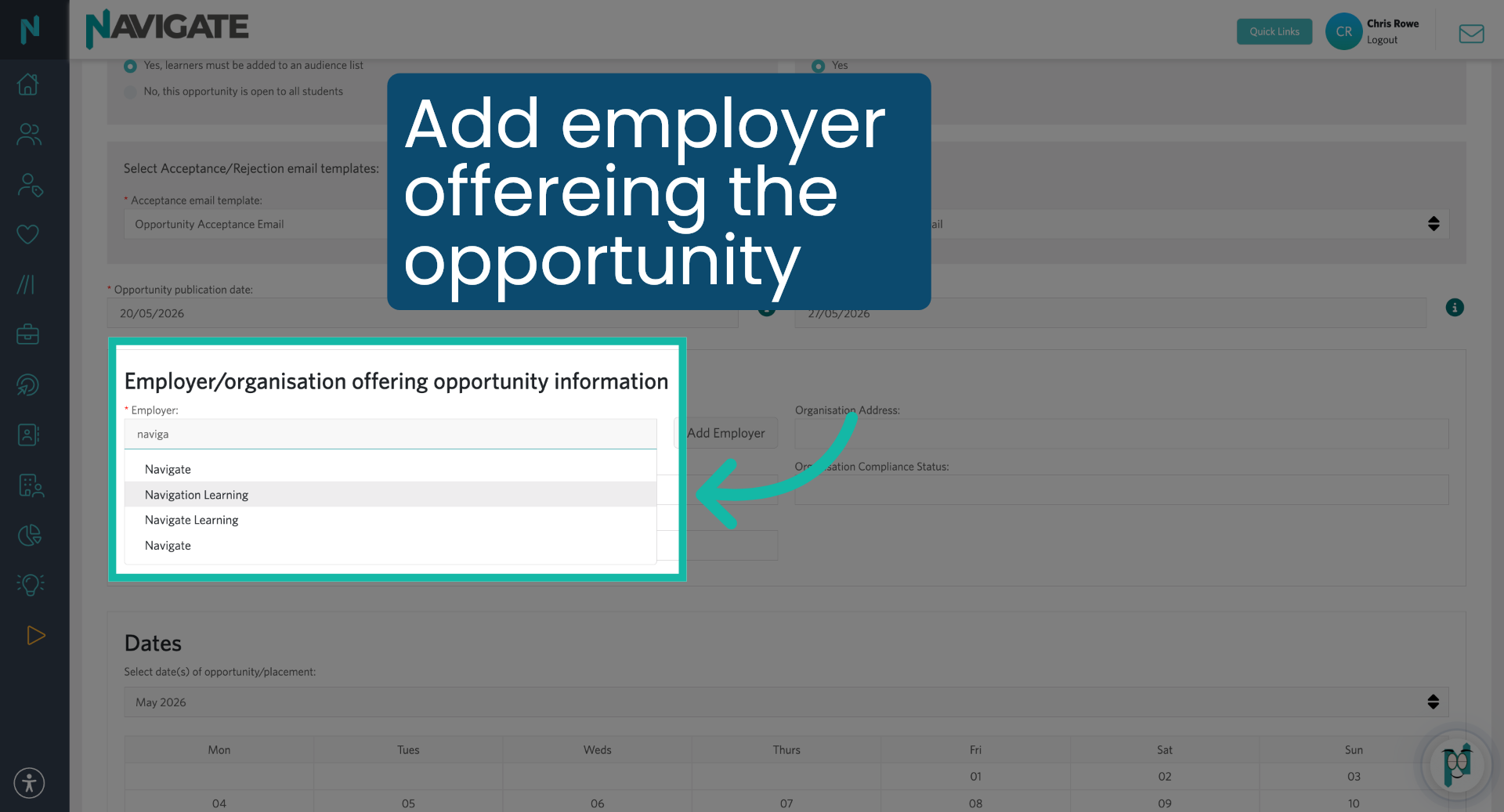
17. Select Navigation Learning
Add the employer offering the opportunity by typing their name and then selecting it from the drop-down.
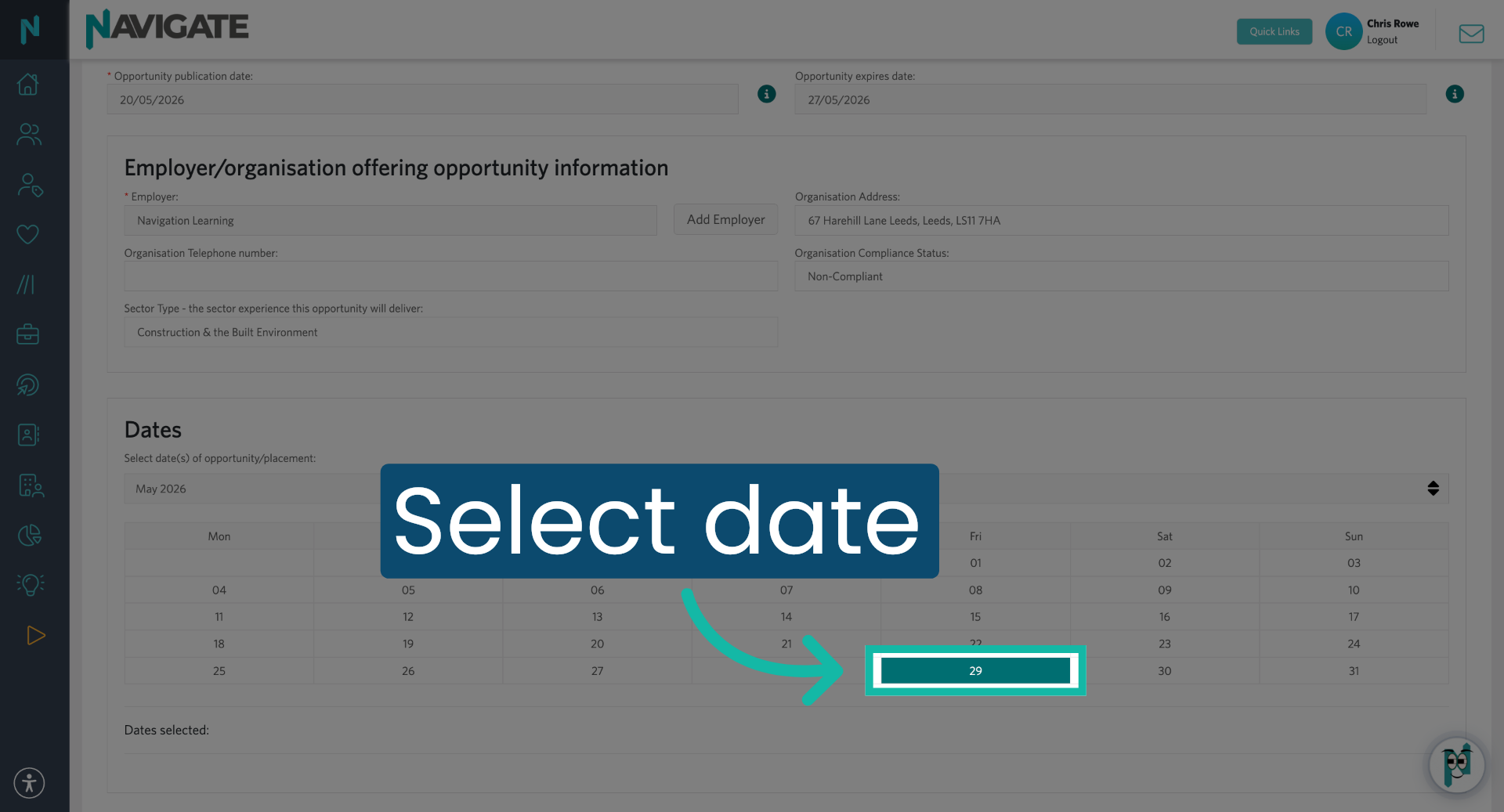
18. Add Date of Opportunity
Select the date for the opportunity.
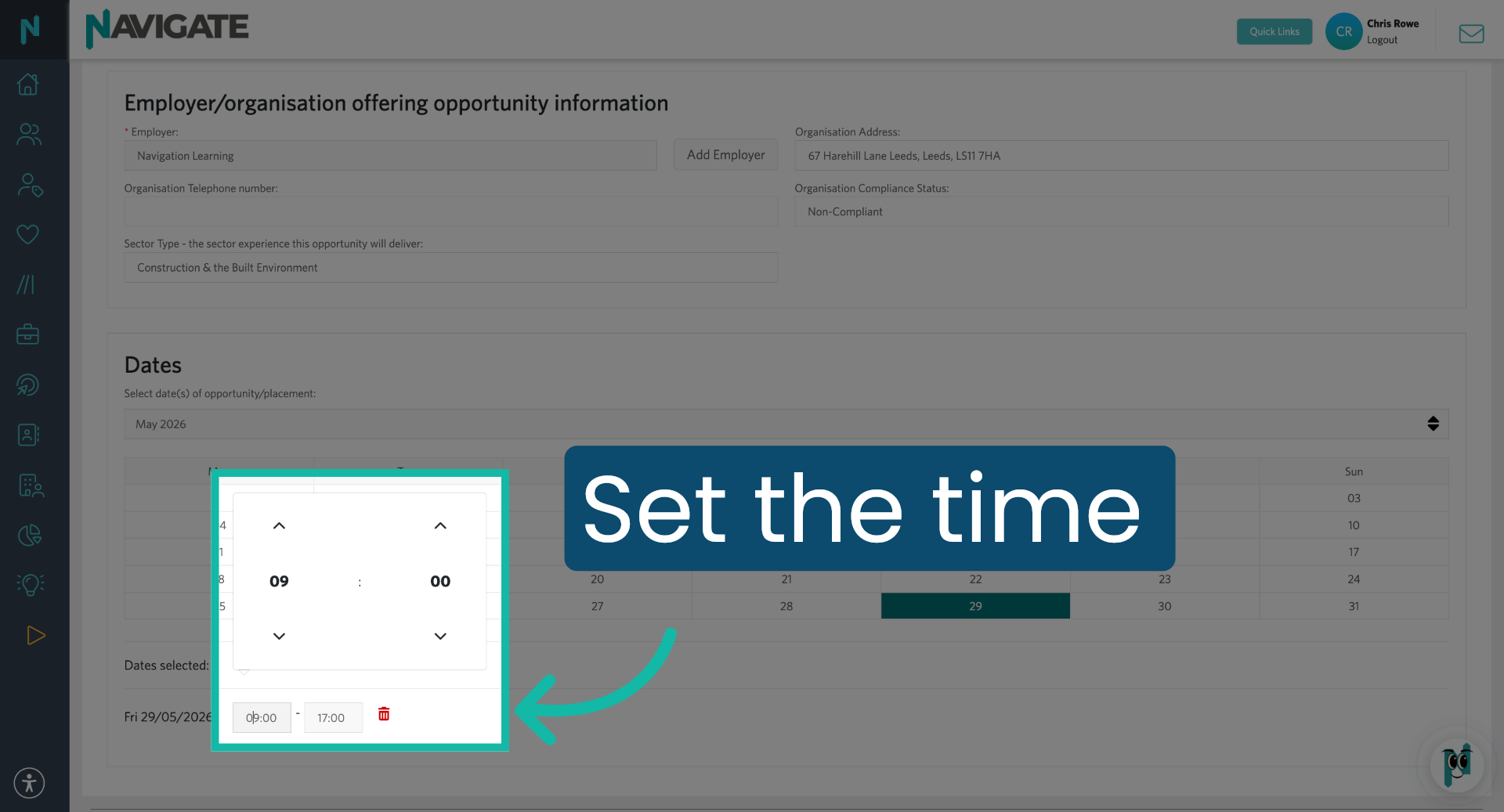
19. Edit Start and End Time
If needed, edit the start and end times by clicking into the box and changing the time.
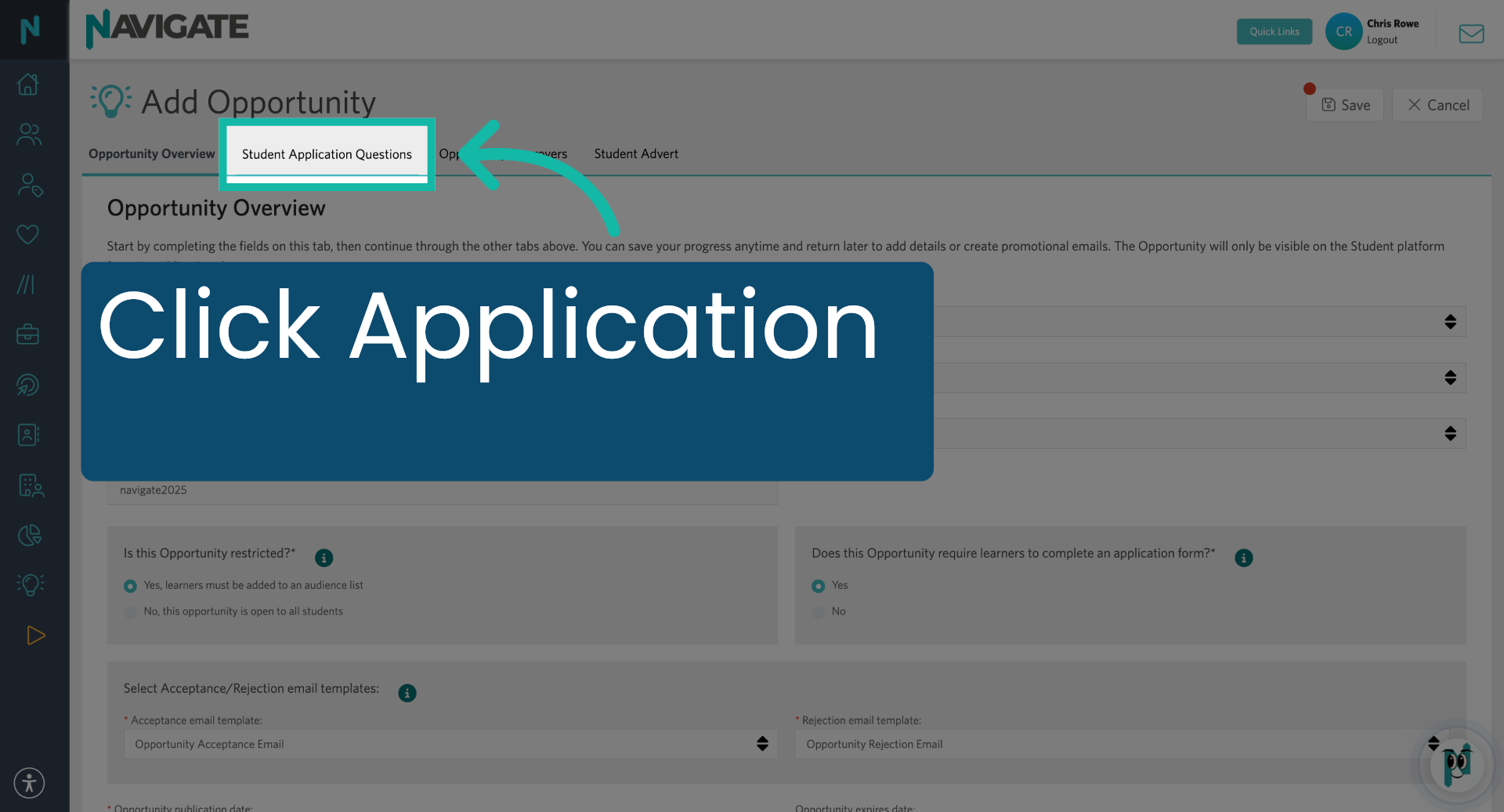
20. Open Student Application Questions
Click student application questions to manage questions for applicants.
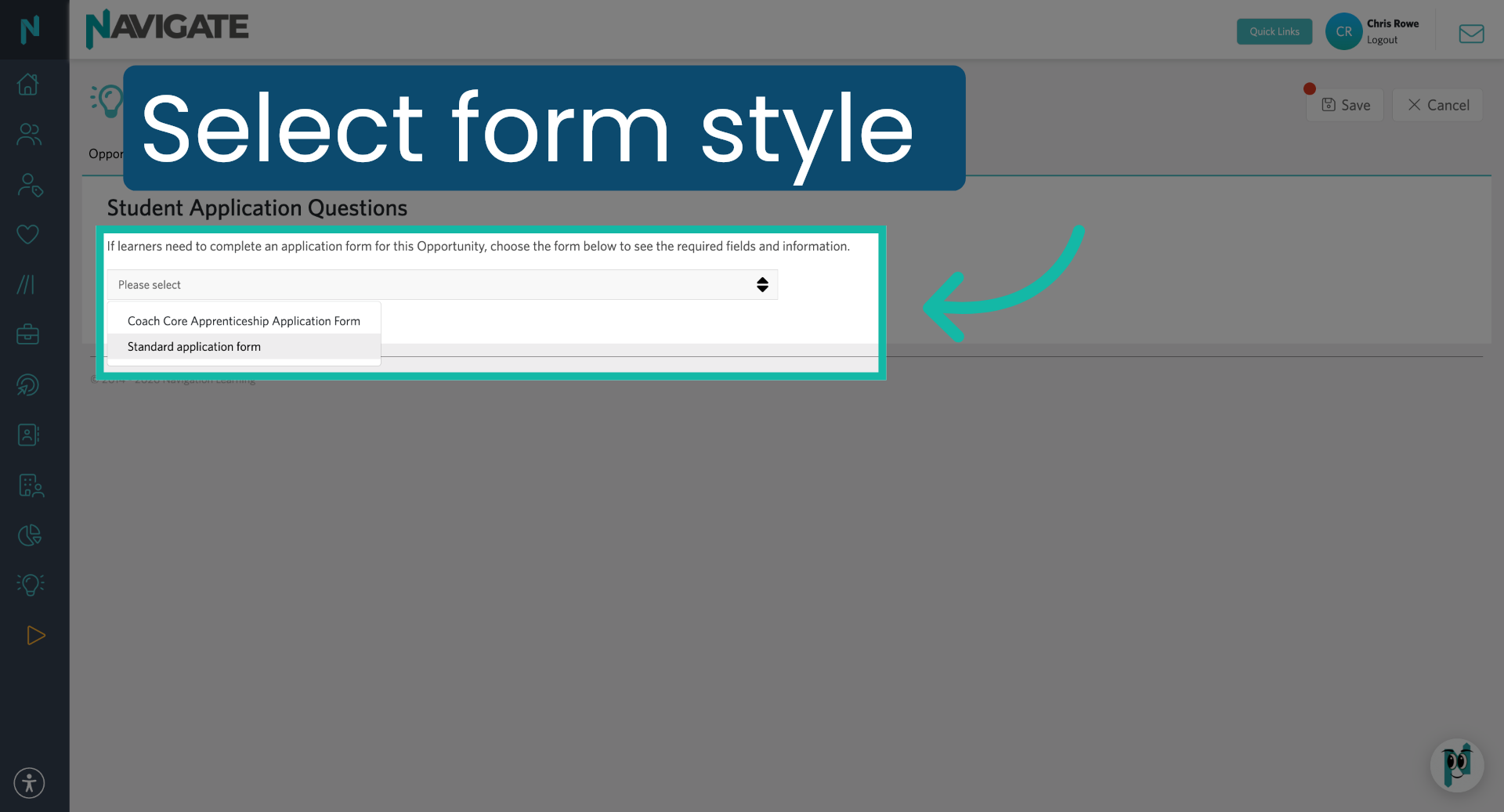
21. Select Application Form Style
Select the application form style.
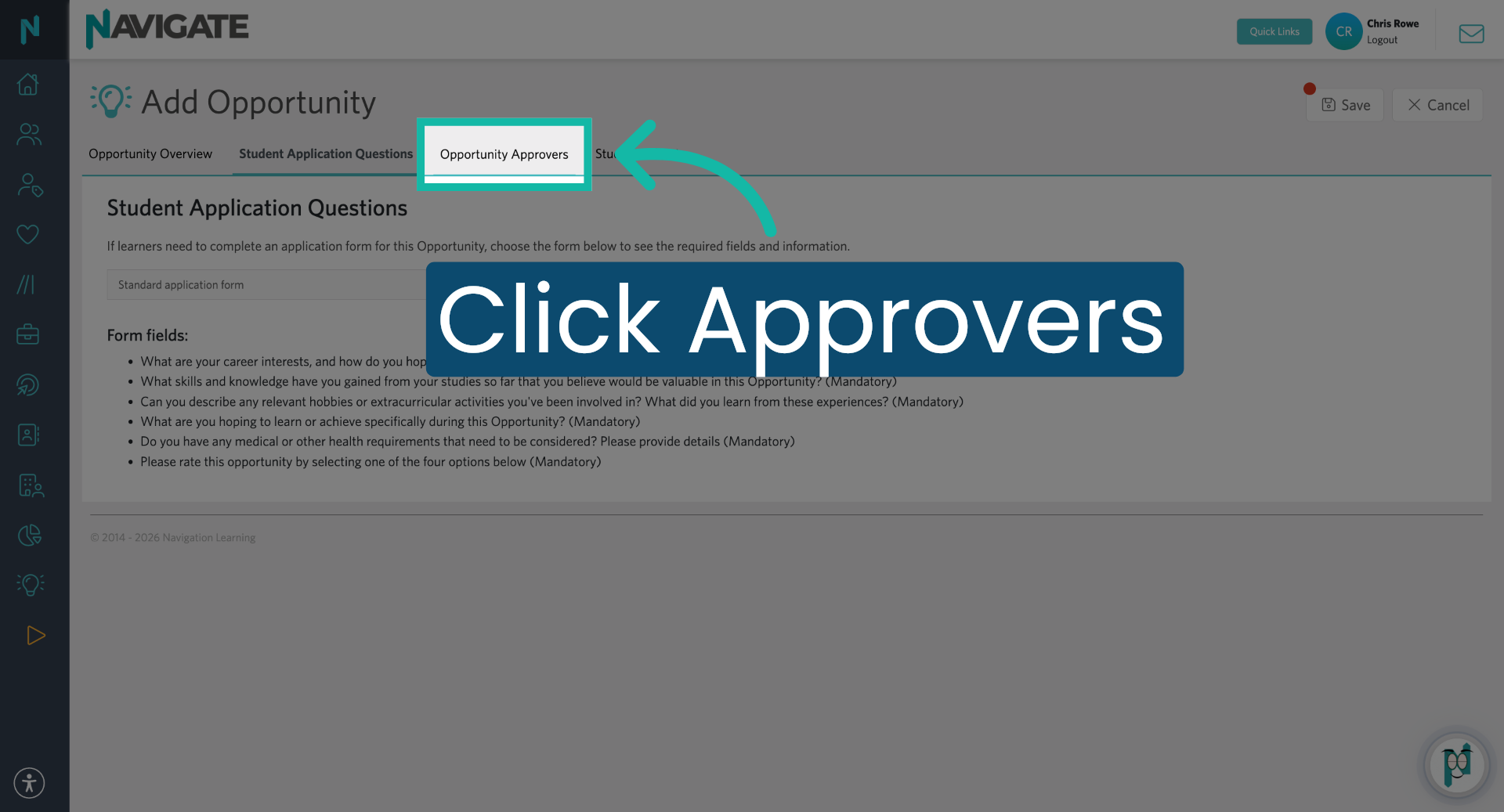
22. Click Opportunity Approvers
Click opportunity approvers to manage who can approve the opportunity.
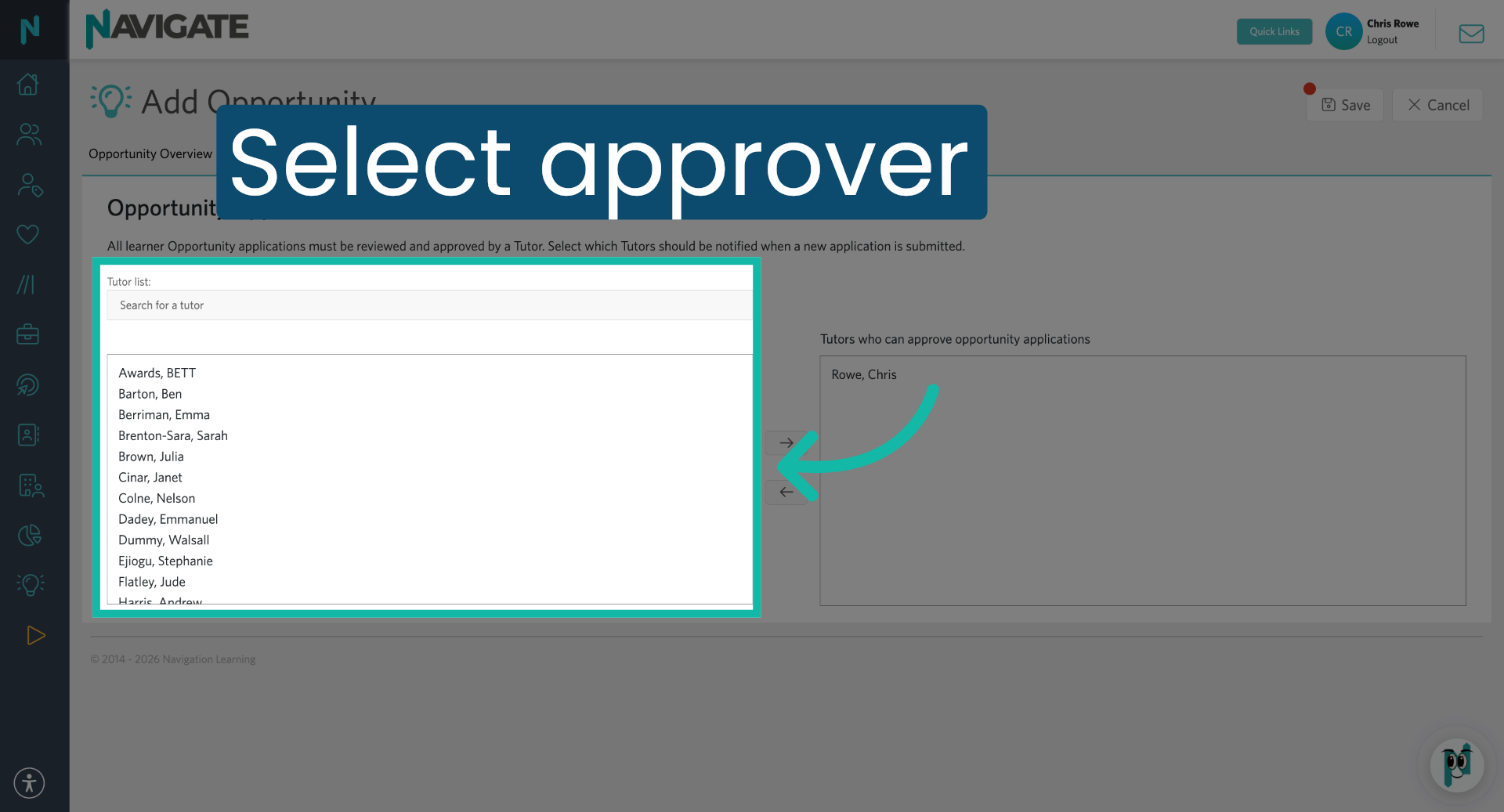
23. Select Approver
Select which tutors should be notified to approve this application by using the search box or selecting from the list.
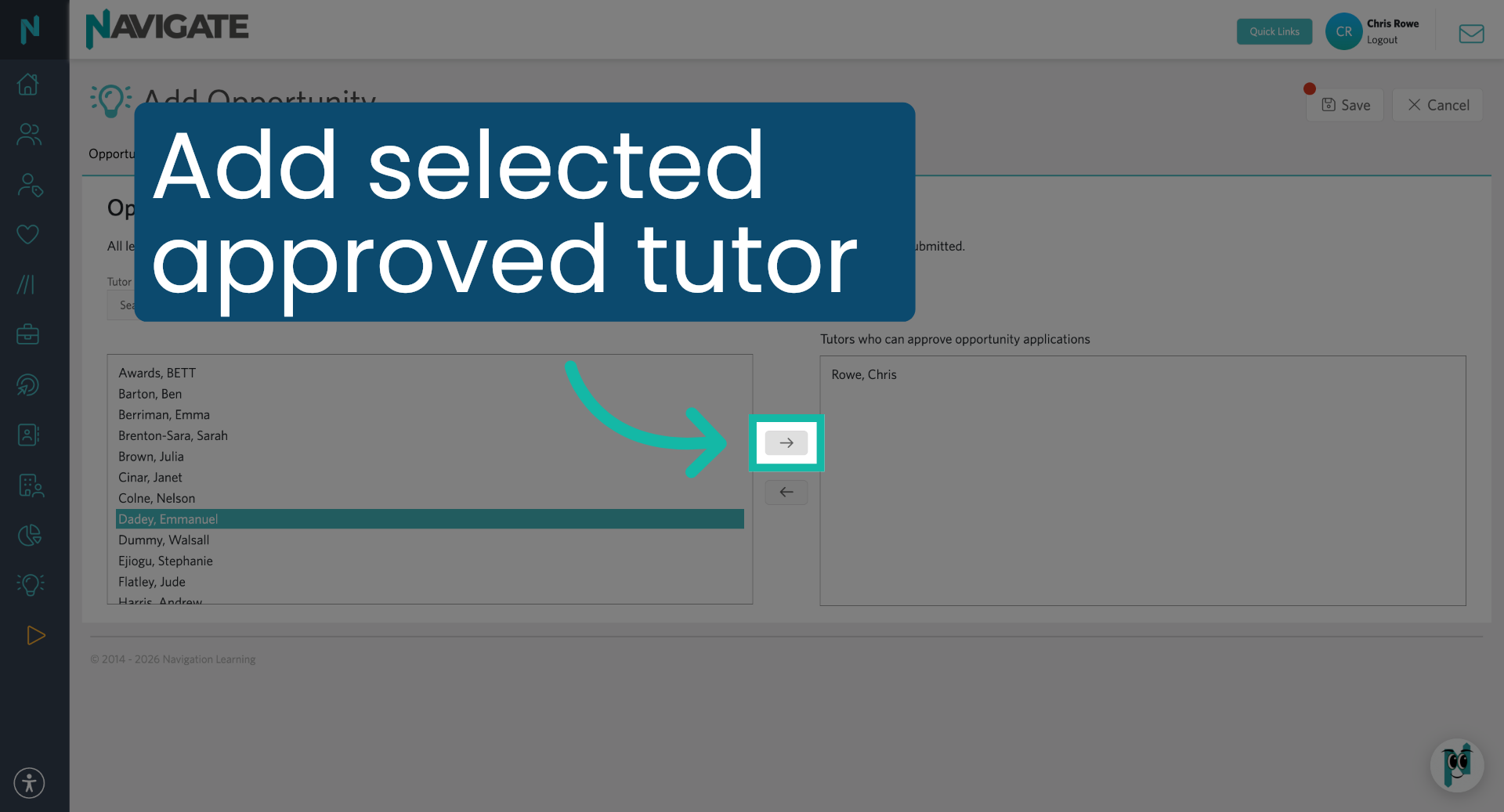
24. Add Approved Tutor
Once selected, click the right arrow to move them into the approved tutor section.
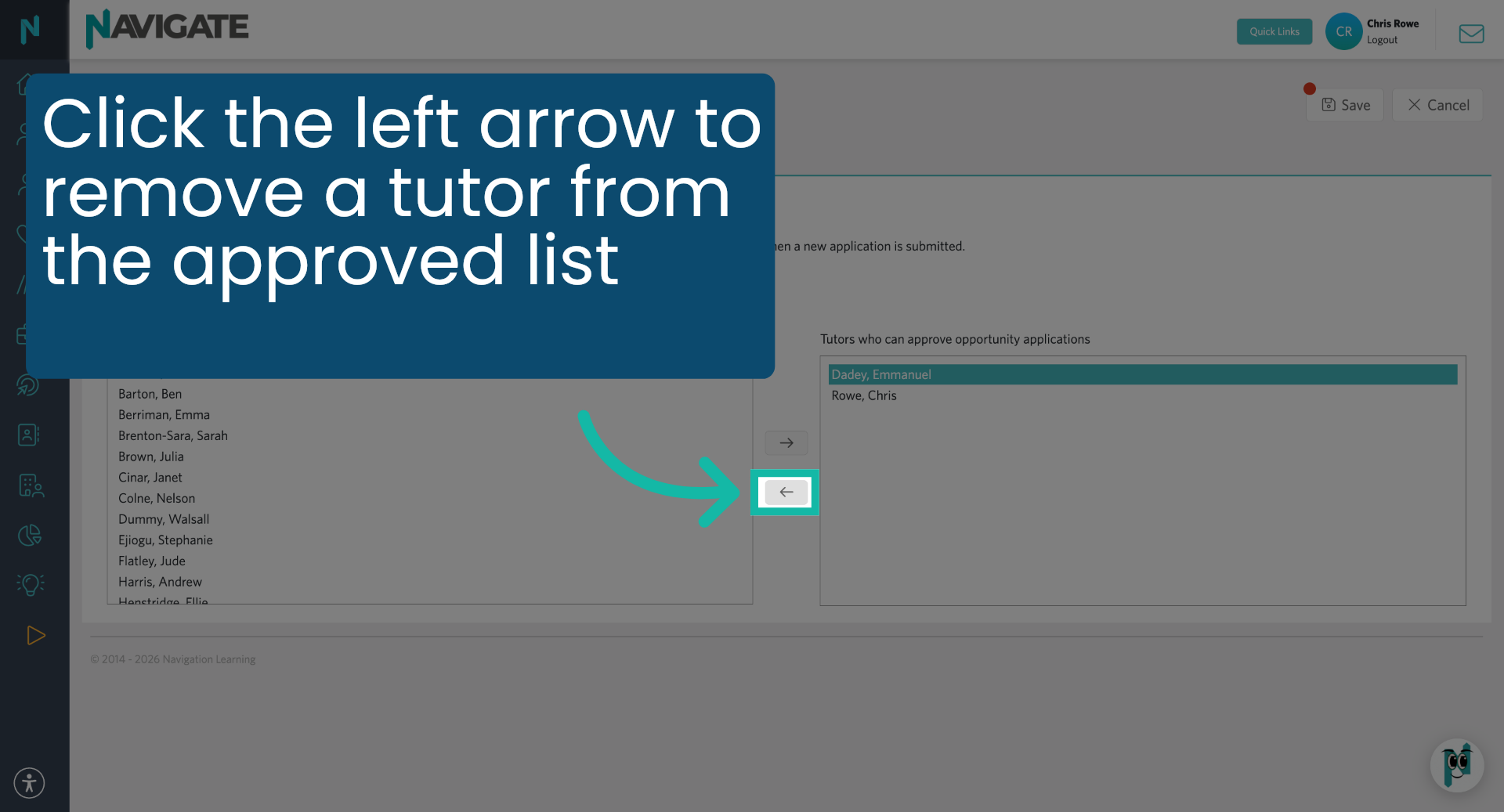
25. Remove Approved Tutor
Click the left arrow to remove a tutor from the approved list.
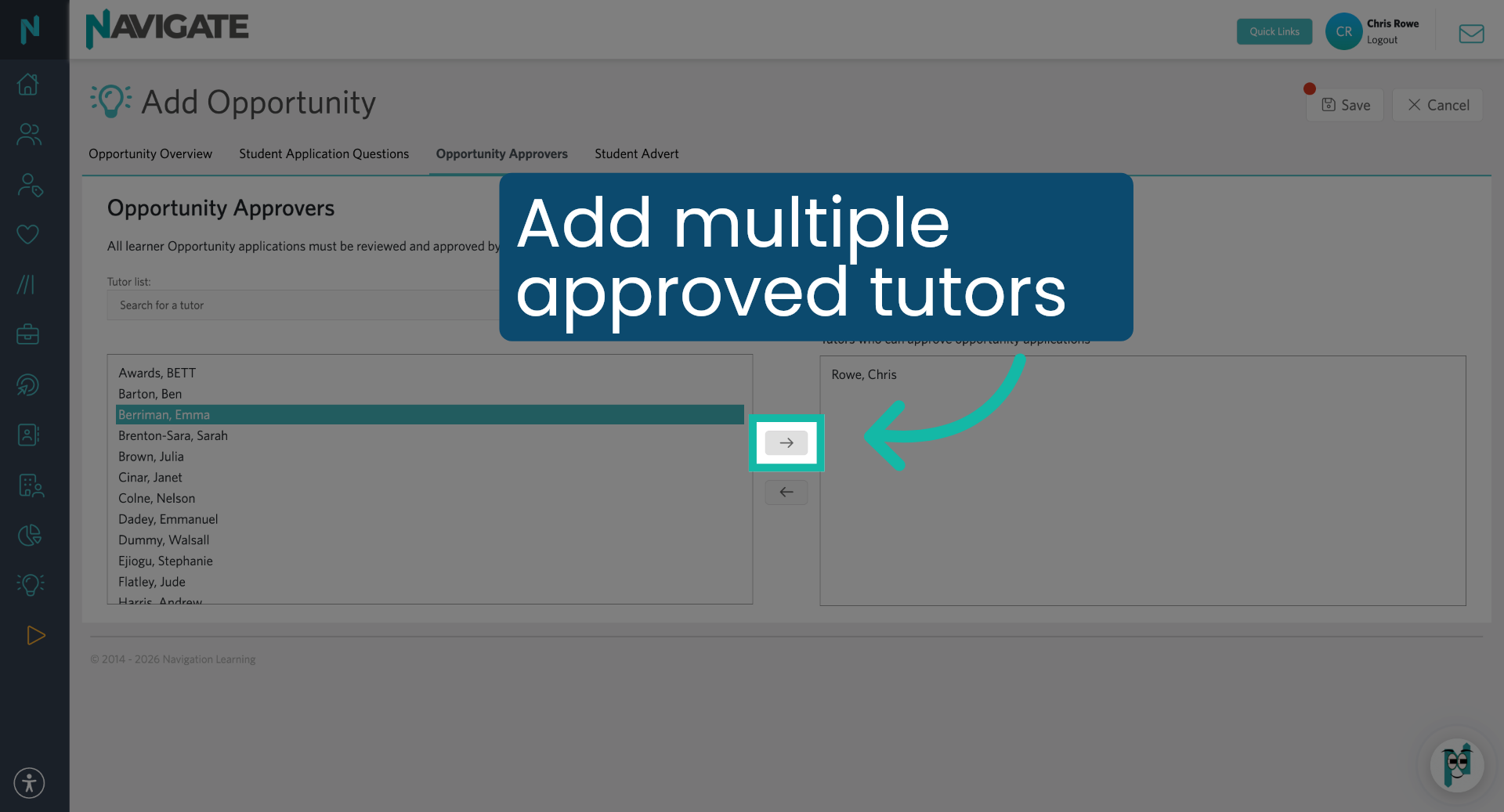
26. Add Additional Approved Tutors
You can add multiple approved tutors.
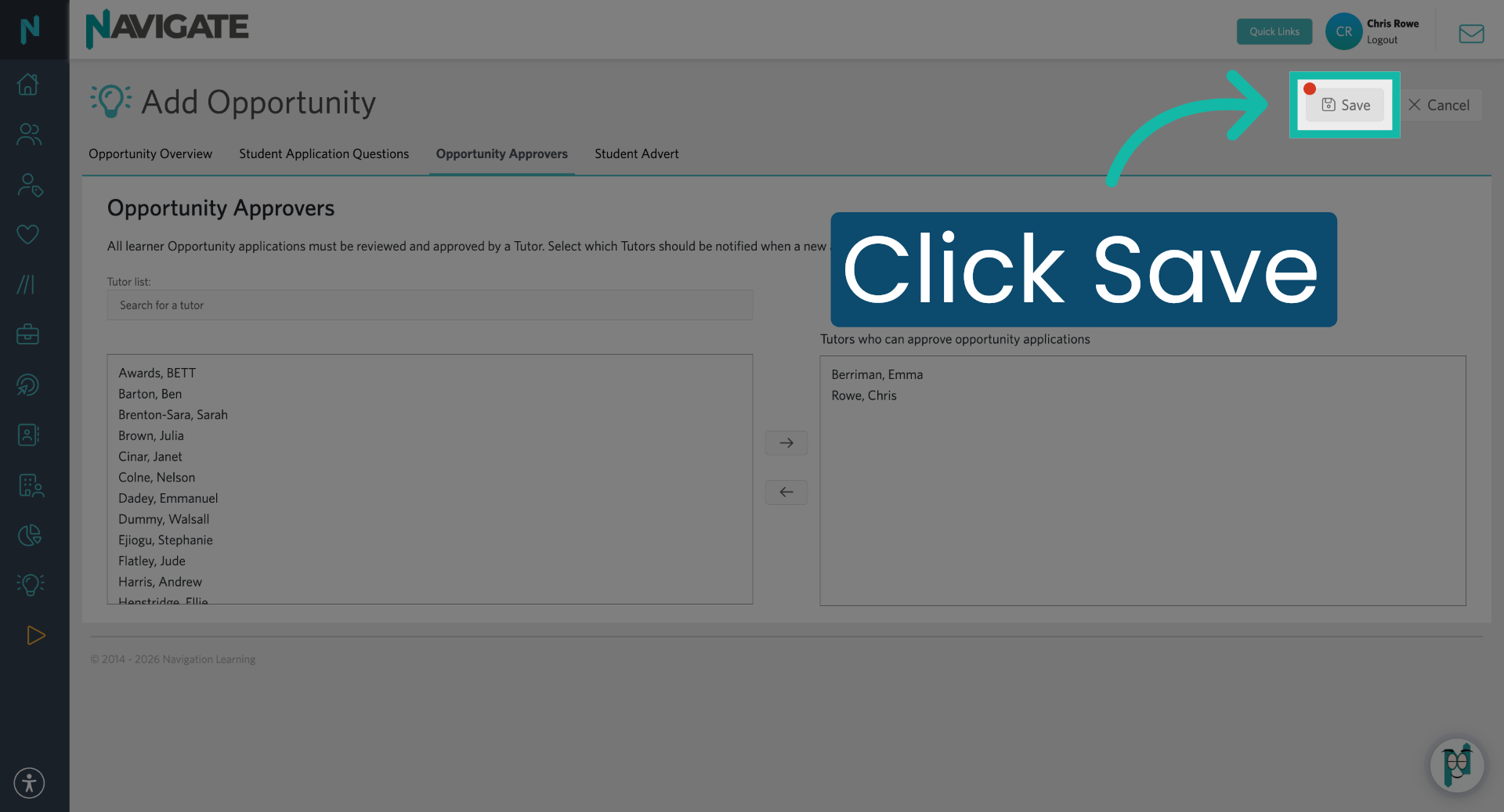
27. Save Opportunity
Once finished, click save to finalise and save all changes made to the opportunity.
Was this article helpful?
That’s Great!
Thank you for your feedback
Sorry! We couldn't be helpful
Thank you for your feedback
Feedback sent
We appreciate your effort and will try to fix the article