This tutorial explains how to unlock an expired Due Diligence form and send it to the Employer again for updates.
Go to login.navigate.uk.com
1. Quick Links Menu
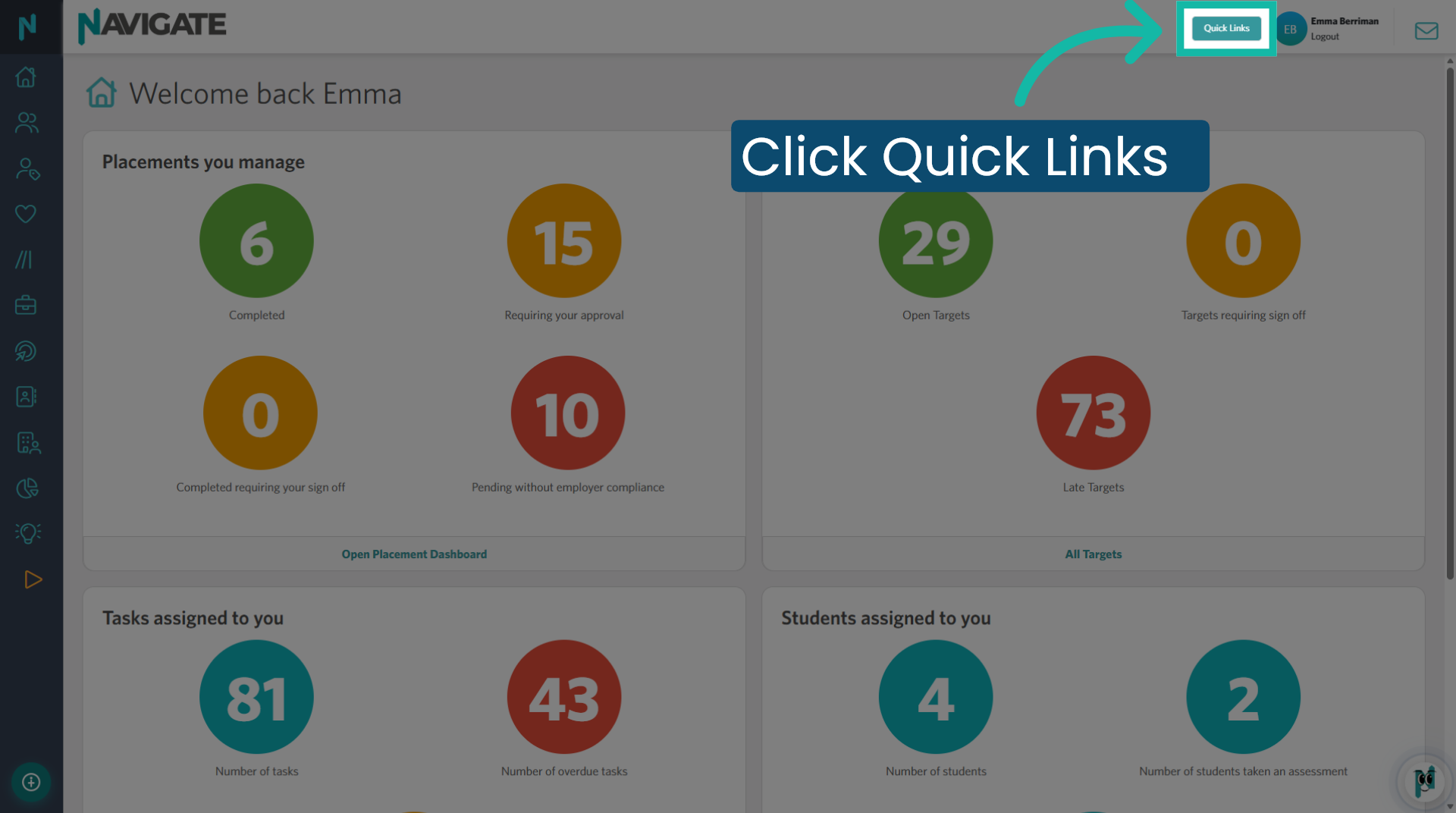
Once logged in, click Quick Links to search for the Employer.
2. Search and Select Employer
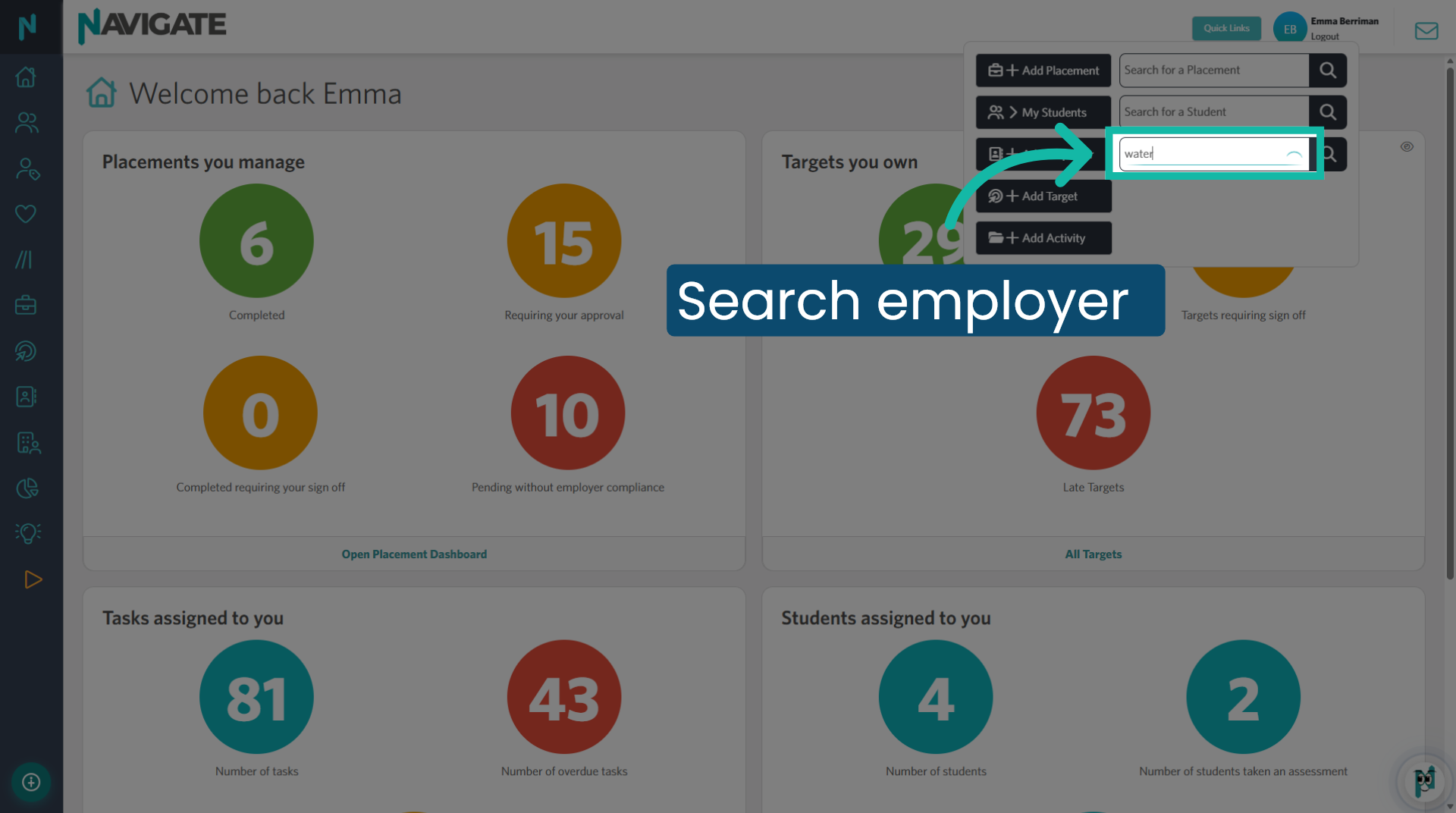
To find an employer, click on the search field and enter the name. Select the employer to access the Employer Record.
3. Unlock Due Diligence form
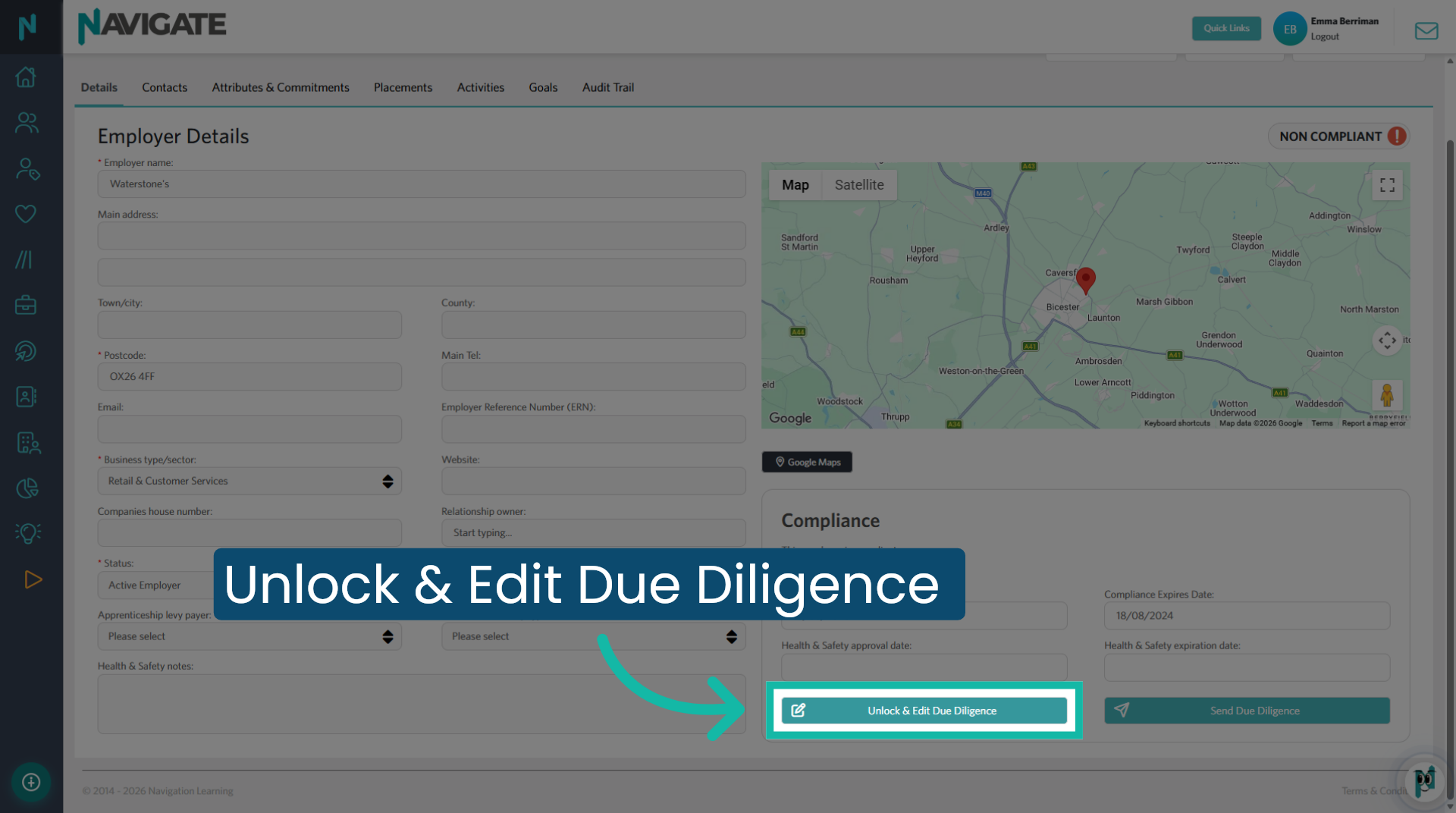
Two weeks before either the compliance or health and safety expiry date, the option to unlock and edit the form becomes available. Click Unlock & Edit Due Diligence before sending the form to the employer to update.
4. Edit Due Diligence form
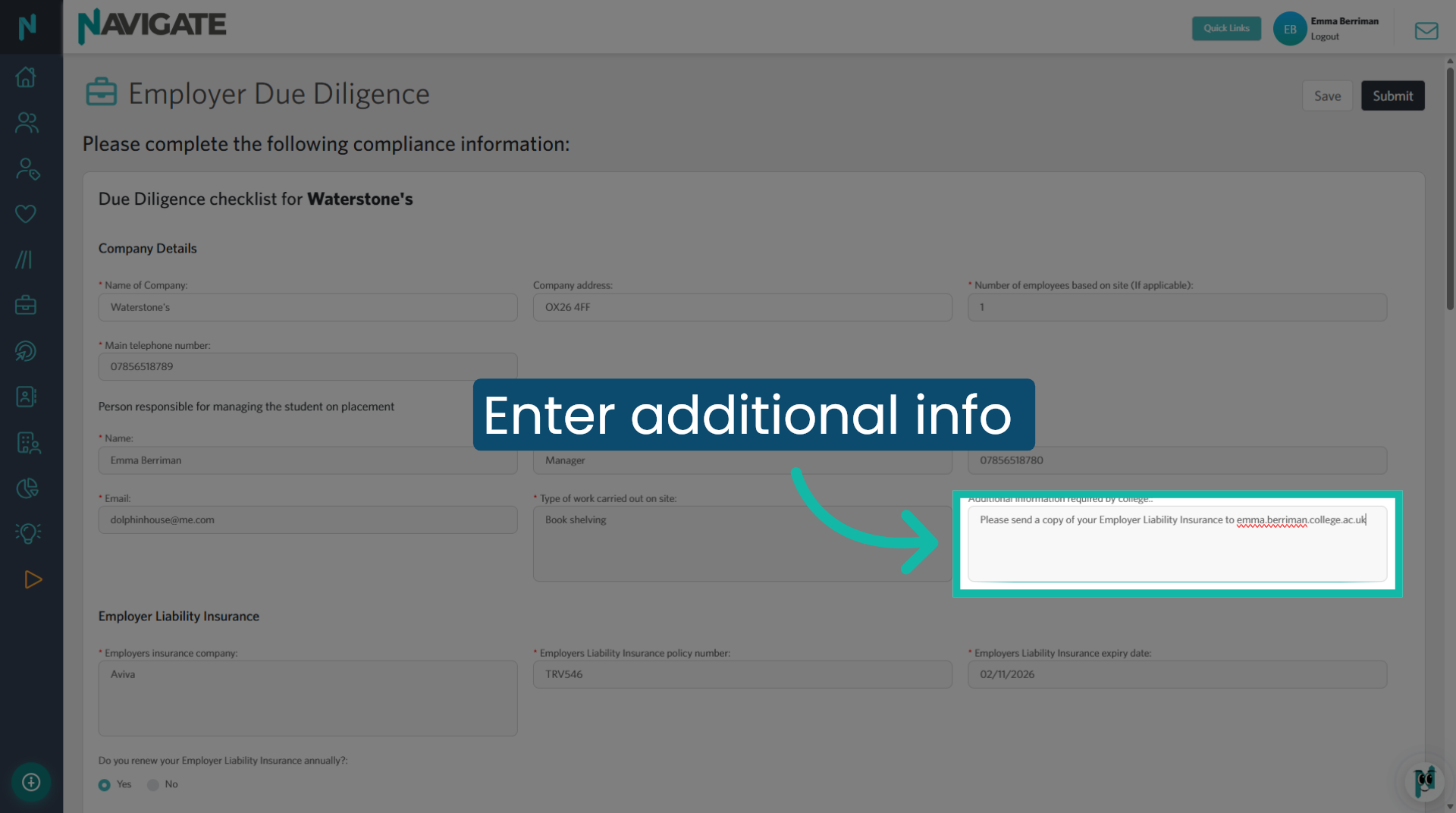
If needed, add any college-specific information to the form before sending it to the employer.
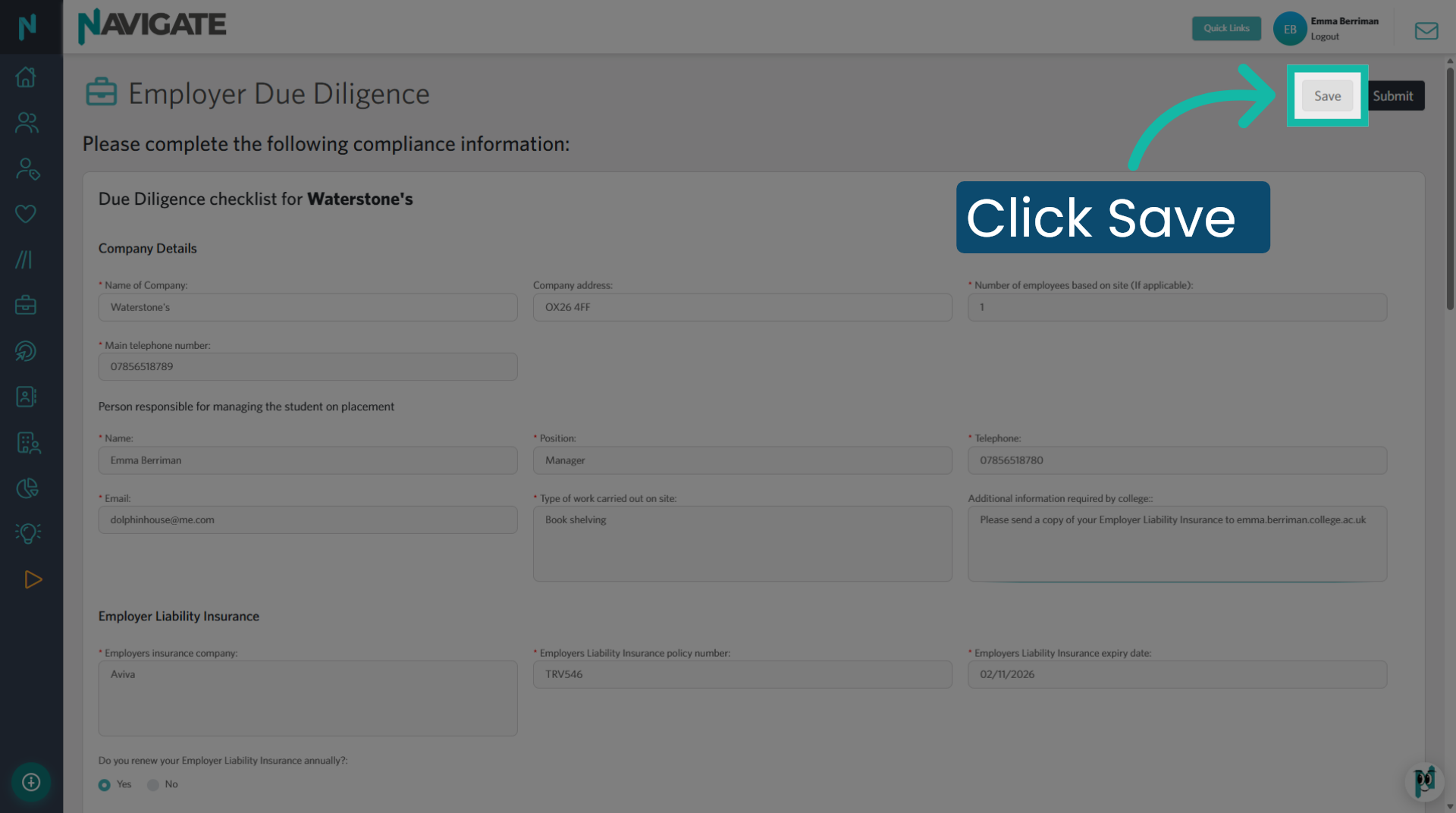
5. Save edited form
Click the Save button to preserve any changes made to the form. DO NOT click Submit, as this will lock the form and prevent the employer from editing further.
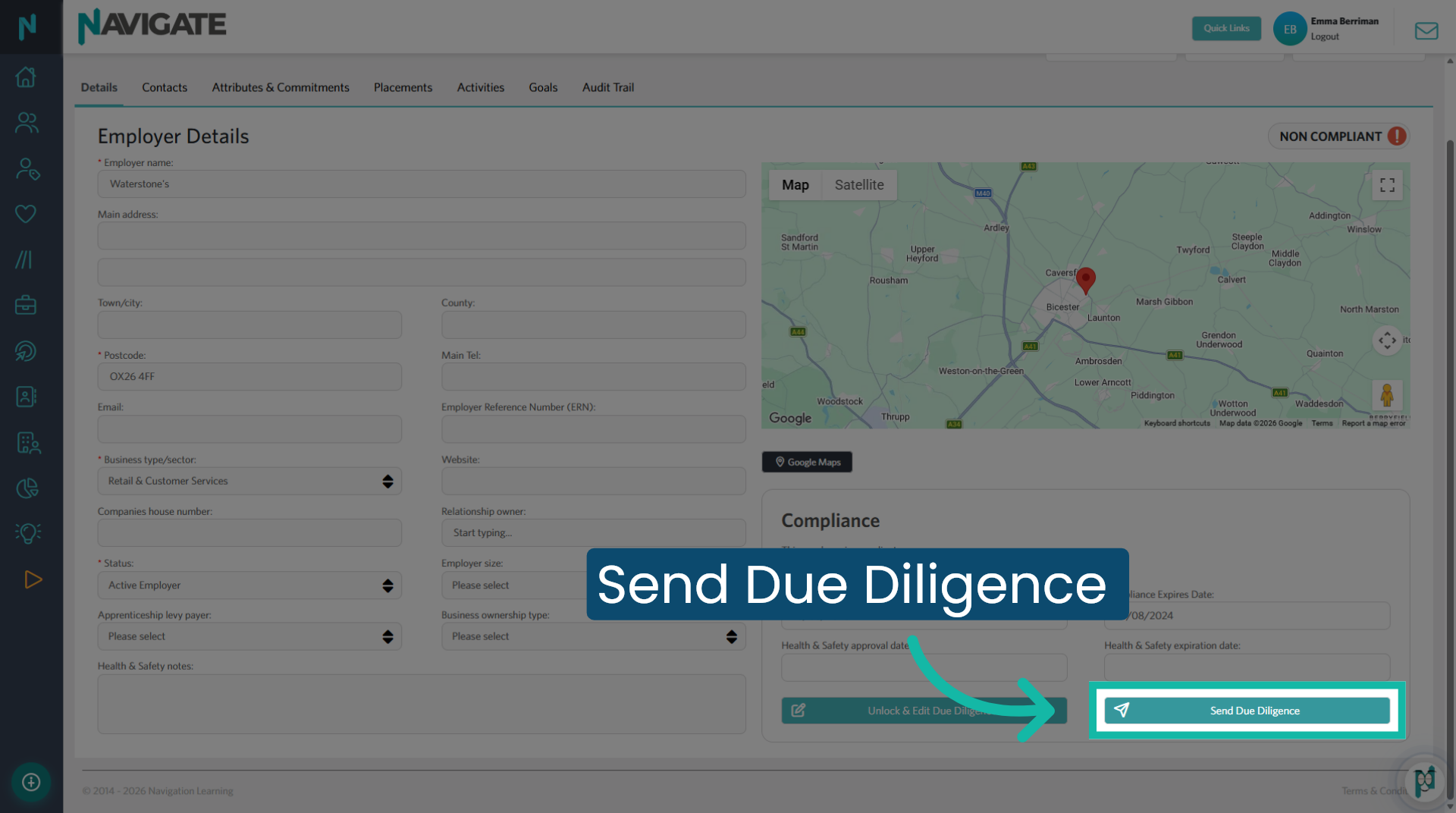
6. Send Due Diligence
Click Send Due Diligence to begin sending the form to the employer.
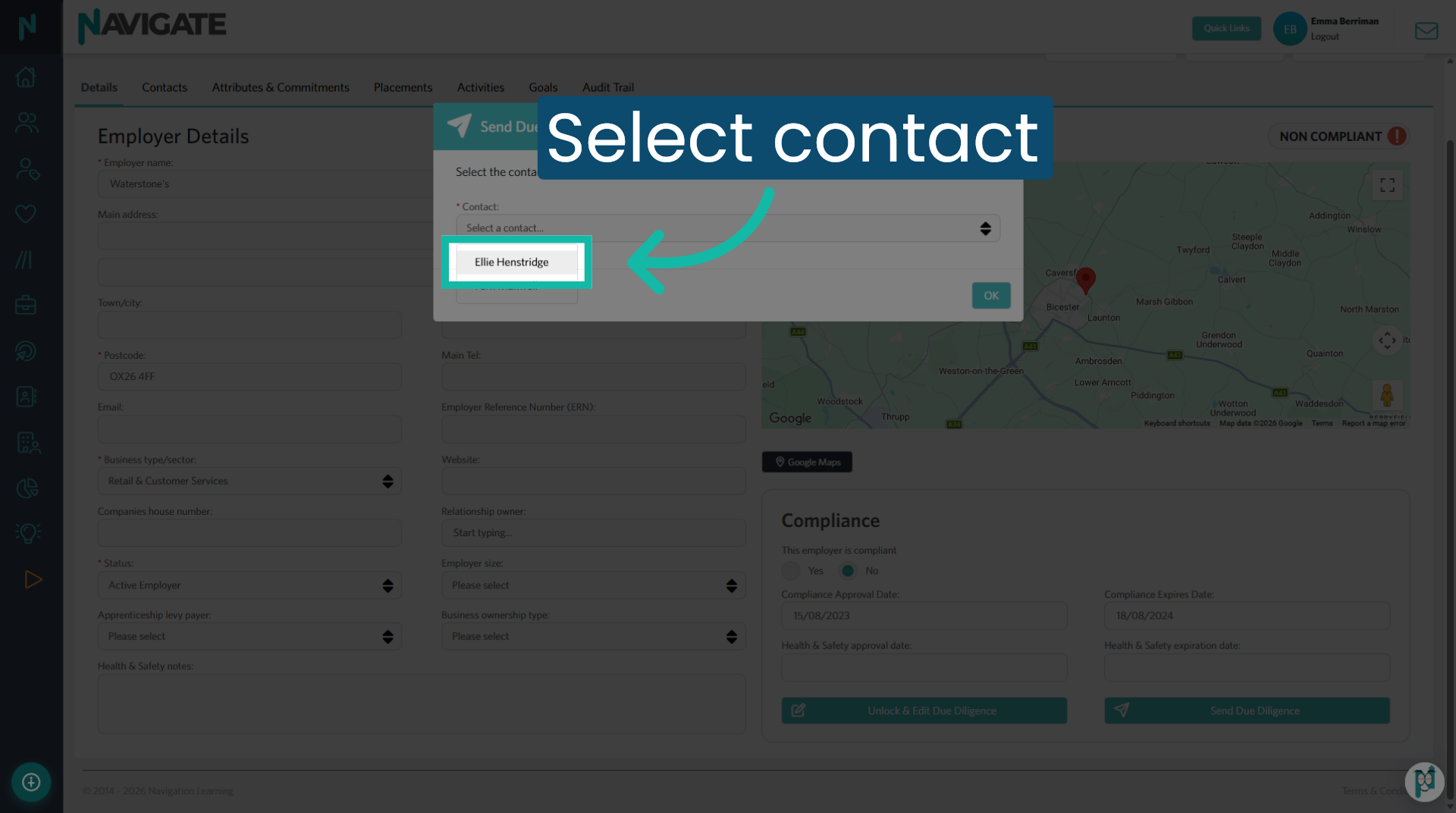
7. Select Contact
Select the contact who should receive the Due Diligence form for completion.
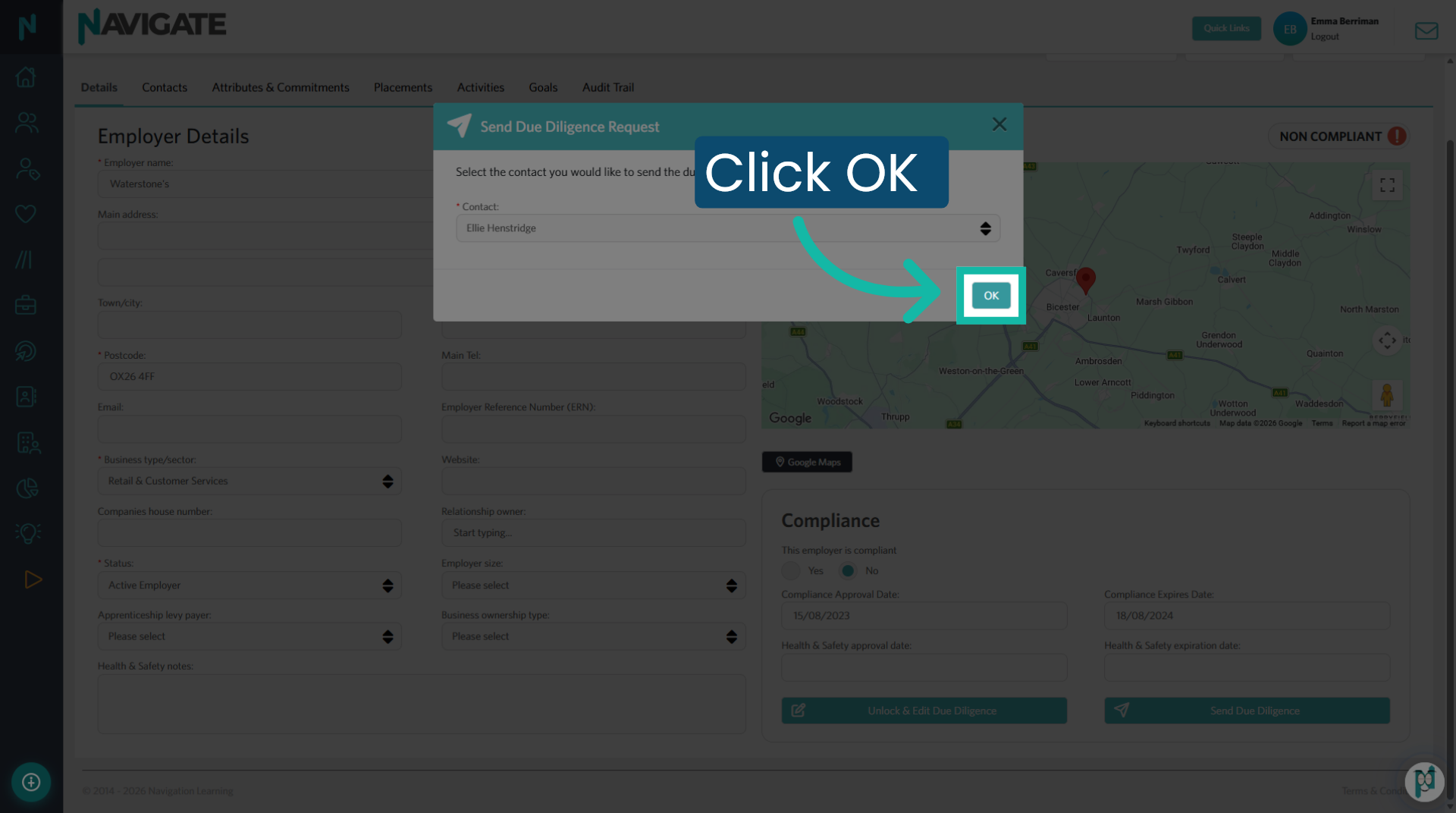
8. Confirm Contact Selection
Click the OK button to confirm the selected contact for receiving the form.
9. Due Diligence form sent
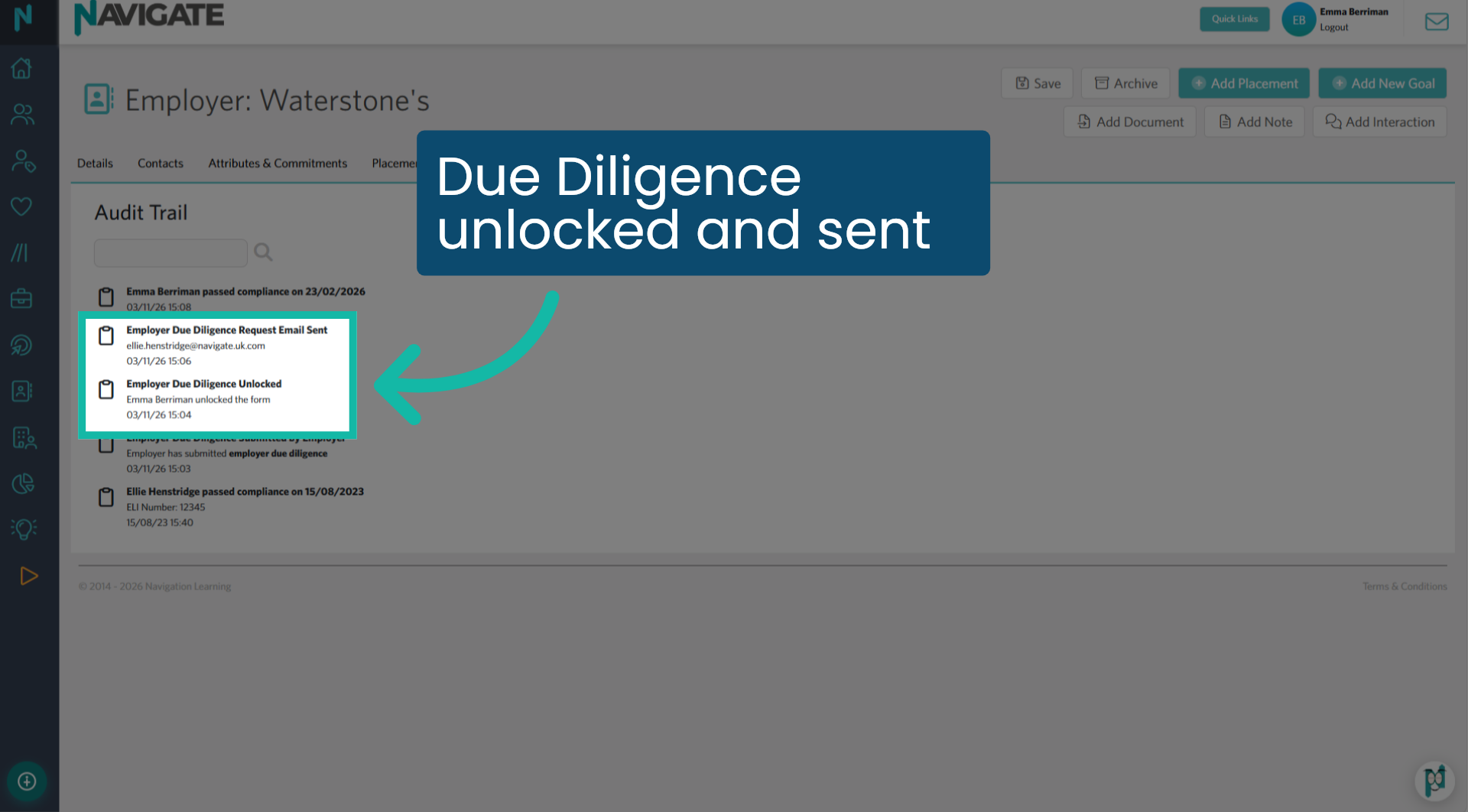
The Audit Trail records that the form was unlocked and the request email was sent.
10. View Due Diligence
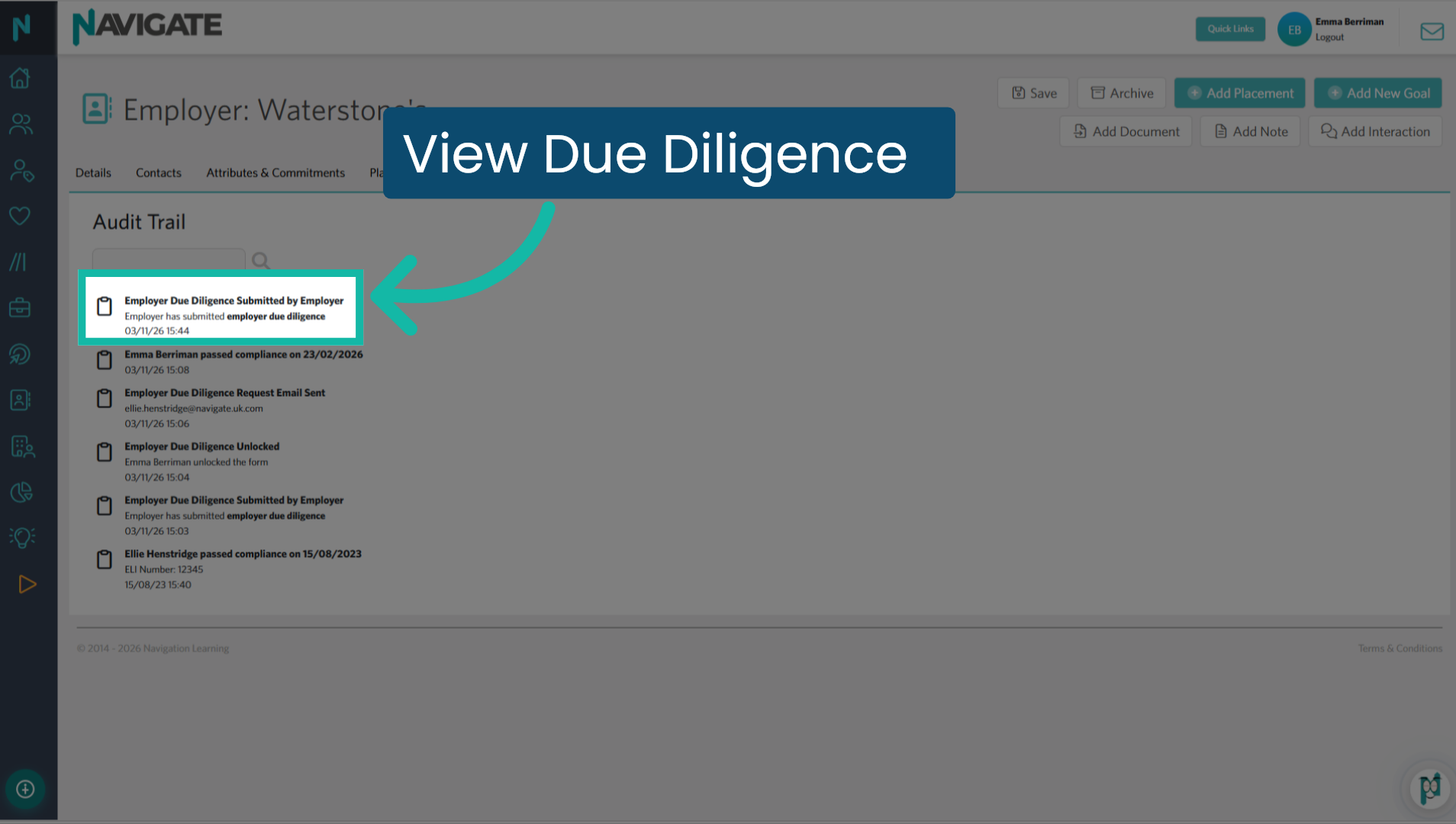
Once the employer has completed and submitted the form, open the Audit Trail and click Employer Due Diligence to view it.
11. Update Compliance
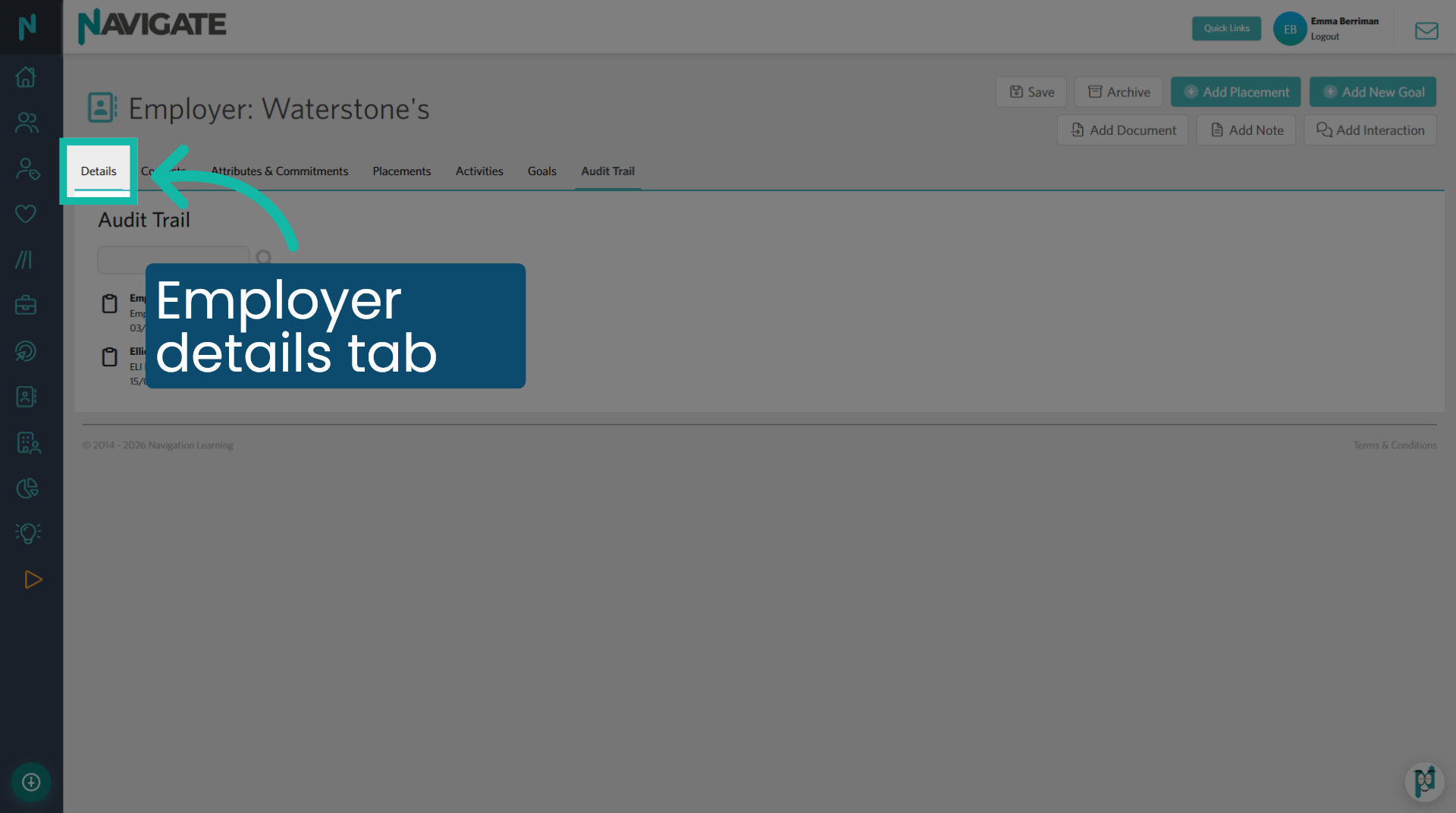
To update the compliance based on the information provided in the submitted form, click on the Employer Details tab.
12. Select compliance - Yes
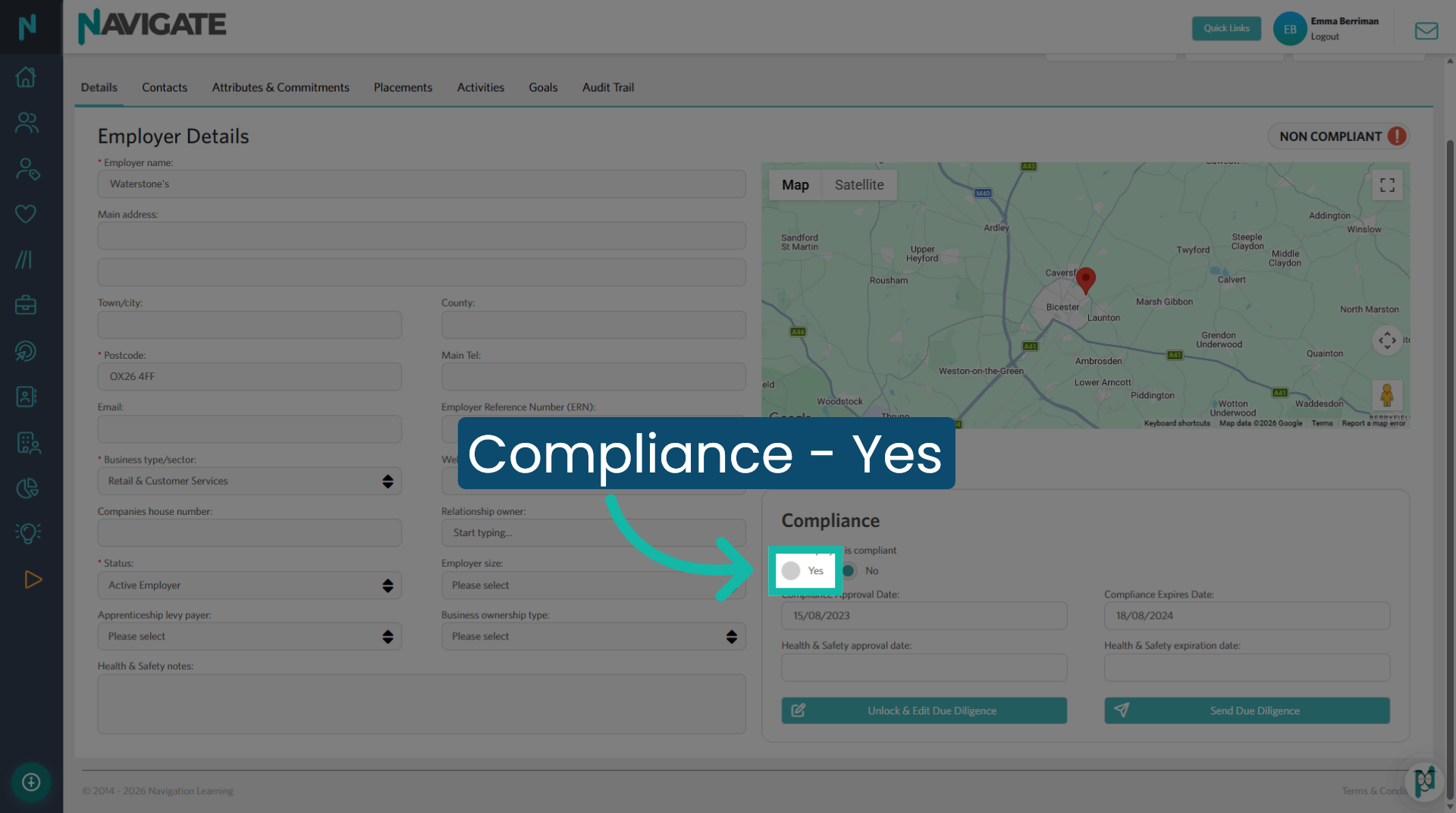
Click Yes to add the new compliance and health and safety dates.
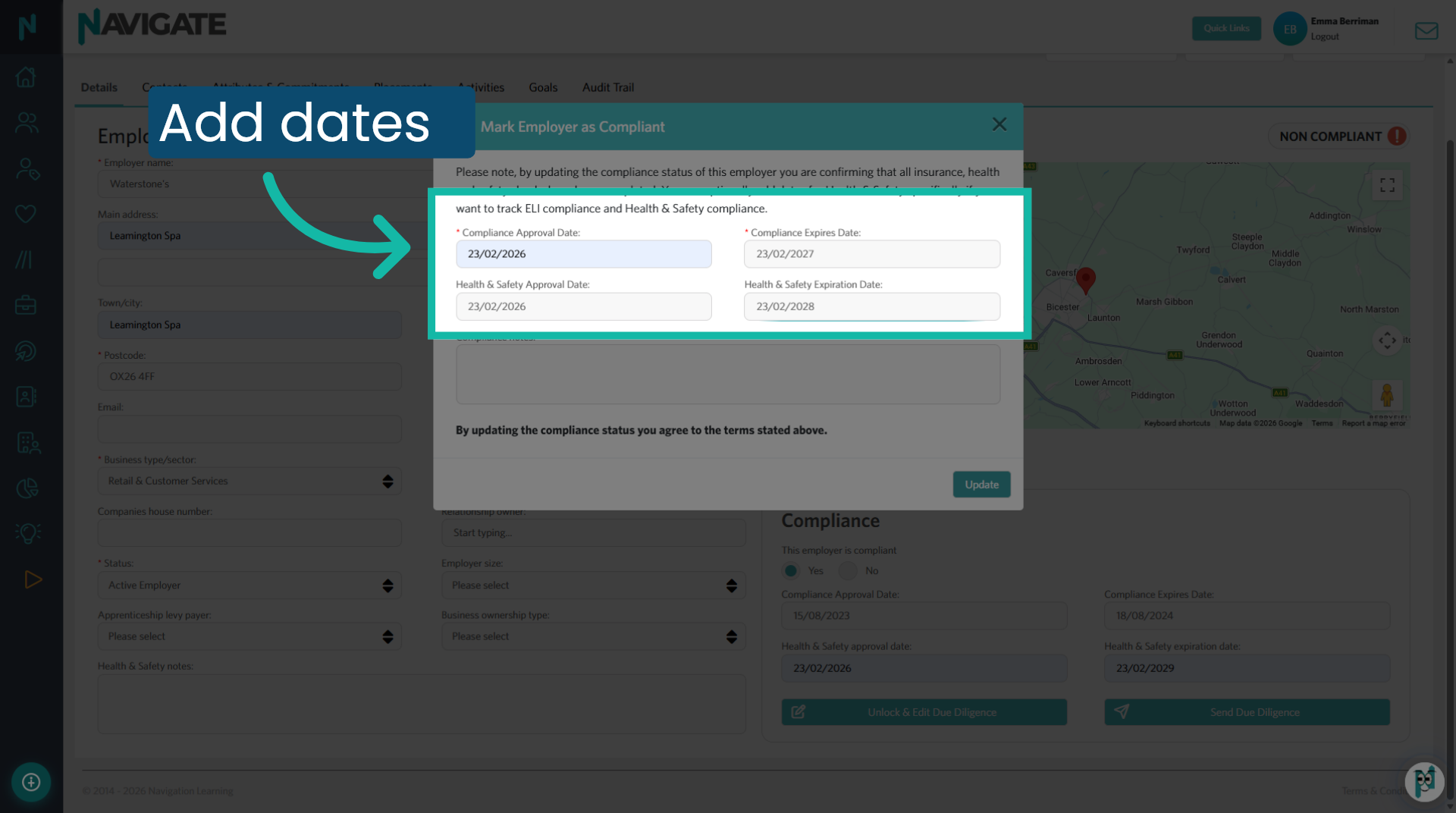
13. Add the dates
Add the compliance and health and safety approval and expiry dates. The earliest date to elapse will render the employer non-compliant.
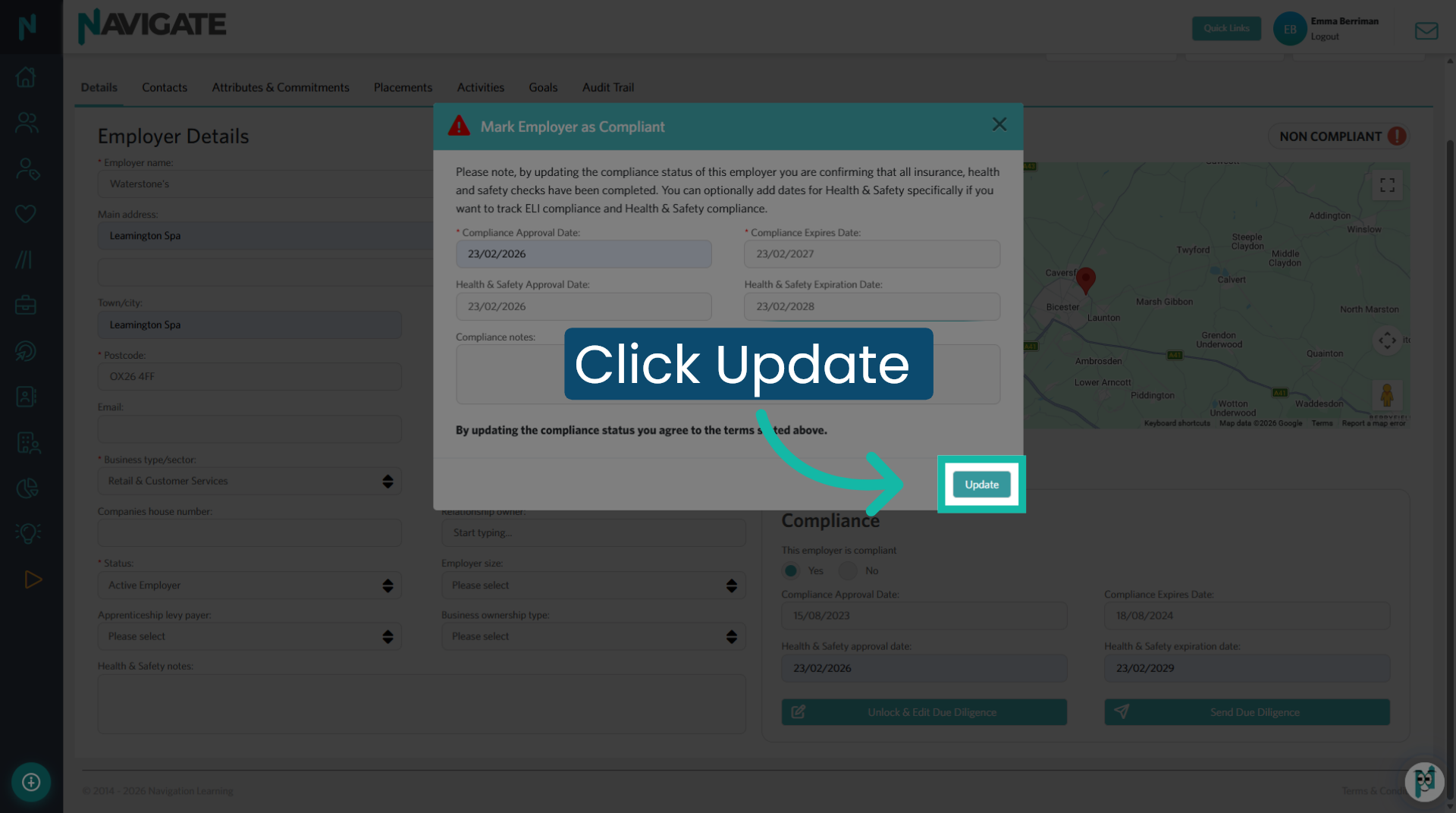
14. Update Employer Record
Click Update to save the changes to the employer's compliance information.
Was this article helpful?
That’s Great!
Thank you for your feedback
Sorry! We couldn't be helpful
Thank you for your feedback
Feedback sent
We appreciate your effort and will try to fix the article