This guide shows you how to send a due diligence form to an employer in Navigate.
Go to login.navigate.uk.com
1. Quick Links Menu
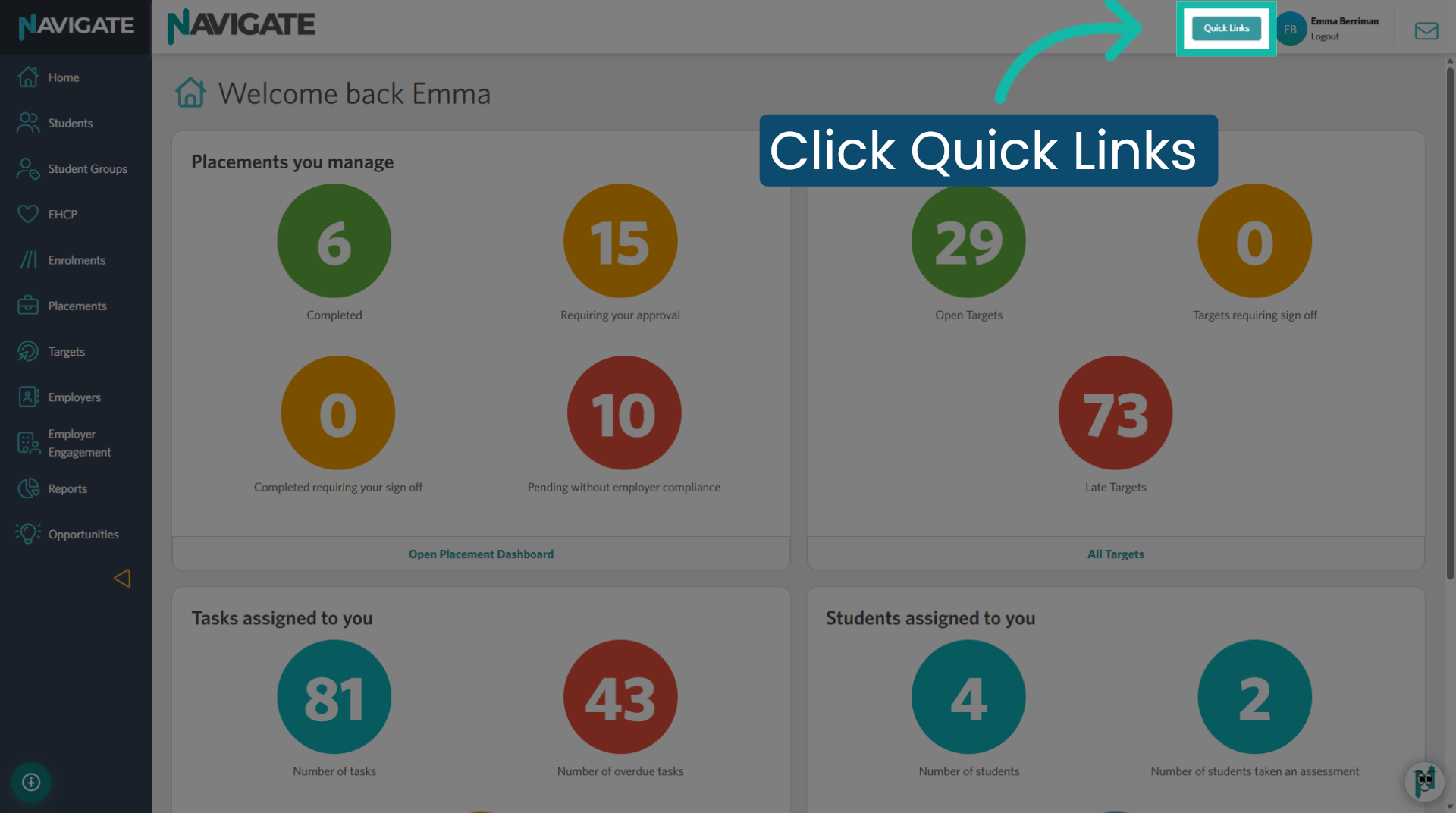
Once logged in, open Quick Links.
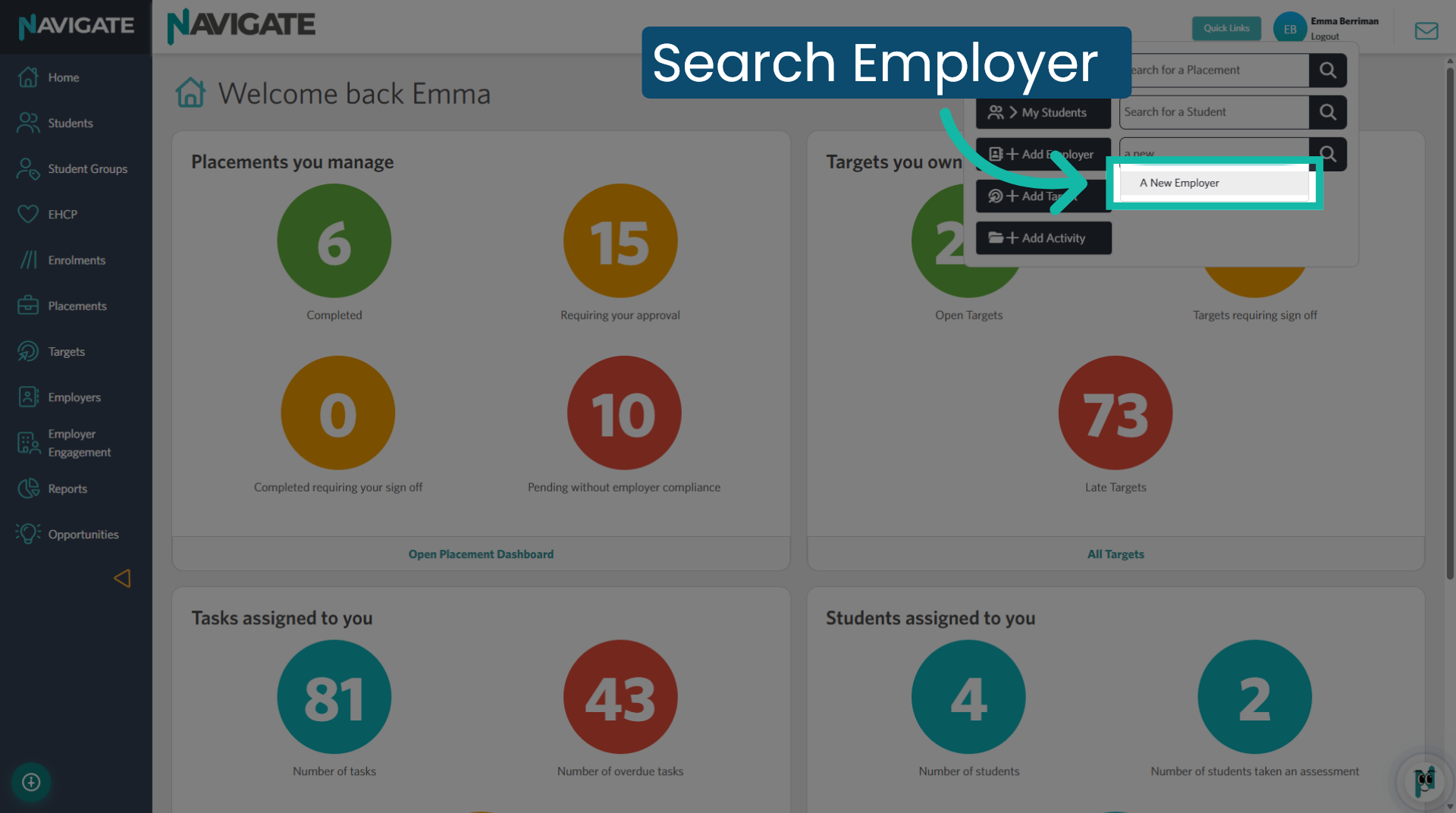
2. Search and Select Employer
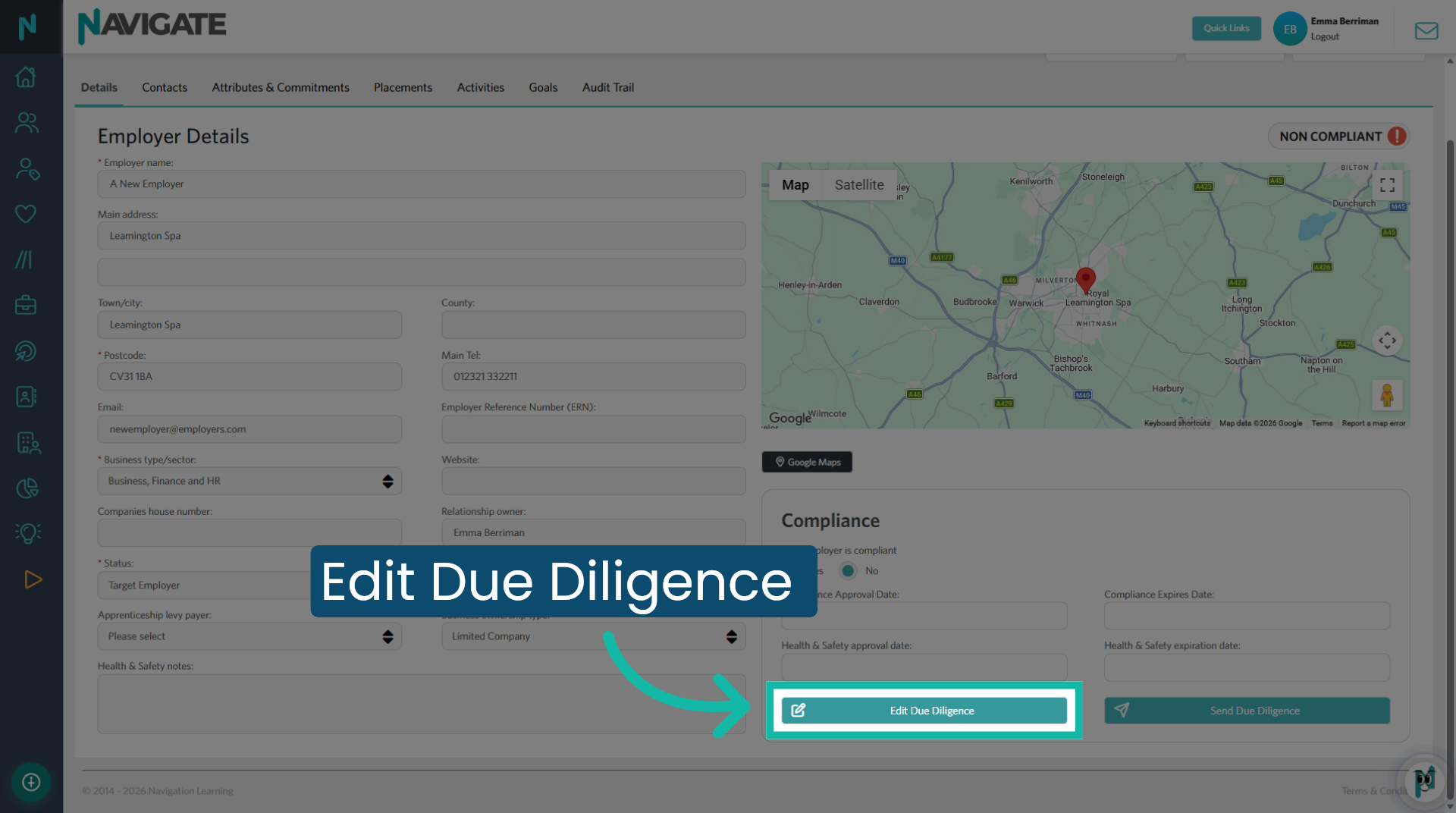
3. Edit Due Diligence
If your college needs additional information, select Edit Due Diligence. Otherwise, skip to step 6.
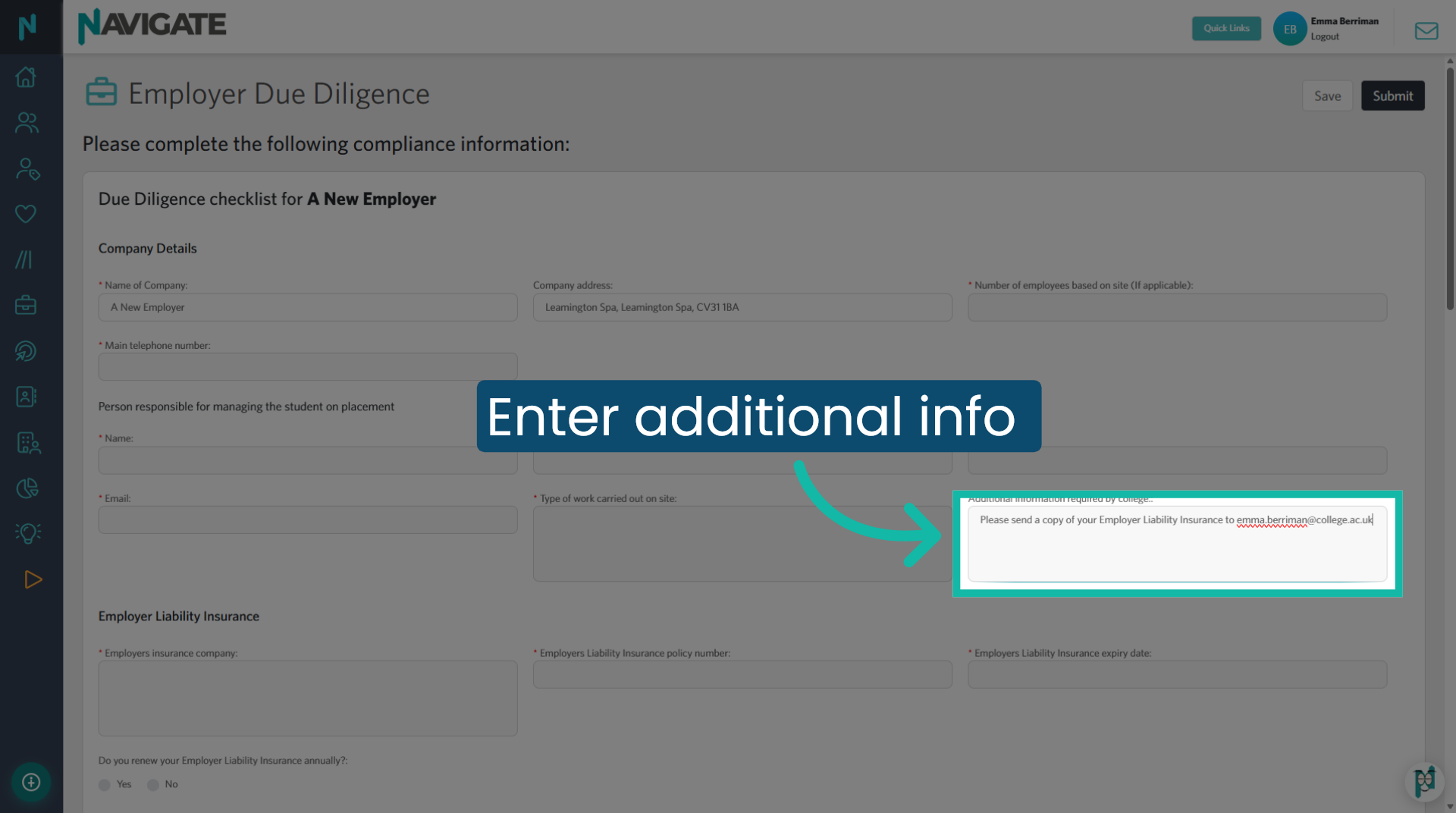
4. Enter Additional College Information
Enter the additional information your college requires. For example, you can ask the employer to provide a copy of their insurance document.
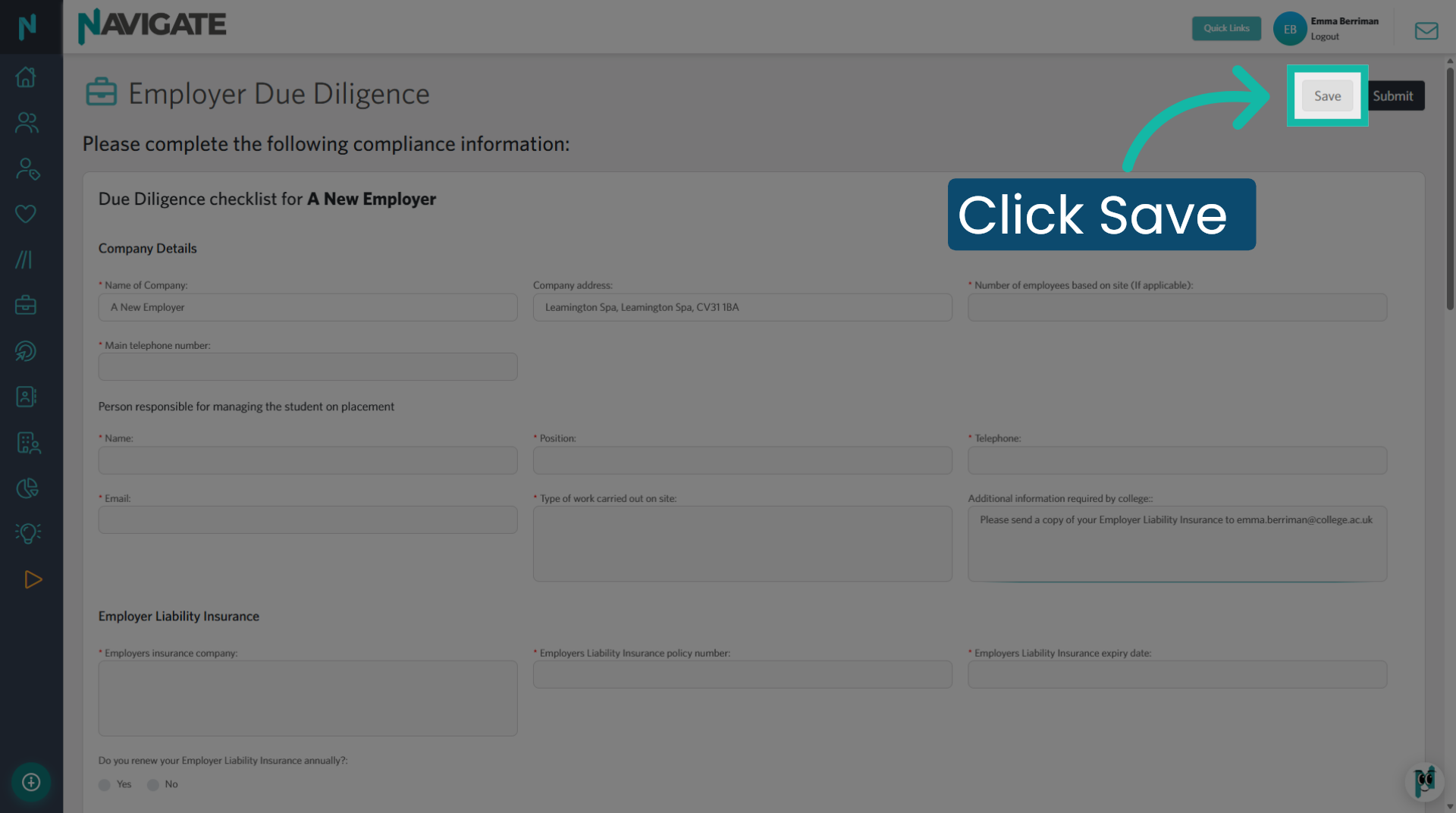
5. Save edited form
Click Save. Do not click Submit, as this locks the form and prevents the employer from entering their details.
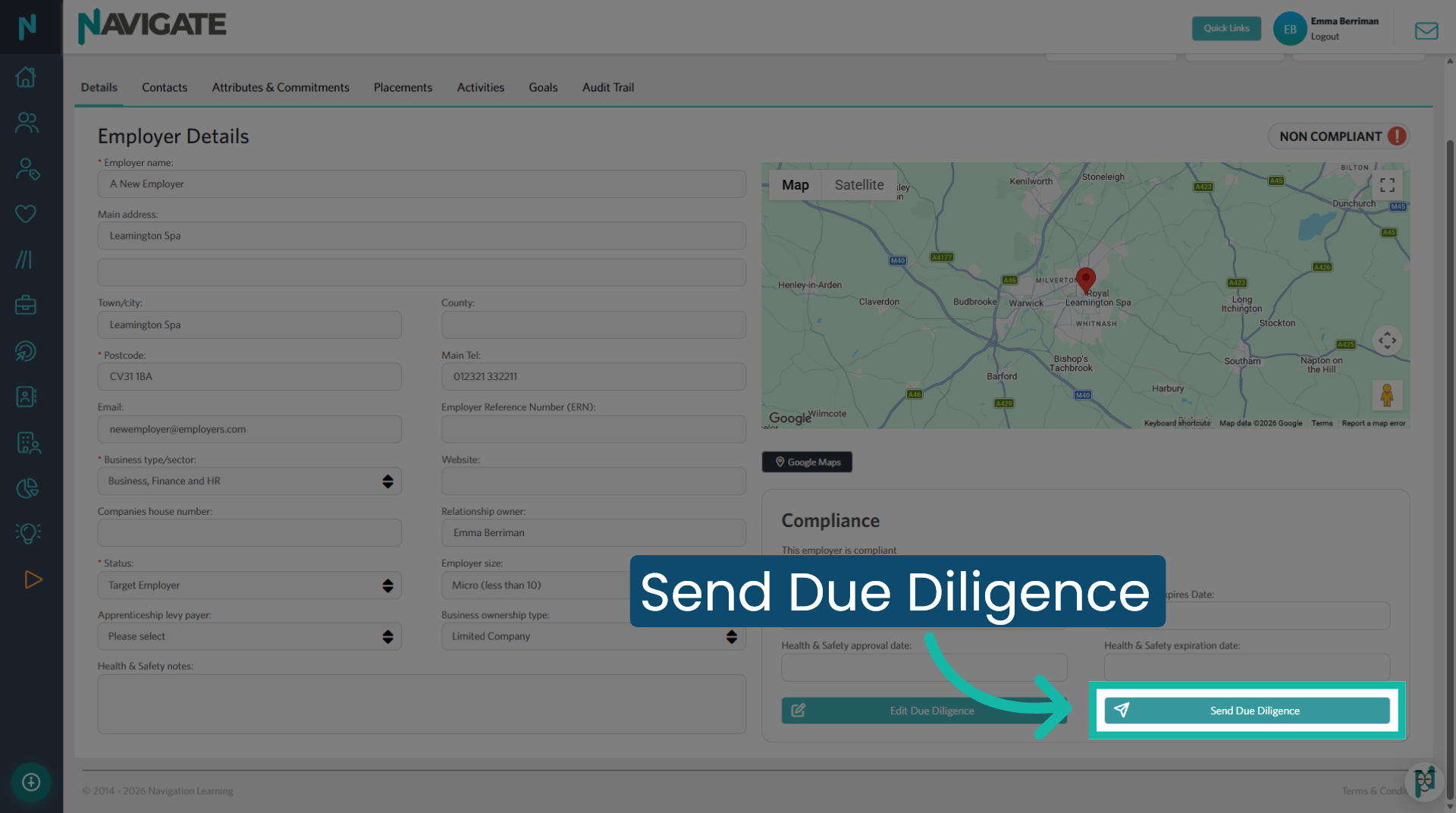
6. Send Due Diligence
Return to the employer record and click Send Due Diligence.
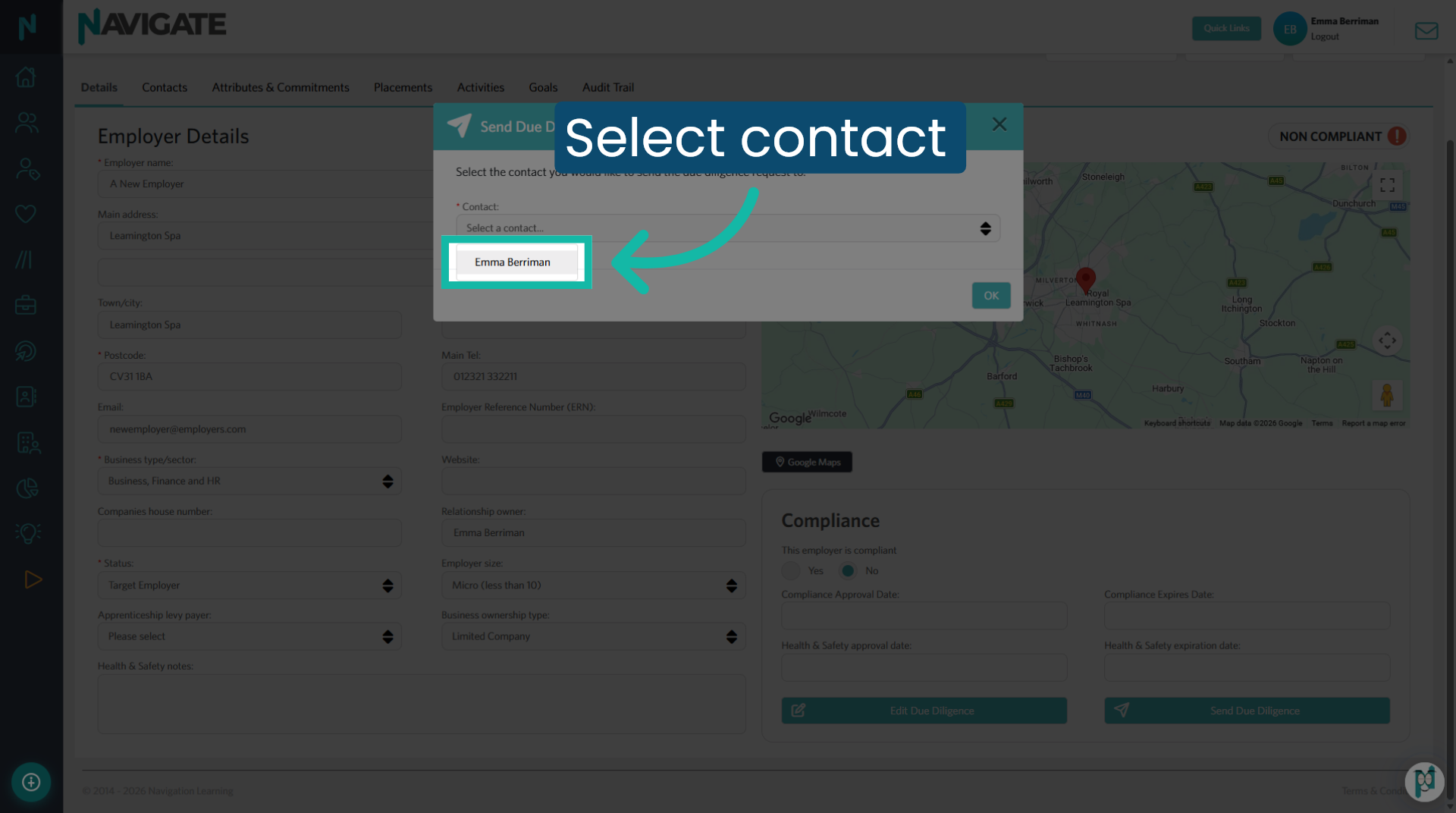
7. Select Contact
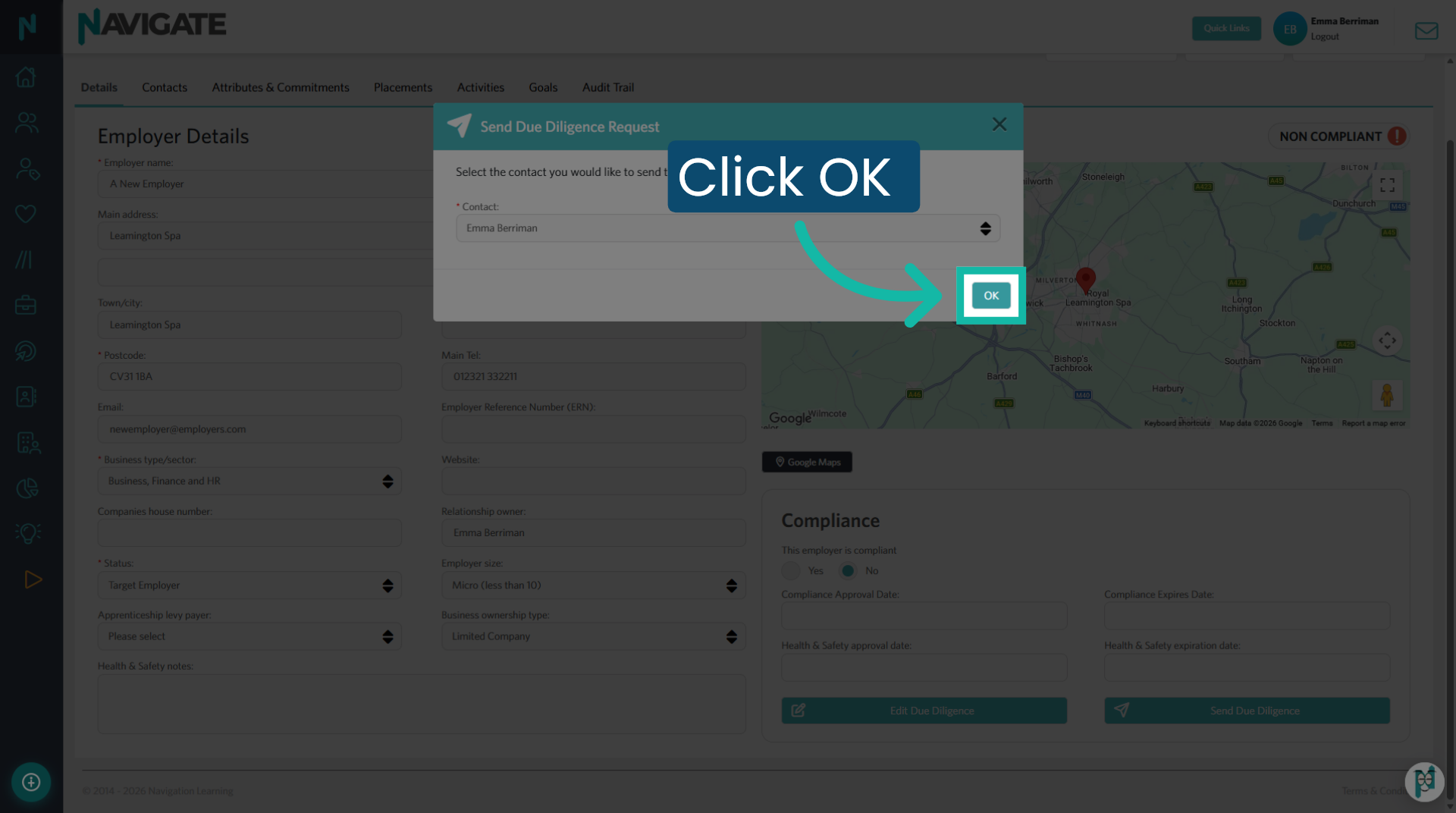
8. Confirm Contact
Click OK to confirm the contact.
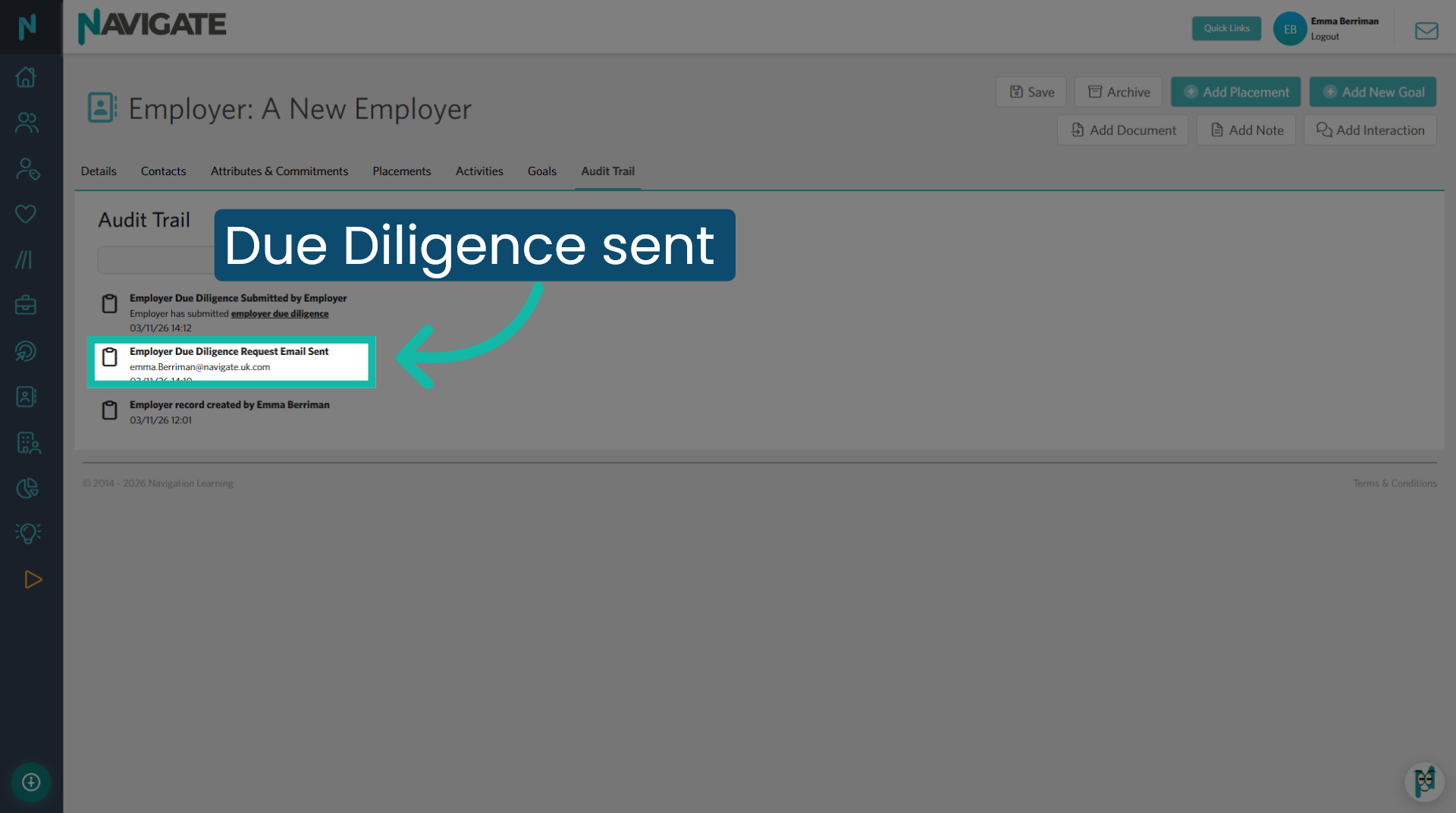
9. Due Diligence form sent
The form has been sent to the selected contact and the action is recorded in the Audit Trail.
Was this article helpful?
That’s Great!
Thank you for your feedback
Sorry! We couldn't be helpful
Thank you for your feedback
Feedback sent
We appreciate your effort and will try to fix the article