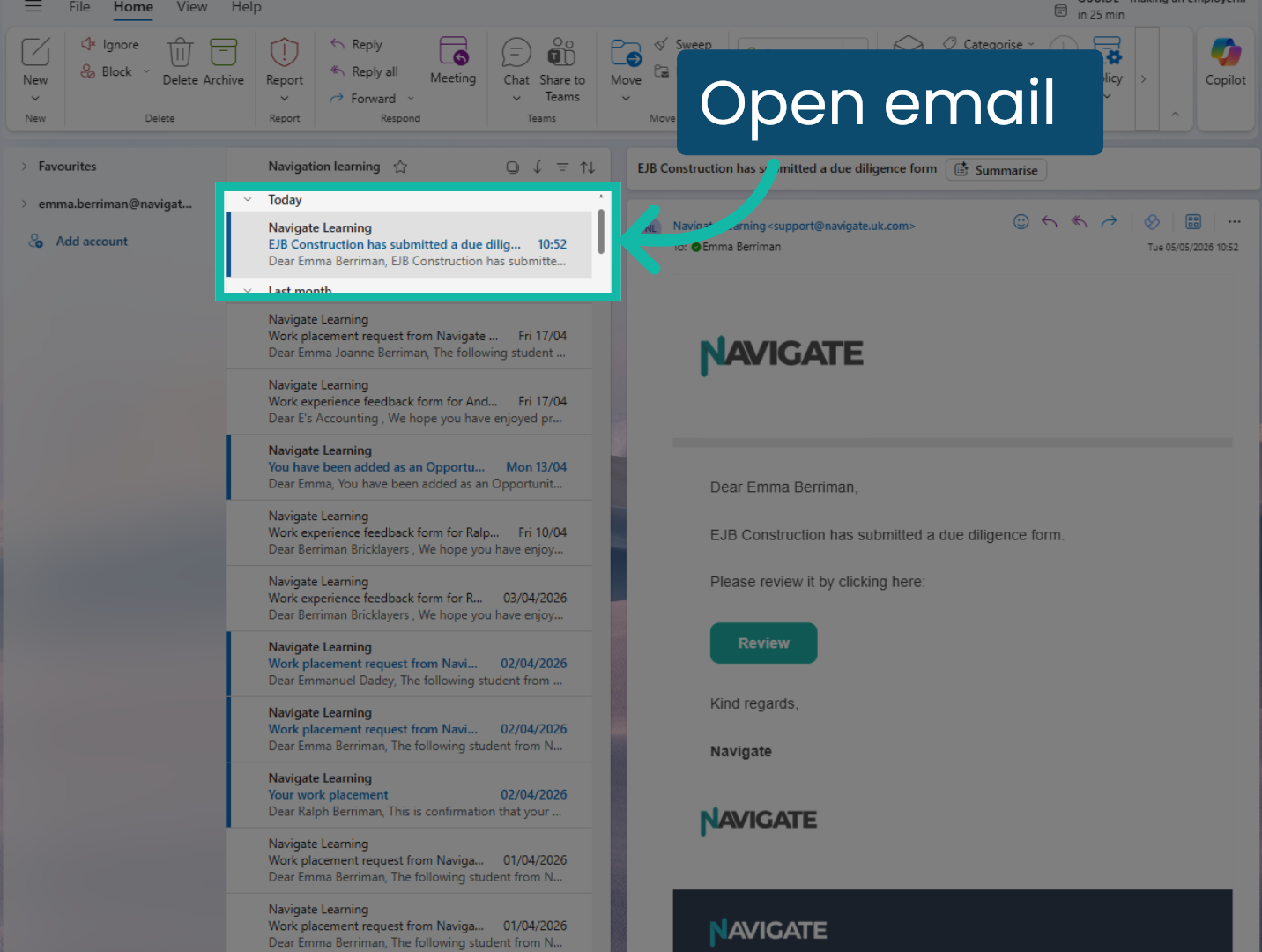
1. Email notification when Due Diligence returned
When an employer completes a due diligence form and submits it for review, the coordinator linked to the placement the due diligence was sent from will receive a notification from Navigate Learning.
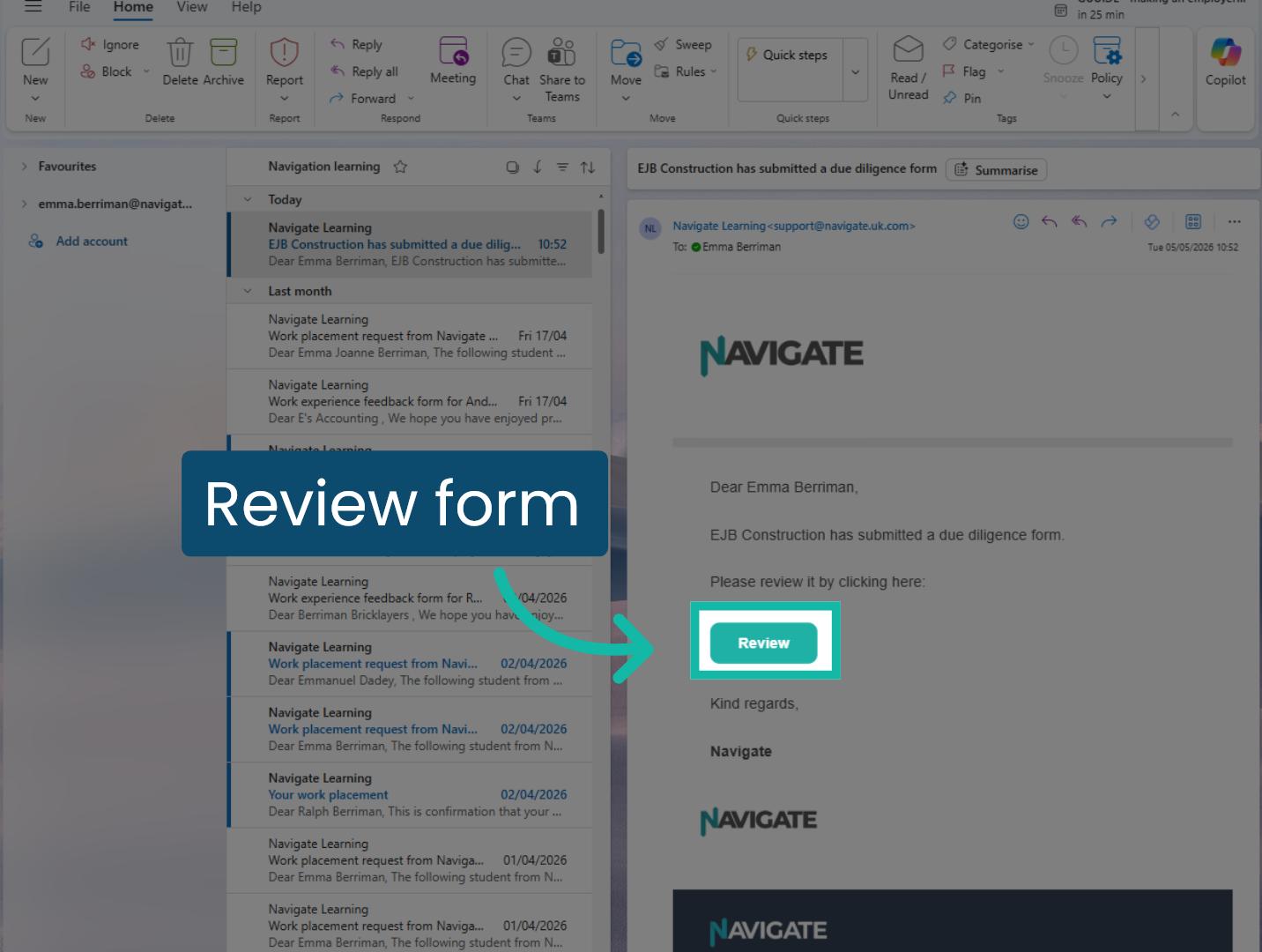
2. Review form
Click review to view the form straight from your emails. Check your college's specific health & safety expectations for employers to review this document.
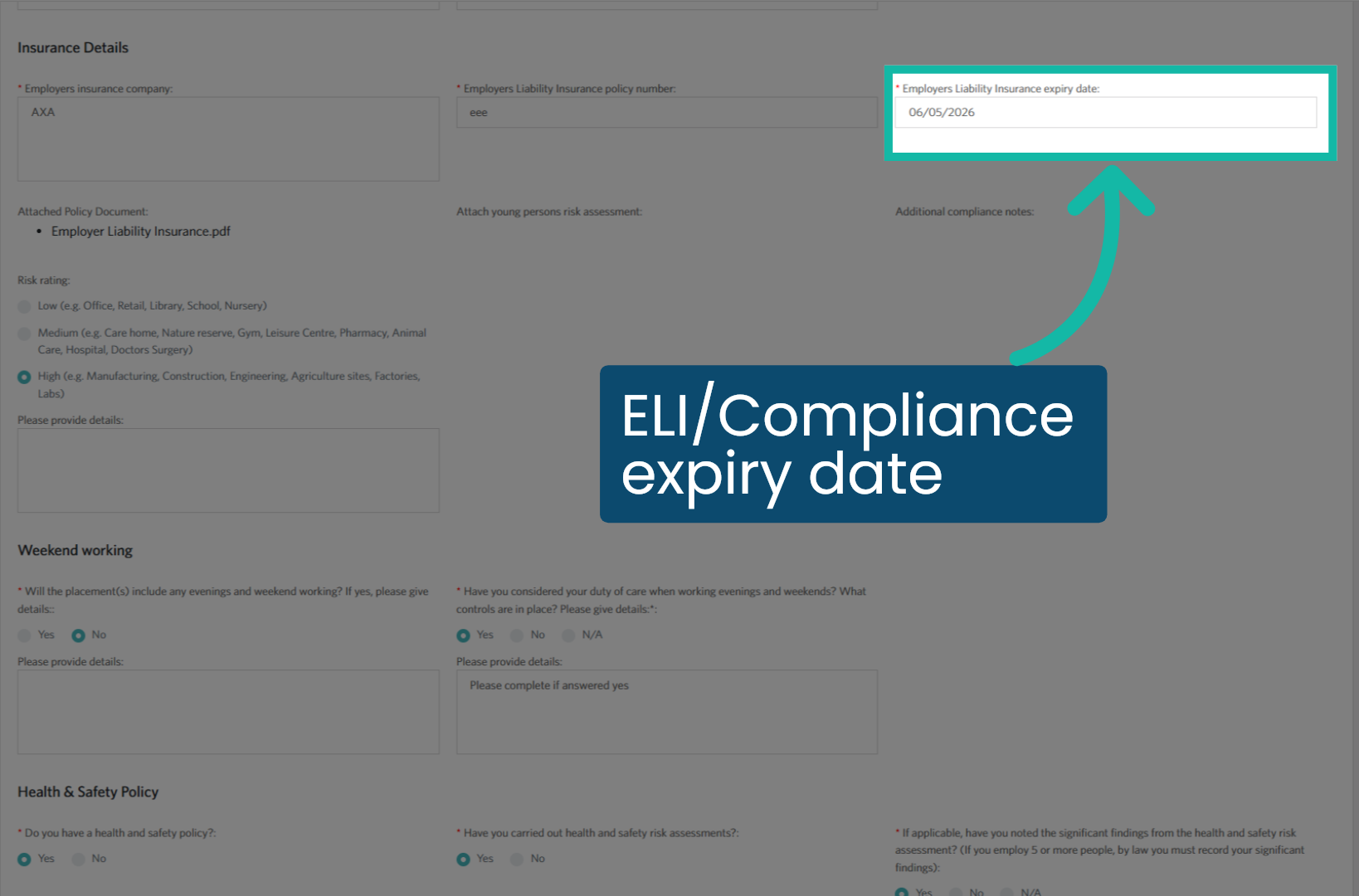
3. Note the ELI/compliance expiry date
Make a note of the ELI/compliance expiry date. You will need this to update the employer record.
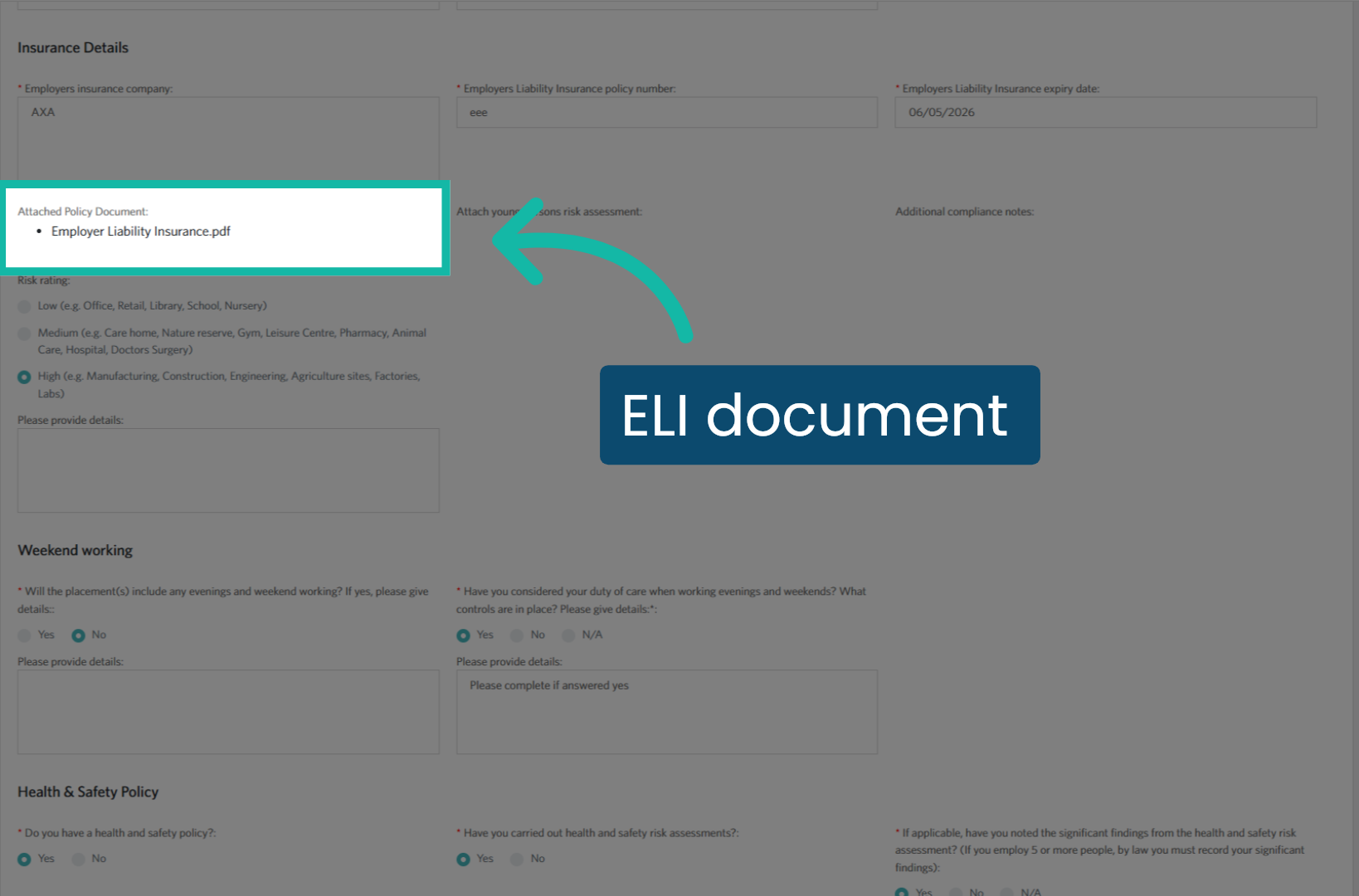
4. Review the attached ELI document
Click the link to review and confirm the attached document legitimately evidences, the compliance expiry date.
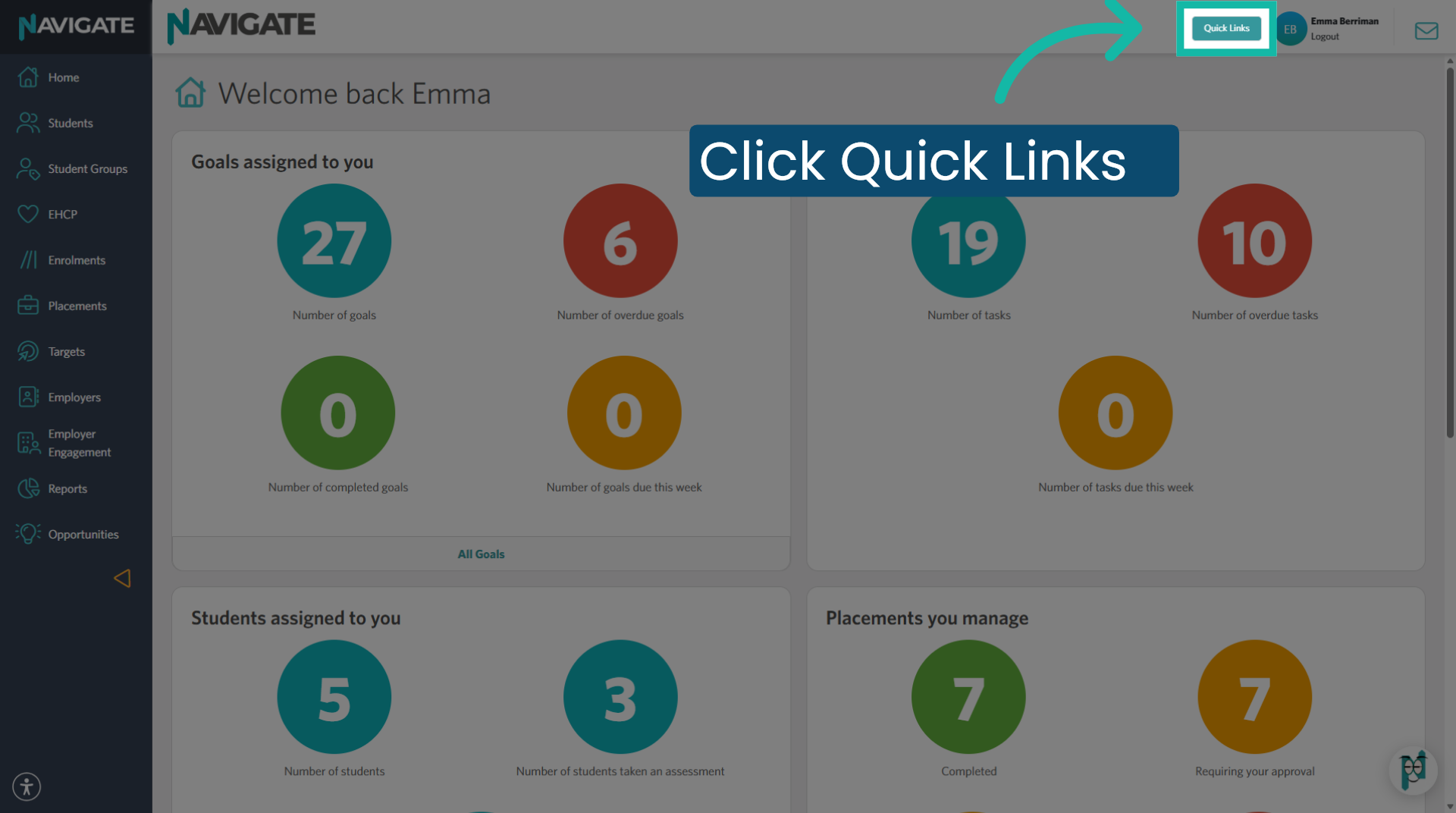
5. Access Quick Links Menu
Then click on quick links.
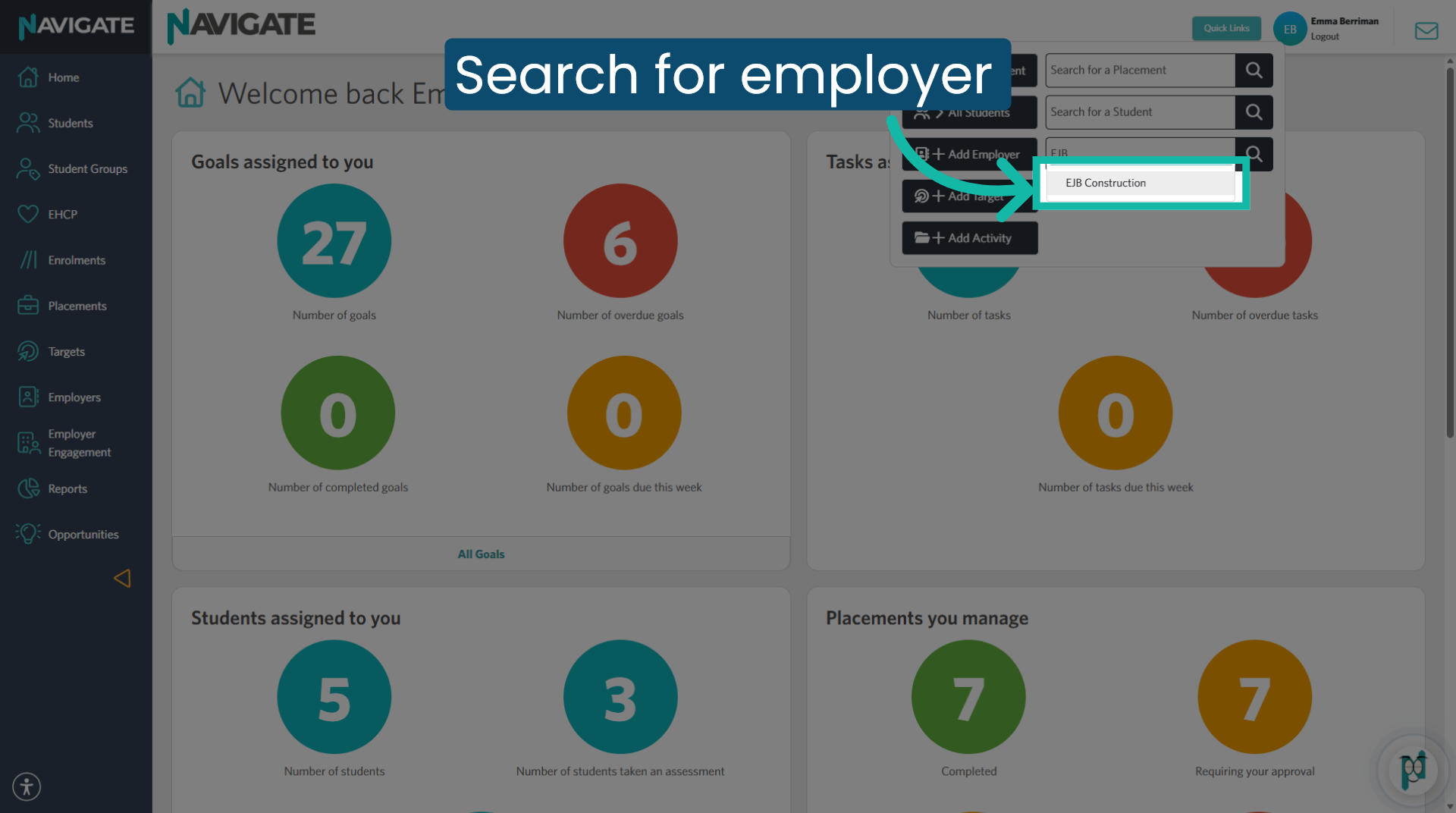
6. Select Employer Record
Search for the employer and select them from the search results to open the employer's profile.
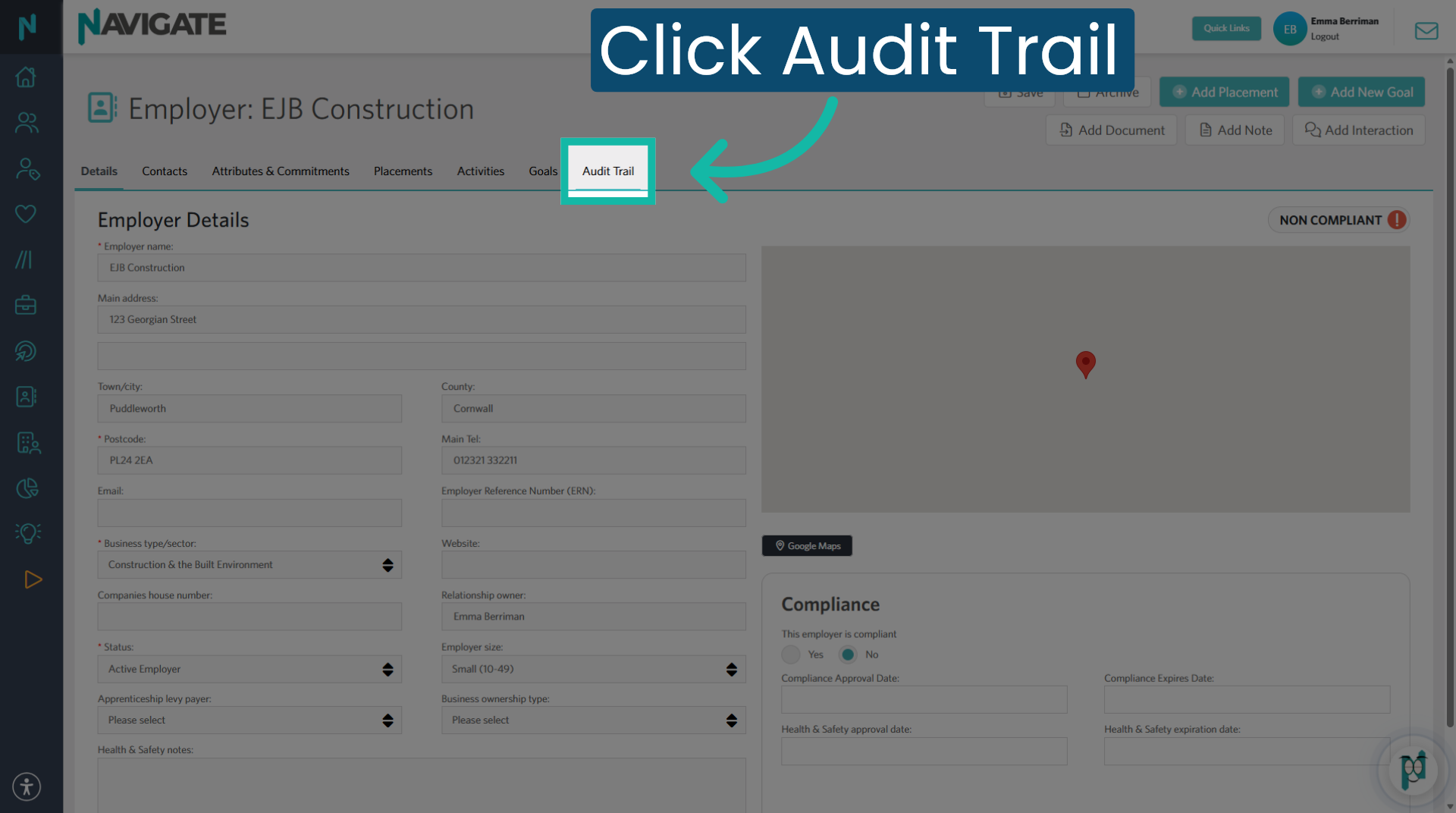
7. Audit Trail
The completed due diligence form will be available in the employer's audit Trail.
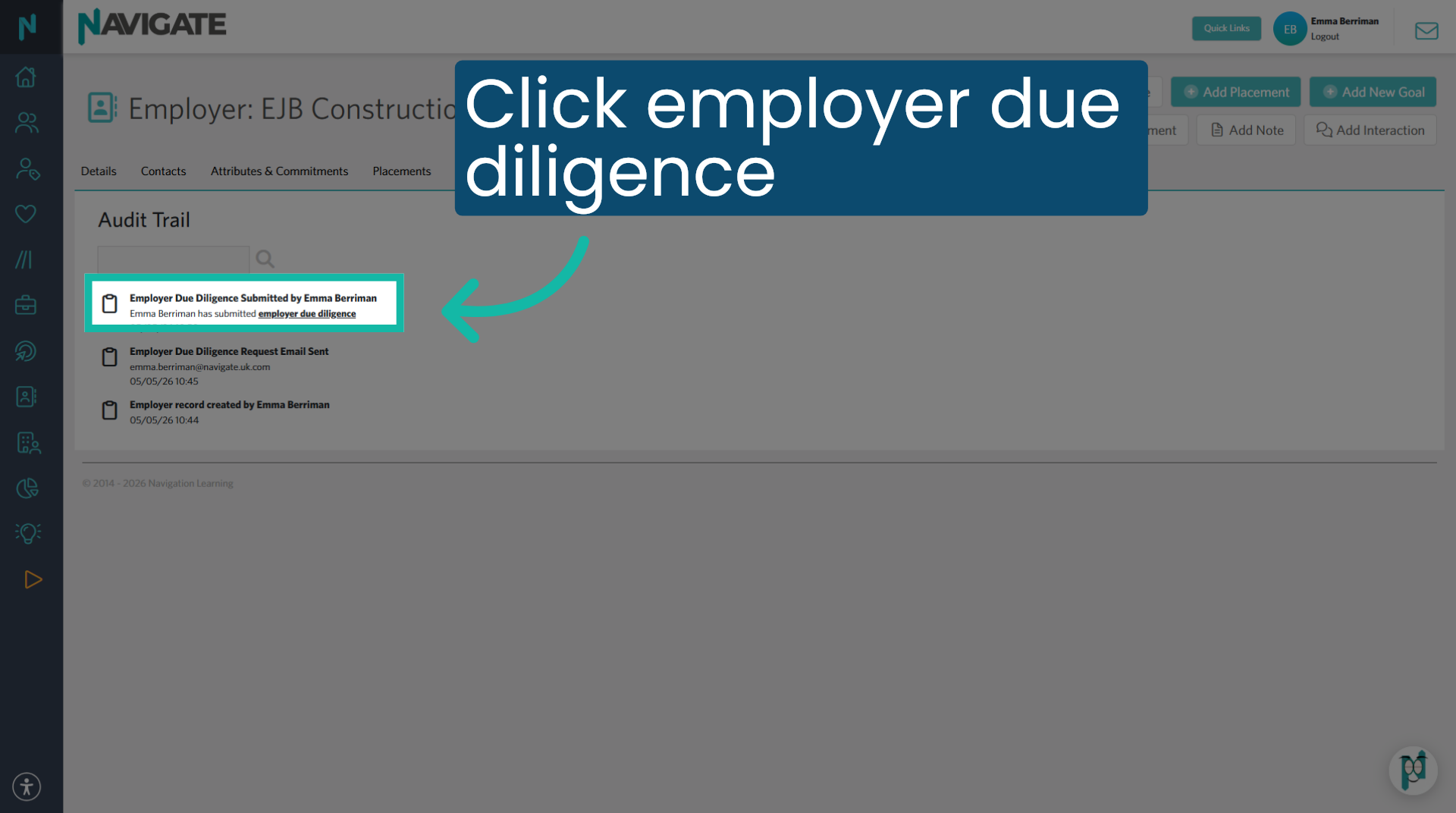
8. Click 'employer due diligence' form
Click the 'Bold' employer due diligence to view the hyperlinked form.
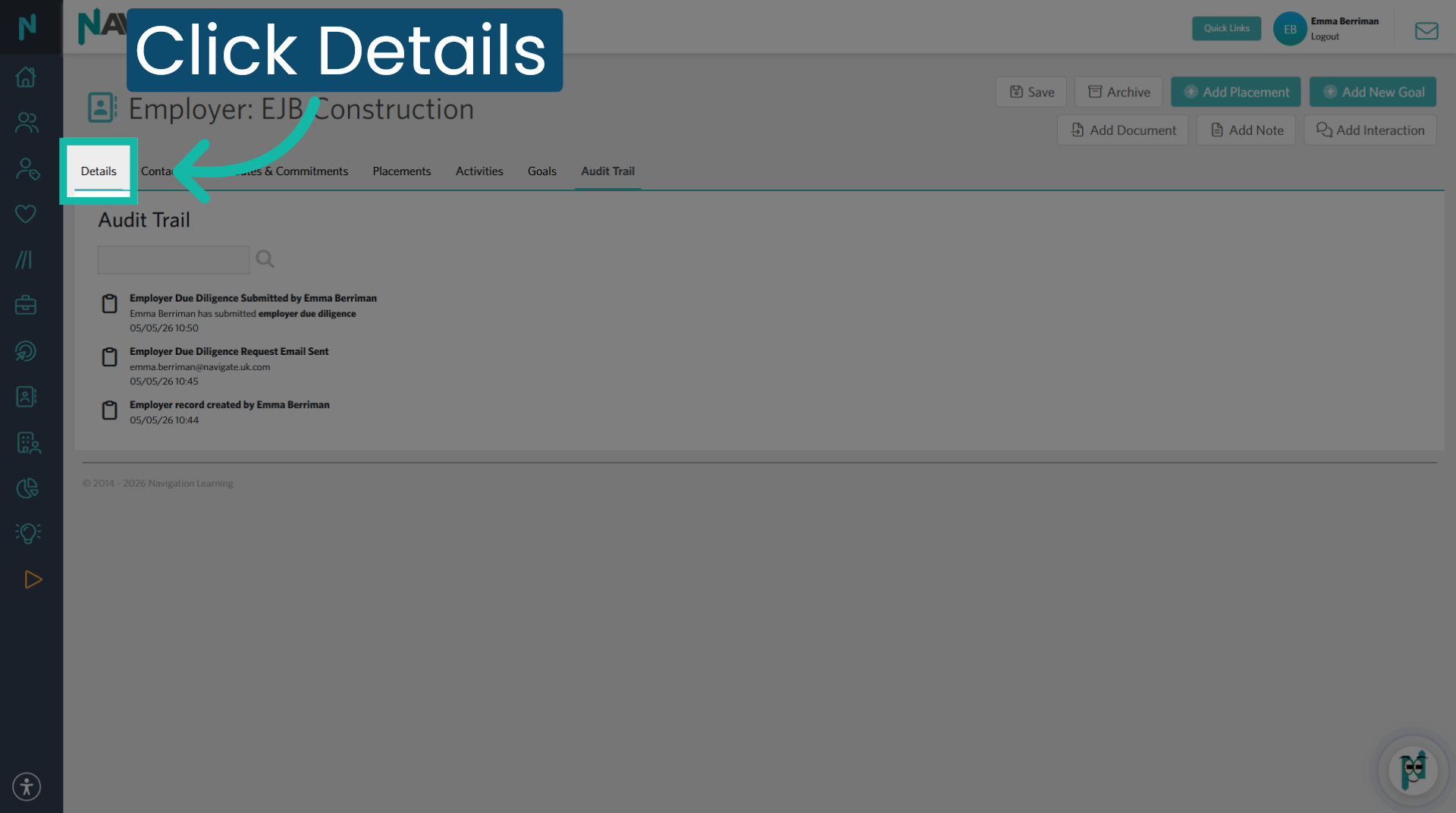
9. Click the employer 'details' tab
Click into the employer's details tab to update the compliance.
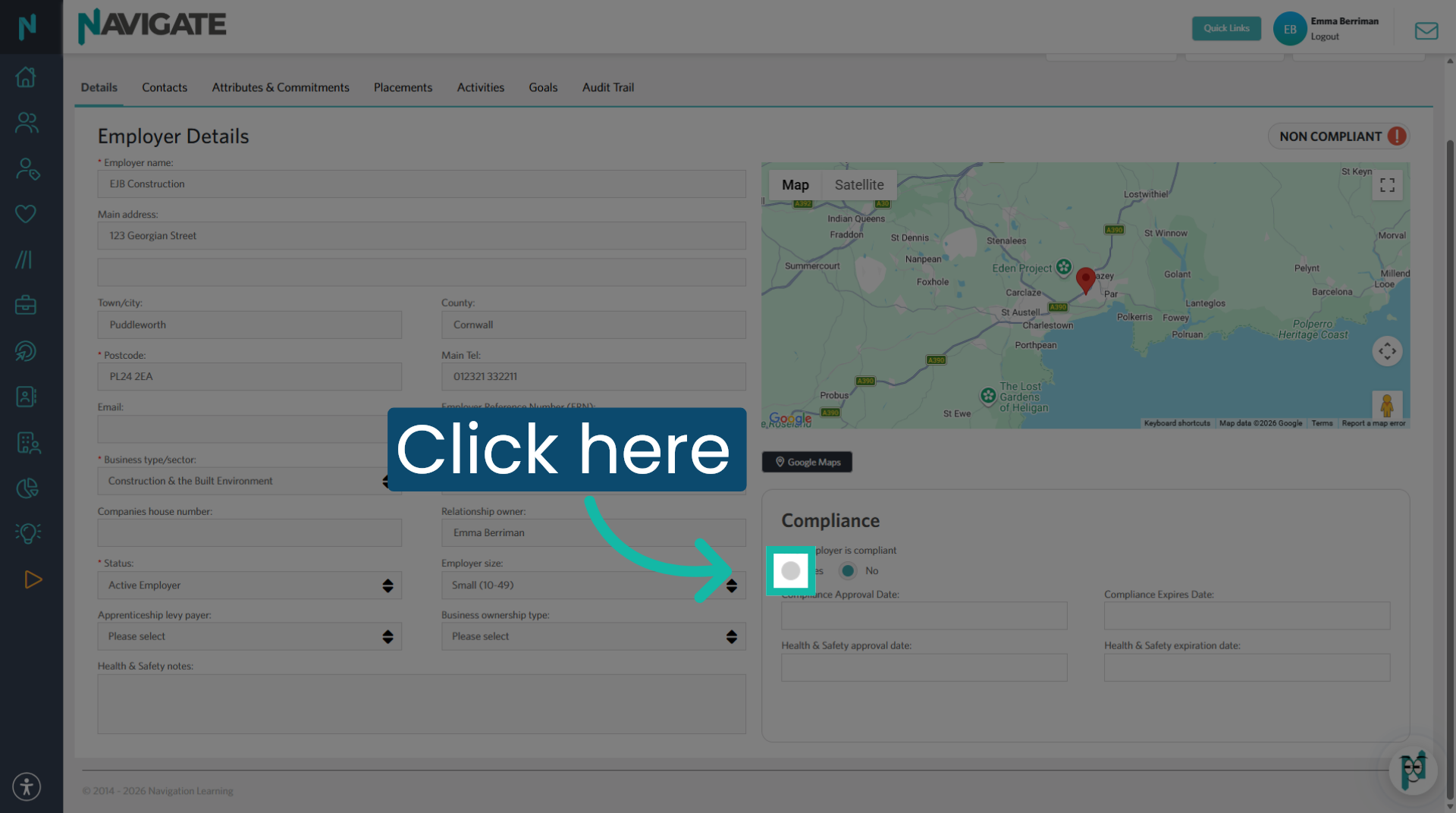
10. Update Compliance Status
In the compliance section, click yes to update the compliance dates details.
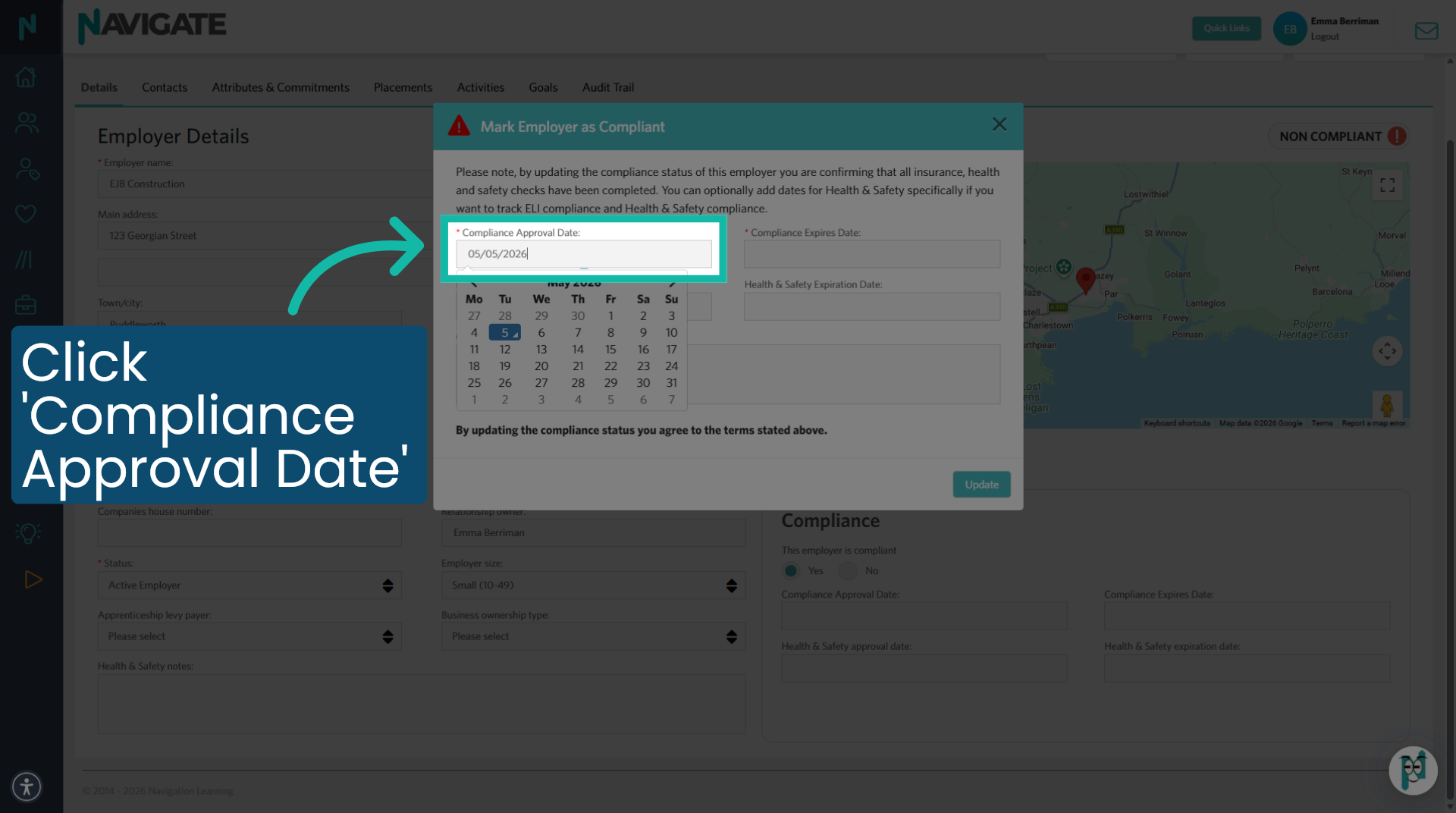
11. Set Compliance Approval Date
Click into the compliance approved date section, and set the date. This will be the date you are approving the form, usually today's date.
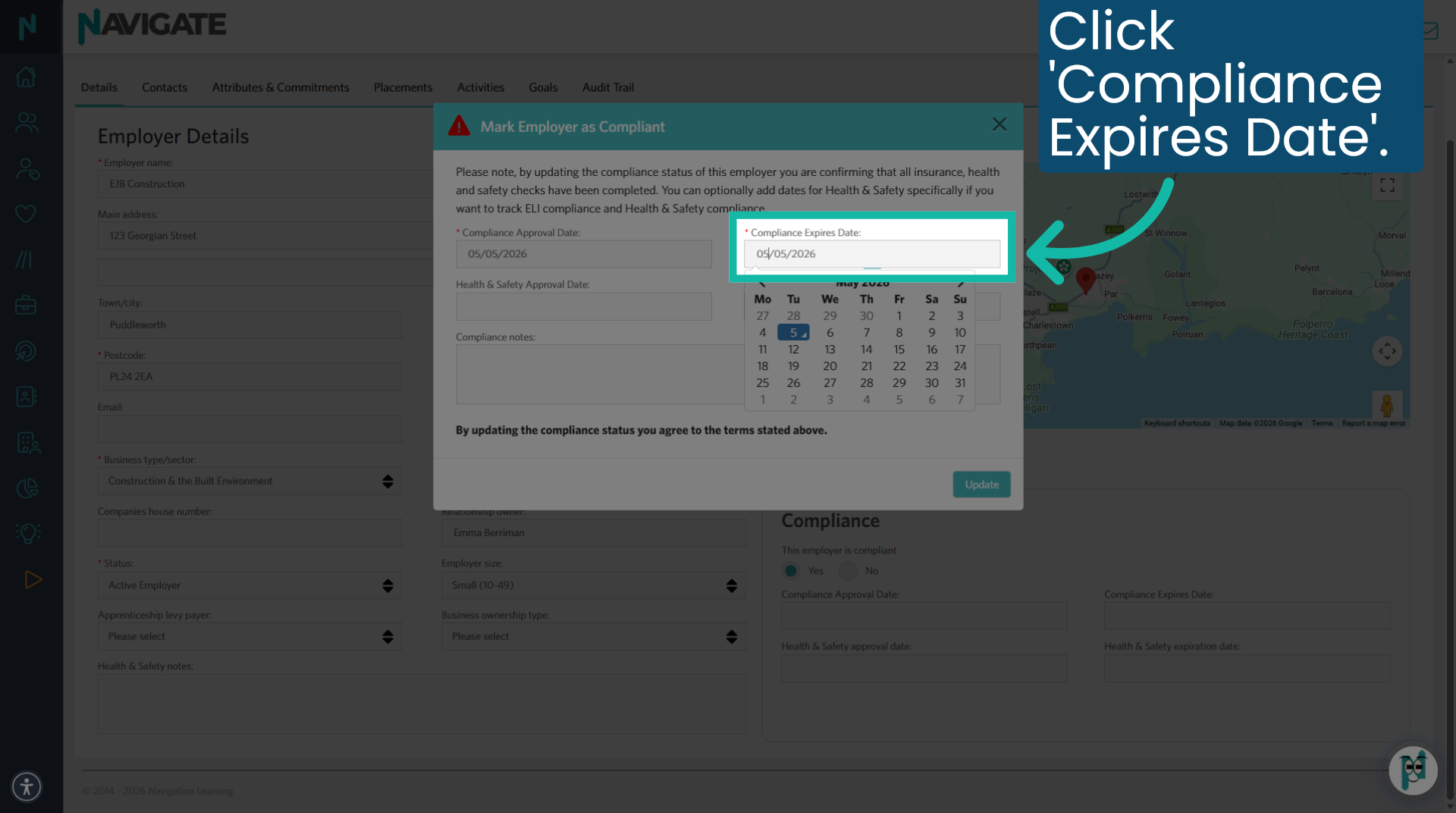
12. Select Compliance Expiration Date
Then select the compliance expiry date. This will be the verified date that the employer's ELI (employer liability insurance) document expires.
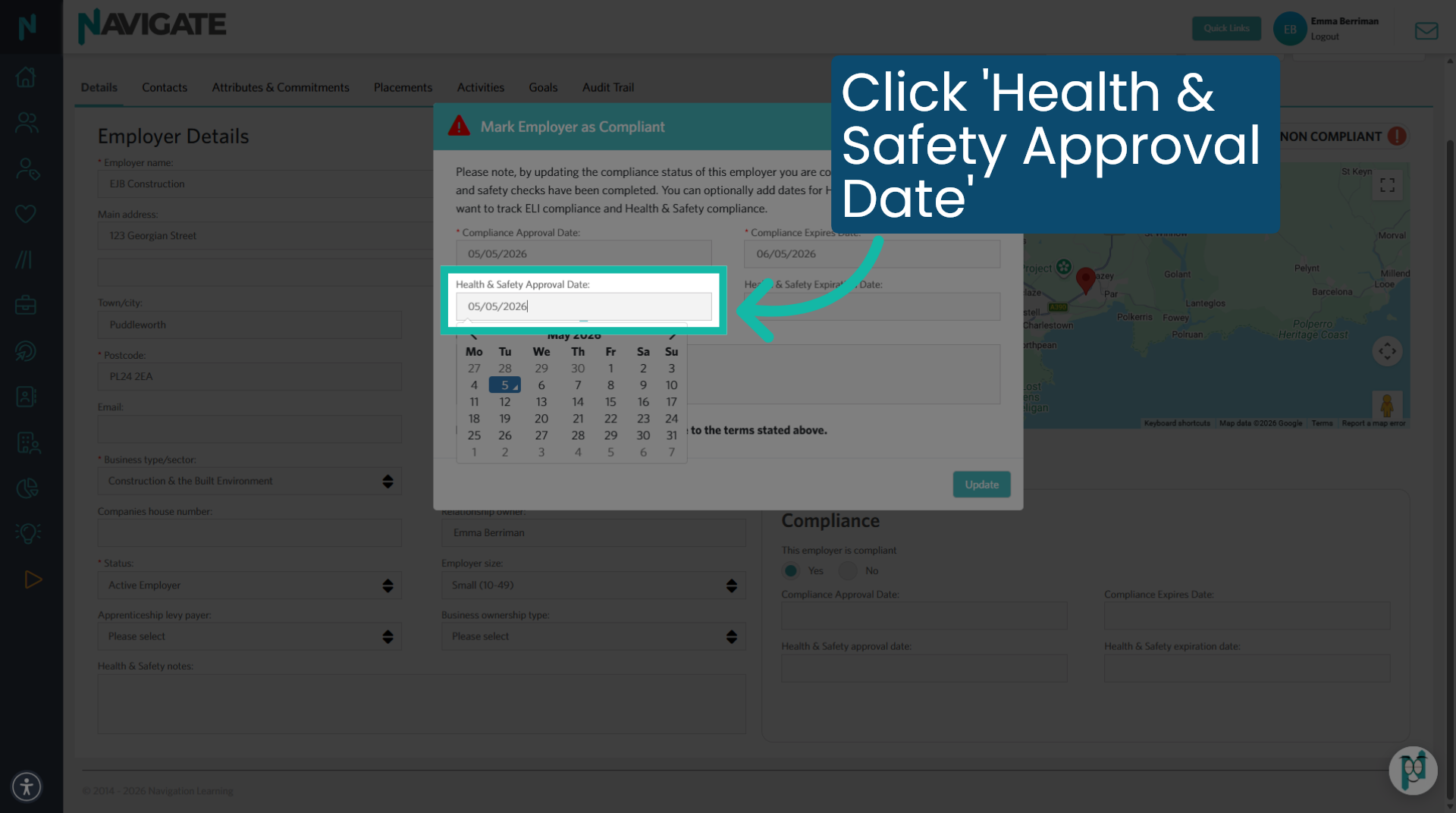
13. Set Health & Safety Approval Date
Click 'health and safety approval date' to enter the approval date for health and safety compliance. Usually today's date
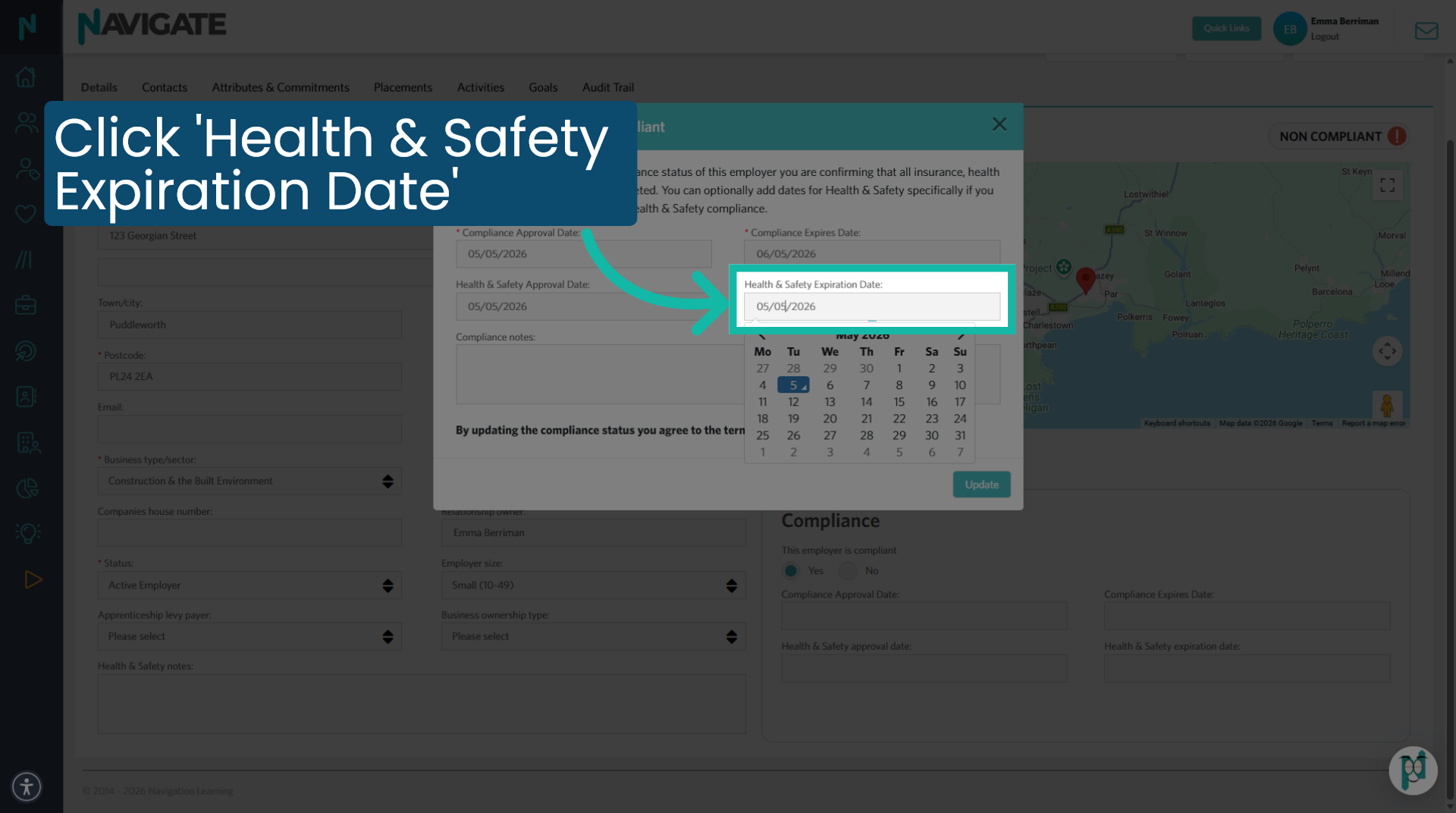
14. Set Health & Safety Expiration Date
Then click 'health and safety expiration date' to define when health and safety compliance expires. Your college will have specific guidelines for how many months each risk level should be reassessed.
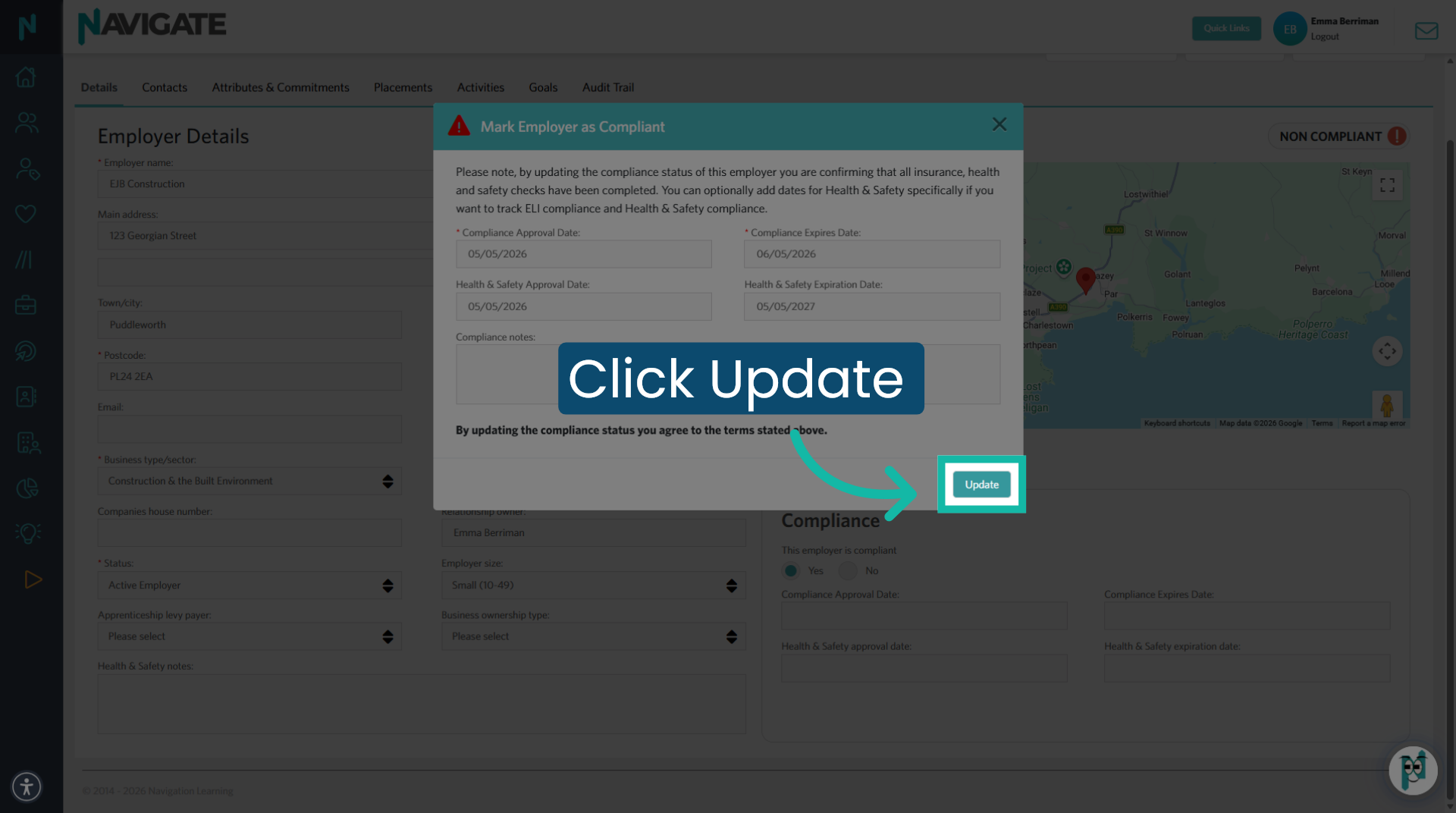
15. When complete - Click Update
once completed click update to save the dates added.
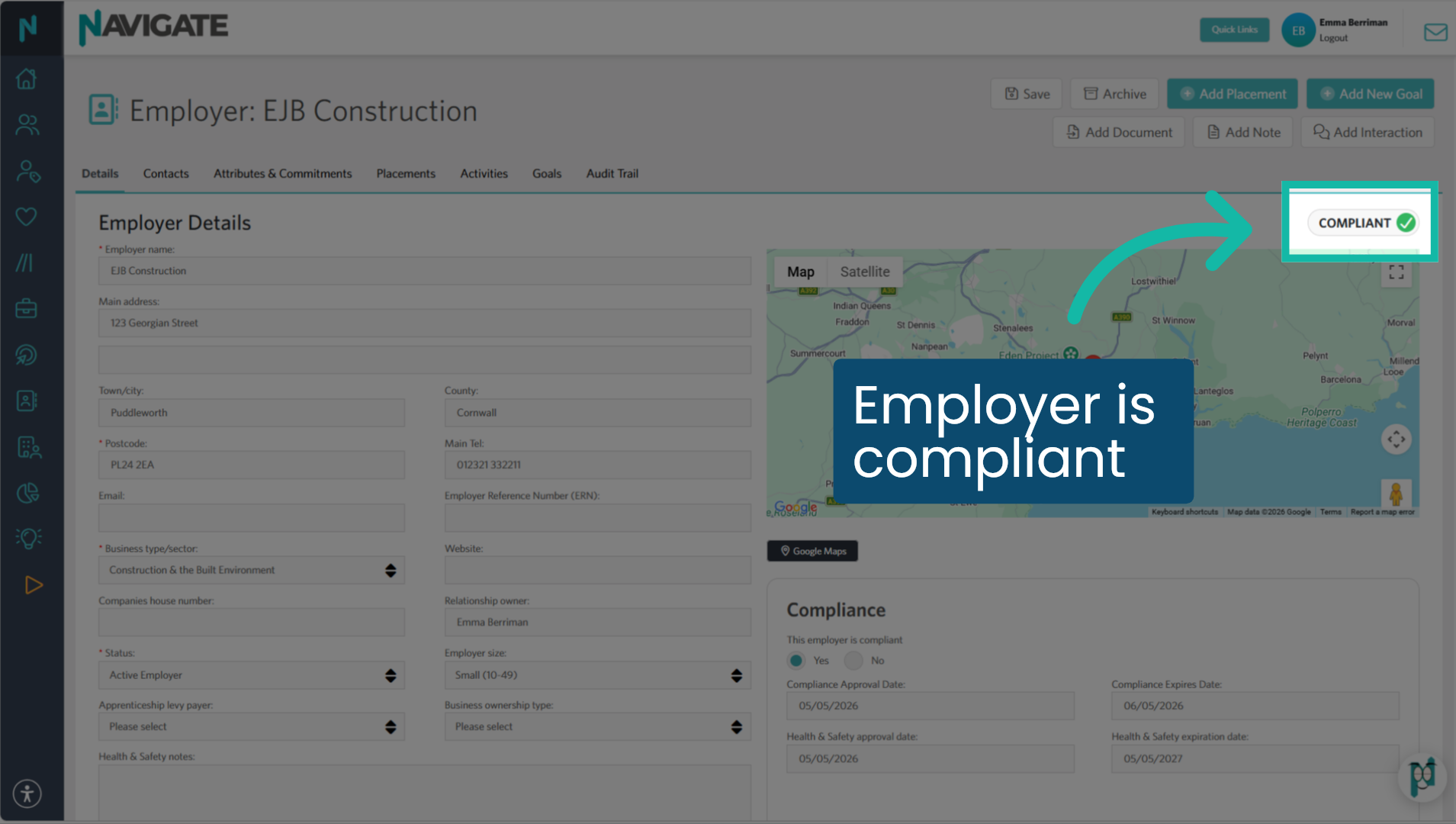
16. Employer is compliant
If your compliance in H&S, dates are current. Then the employer will show as compliant. The employer will become non-compliant when either of the expiry dates lapses.
Was this article helpful?
That’s Great!
Thank you for your feedback
Sorry! We couldn't be helpful
Thank you for your feedback
Feedback sent
We appreciate your effort and will try to fix the article