1. NOTE
Note check with your manager first, your college might have its own specific health and safety process that differs from this guidde.
2. Note
For this video, we are accessing the employer straight from the placement module. you can also locate and edit the employer from the quick links, employer search and the employer module
3. View the compliance status
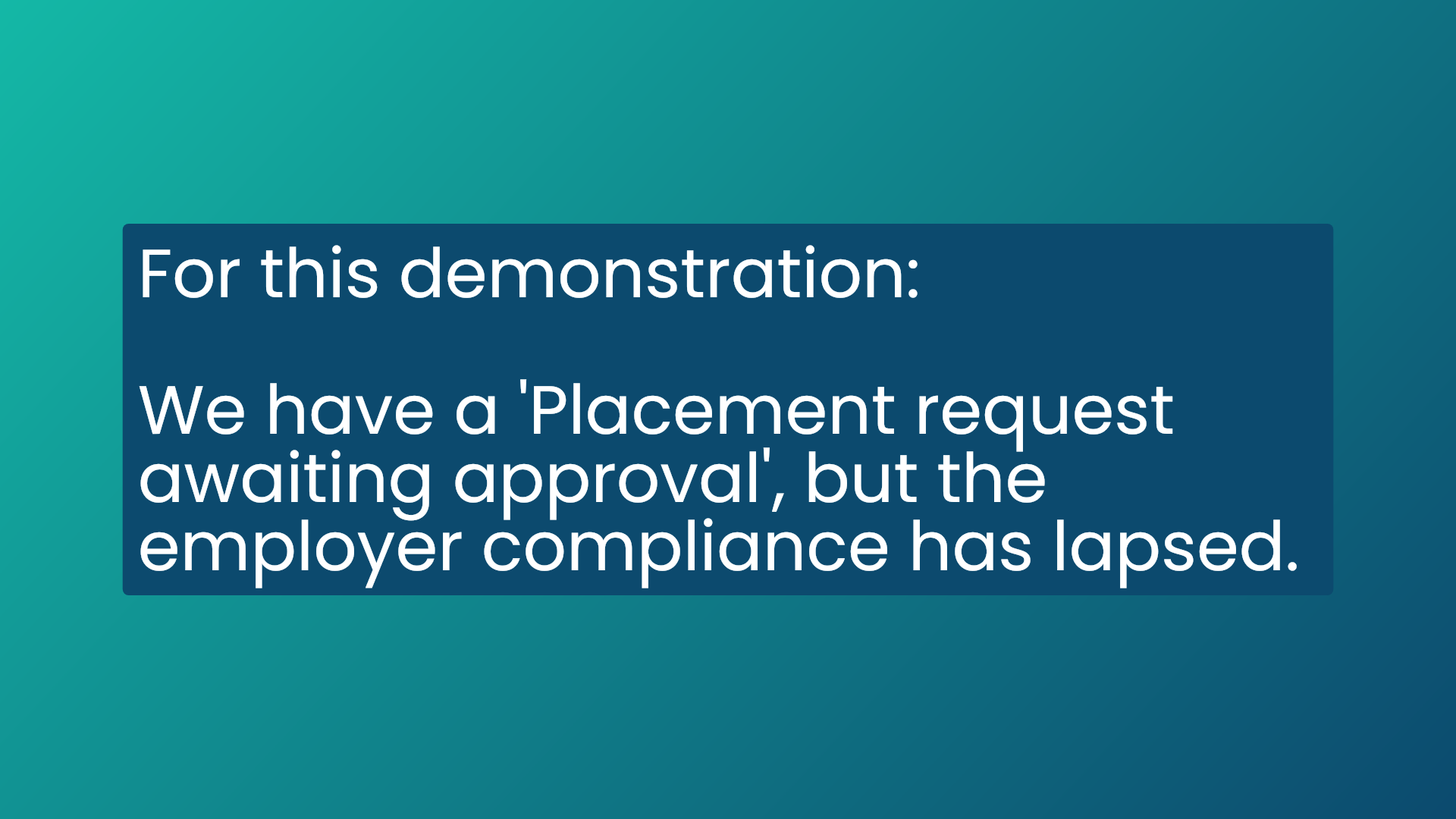
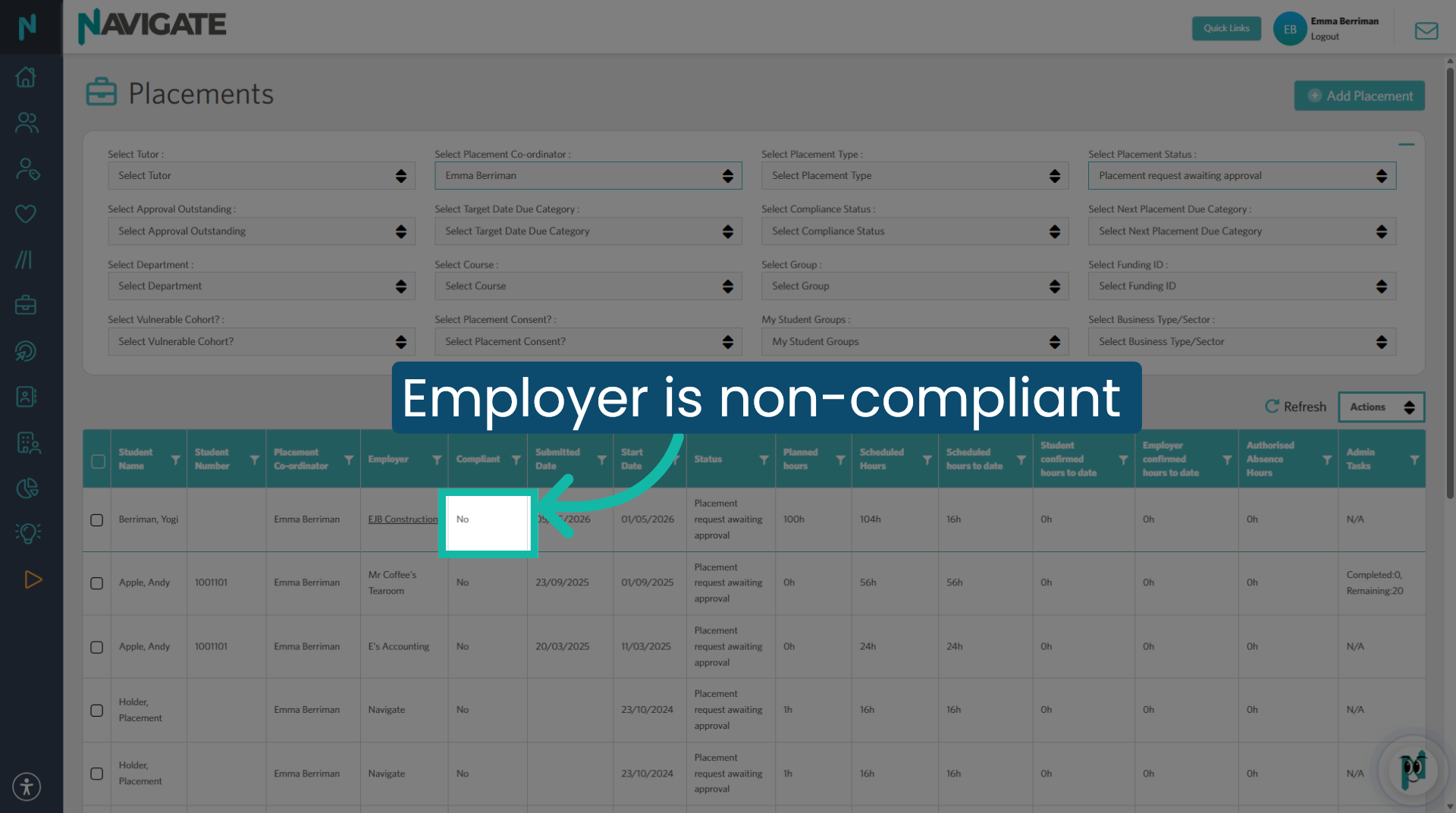
As an example, this employer's compliance has elapsed and a student wishes to attend a placement at this business.
4. Select the employer
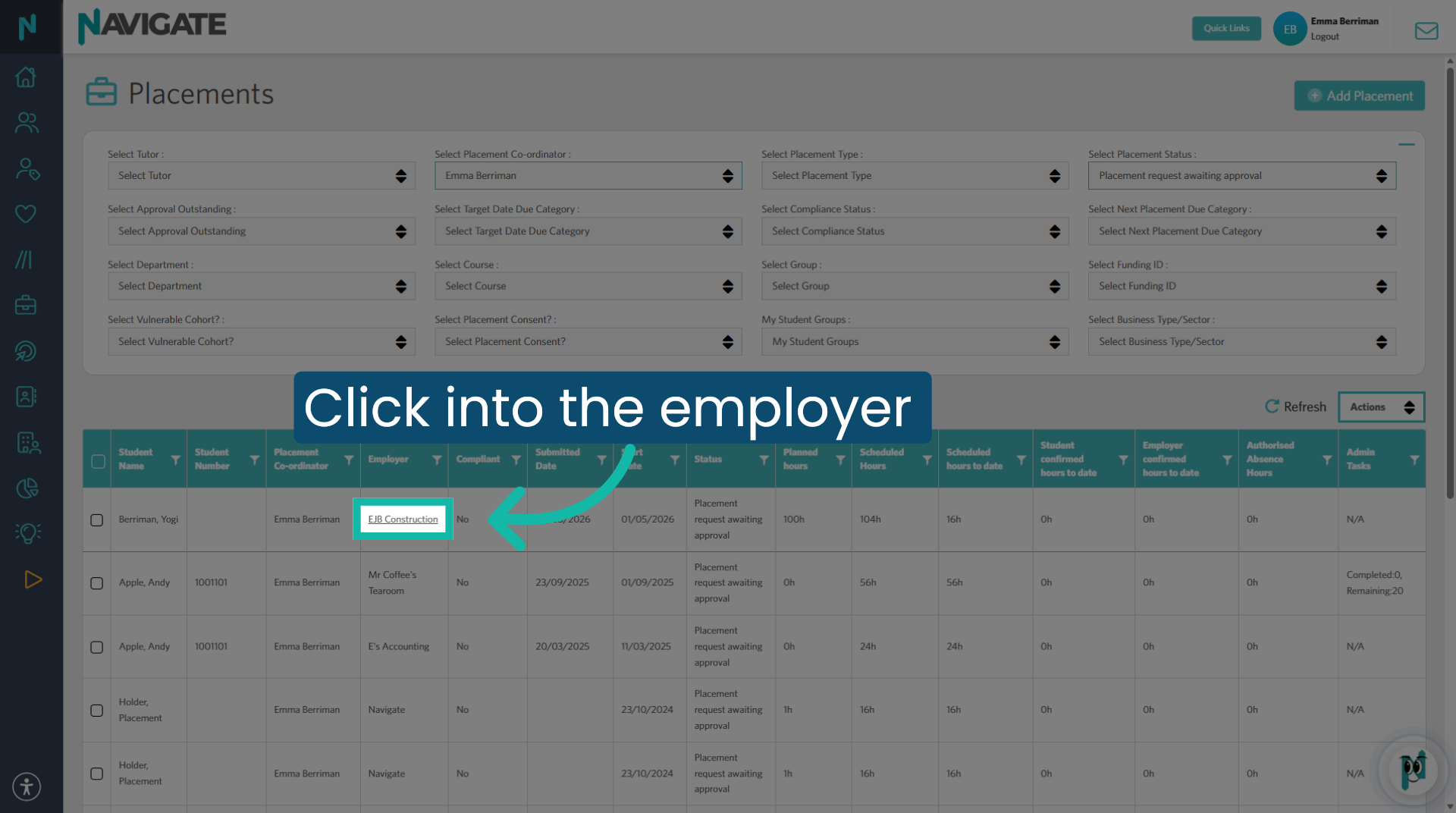
You can click into the employer record by clicking on the employer name.
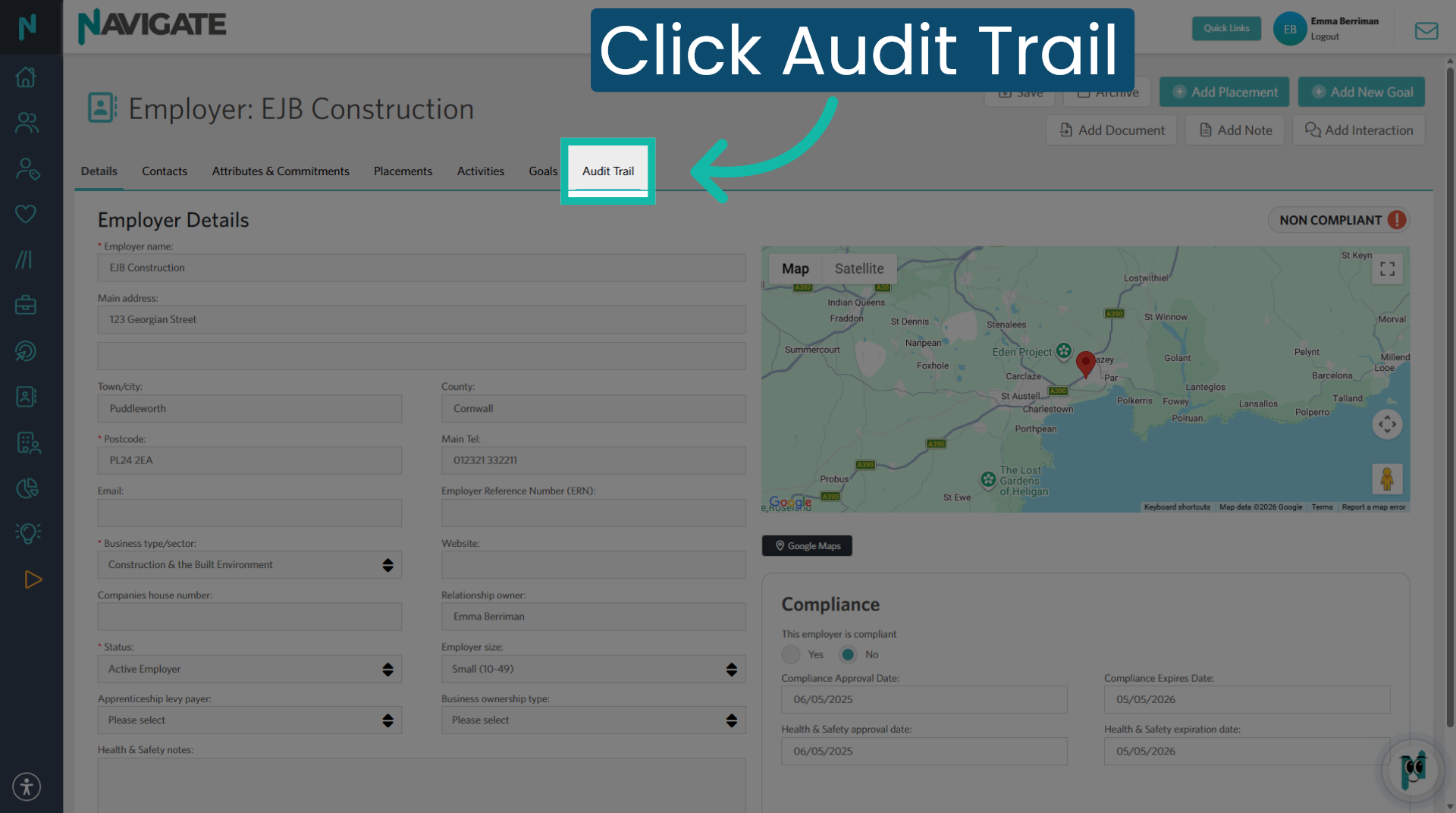
5. Open Audit Trail
Once in the employer record, click into the audit Trail tab to locate the previously submitted due diligence form.
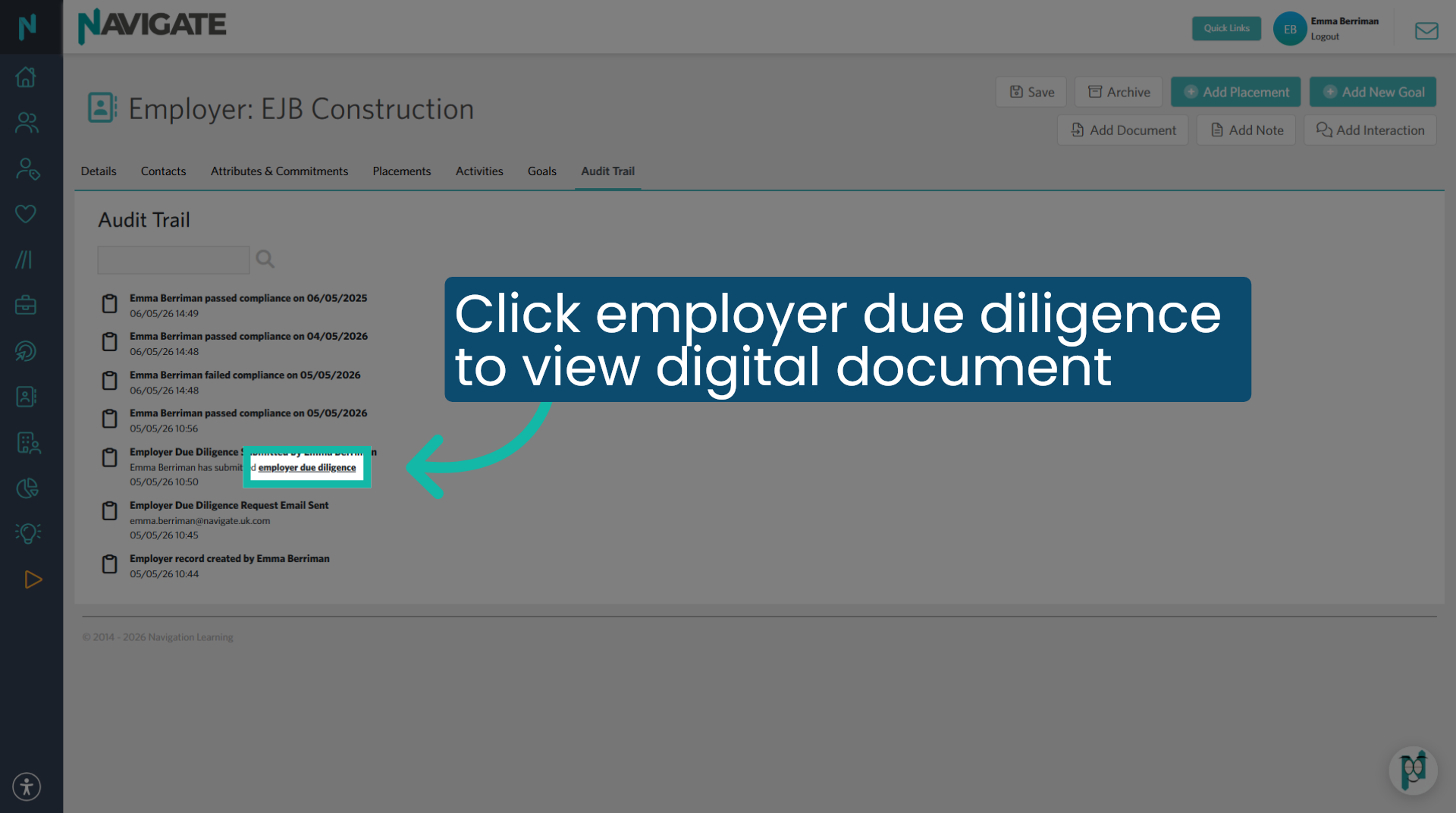
6. Select Employer Due Diligence
Click on employer due diligence to view the document.
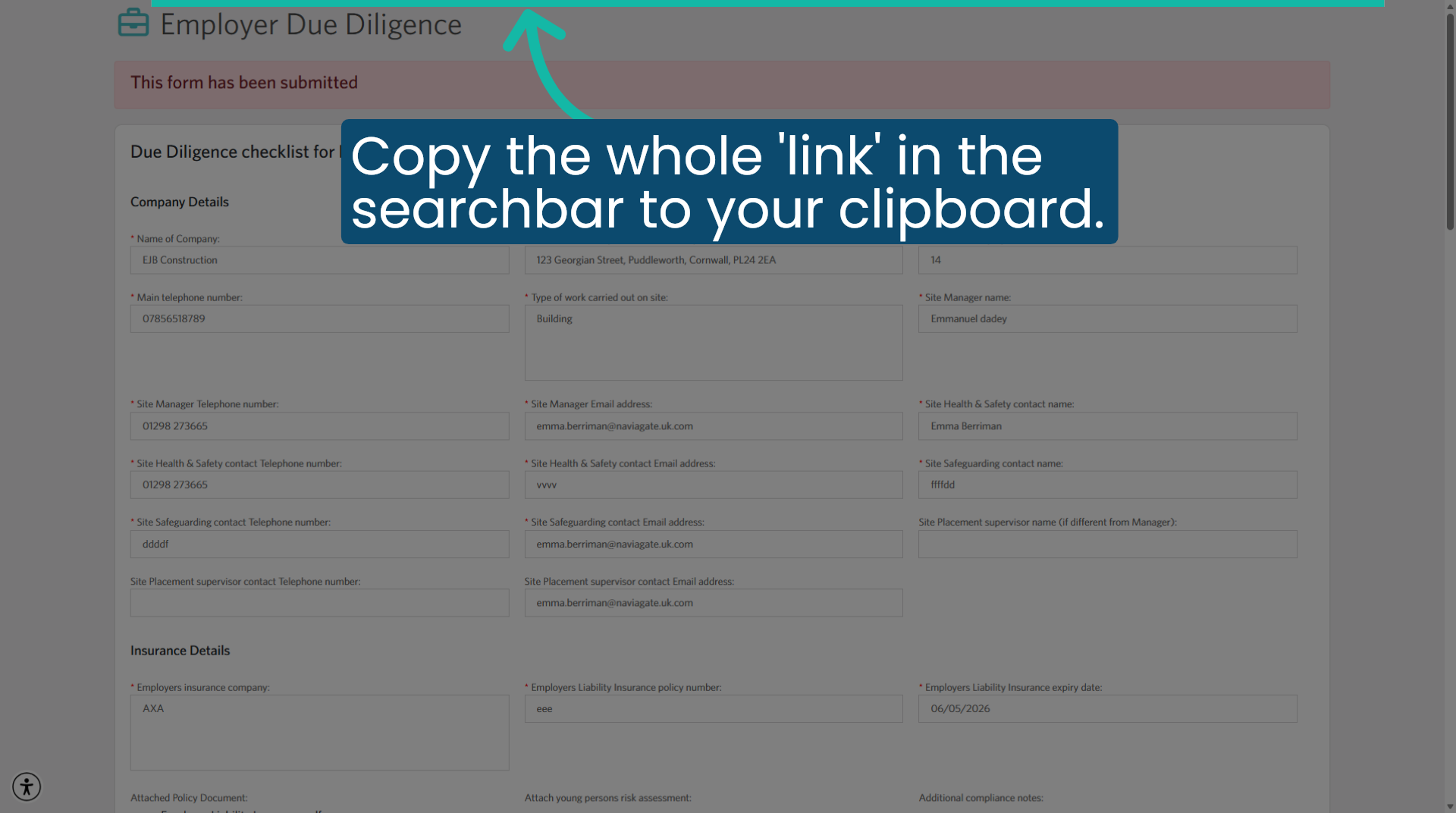
7. Copy the URL
You may wish to send this document's URL link to the employer to see if their health and safety details need updating; if nothing has changed, just extend the health and safety expiration date based on the risk rating and college rules.
8. Obtain updated ELI document
Make contact with the employer to obtain their latest employer liability insurance document.
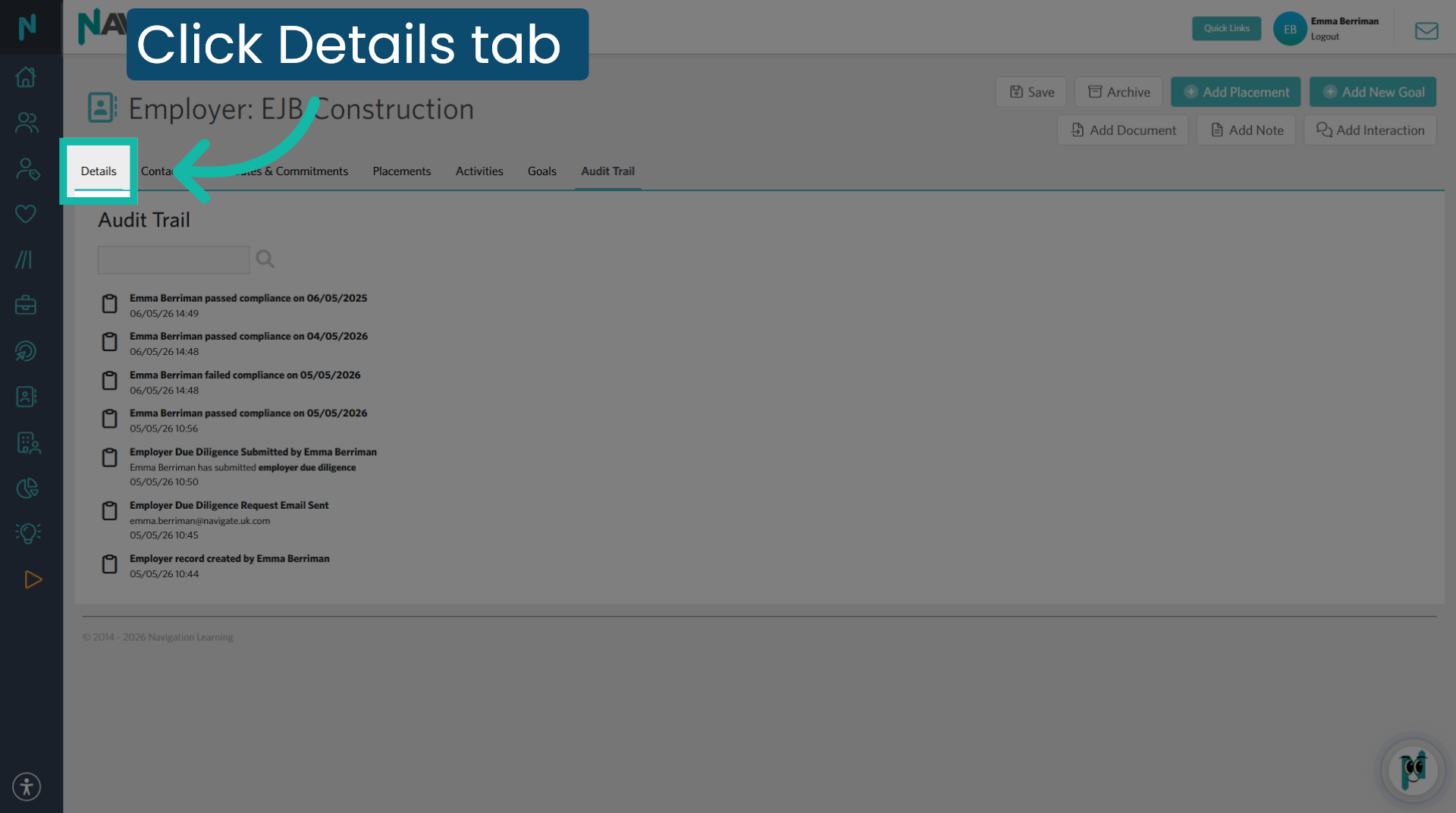
9. Open Details Section
Back in the employer record, click details to view and edit specific employer information.
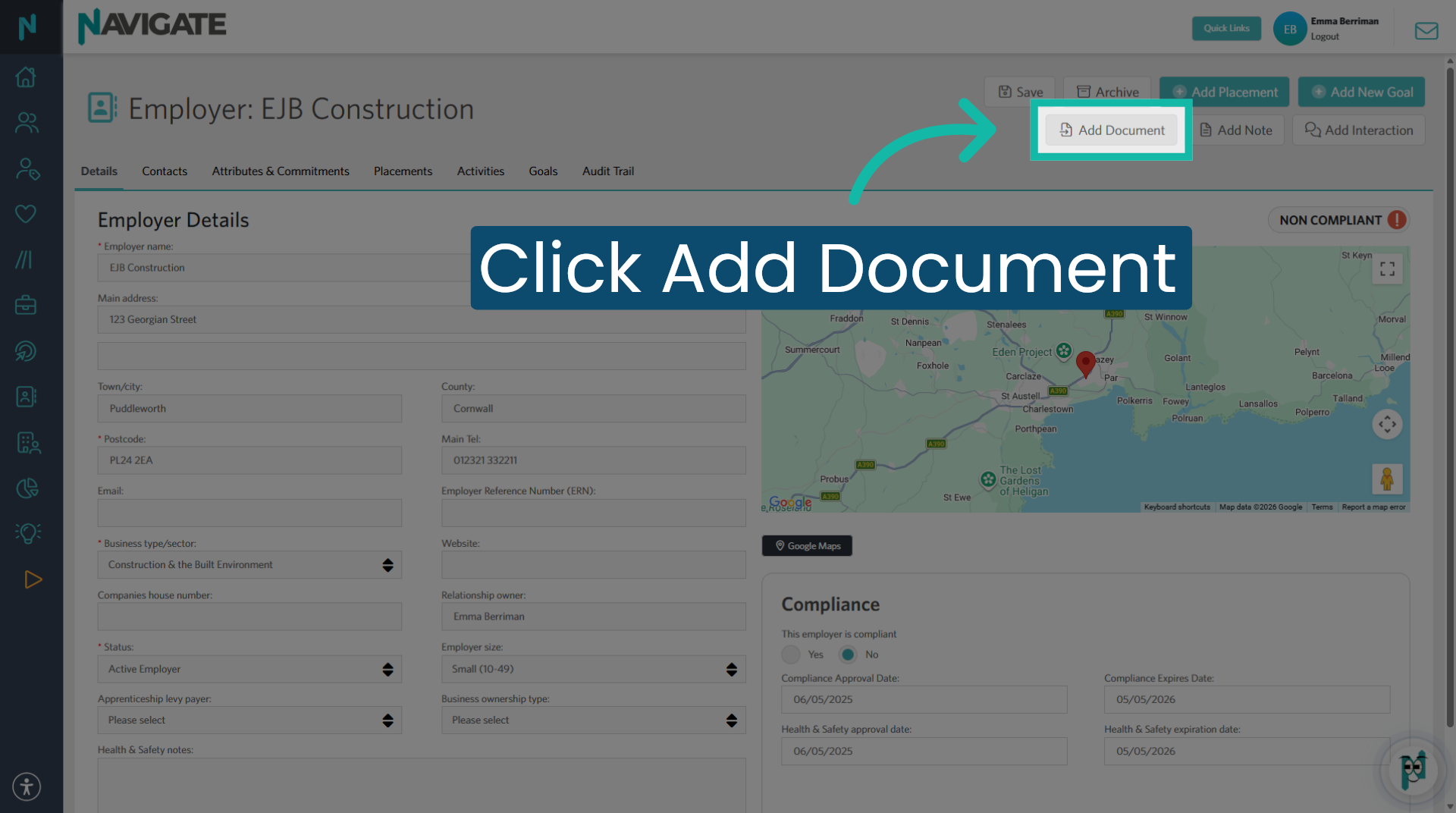
10. Add ELI document
Click on ADD document to start uploading a new Compliance Document for the employer.
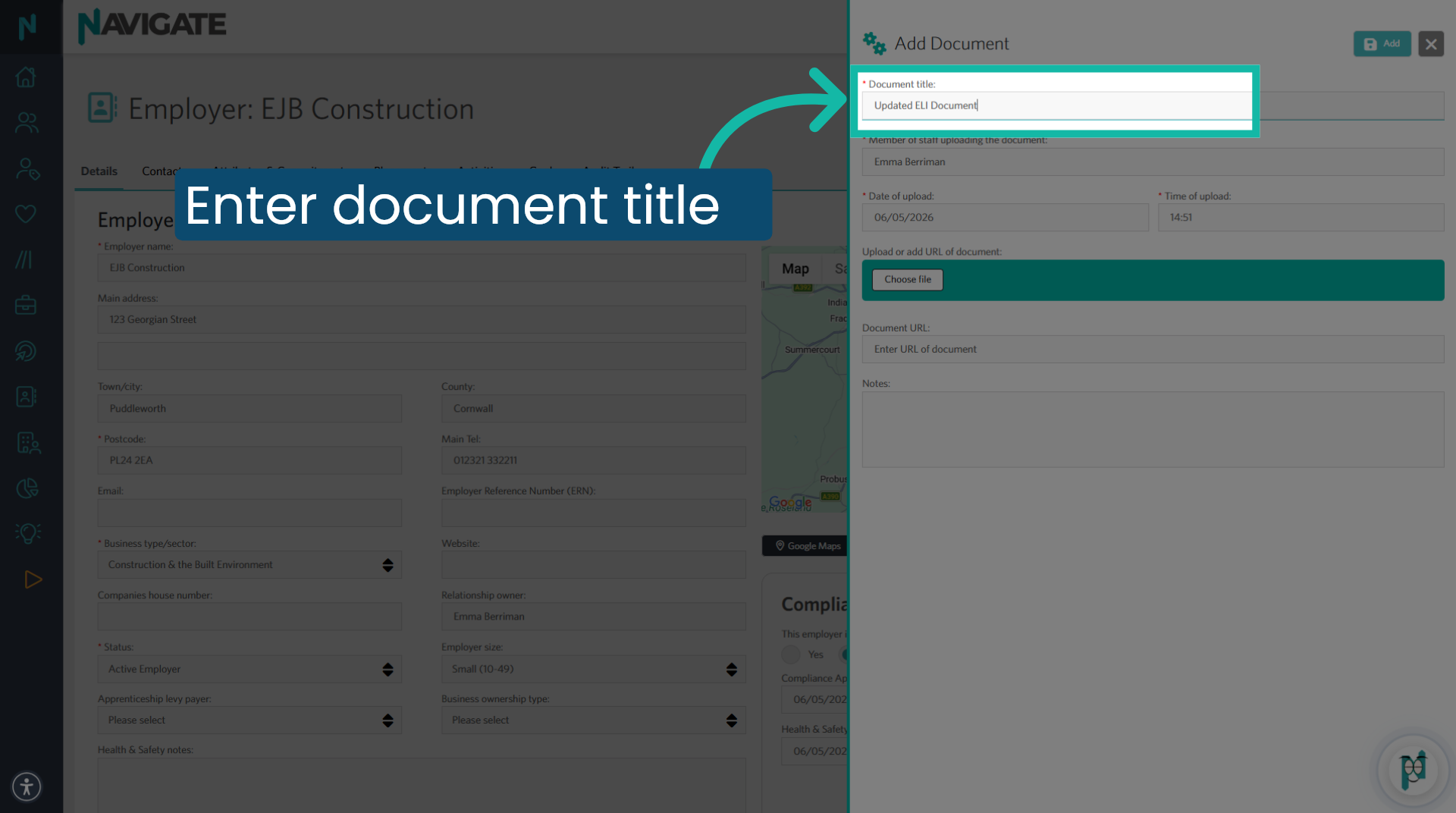
11. Enter Document Title
Name it updated Eli document or a similar and relevant title.
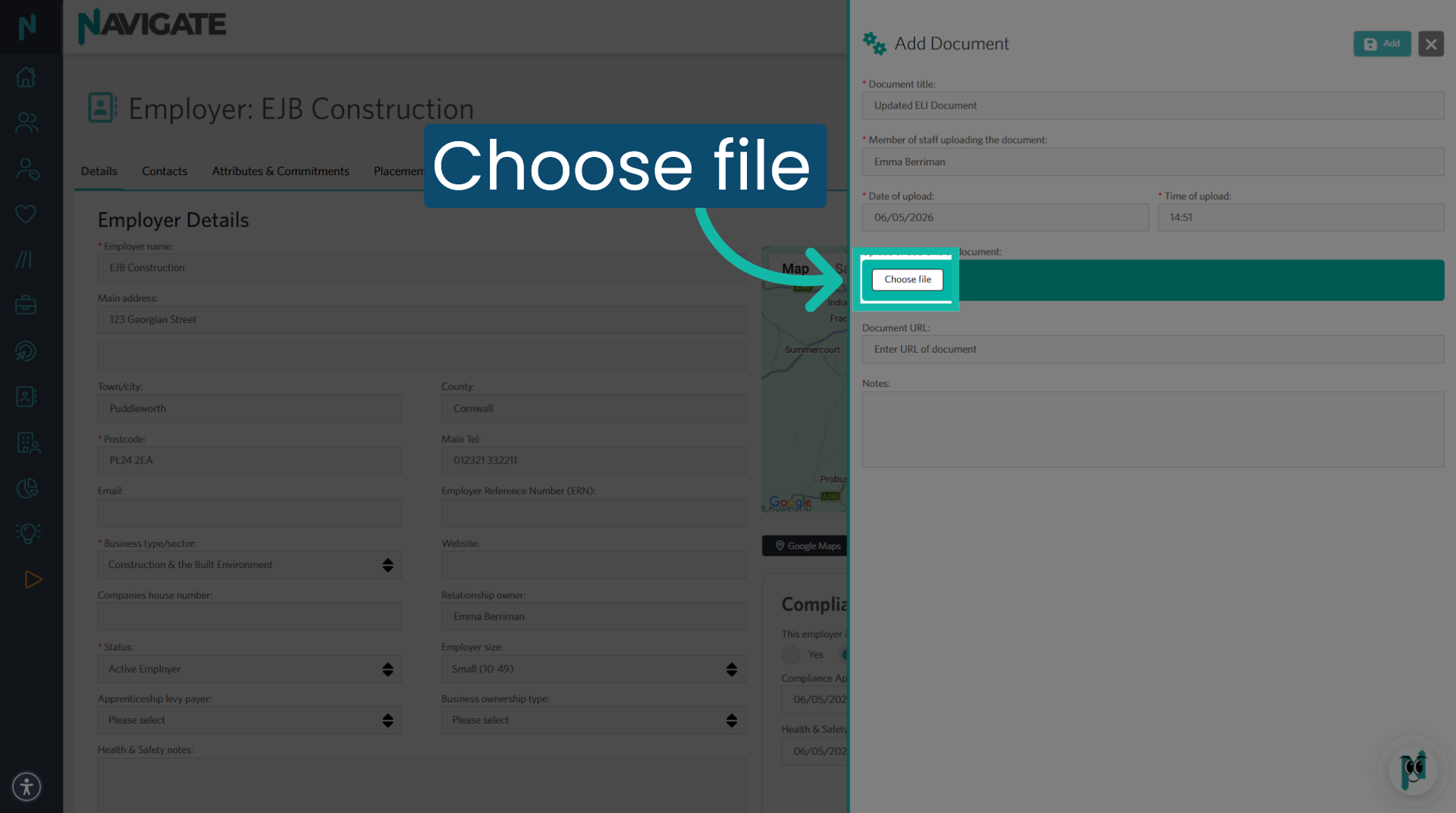
12. Choose File
Click on choose file to upload the document as evidence.
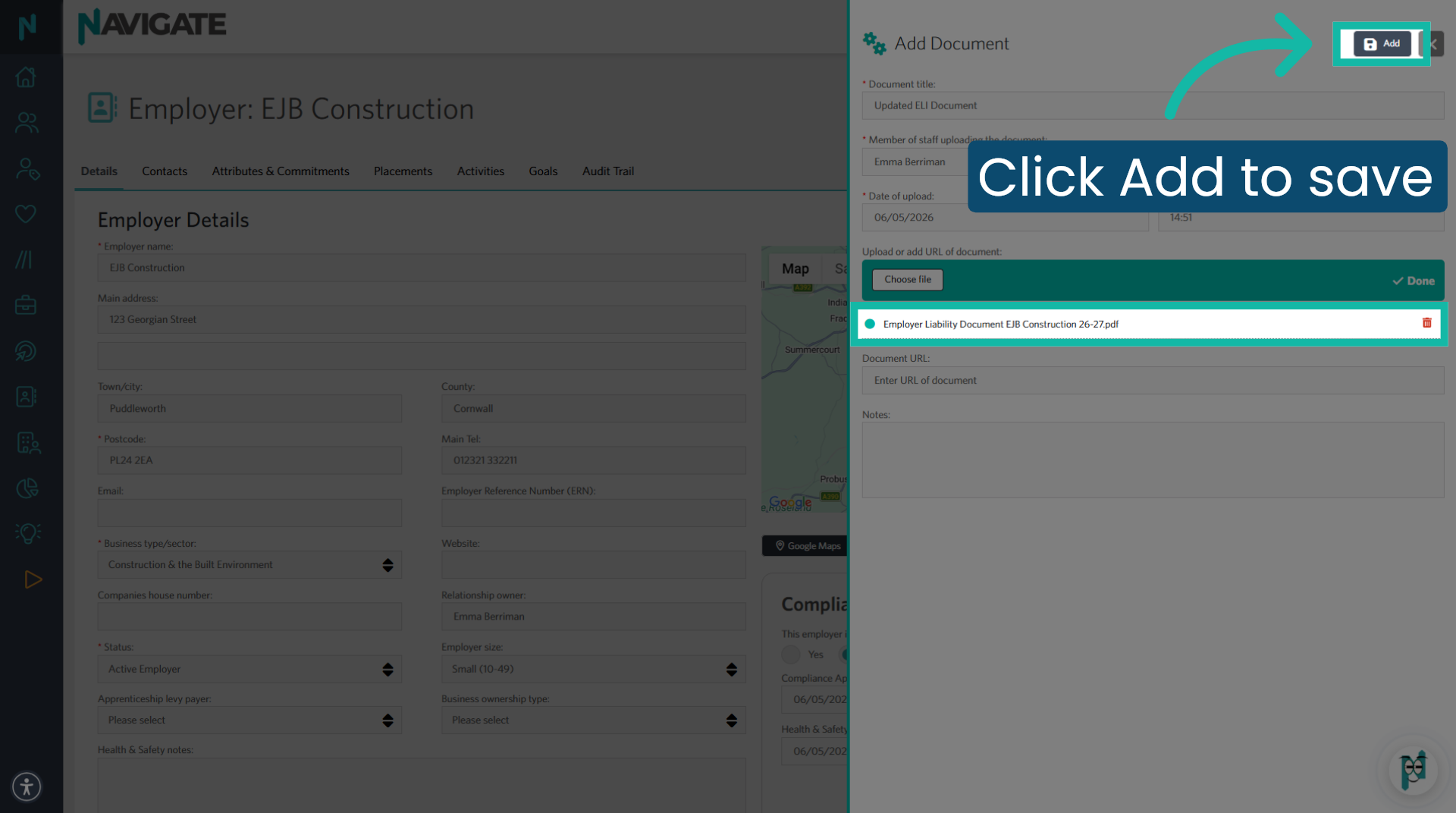
13. Once file is added, click Add to save.
Click add to save the document.
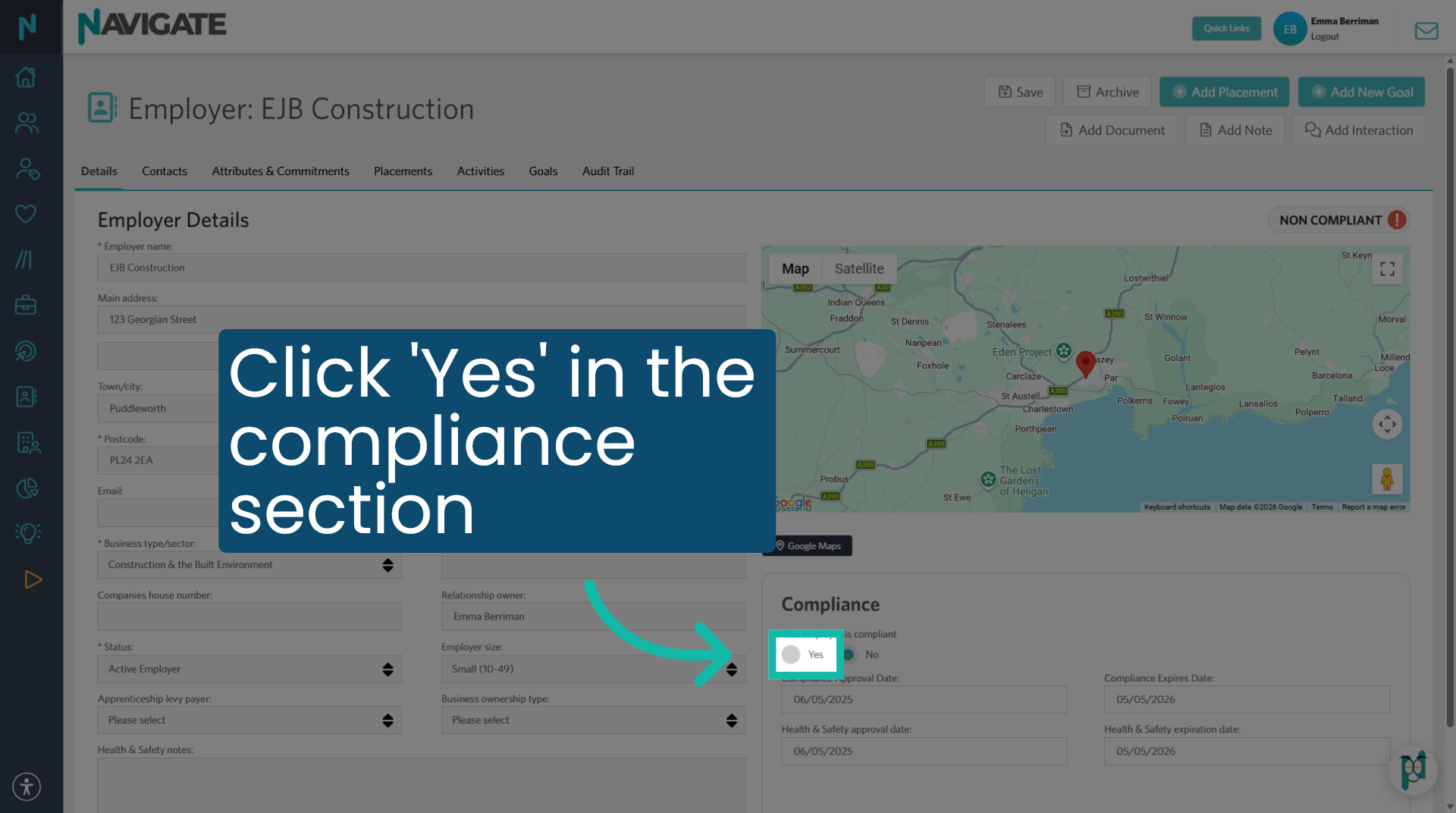
14. Update Compliance dates
In the compliance section. Click yes to update it.
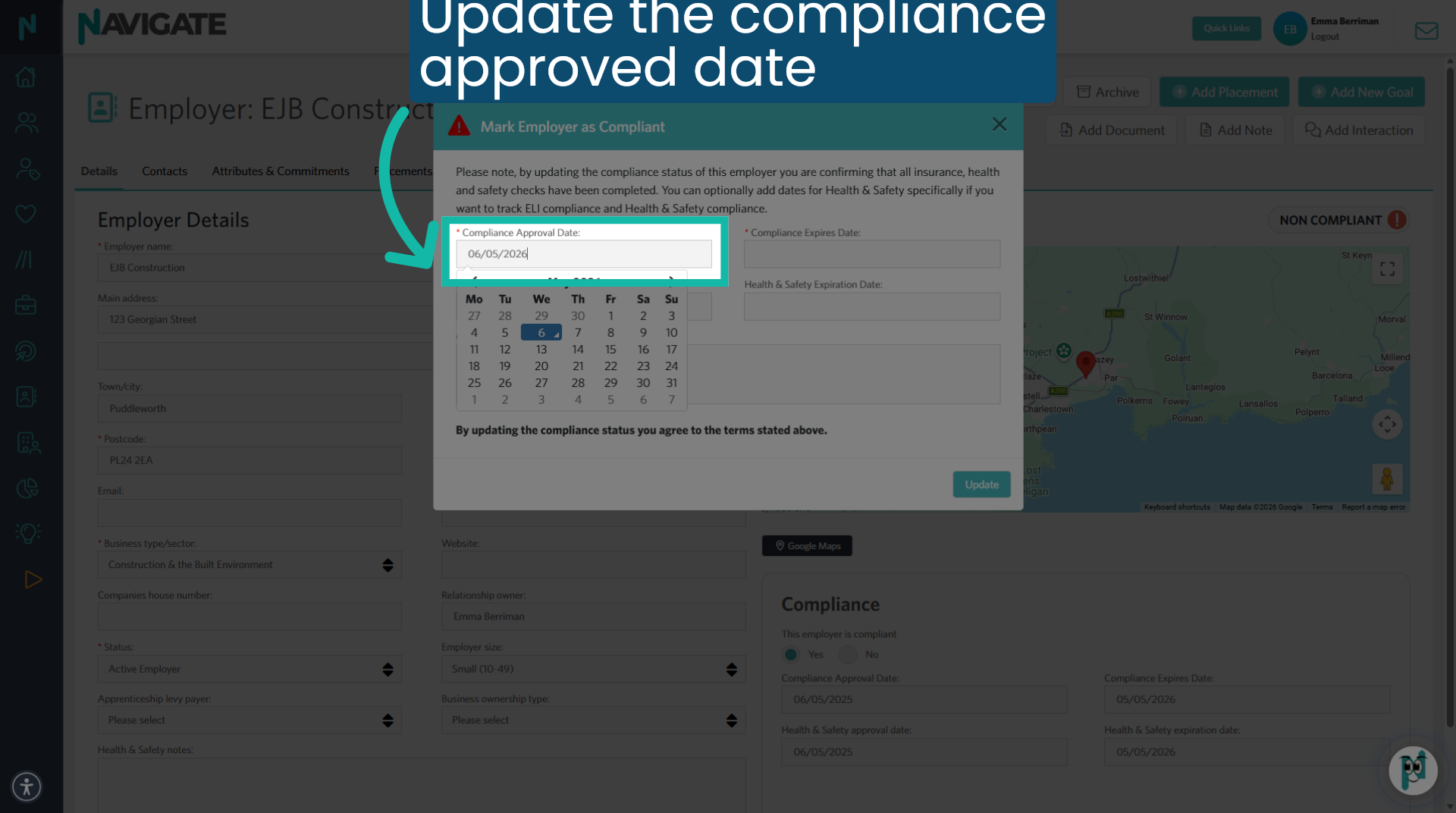
15. Select Compliance Approval Date
Enter the Eli documentation cover, start date.
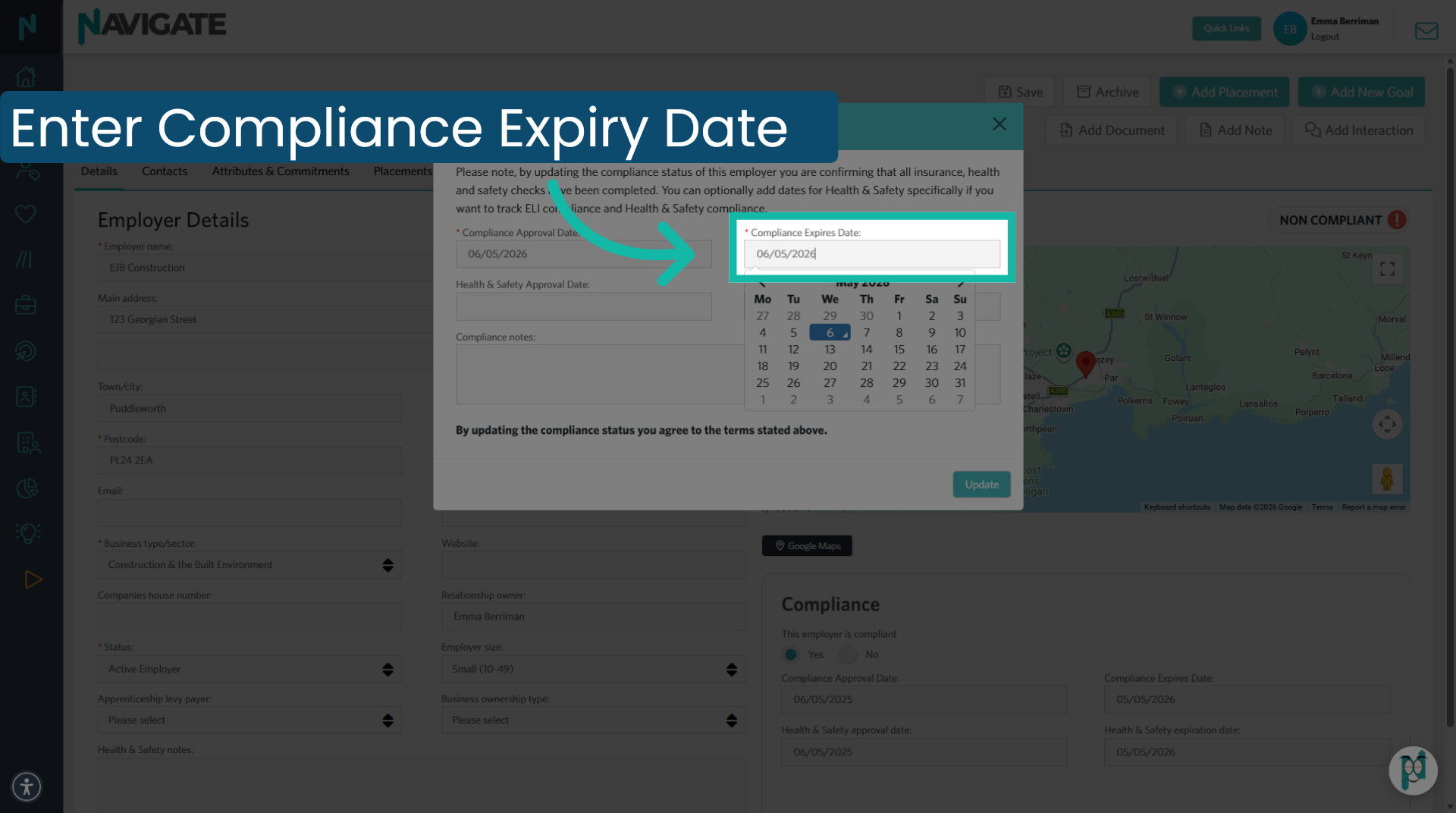
16. Select Compliance Expiry Date
Then enter the Eli documentation cover, expiry date.
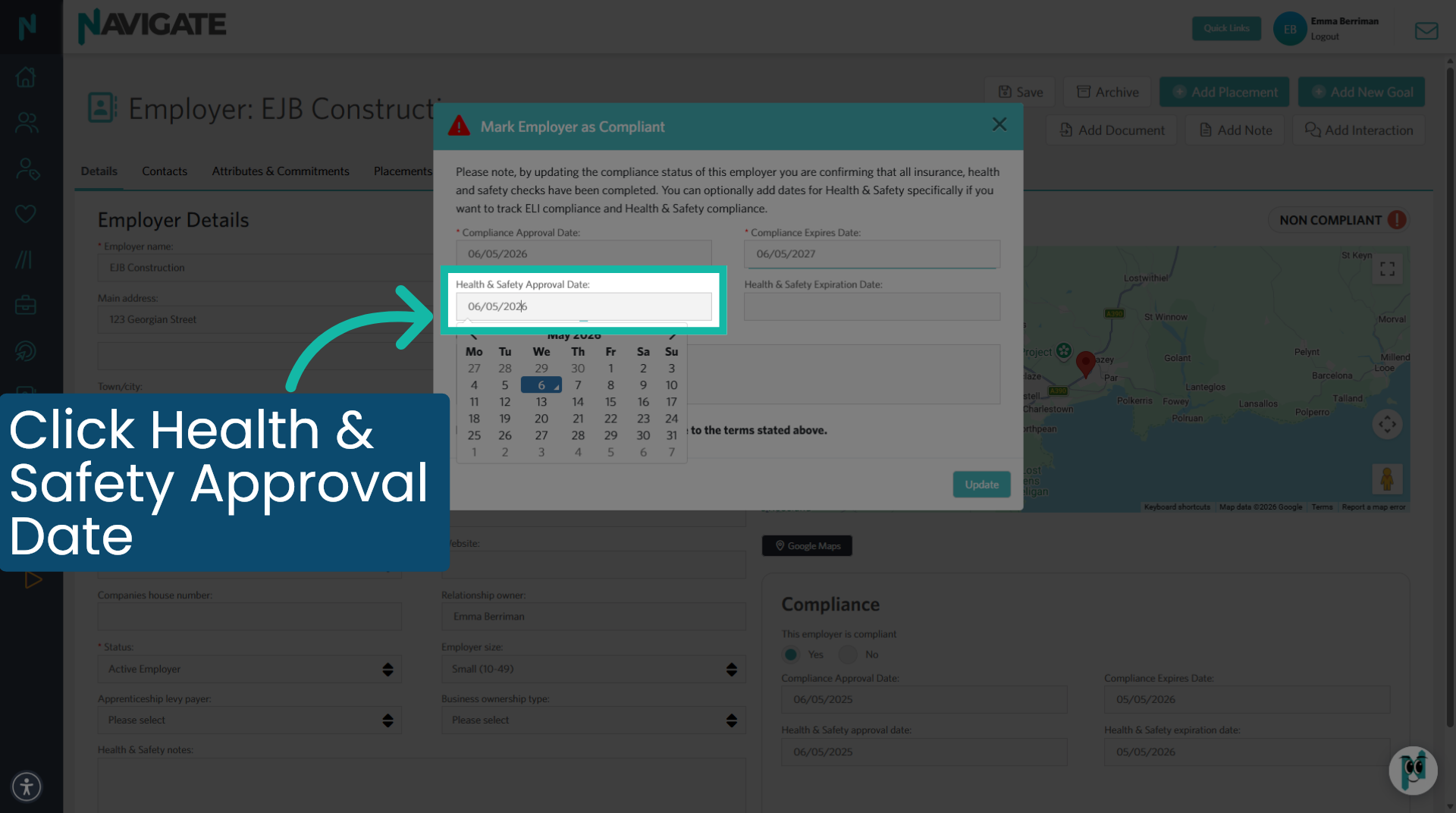
17. Select Health & Safety Approval Date
Enter the health and safety form, approval date.
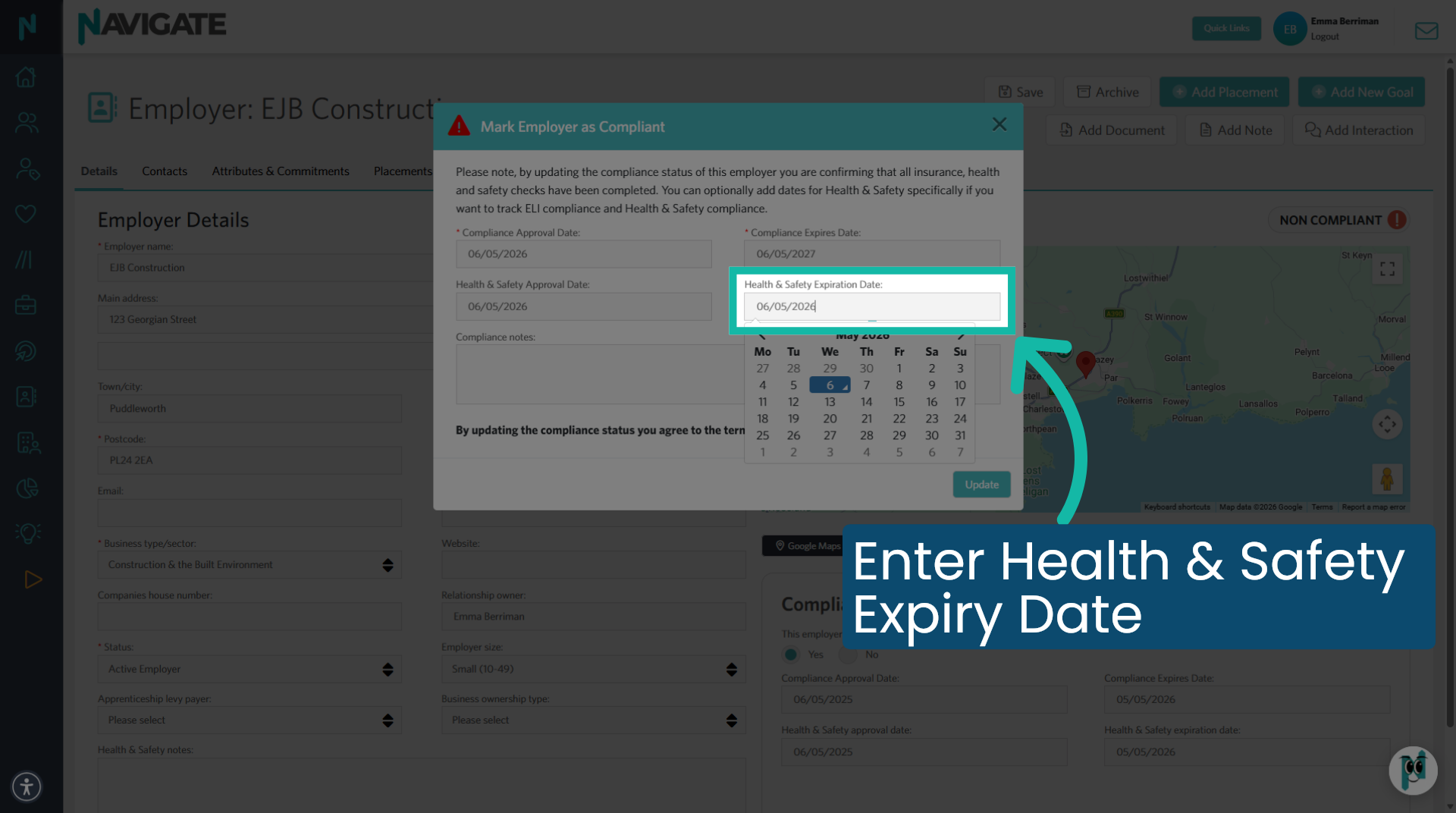
18. Select Health & Safety Expiration Date
Then enter the health and safety Forum expiry date.
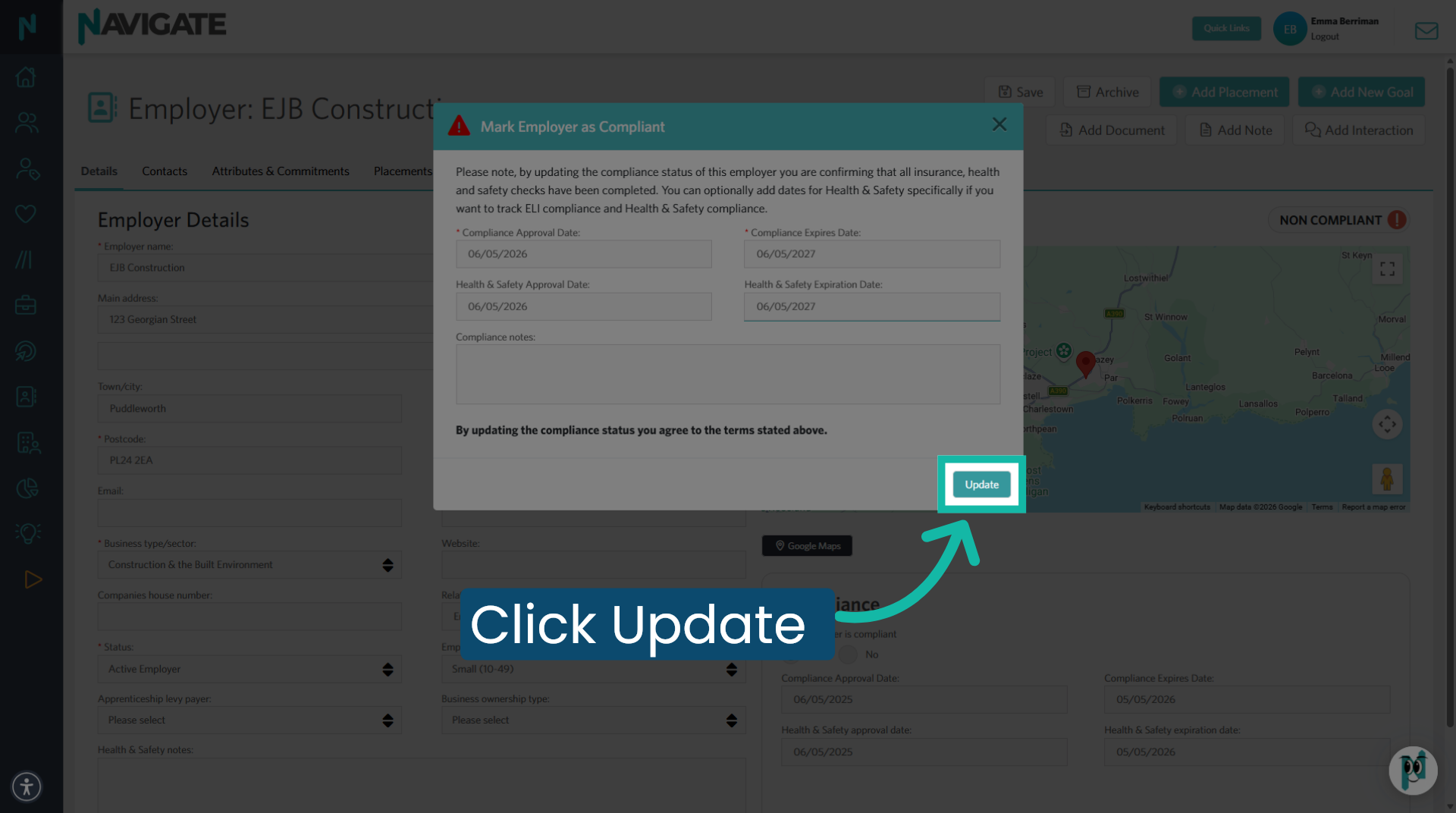
19. Click Update to complete
Click update to save all updates to the employer compliance section of the employer details. This employer is now compliant and ready to accept the student for their placement.
Was this article helpful?
That’s Great!
Thank you for your feedback
Sorry! We couldn't be helpful
Thank you for your feedback
Feedback sent
We appreciate your effort and will try to fix the article