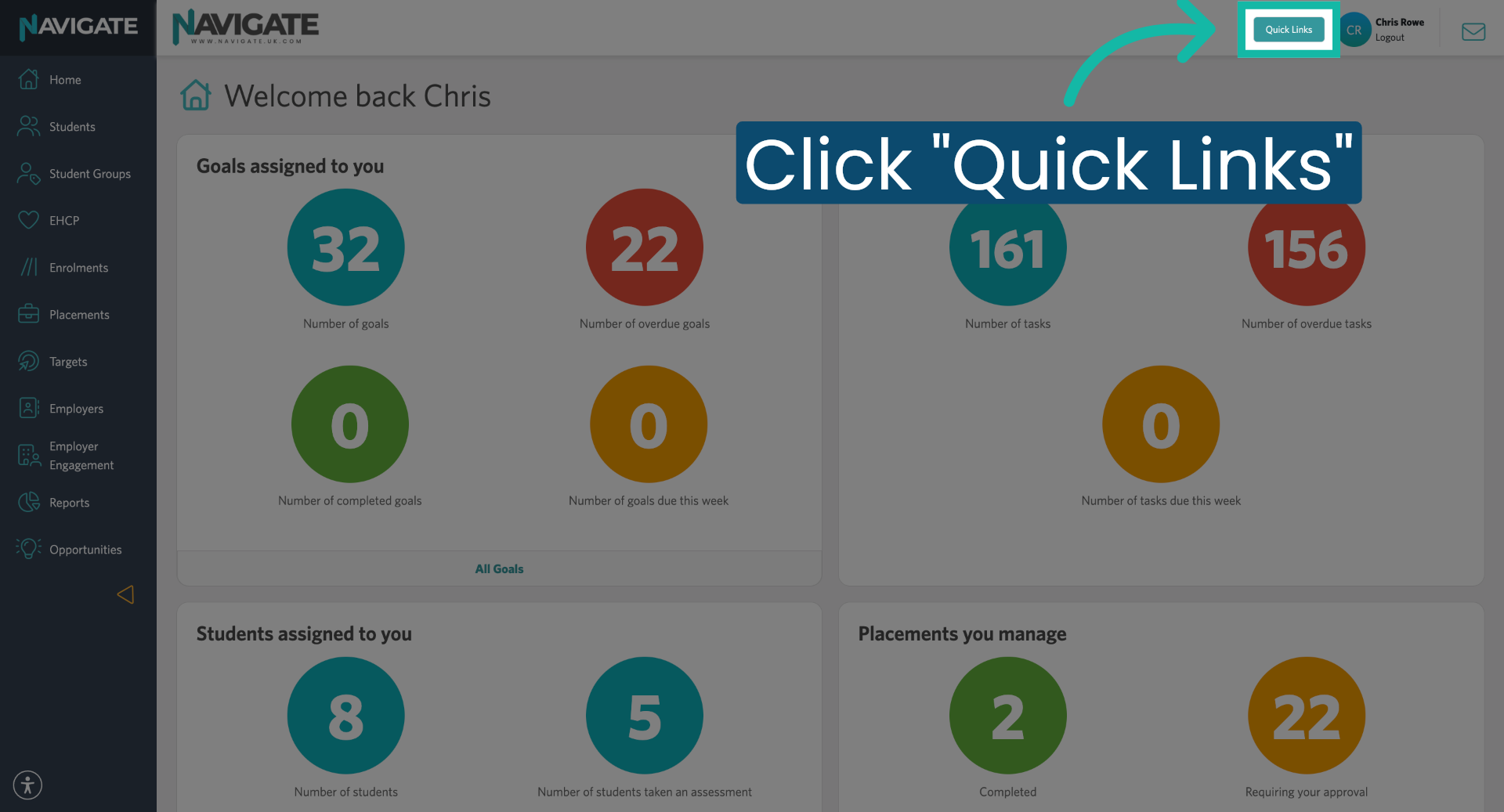
1. Open Quick Links Menu
Once logged in, click the quick links menu.
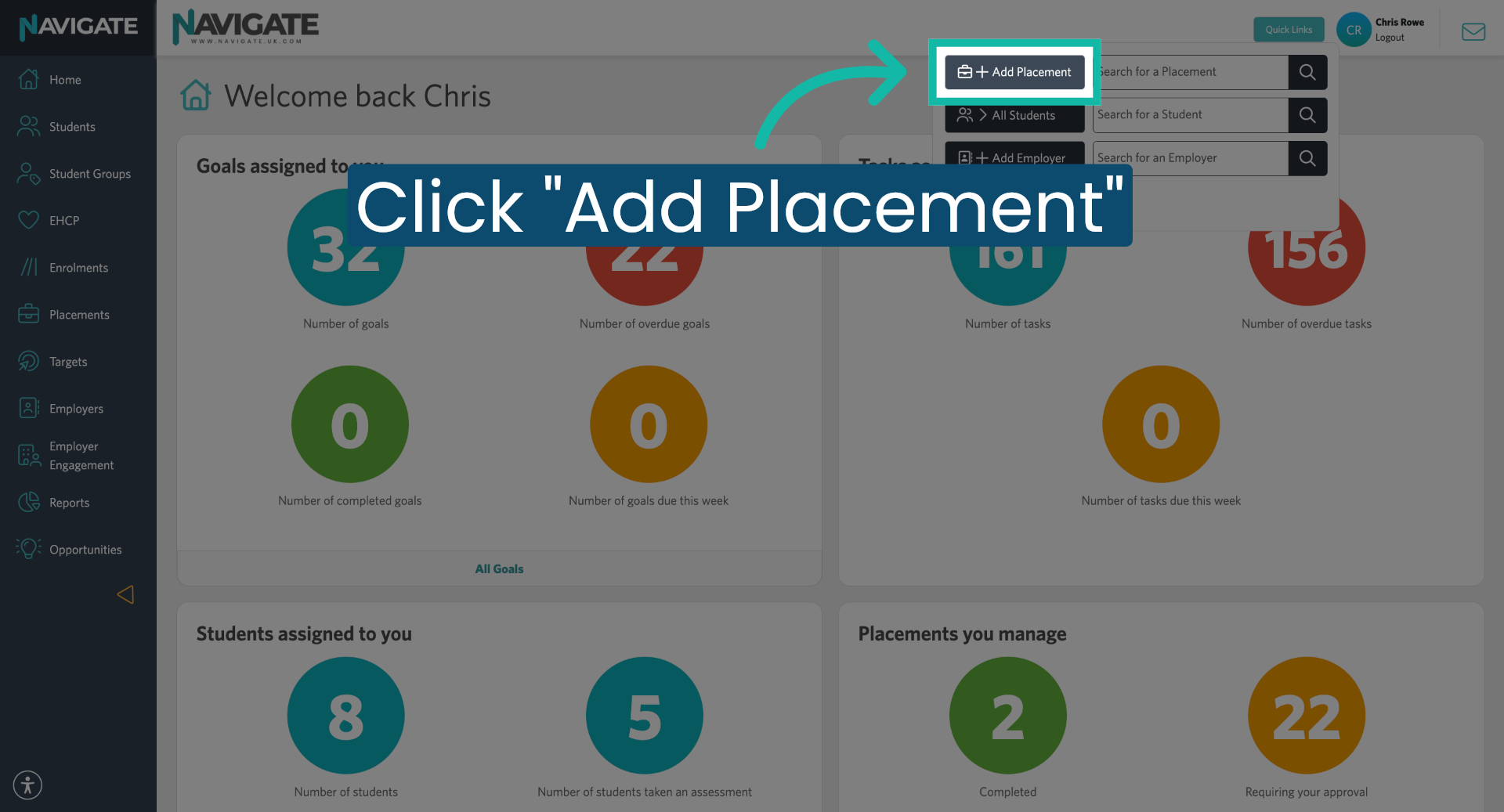
2. Select Add Placement
Click add placement.
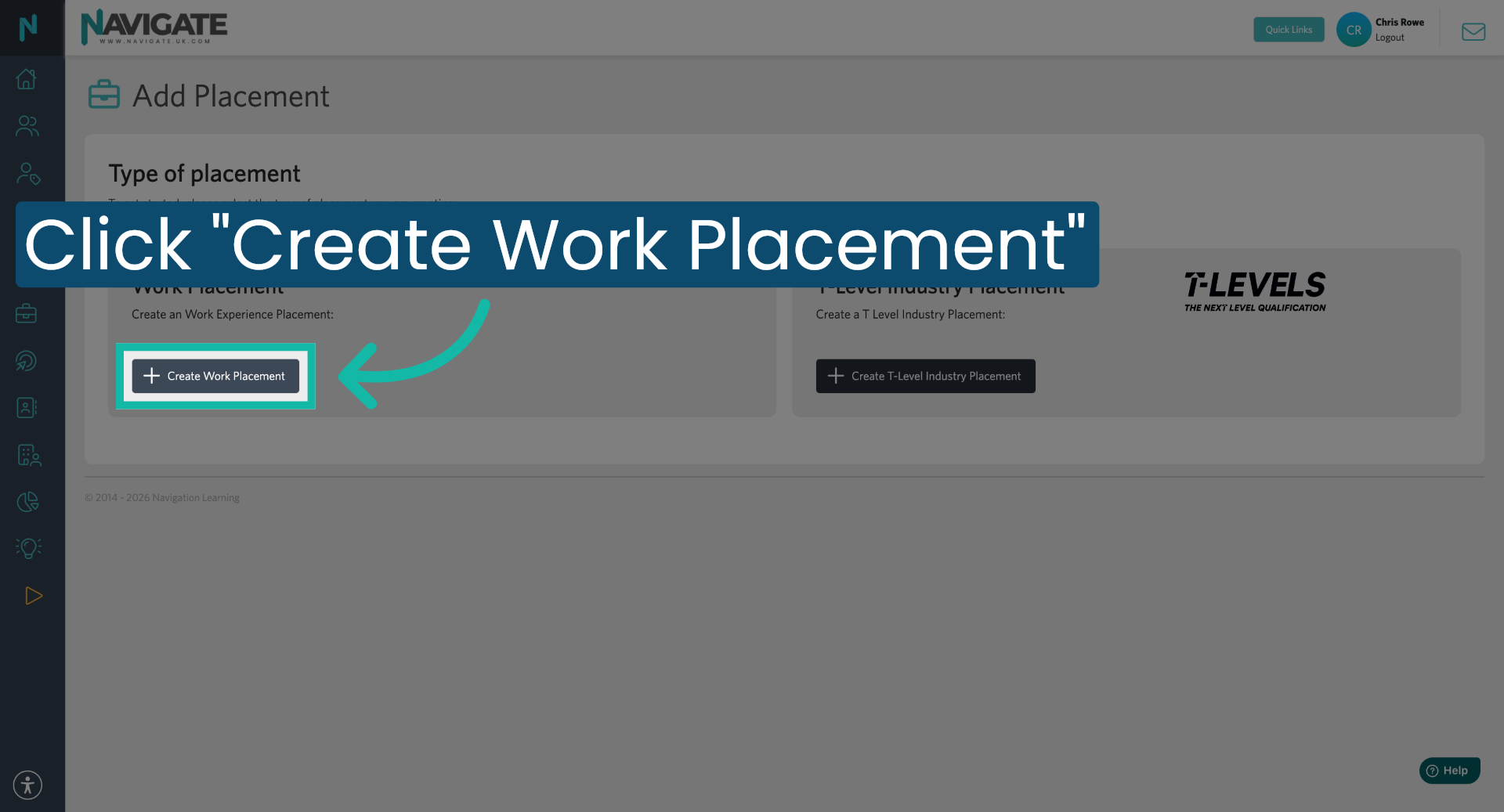
3. Choose Create Work Placement
Click on create work placement.
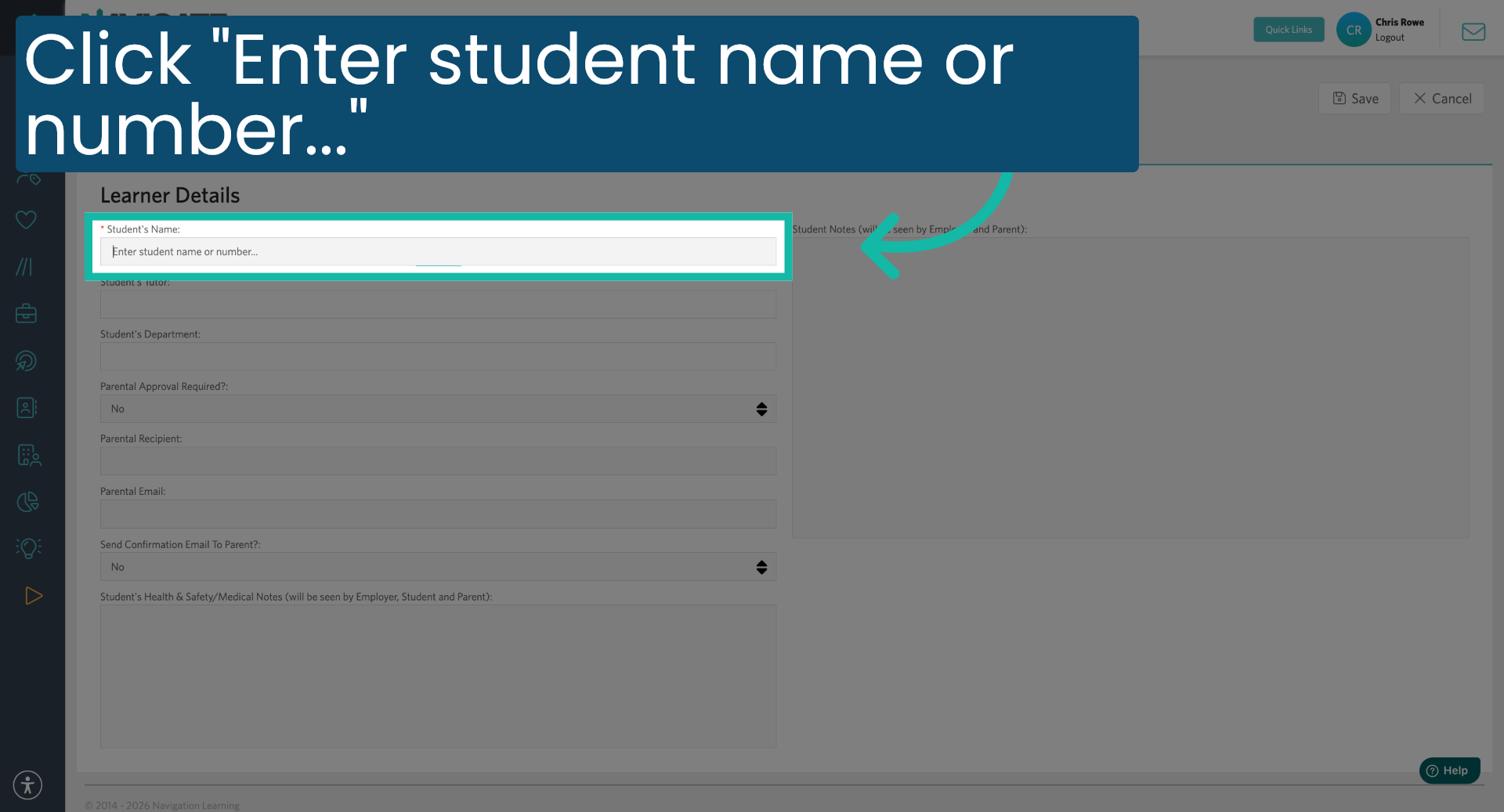
4. Access Student Search Field
Click the field labelled with the student's name or number to search for the student.
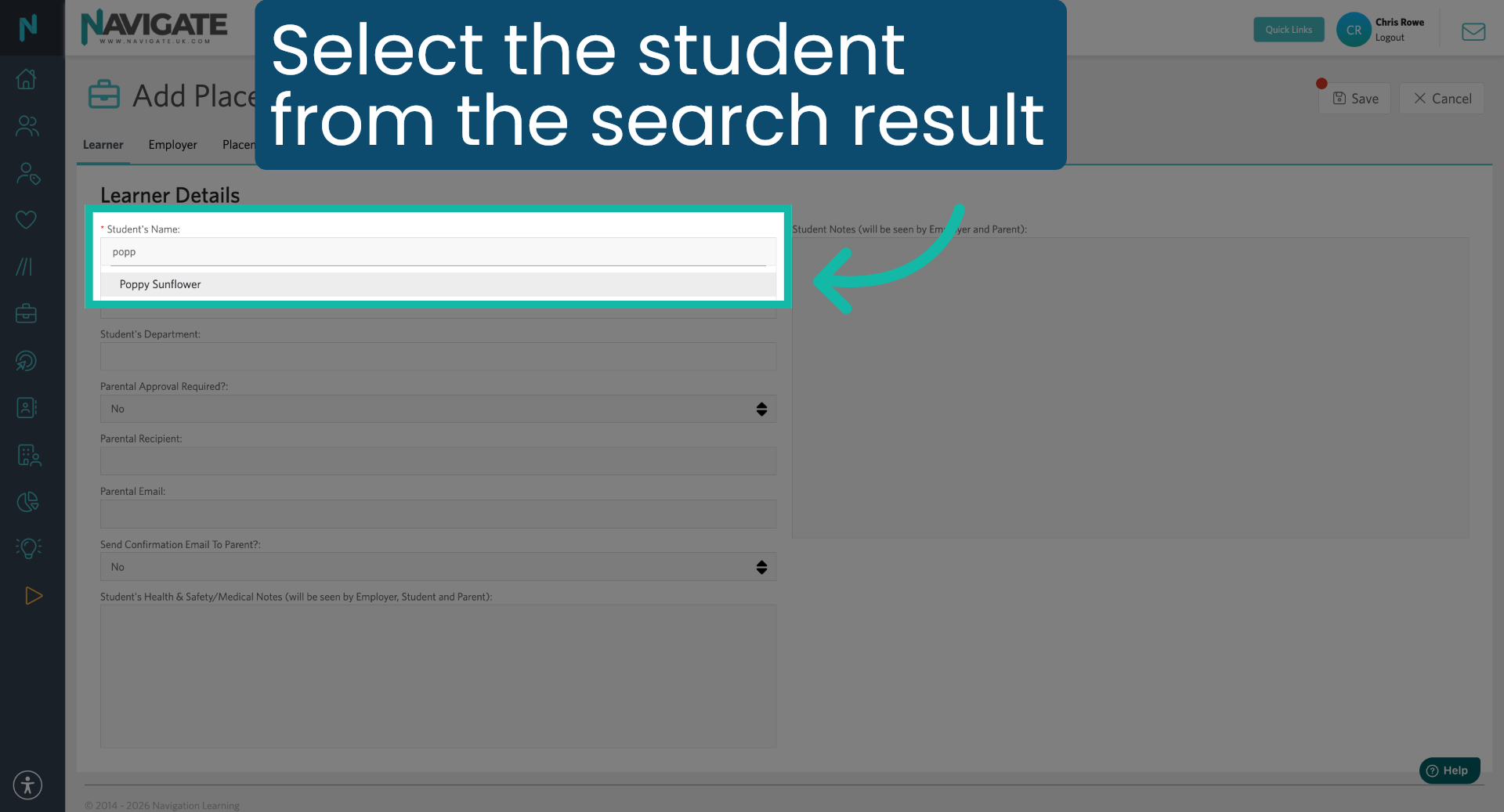
5. Select Student from List
Select the student from the search results.
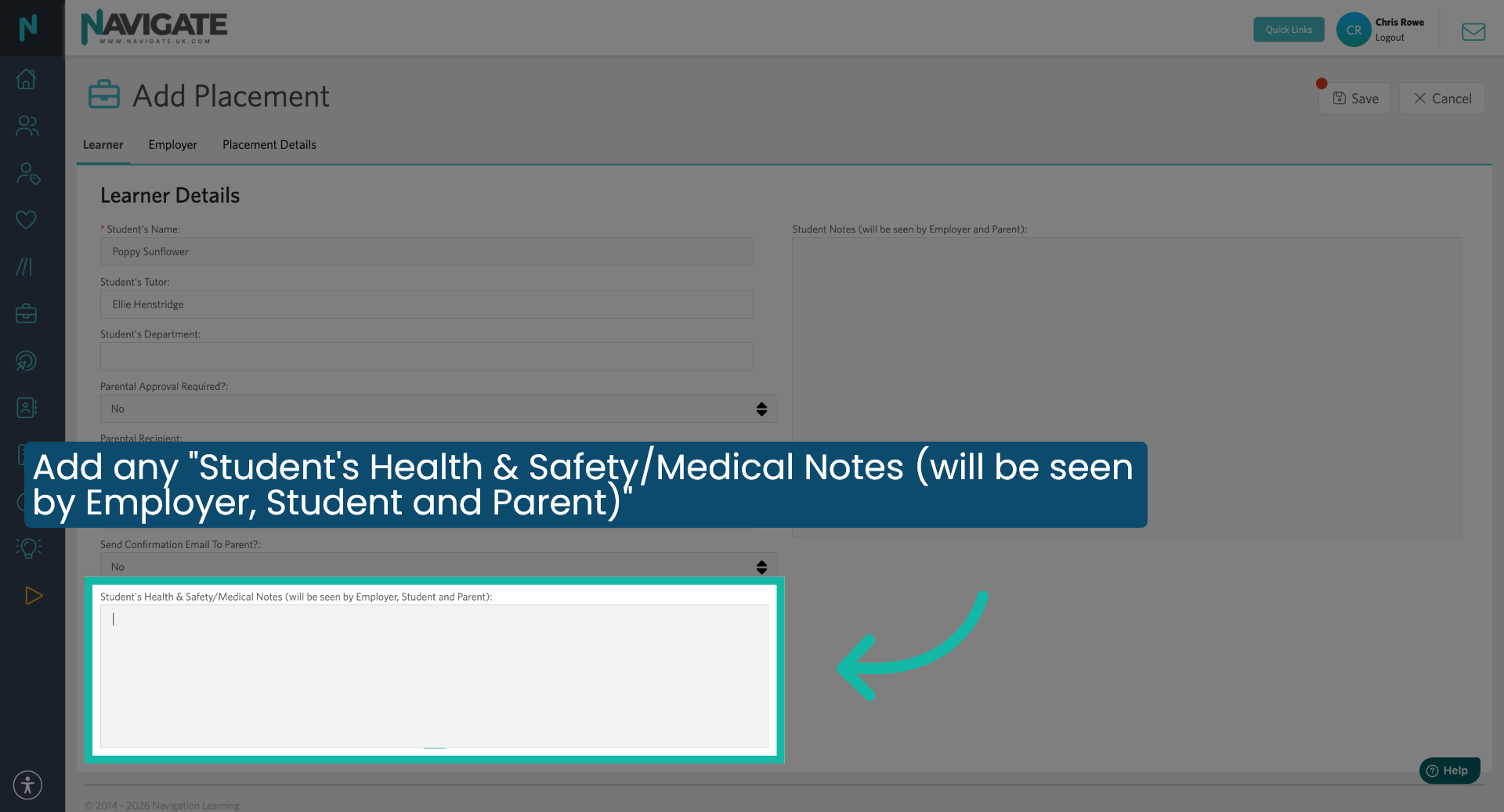
6. Add any Health and Safety Notes
Add any student, health, and safety/medical notes. This is visible to the employer, student and parent.
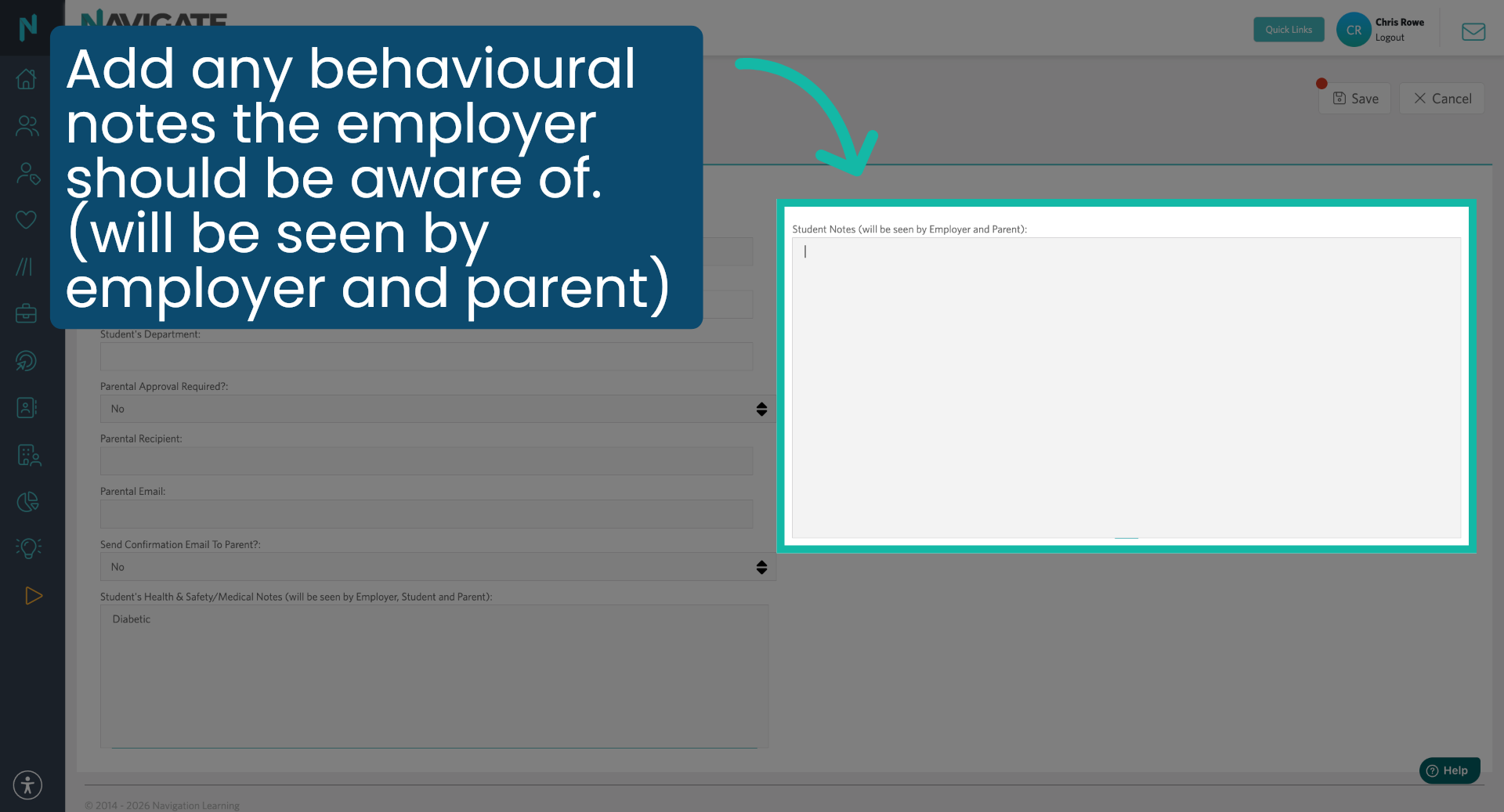
7. Access Student Notes Section
Then add any behavioural notes the employer should be aware of; this will be seen by only the employer and parent.
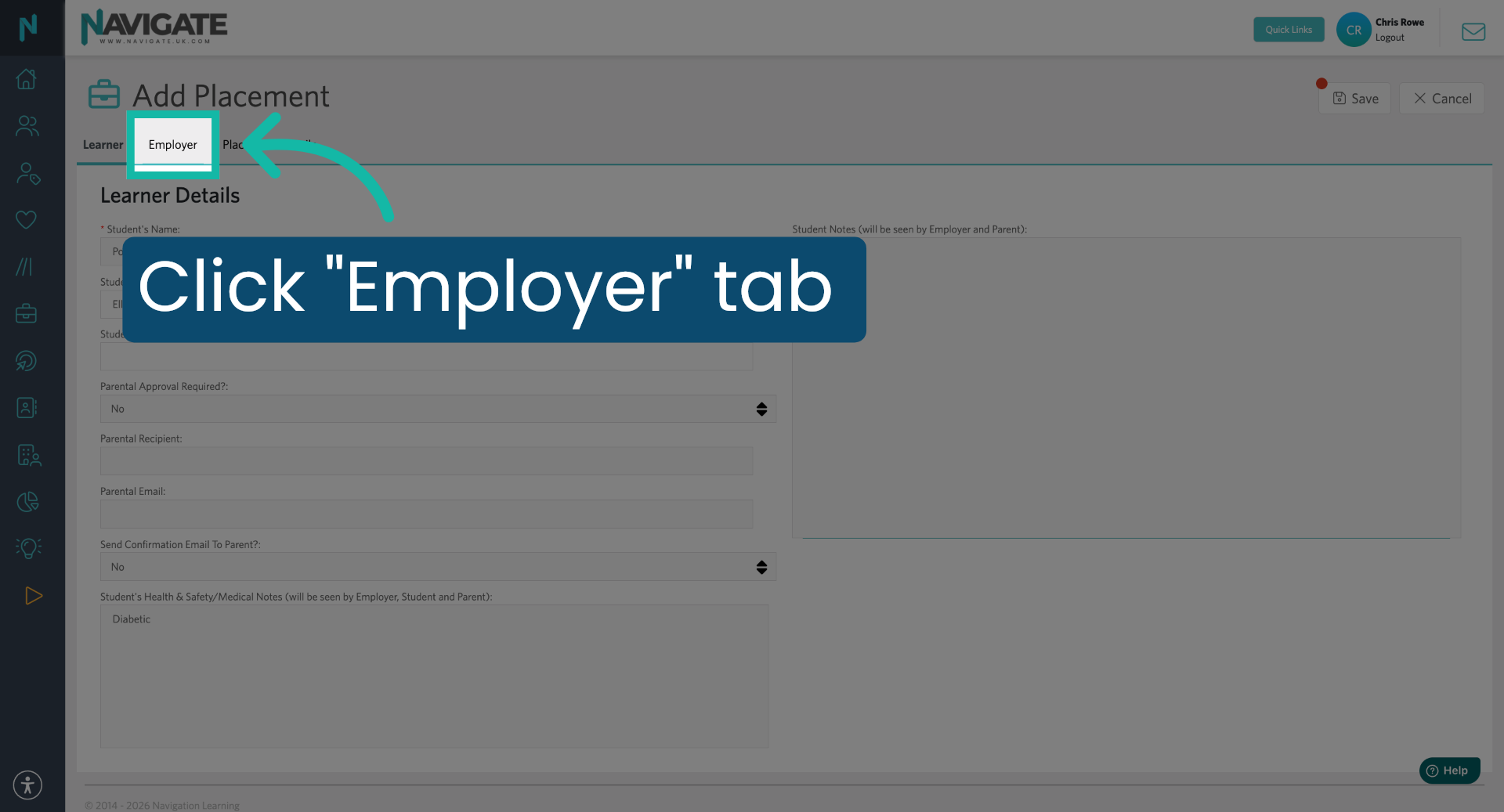
8. Open Employer Tab
Next, click the employer field to add an employer.
9. Search for the Employer
Type the employer's name.
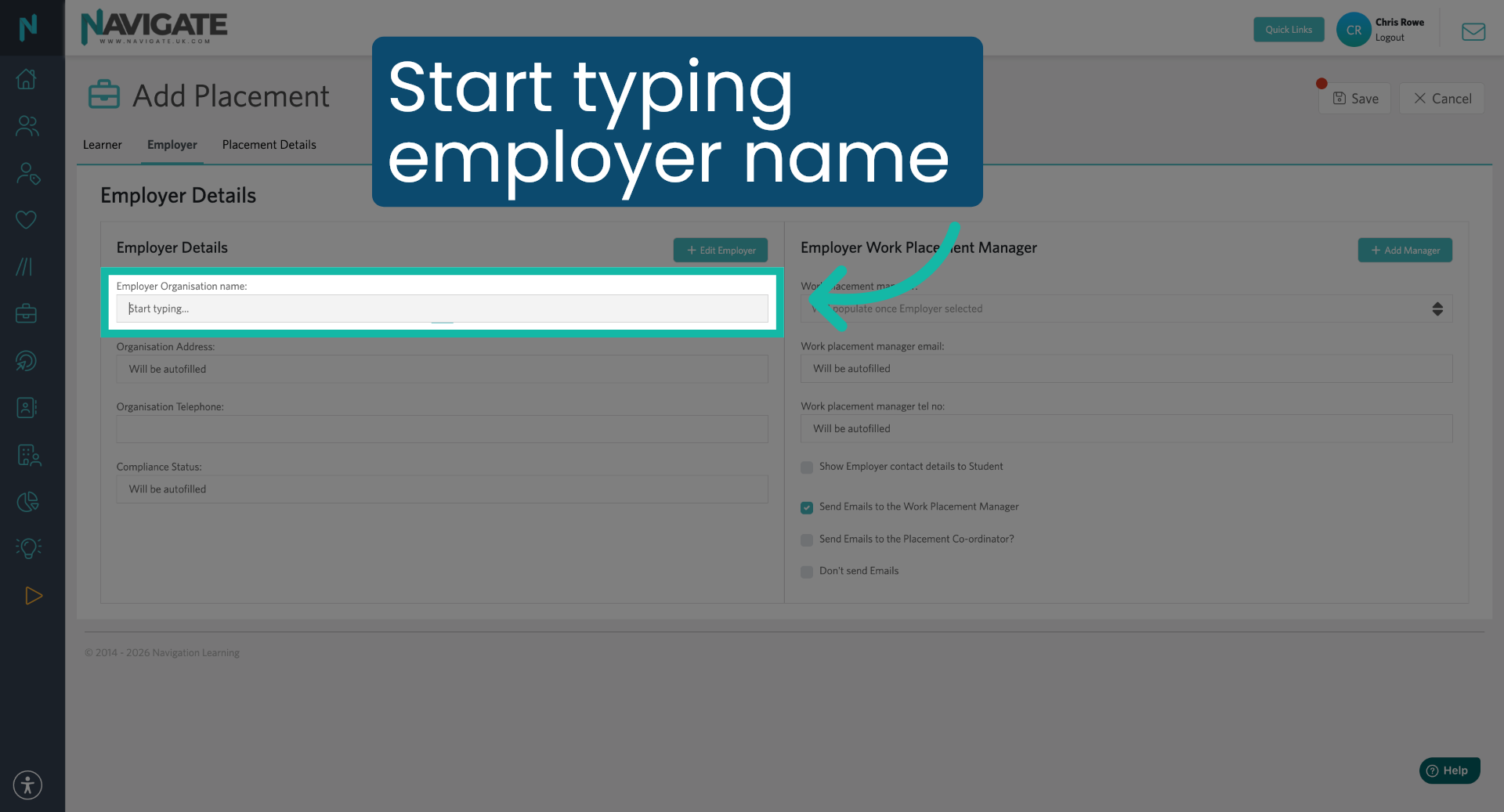
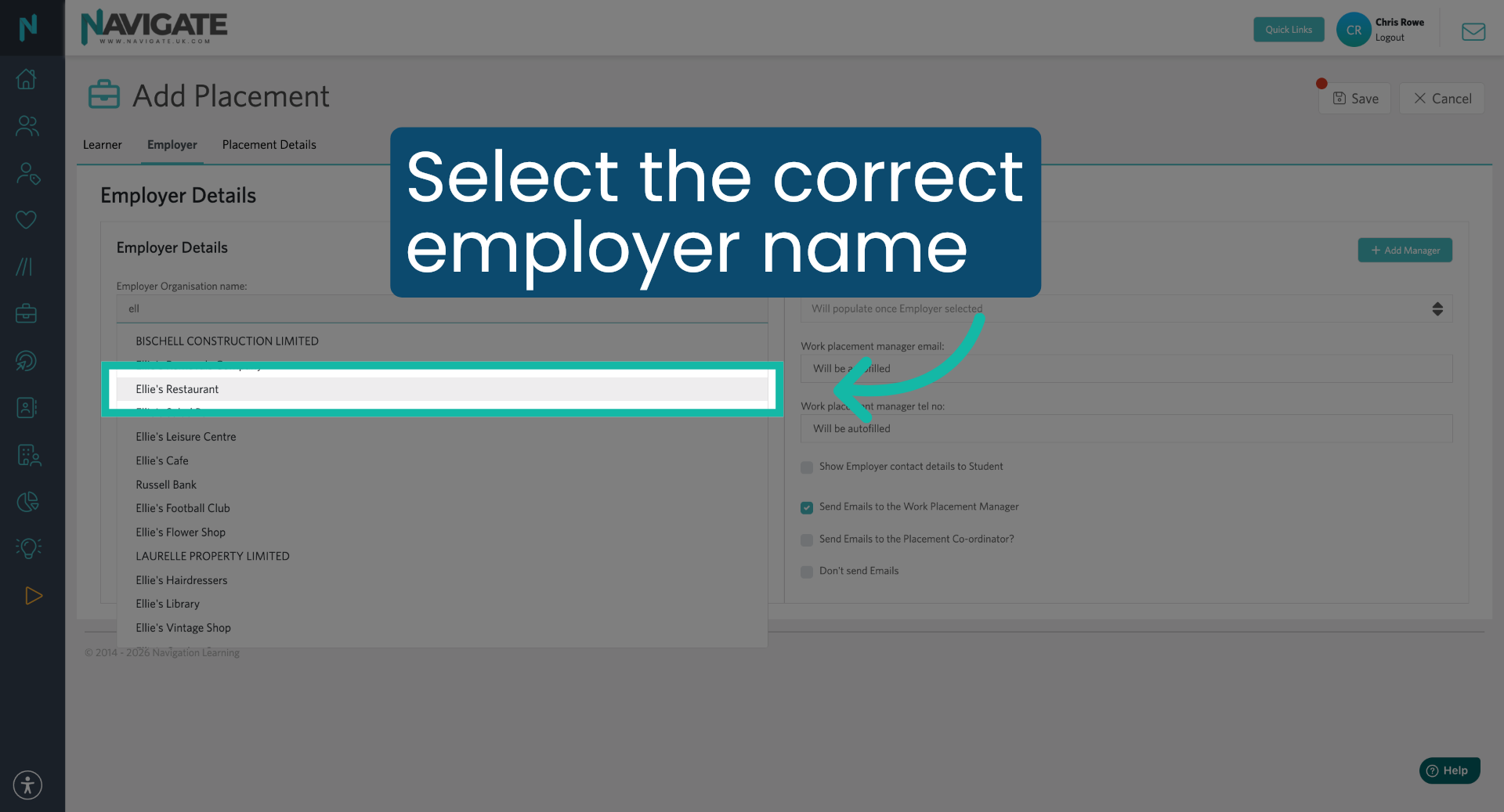
10. Select Employer from List
Select the correct employer from the search results.
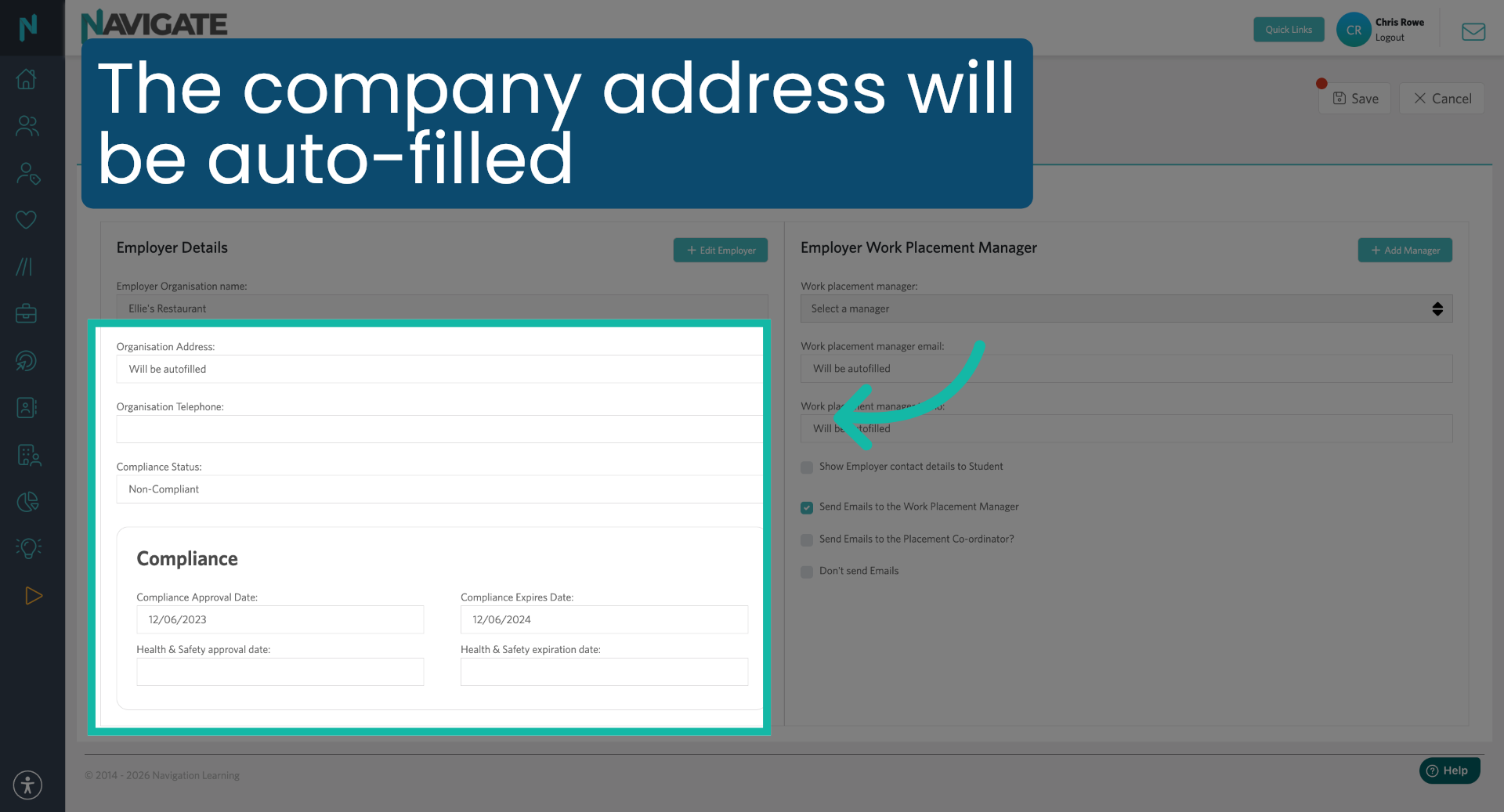
11. Select Employer Details Auto-Filled
The company's address and compliance status will be autofilled.
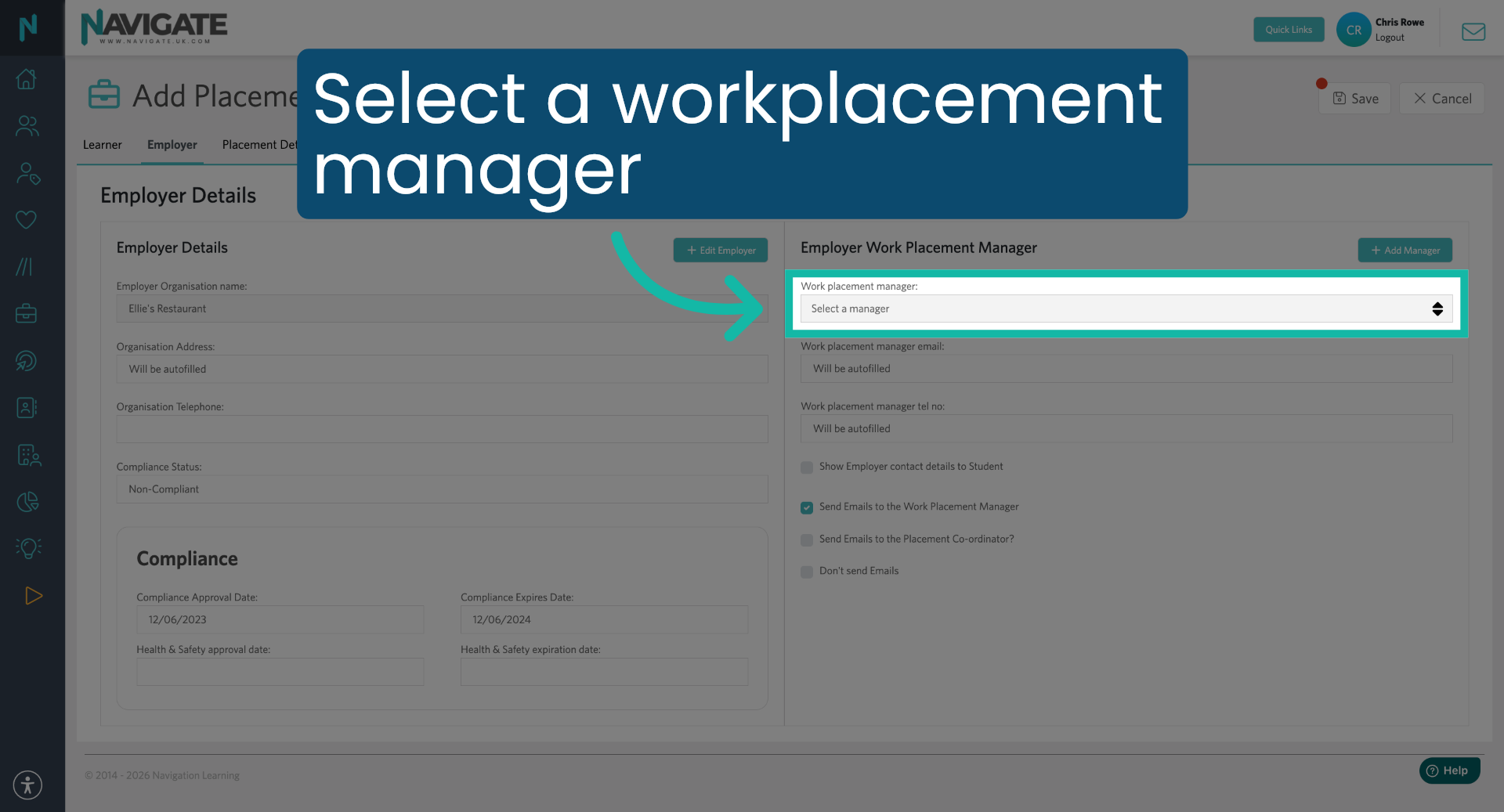
12. Select Employer Work Placement manager
Next, select the employer work placement manager. They will already be listed as a contact.
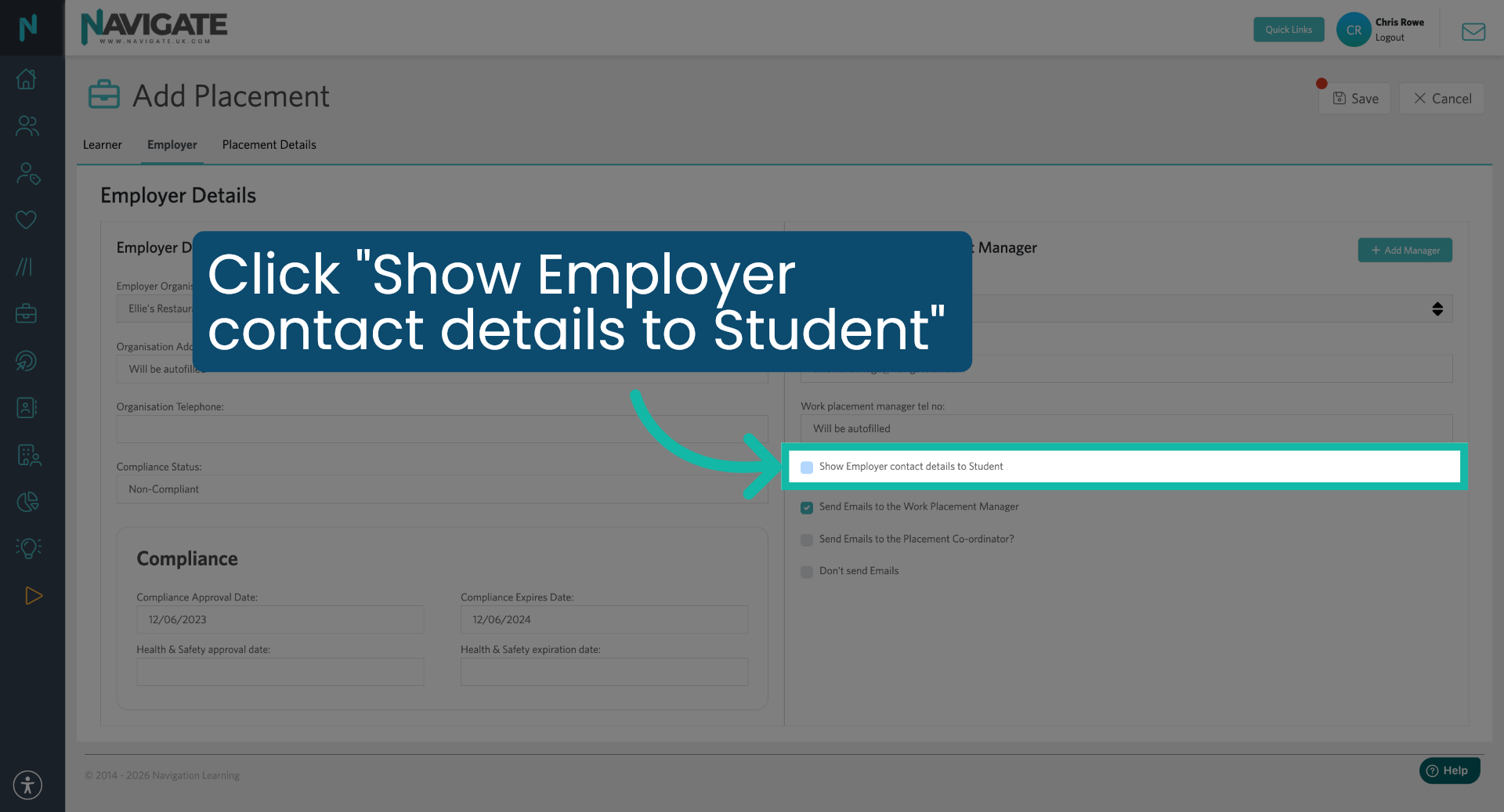
13. Enable Employer Contact Visibility
Click 'Show employer contact details to student' to allow the student to view employer contact information, if necessary.
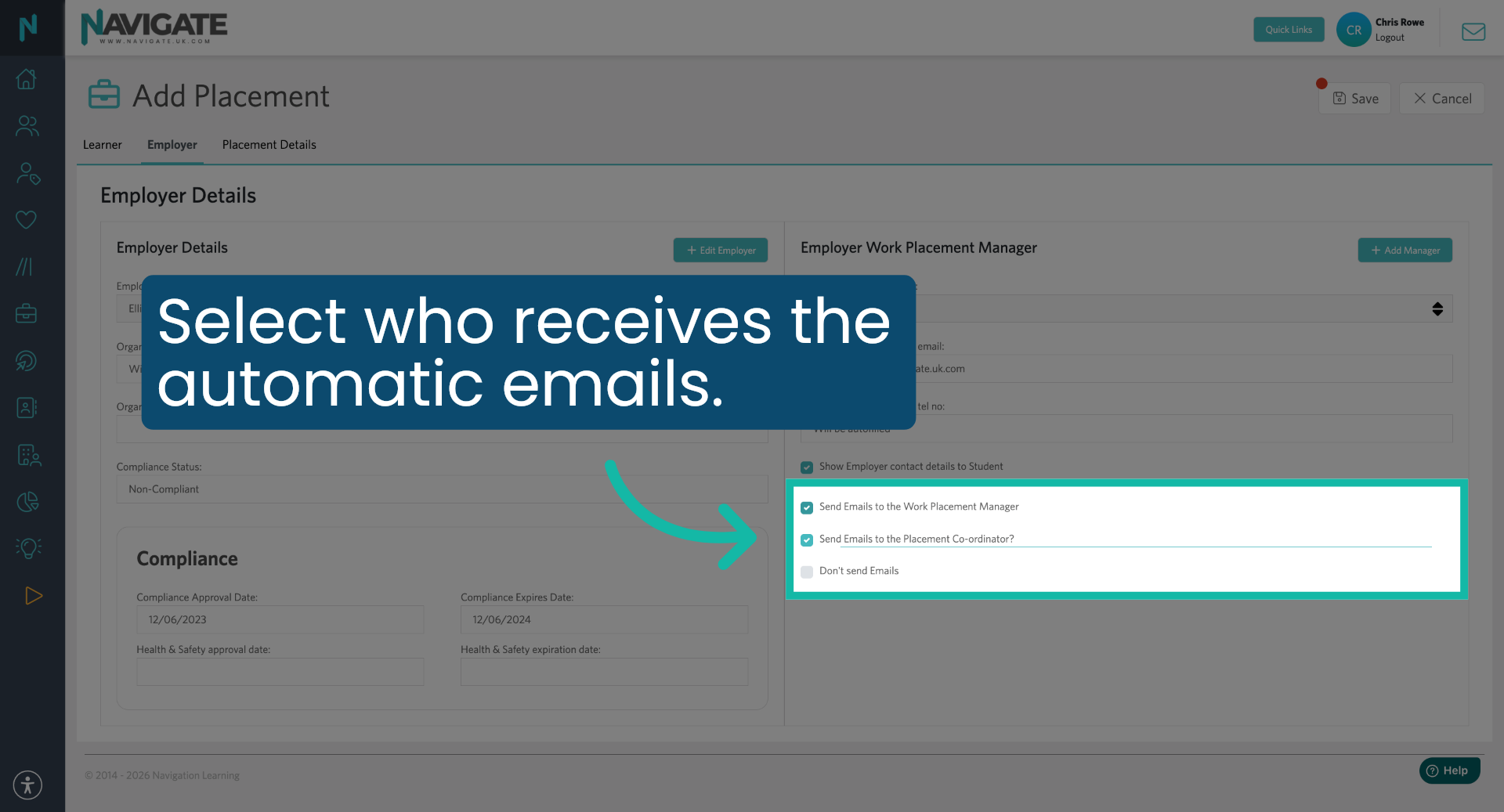
14. Select Automatic email Recipients
The three email tick boxes are important, as they decide who receives the automatic emails; it defaults to sending them to the work placement manager. If the employer is not likely to have the time to regularly check their emails, you can send them to yourself instead and confirm the attendance on their behalf. It is recommended you add yourself to receive a copy of the emails.
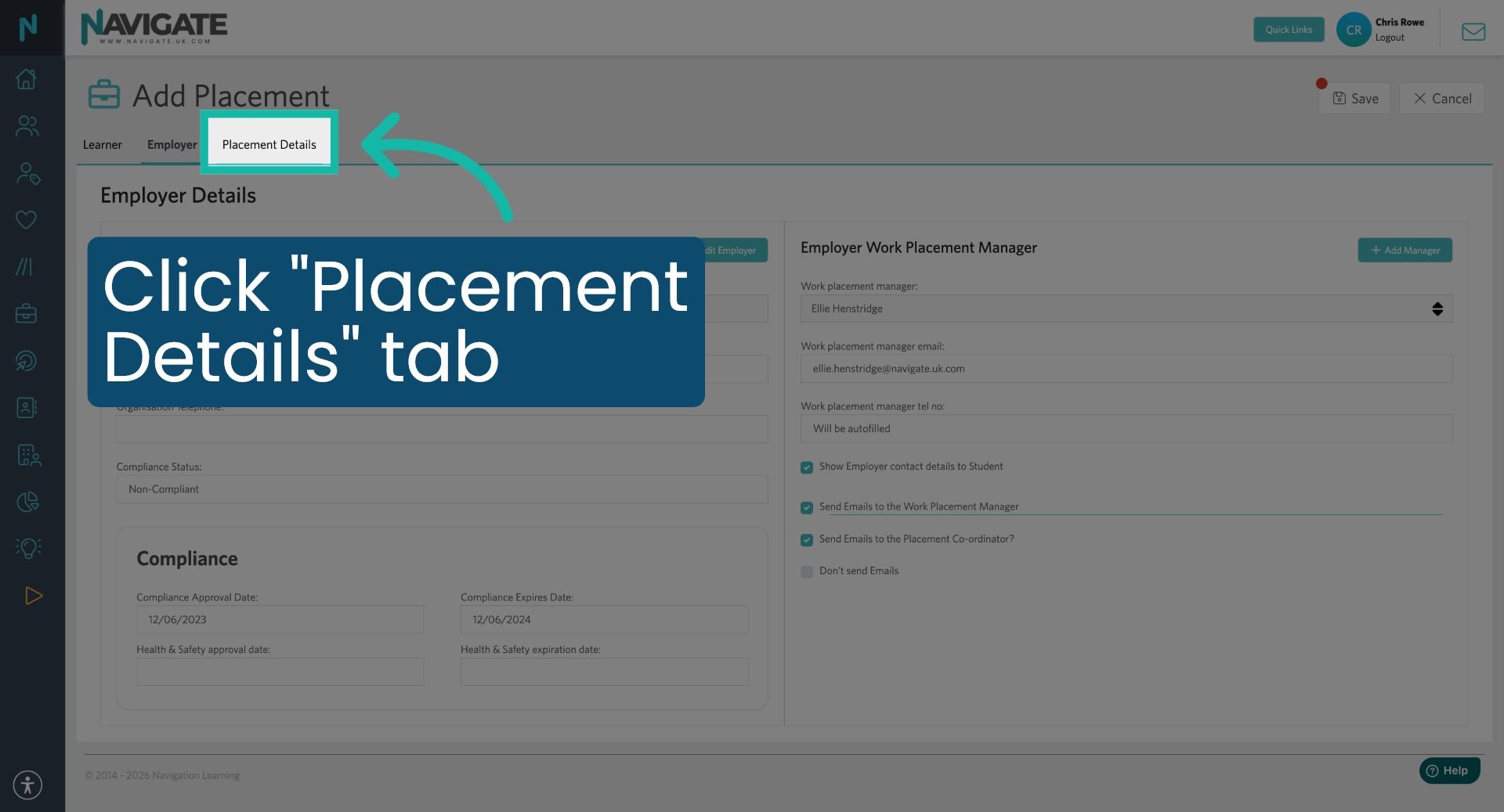
15. Open Placement Details Tab
Next, click the placement details tab to enter information about the placement.
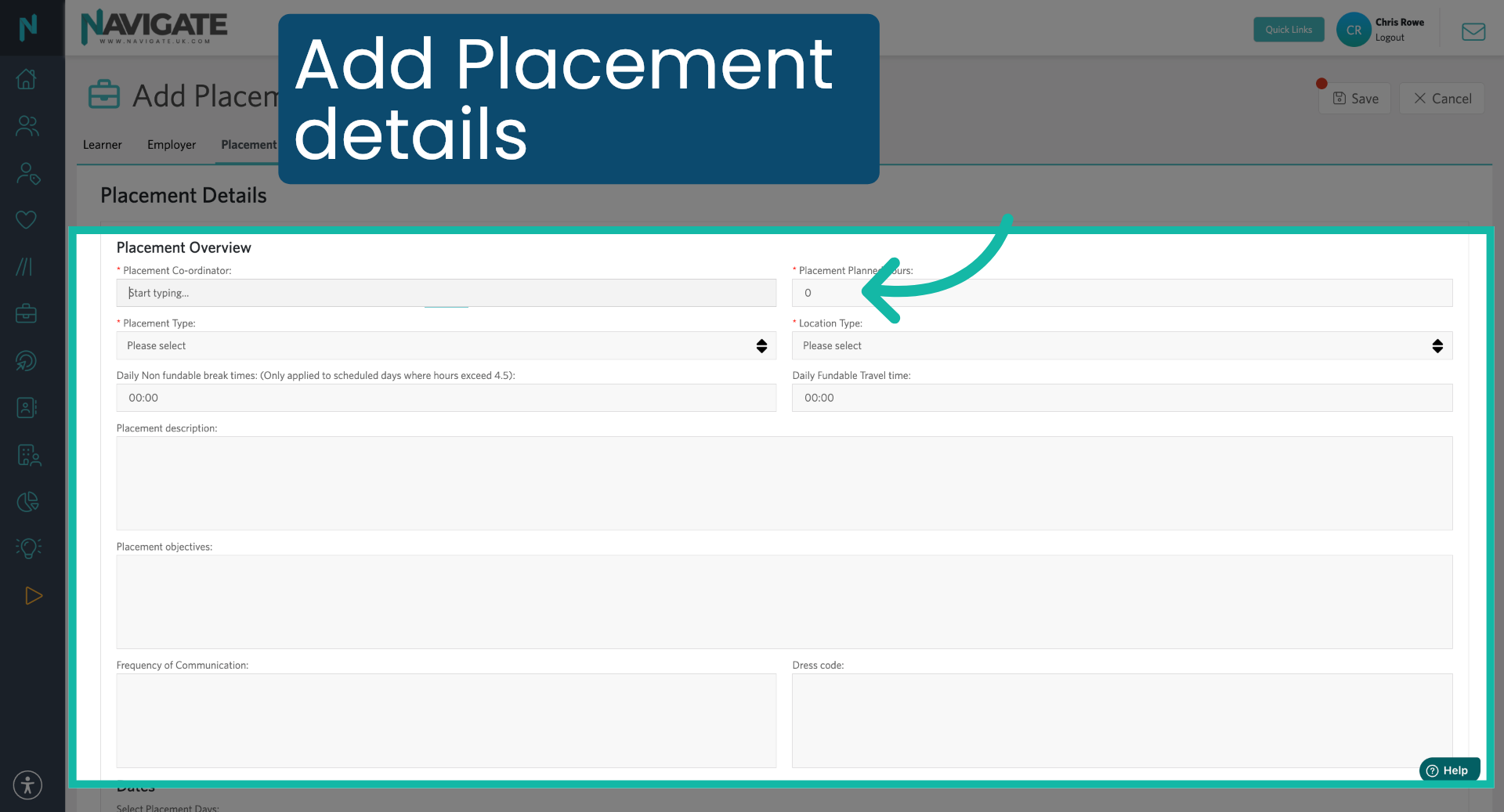
16. Add the Placement details
Then search for and add the placement coordinator. From here, you can add in the planned hours and select the placement type and the location type. Add any fundable travel time or non-fundable break time. For example, if the student will be taking a 30-minute break every day, Navigate will automatically remove 30 minutes from each scheduled day. Then add in the placement description and placement objectives along with any dress code.
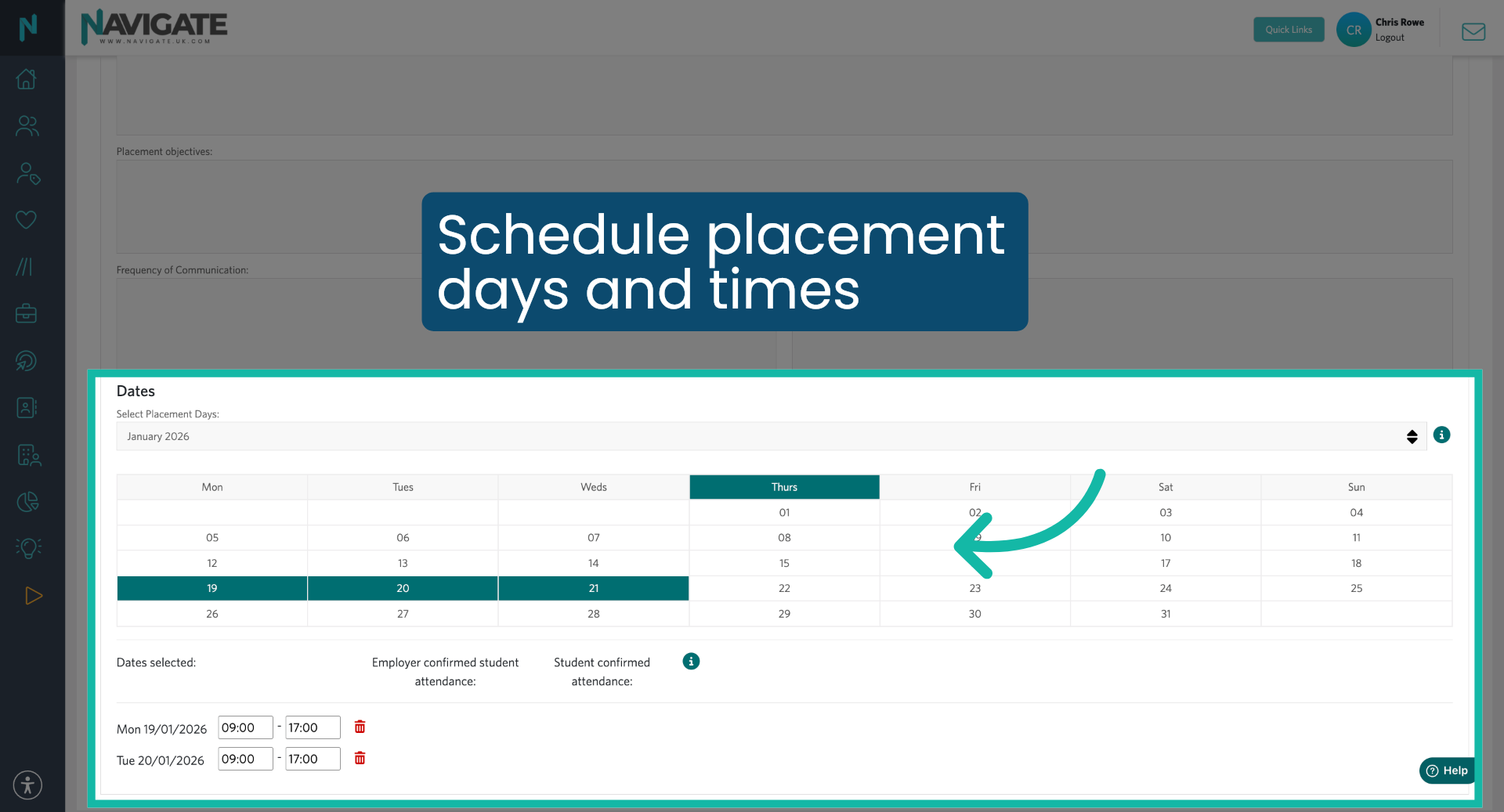
17. Schedule Placement Days and Times
Then schedule the dates and times for the placement. You can select the days, you know, the student is attending and change the hours if necessary. In order to save a placement, at least one day must be scheduled.
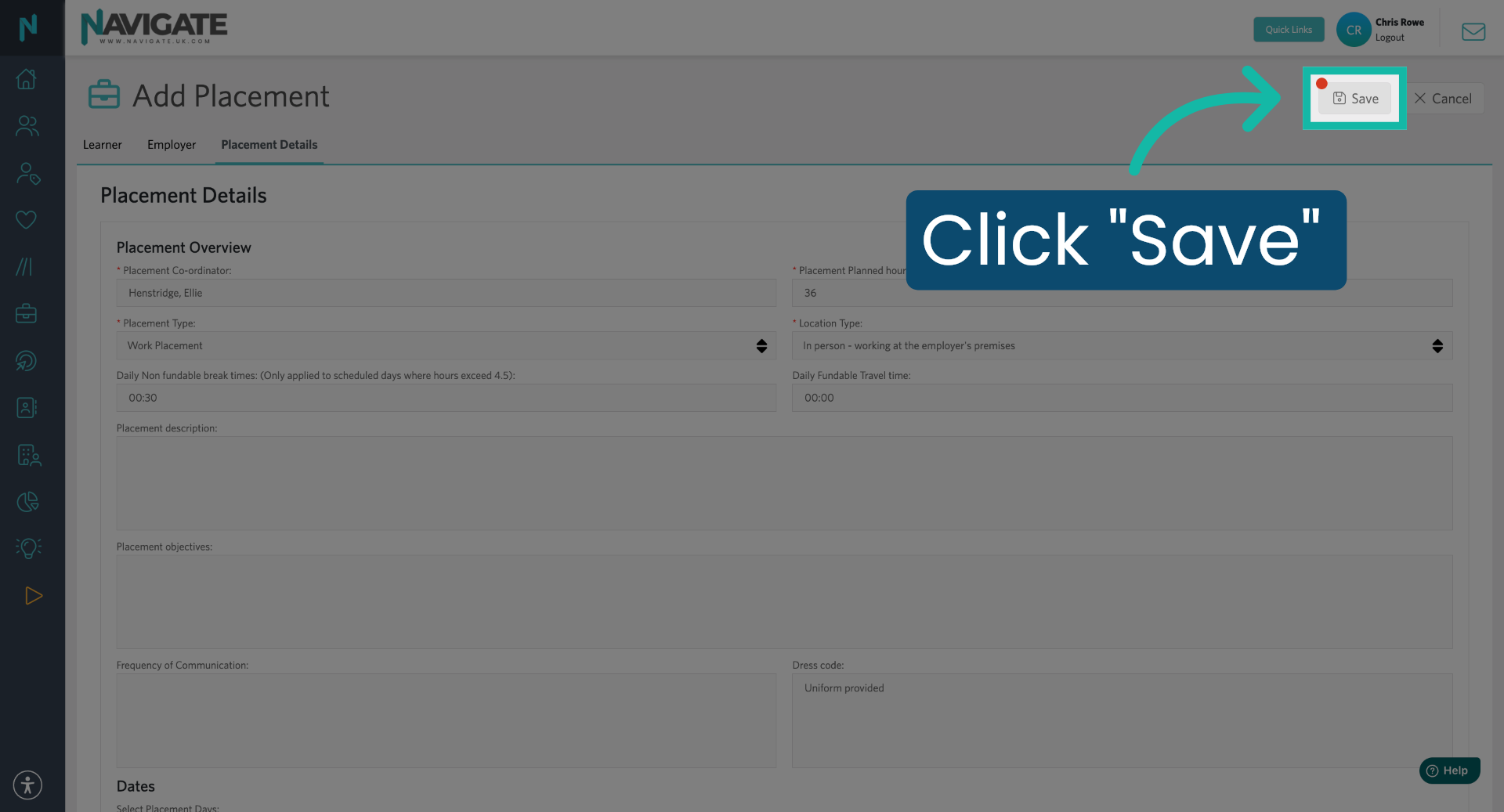
18. Save New Placement Record
Once completed, scroll back up and click save to add the placement to the student.
Was this article helpful?
That’s Great!
Thank you for your feedback
Sorry! We couldn't be helpful
Thank you for your feedback
Feedback sent
We appreciate your effort and will try to fix the article