This tutorial shows how to view the enrichment and employer engagement activities that students add to their profiles.
Go to login.navigate.uk.com
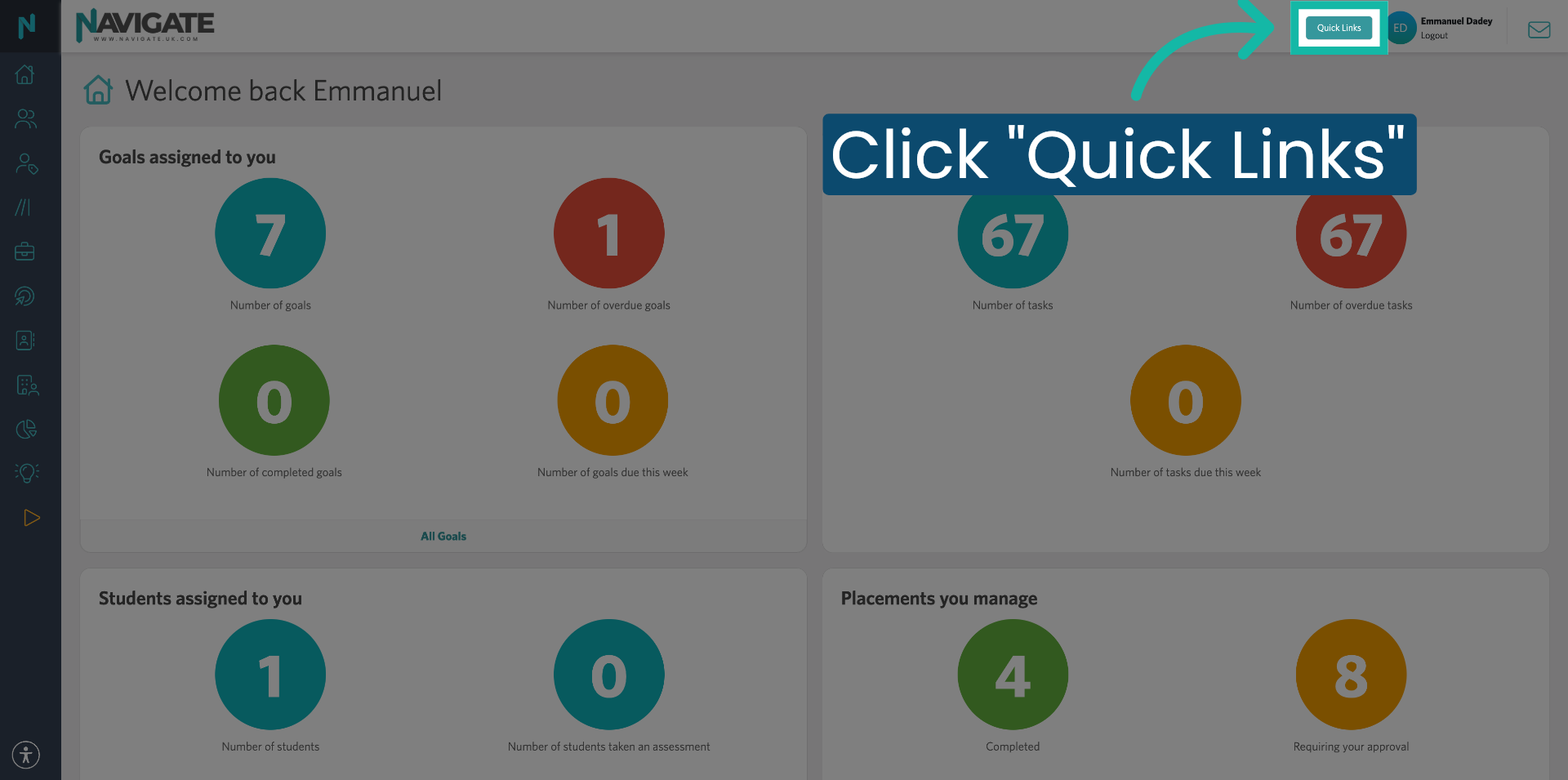
1. Open Quick Links Menu
Once logged in, click on the 'Quick Links' menu.
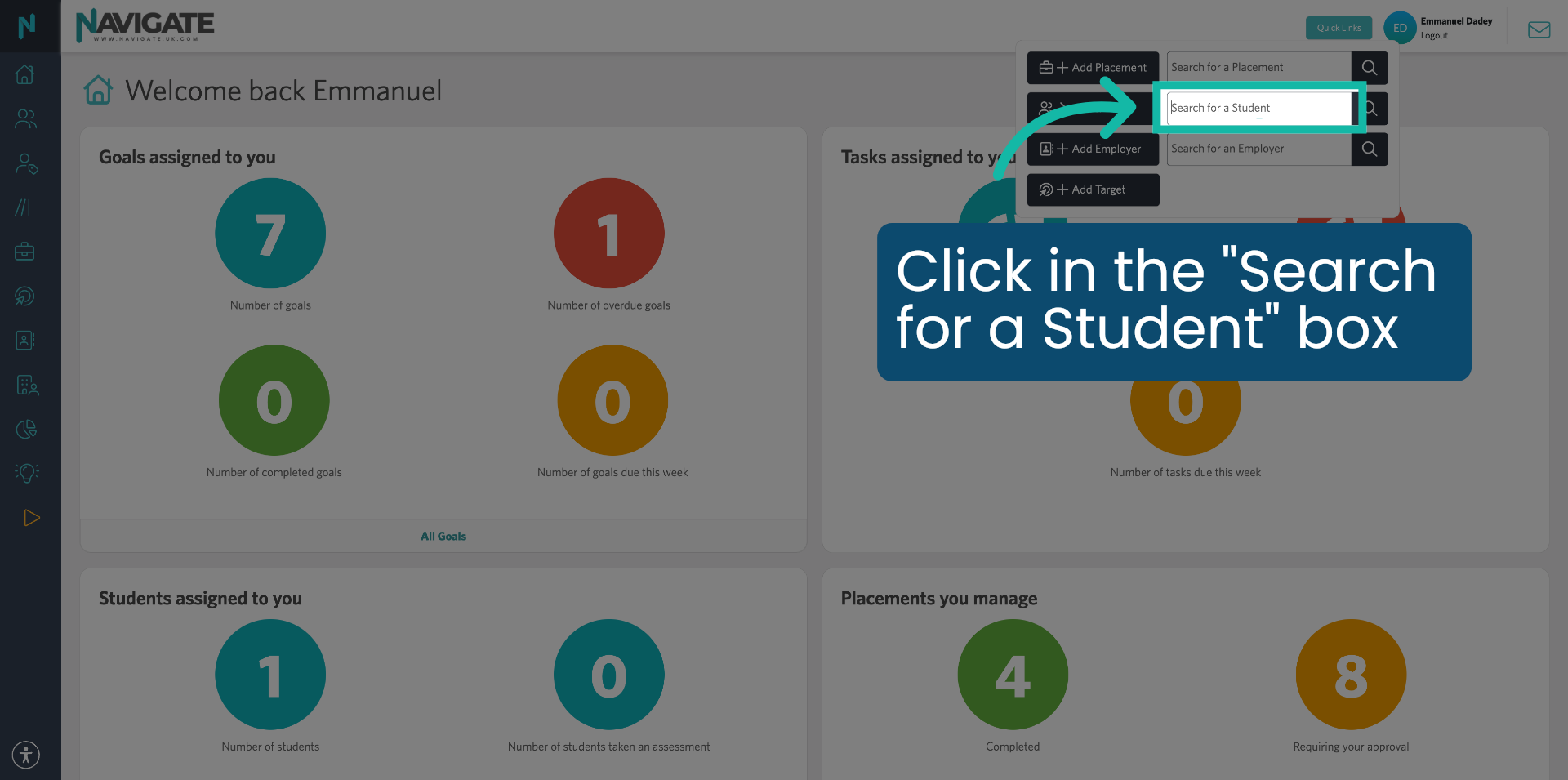
2. Select Search for a Student
Click in the 'Search for a Student' box.
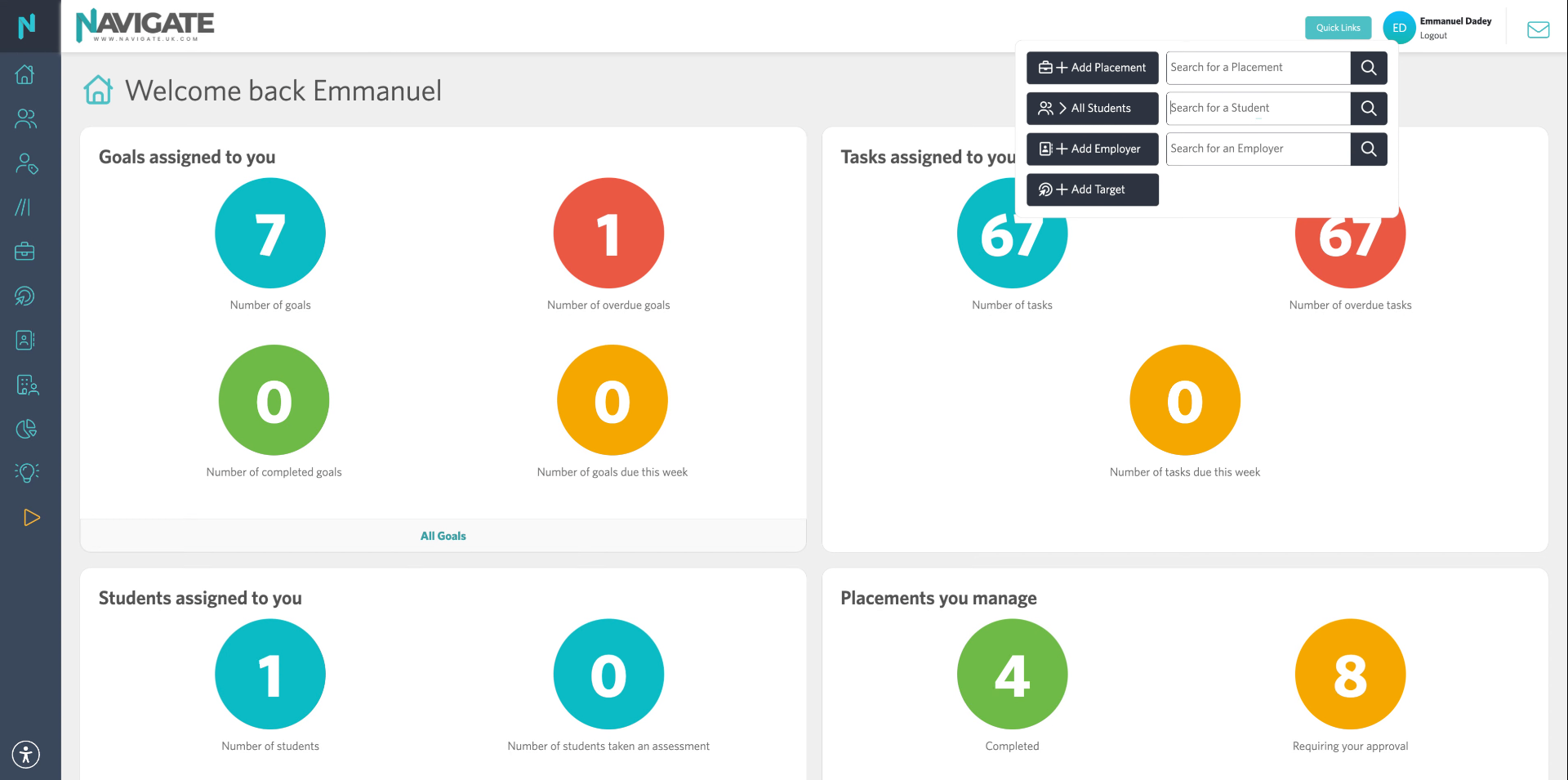
3. Enter Student Name
Enter the student's name to filter and find the correct student record.
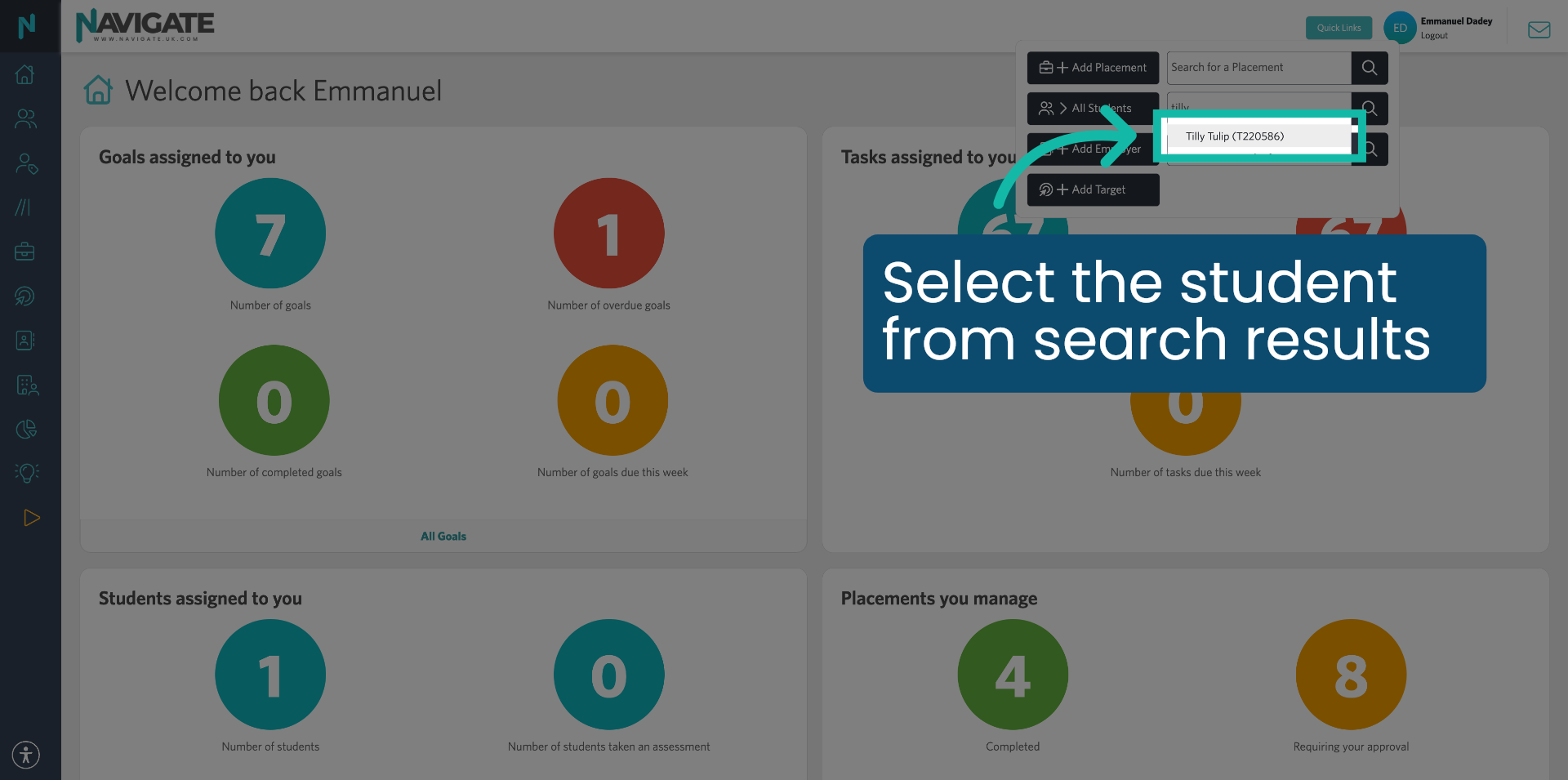
4. Choose Student Profile
Enter the student's name to filter and find the correct student record.
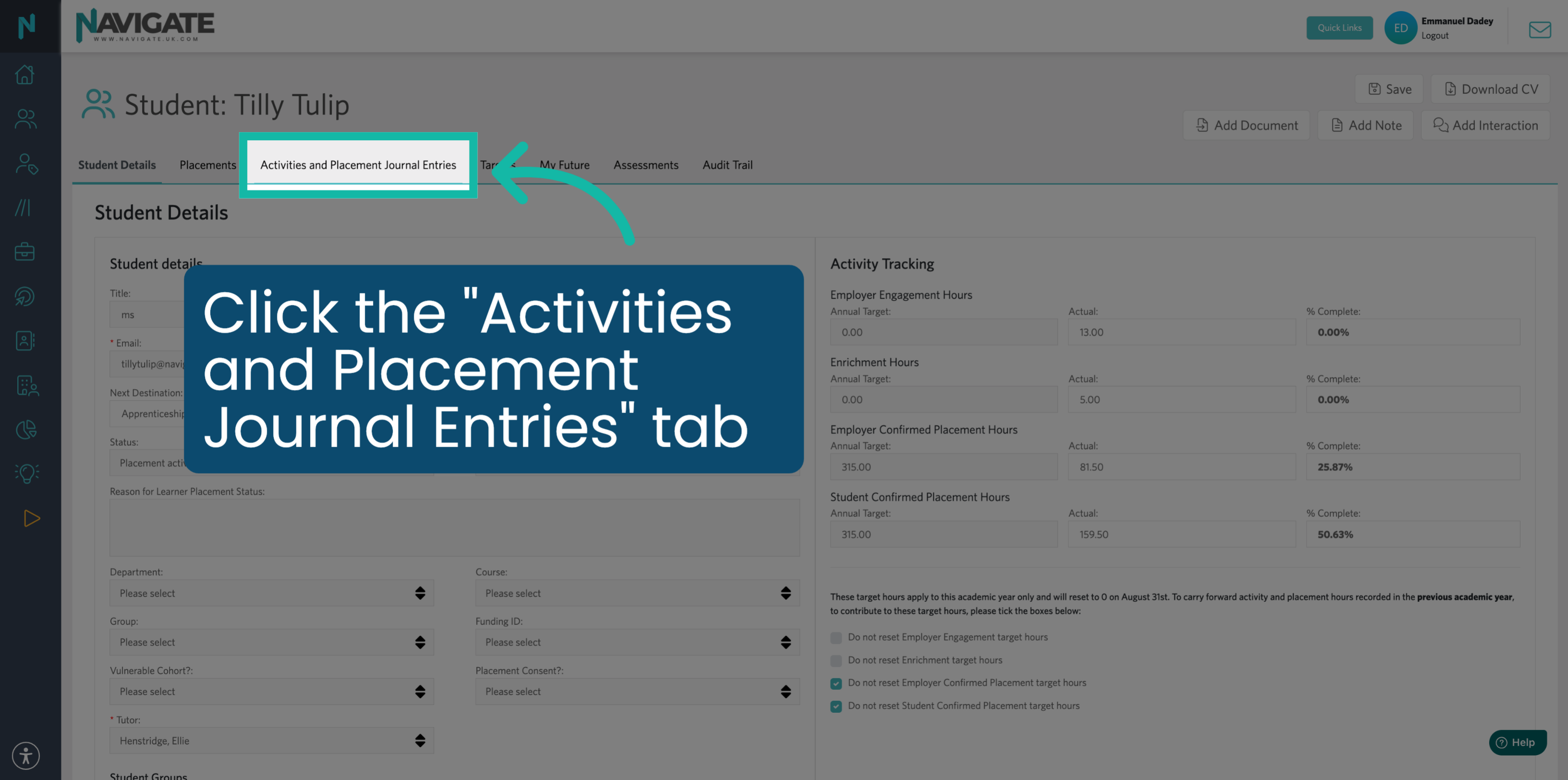
5. Access Activities and Journal
Click the 'Activities and Placement Journal Entries' tab to view the student's enrichment and placement records.
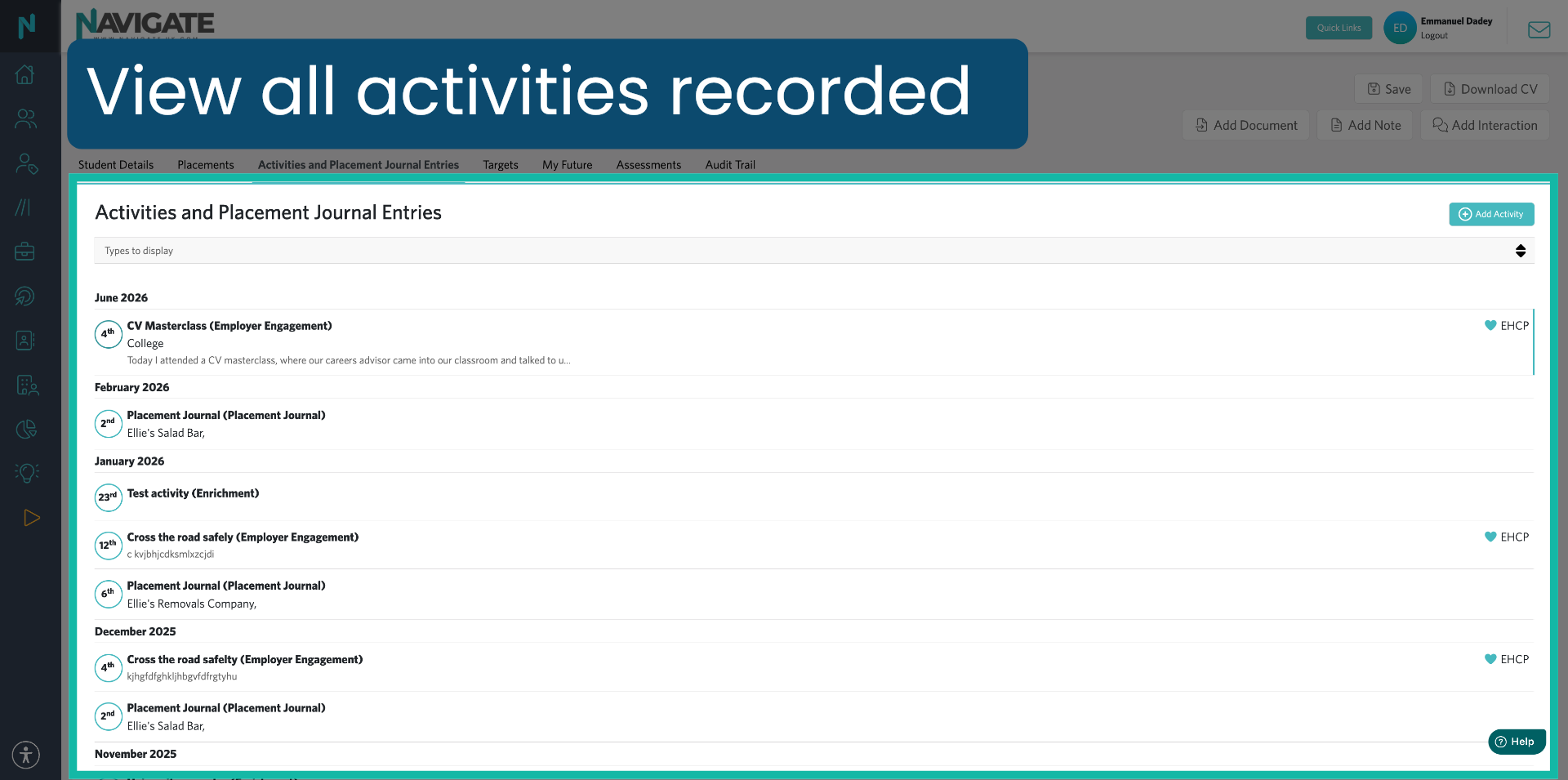
6. View All Activities
In this tab, you can view all activities that a student or staff member has added.
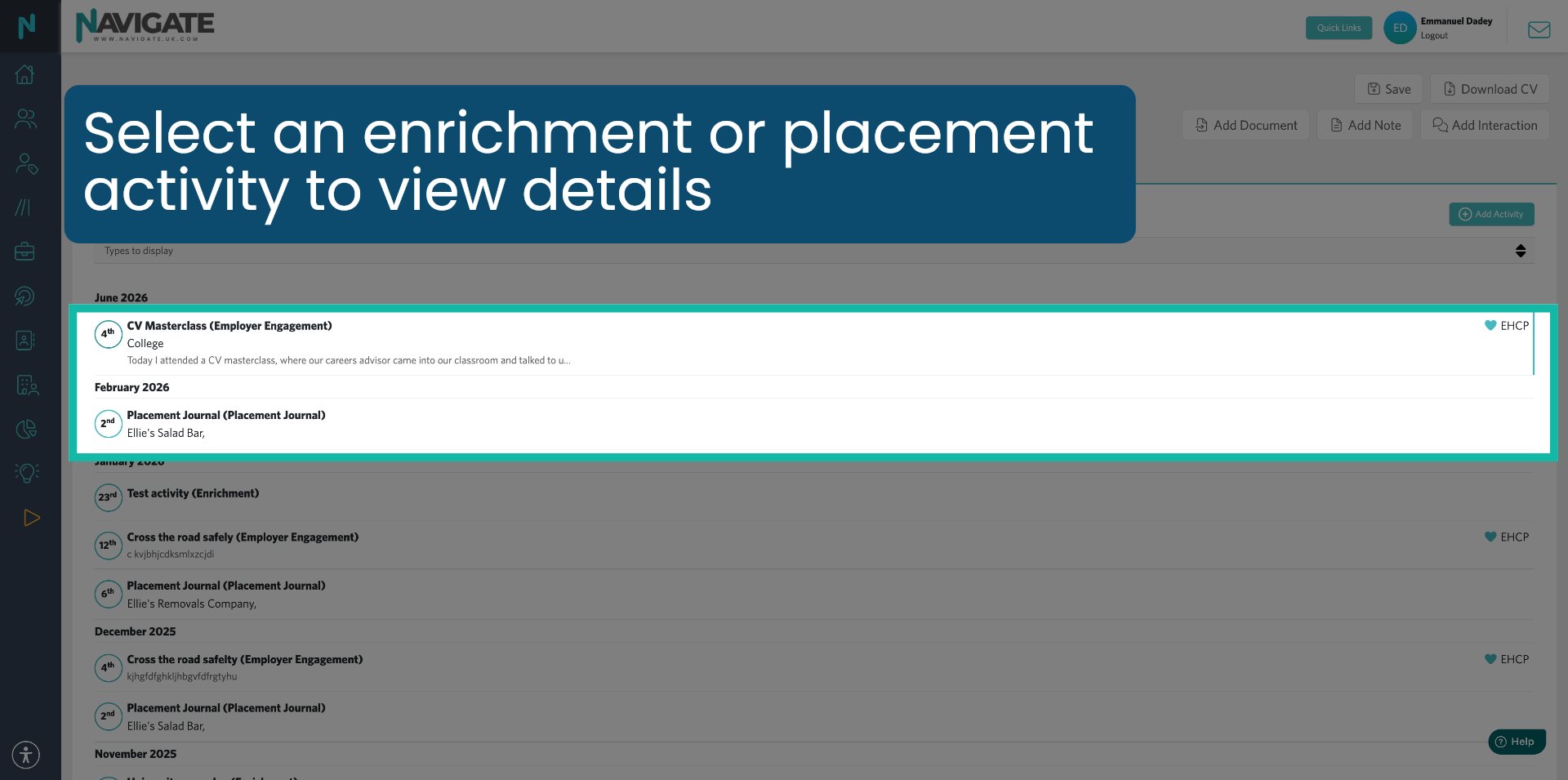
7. Select Activity to View Details
Click on the activity you want to view the details for.
8. Open Activity Details
You can now view all the details of that activity, including the reflection that the student has added.
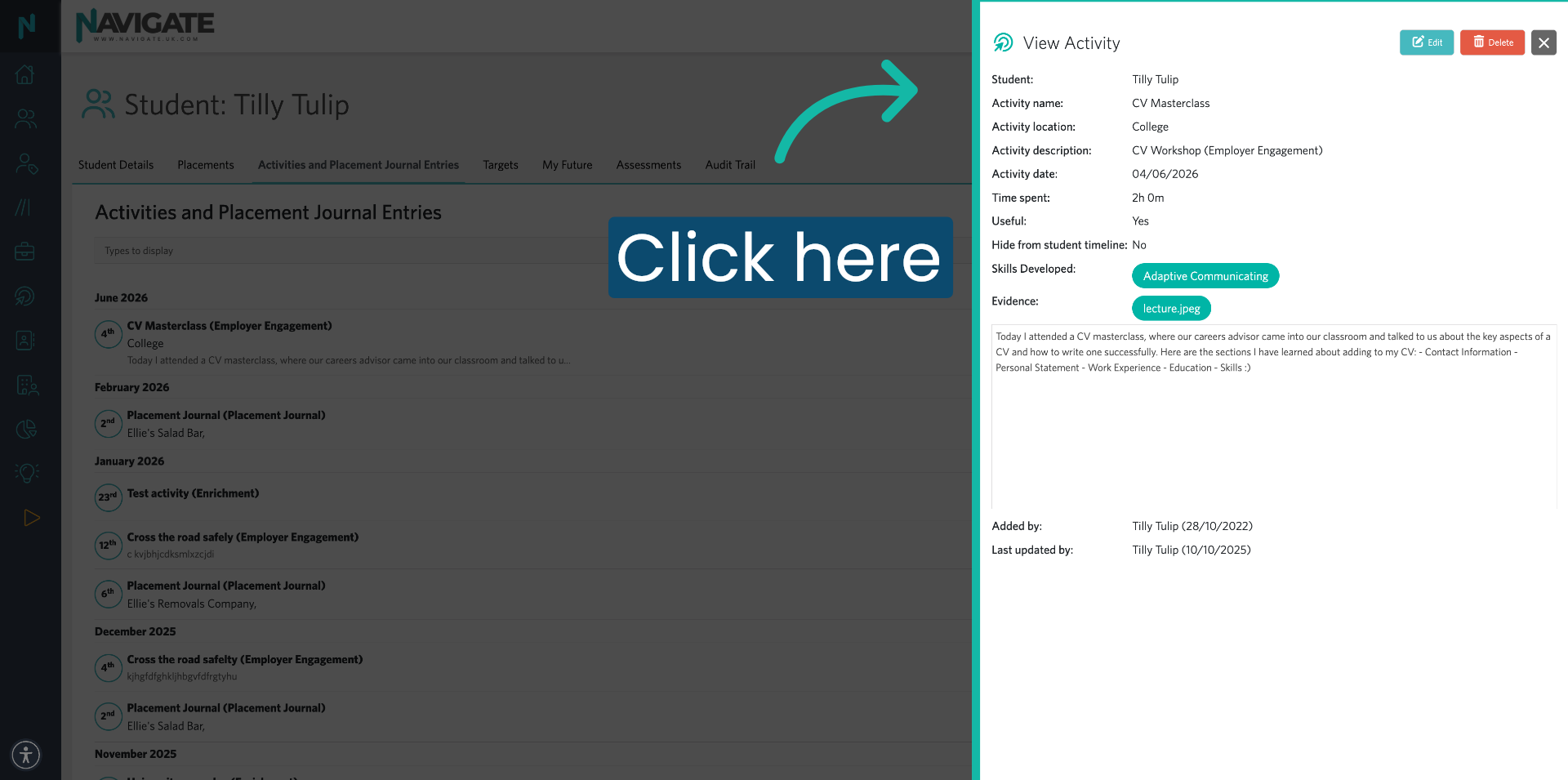
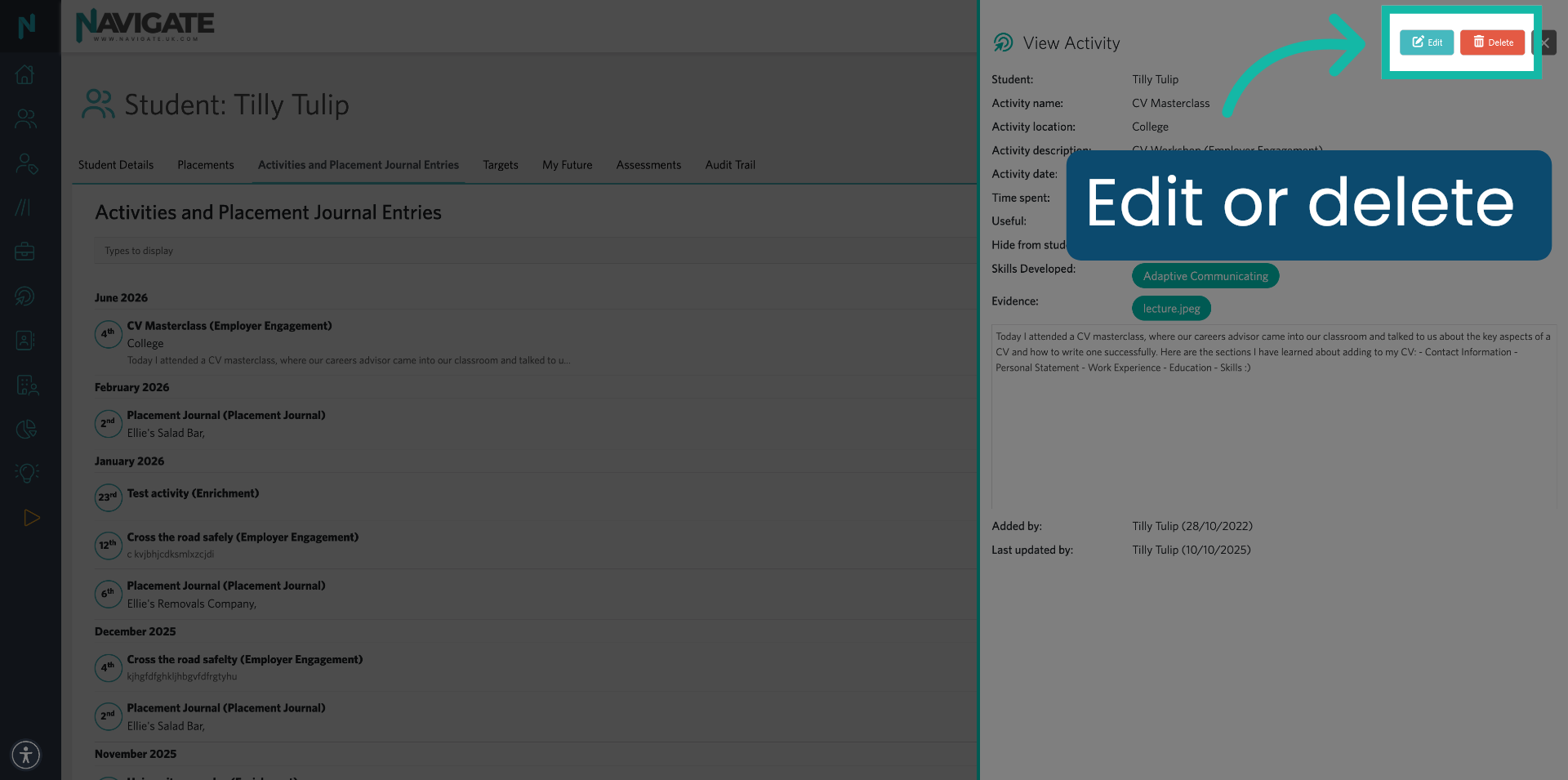
9. Edit or Delete
If you need to, you can edit or delete this activity by clicking on the edit or delete buttons.
Was this article helpful?
That’s Great!
Thank you for your feedback
Sorry! We couldn't be helpful
Thank you for your feedback
Feedback sent
We appreciate your effort and will try to fix the article