Go to login.navigate.uk.com
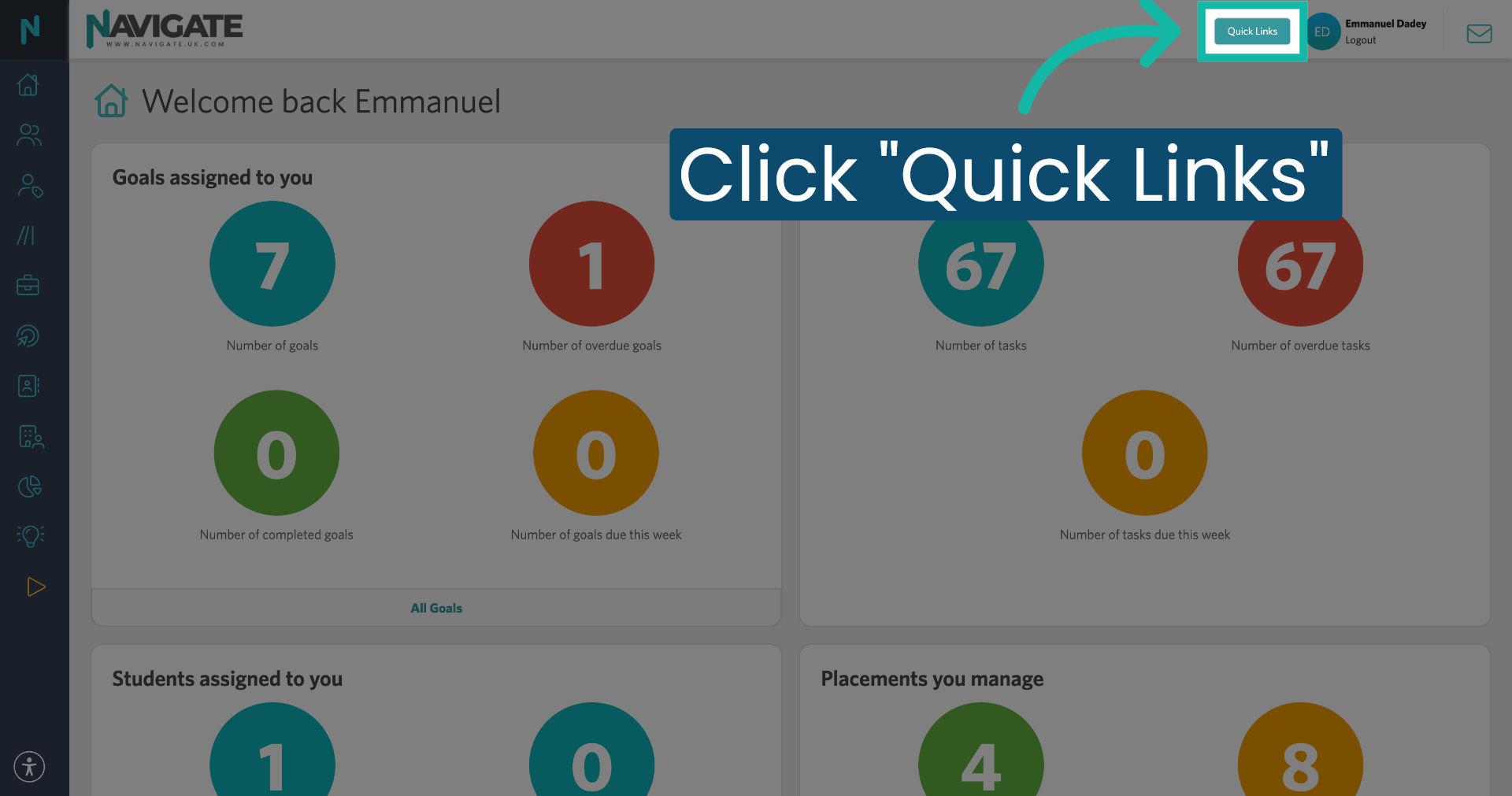
1. Click Quick Links
Once logged in, click the 'Quick Links'.
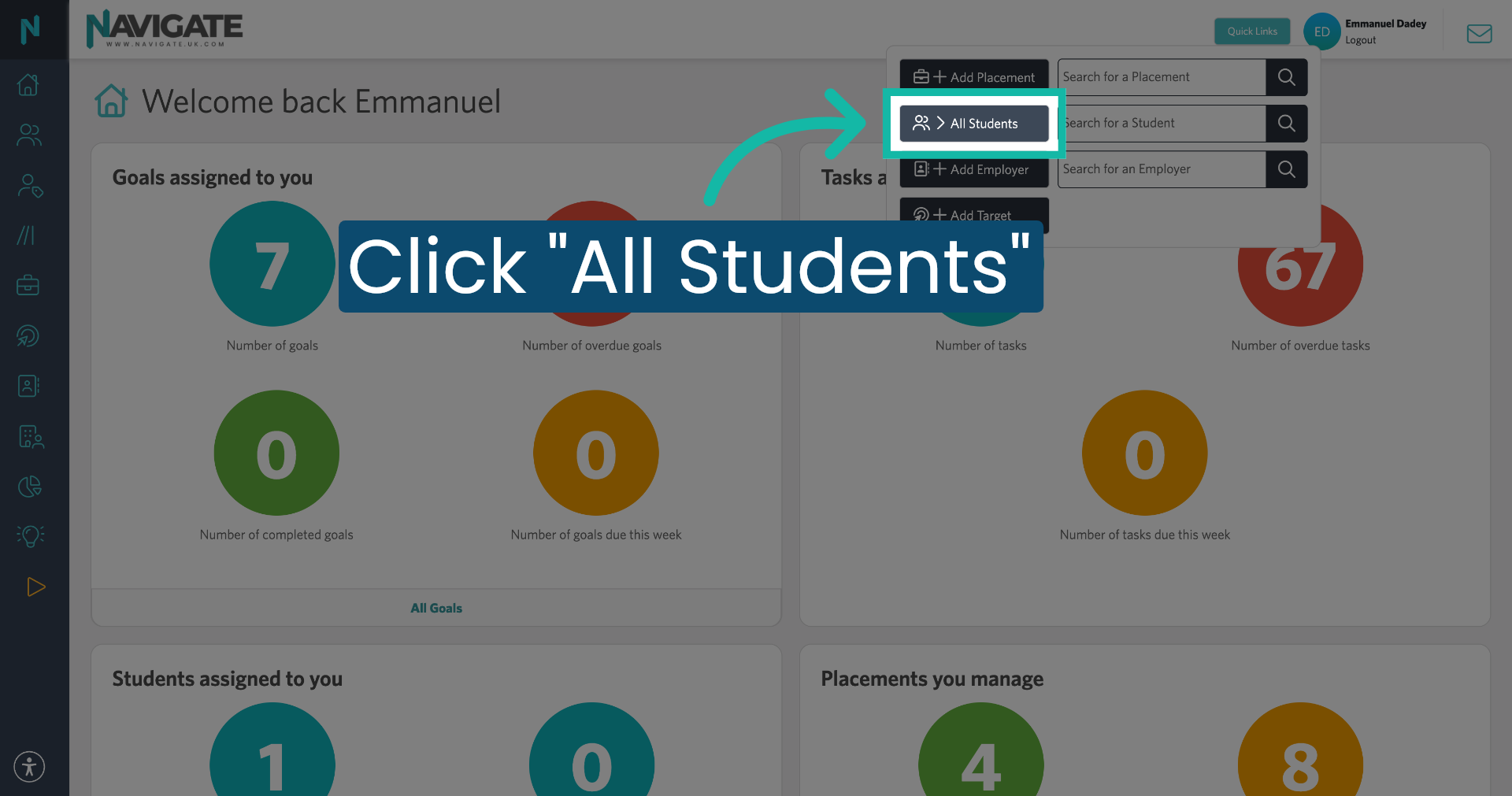
2. Select All Students
Then click 'All Students' to view all students in Navigate.
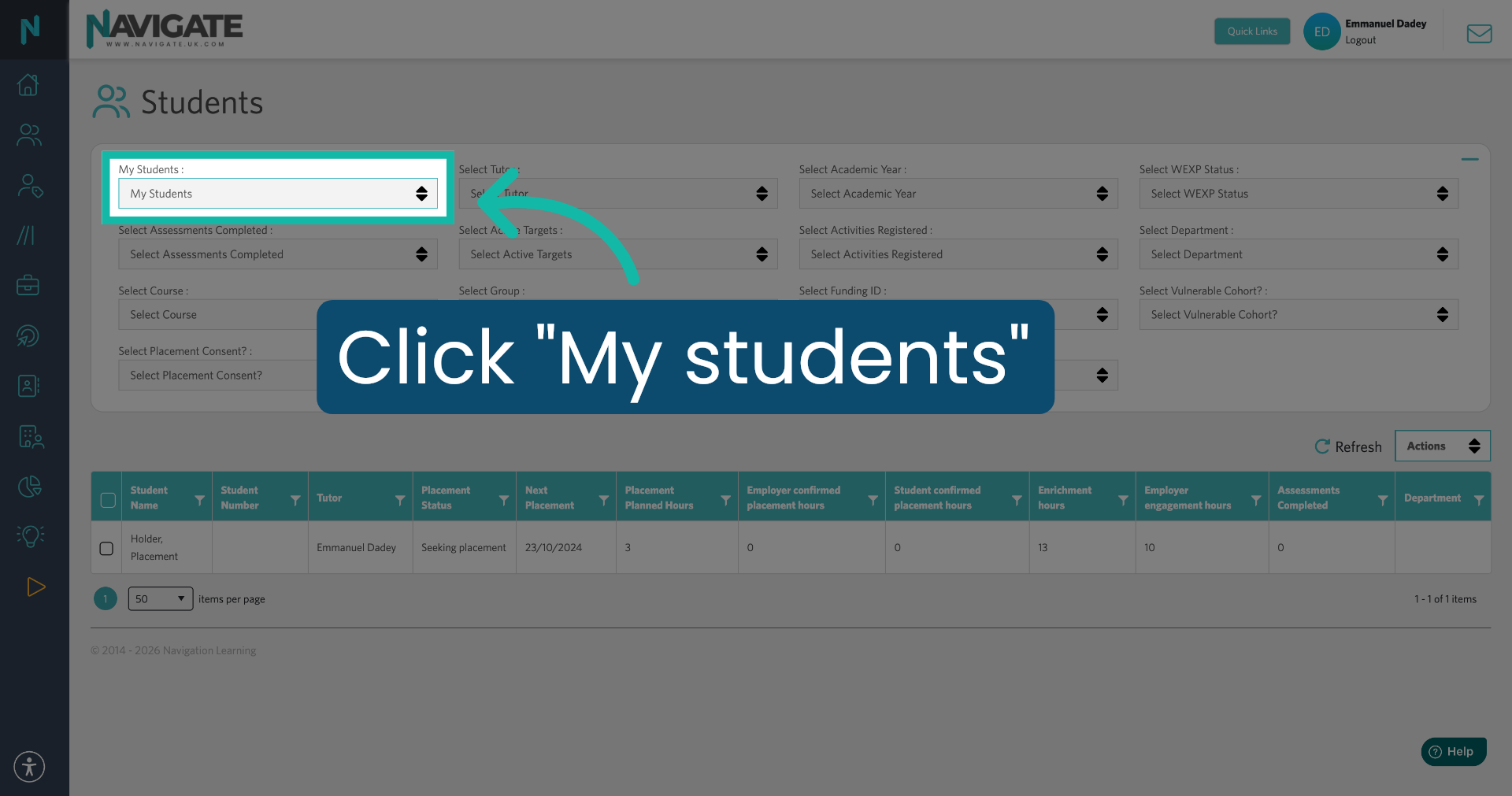
3. Expand the students search.
Click on my students.
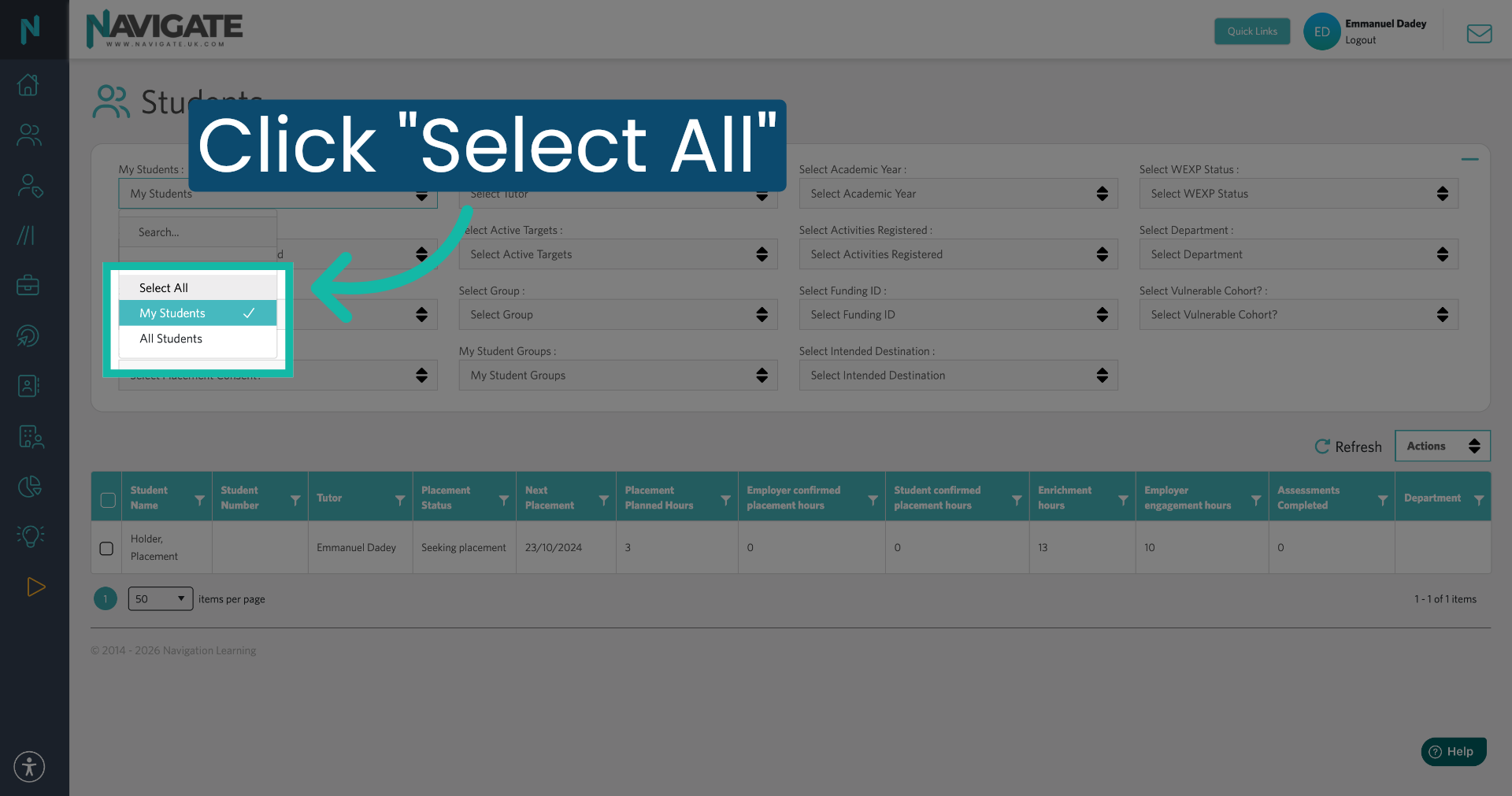
4. Select All Students
Click 'select all' to display all students.
5. Filter for student cohort
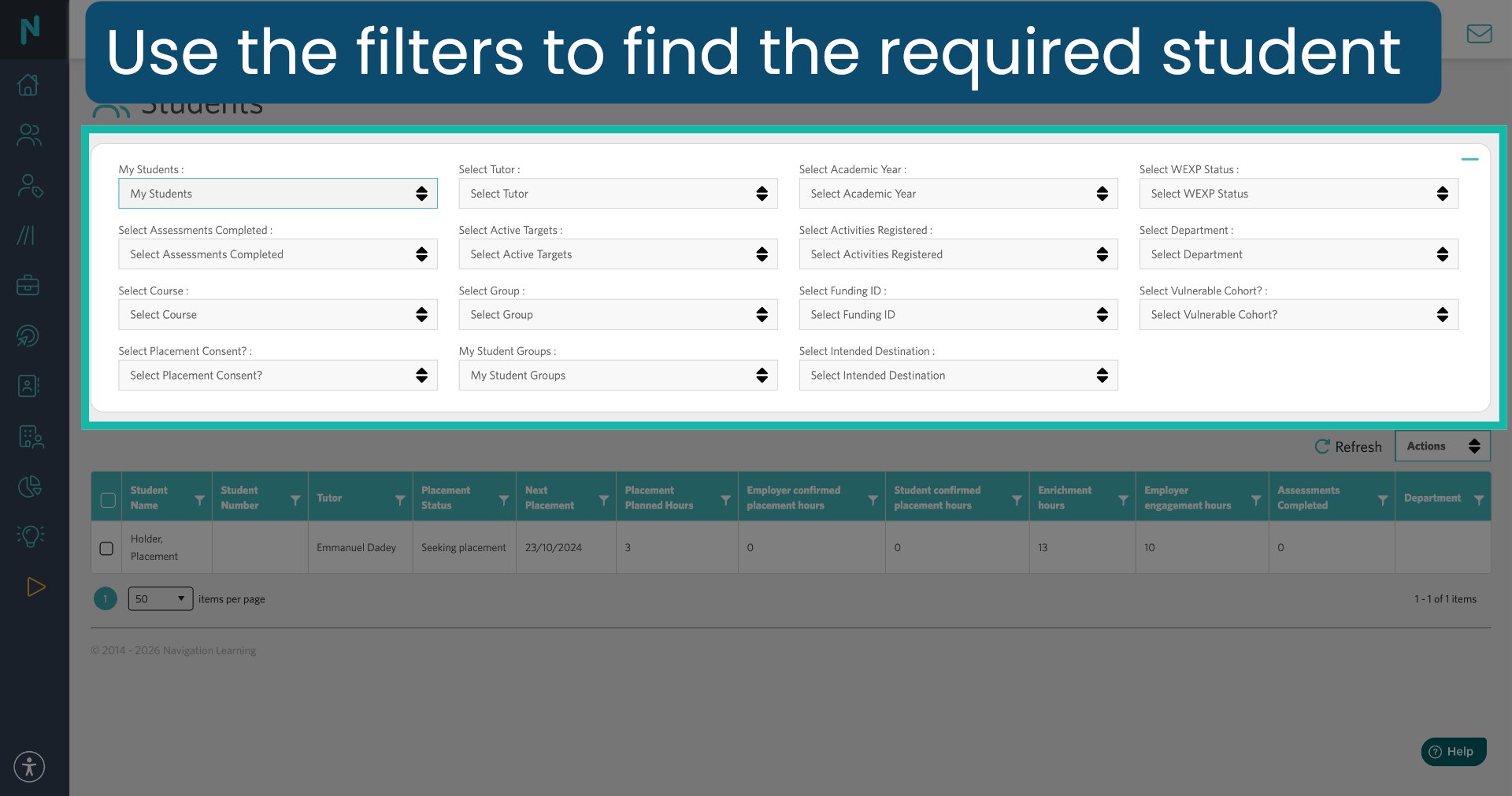
Use the filters to find the cohort of students you wish to bulk-add the activity to.
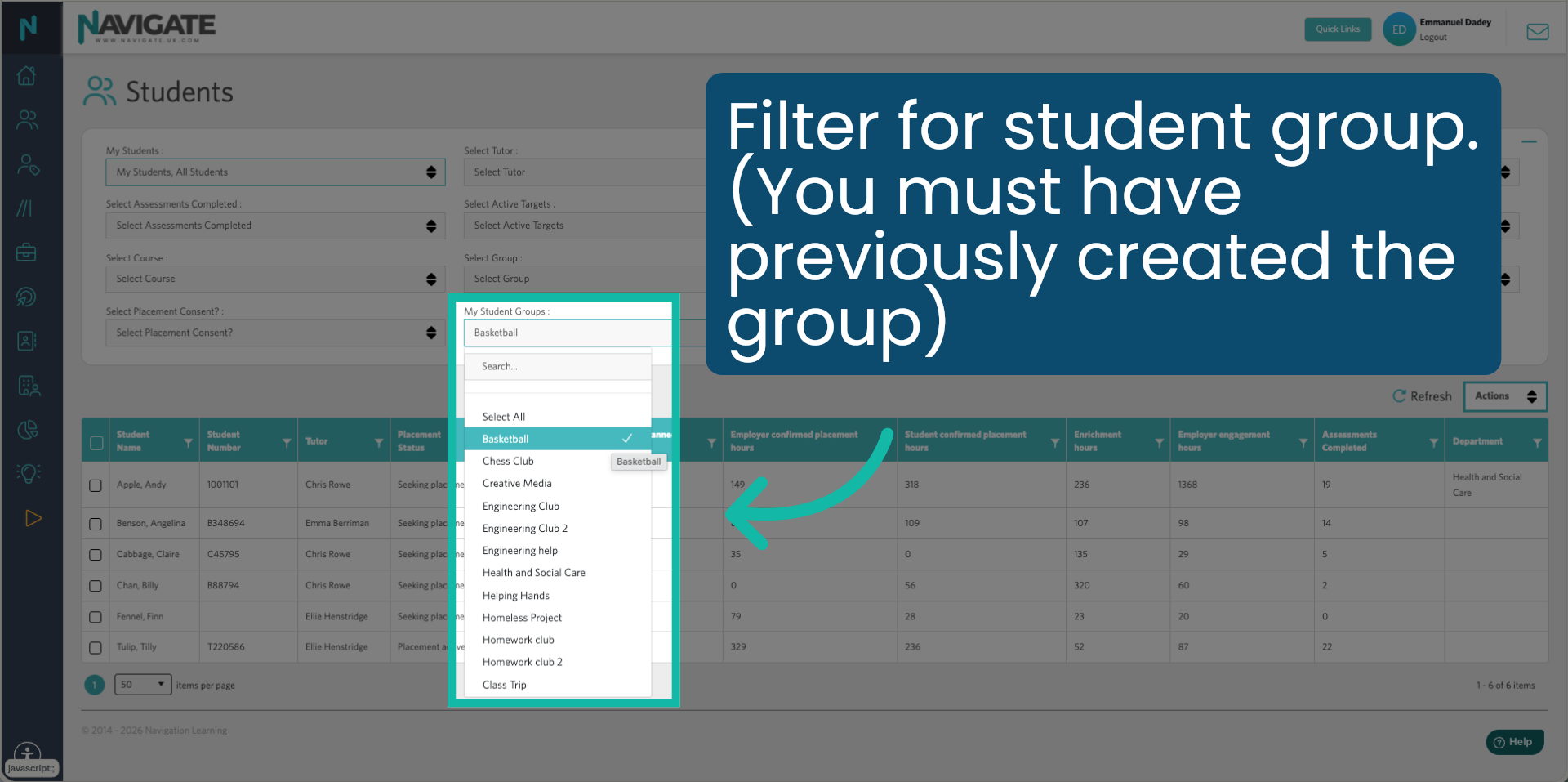
6. Select a student group
For example, if you need to bulk add to a student group, click on 'My Student Groups' and select the group from the drop-down.
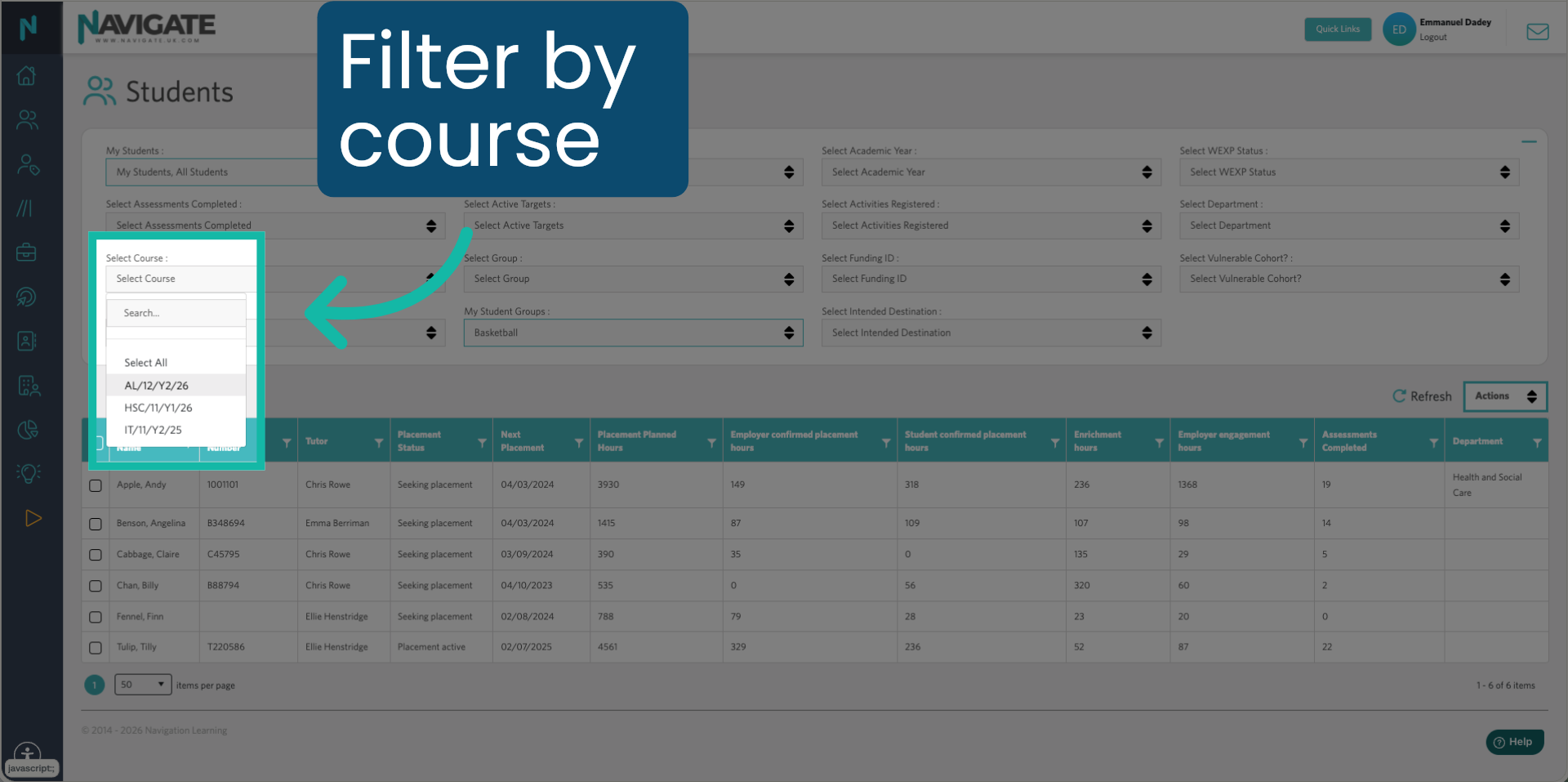
7. Filter by course
You can also filter by course.
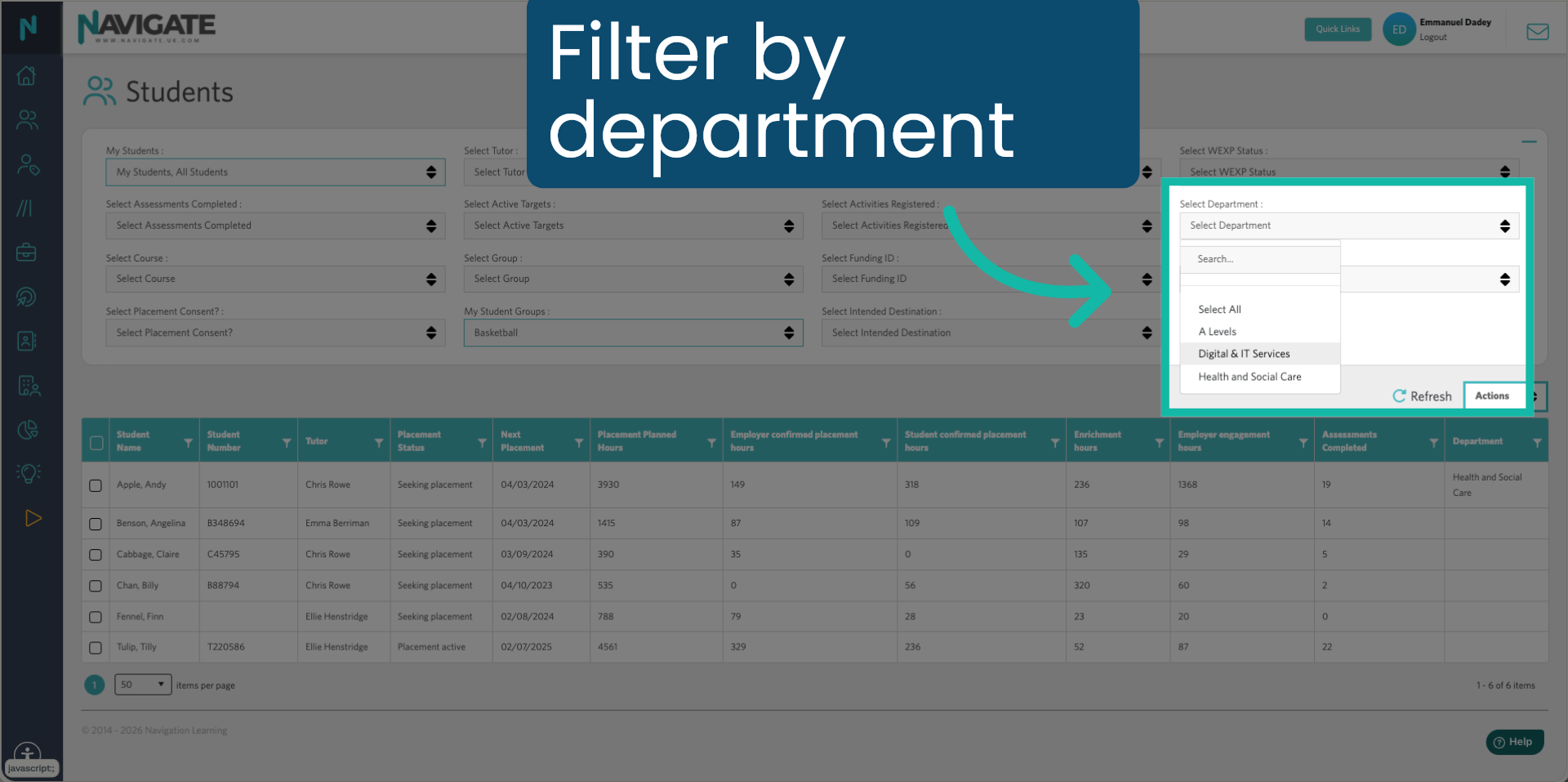
8. Filter by department
Or filter by department.
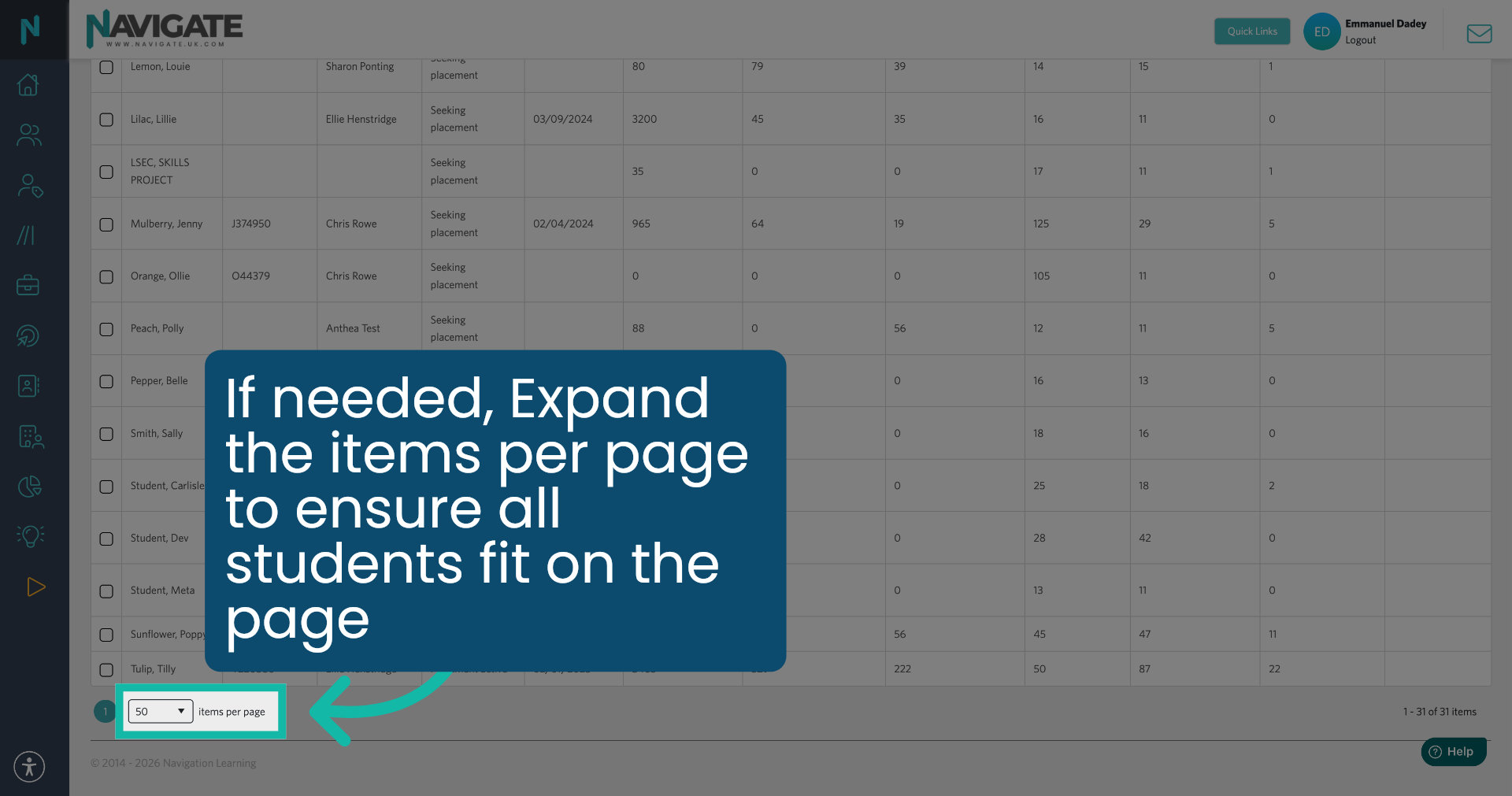
9. Expand Items Per Page
If needed, at the bottom of the page, expand the items per page to ensure all students fit on the page.
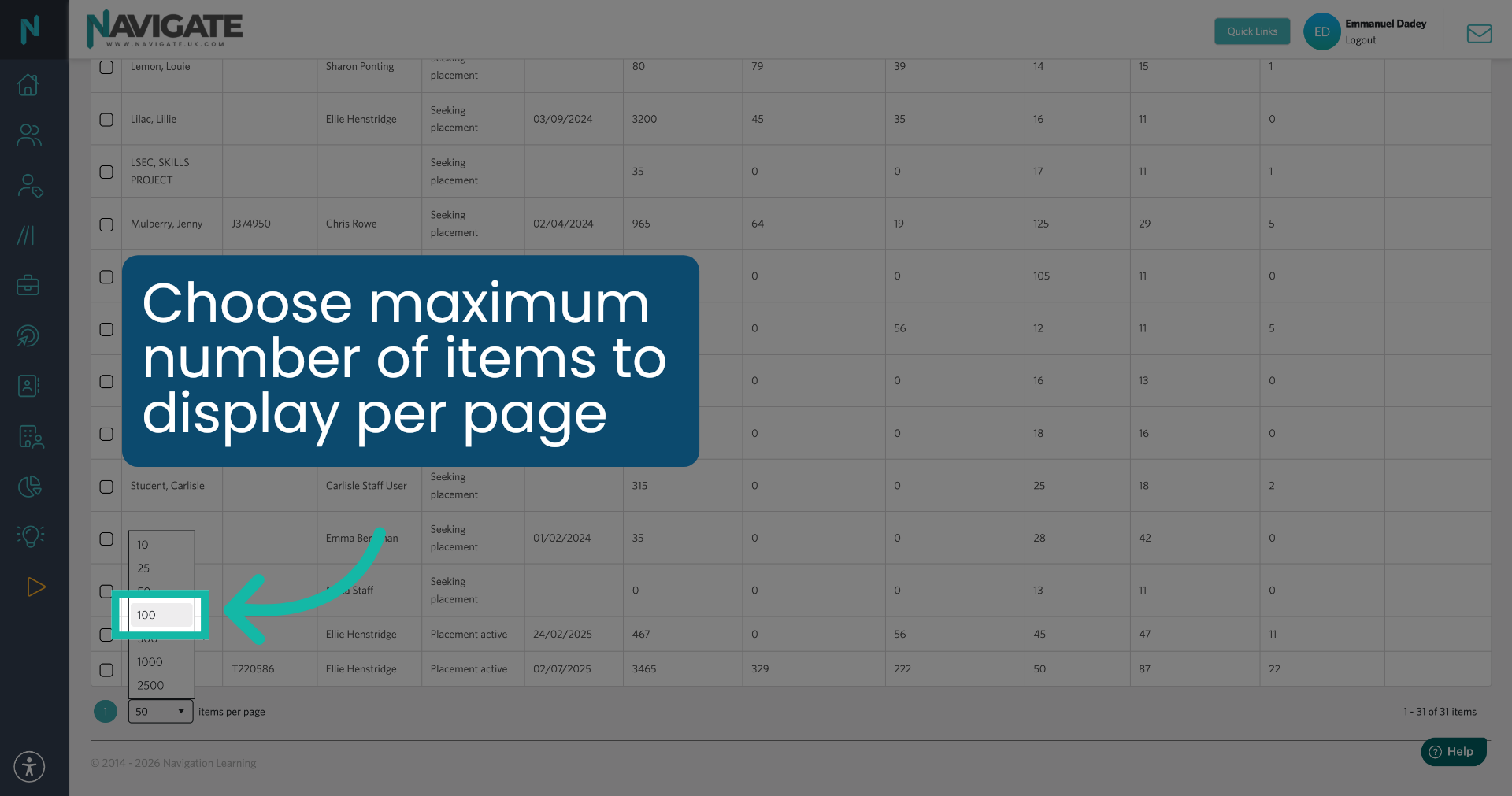
10. Select Display Amount
Choose the maximum number of items to display per page.
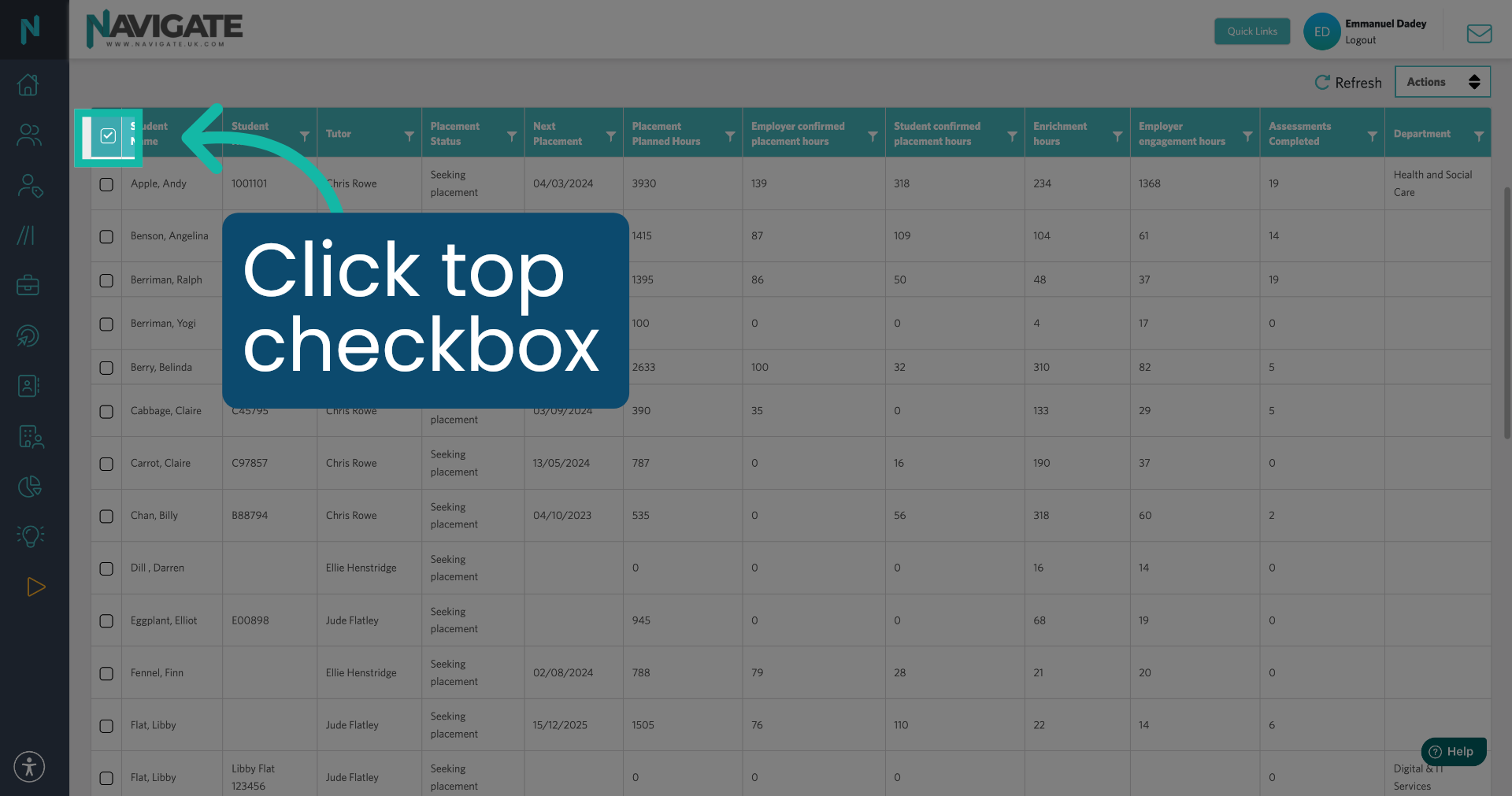
11. Select All Studentsbulk activitybulk activity
Scroll back to the top and click the checkbox to select all students.
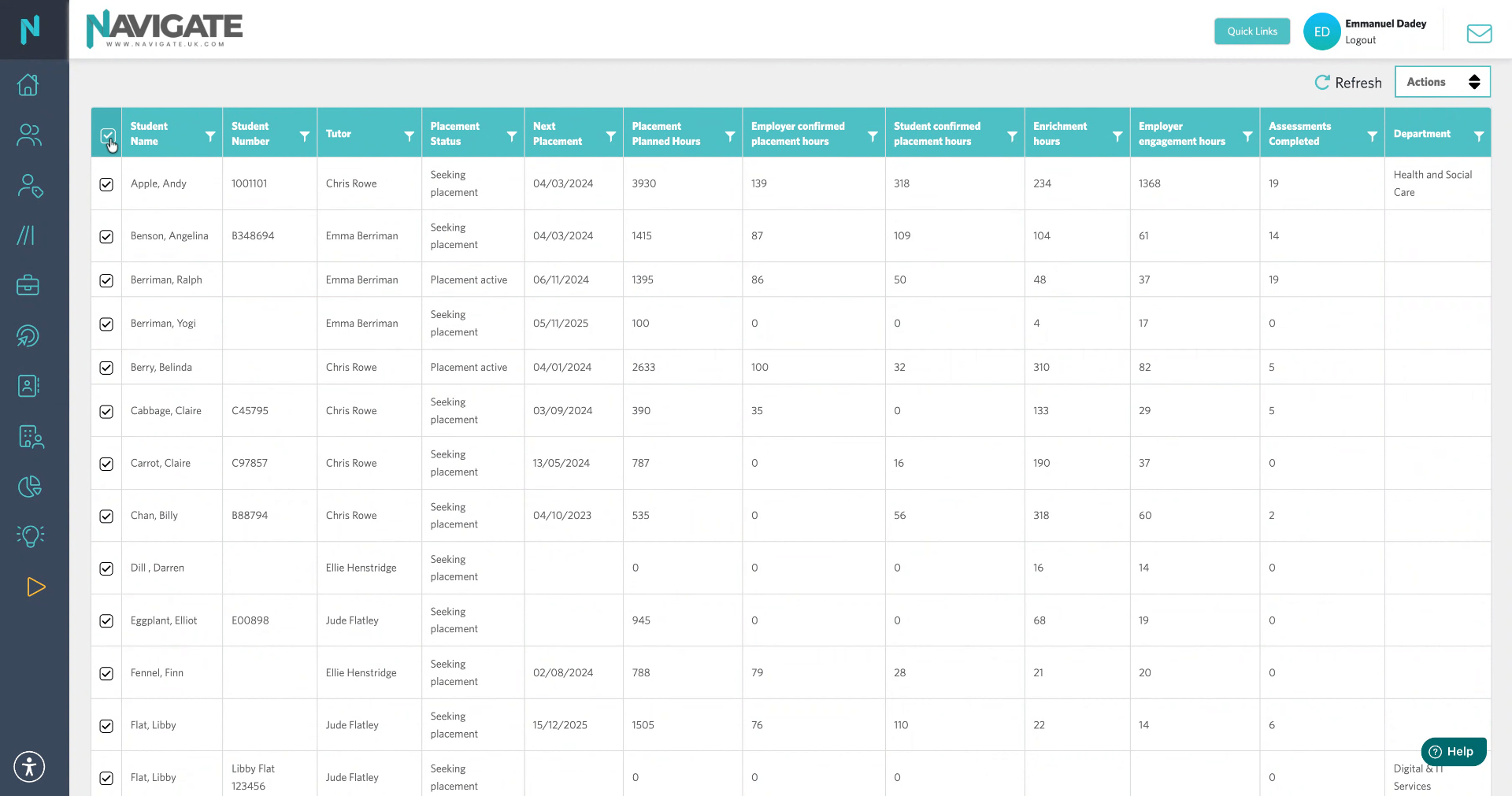
12. Select All Students
This will select all students on the page.
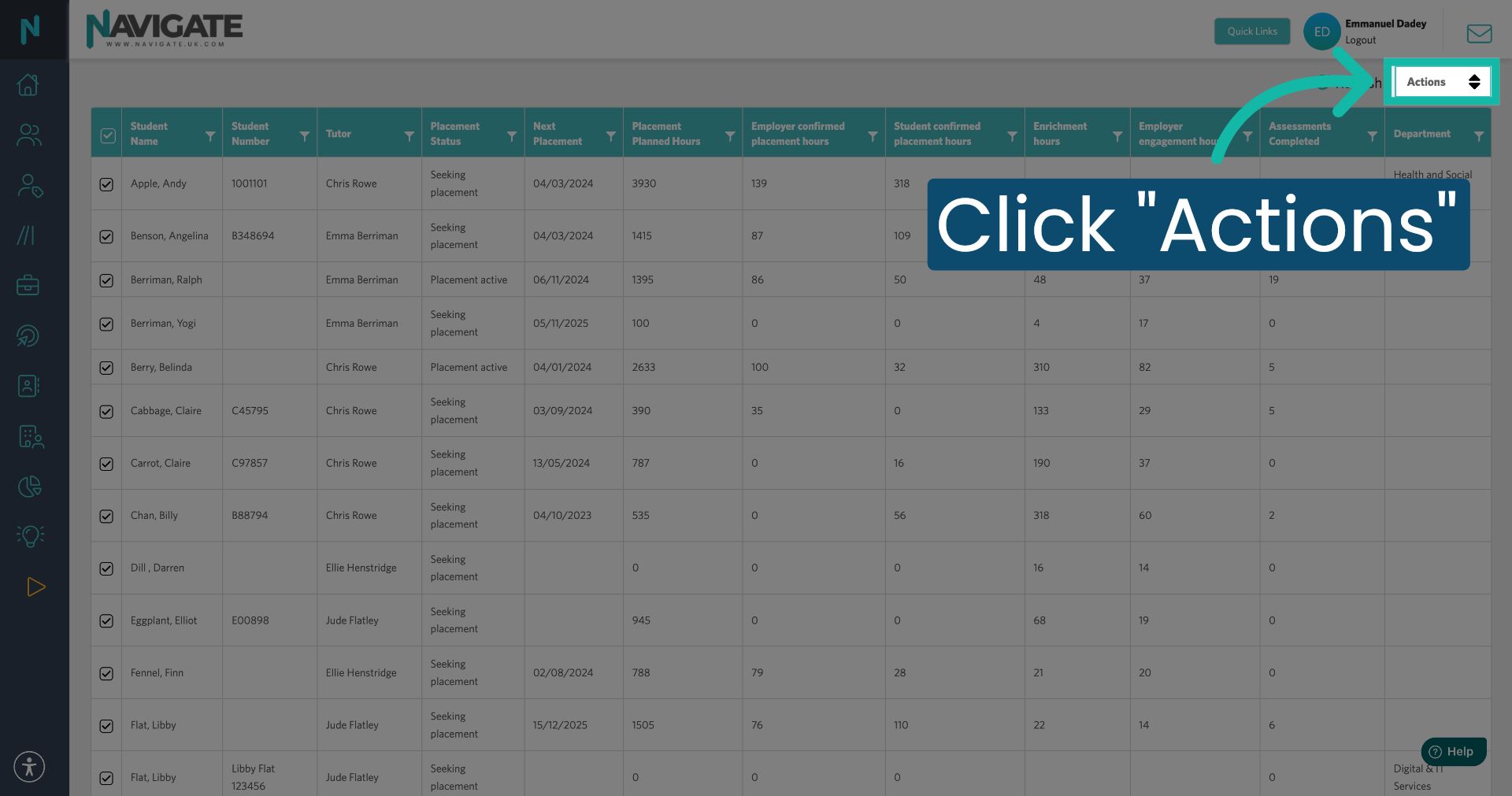
13. Click Actions Menu
Then click actions.
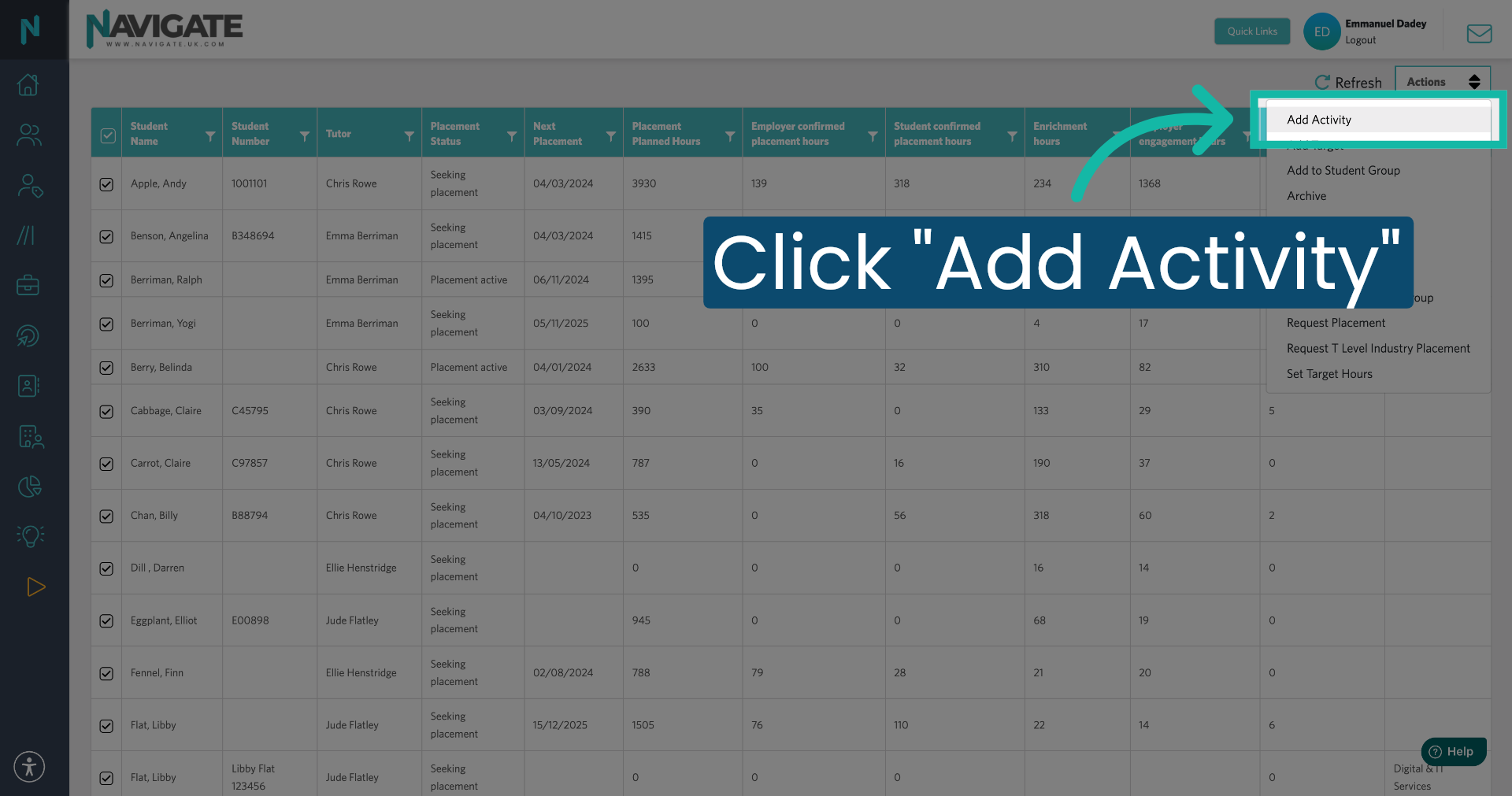
14. Select Add Activity
Click 'Add activity' to begin assigning a new activity to the selected students.
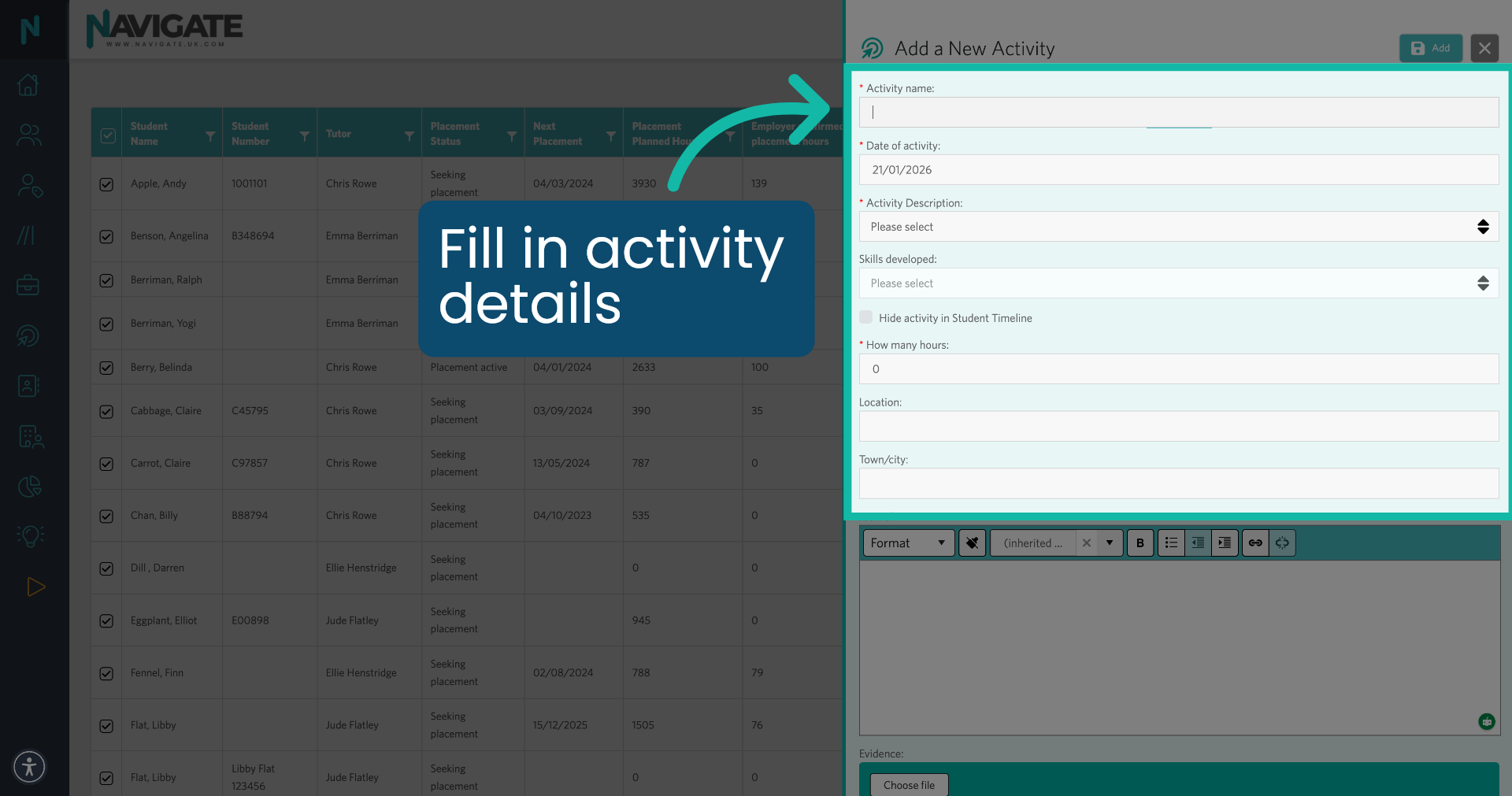
15. Click Activity Name Field
Then click the activity name field to enter the name of the new activity.
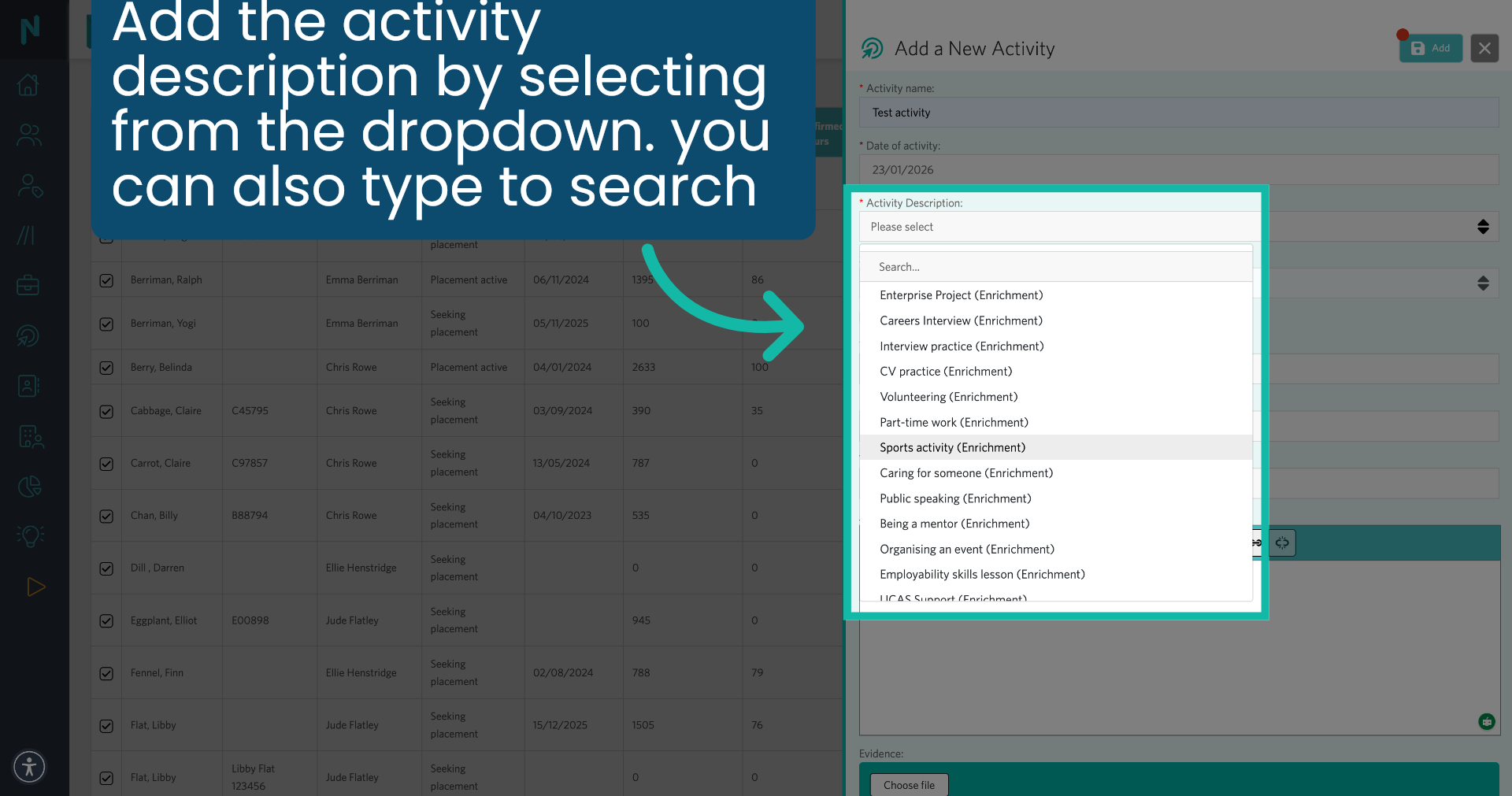
16. Choose Activity Description
Add the activity description by selecting from the drop-down. You can also use type to search.
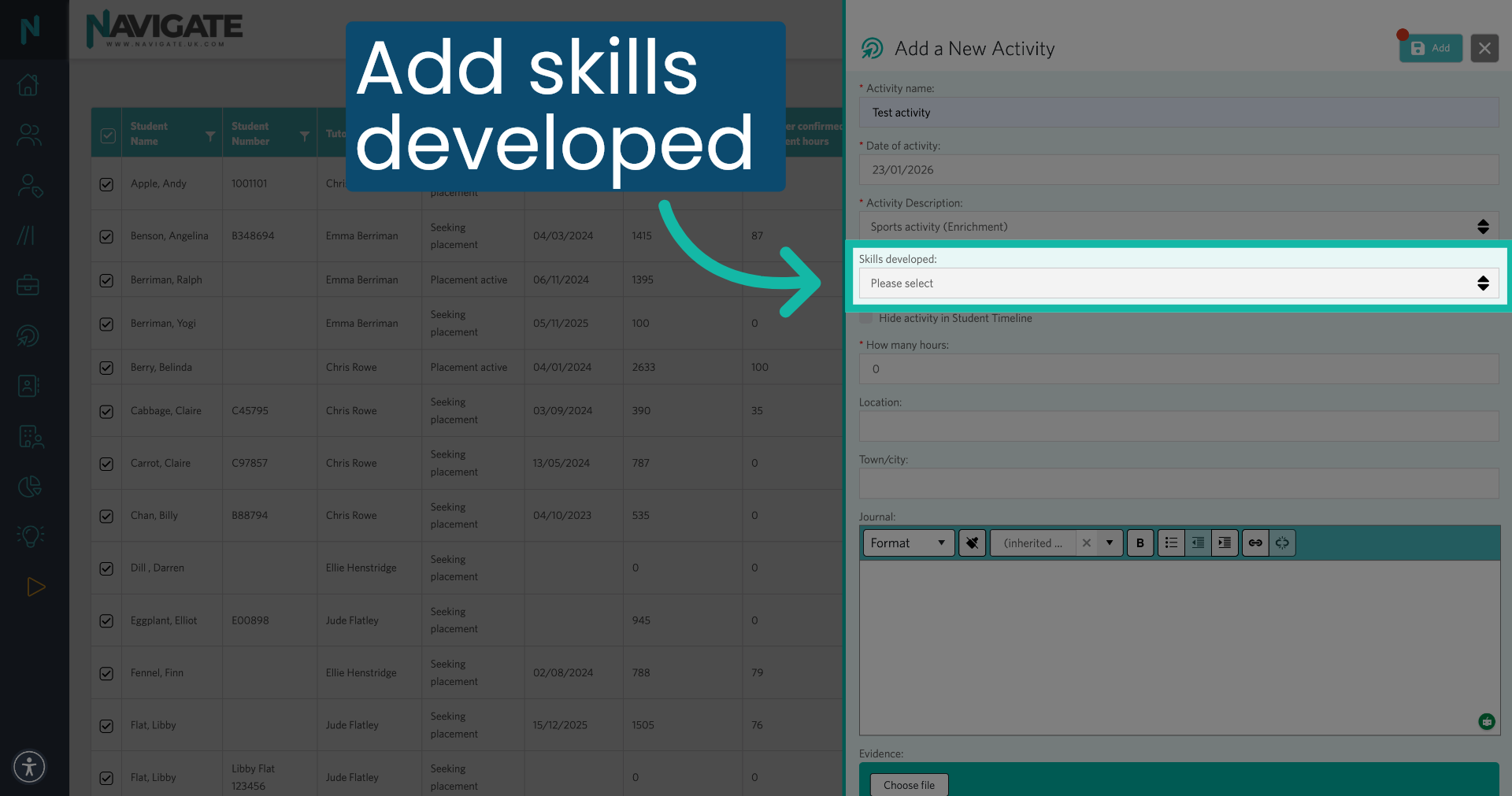
17. Add Skills Developed
Add skills developed.
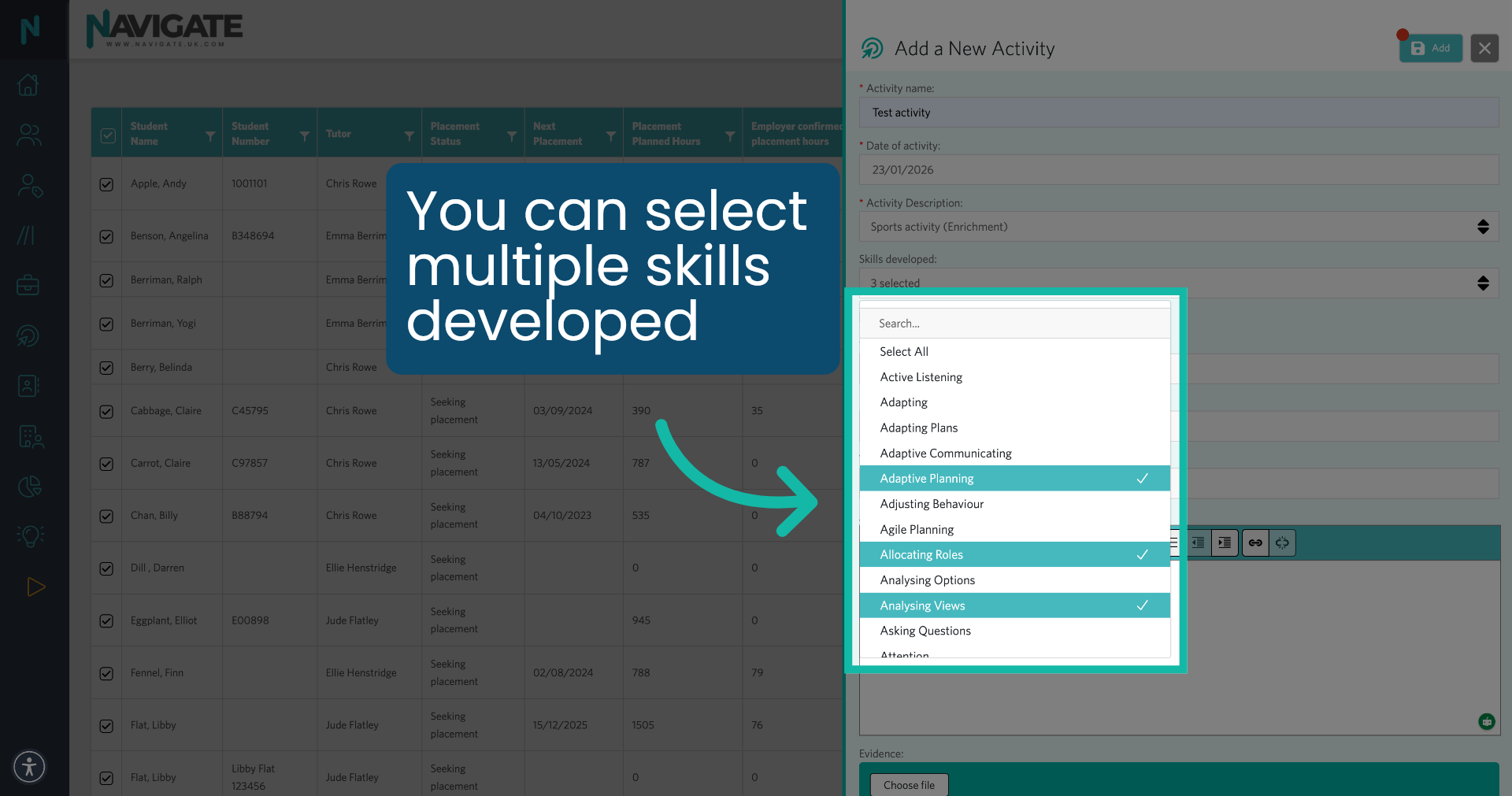
18. Select Multiple Skills
You can select multiple skills developed.
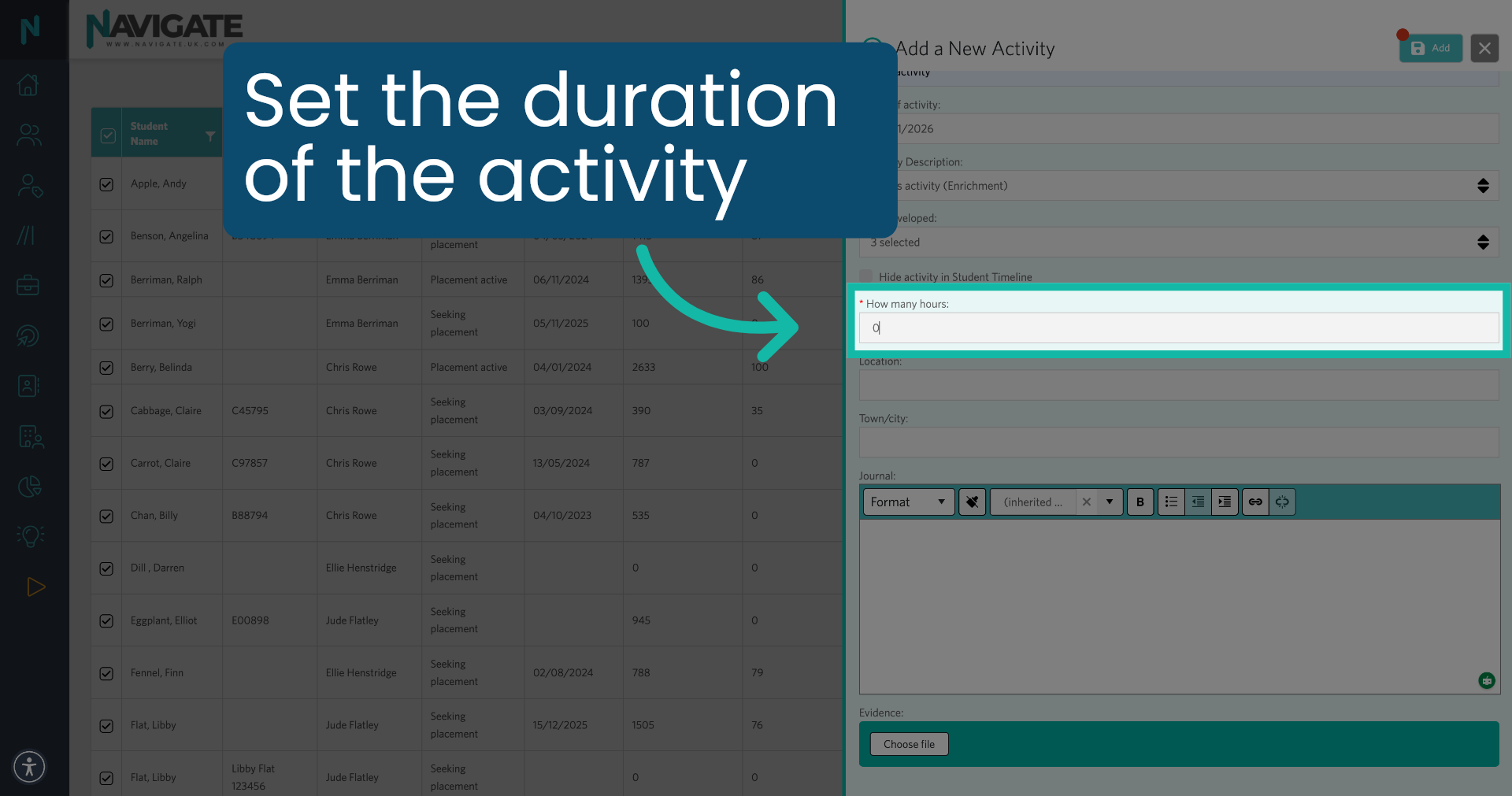
19. Click Hours Field
Click the 'how many hours' field to set the duration of the activity.
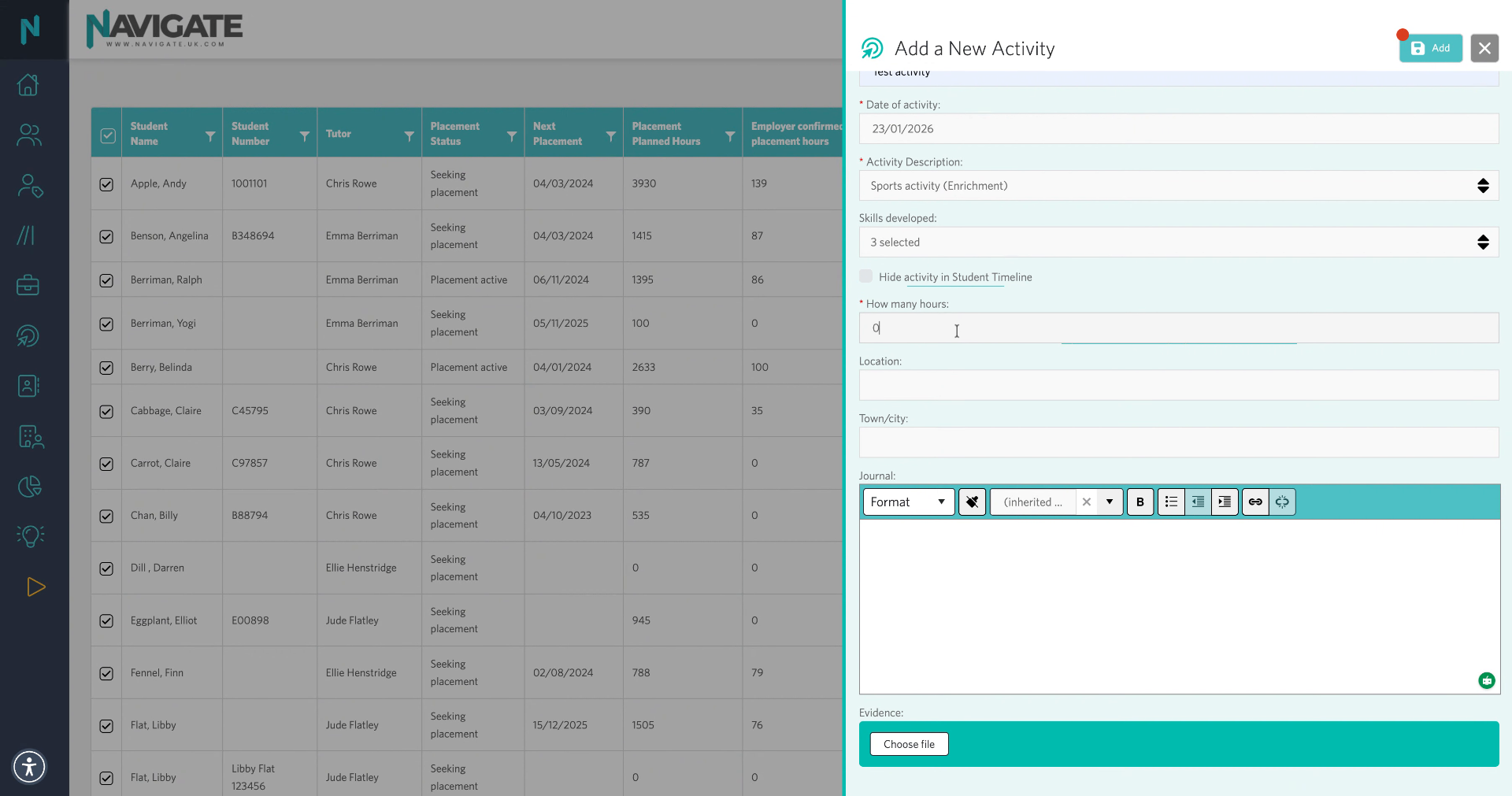
20. Enter Activity Duration
Fill in the number of hours the activity will last.
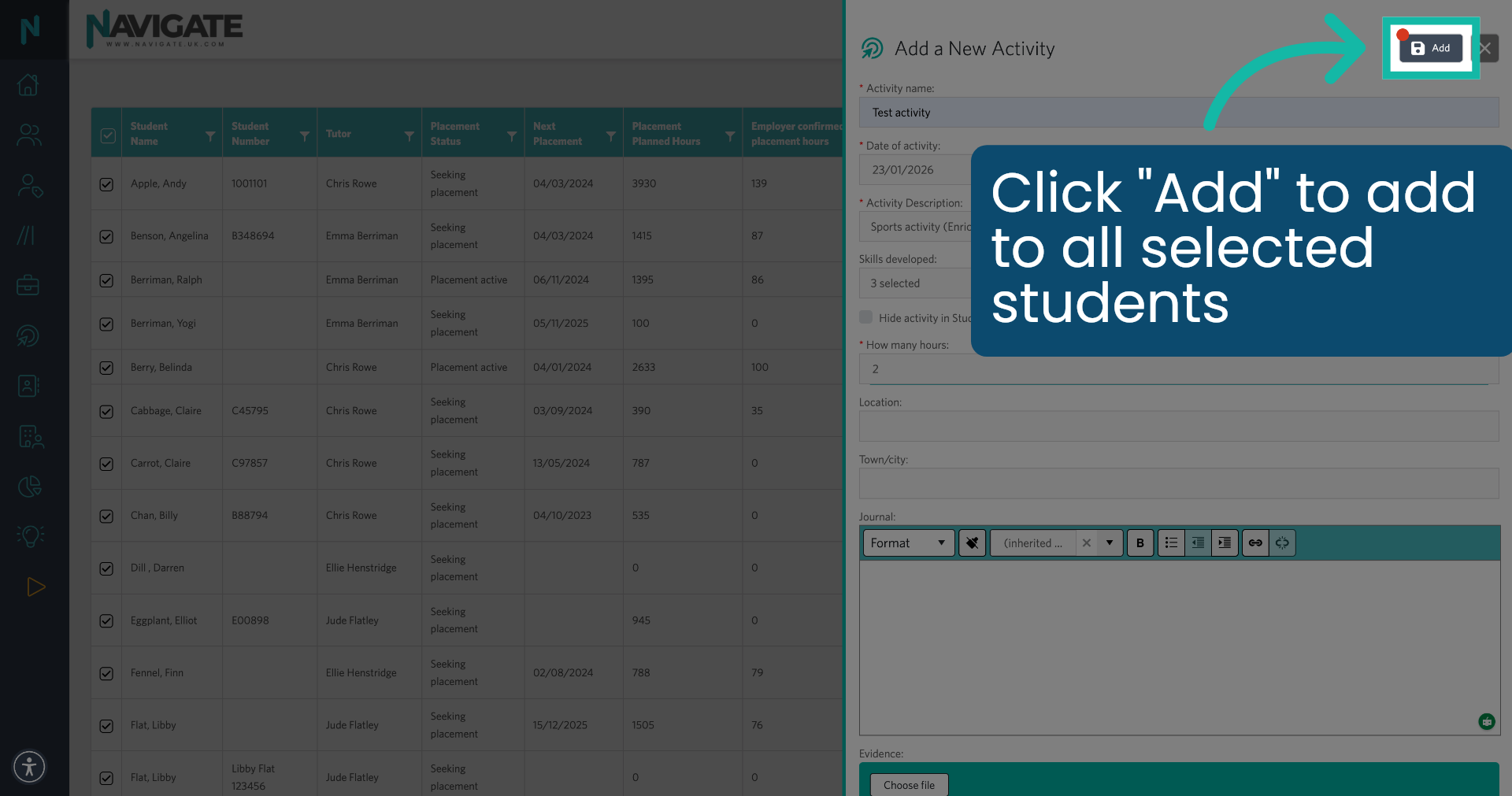
21. Add Activity
Click 'Add'. This will now add the activity to all selected students.
Was this article helpful?
That’s Great!
Thank you for your feedback
Sorry! We couldn't be helpful
Thank you for your feedback
Feedback sent
We appreciate your effort and will try to fix the article