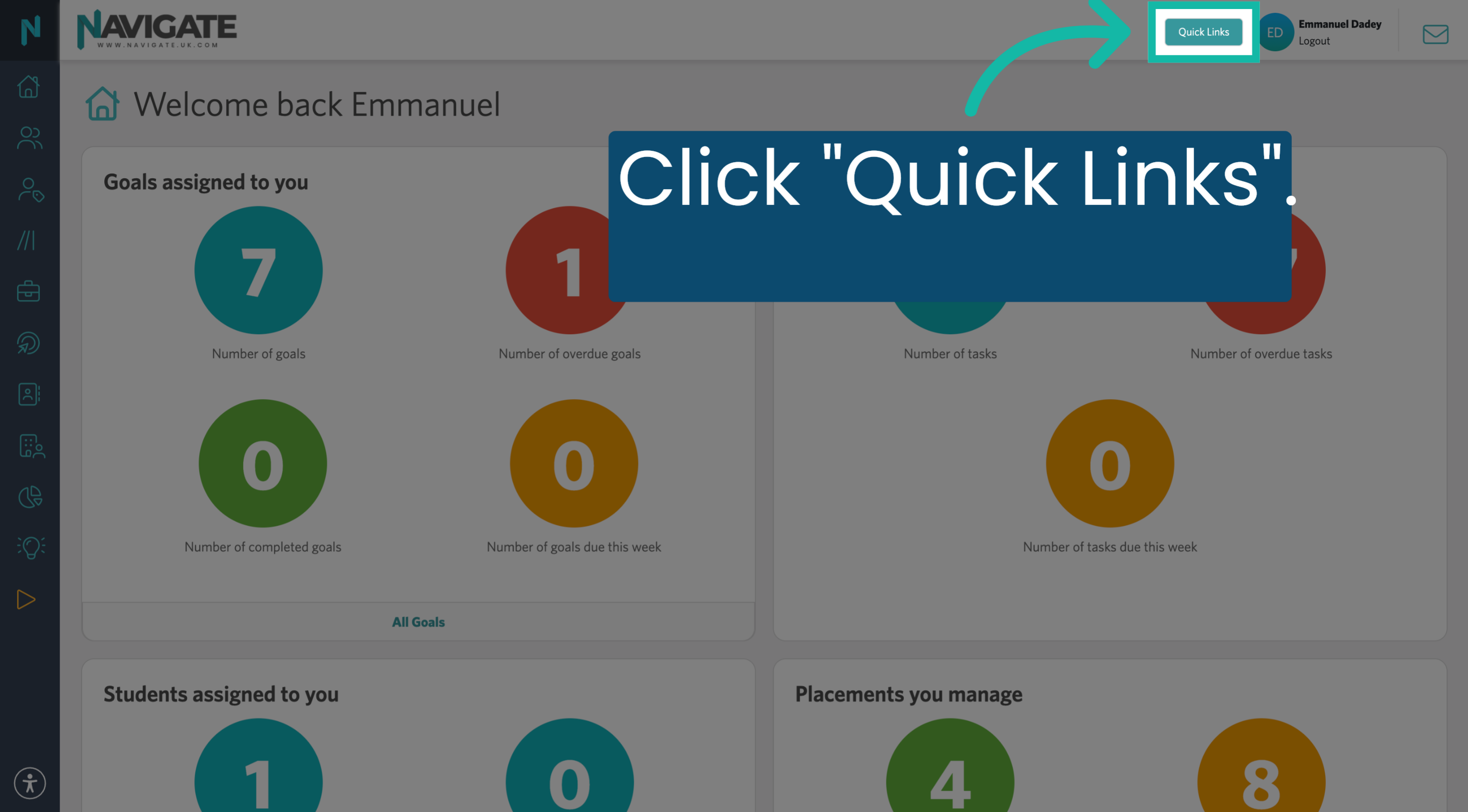
00:01: Once logged in, to find your students, click the Quick Links menu.
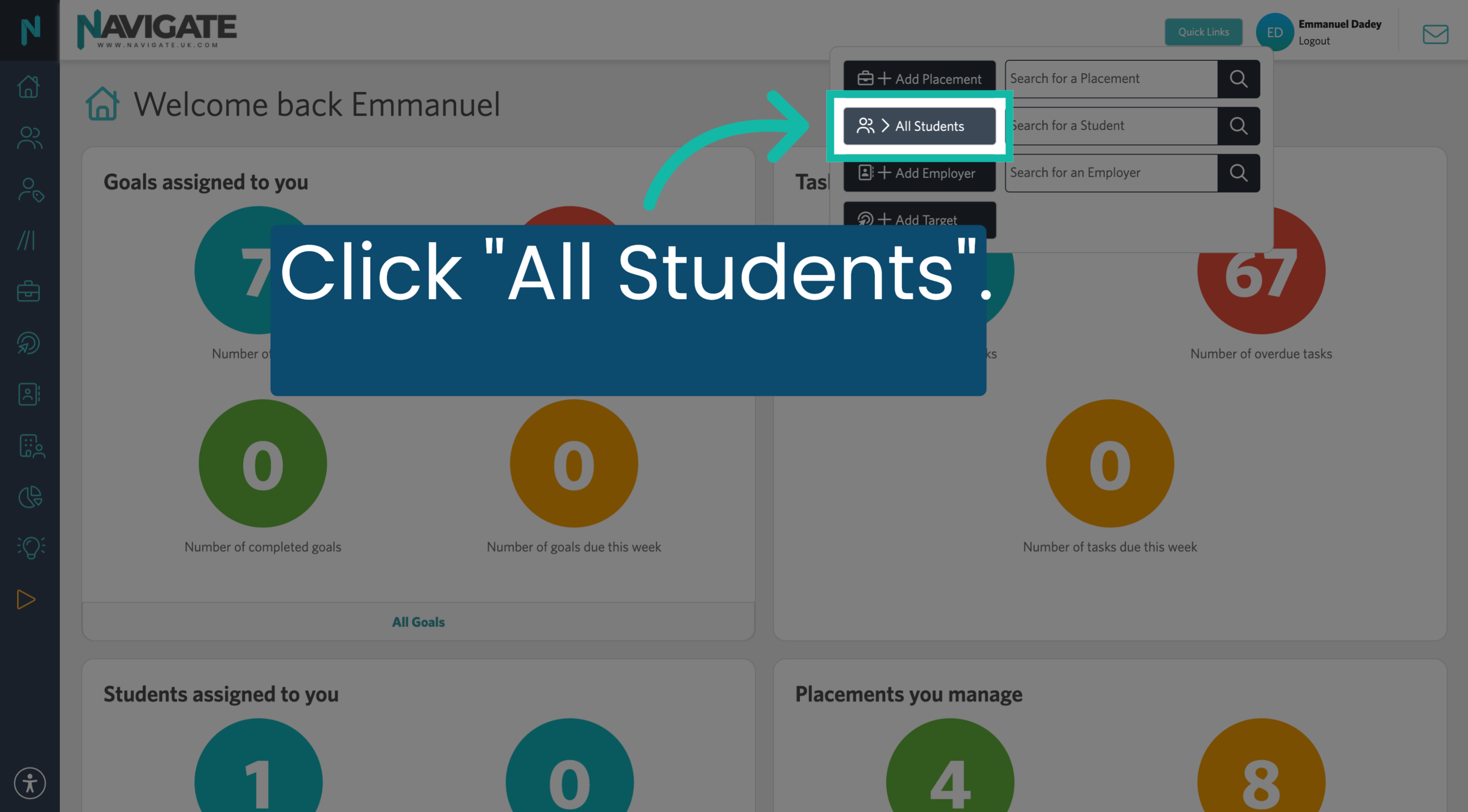
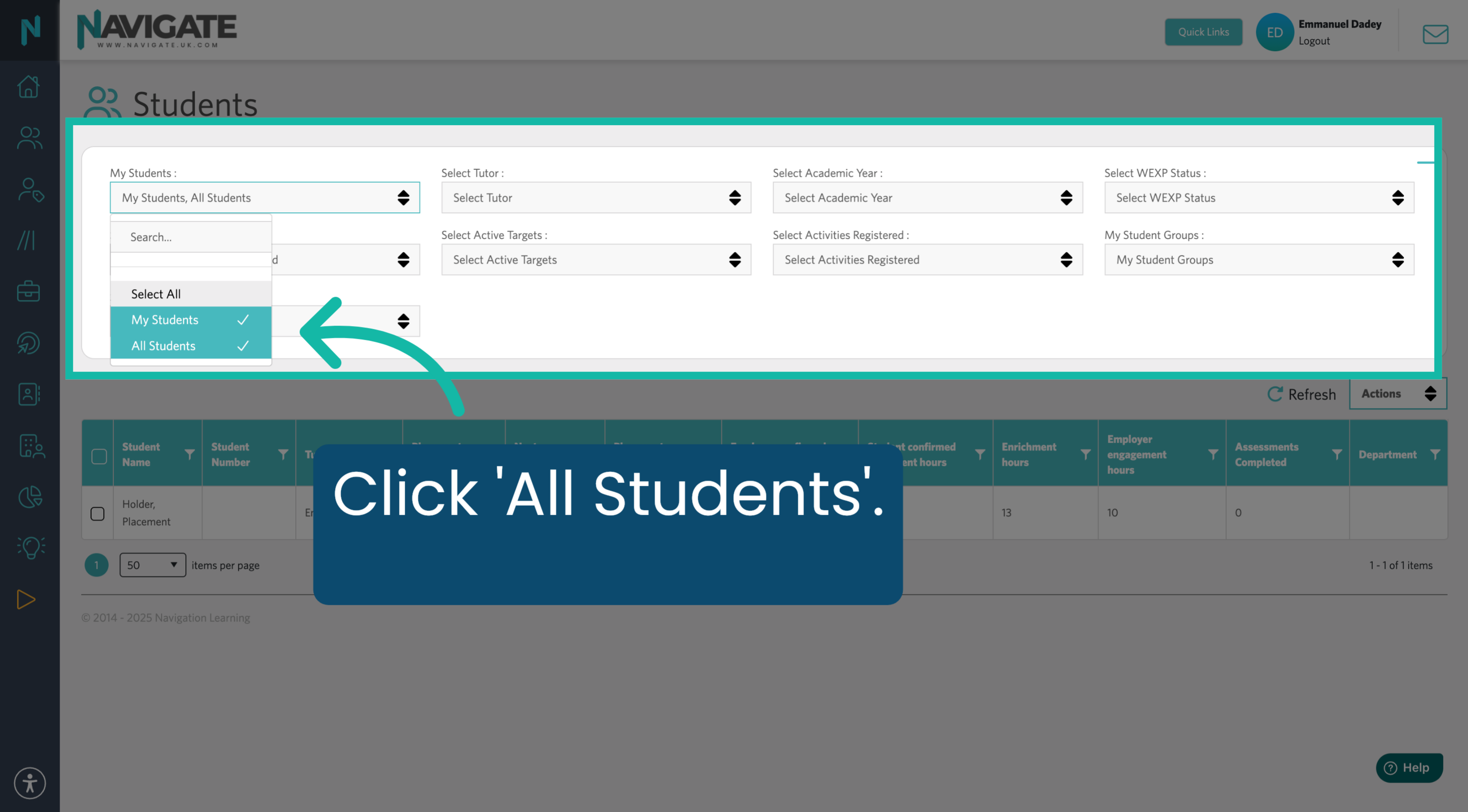
00:05: Click "All Students".
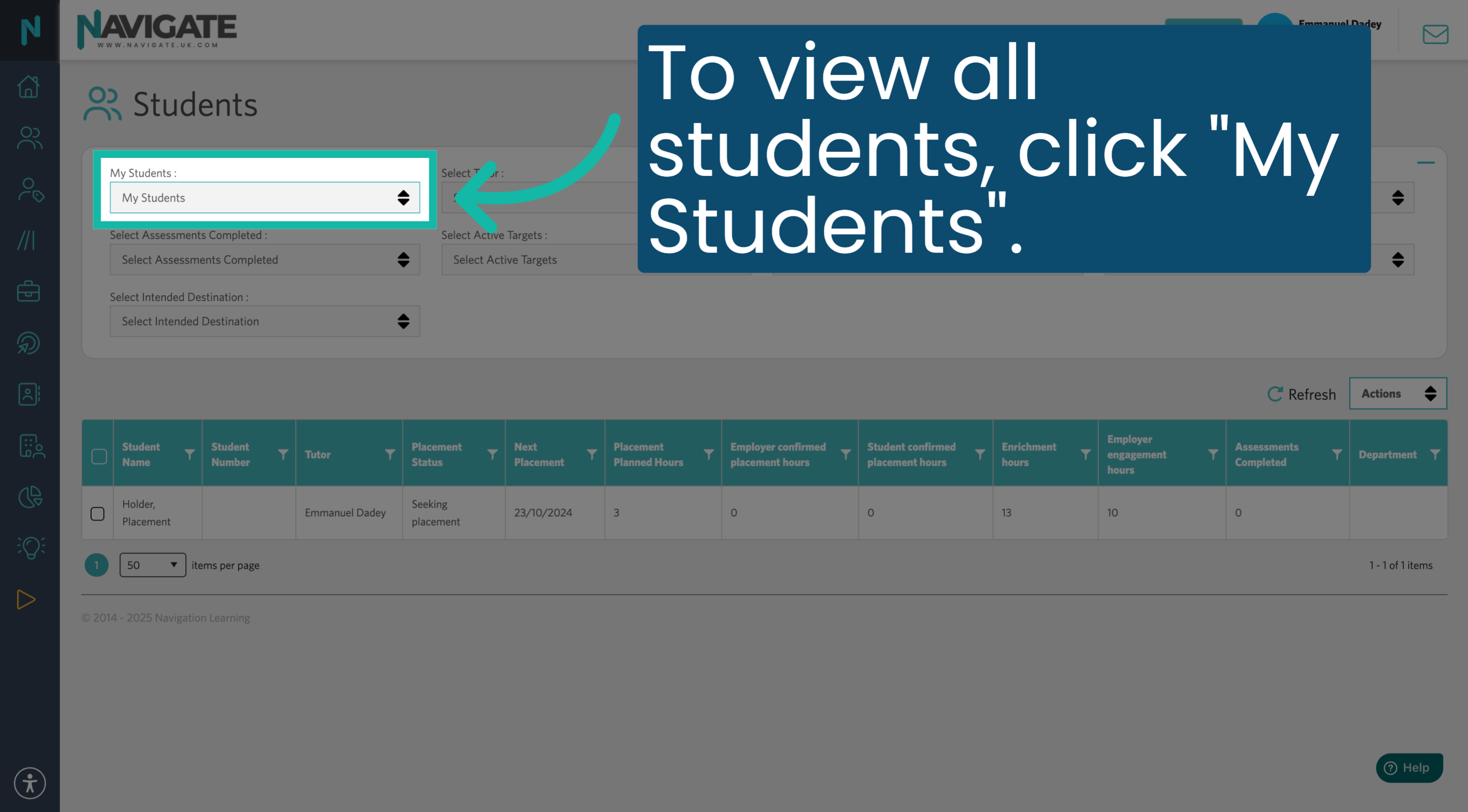
00:07: To view all students, click "My Students".
00:10: Click Select all to display all your students in Navigate.
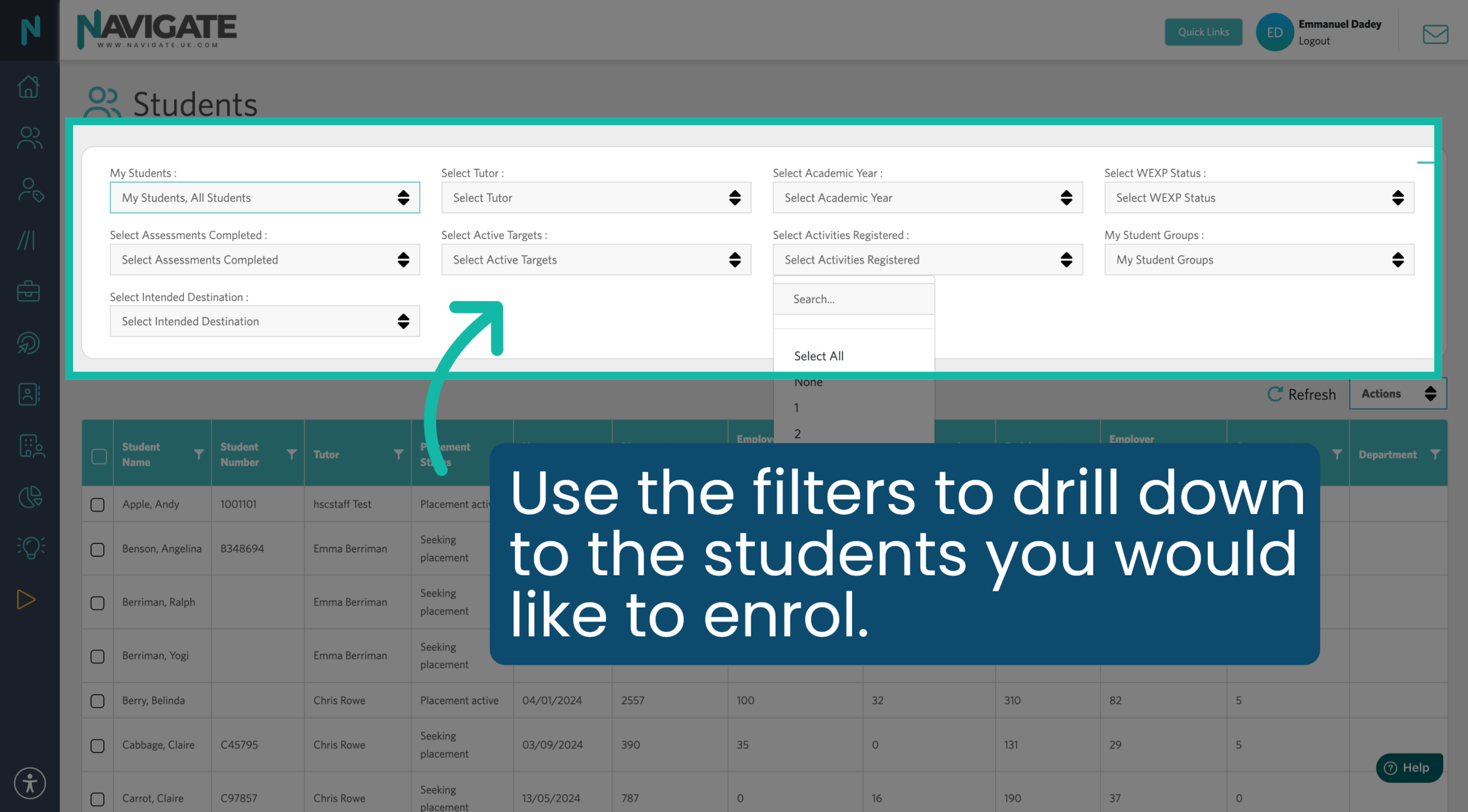
00:15: Use the filters to drill down to the students you would like to enrol.
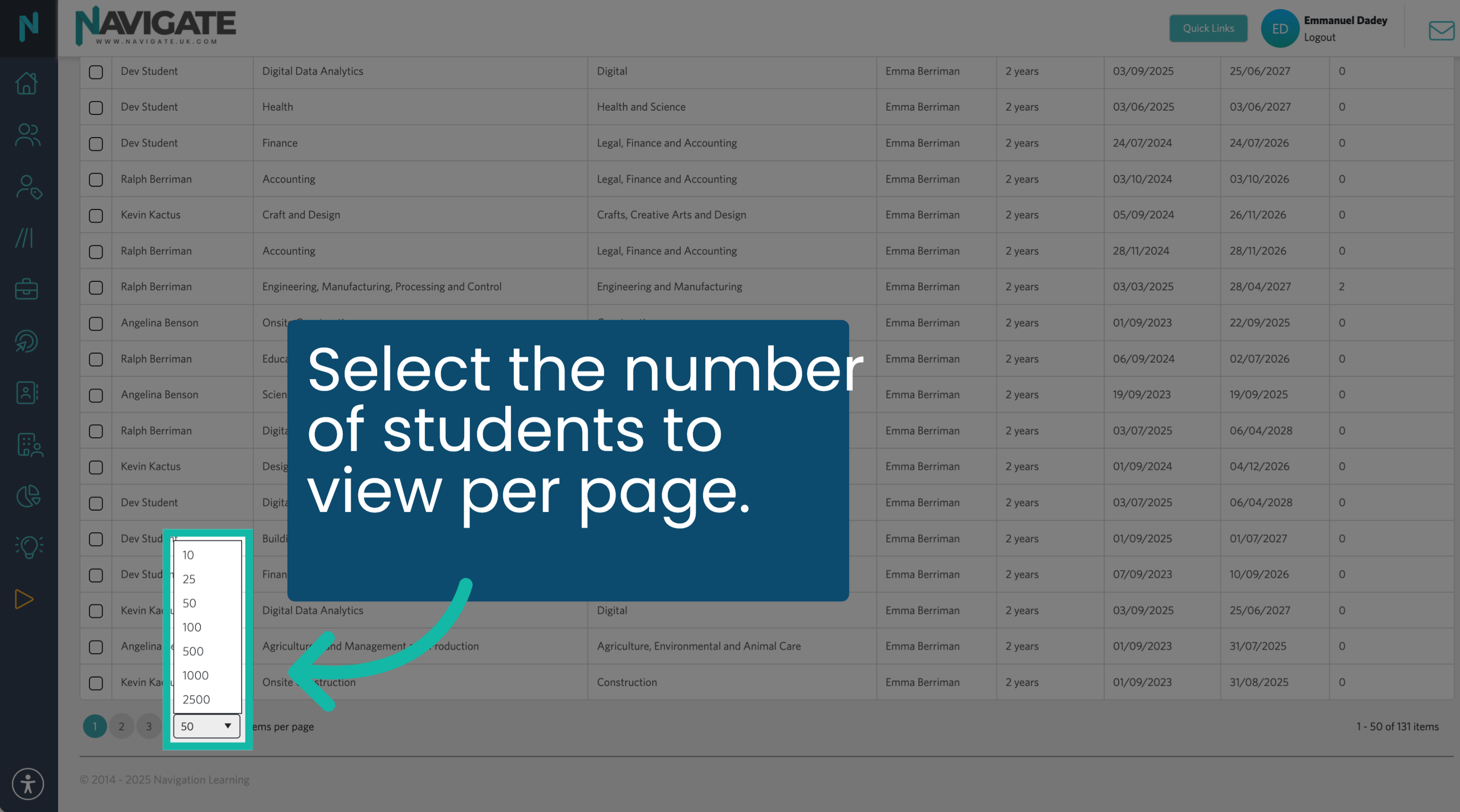
00:19: To view more than the default of 50 students per page, scroll down to the bottom and select the number of students to view per page.
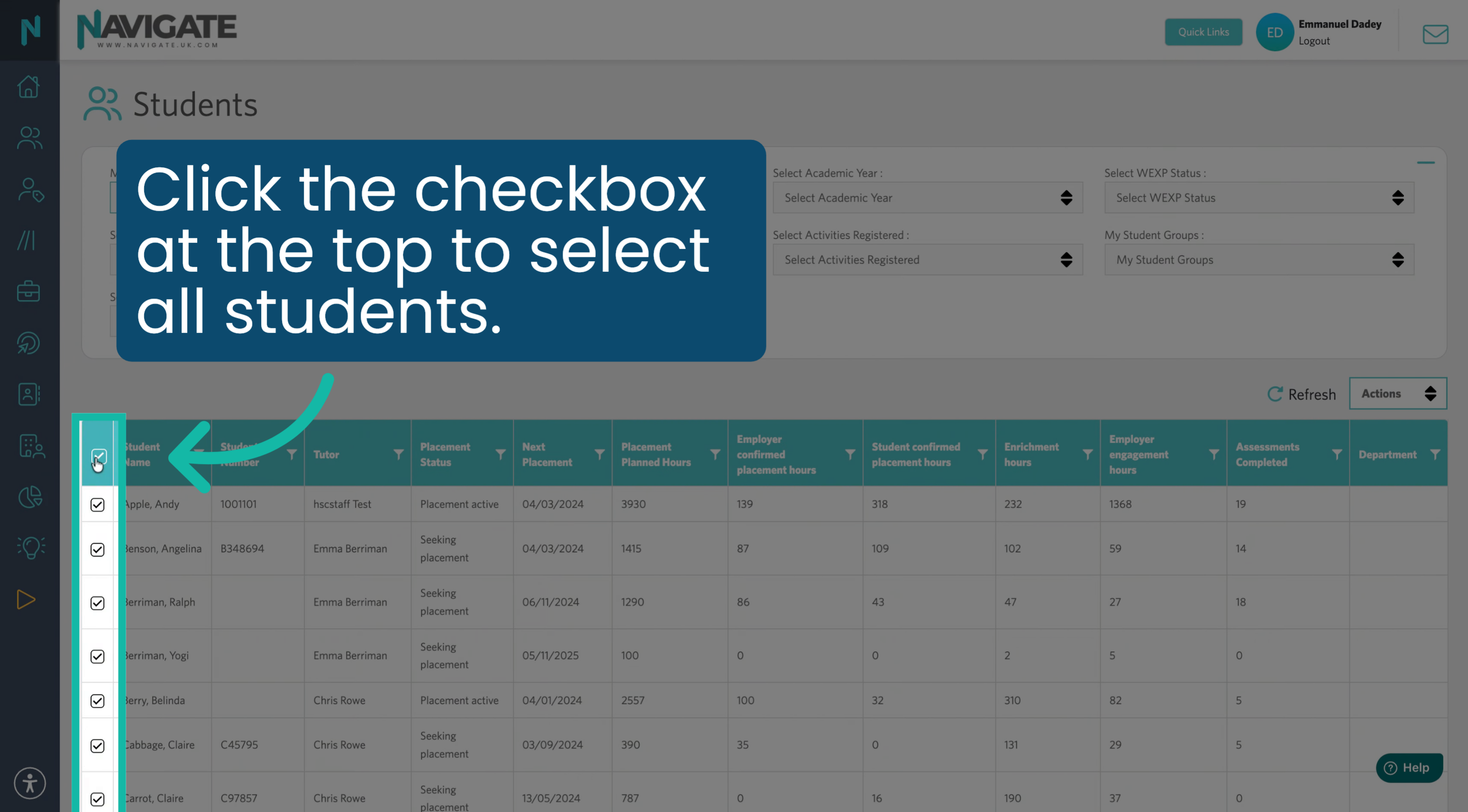
00:27: At the top of the page, click the checkbox to select all students.
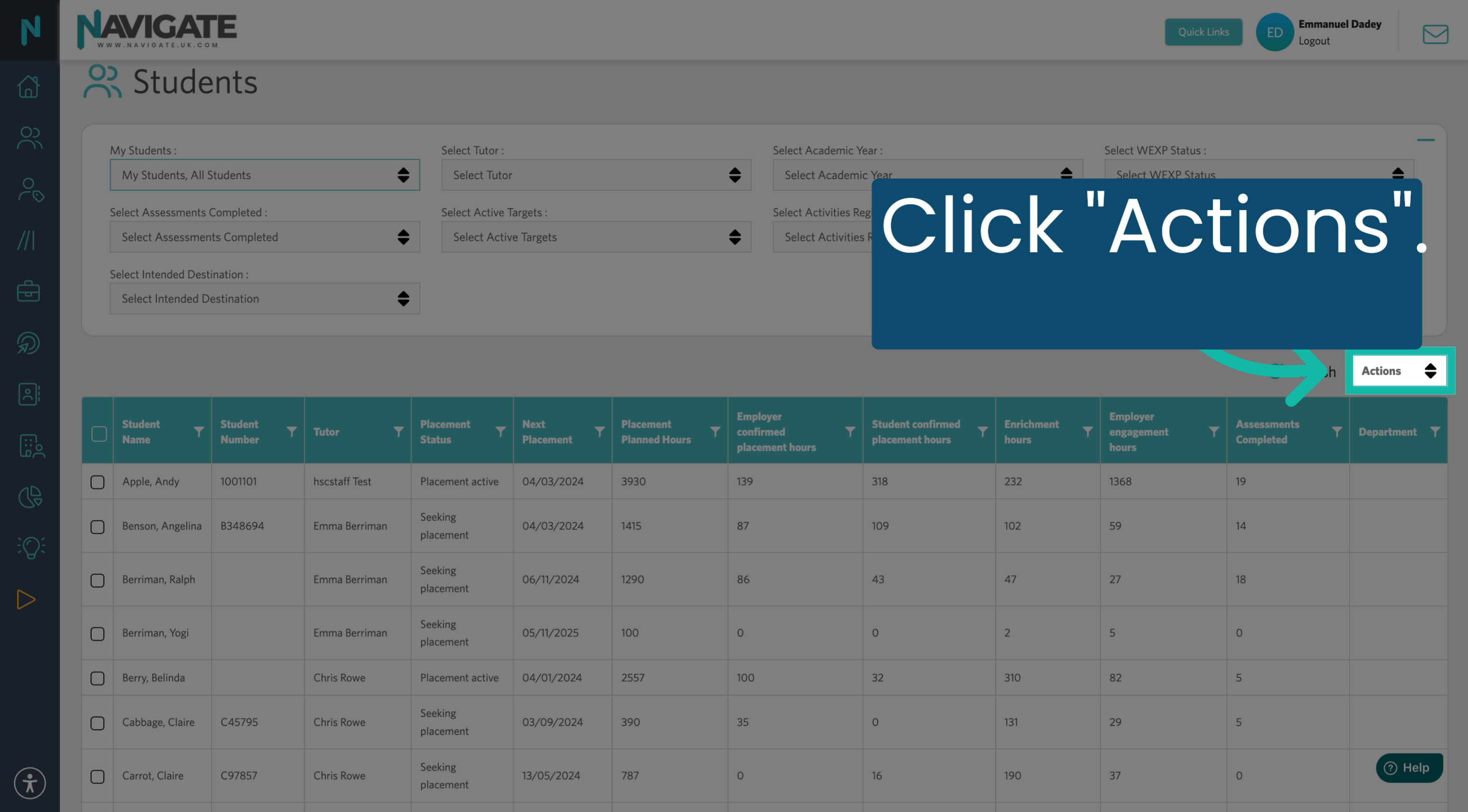
00:31: Click "Actions".
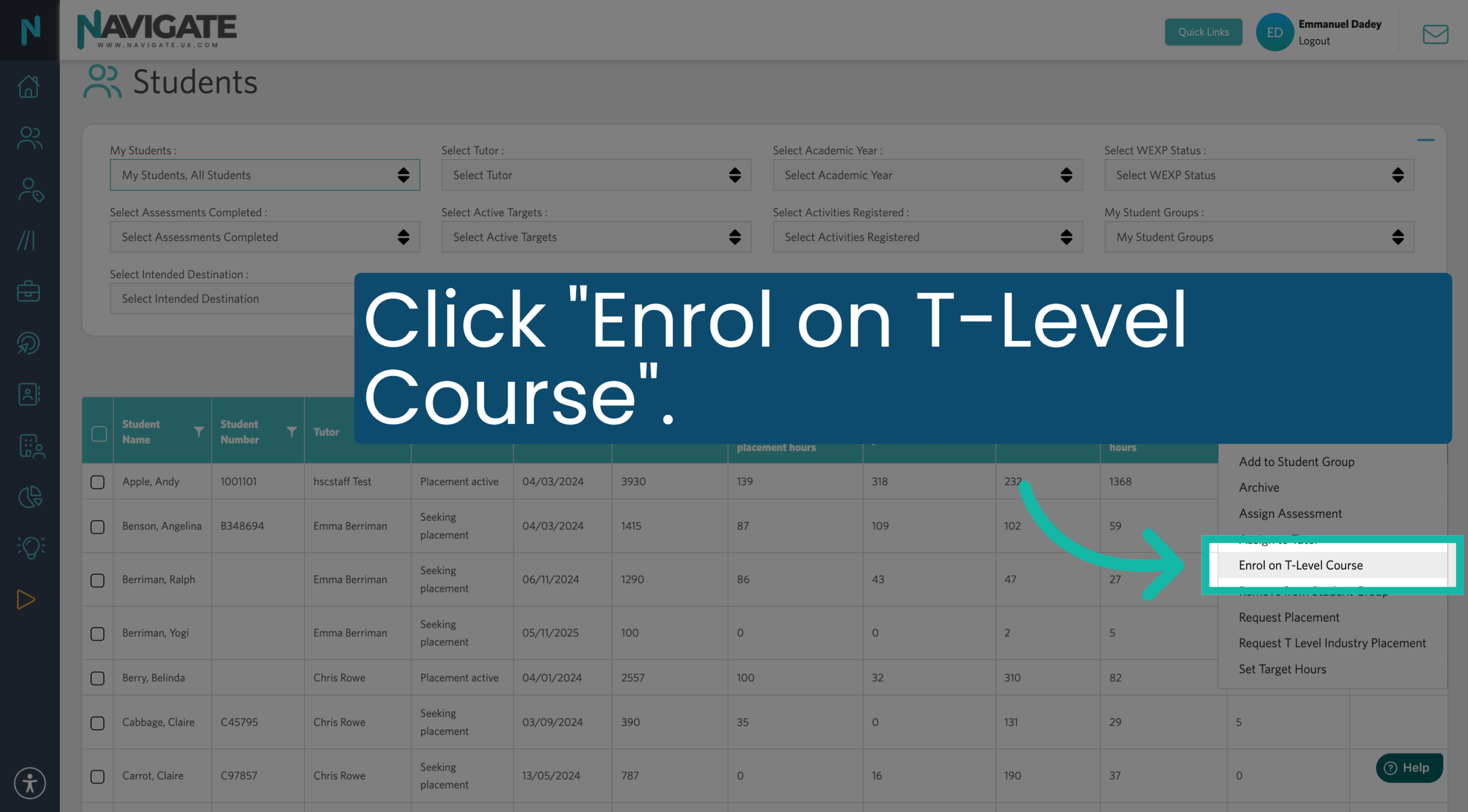
00:33: Click "Enrol on T-Level Course" to begin the enrolment process for the selected students.
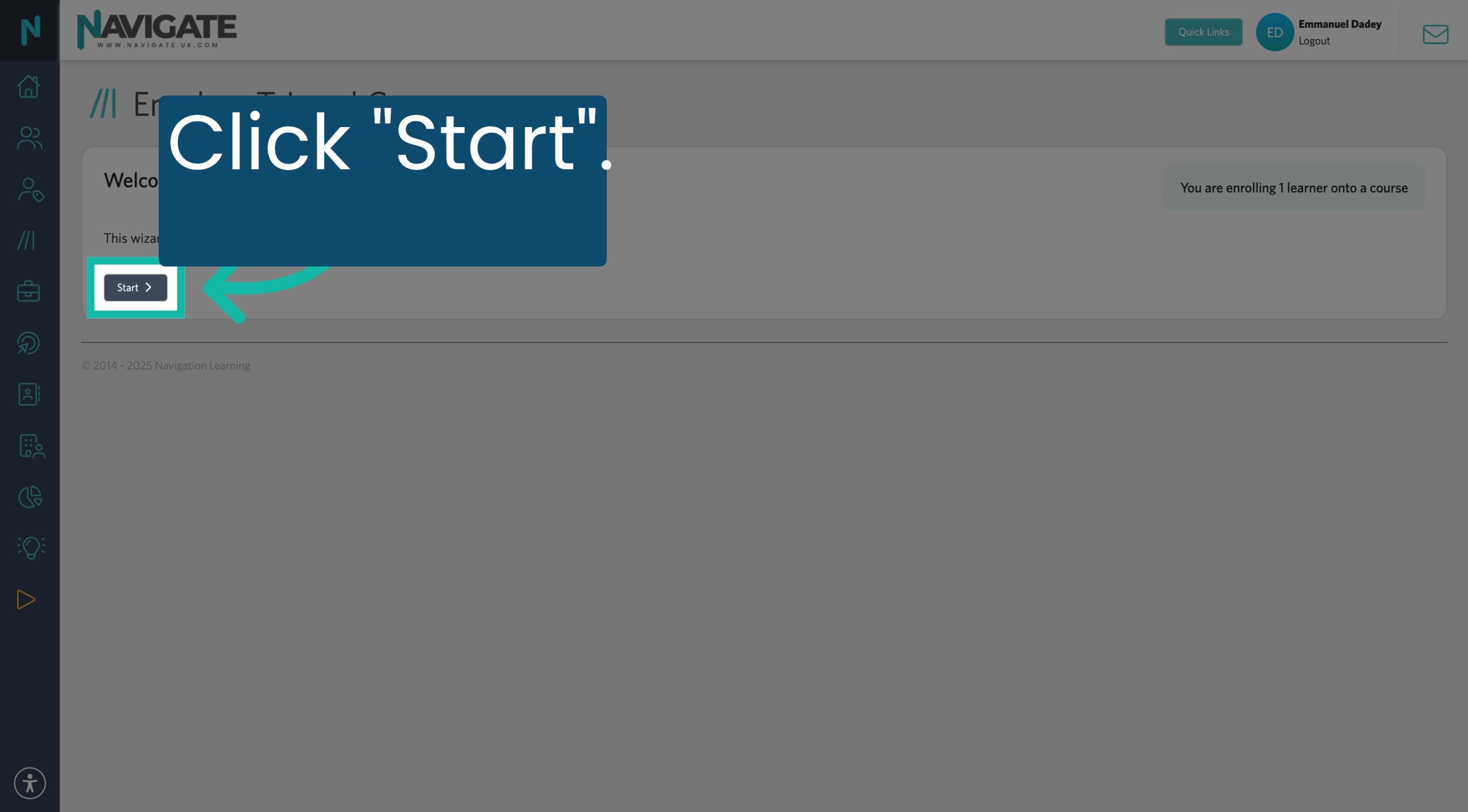
00:39: Click "Start" to begin the course enrolment process.
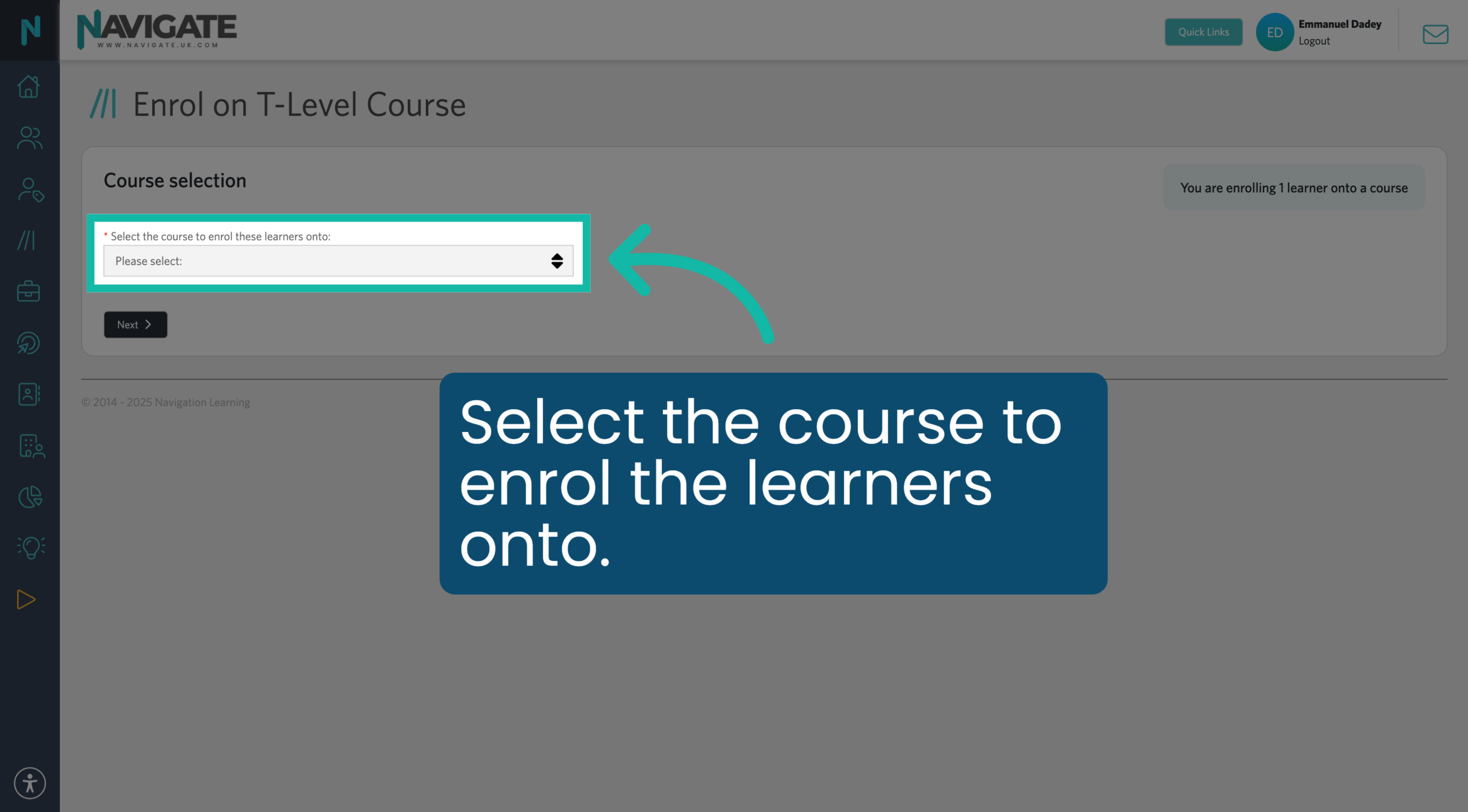
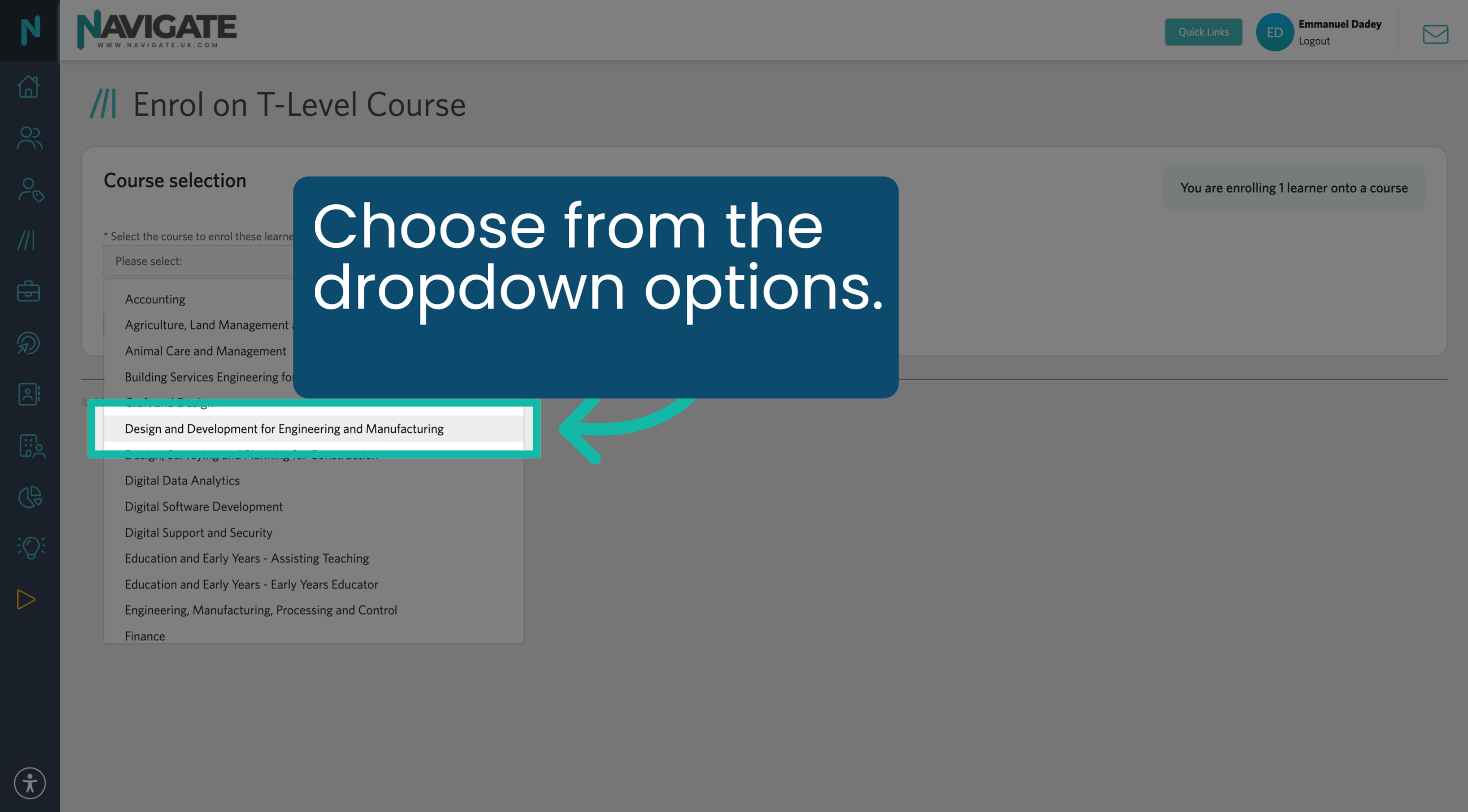
00:42: Select the T Level course on which you want to enrol the learners.
00:46: Choose from the dropdown options.
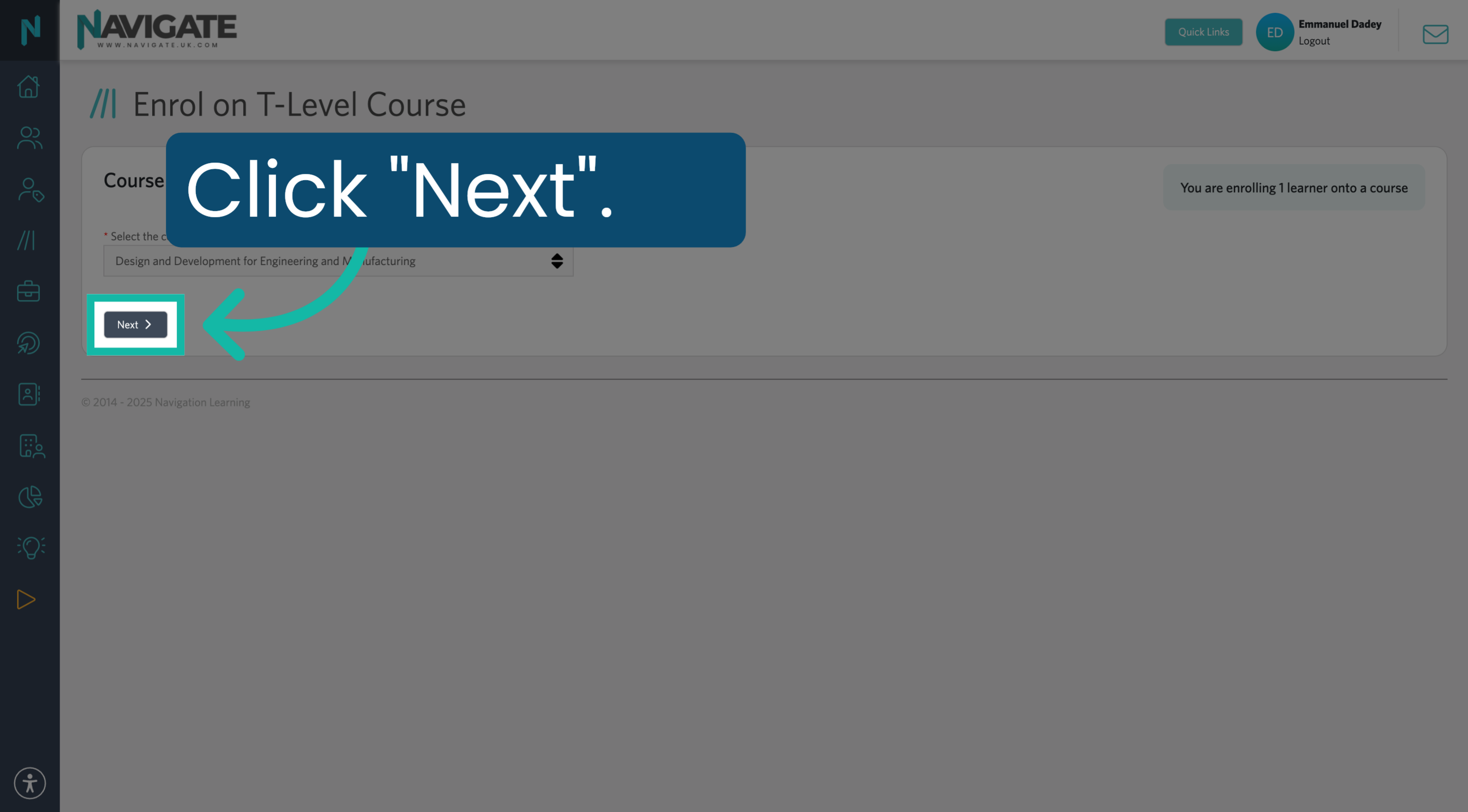
00:49: Click "Next" to continue.
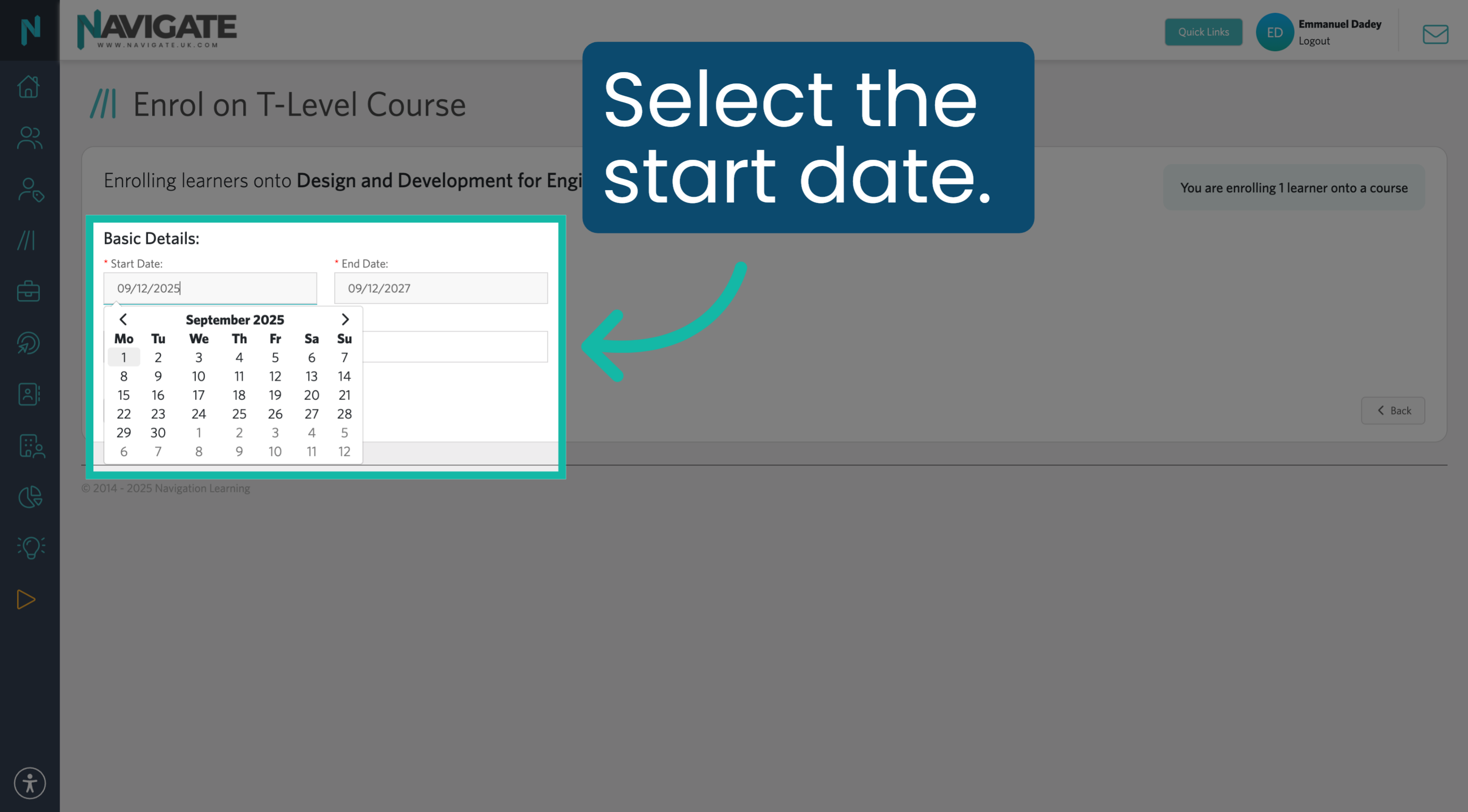
00:51: Select the course start date. This does not have to match the college enrolment dates exactly.
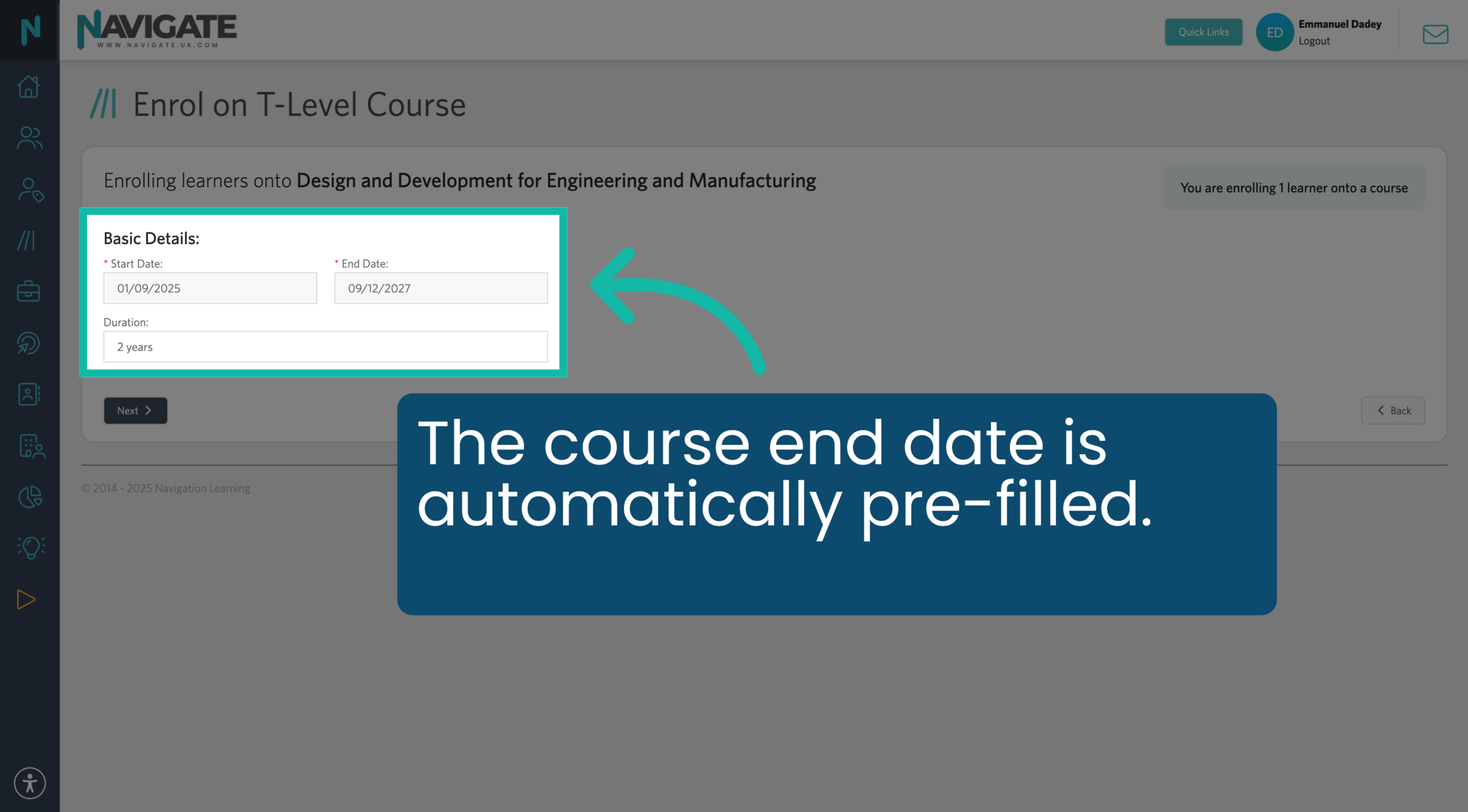
00:57: The course end date is pre-filled, but can be adjusted if needed to match the date the student is due to finish their programme.
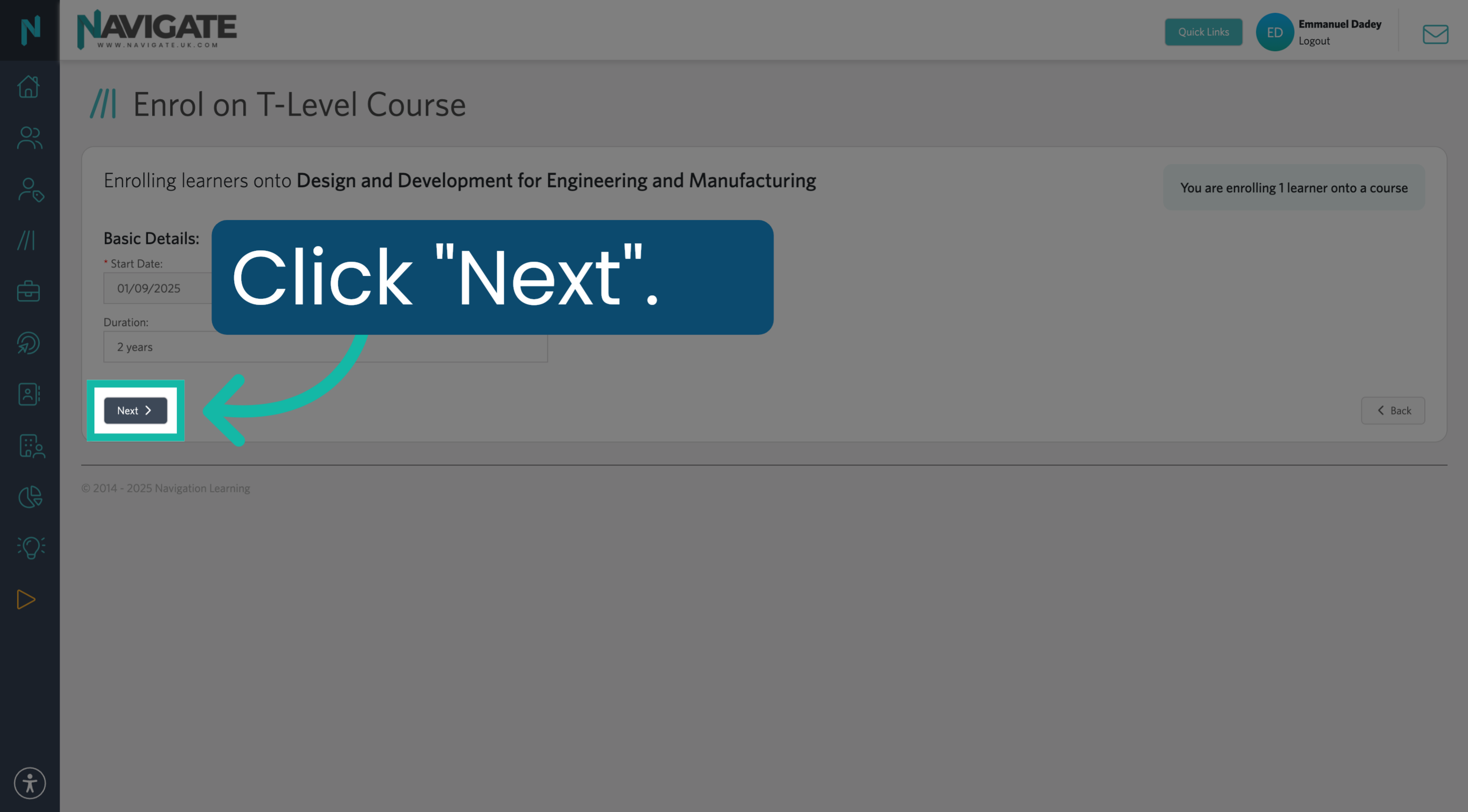
01:05: Once complete, click "Next".
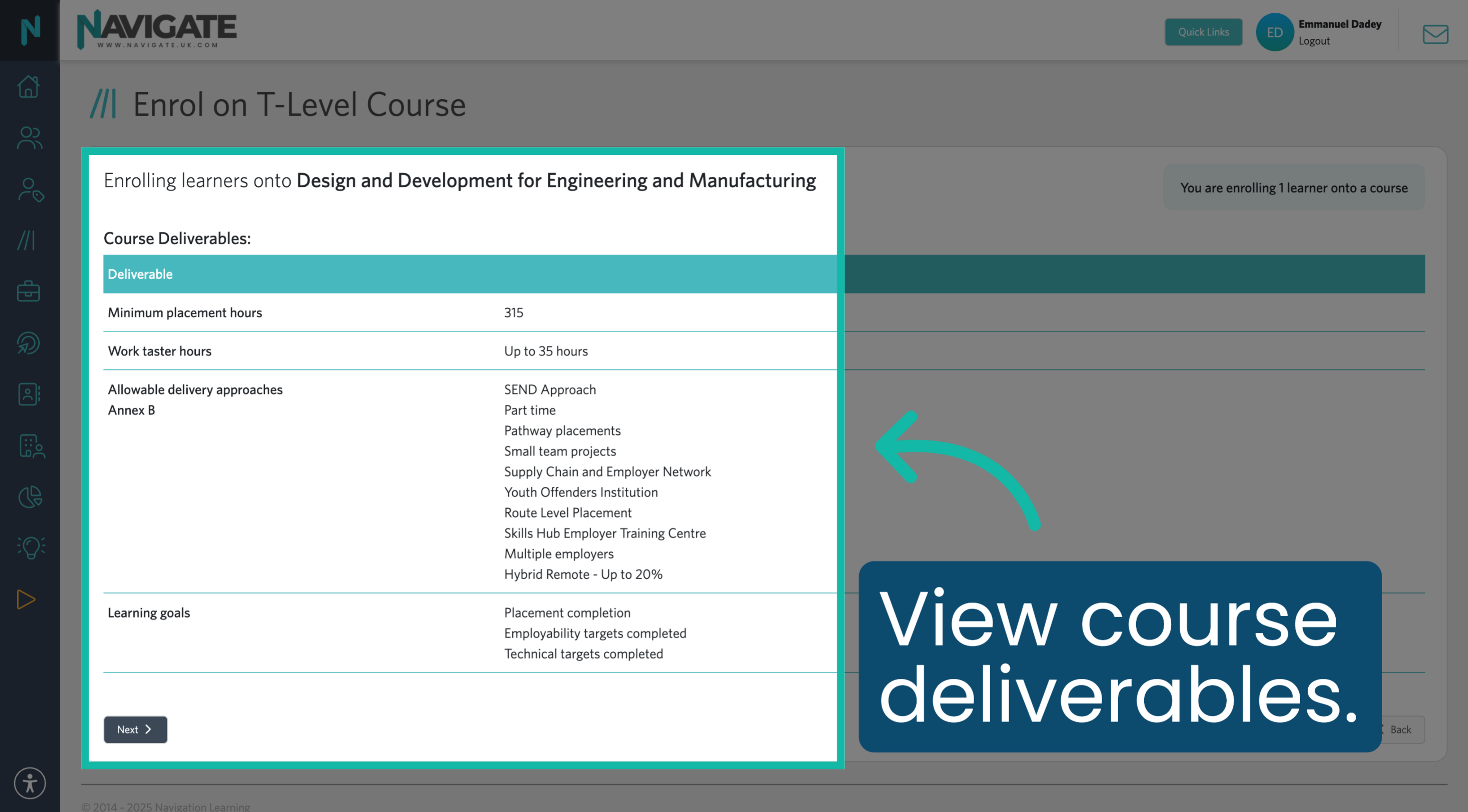
01:07: You will now see the course deliverables.
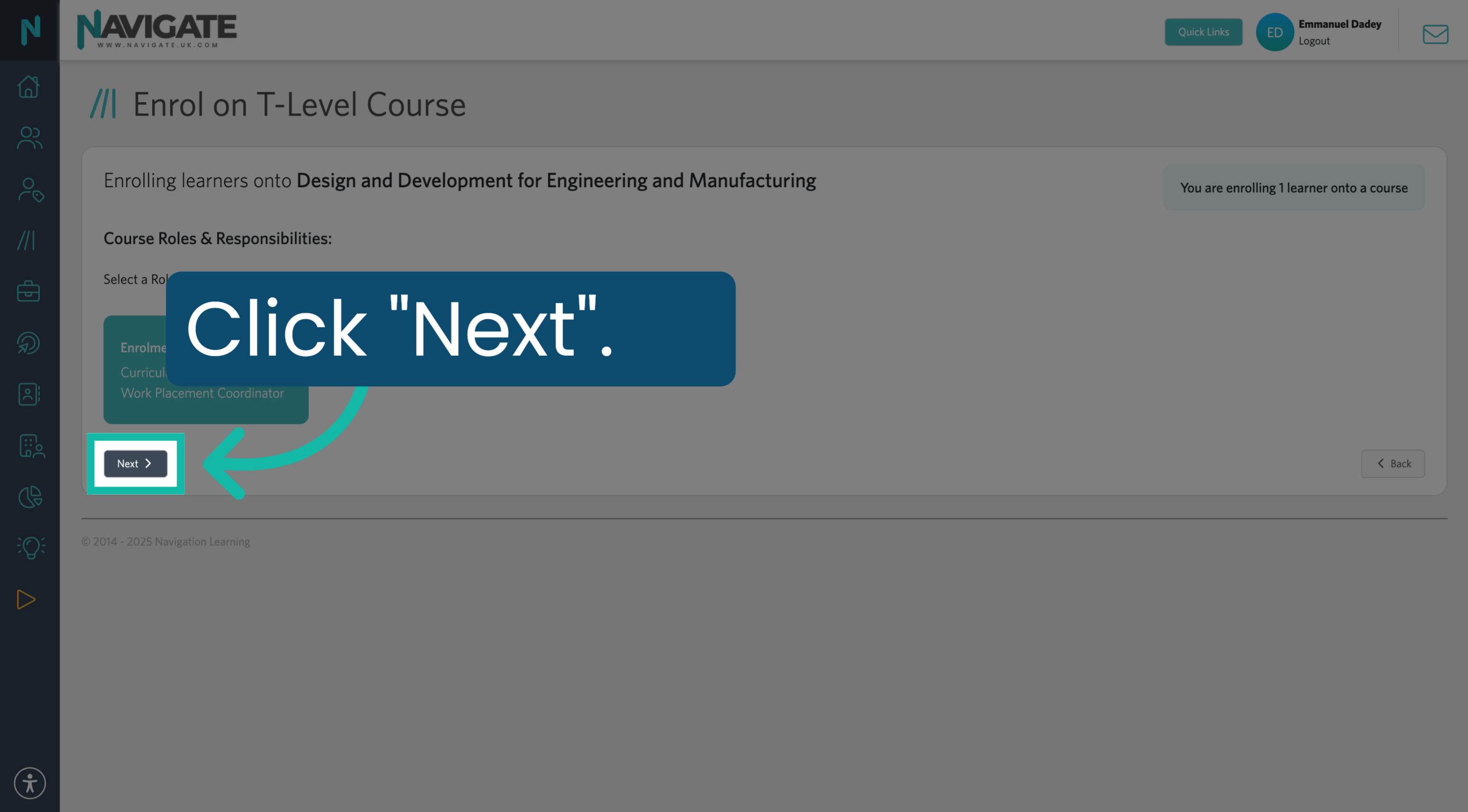
01:10: This next stage does not require any information. Click "Next" to continue.
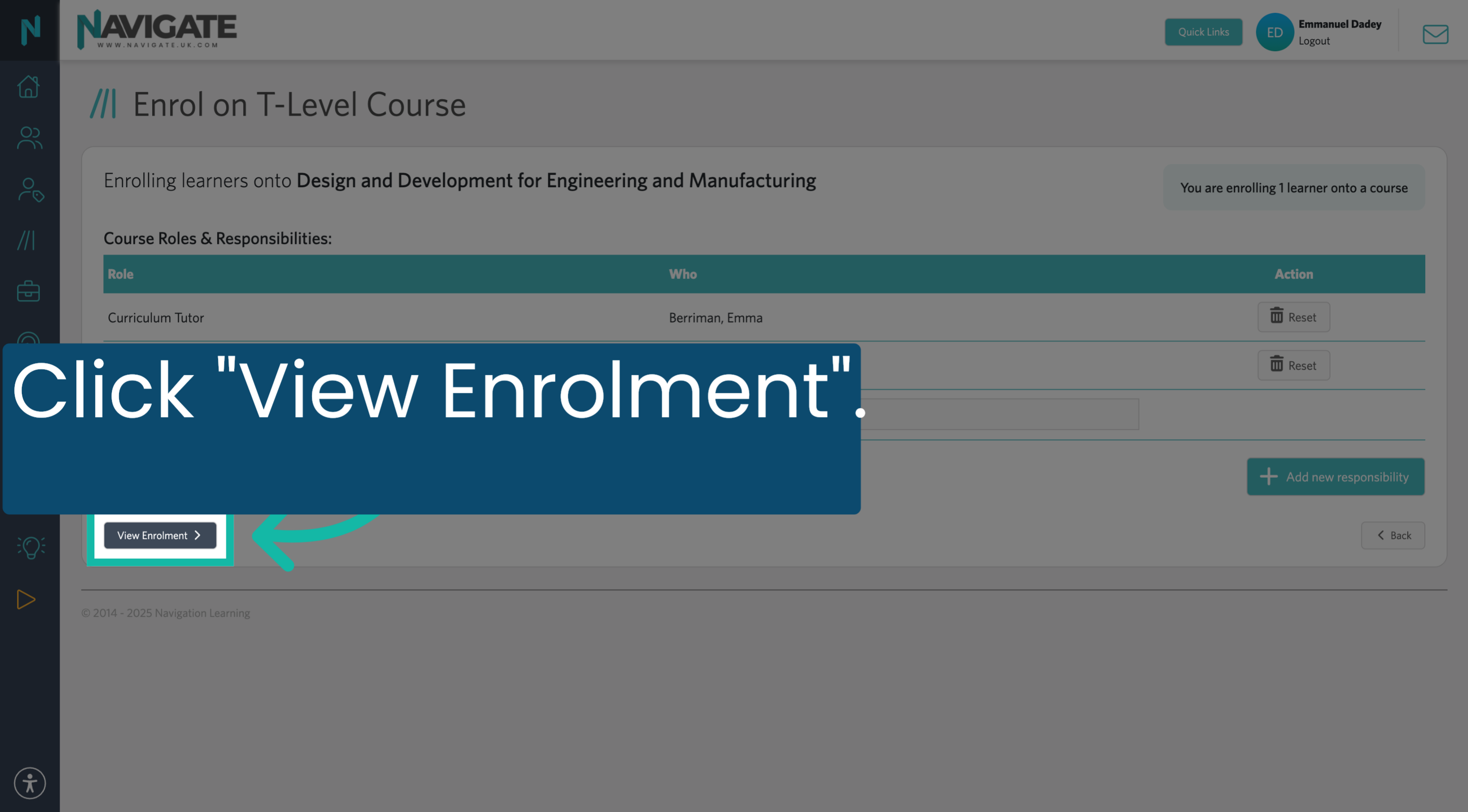
01:15: Click "View Enrolment" to review the students' current course enrolment information.
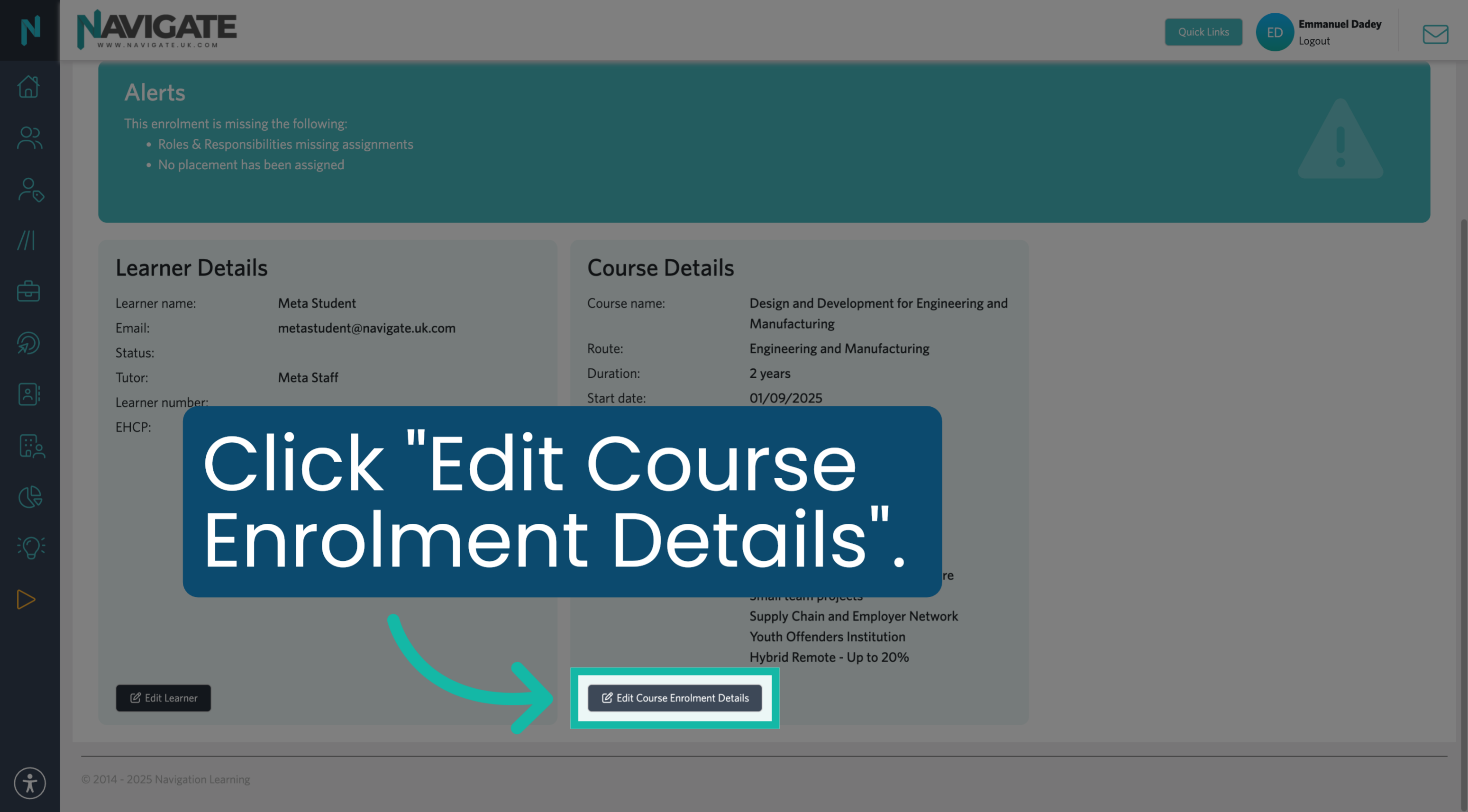
01:20: Click "Edit Course Enrolment Details" to update the students' course information, if needed.
00:01: Once logged in, to find your students, click the Quick Links menu.
00:05: Click "All Students".
00:07: To view all students, click "My Students".
00:10: Click Select all to display all your students in Navigate.
00:15: Use the filters to drill down to the students you would like to enrol.
00:19: To view more than the default of 50 students per page, scroll down to the bottom and select the number of students to view per page.
00:27: At the top of the page, click the checkbox to select all students.
00:31: Click "Actions".
00:33: Click "Enrol on T-Level Course" to begin the enrolment process for the selected students.
00:39: Click "Start" to begin the course enrolment process.
00:42: Select the T Level course on which you want to enrol the learners.
00:46: Choose from the dropdown options.
00:49: Click "Next" to continue.
00:51: Select the course start date. This does not have to match the college enrolment dates exactly.
00:57: The course end date is pre-filled, but can be adjusted if needed to match the date the student is due to finish their programme.
01:05: Once complete, click "Next".
01:07: You will now see the course deliverables.
01:10: This next stage does not require any information. Click "Next" to continue.
01:15: Click "View Enrolment" to review the students' current course enrolment information.
01:20: Click "Edit Course Enrolment Details" to update the students' course information, if needed.
1. Open Quick Links Menu
Once logged in, to find your students, click the Quick Links menu.
2. Access All Students List
Click "All Students".
3. View All Students
To view all students, click "My Students".
4. Select All Students
Click Select all to display all your students in Navigate.
5. Filter For Your Students
Use the filters to drill down to the students you would like to enrol.
6. Number of students per page
To view more than the default of 50 students per page, scroll down to the bottom and select the number of students to view per page.
7. Select All Students
At the top of the page, click the checkbox to select all students.
8. Open Actions Menu
Click "Actions".
9. Choose Enrol on T Level Course
Click "Enrol on T Level course" to begin the enrolment process for the selected students.
10. Start Enrolment Process
Click Start to begin the course enrolment process.
11. Select Course
Select the T Level course on which you want to enrol the learners.
12. Choose From the Dropdown
Choose from the dropdown options.
13. Proceed to Next Step
Click "Next" to continue.
14. Choose Start Date Value
Select the course start date. This does not have to match the college enrolment dates exactly.
15. Confirm End Date
The course end date is pre-filled, but can be adjusted if needed to match the date the student is due to finish their programme.
16. Click Next
Once complete, click "Next".
17. View Course Deliverables
You will now see the course deliverables.
18. Proceed After Tutor Selection
This next stage does not require any information. Click "Next" to continue.
19. View Enrolment Details
Click "View Enrolment" to review the student's current course enrolment information.
20. Edit Course Enrolment Details
Click "Edit Course" and "Enrolment Details" to update the student's course information if needed.