This tutorial guides you through using the 'My Future Careers' module to explore career options and relevant qualifications.
1. Introduction
You will learn how to navigate the module, make selections based on your interests and attributes, and access detailed career information.
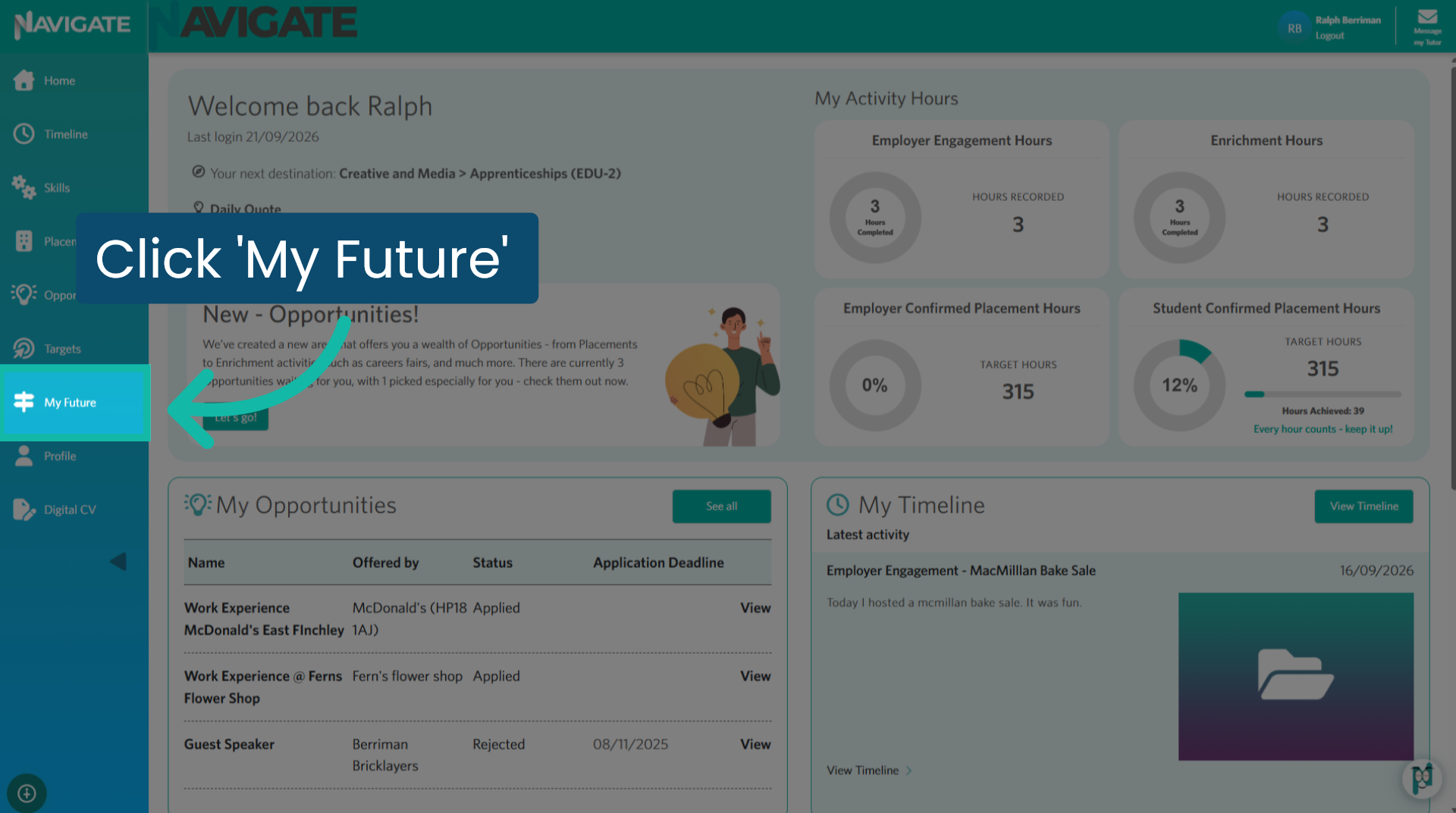
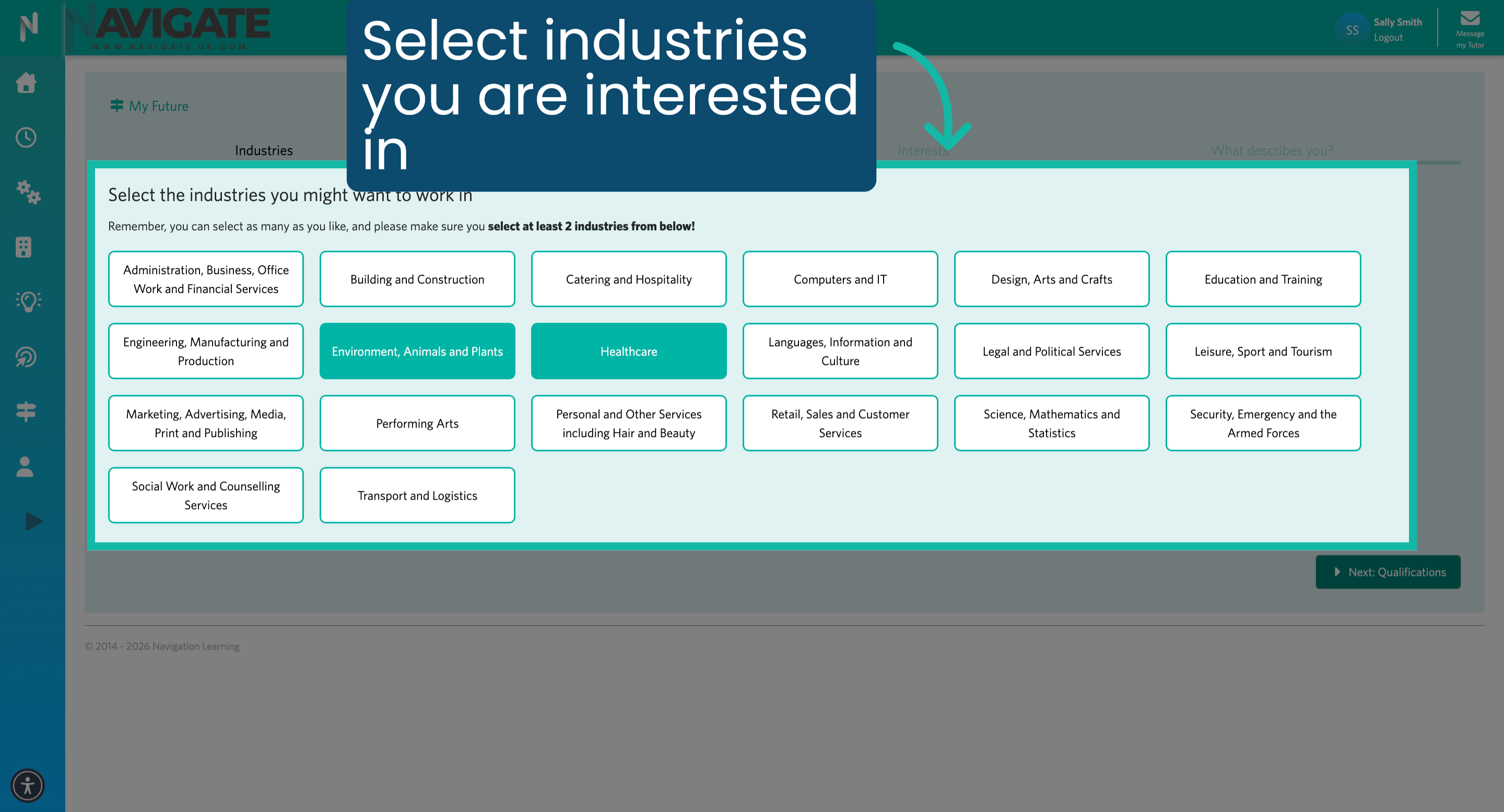
2. Select Industries
Select two or more industries you may be interested in working in.
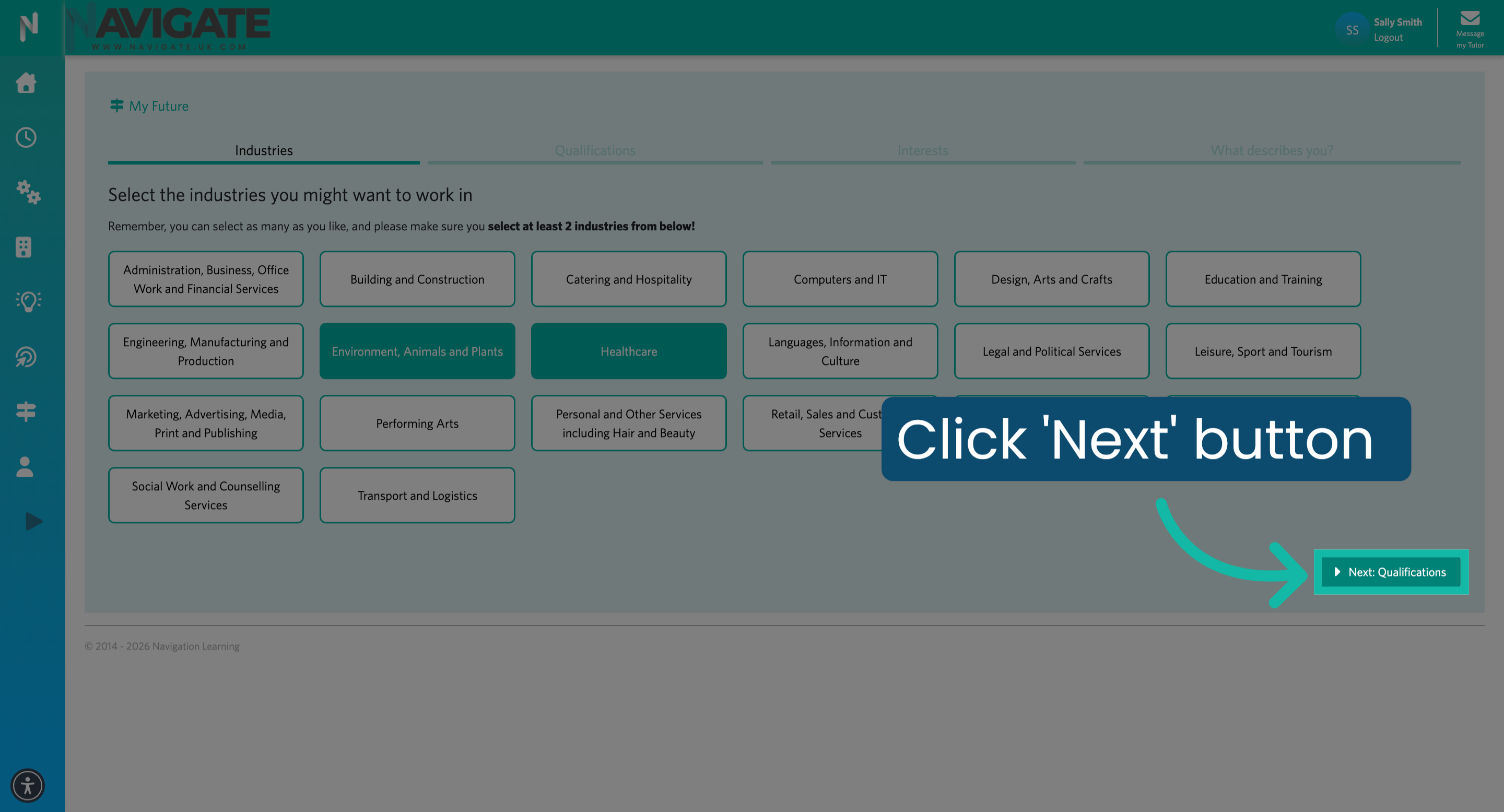
3. Click 'Next: Qualifications'
Once you have selected the industries you are interested in, click 'Next: Qualifications' to proceed to the next page.
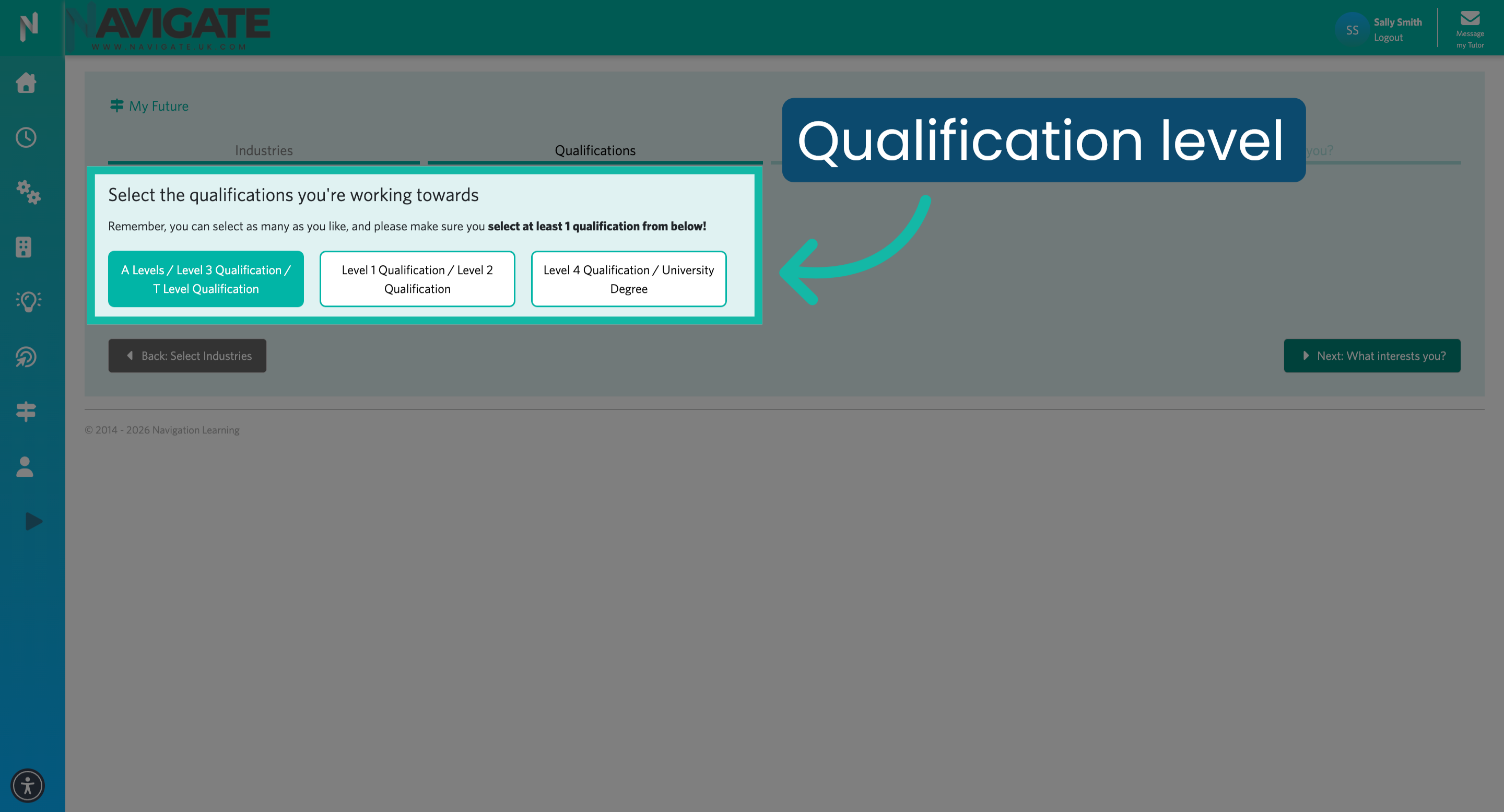
4. Select qualification level
Select the qualification level you are currently studying.
5. Click 'Next: What interests you?'
Click 'Next: What interests you?' to continue to the section where you select your personal interests.
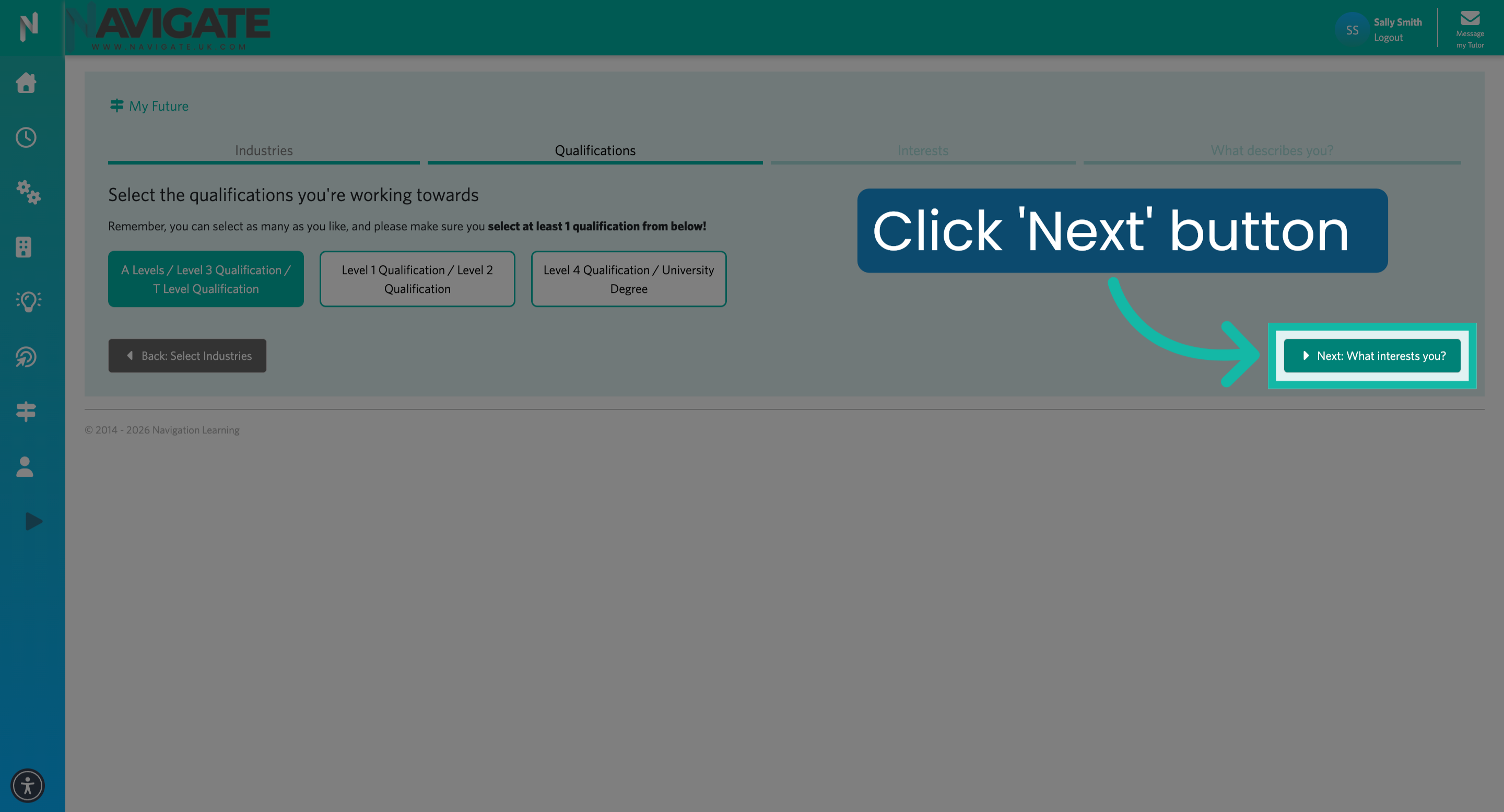
6. Select your interests
Having a career that aligns with your interests is crucial. Choose at least three things that captivate you.
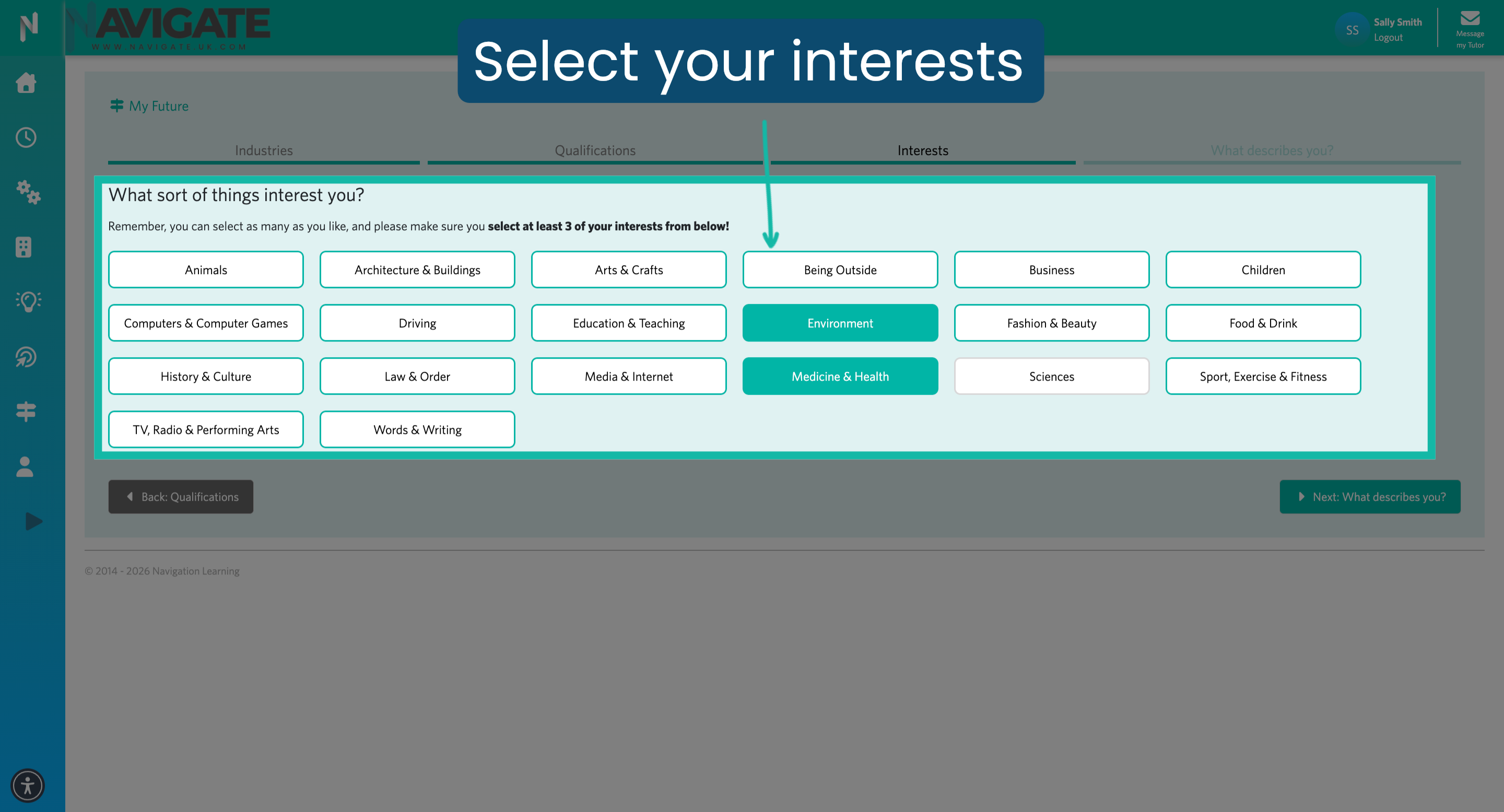
7. Click 'Next: What describes you?'
Click 'Next: What describes you?' to move on to selecting your personal attributes.
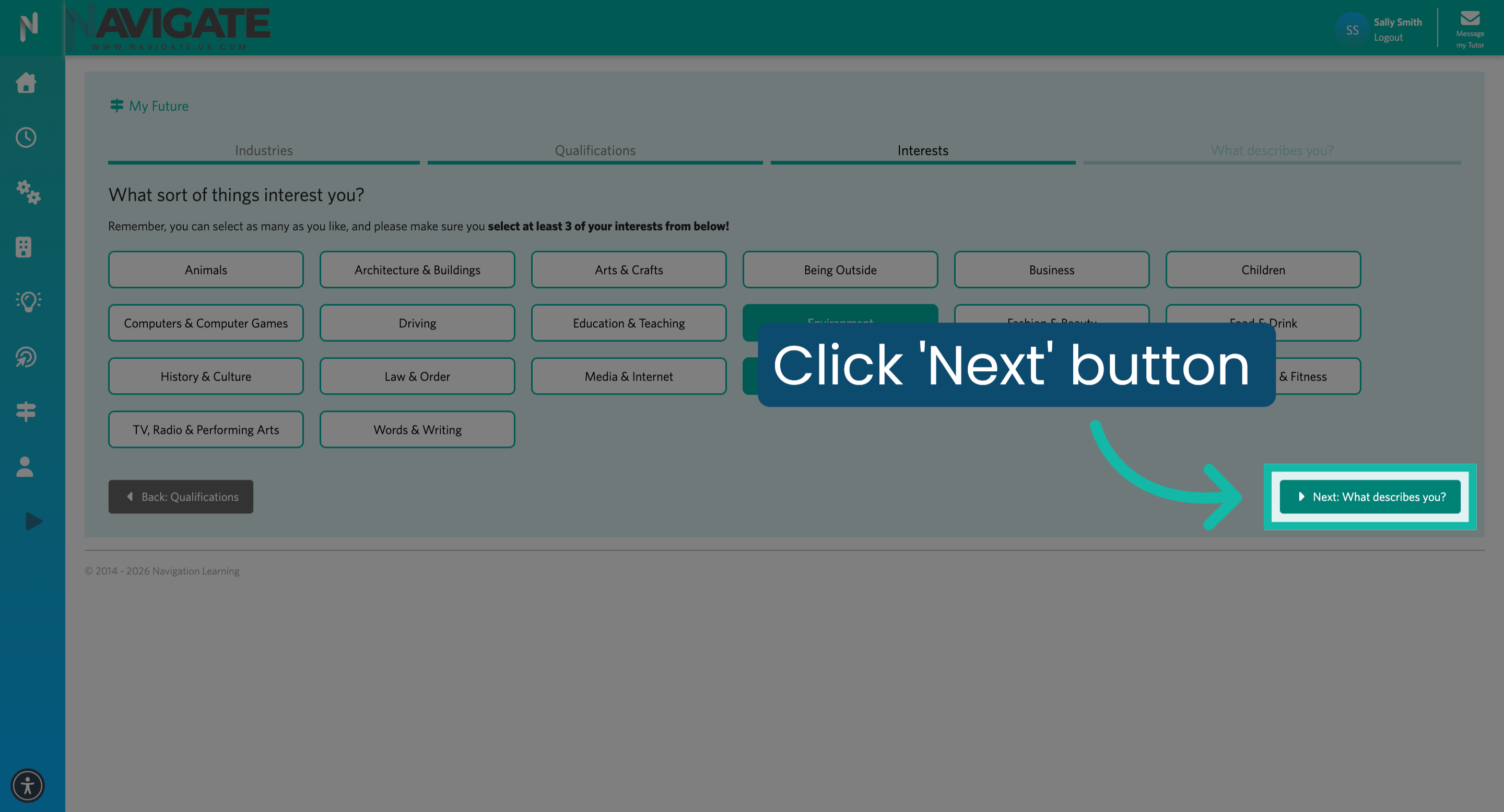
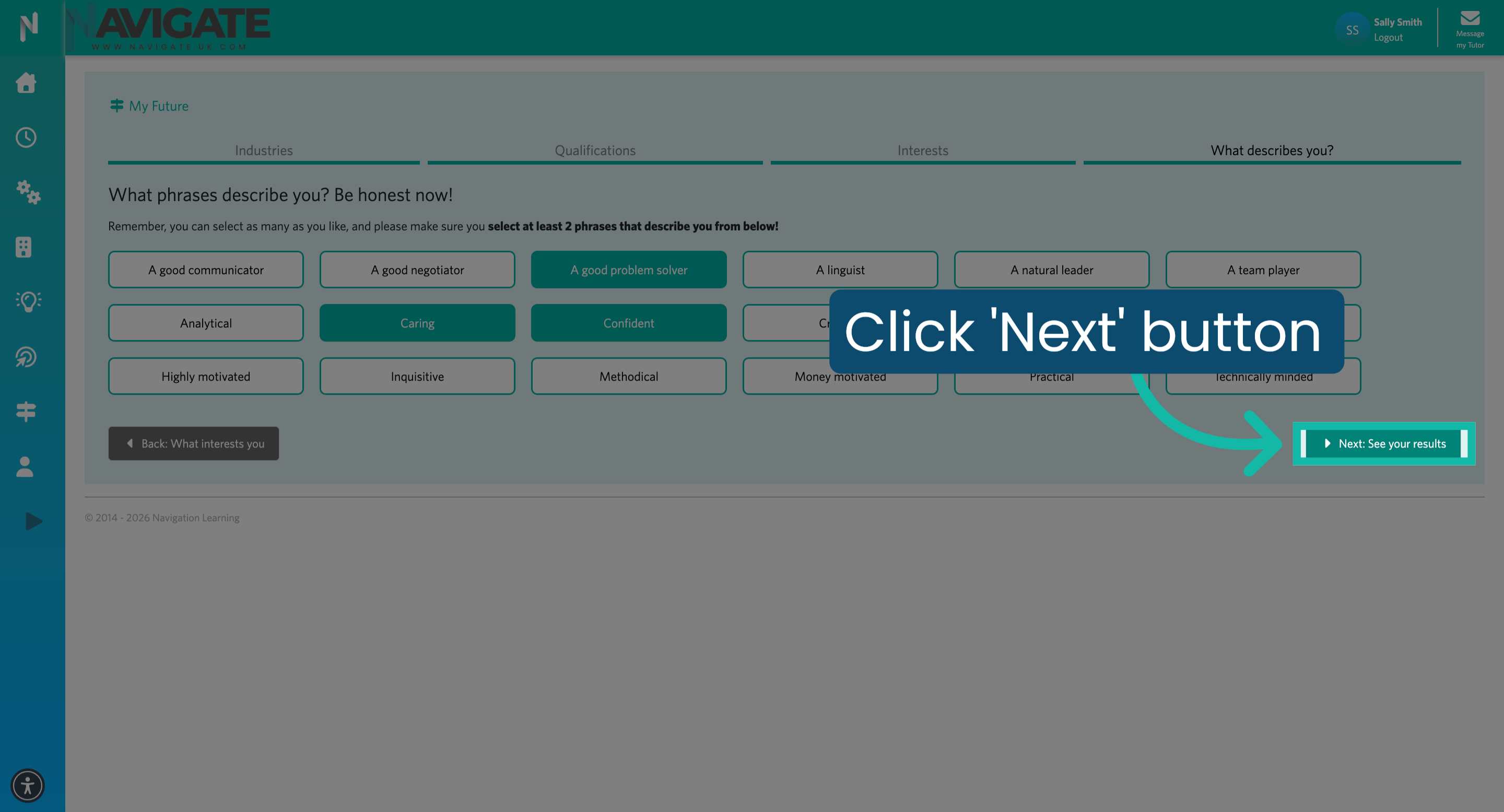
8. Choose phrases that describe you
Different personal attributes can be ideal for specific careers and roles. Be honest and kind to yourself. Select the phrases that best represent you to align these personal skills with your career choices.
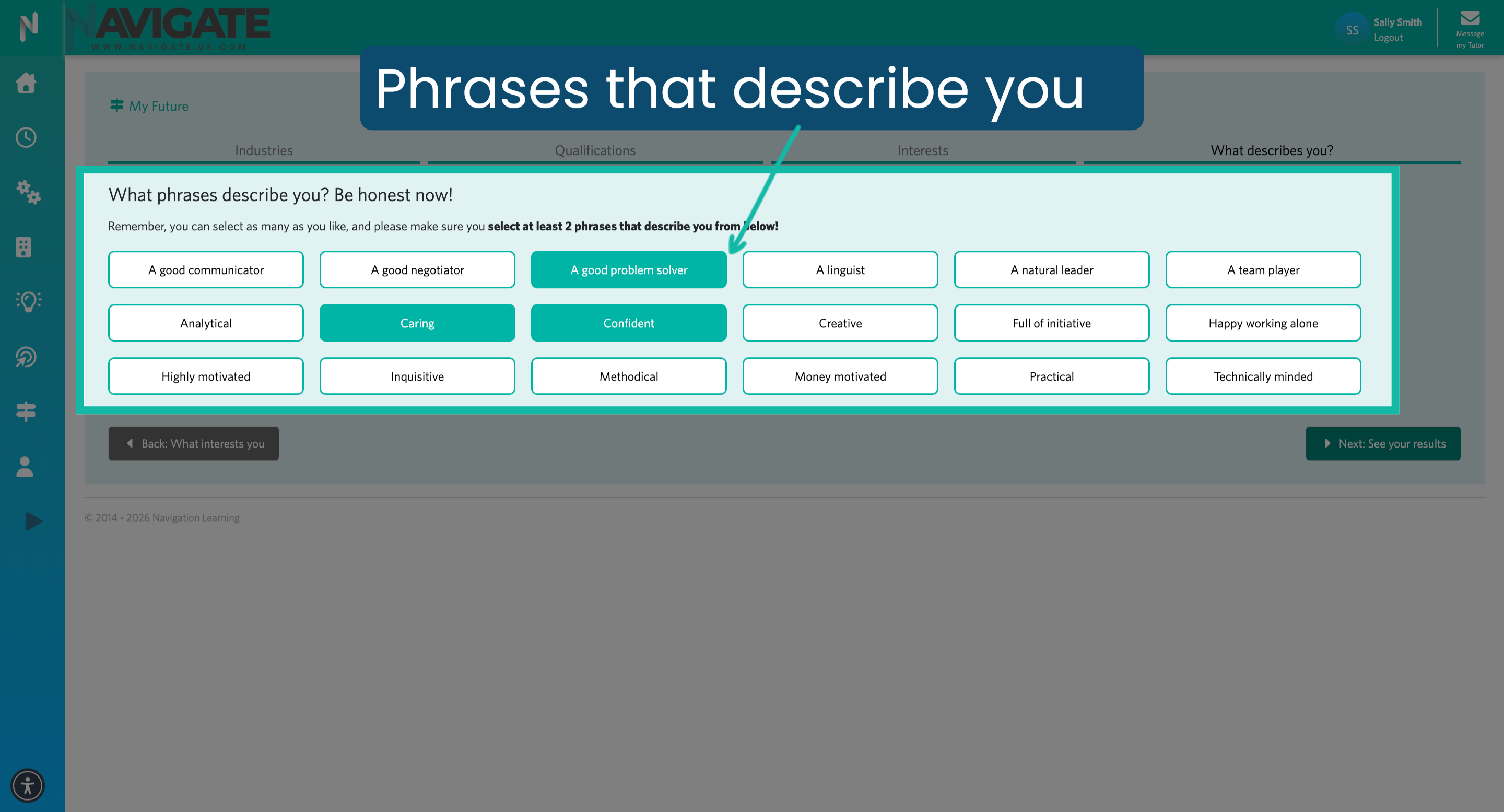
9. Click 'Next: See your results'
Click here to confirm your selected personal attributes and proceed with the career matching activity.
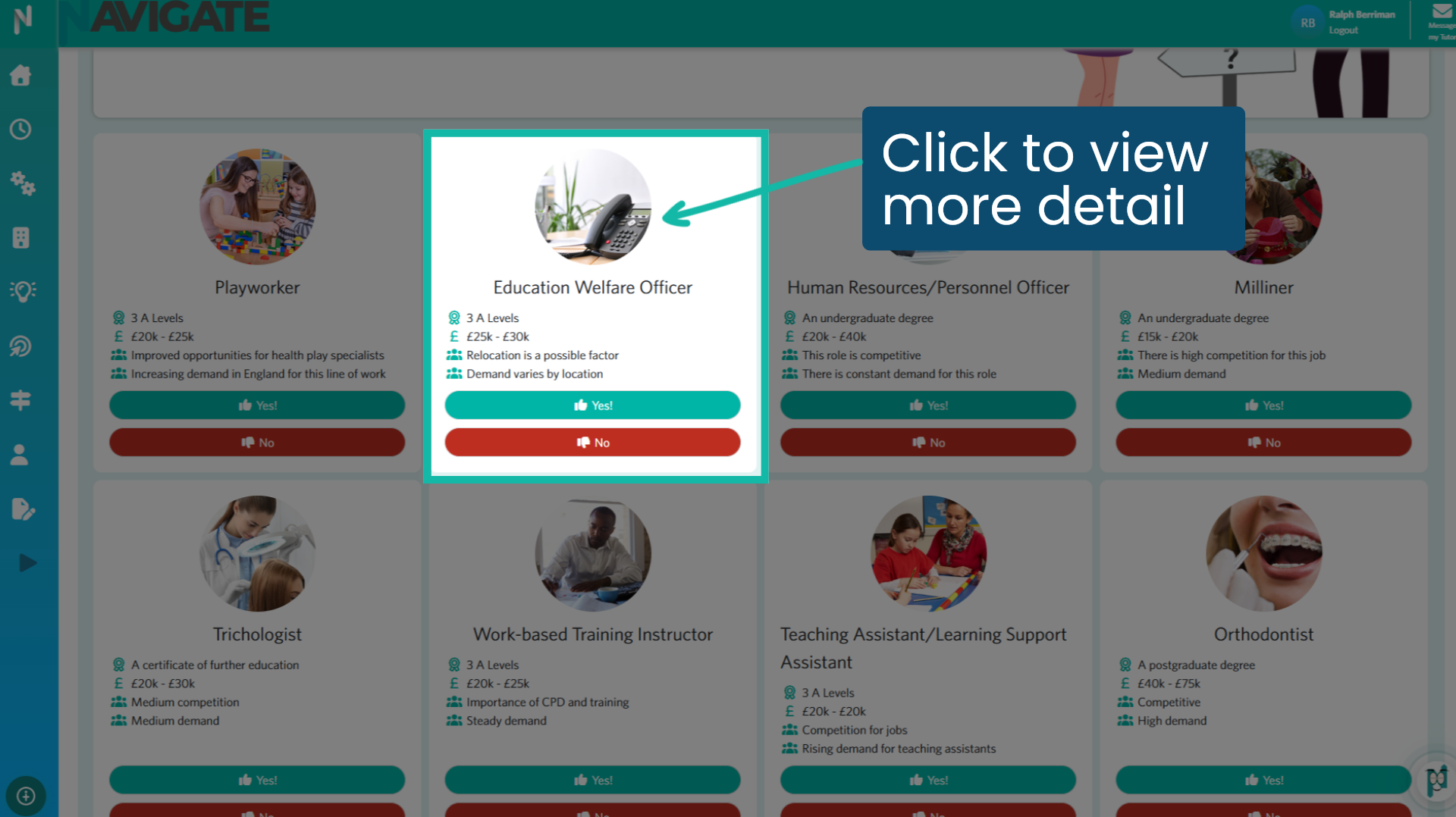
10. Click to view more detail
The My Future Career wizard will now showcase eight potential careers based on your responses. You can click on each career tile to view more details before deciding to add or remove it from your dashboard.
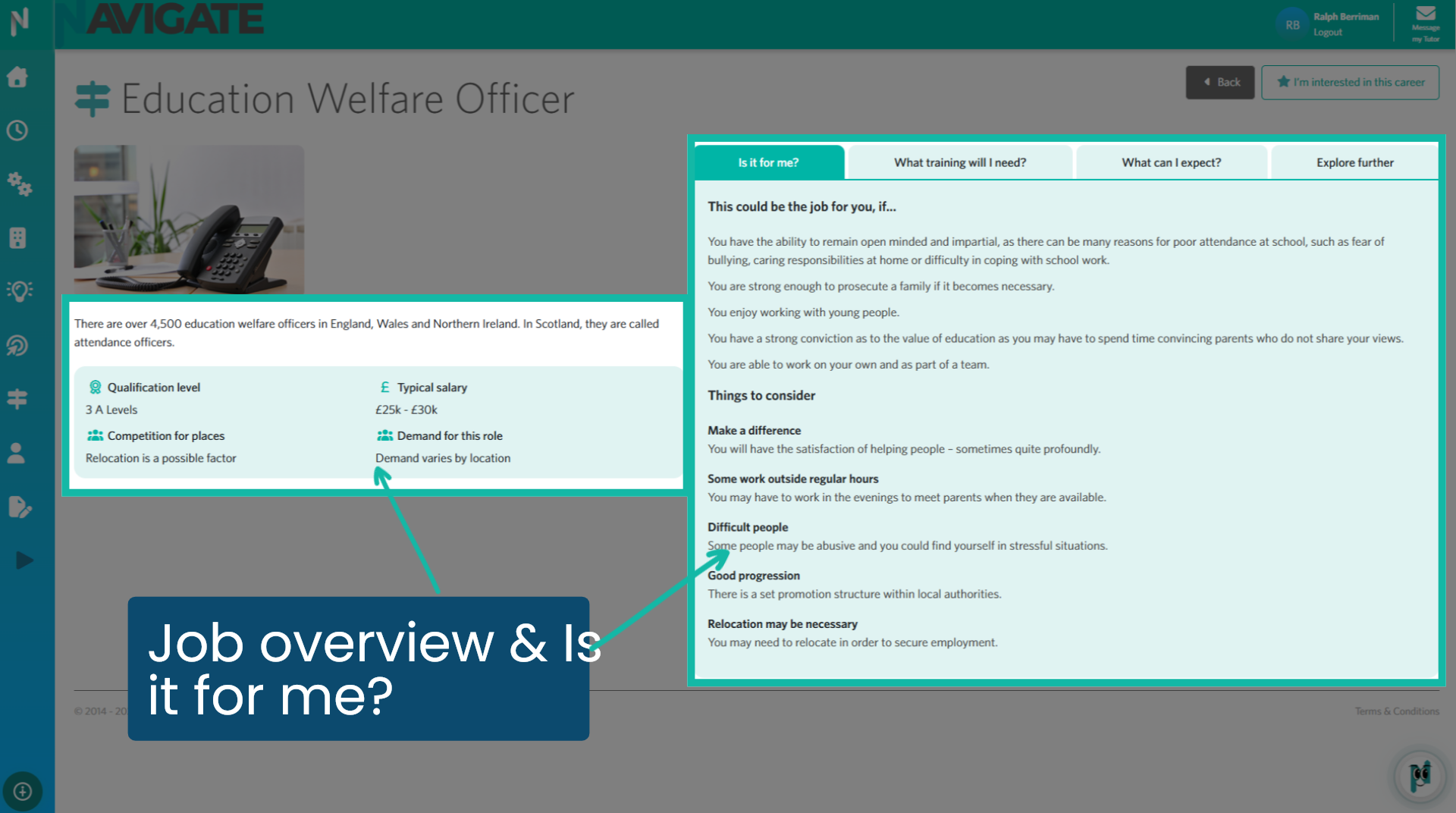
11. Job overview & Is it for me?
Here, you can find a brief overview of the role along with essential information about its realities.
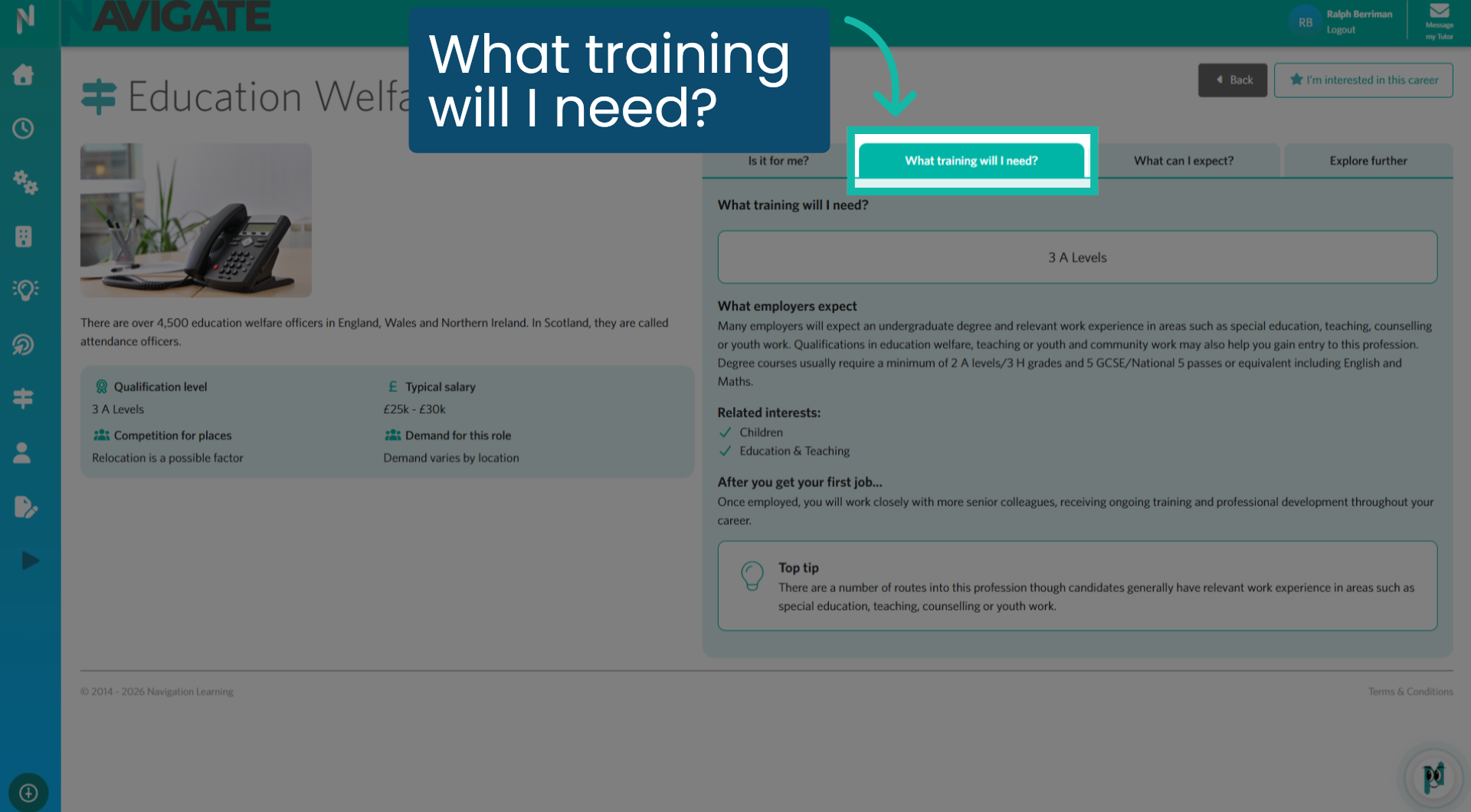
12. What training will I need?
Select this tab to view the expected training required for the role, the desired related interests and additional useful tips.
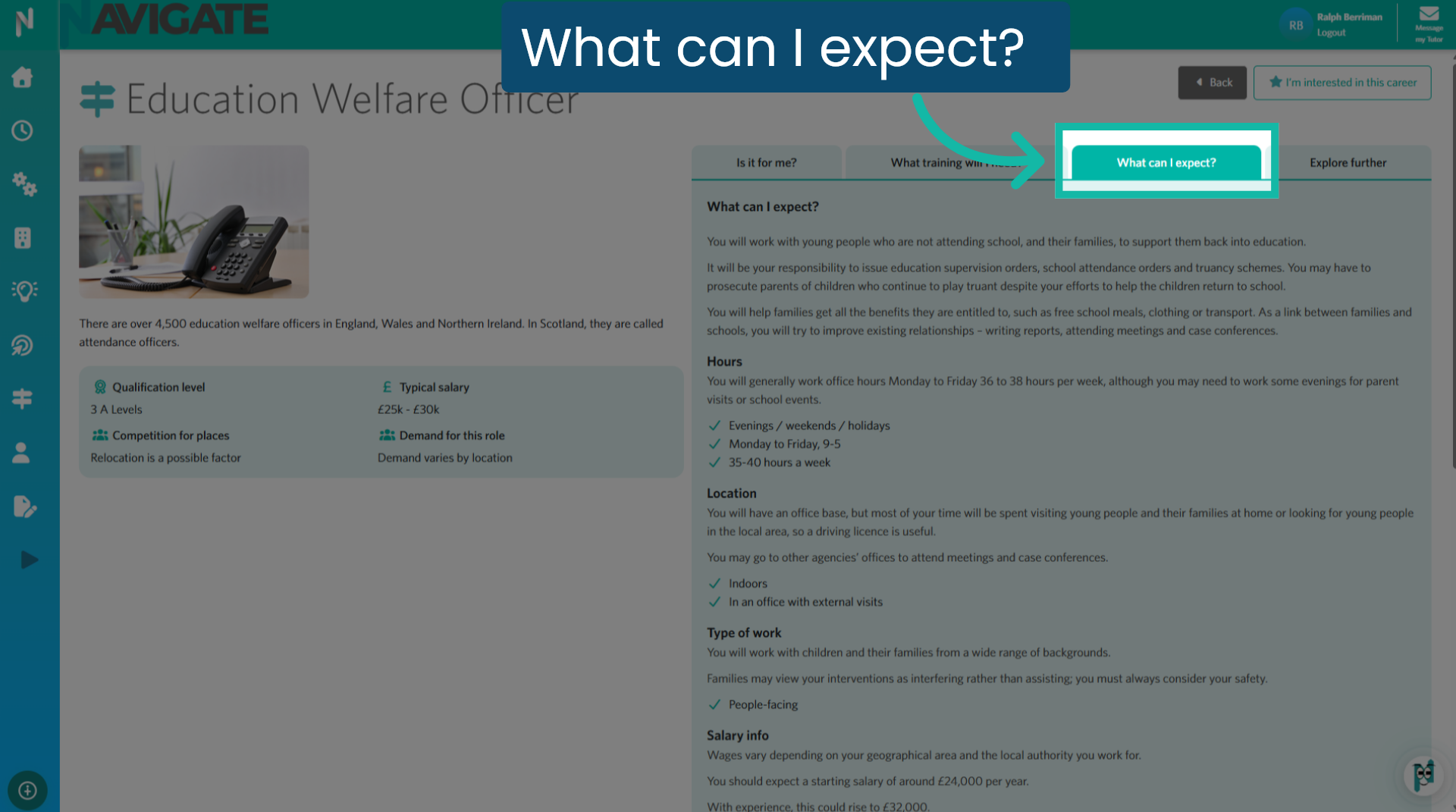
13. What can I expect?
This tab provides an excellent overview of what to expect if you choose to pursue this career. Understanding the realities can help you determine if it is truly suitable for you.
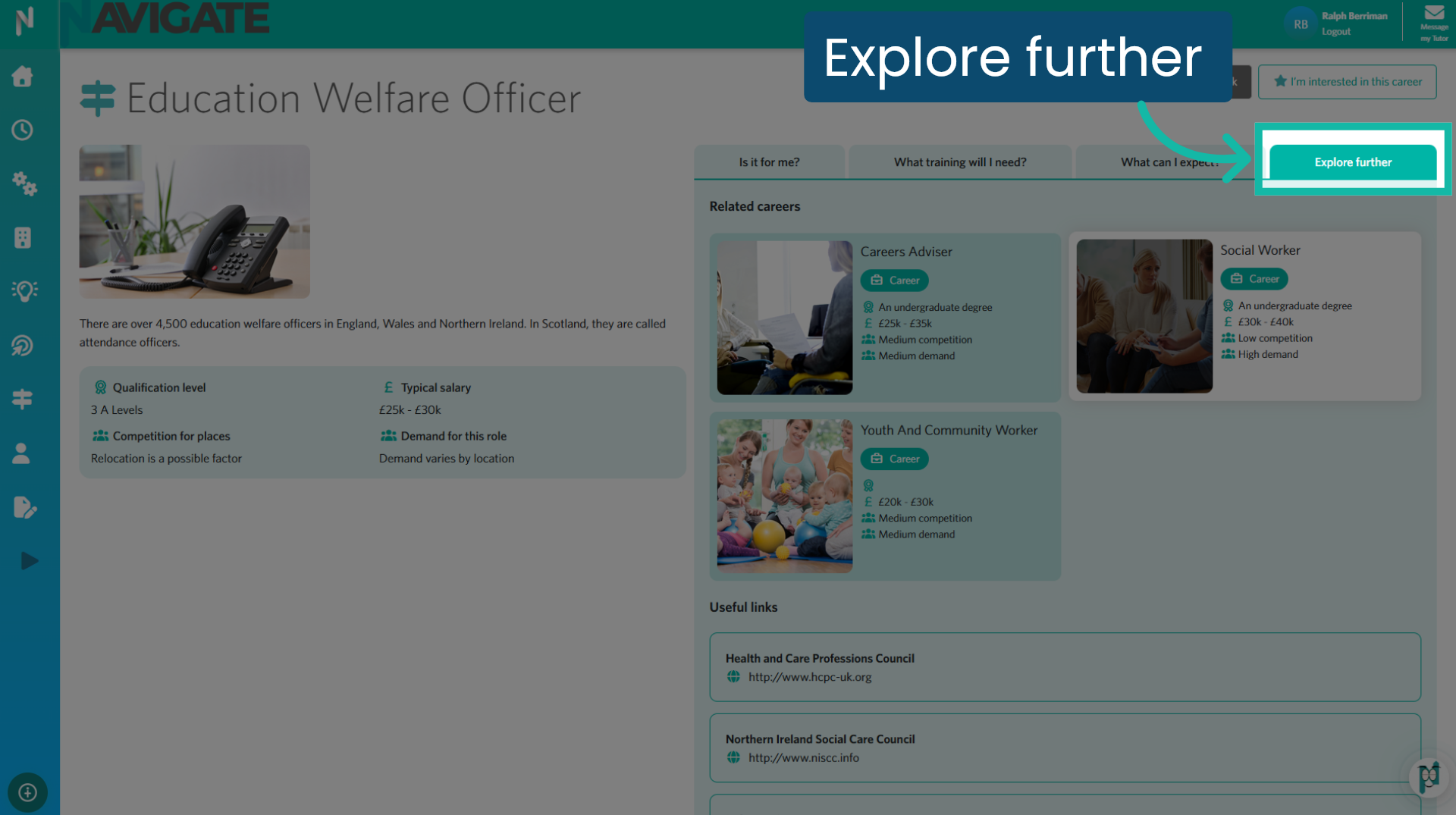
14. Explore further
Click this tab to explore additional careers related to this field that may interest you. You will also find useful links to explore further.
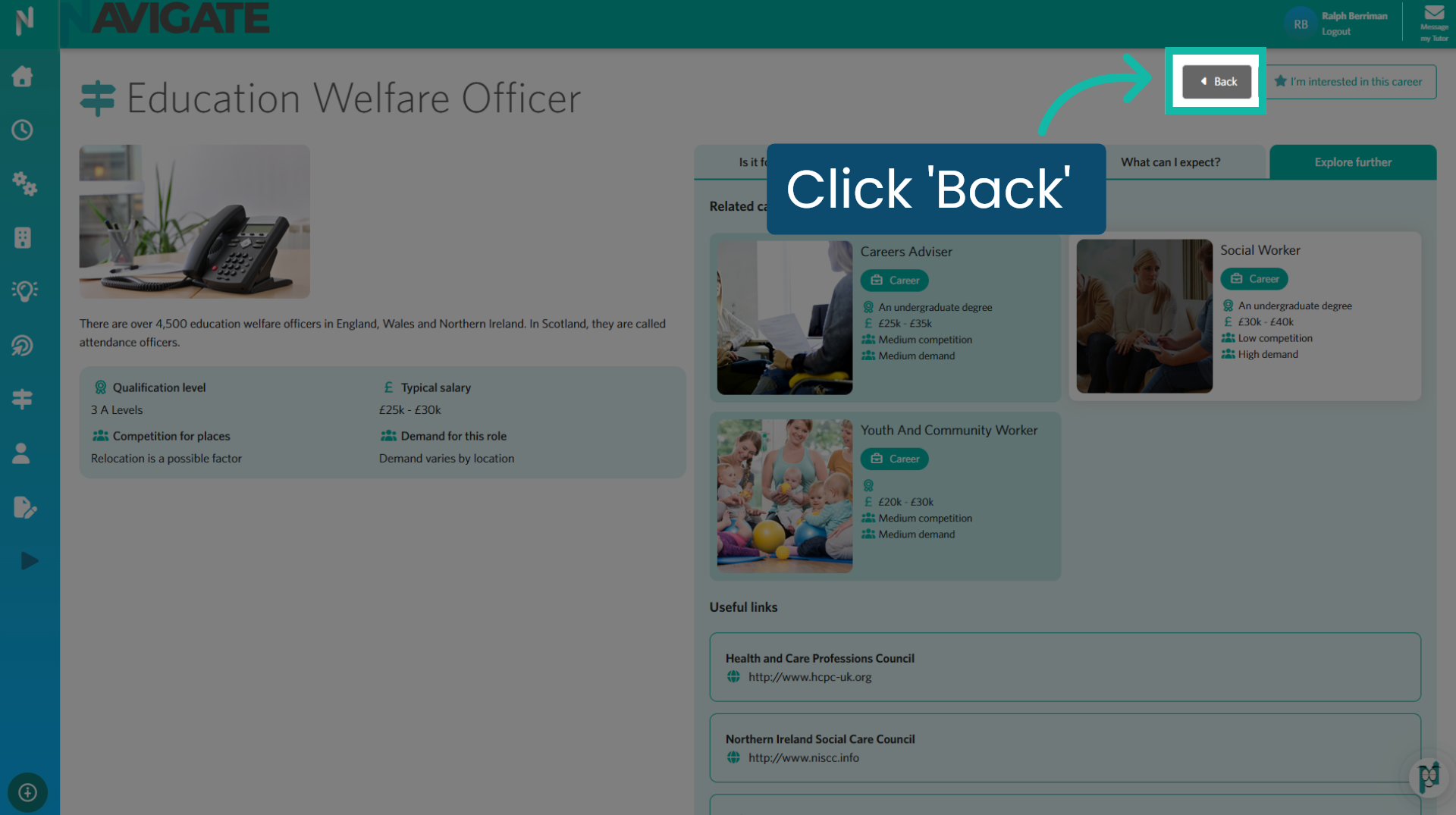
15. Click 'Back' to return to the suggestions
To return to the wizard's career selections, please click the 'Back' button.
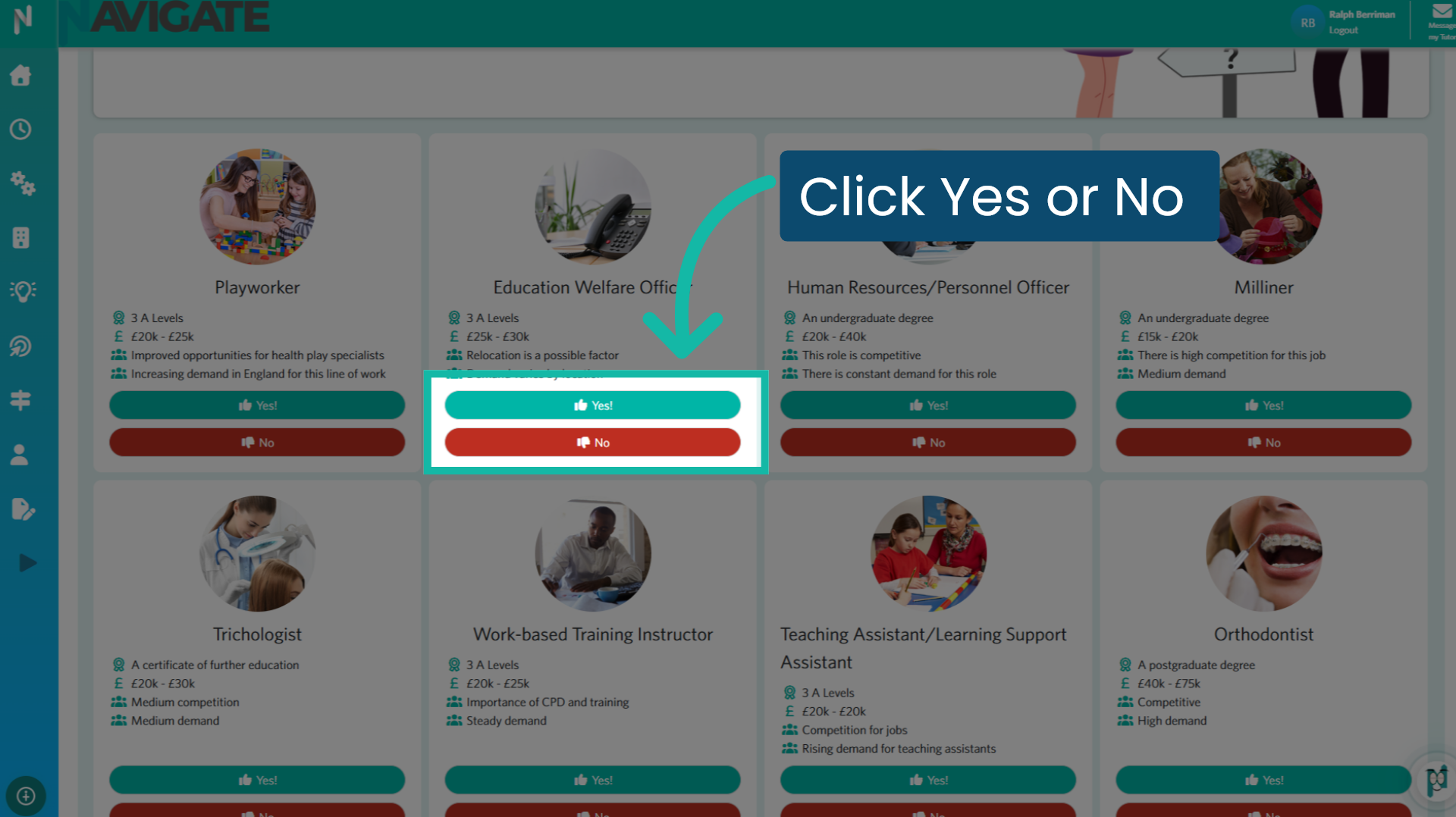
16. Click Yes or No
On each career profile, click 'Yes' to add this career to your Career Dashboard or 'No' to remove this suggestion.
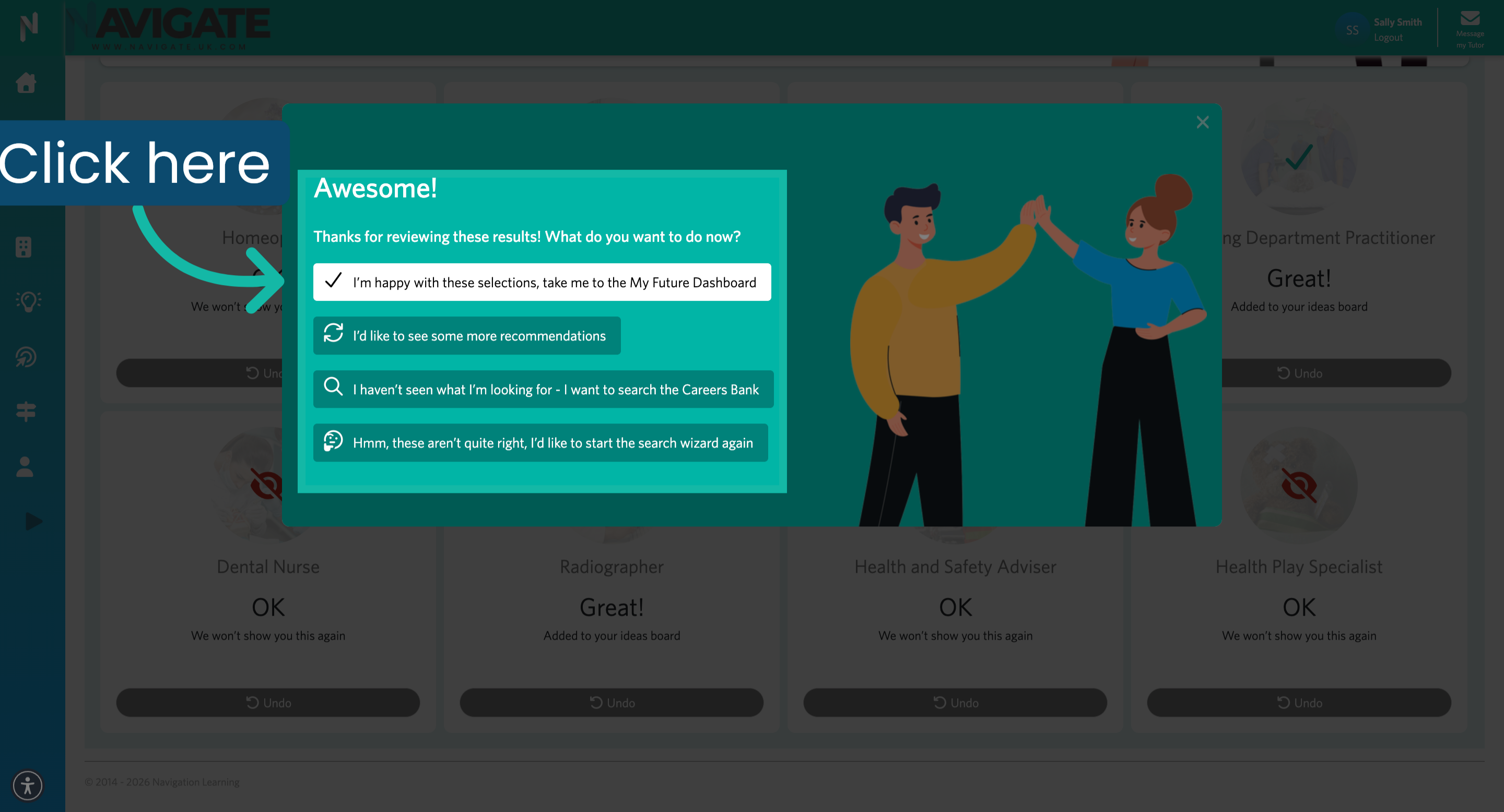
17. Confirm Selections and Proceed
You will now see four options to choose from. 1. Click "I am happy with these selections" if you are satisfied with the careers you have added to your dashboard. Alternatively, you can: 2. See more recommendations; 3. Search the careers bank; or 4. Start the search wizard again.
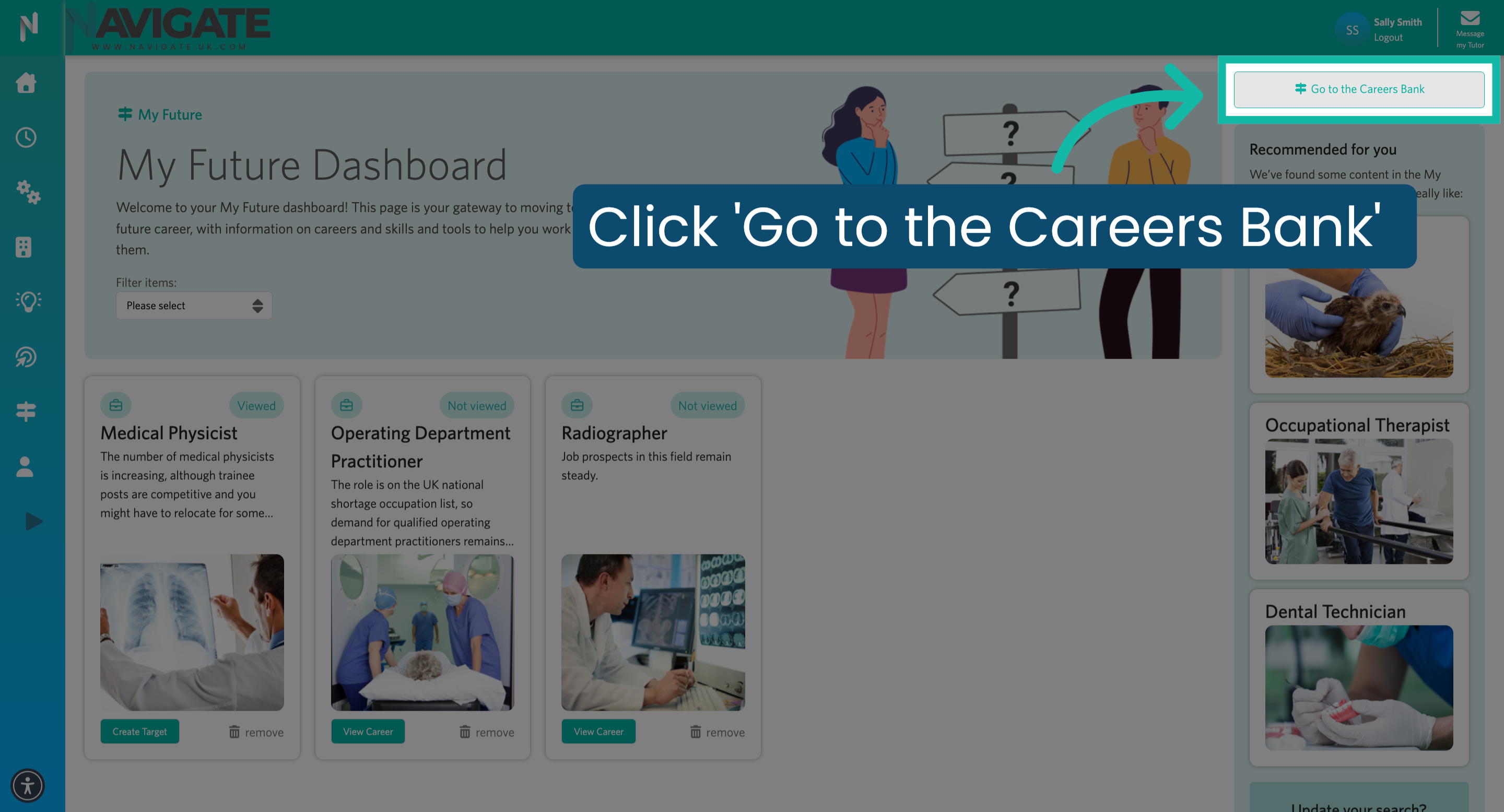
18. The Careers Bank
At any time, you can search the careers bank for a specific career directly from your dashboard. Click 'Go to the Careers Bank' to begin your search.
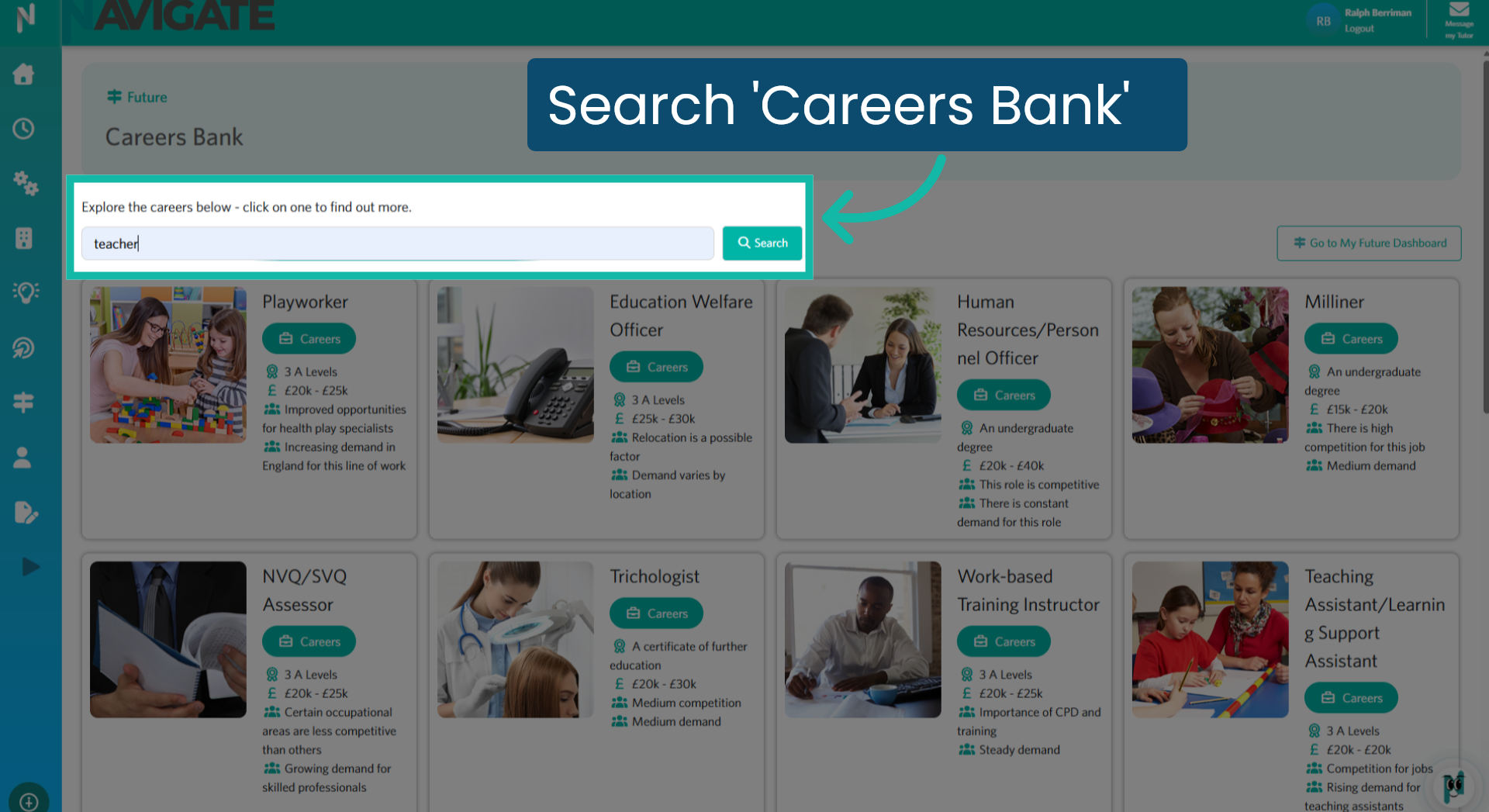
19. Search for a career
Enter the career you wish to search for. In this example, search for 'teacher' rather than 'teaching'.
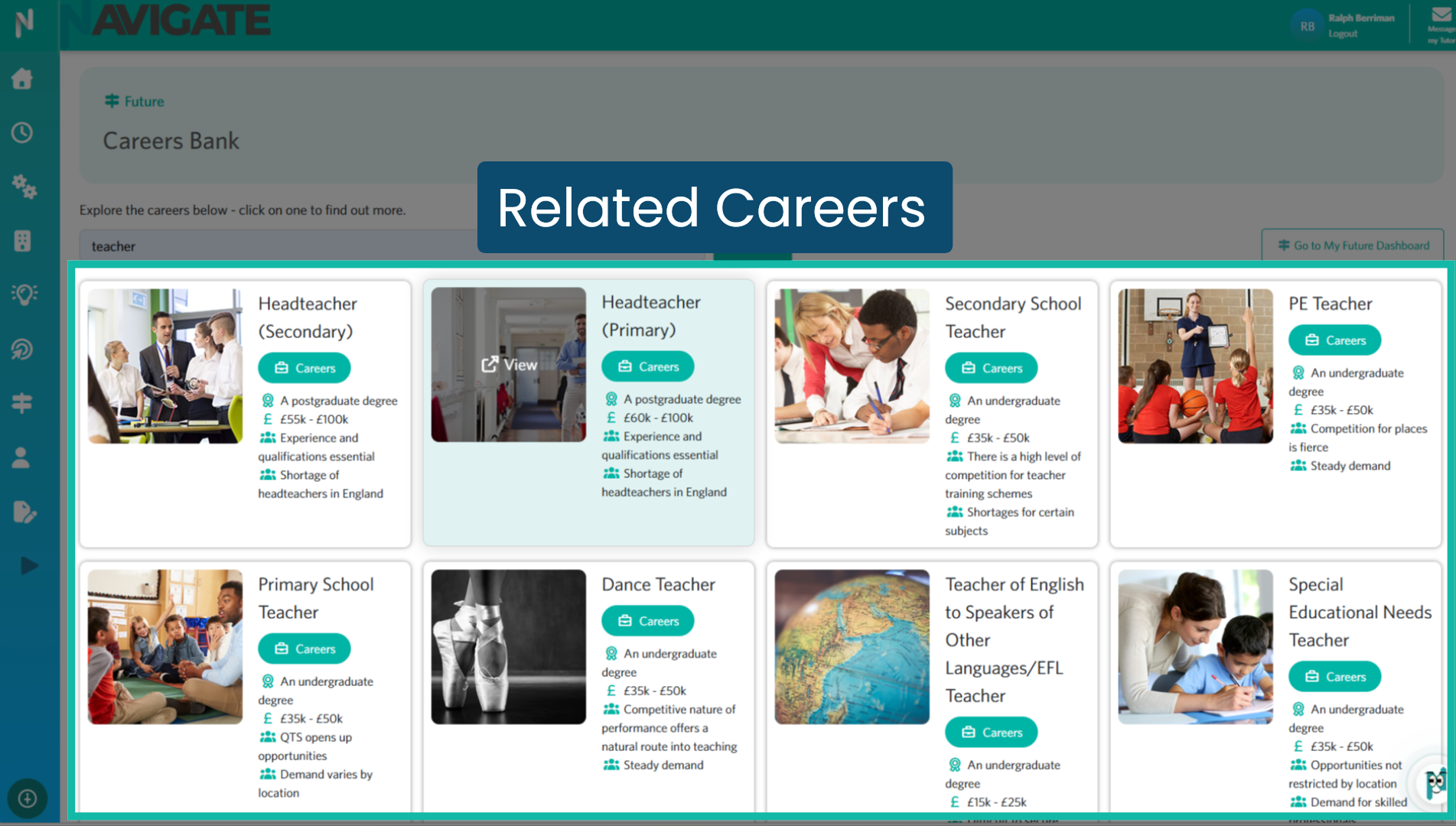
20. Related Careers
The wizard will showcase all careers associated with that role.
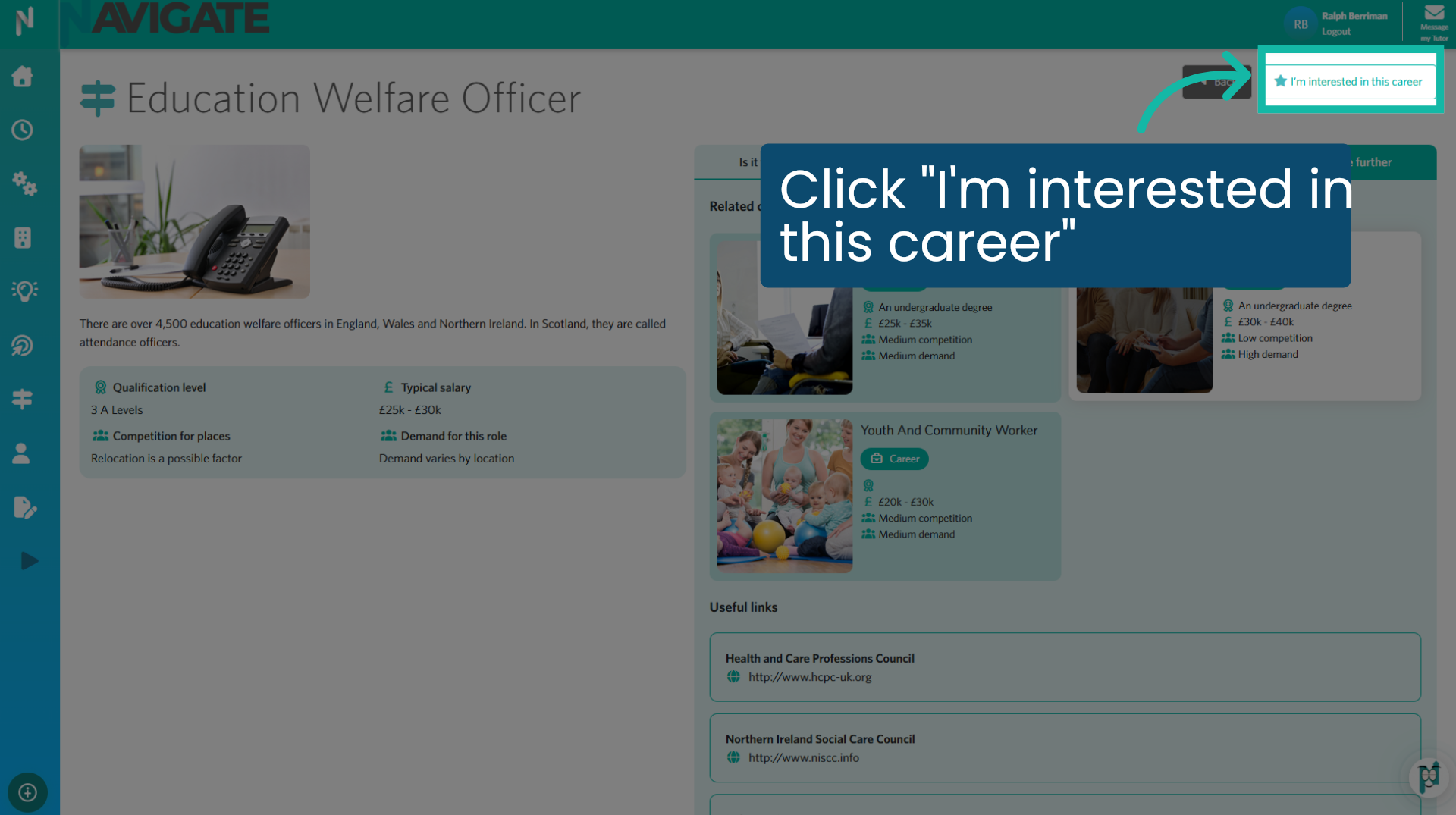
21. Click "I'm interested in this career"
To add a career profile to your Career Dashboard, click "I'm interested in this career".
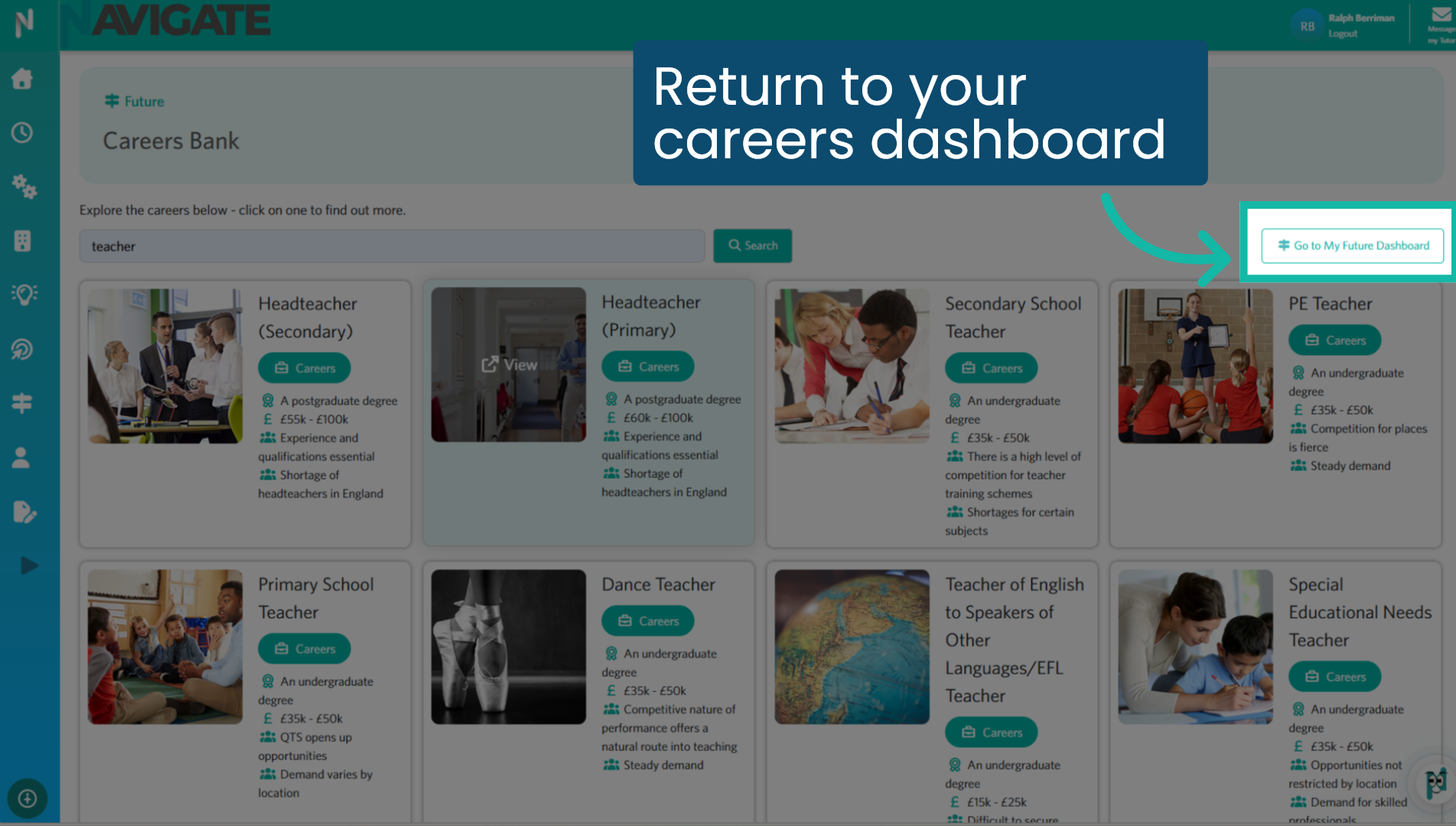
22. Return to your careers dashboard
Click to return to your careers dashboard.
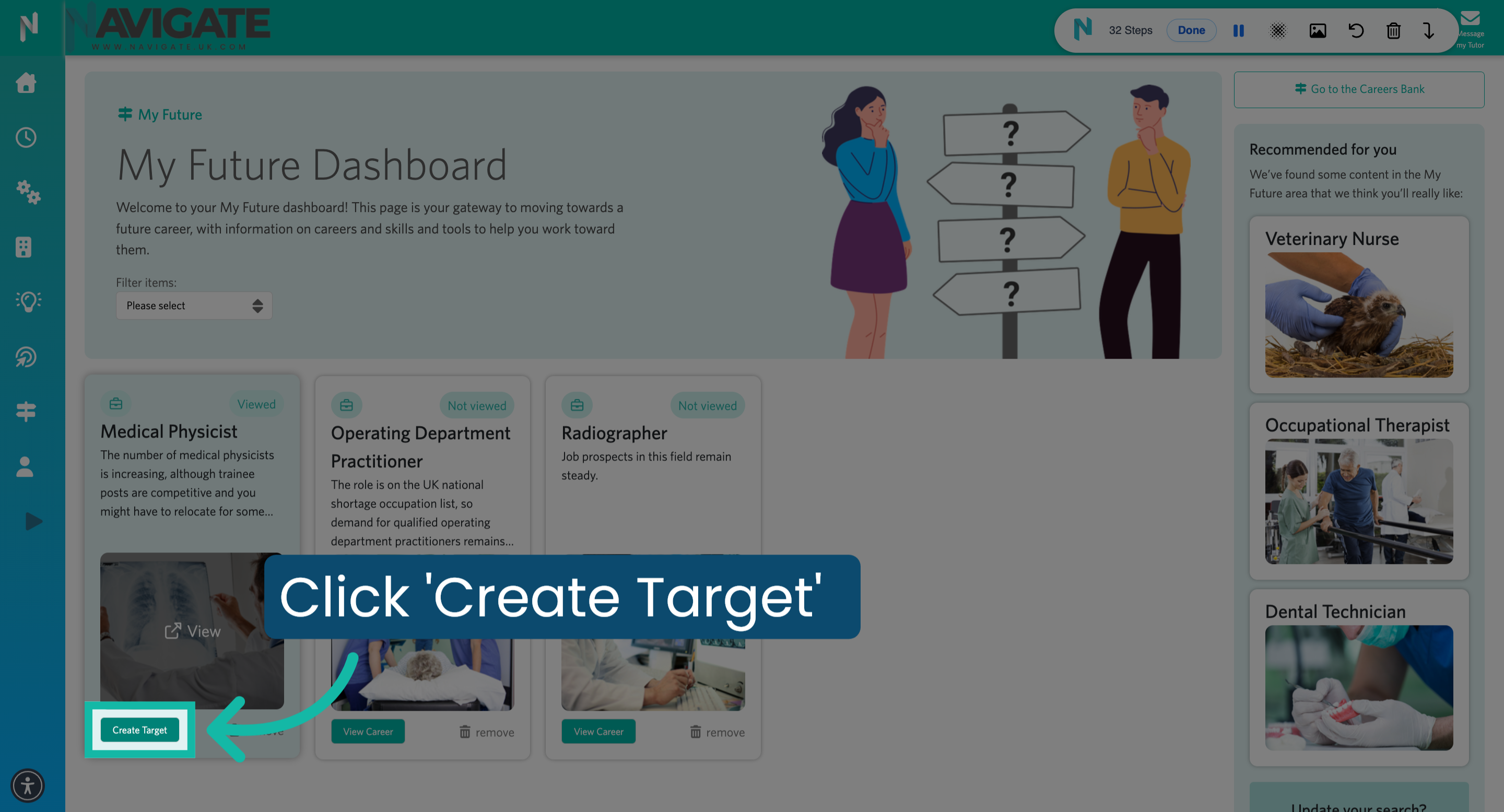
23. Create Career Target
To add a target to a career and provide evidence of your progress towards this goal, click 'Create Target' next to the relevant job role.
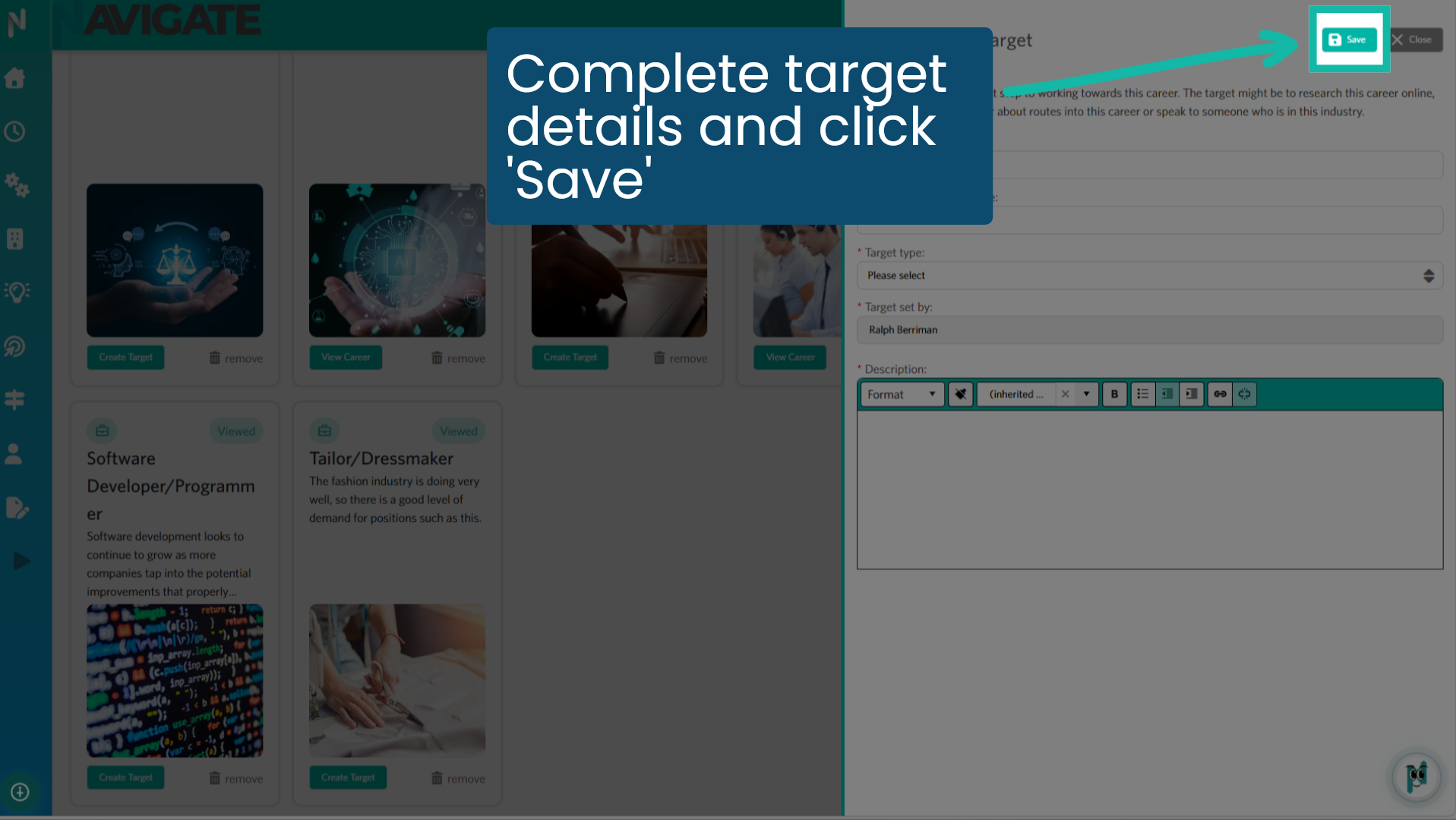
24. Complete target details and click 'Save'
Please enter the target details in the pop-up form and click 'Save'.
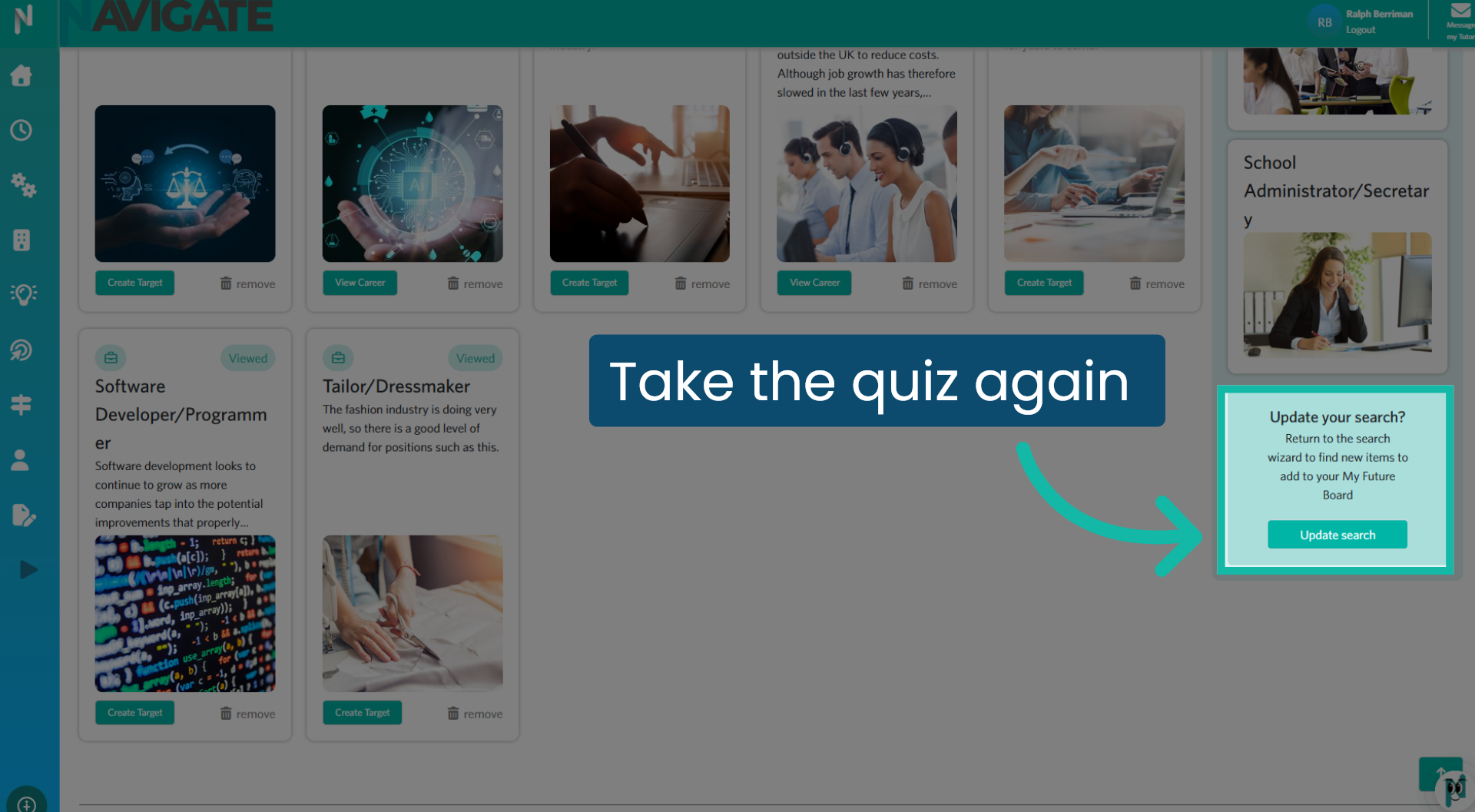
25. Retake the quiz
If you wish to take the quiz again, click the 'Update Search' button.
Was this article helpful?
That’s Great!
Thank you for your feedback
Sorry! We couldn't be helpful
Thank you for your feedback
Feedback sent
We appreciate your effort and will try to fix the article