Go to login.navigate.uk.com
1. Introduction
To mark a placement as complete or incomplete, log in to your Navigate account and open the relevant placement record.
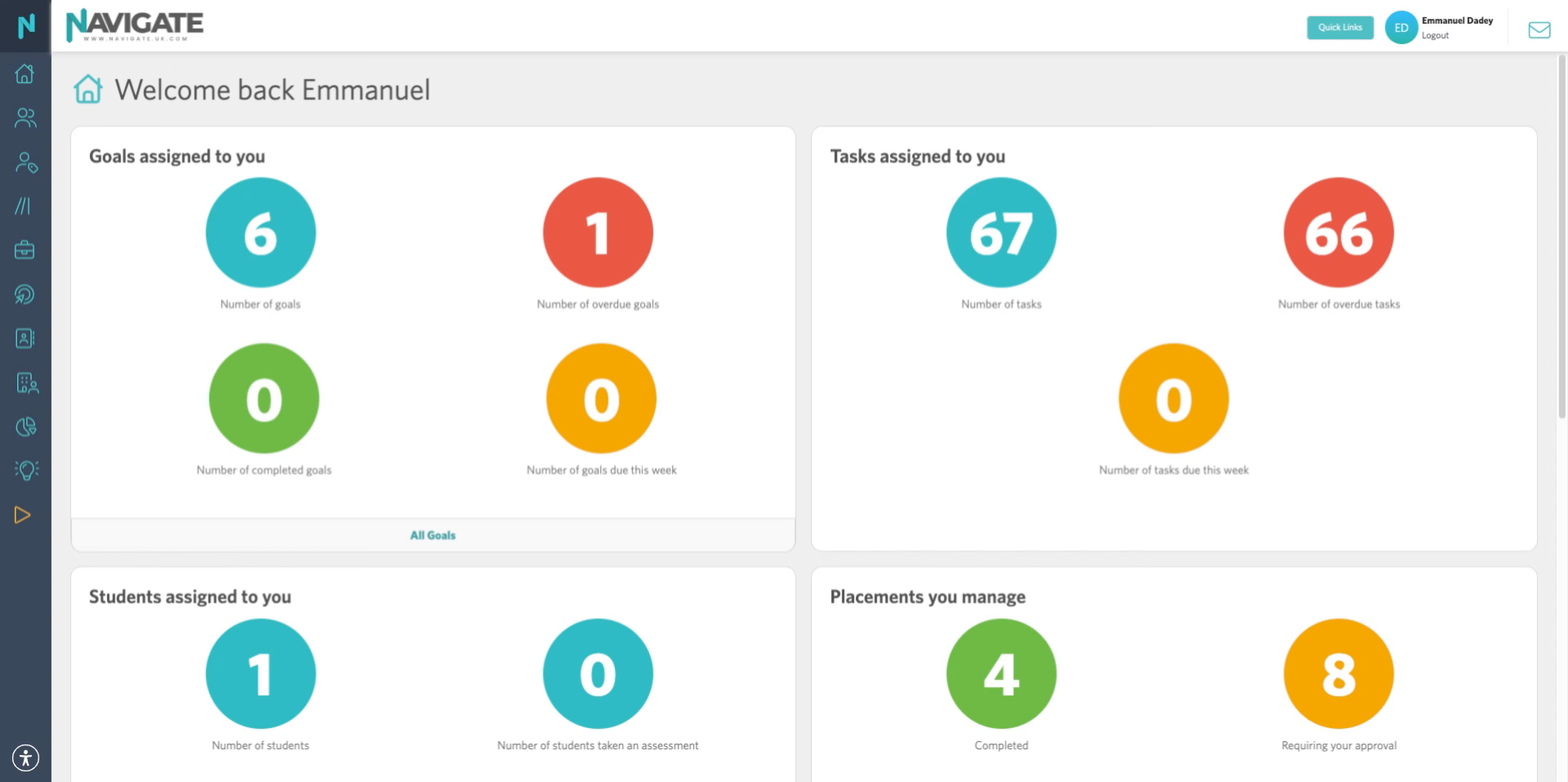
2. Access Quick Links Menu
Click on the quick links button at the top of the page.
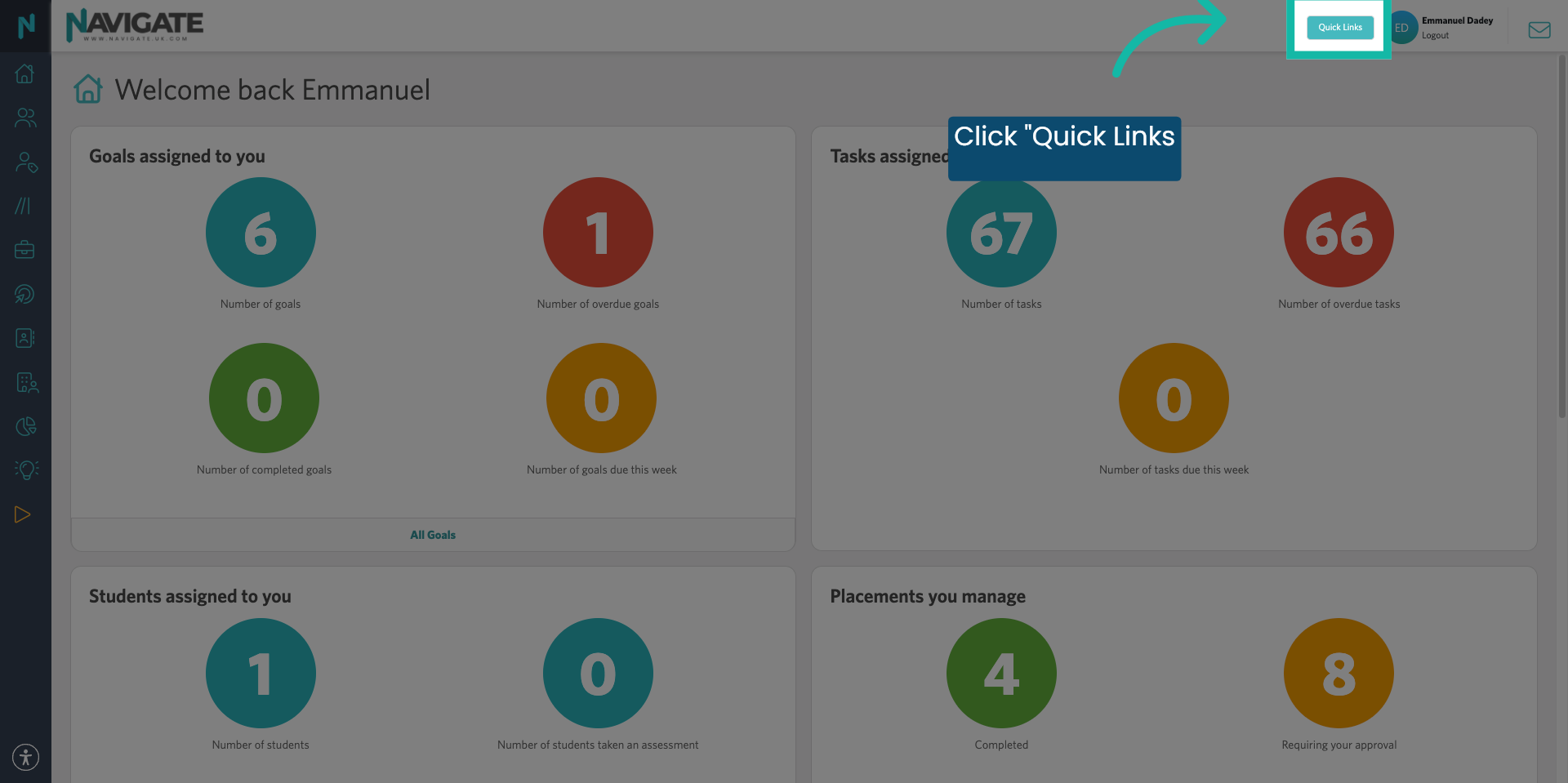
3. Search for a Placement
Click in the search for a placement box.
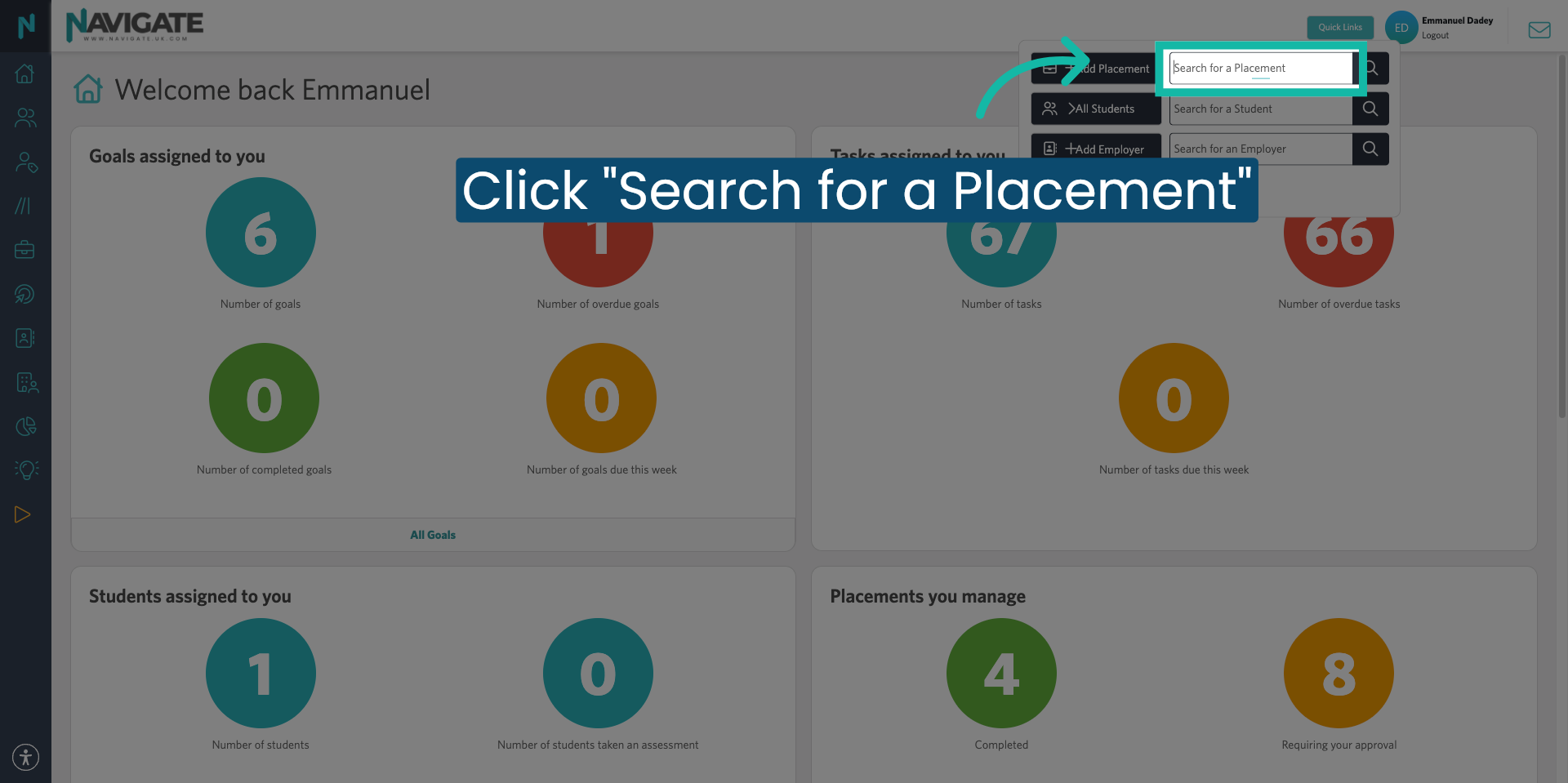
4. Select Placement from Search Results
Type in the student or employer name and select the placement from the drop-down.
5. Navigate to Completion Tab
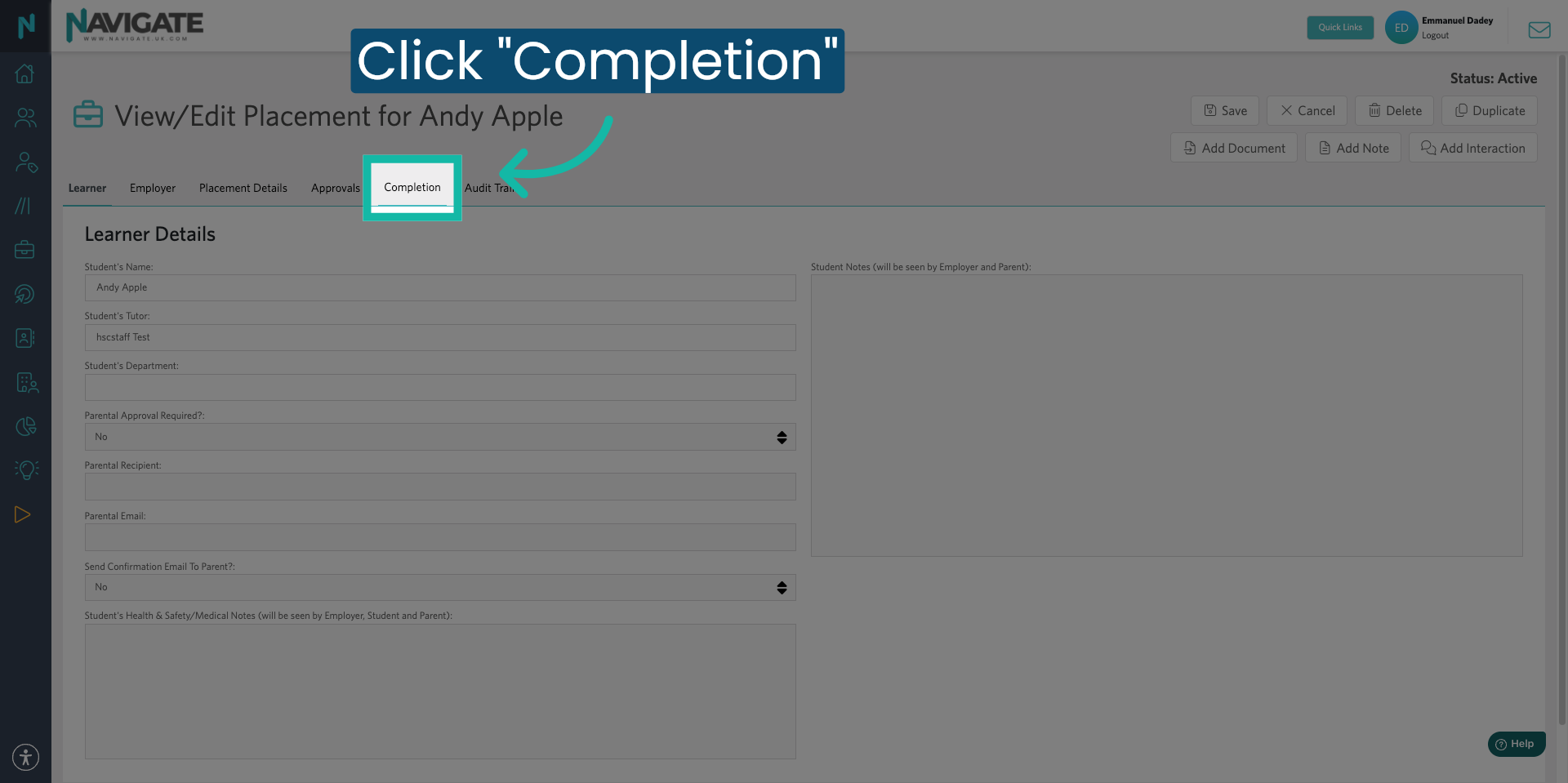
This will bring you to the placement details. Click on the completion table to view and manage the completion status of the placement.
6. 3 Completion Options
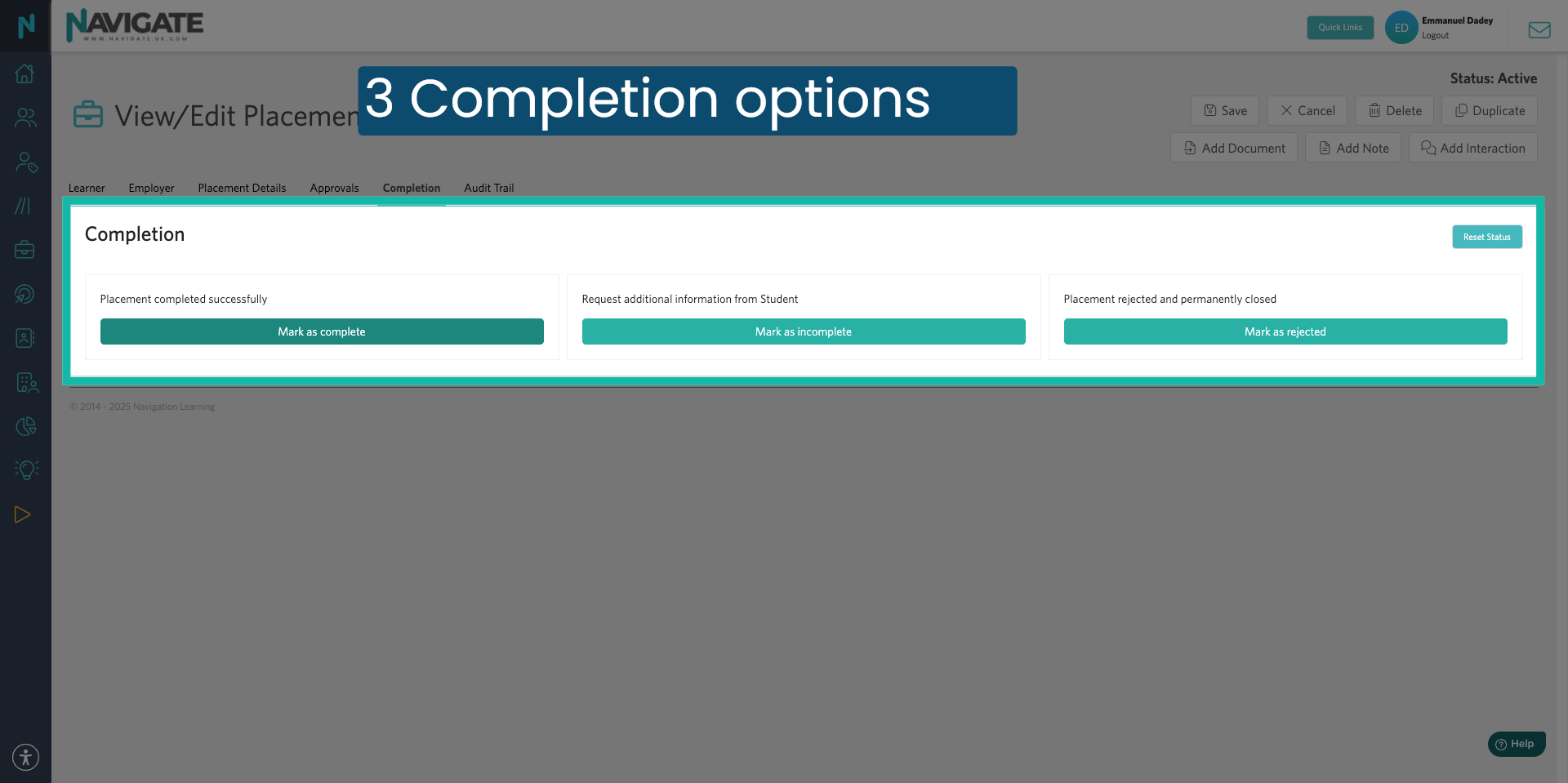
In the completion panel, you have three options.
7. Mark Placement as Complete
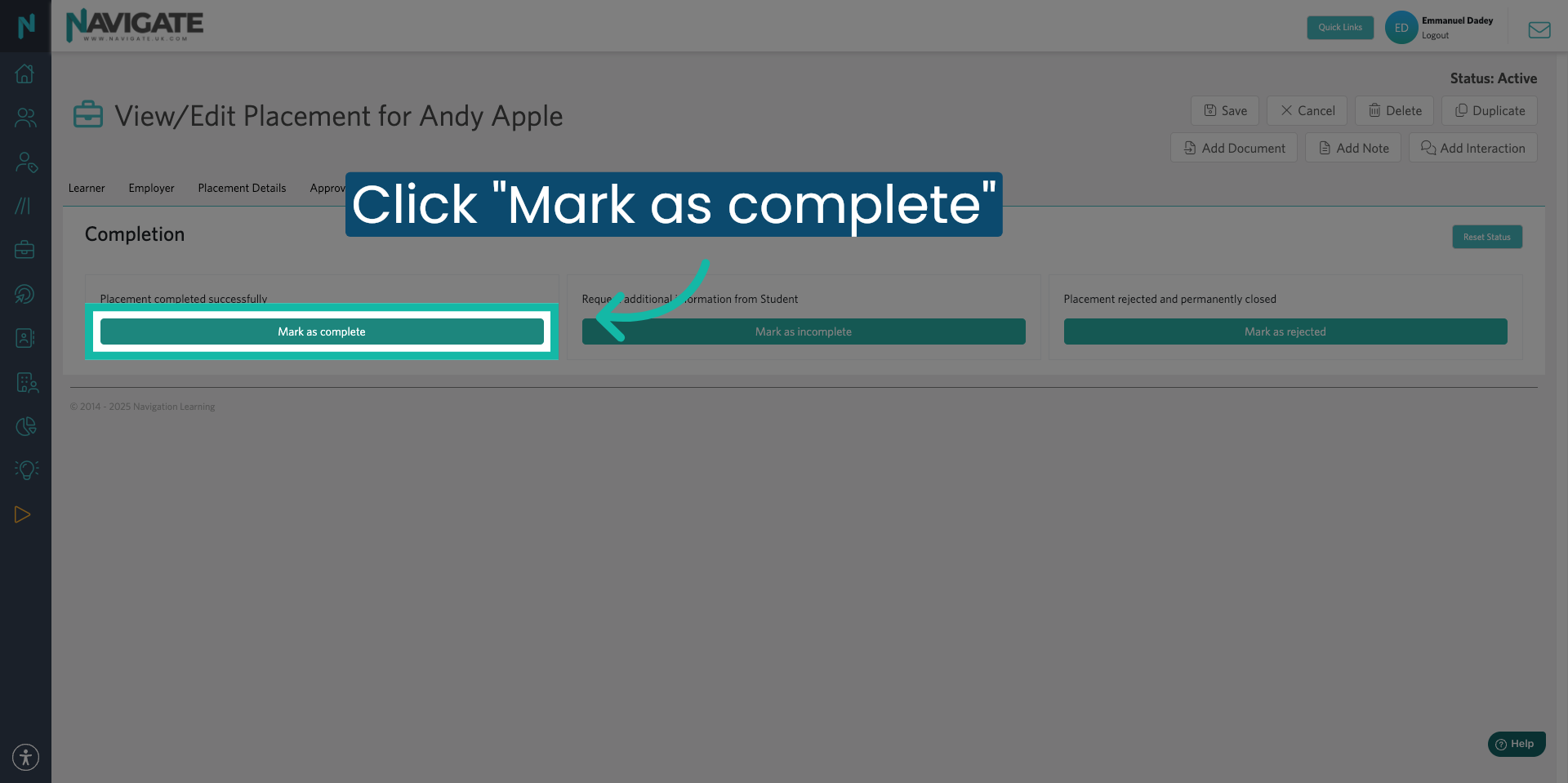
Mark placement is complete. Click on 'Mark as complete' if you are happy that all of the data in the record is correct.
8. Complete Popup Form
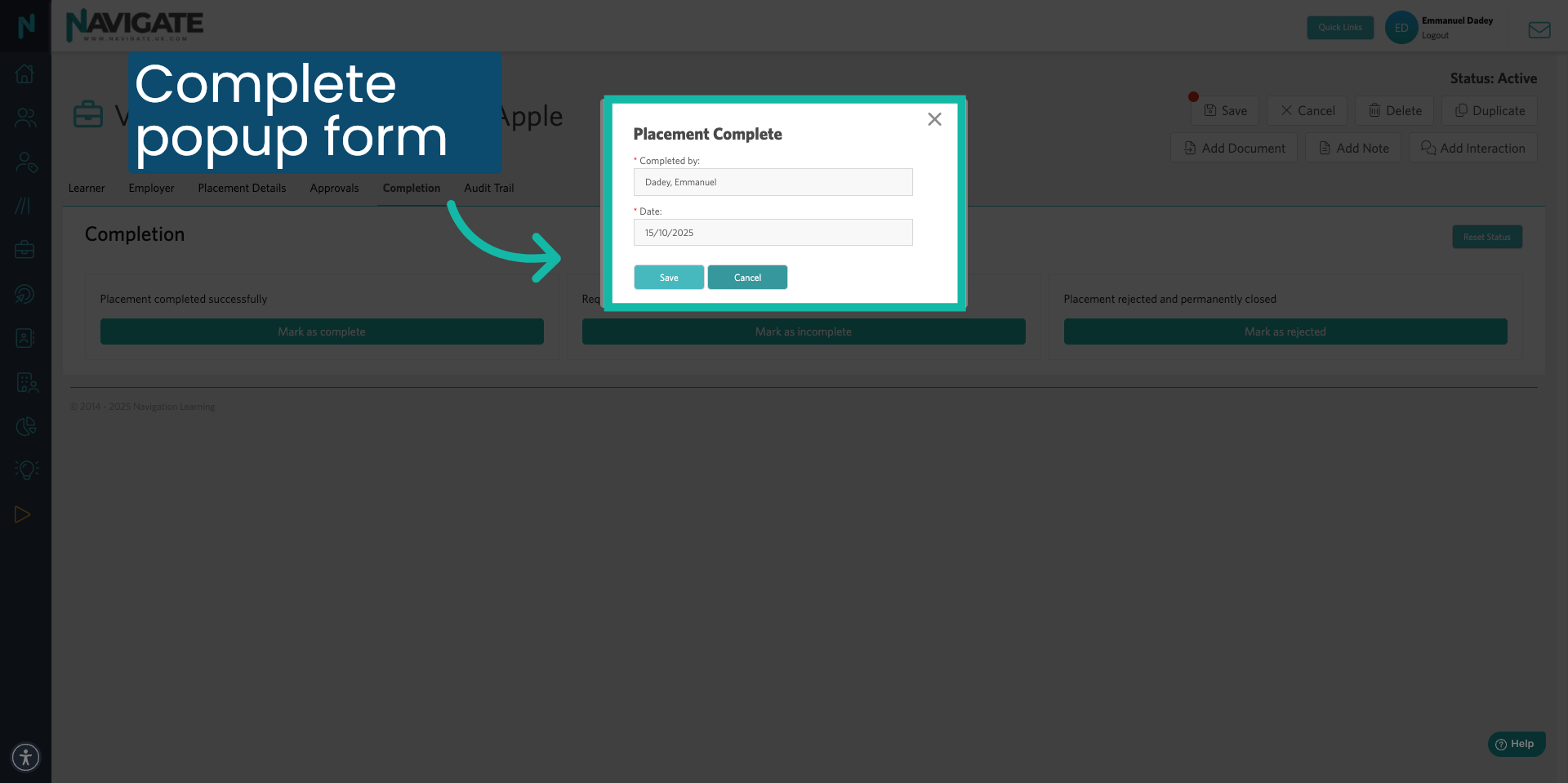
Fill out the pop-up box by adding your name and the date you are marking this placement as complete, then click save.
9. Mark Placement as Incomplete
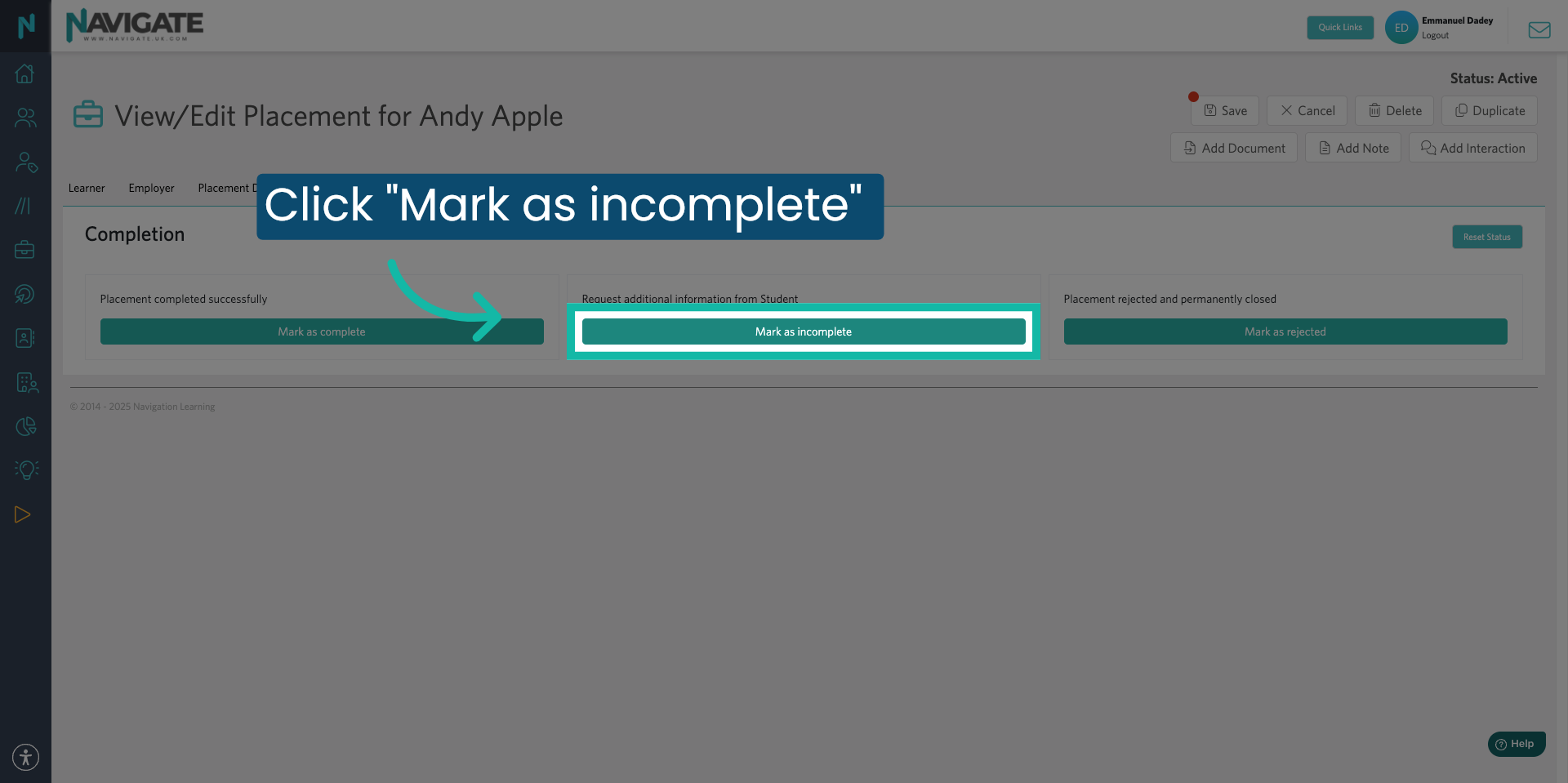
Mark placement is incomplete. Click on Marcus incomplete if you'd like to request further information from the student. This option would be used, for example, if the student has not provided enough evidence in their placement journal entries or they haven't completed their placement feedback.
10. Complete Popup Form
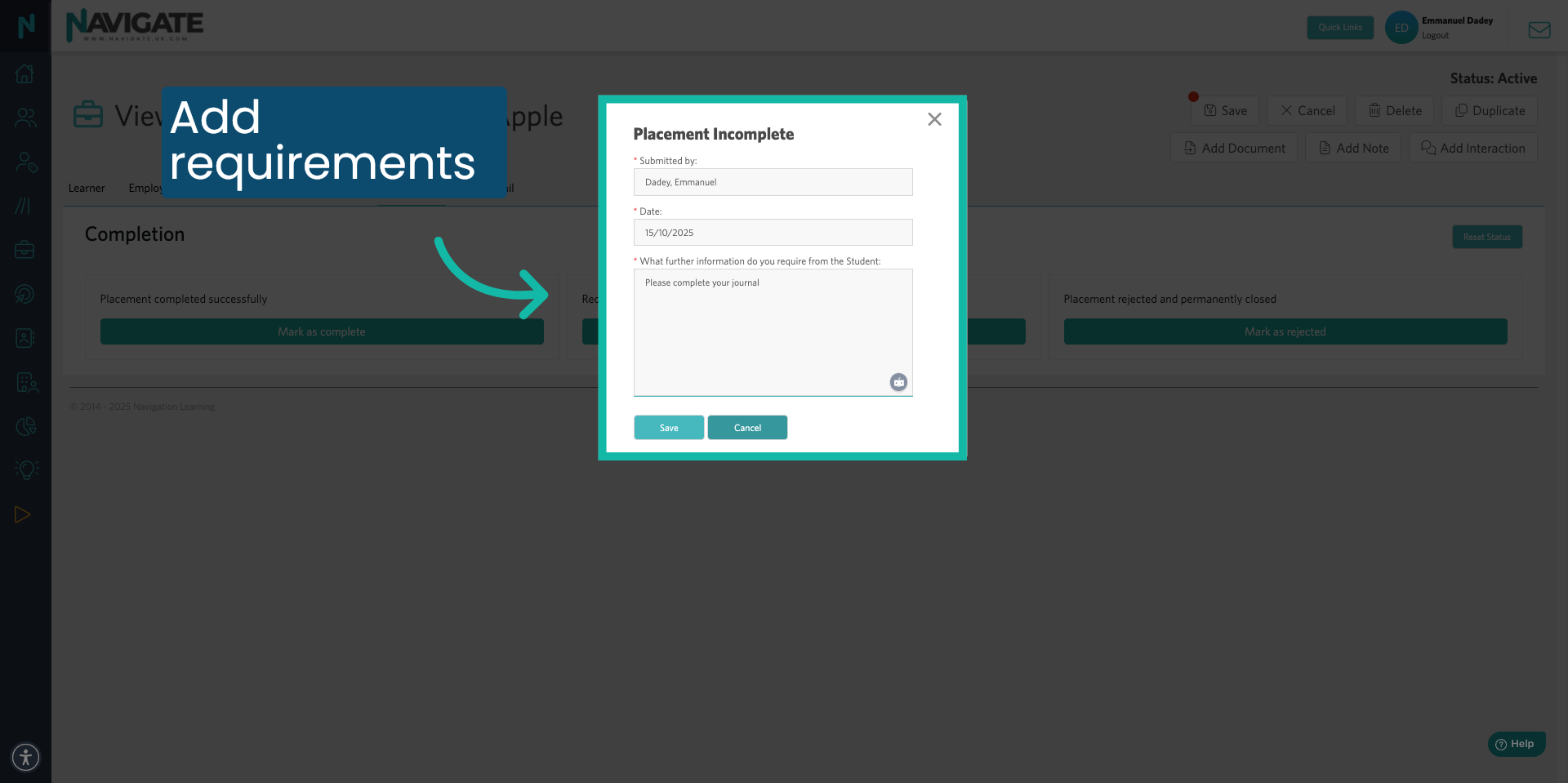
In the pop-up box, add your name and date. In the further information box, you can let the student know what further information you require from them. The student will then be able to see this feedback from the student site.
11. Click Save
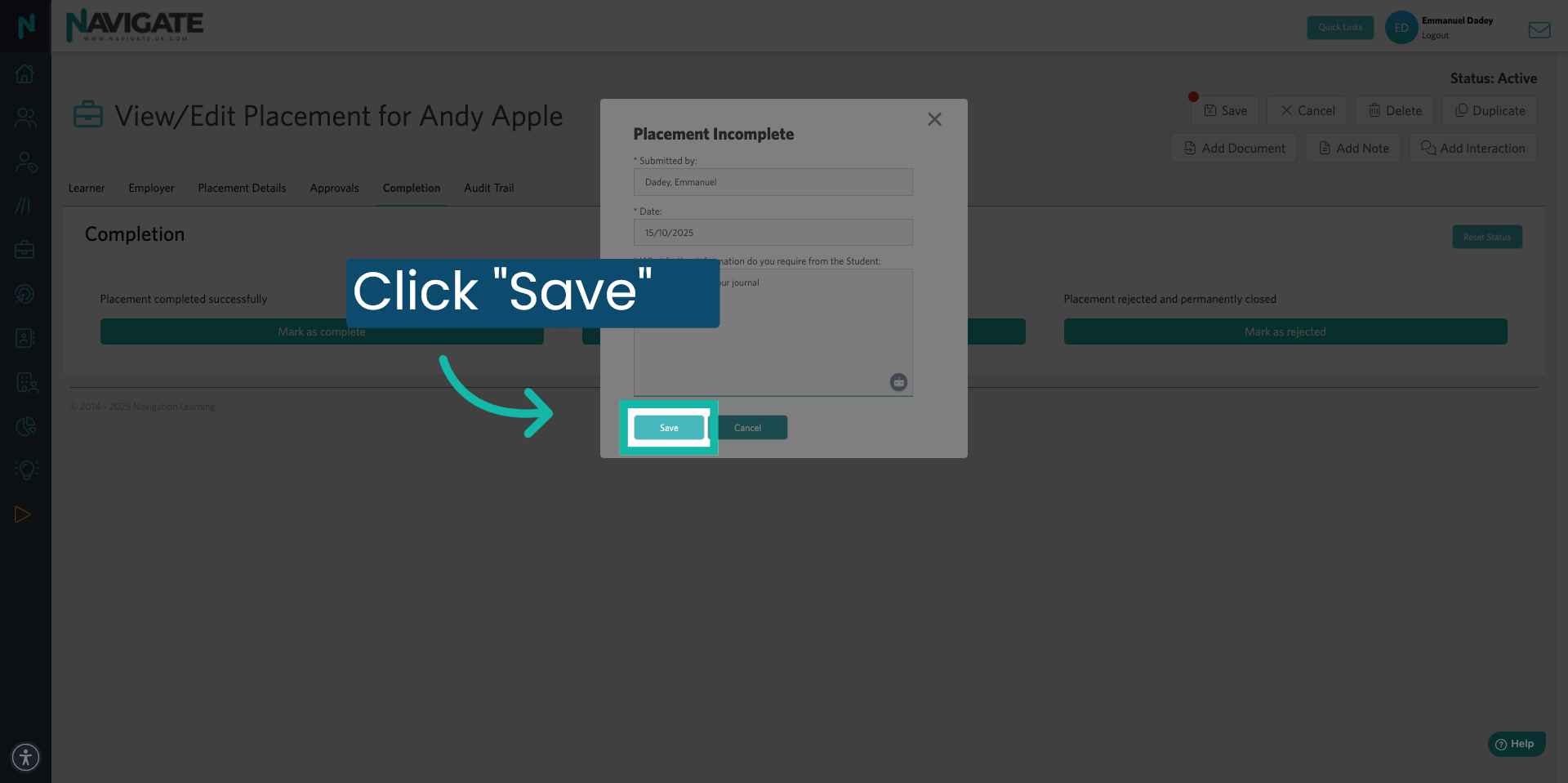
Click save when done.
12. Mark Placement as Rejected
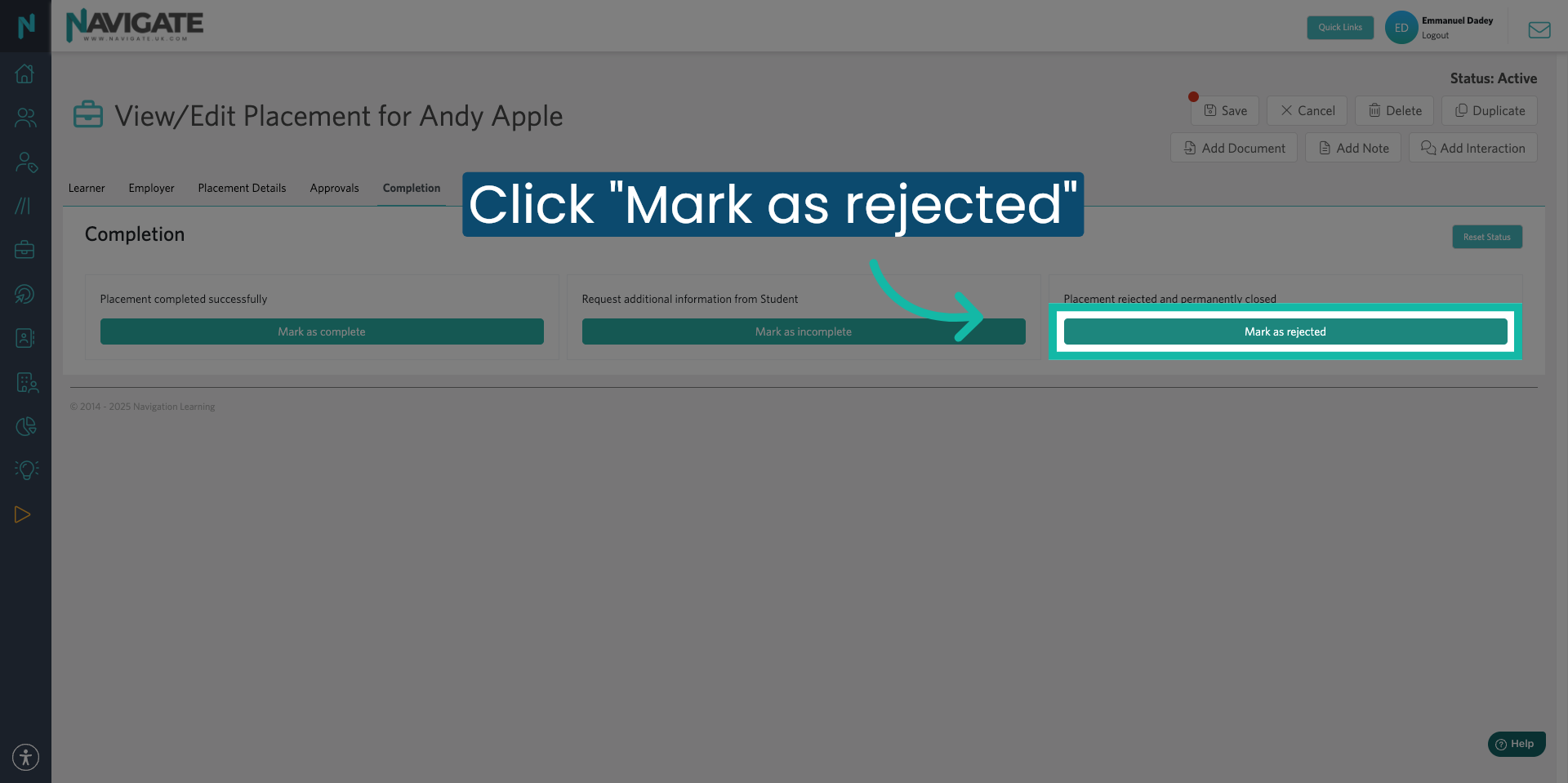
Mark placement as rejected; click on 'Mark as rejected' if you would like to reject the placement and permanently close it.
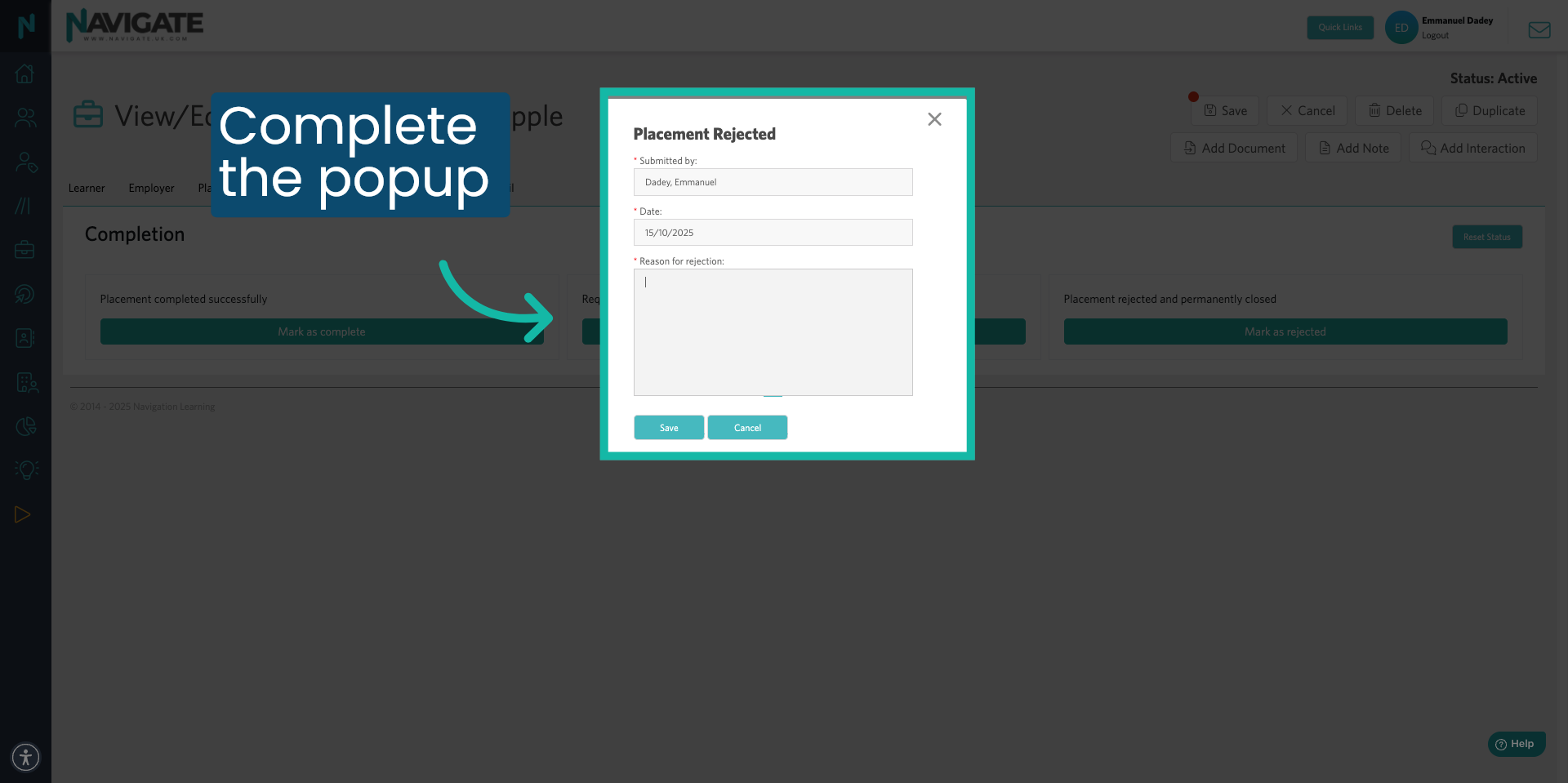
13. Complete the Popup
Click 'reason for rejection' to provide the reason for rejecting the placement. This option would be used if the placement did not go ahead, for example.
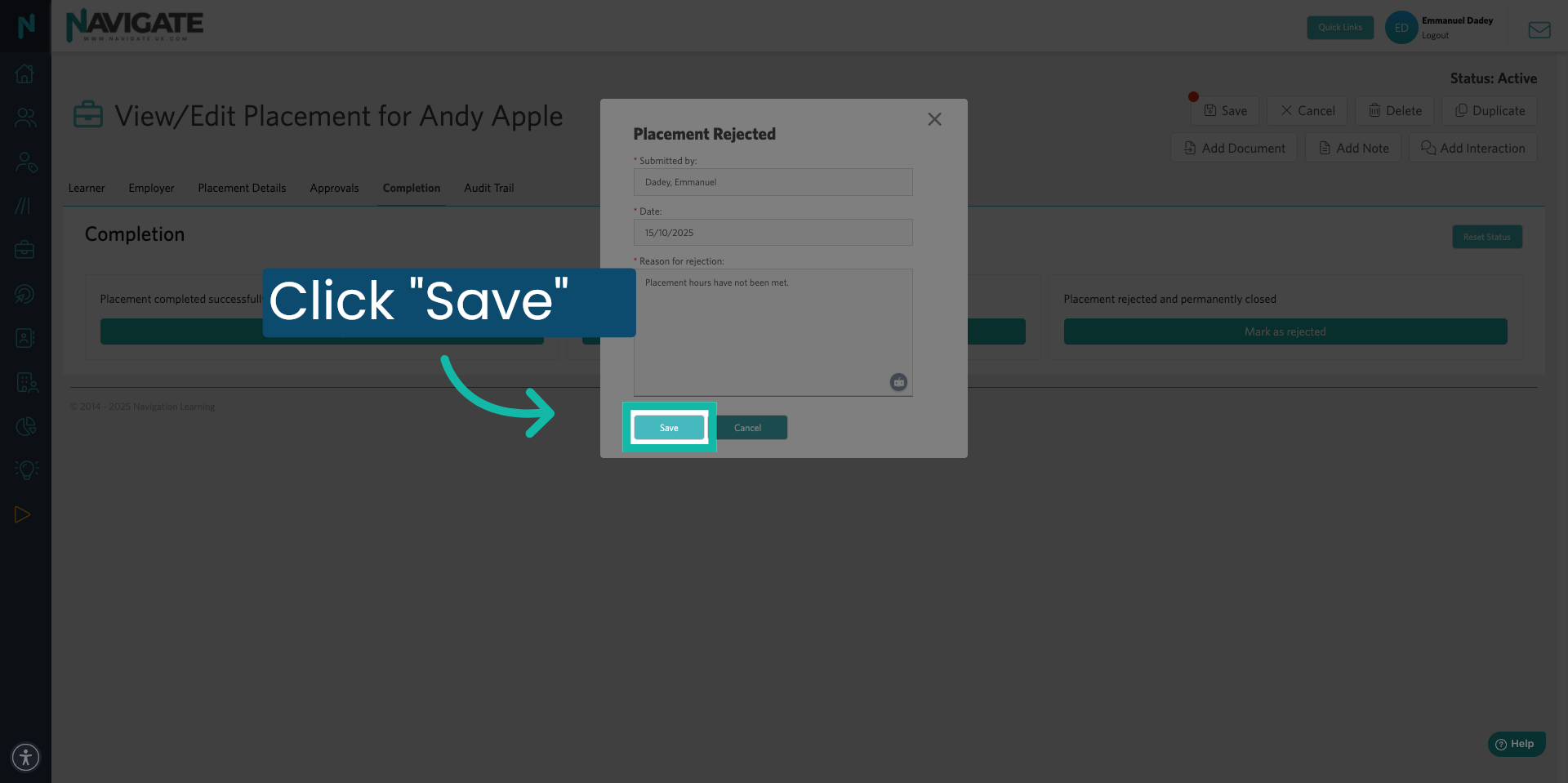
14. Click Save
Click save when done. It's important to mention that once a placement has been moved from a live status to either complete or complete, requesting further information, you can no longer resend attendance emails to the employer.
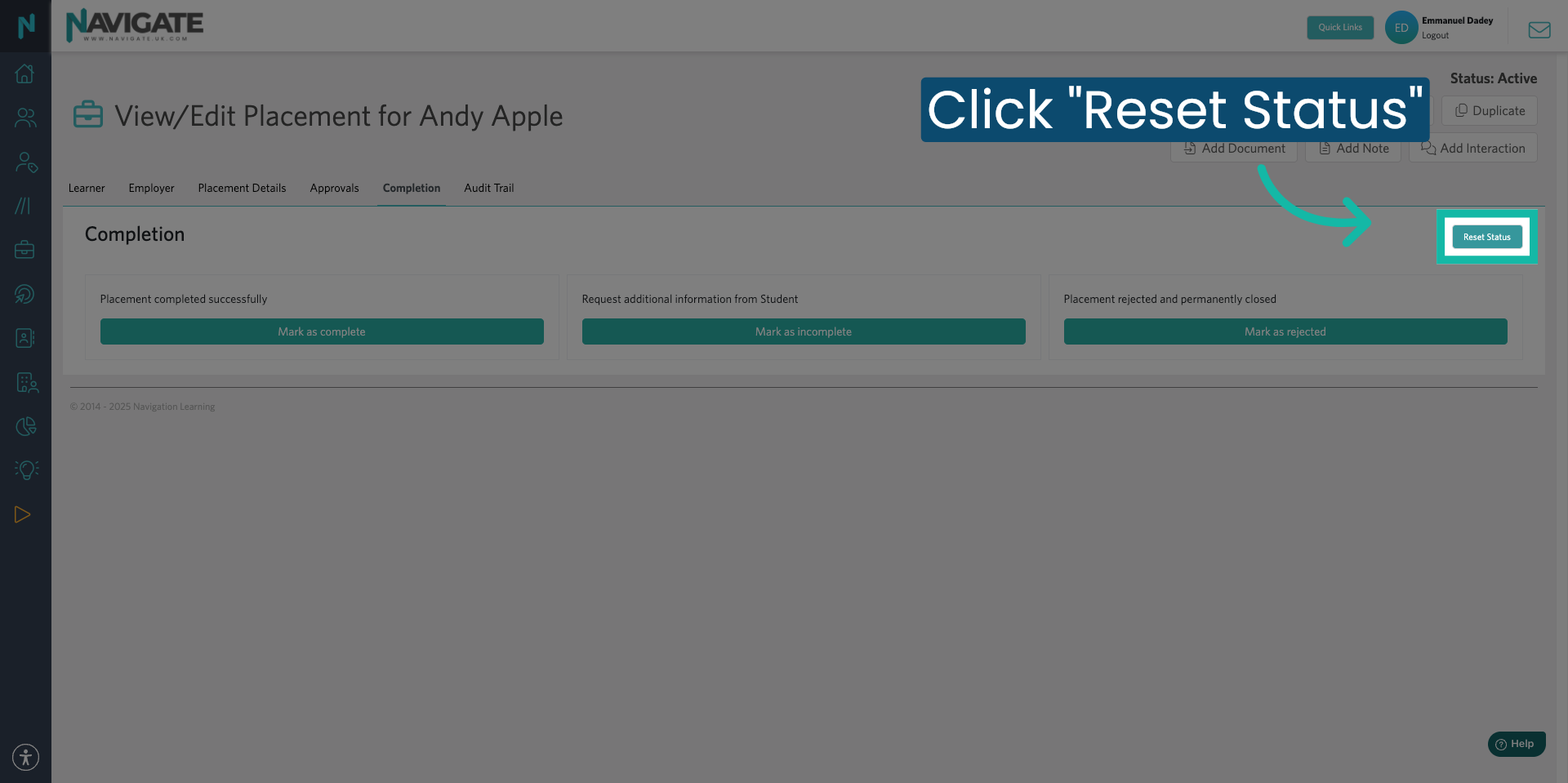
15. Reset Status
If staff or a student need to edit the placement or send emails after the placement has been marked as complete, you will need to change the placement status. You can do this by resetting the status. Click 'Reset status'.
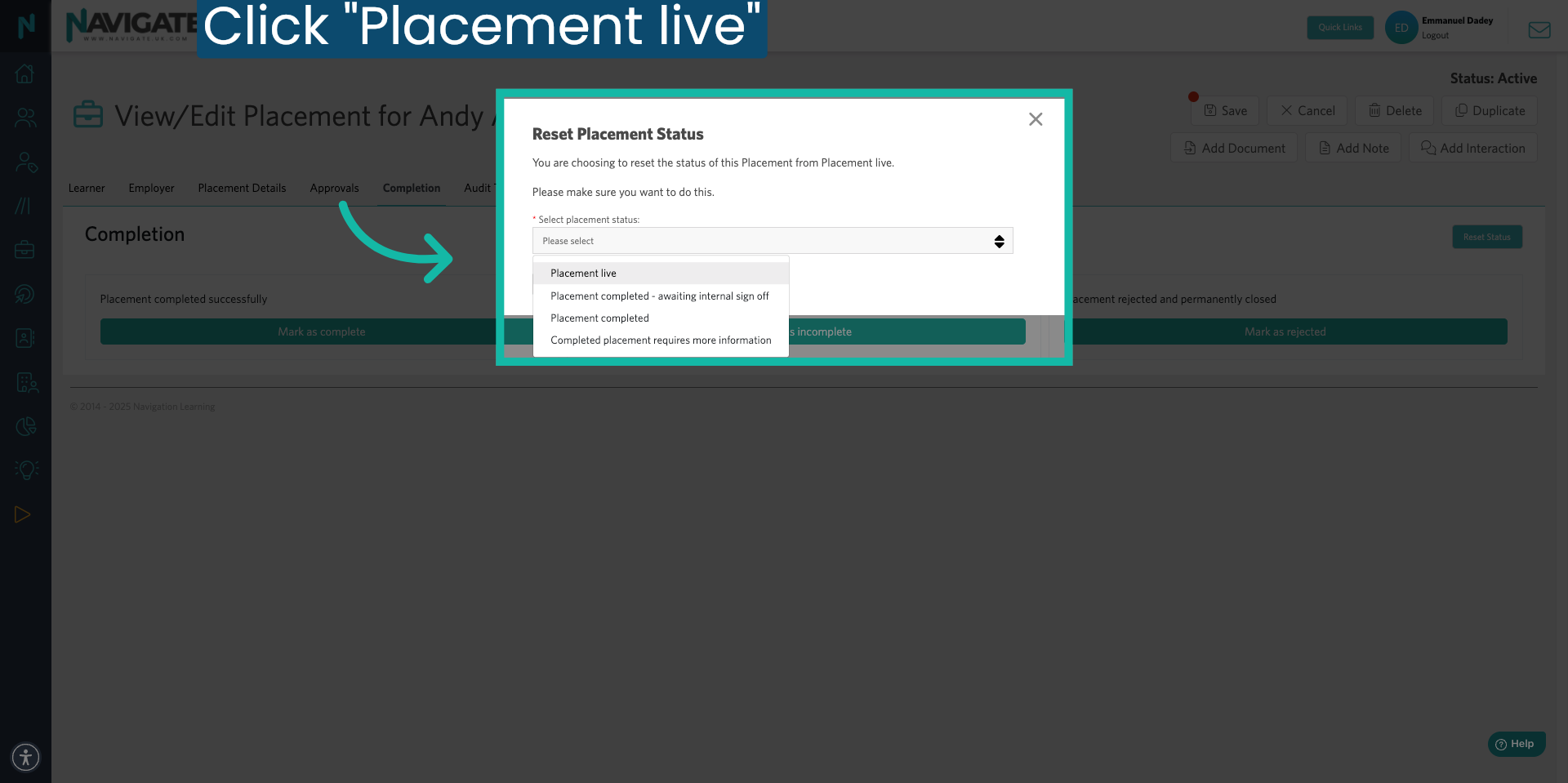
16. Select Status To Revert To
Select the status you wish to revert back to. To make any change to the placement, select placement live. Once changes are completed, you can return and mark the placement as complete by following the previous steps.
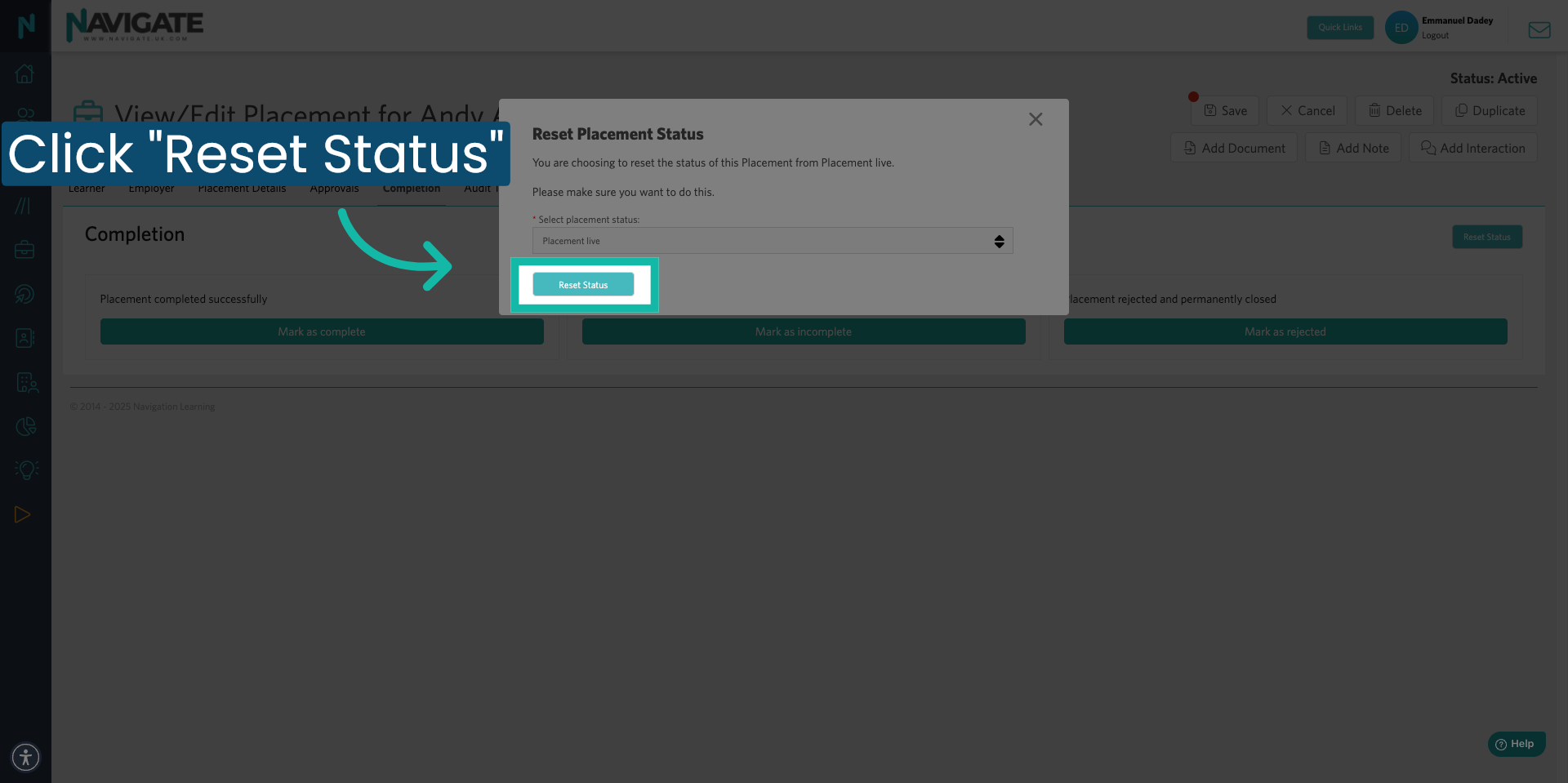
17. Confirm Reset Status
Click 'Reset status' to apply the selected status and reset the placement.
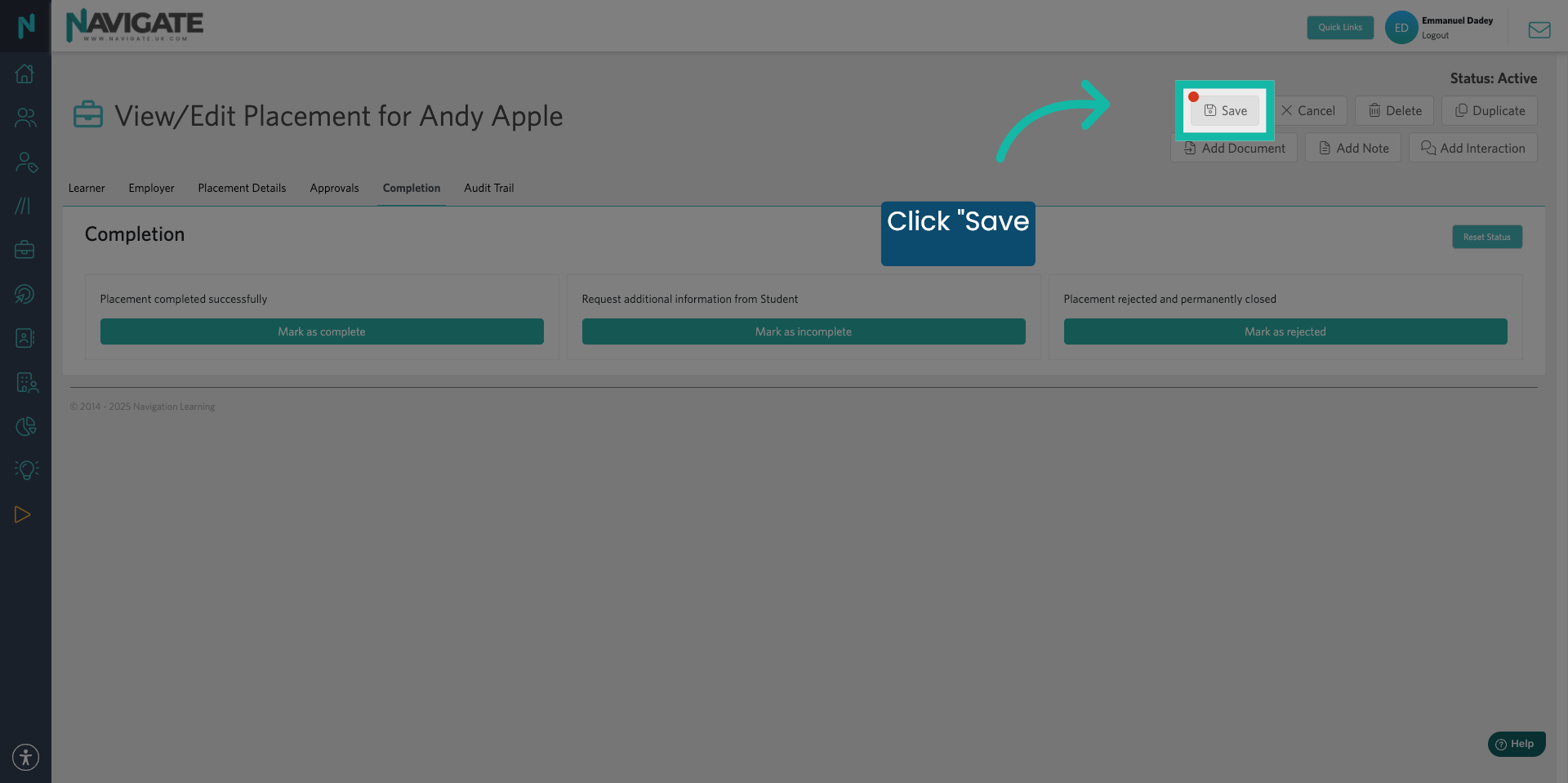
18. Save Changes to Placement
You should always scroll to the top of the page and click save whenever you make any changes to the placement record.
Was this article helpful?
That’s Great!
Thank you for your feedback
Sorry! We couldn't be helpful
Thank you for your feedback
Feedback sent
We appreciate your effort and will try to fix the article