This tutorial guides you through assigning a T Level review to another staff member for completion.
Go to login.navigate.uk.com
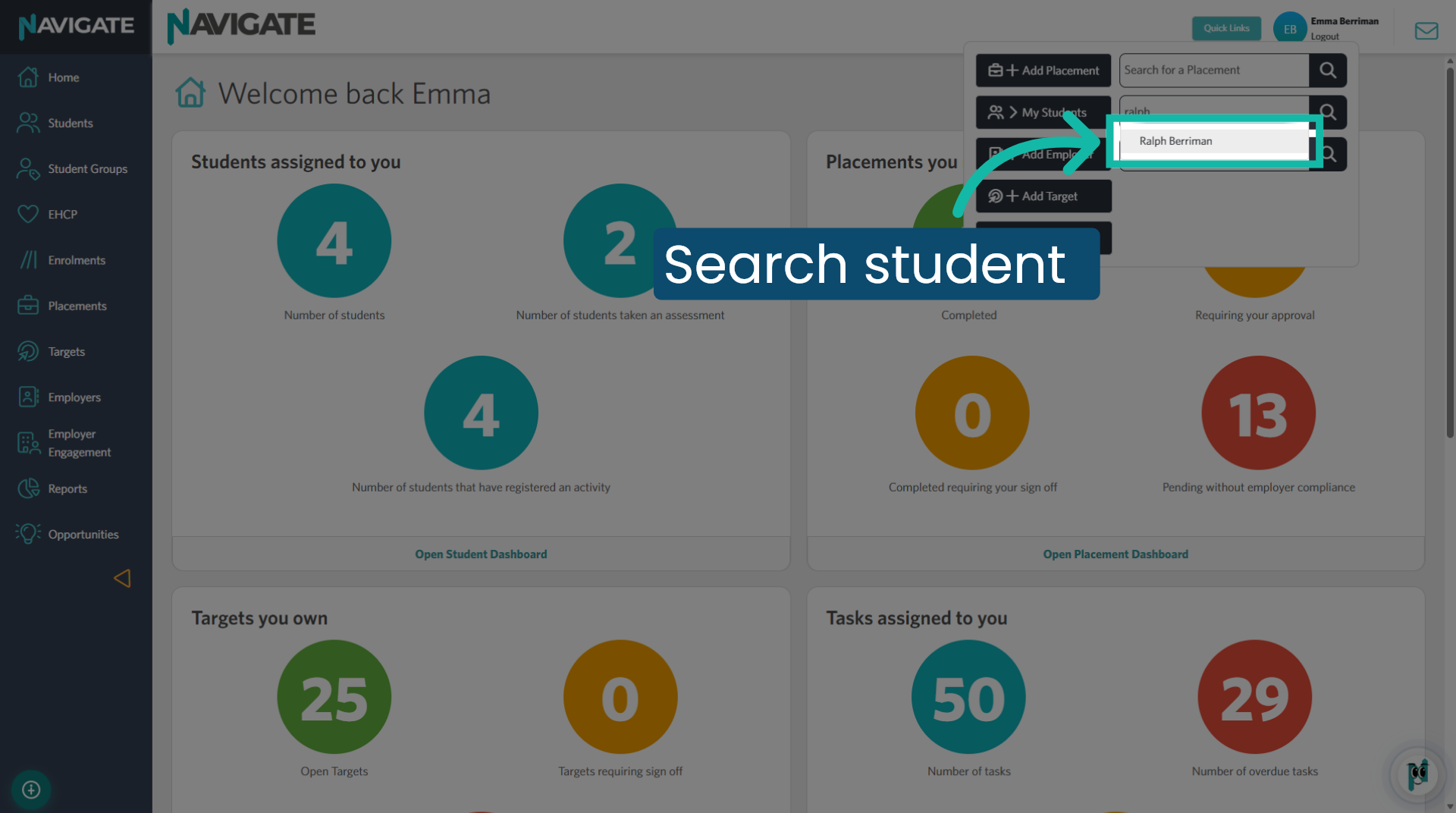
1. Search for a Student
Using Quick Links, type the student's name into the 'Search for a student' box.
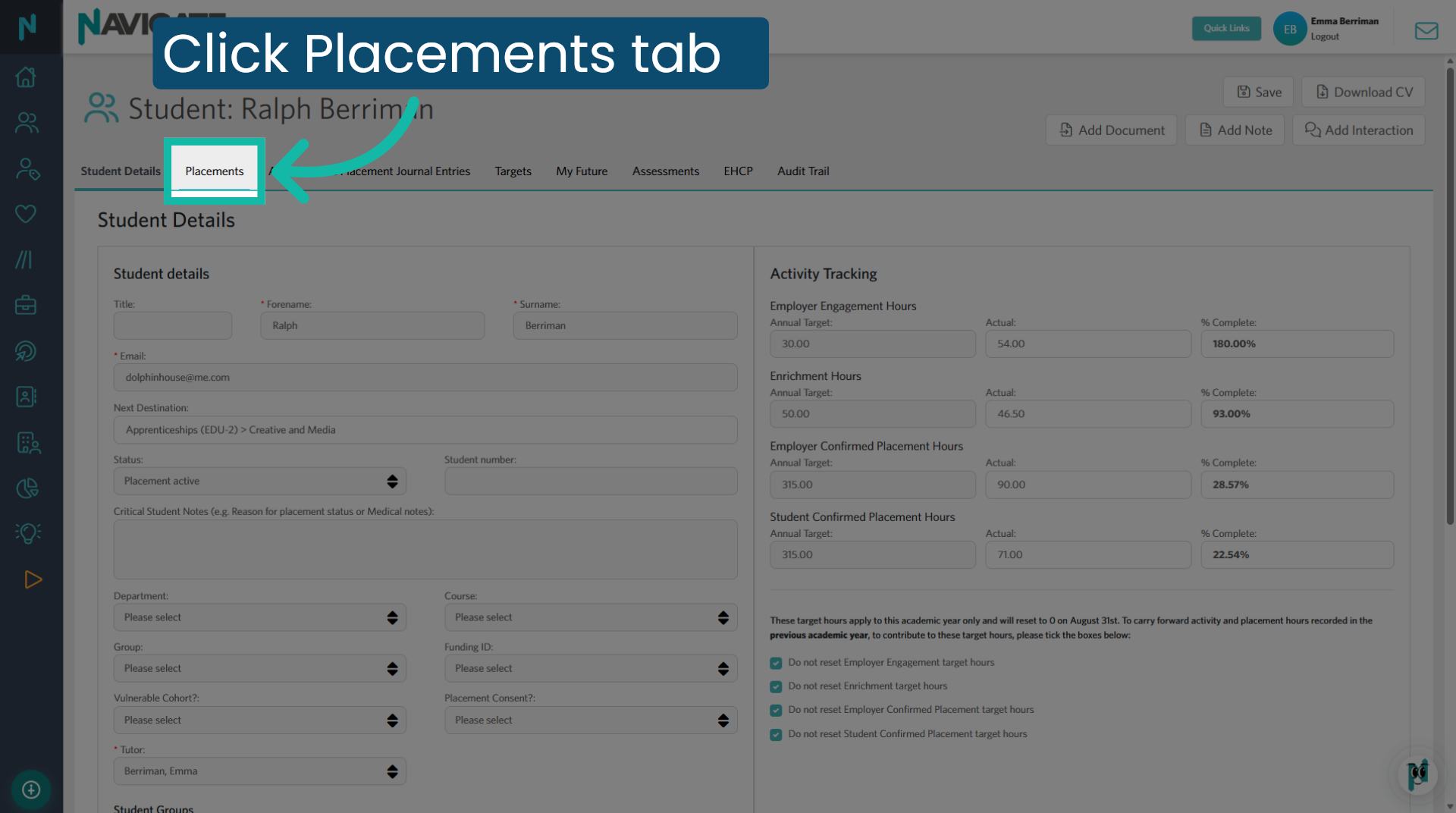
2. Click on the placements tab
Click the Placements tab to view placement details for the selected student.
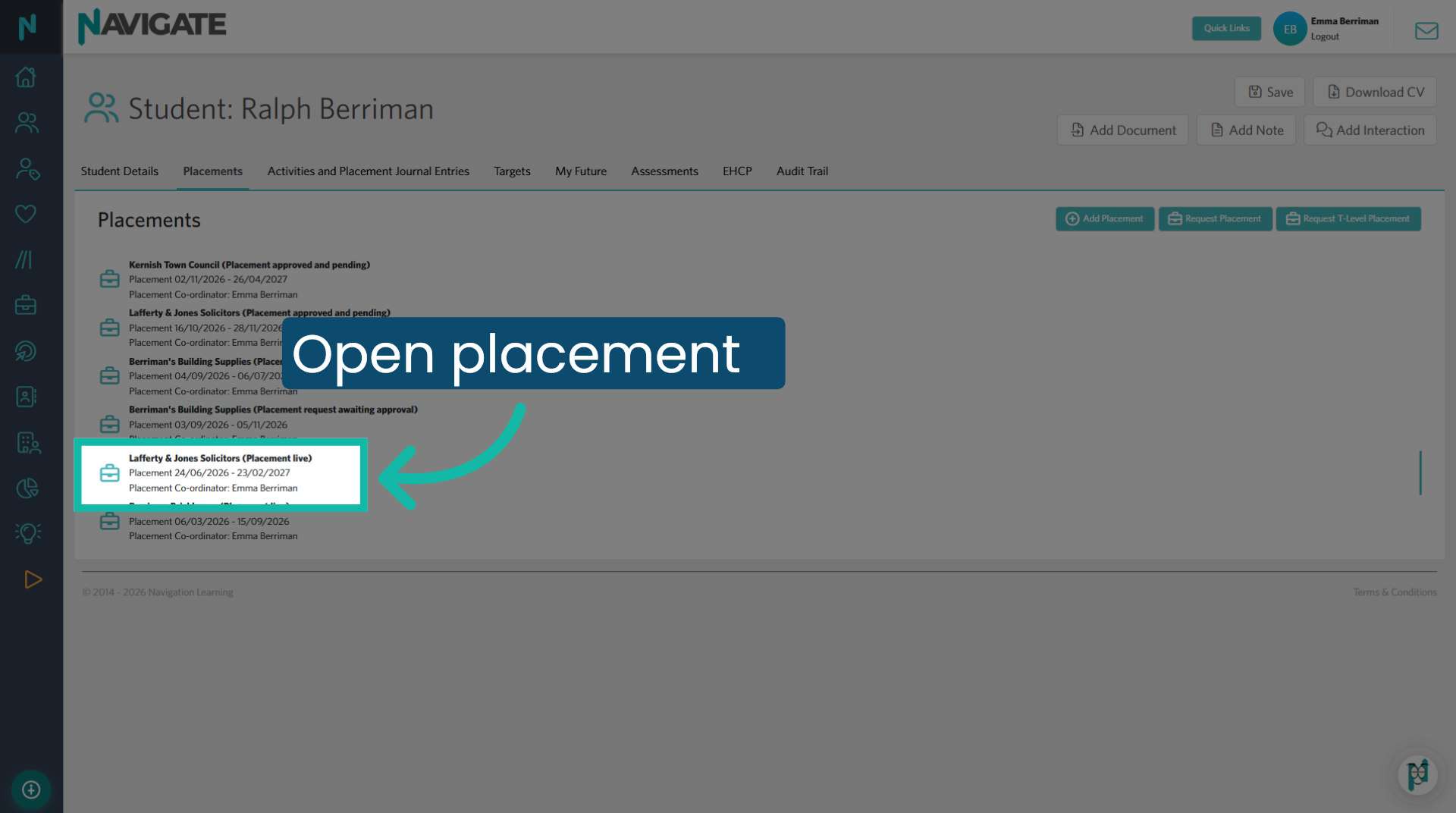
3. Select the Specific Placement Record
Select the active placement record to view its details and make updates.
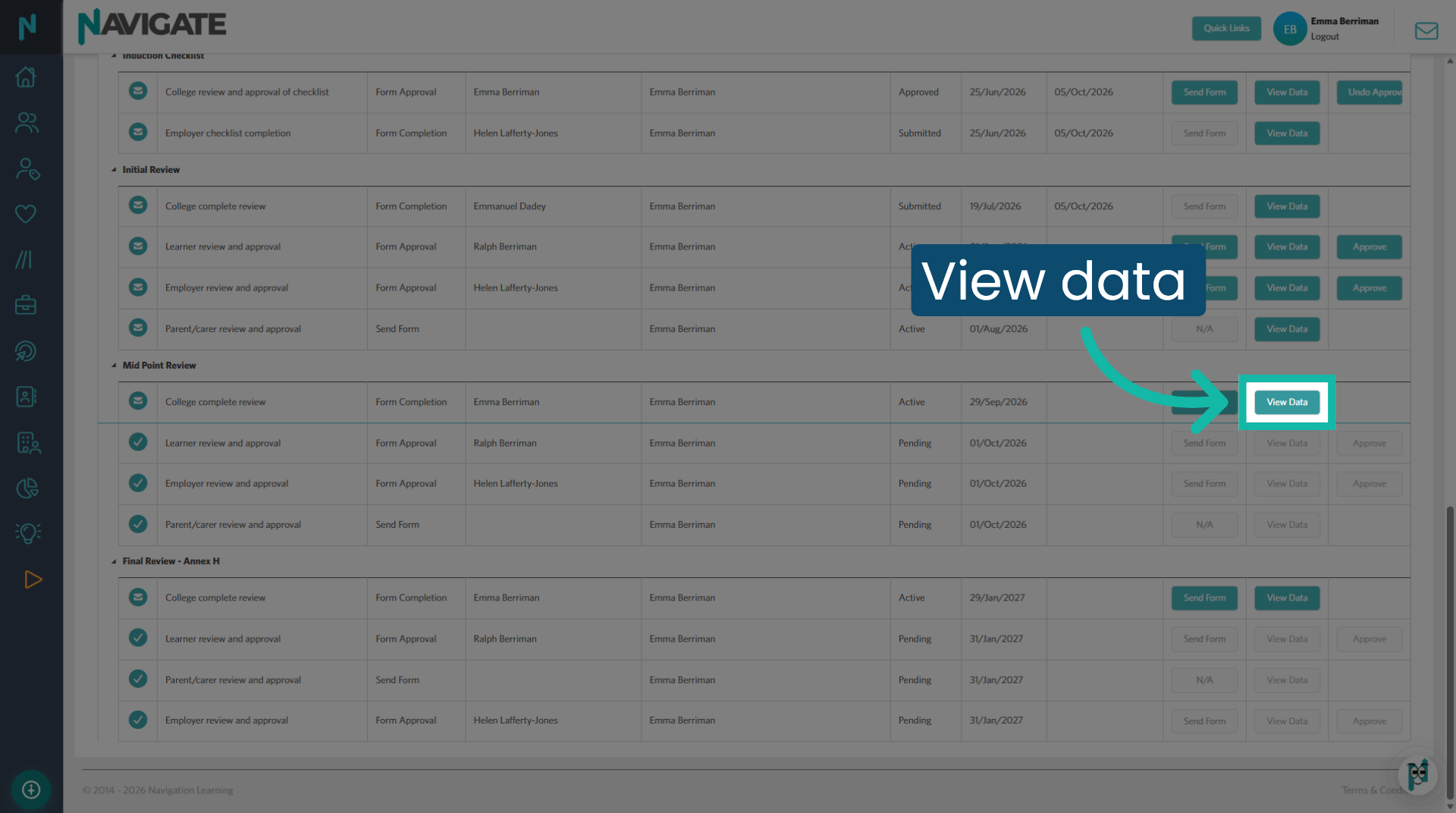
4. View Placement Data
Certain elements of the form can be added before transferring it to another staff member. Click "View Data" to add details to the review prior to sending it to another staff member for completion.
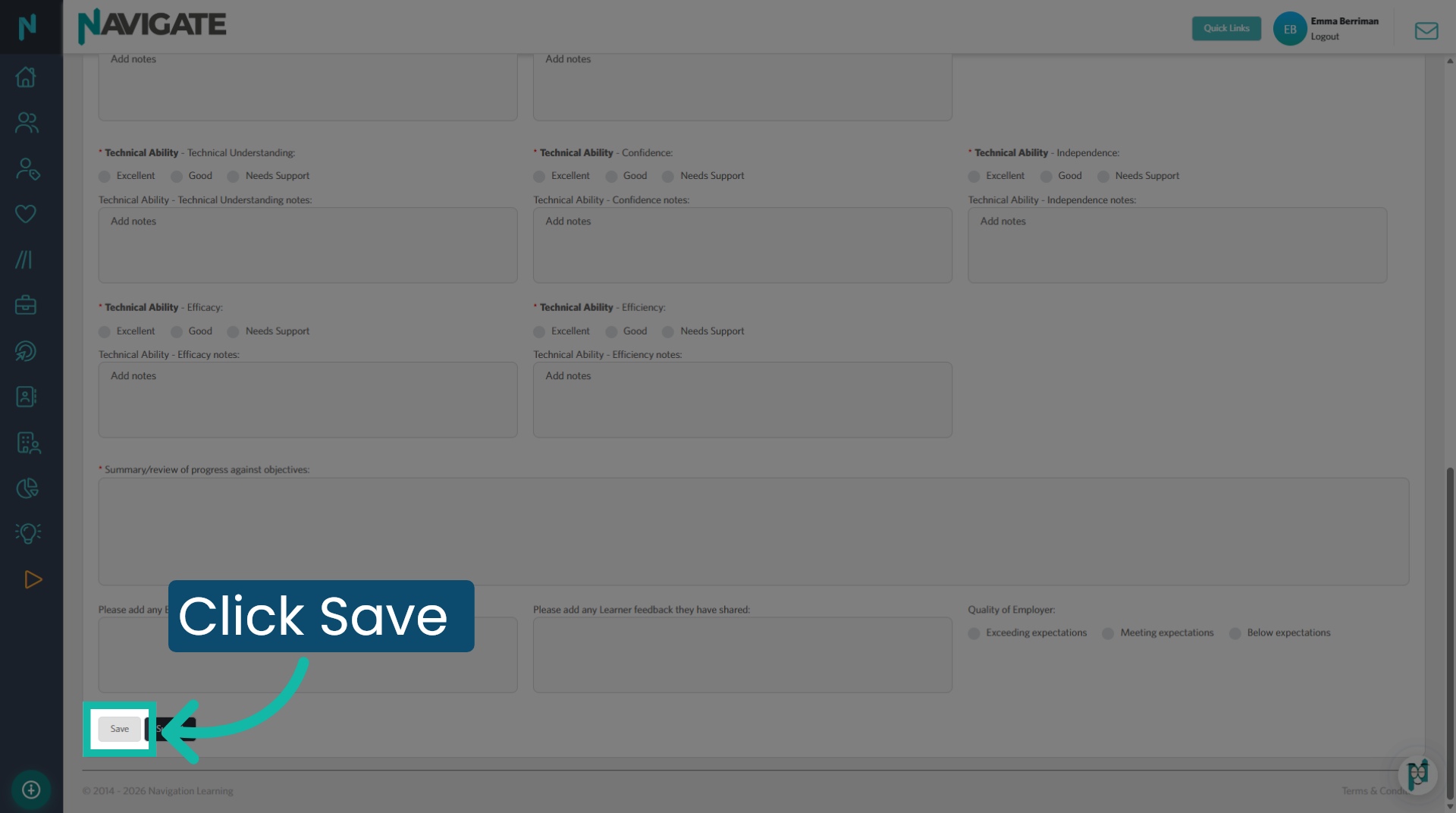
5. Save any changes
After making your edits to the form, be sure to click save.
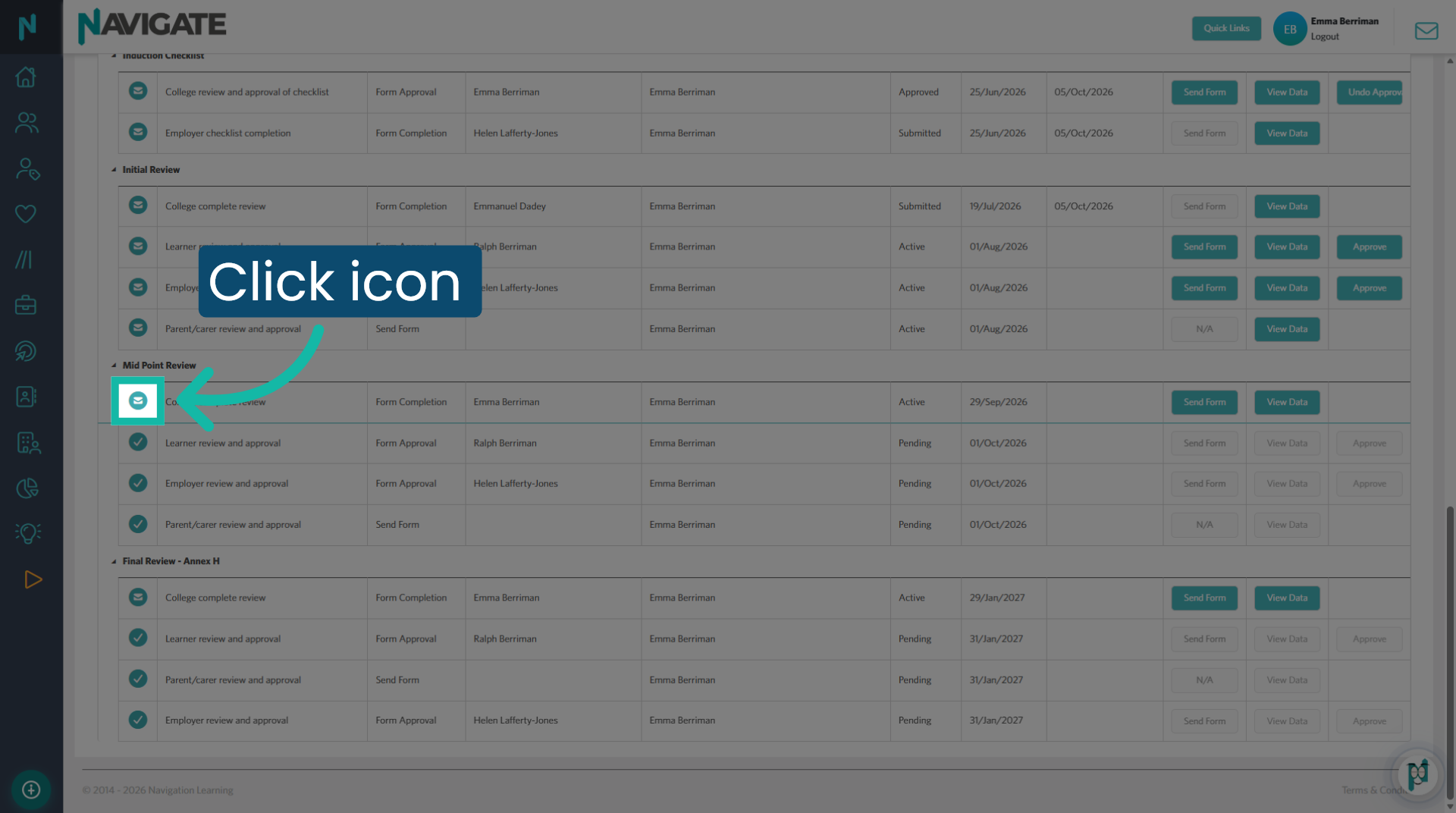
6. College complete review
To assign another staff member as 'responsible for completing the task', click the envelope icon in the 'College complete review' section.
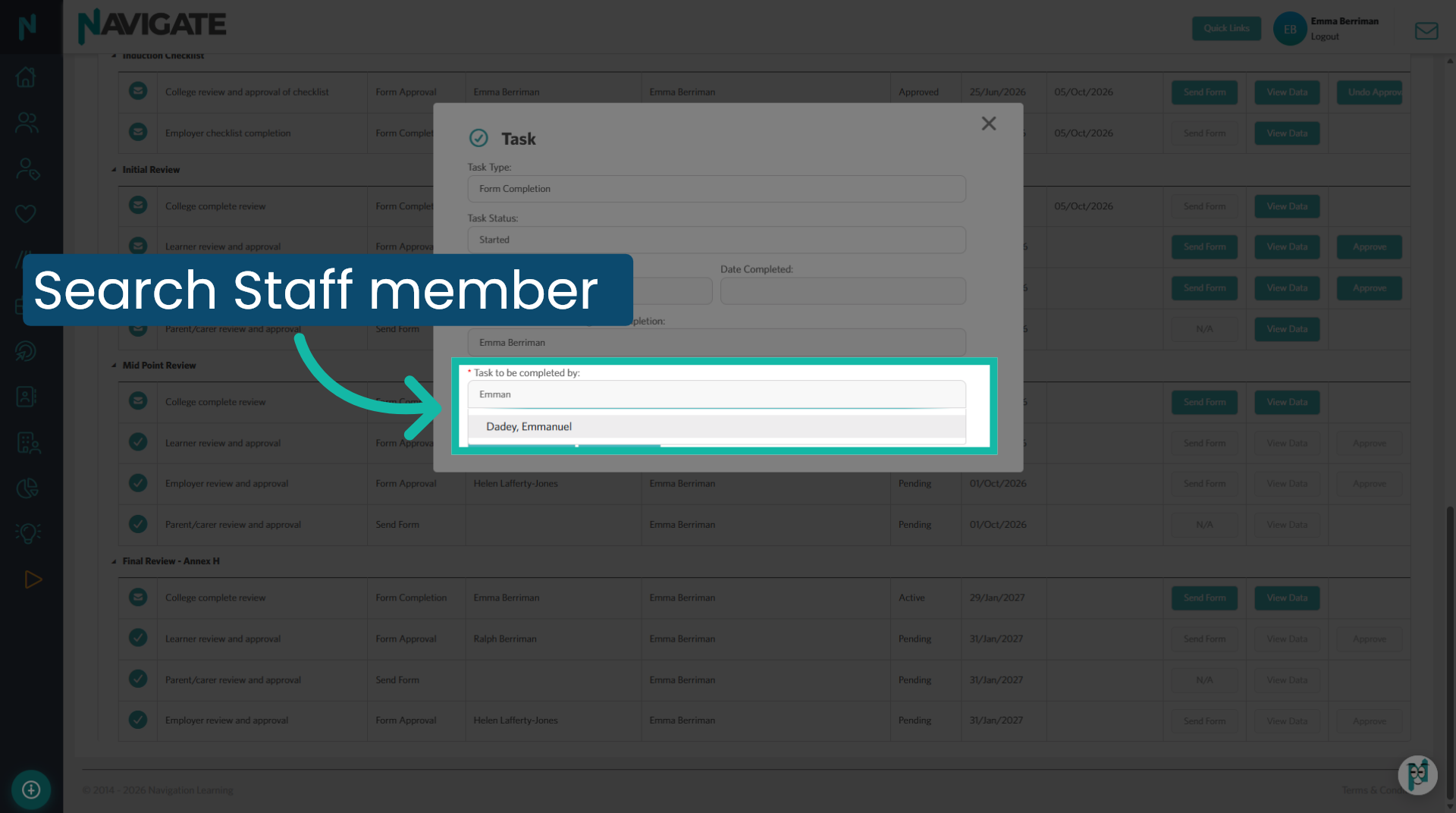
7. Add the staff member
In the 'task to be completed by' box, add the member of staff who will be completing the review.
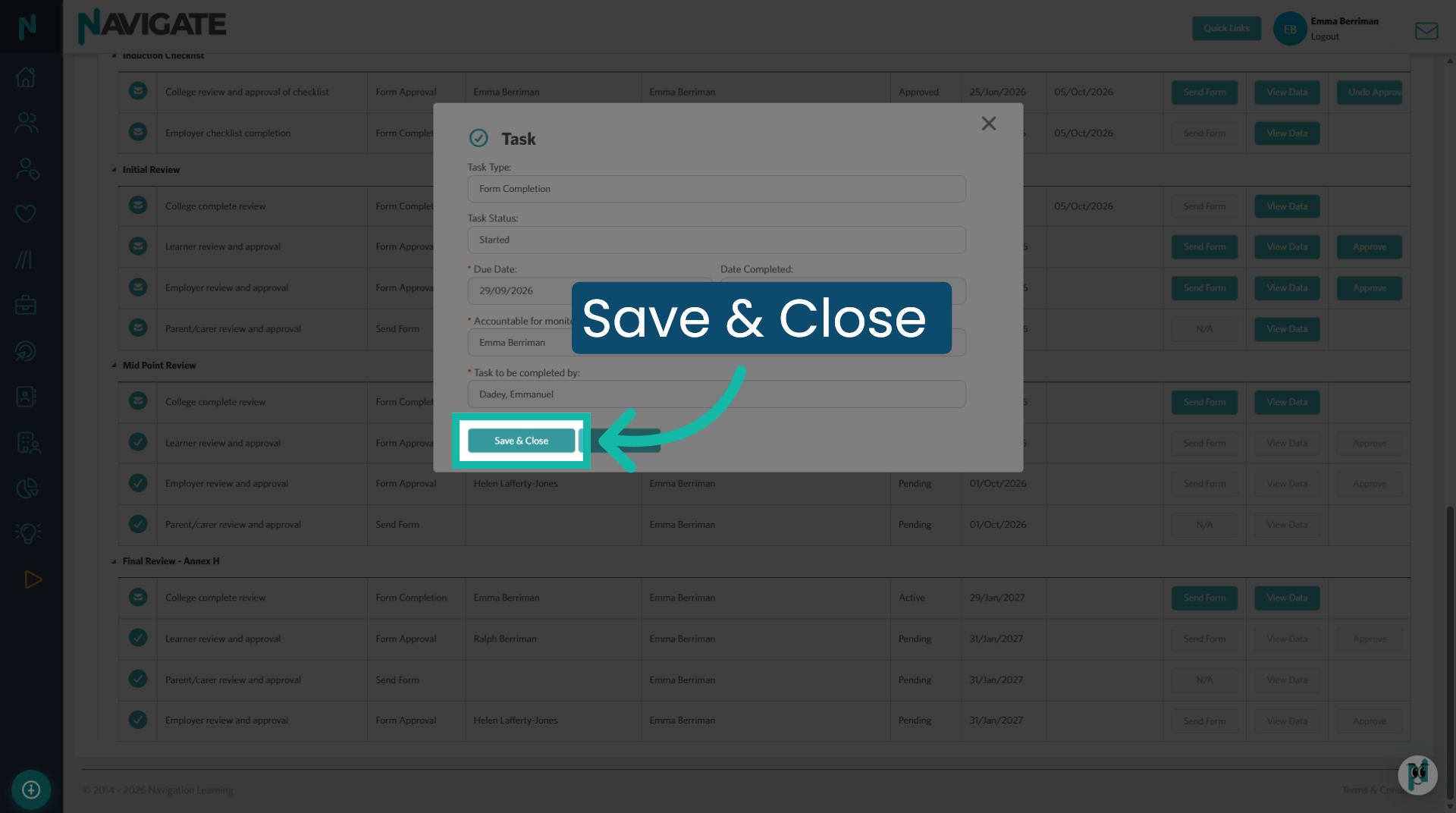
8. Save and Close
Click Save & Close to save your changes.
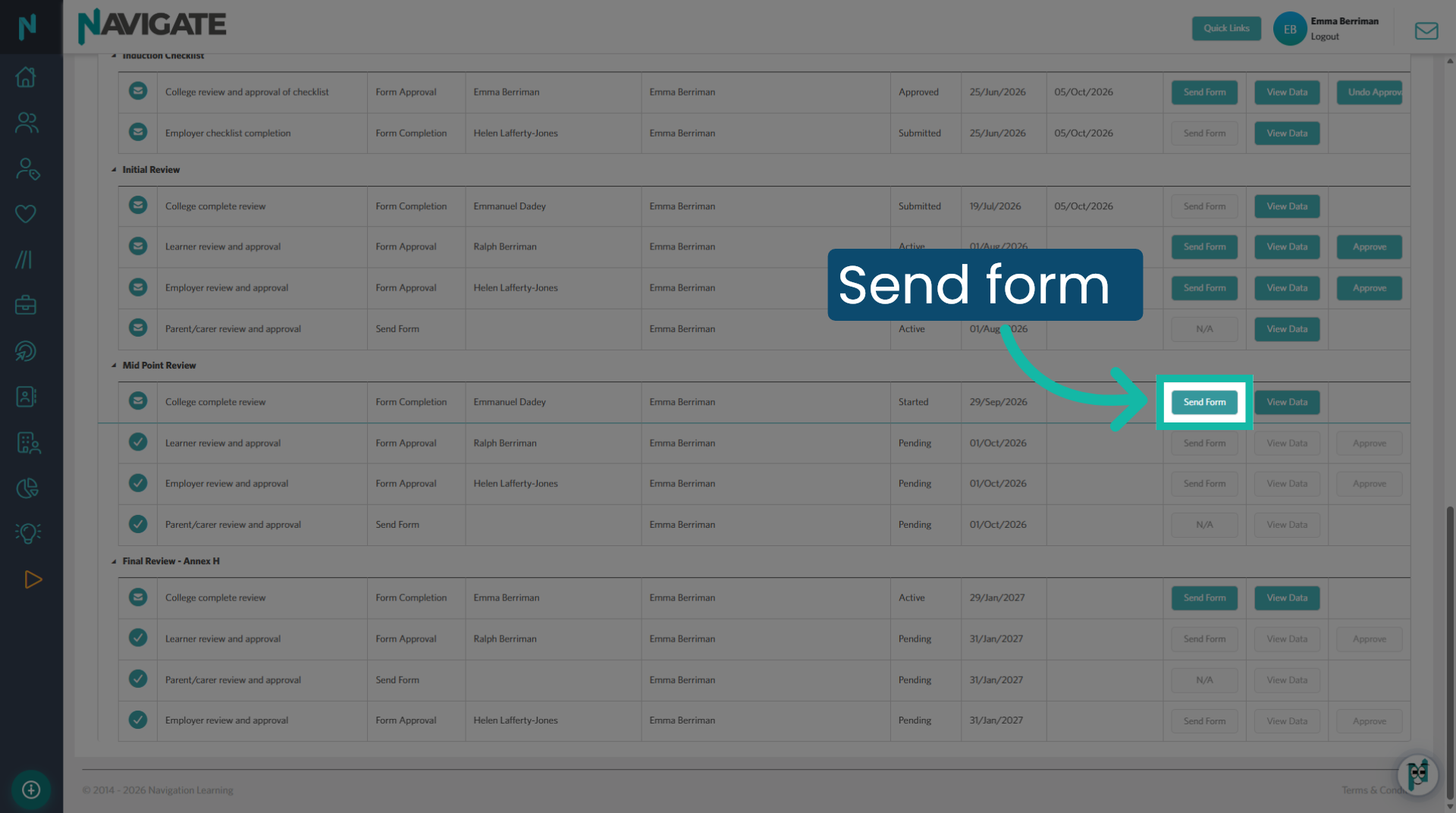
9. Send form
Click the Send Form button when you wish the staff member to receive the email from Navigate Learning advising them that they have been assigned a review to complete.
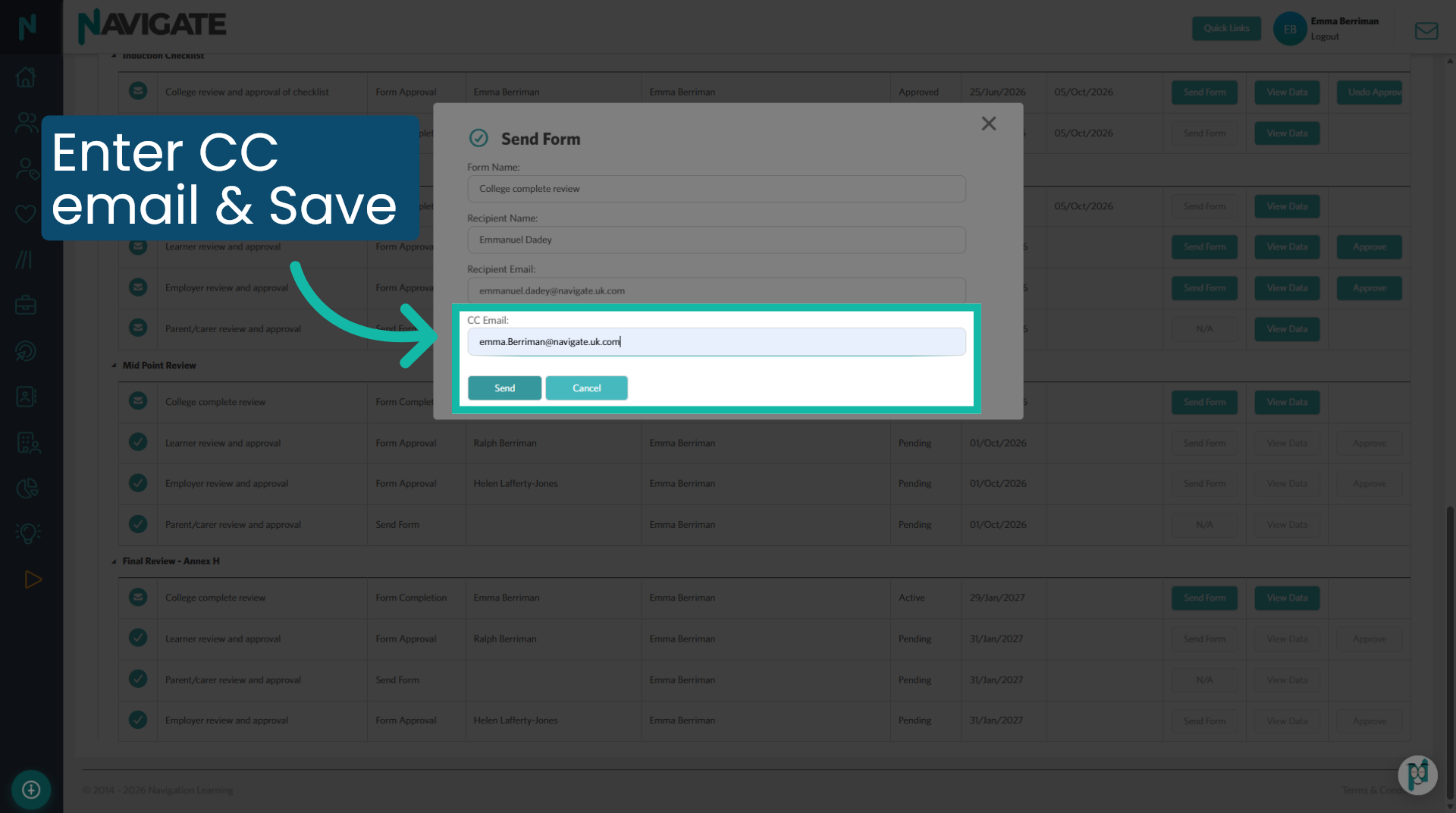
10. Copy in another staff member
If you would like to CC another staff member in the review email, please enter their email address in the 'CC Email' box. Click 'Send' when complete.
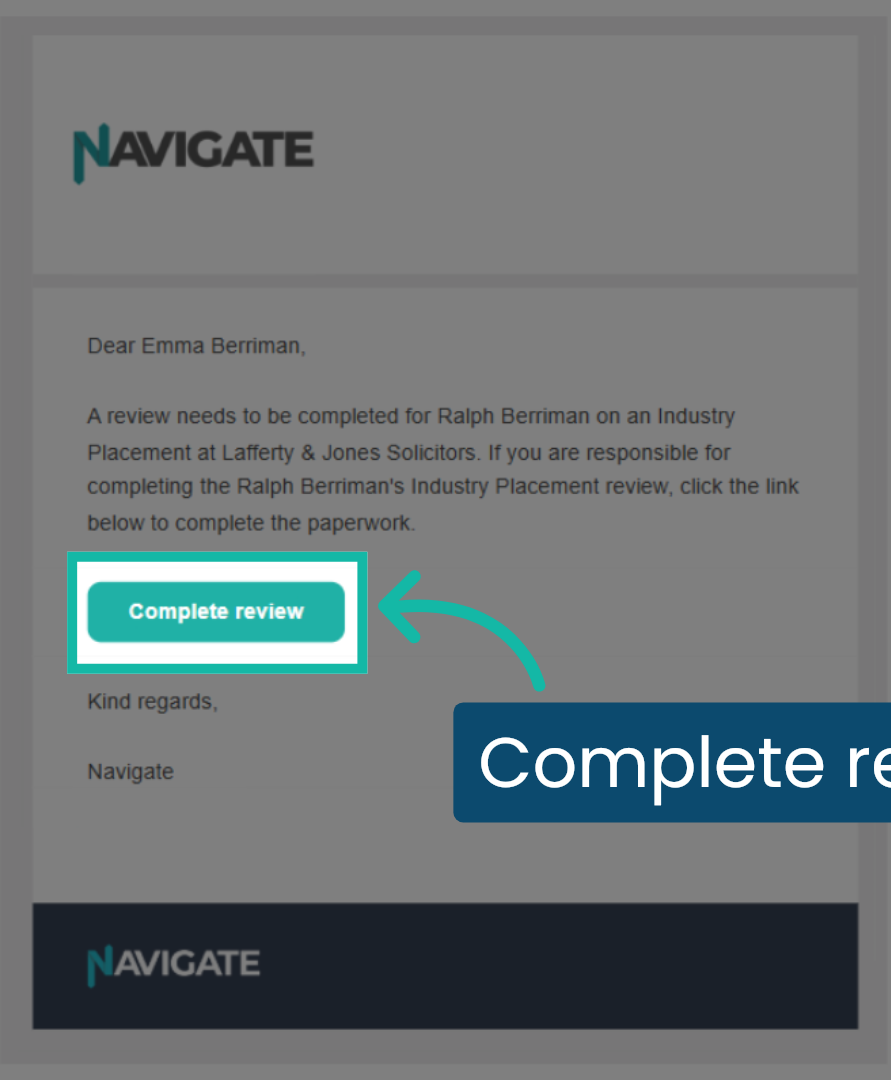
11. Review email
The staff member will receive an email from Navigate Learning to complete the review. They can simply click the 'complete review' button, which takes them directly to the form.
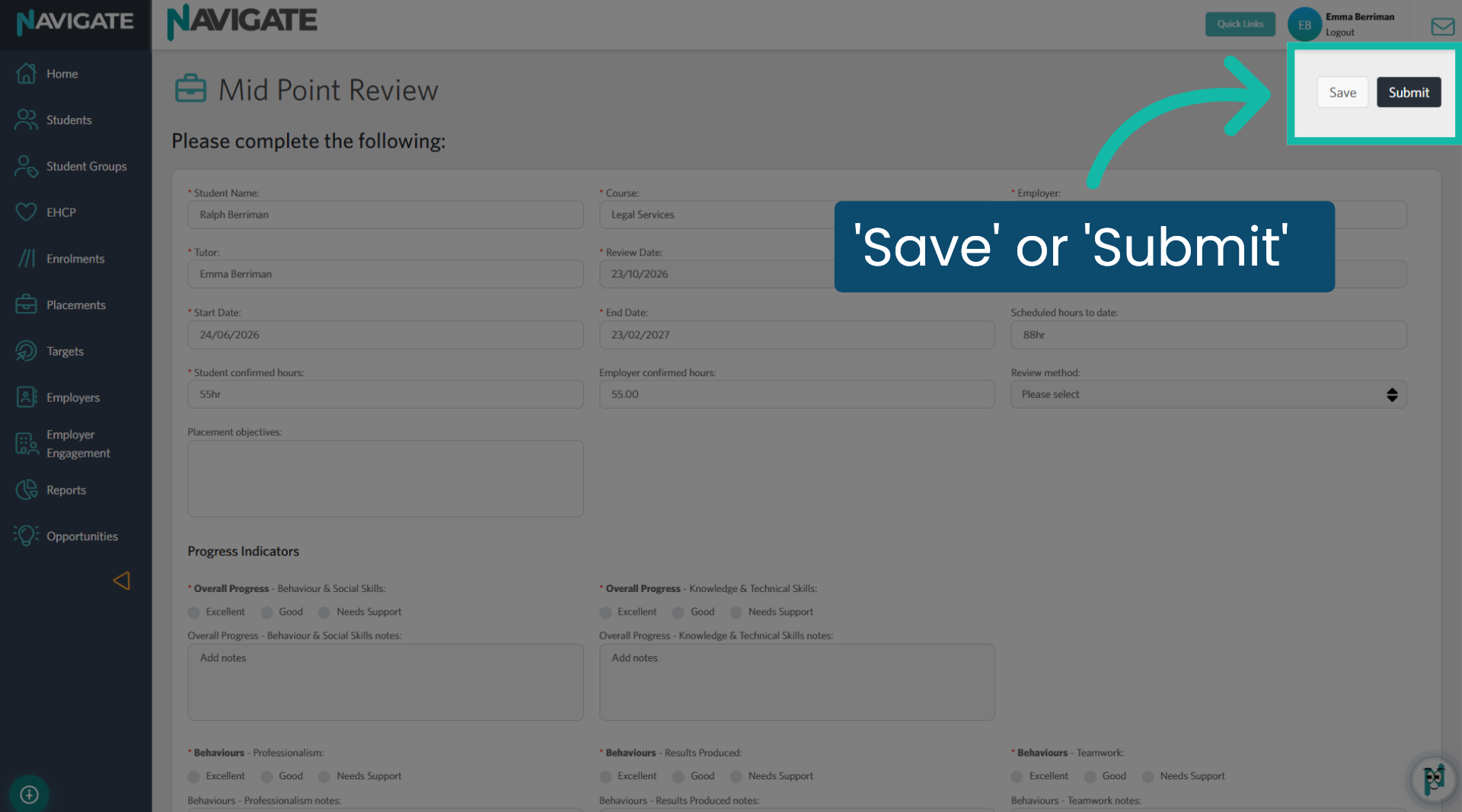
12. Complete review
The staff member must log in to Navigate, where they will be directed straight to the review for completion. They can view any details you may have already saved to the form and add their own. They can either click "Save" to continue working on the review later, or if finished, they can click Submit.
You have successfully assigned a review to another member of staff for completion.
Was this article helpful?
That’s Great!
Thank you for your feedback
Sorry! We couldn't be helpful
Thank you for your feedback
Feedback sent
We appreciate your effort and will try to fix the article