This tutorial explains how to log into Navigate using your college login credentials.
Go to login.navigate.uk.com
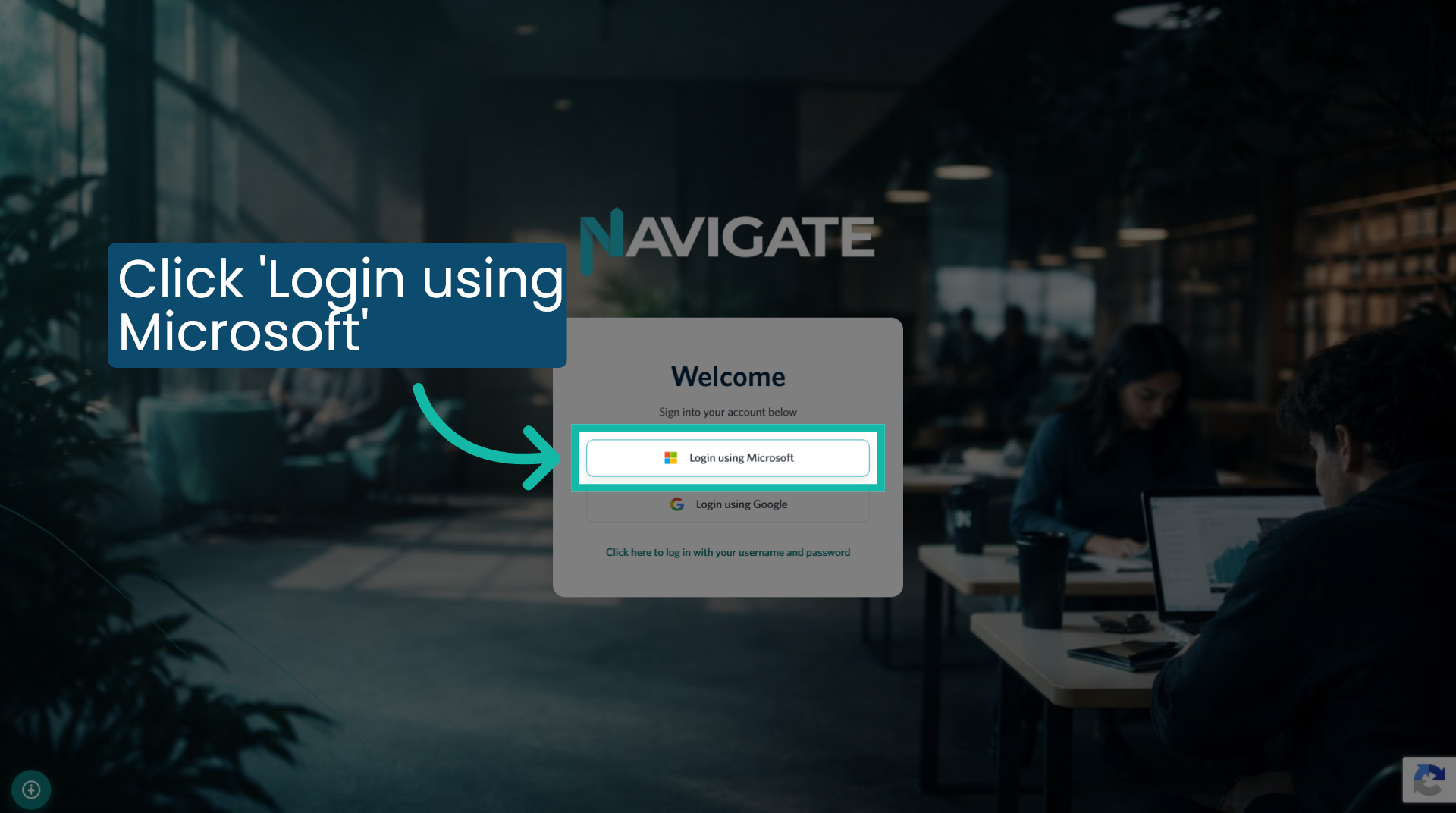
1. Click 'Log in using Microsoft'
On the login page, click the 'Login using Microsoft' button.
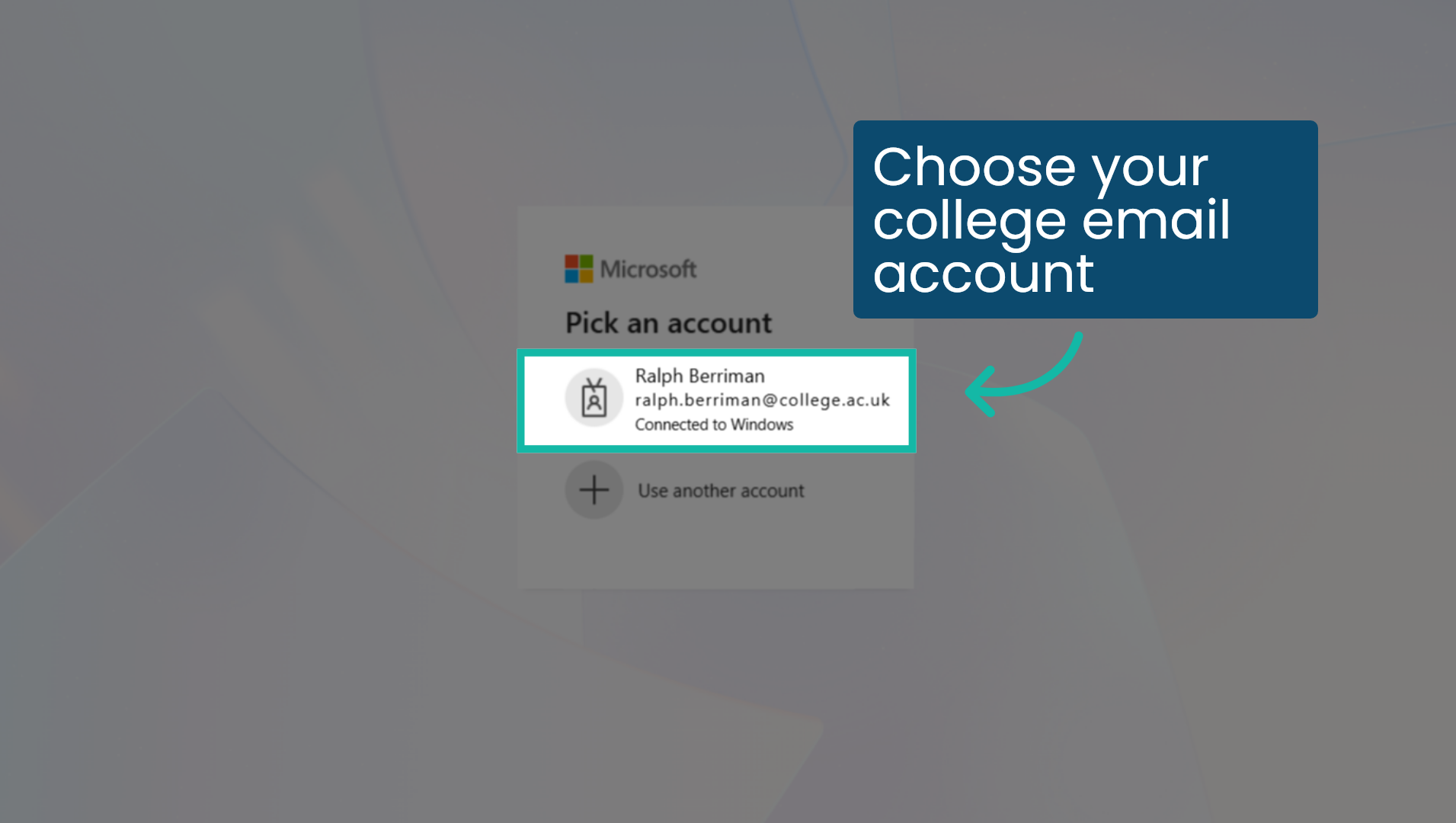
2. Choose your college email account
Your college will have provided you with a college email address and password. You can access Navigate by selecting the account that corresponds to your college email address. If you are unable to log in with this email address, please consult your tutor or the college IT team for assistance.
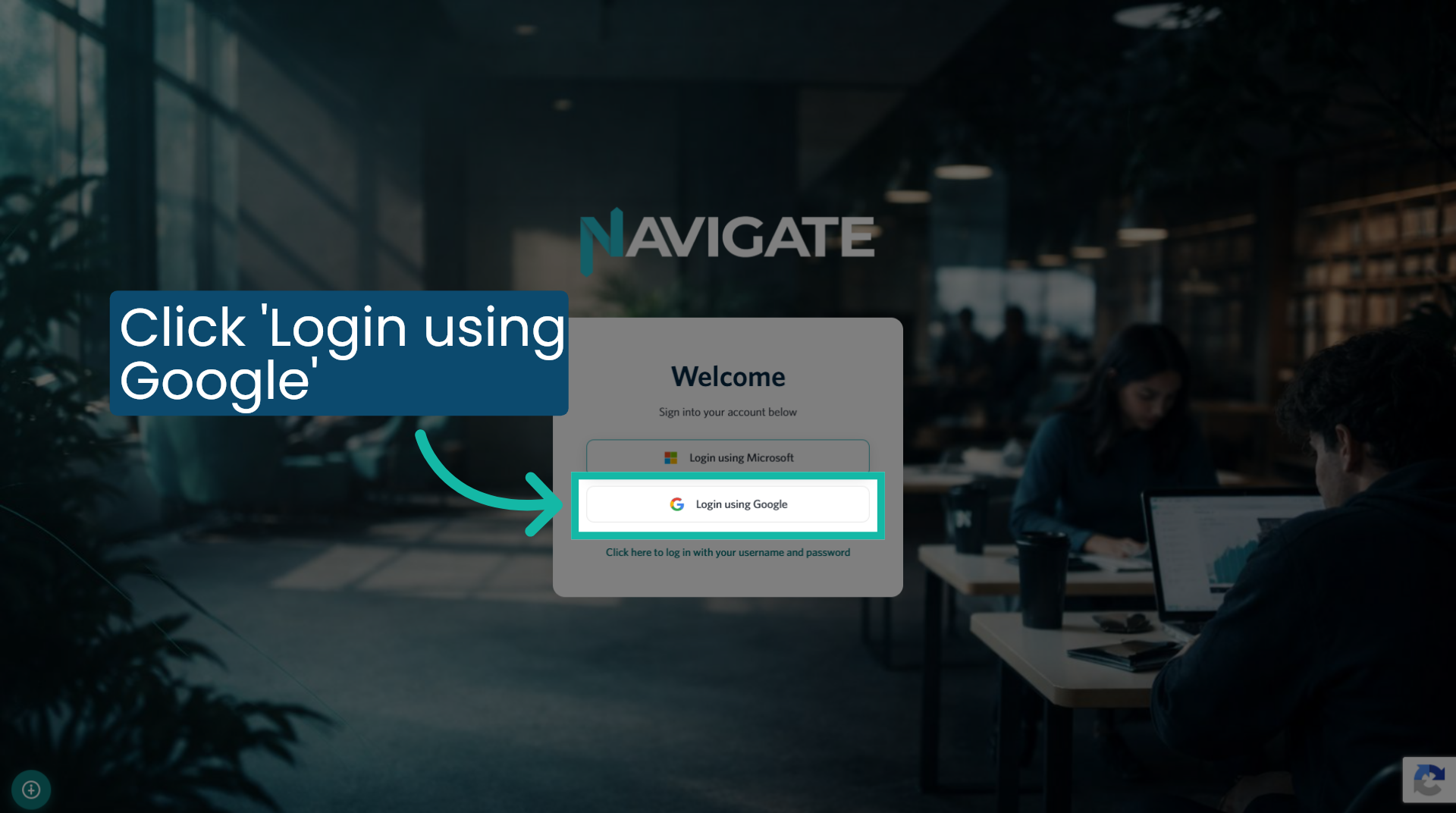
3. Click 'Log in using Google'
On the login page, click the 'Login using Google' button.
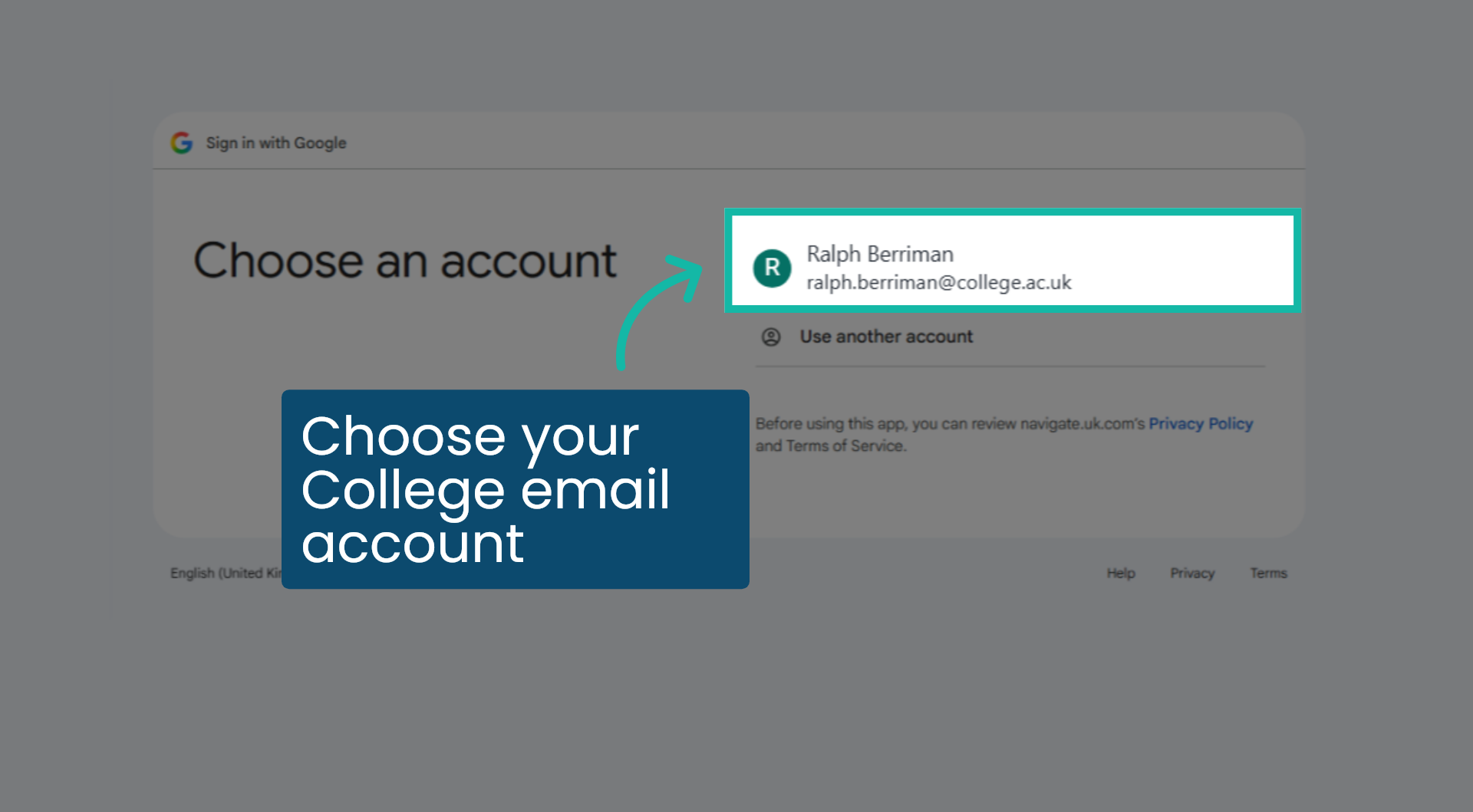
4. Choose your college email account
Your college will have provided you with a college email address and password. You can access Navigate by selecting the account that corresponds to your college email address. If you are unable to log in with this email address, please consult your tutor or the college IT team for assistance.
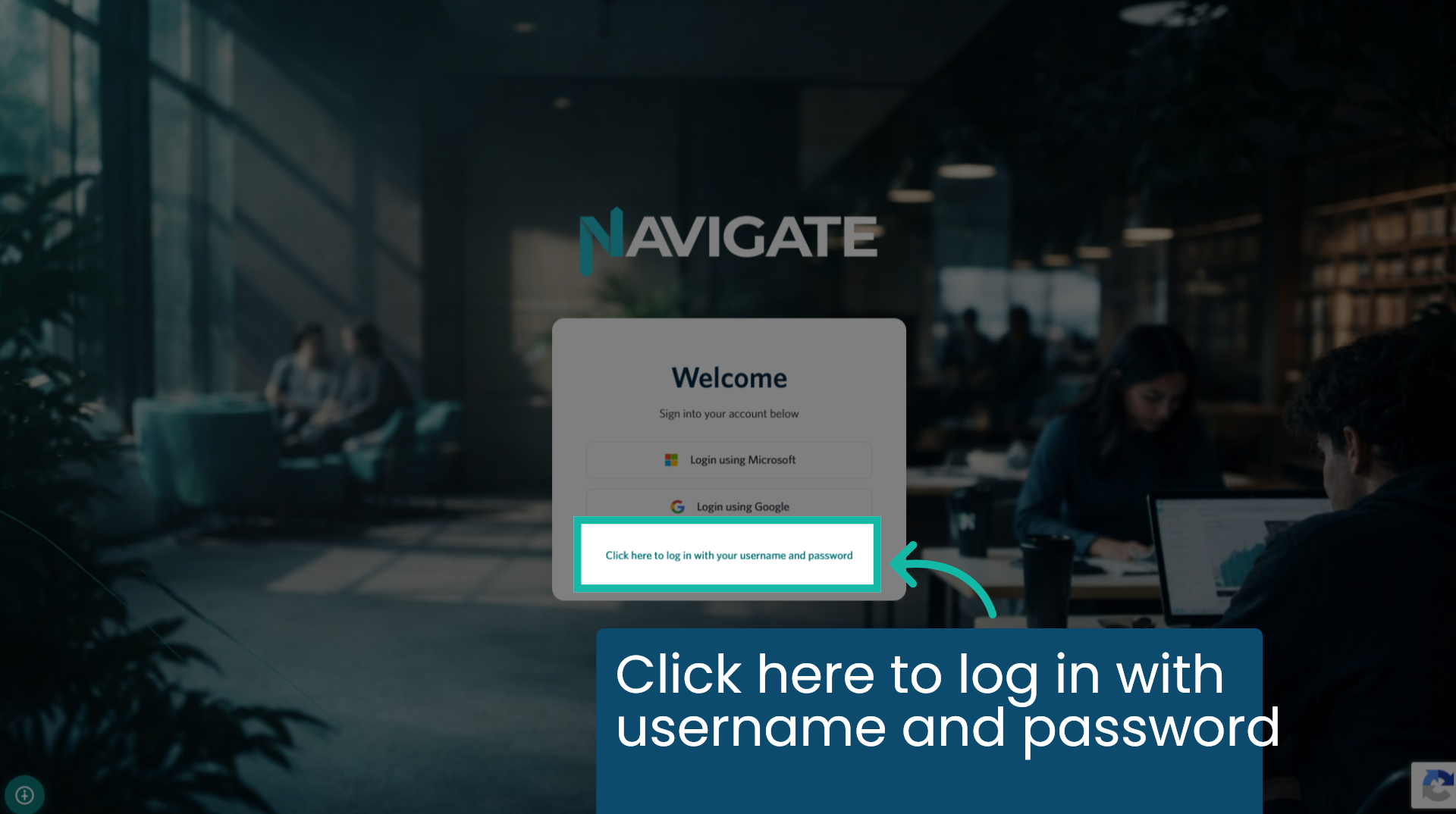
5. Click here to log in with username and password
If your college does not use Microsoft or Google for communications, you may need to log in using a username and password. You can do this by clicking the blue text.
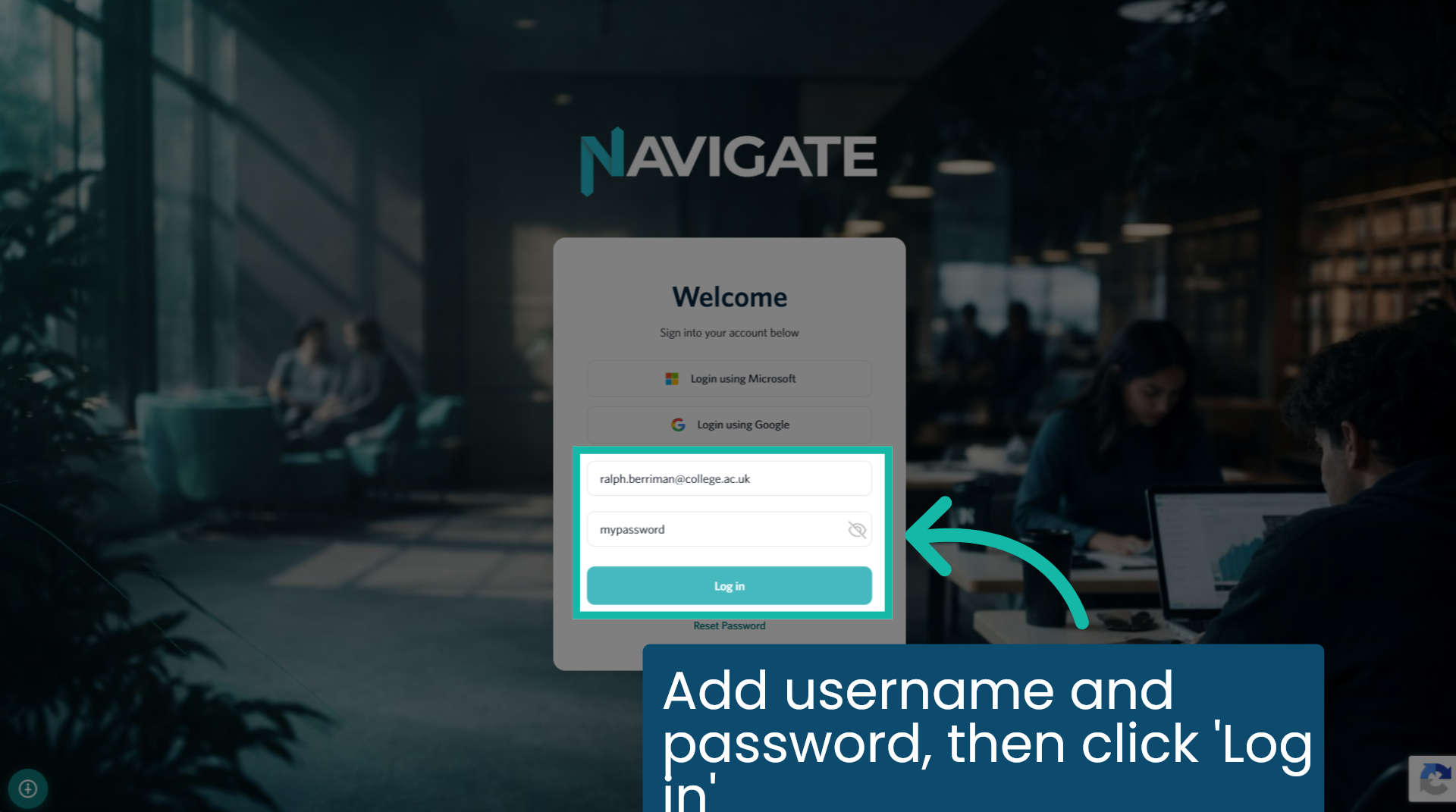
6. Add username and password, then click 'Log in'
Add your username and password and click 'Log in'.
Was this article helpful?
That’s Great!
Thank you for your feedback
Sorry! We couldn't be helpful
Thank you for your feedback
Feedback sent
We appreciate your effort and will try to fix the article