Go to login.navigate.uk.com
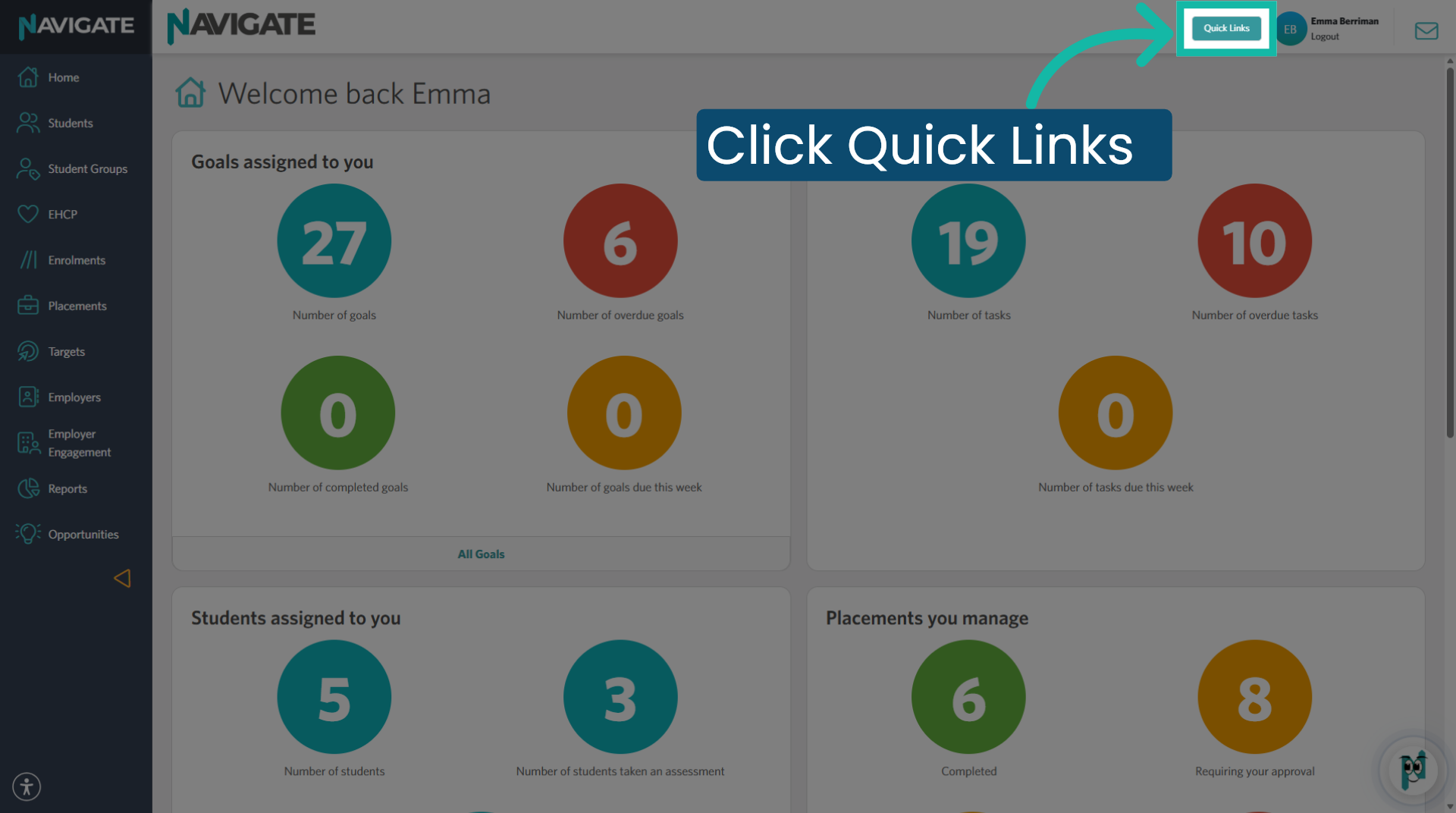
1. Click Quick Links Menu
Once logged in, click the Quick Links menu.
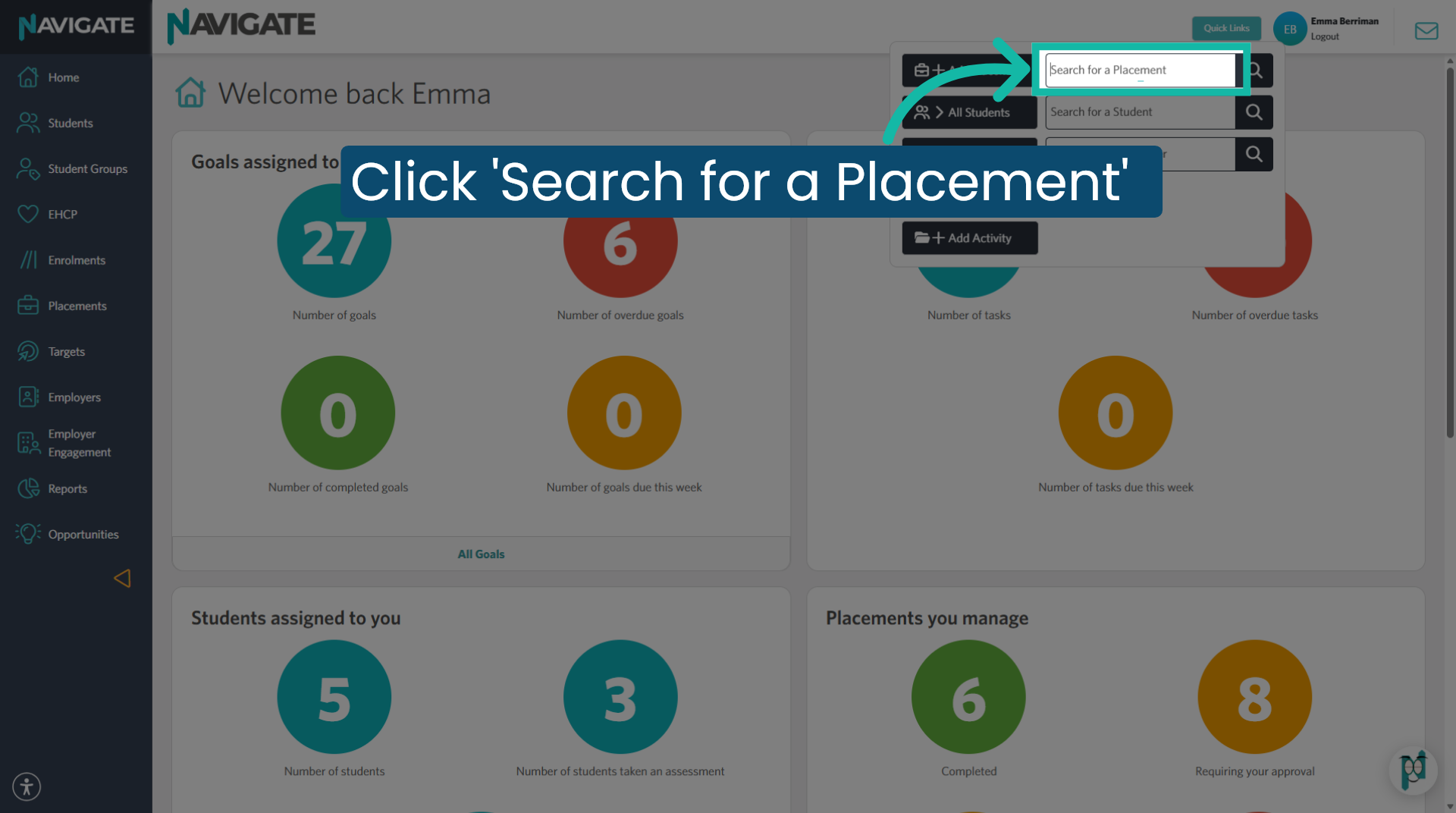
2. Type Employer or Student name
type the employer or student name in the search for a placement box
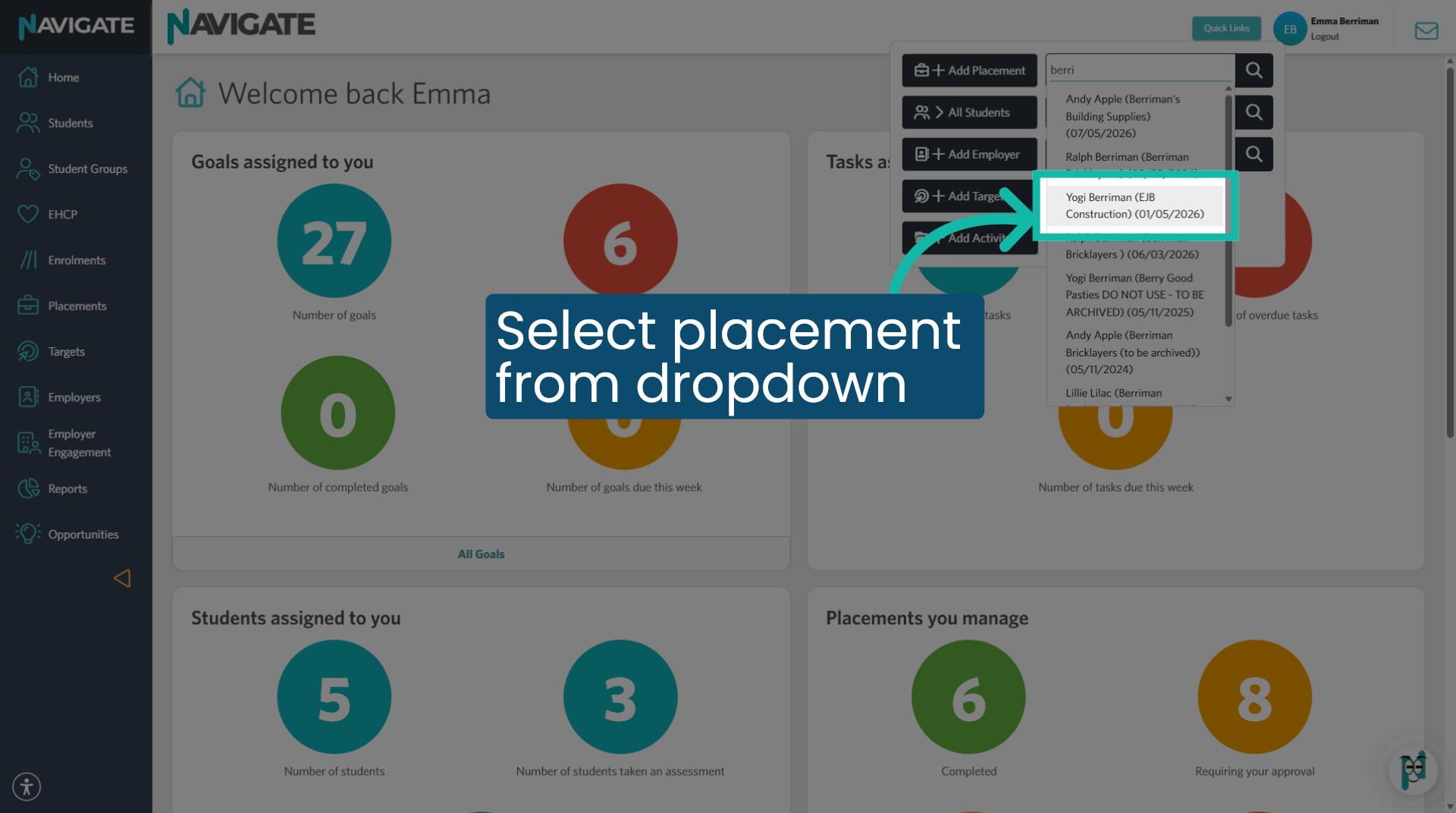
3. Select the Placement from the dropdown
Select the correct placement from the dropdown. To view the placement record.
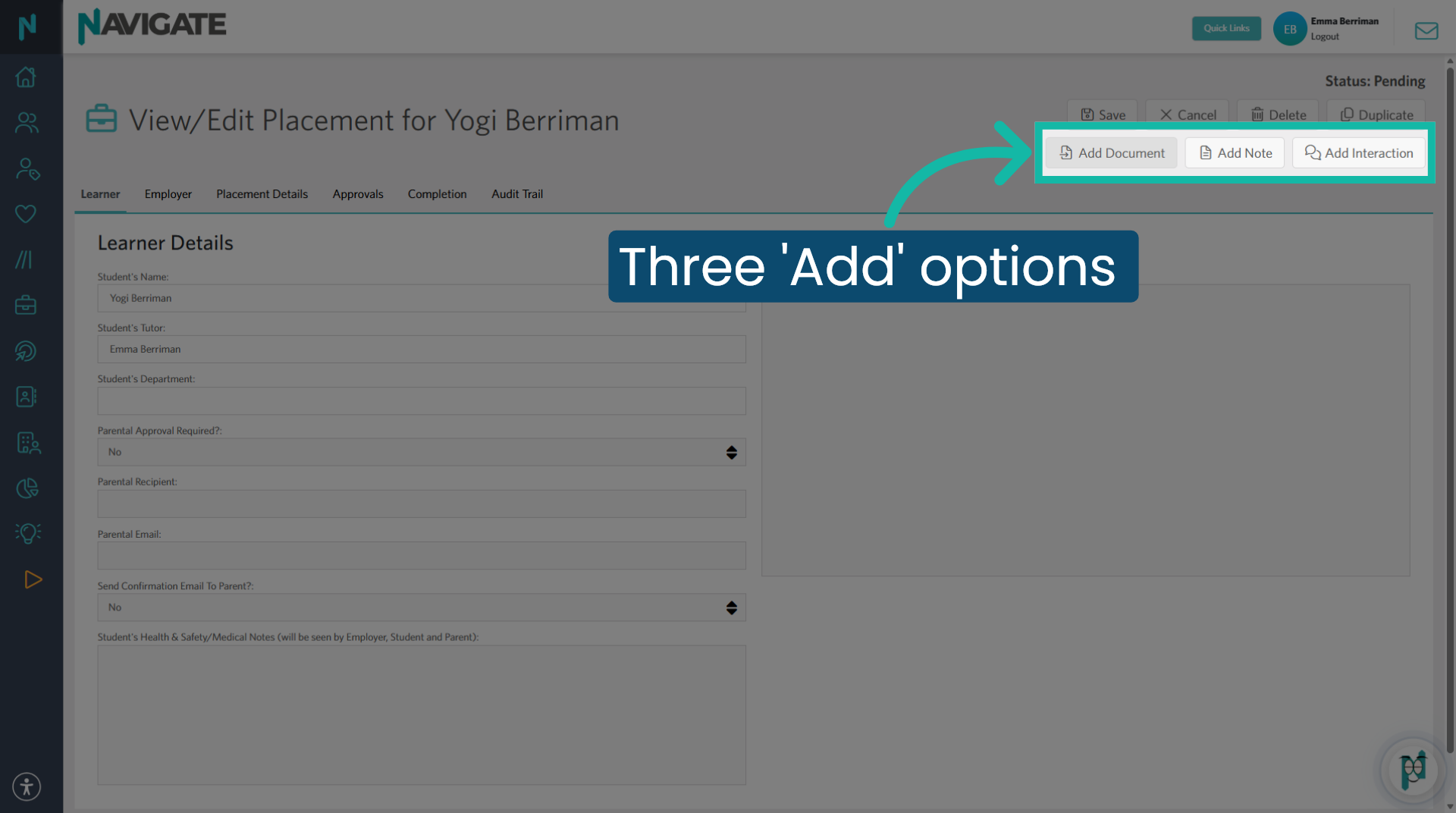
4. Three options to 'Add' info
On the top right of the placement record, there are three buttons: Add document, Add note and add interaction.
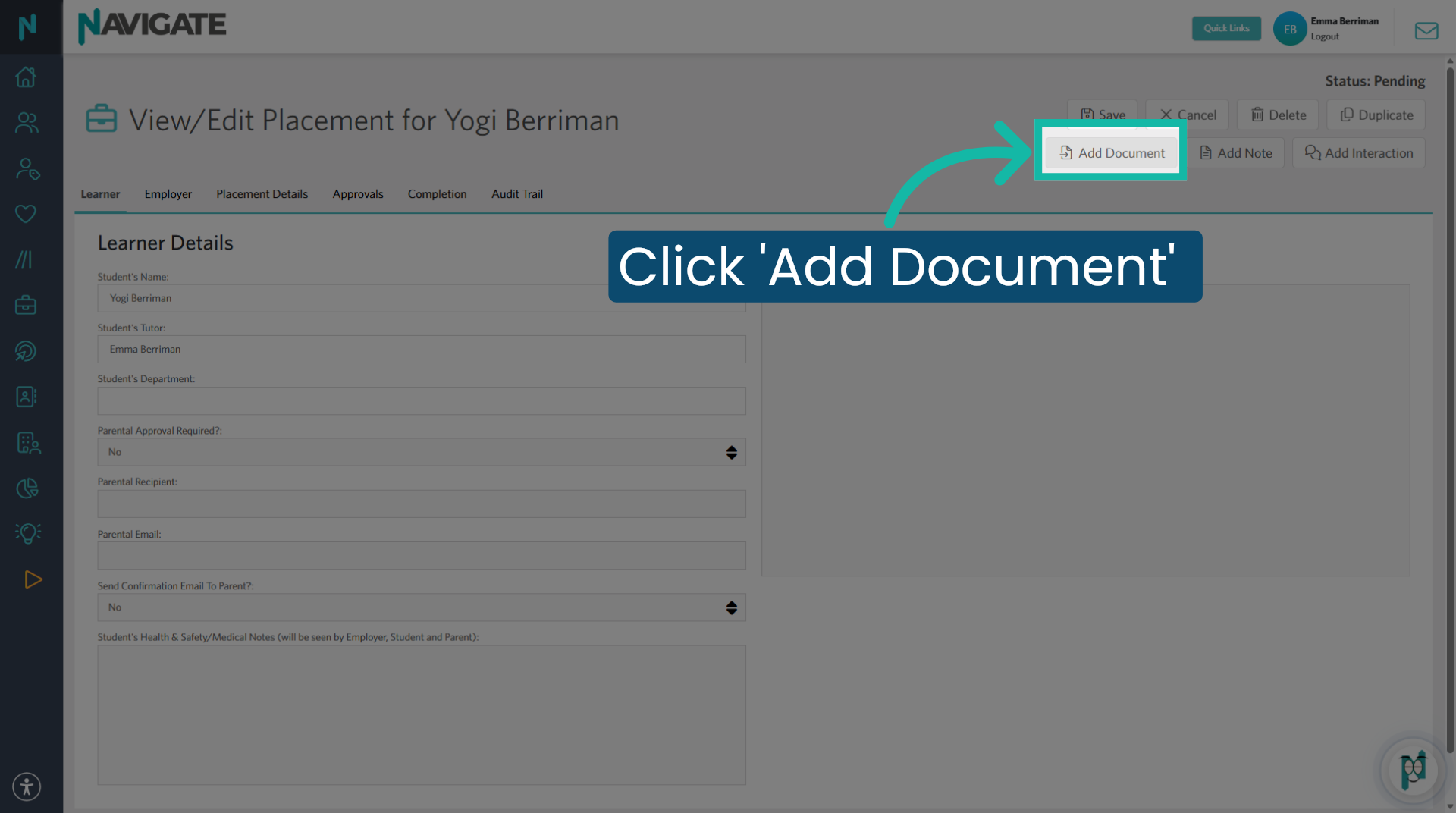
5. Add Document
To add a document, click 'Add document'.
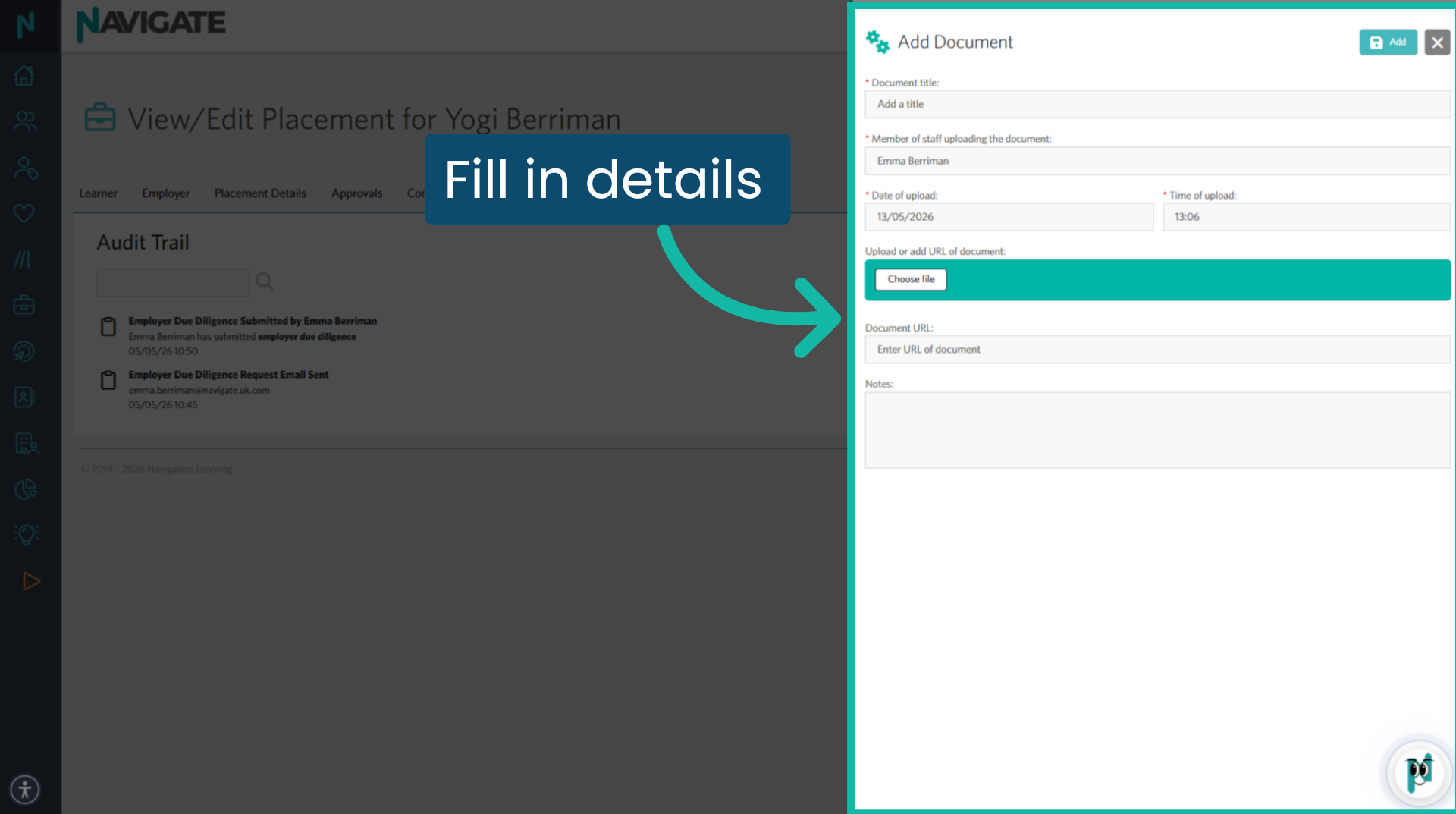
6. Complete the 'Add Document' form
This will display a form that requires a document title. Date and time of upload and any notes you wish to add. Click the choose file button to add the document from your files. Or add the URL in the URL box.
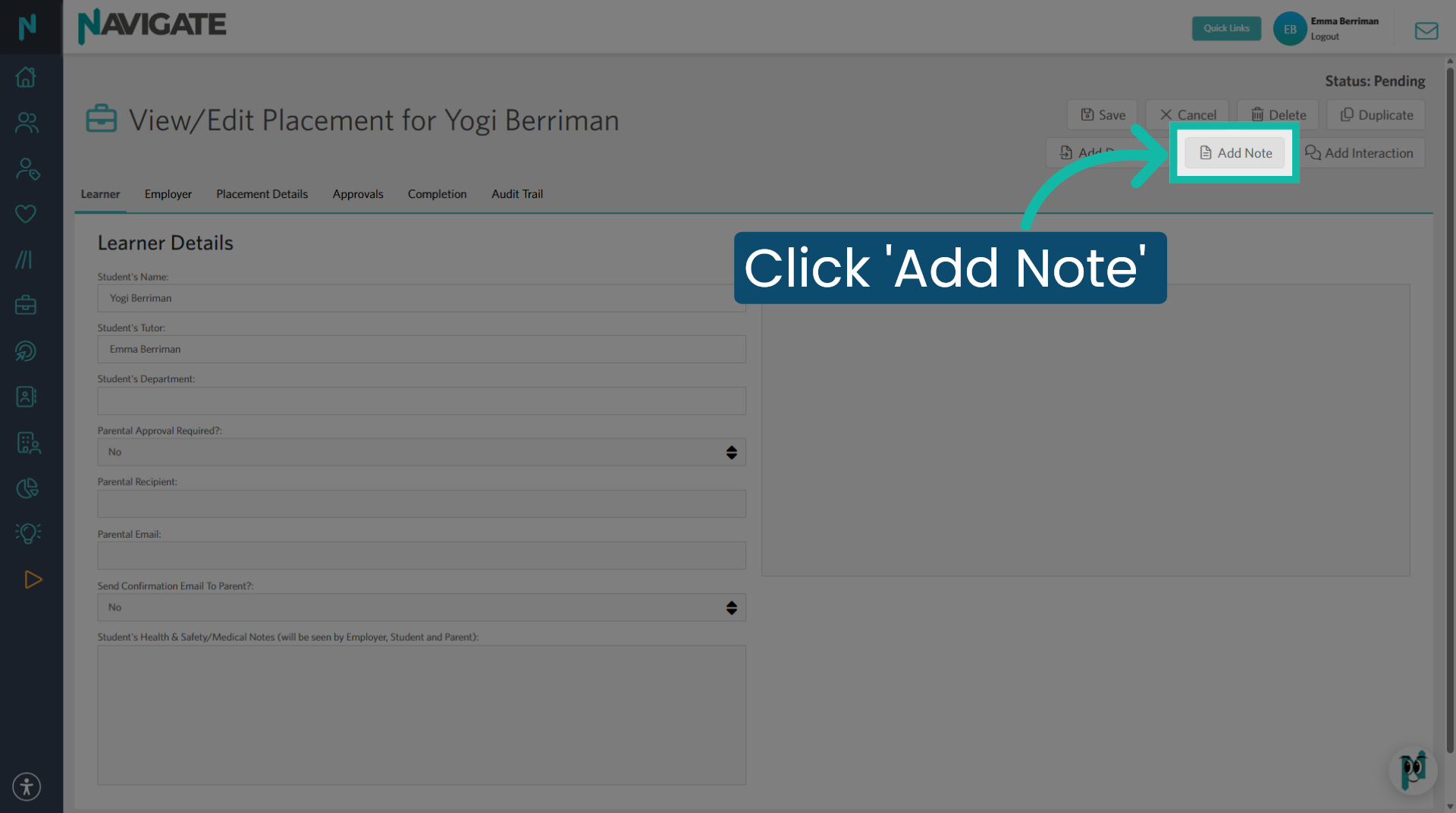
7. Add Note
Click add note to create a new note associated with the placement.
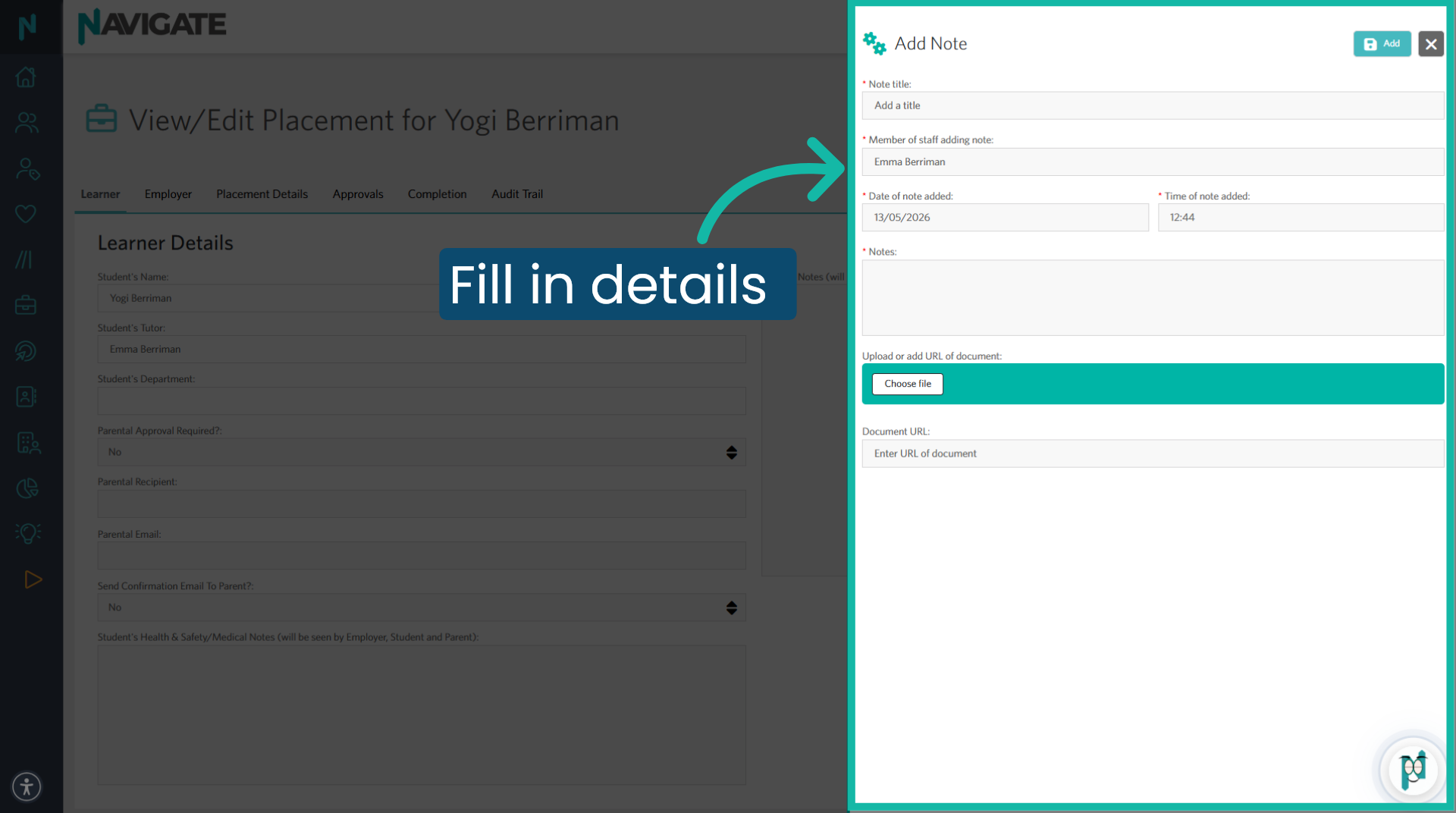
8. Complete Form
then complete the form by adding the note title. Date and time of upload and the detail of the note. Click the choose file button if you wish to add any supporting documents from your files. Or add the URL in the URL box.
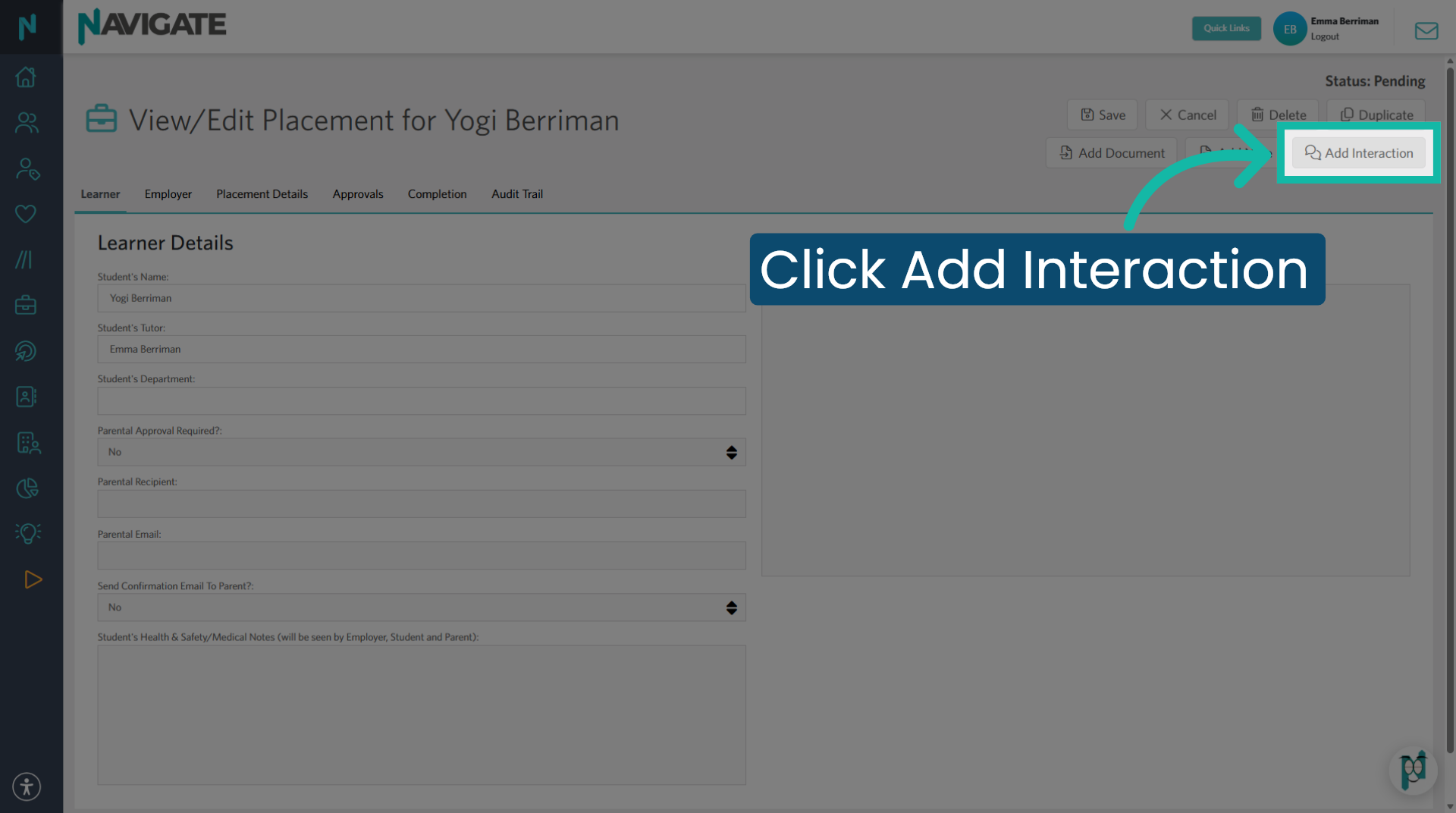
9. Add an Interaction
To add an interaction, click 'Add interaction'.
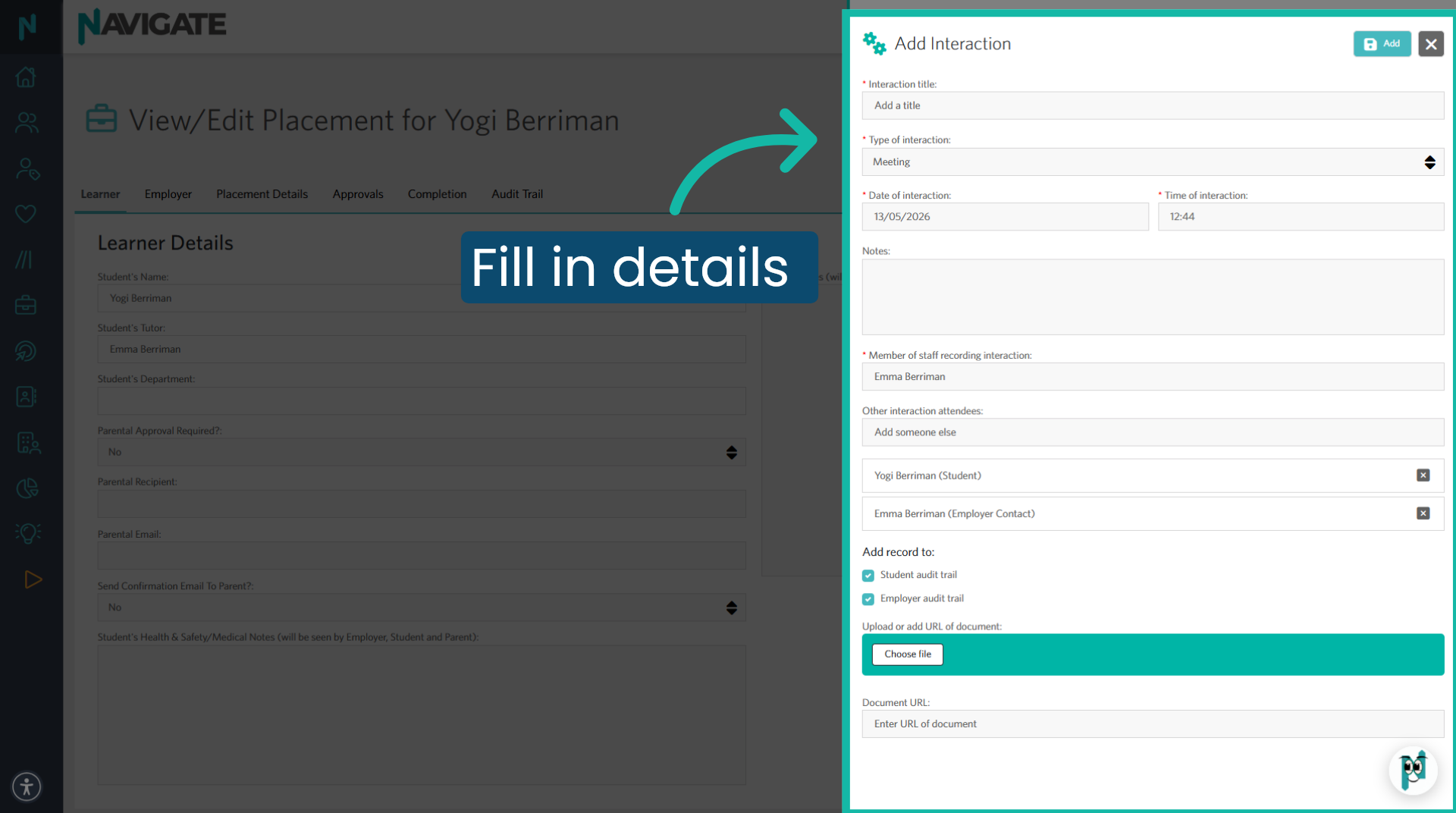
10. Complete Form
Complete the form by adding the interaction title. Date and time it occurred. Any supporting notes? Who attended? And which other audit trails you wish it to appear on. Click the choose file button if you wish to add any supporting documents from your files. Or add the URL in the URL box.
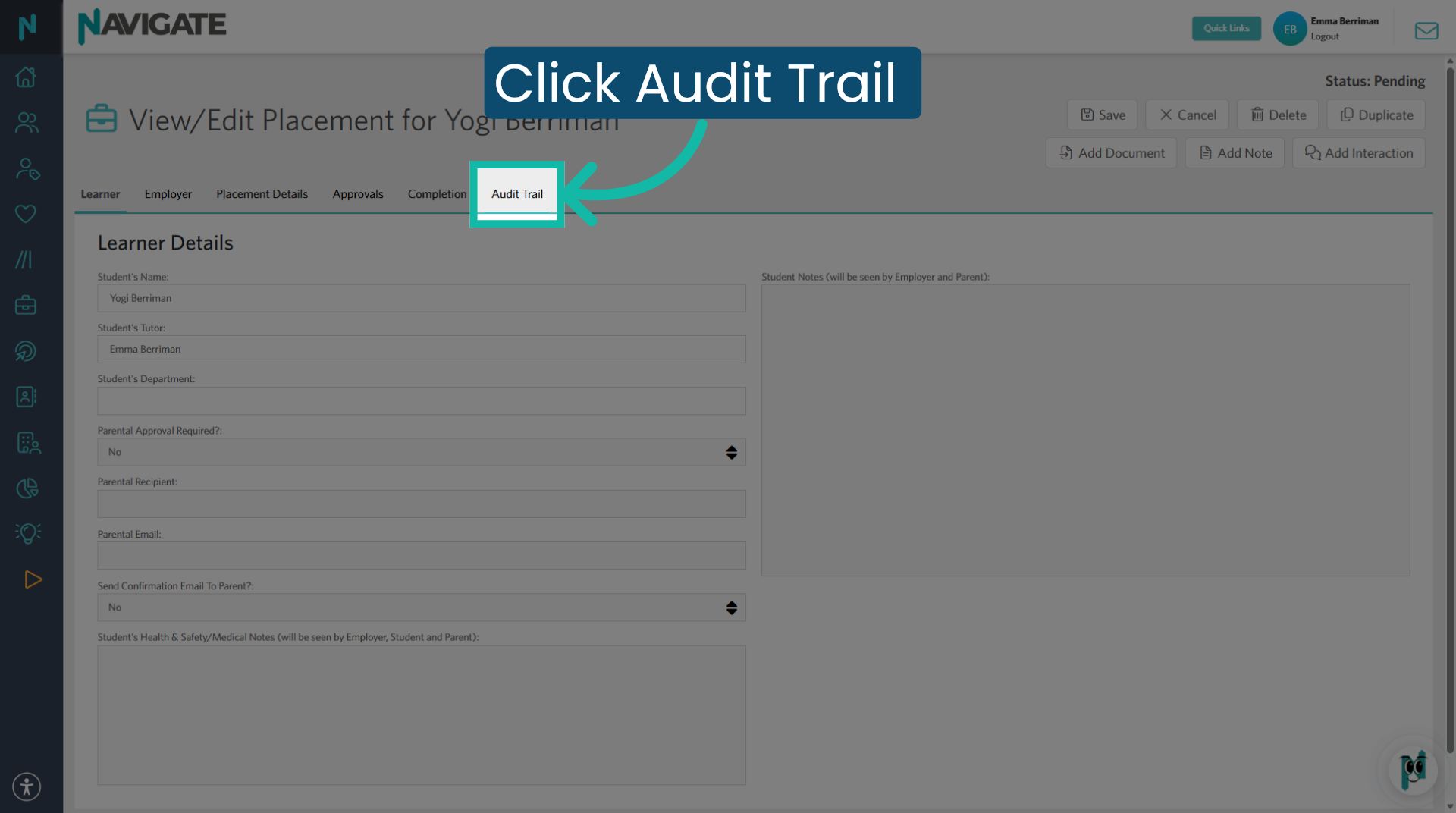
11. Return to Audit Trail
anything added using these buttons will be visible in the Audit Trail only College staff can see the Audit Trail no students employers or parents will be able to see this.
Was this article helpful?
That’s Great!
Thank you for your feedback
Sorry! We couldn't be helpful
Thank you for your feedback
Feedback sent
We appreciate your effort and will try to fix the article