This tutorial explains how to edit an activity added to your timeline on a mobile device.
Go to login.navigate.uk.com
1. Click to view modules
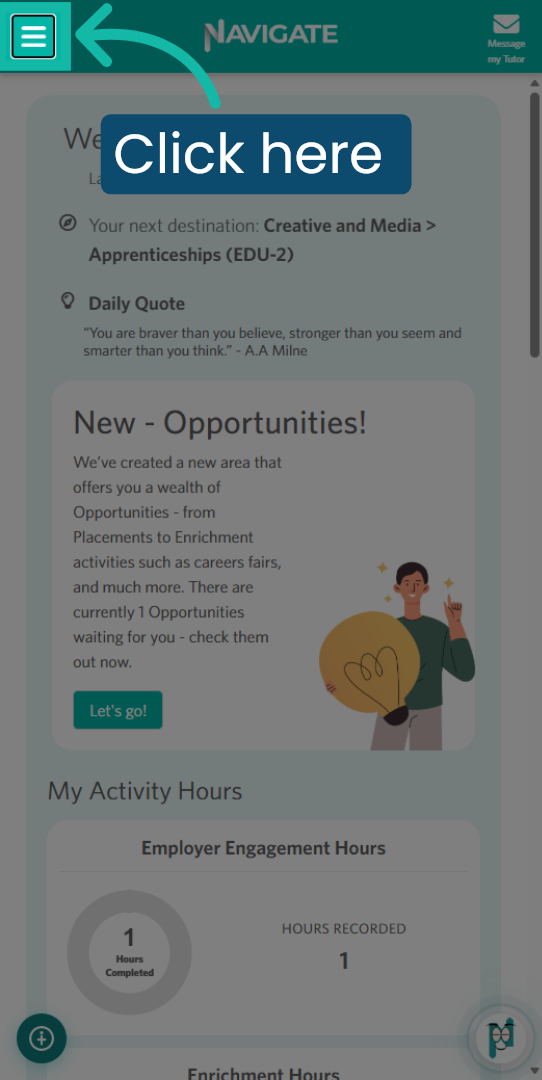
Once you’ve logged in, click on the 'hamburger icon' to access the module index.
2. Open Timeline
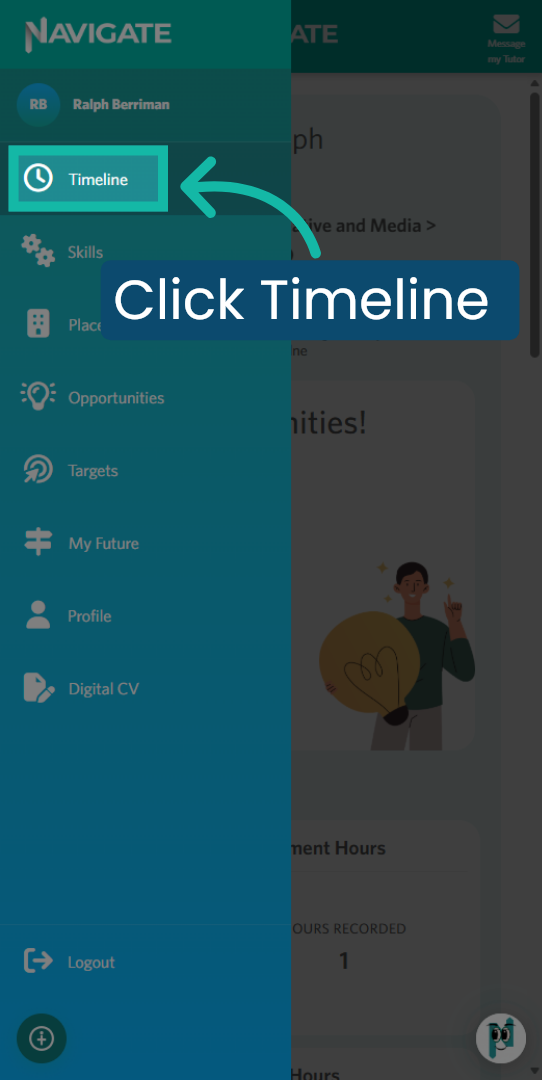
Access the timeline module to view, edit, and add activities. Here, you will find a comprehensive list of all the activities you have participated in to date. Some of these may have been added by you, while others may have been entered by staff members on your behalf.
3. Locate the Activity
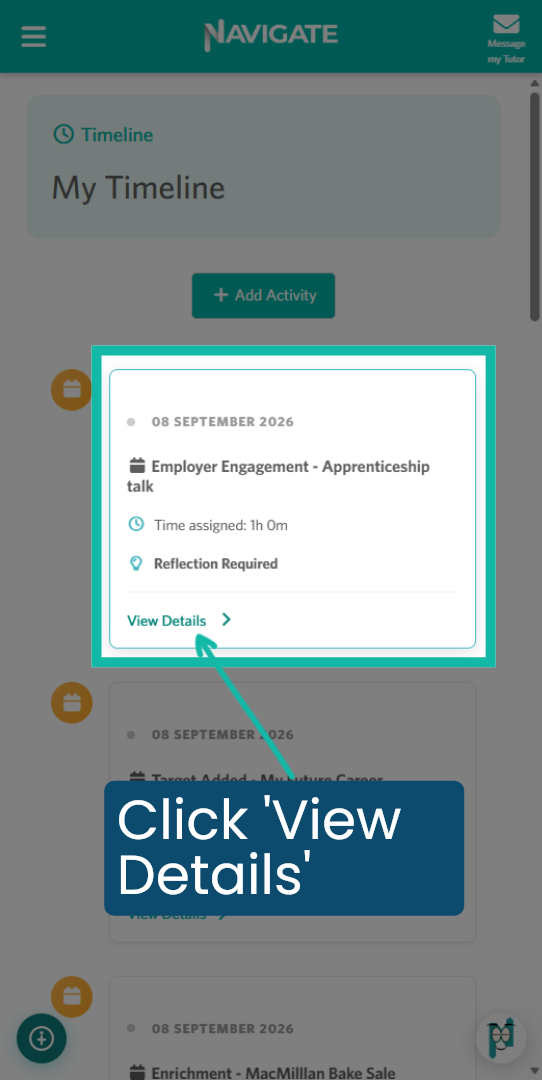
Activities that require additional information from you will be marked with "Reflection Required". To update the activity and enter your information, click "View Details".
4. Complete form
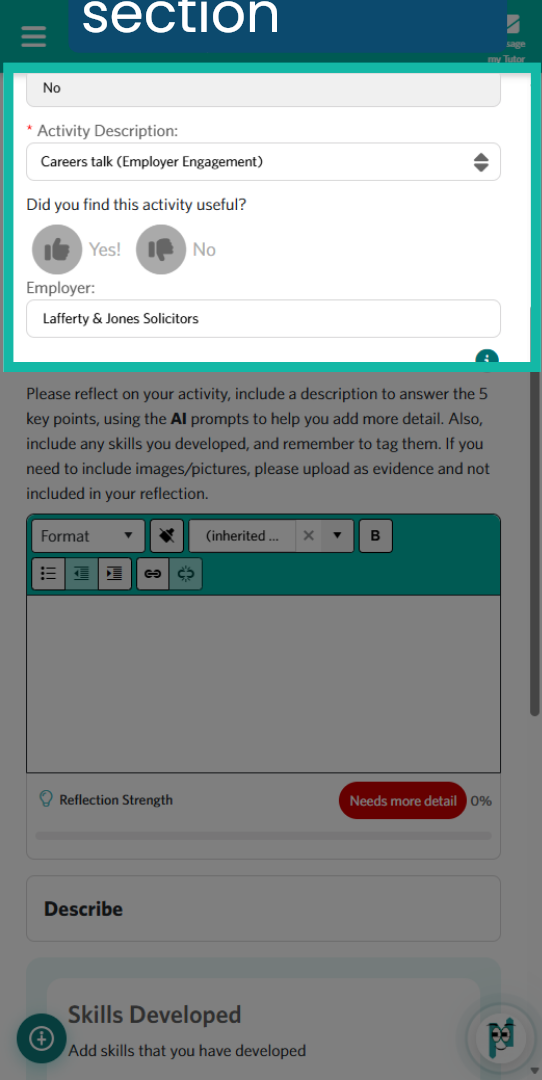
Activities added by a staff member will contain only basic information. Ensure all sections are complete.
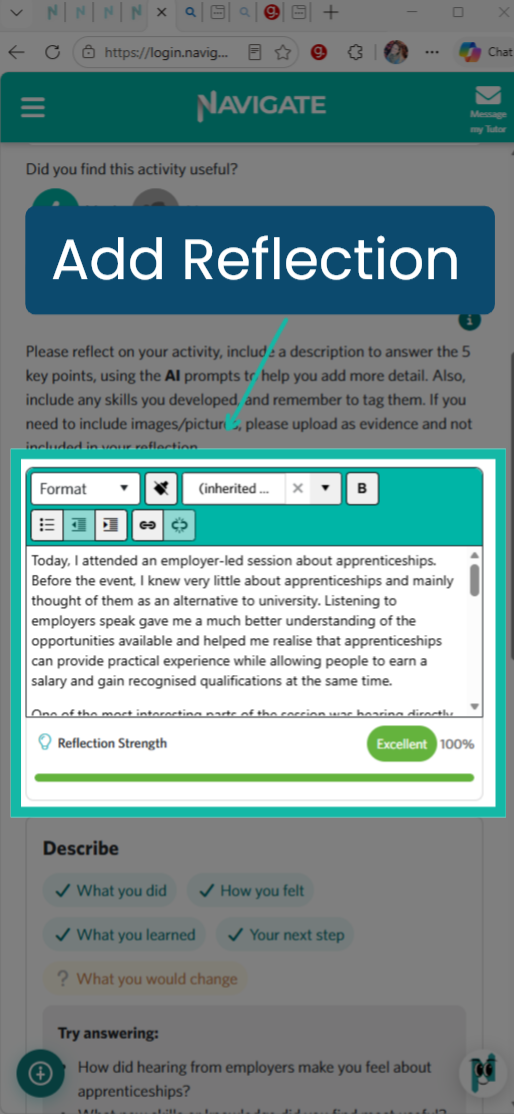
5. Add Reflection
Please provide a description of the activity you participated in. If you are using a mobile device, you can tap the microphone button on your keypad to activate the voice-to-text function. Use the AI reflection coach to help you achieve a 100% reflection score.
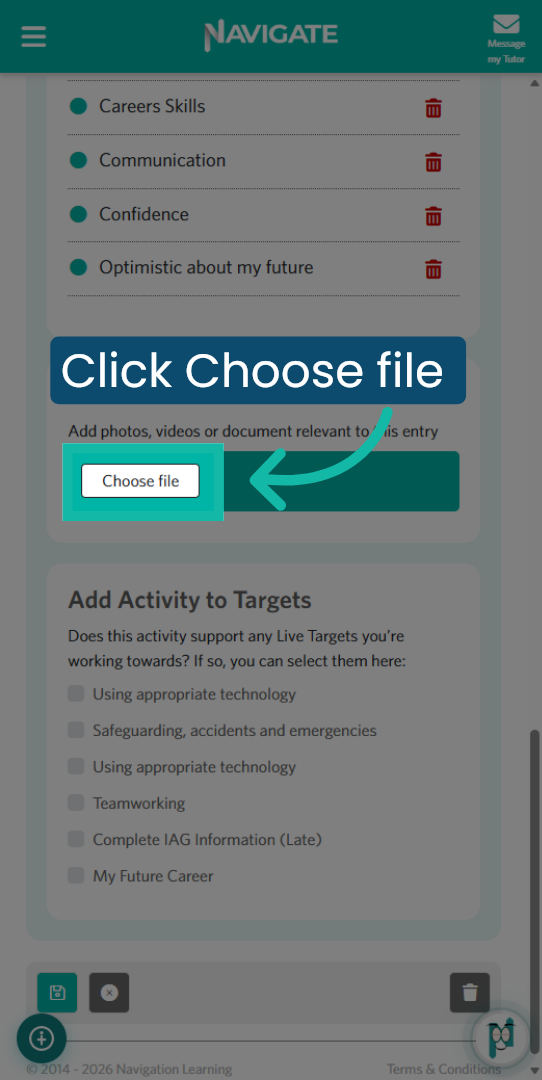
6. Click Choose file
Adding evidence to your activity will create a stronger record of your achievements. Simply click to select a file, such as a photo or certificate, to enhance your activity.
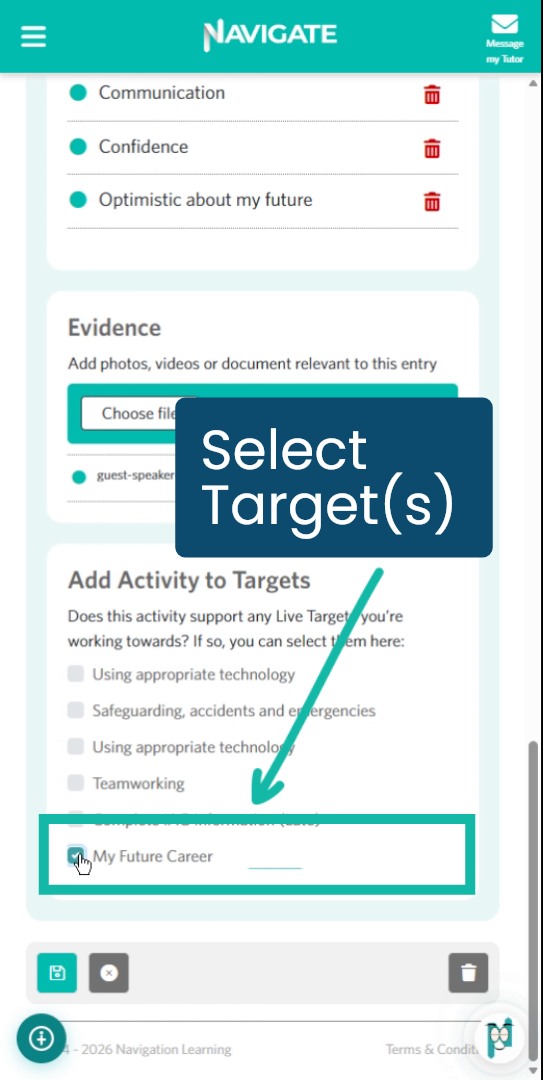
7. Add to Target
Select any relevant targets that you believe this activity demonstrates. You can choose more than one if appropriate.
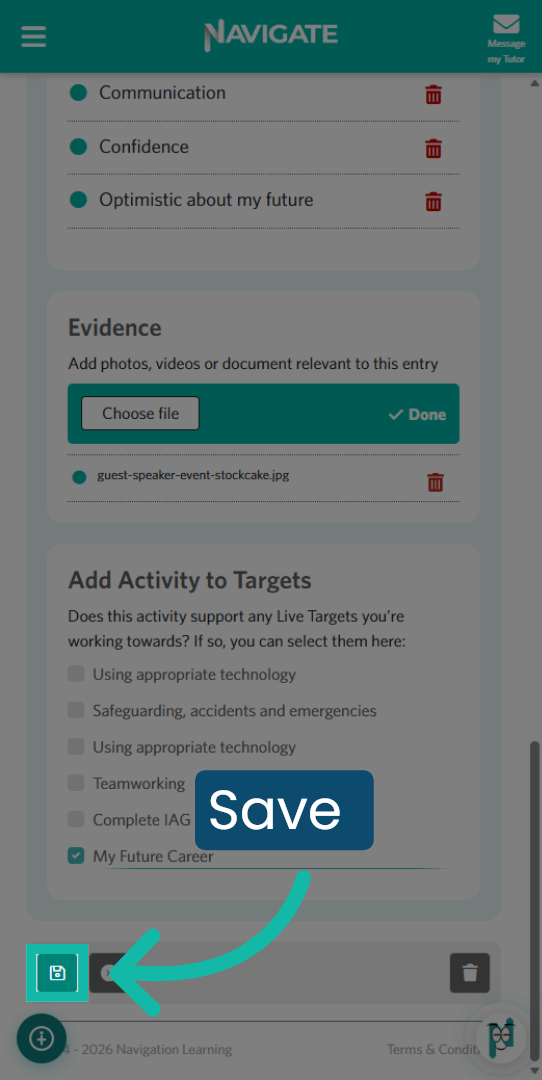
8. Save the Activity
After entering all the details, make sure to click SAVE to update the activity.
Was this article helpful?
That’s Great!
Thank you for your feedback
Sorry! We couldn't be helpful
Thank you for your feedback
Feedback sent
We appreciate your effort and will try to fix the article