This tutorial will guide you on how to add evidence to your targets and submit it for approval.
Go to login.navigate.uk.com
1. My Targets Panel
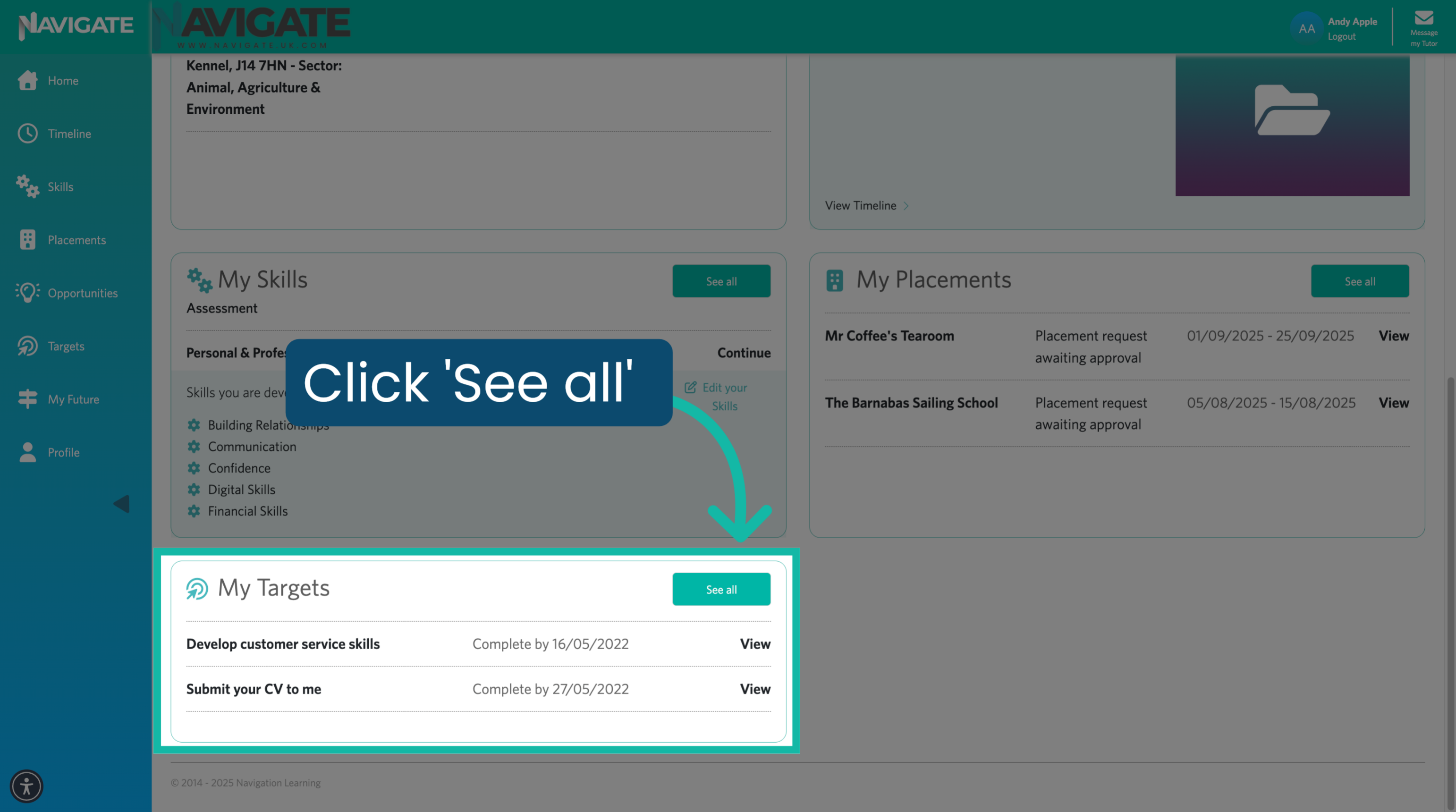
Once logged in, scroll down to the My Targets panel and click 'See all'.
2. Click 'View Target'
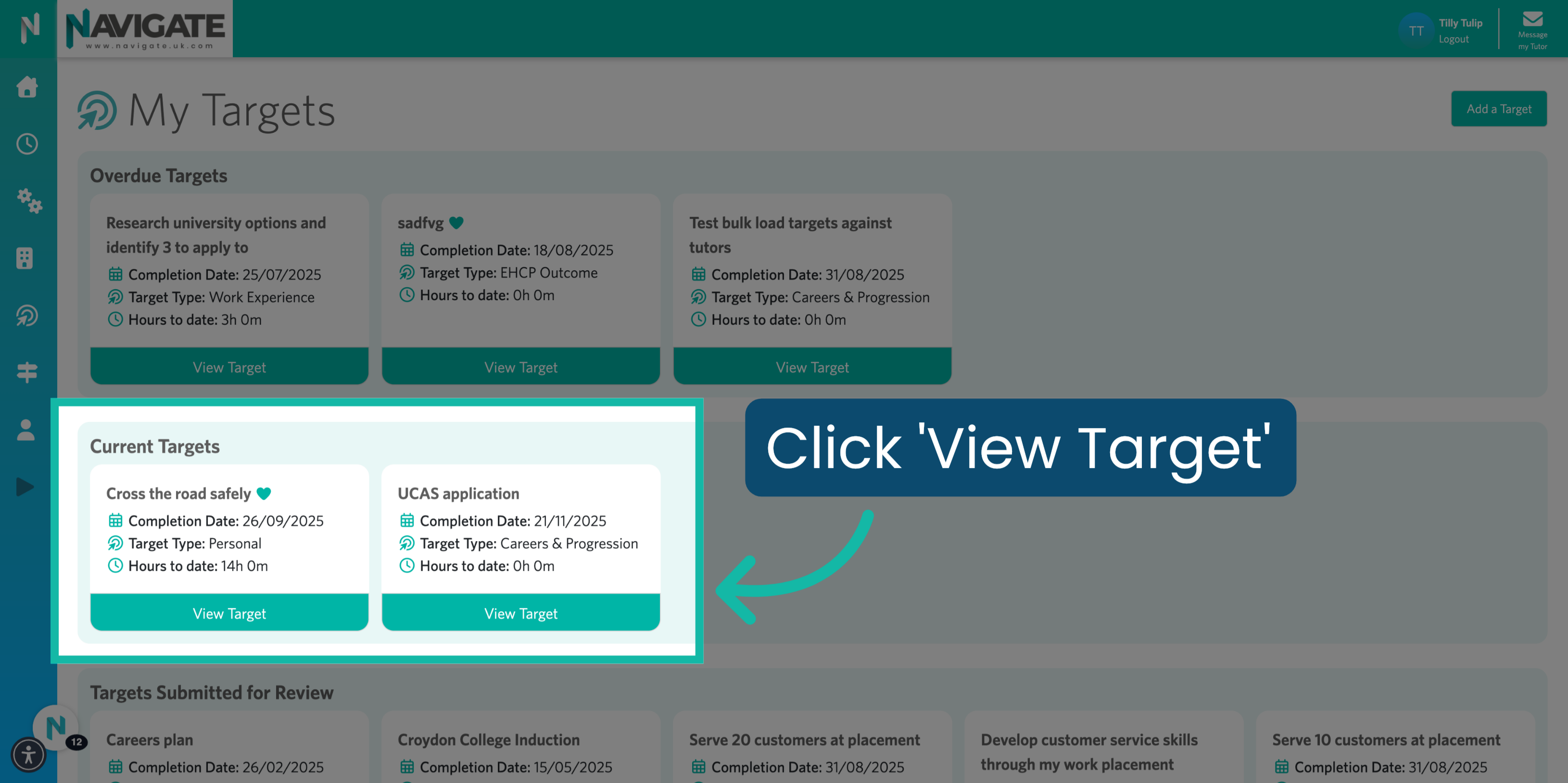
Here you will see your current targets. Select the target you would like to edit by clicking 'View Target'.
3. Target Overview
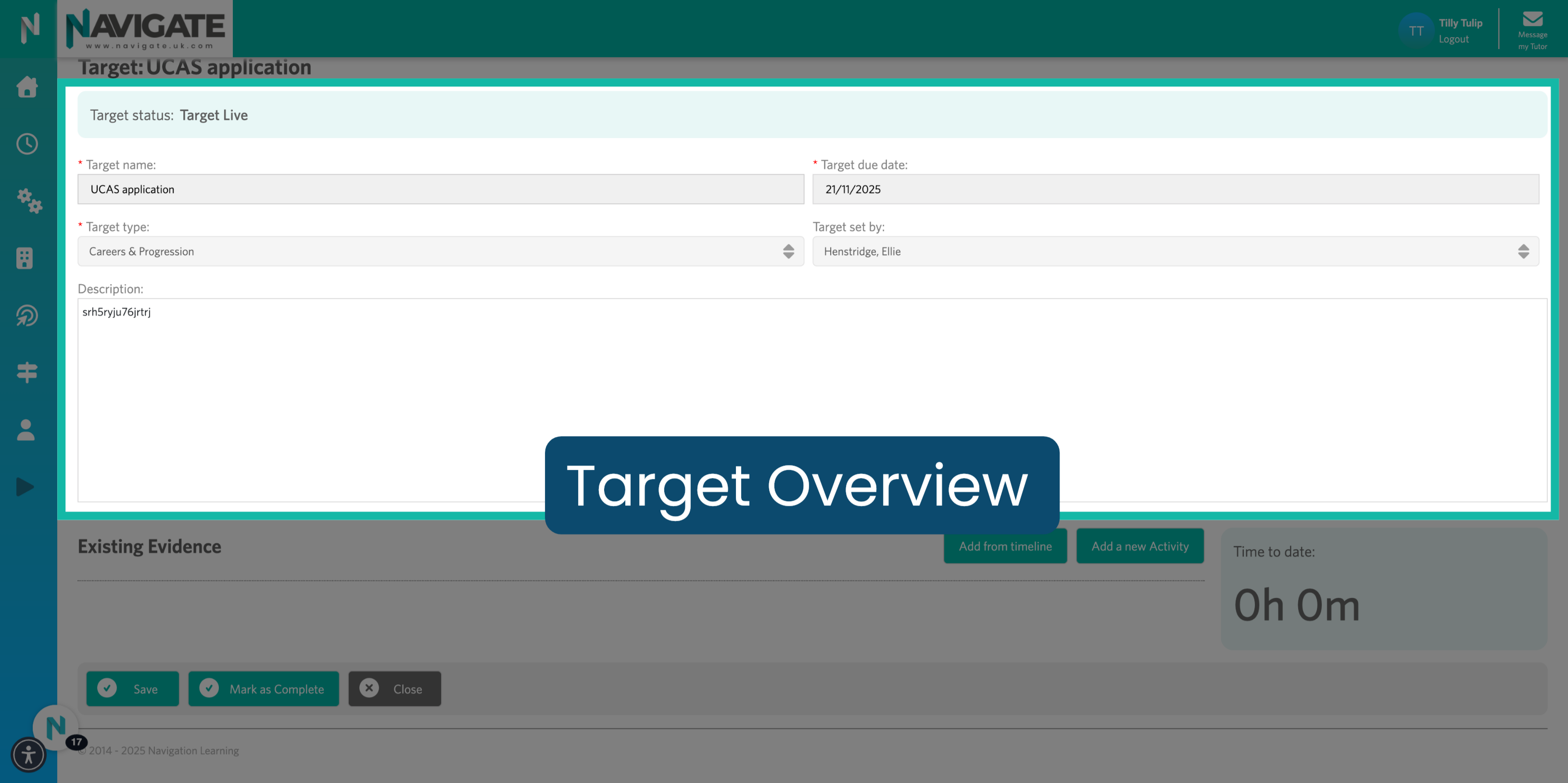
You will now see an overview of the target, including the target name, target due date, target type, the member of staff who set the target for you, and the target description.
4. Click 'Add from timeline'
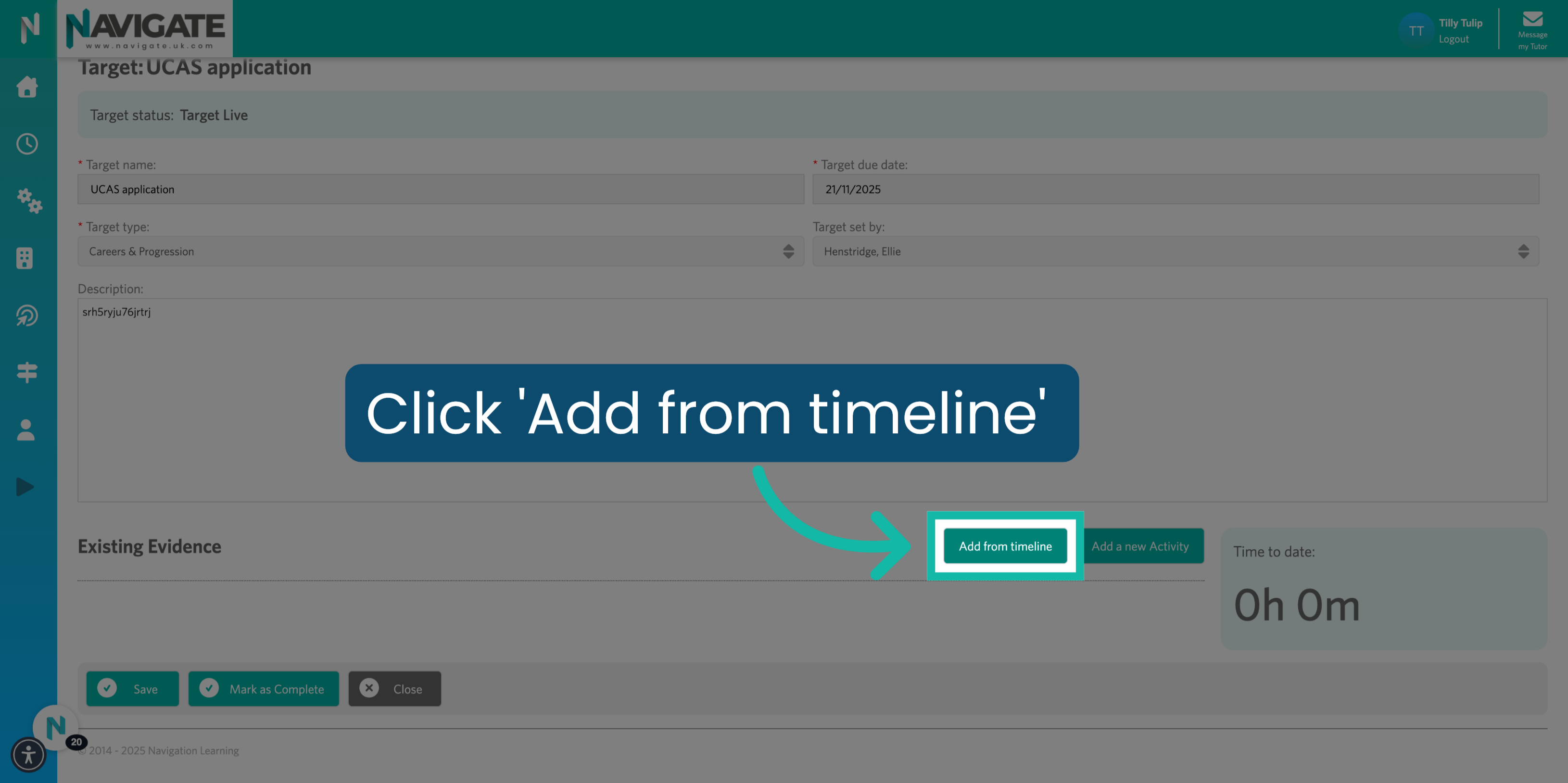
To link an existing activity, click 'Add from timeline'.
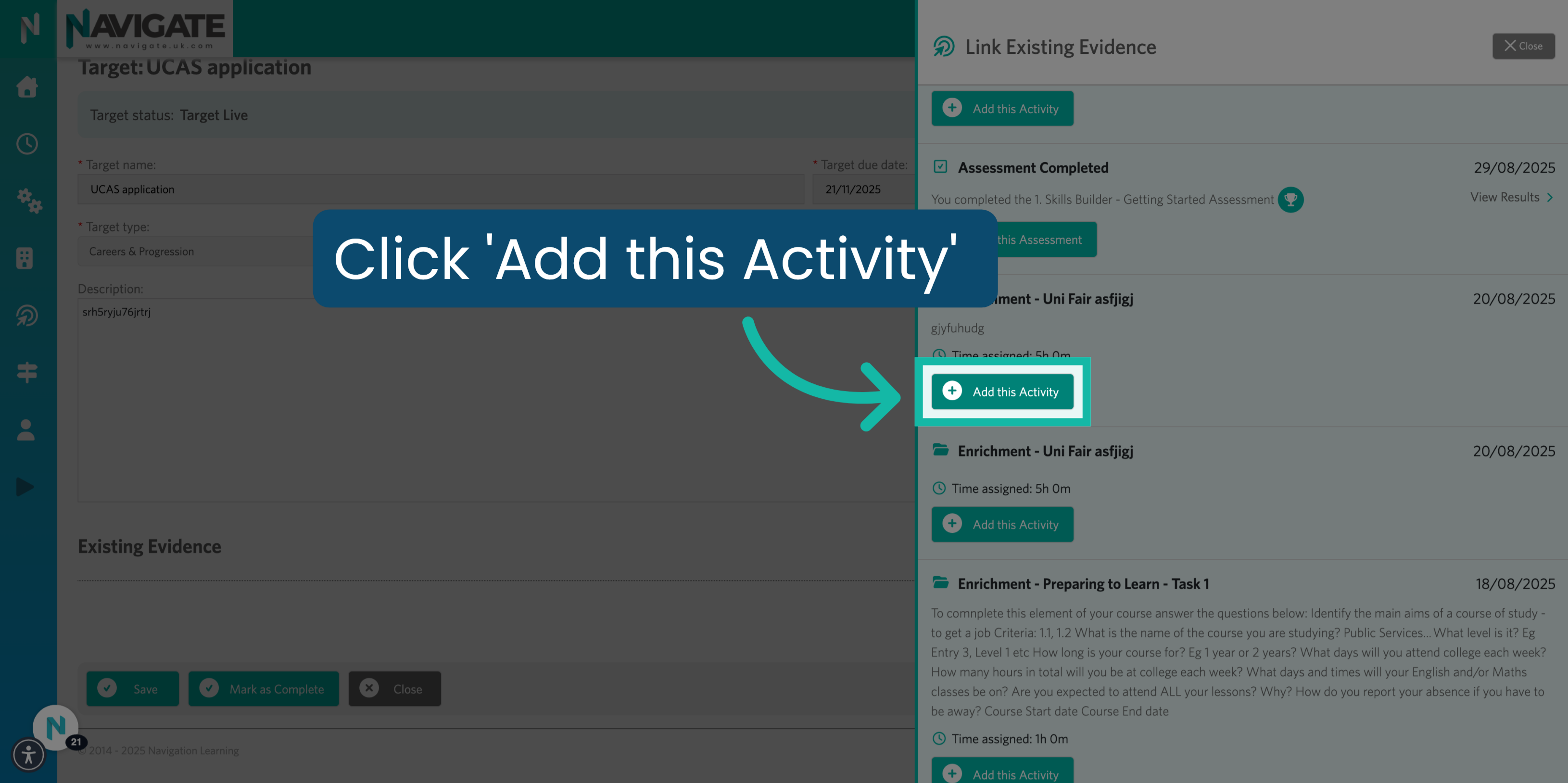
5. Click 'Add this Activity'
You will now see a pop-up of your timeline. Scroll to find the activity you wish to add, then click 'Add this Activity' to include it against the target.
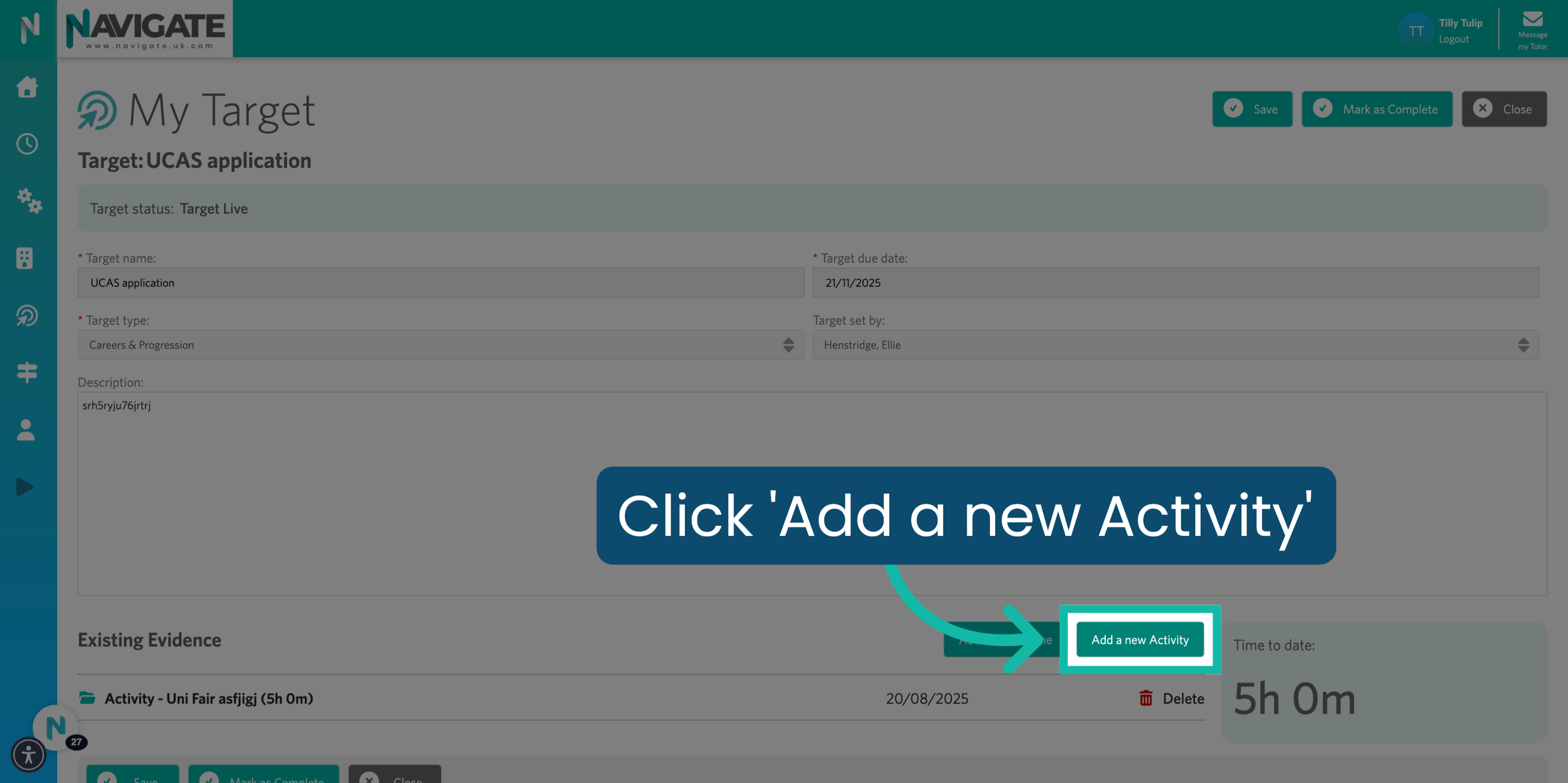
6. Click 'Add a new Activity'
To add a completely new activity, click 'Add a new Activity'.
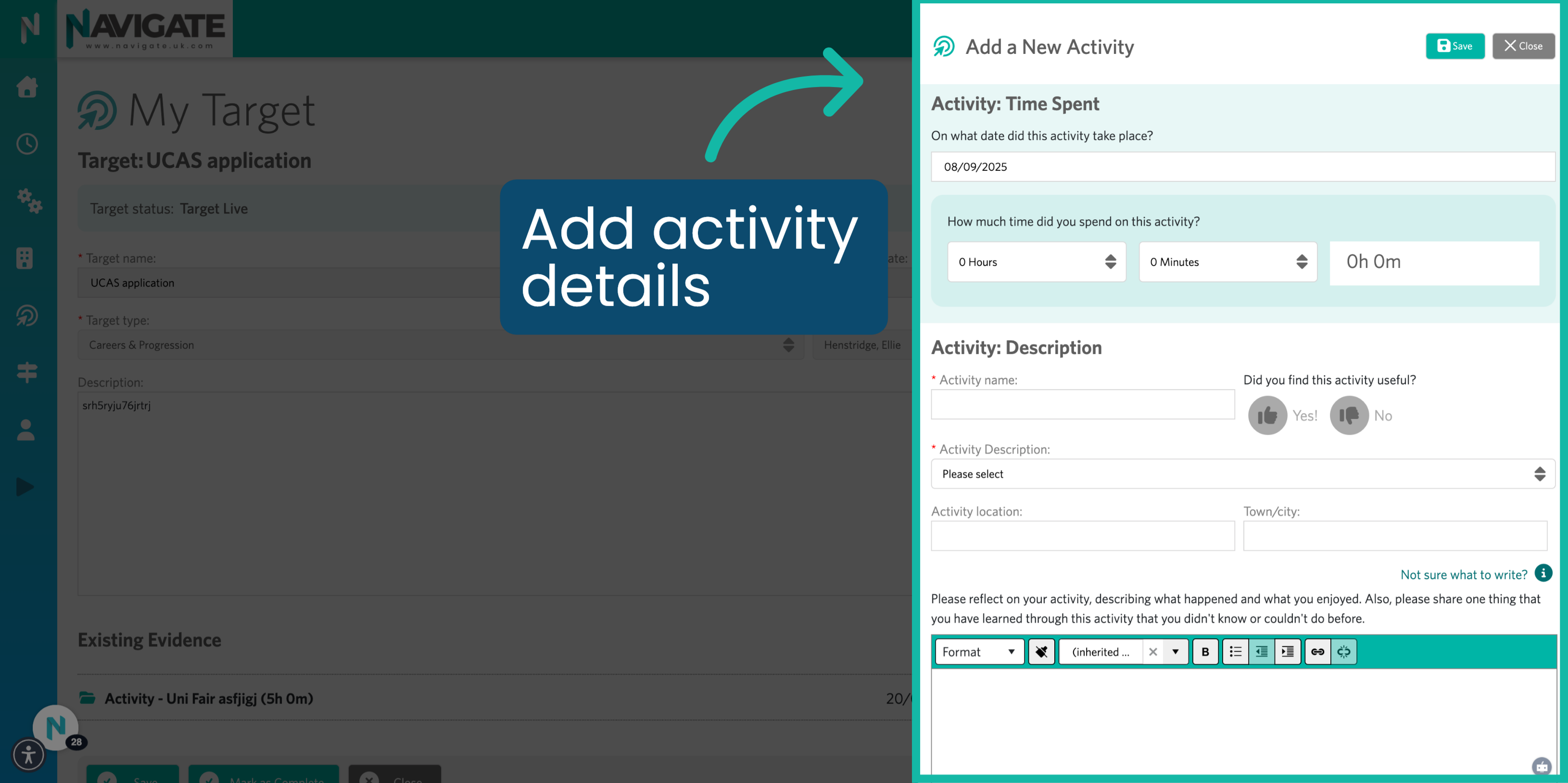
7. Add Activity Details
You will now see a pop-up with a blank activity form, where you can add the activity details. Your reflections transform an activity into a valuable learning experience. Use the Reflection Coach prompts to guide you in asking the right questions and strive for 100%.
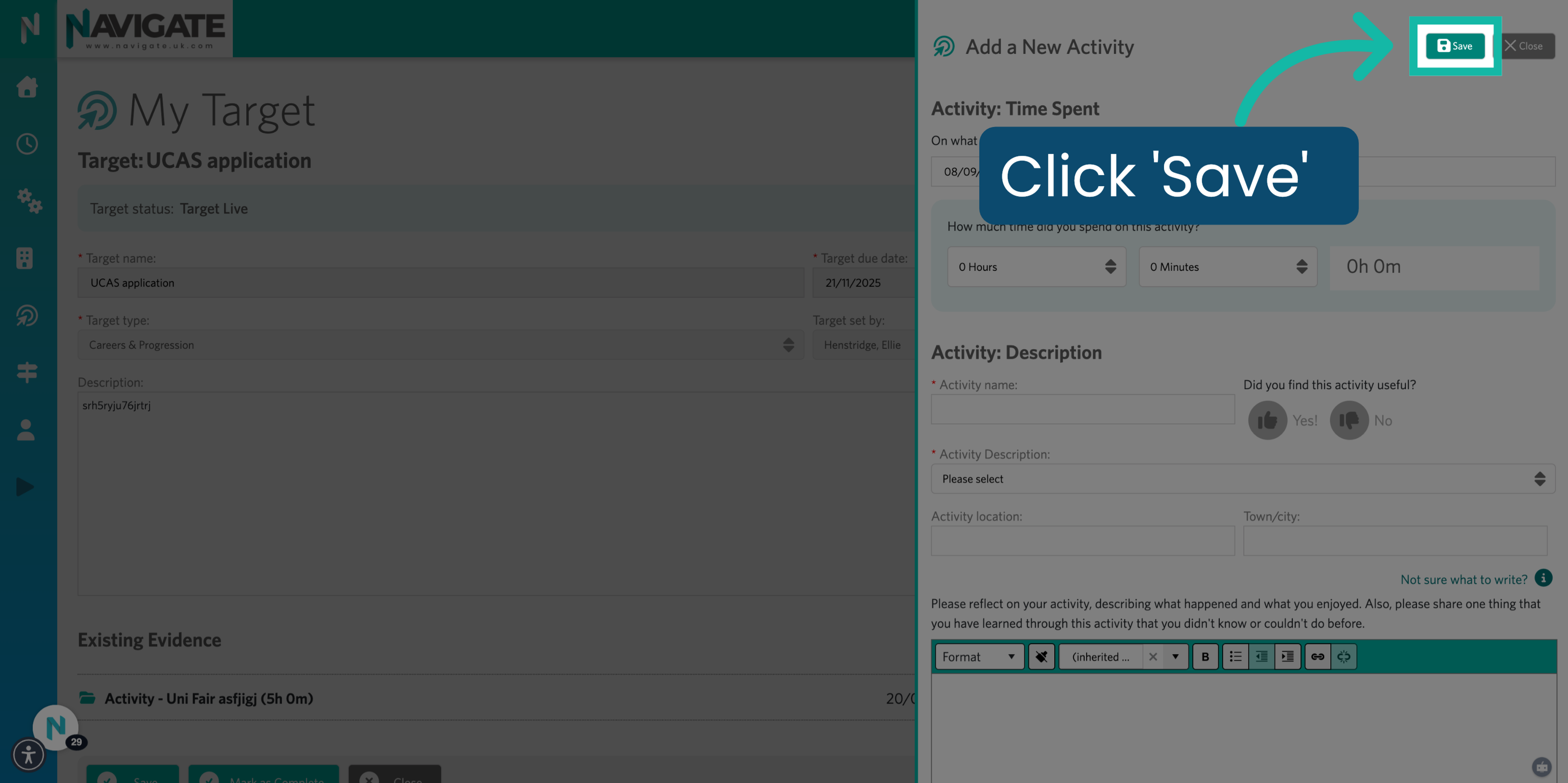
8. Click 'Save'
Once completed, click 'Save' to add this activity to your target.
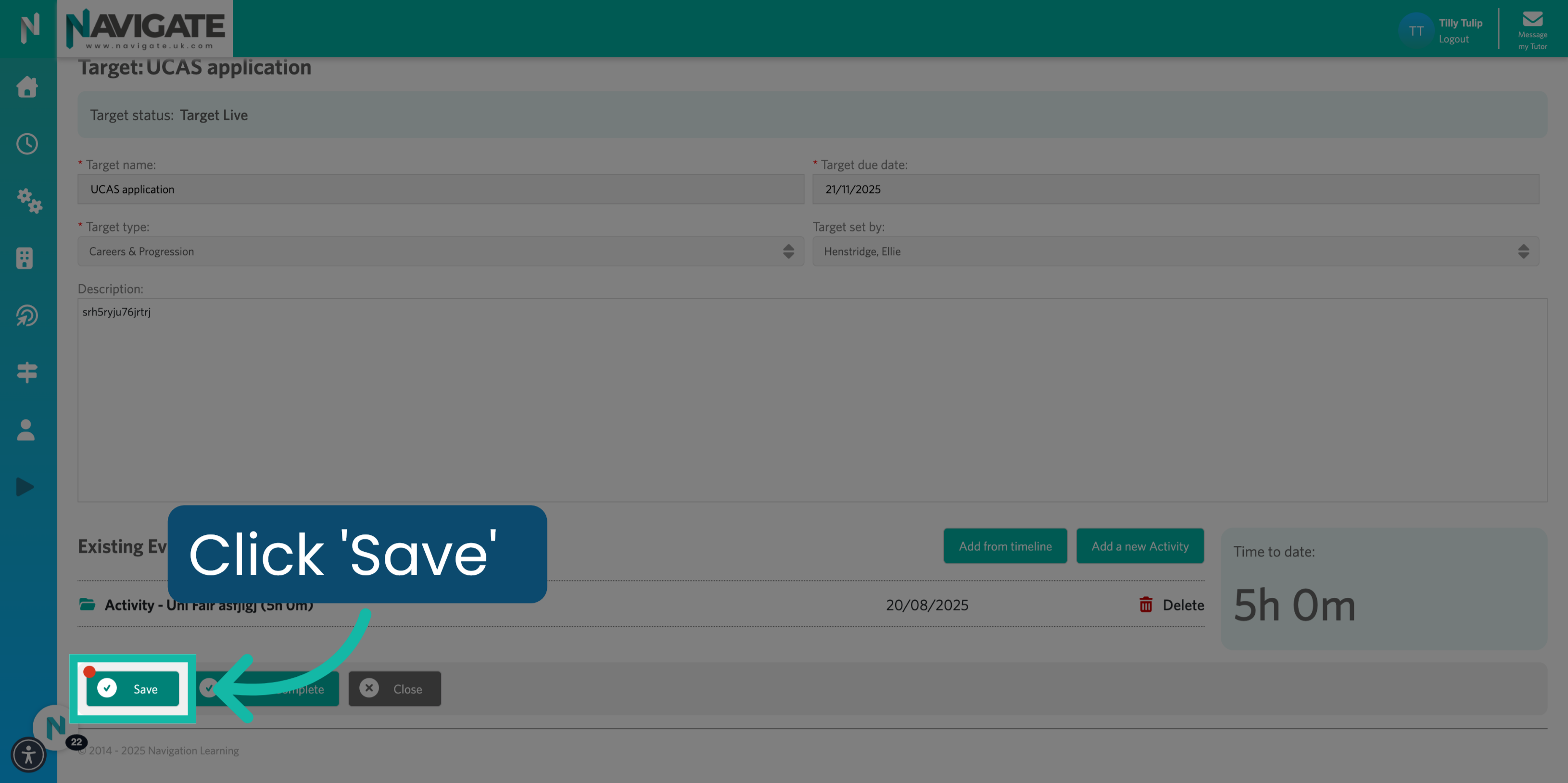
9. Click 'Save'
Once you've added all your relevant activities to the target, click the 'Save' button.
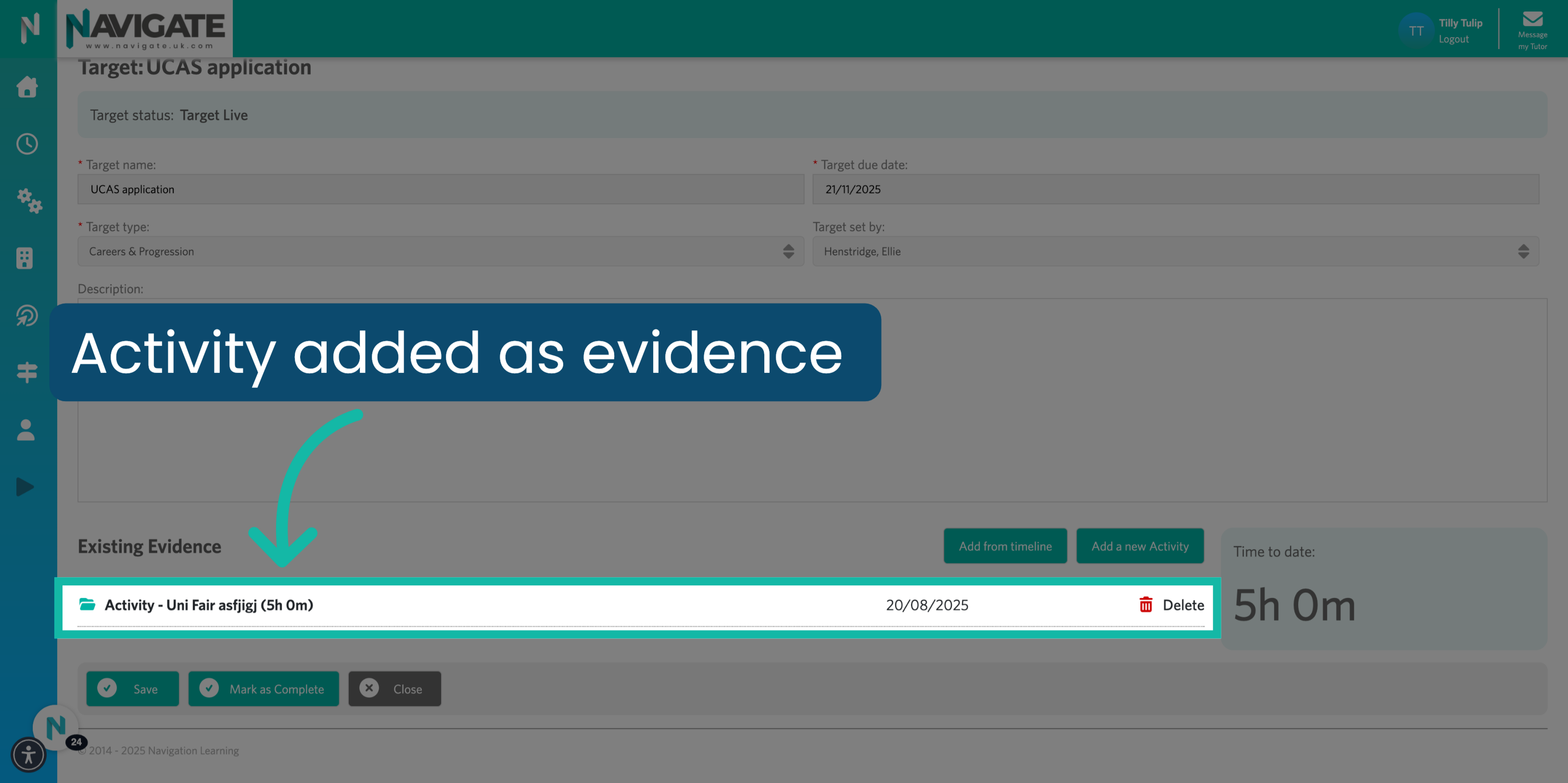
10. View activity added as evidence
The added activities will now appear under 'Existing Evidence' on your target page.
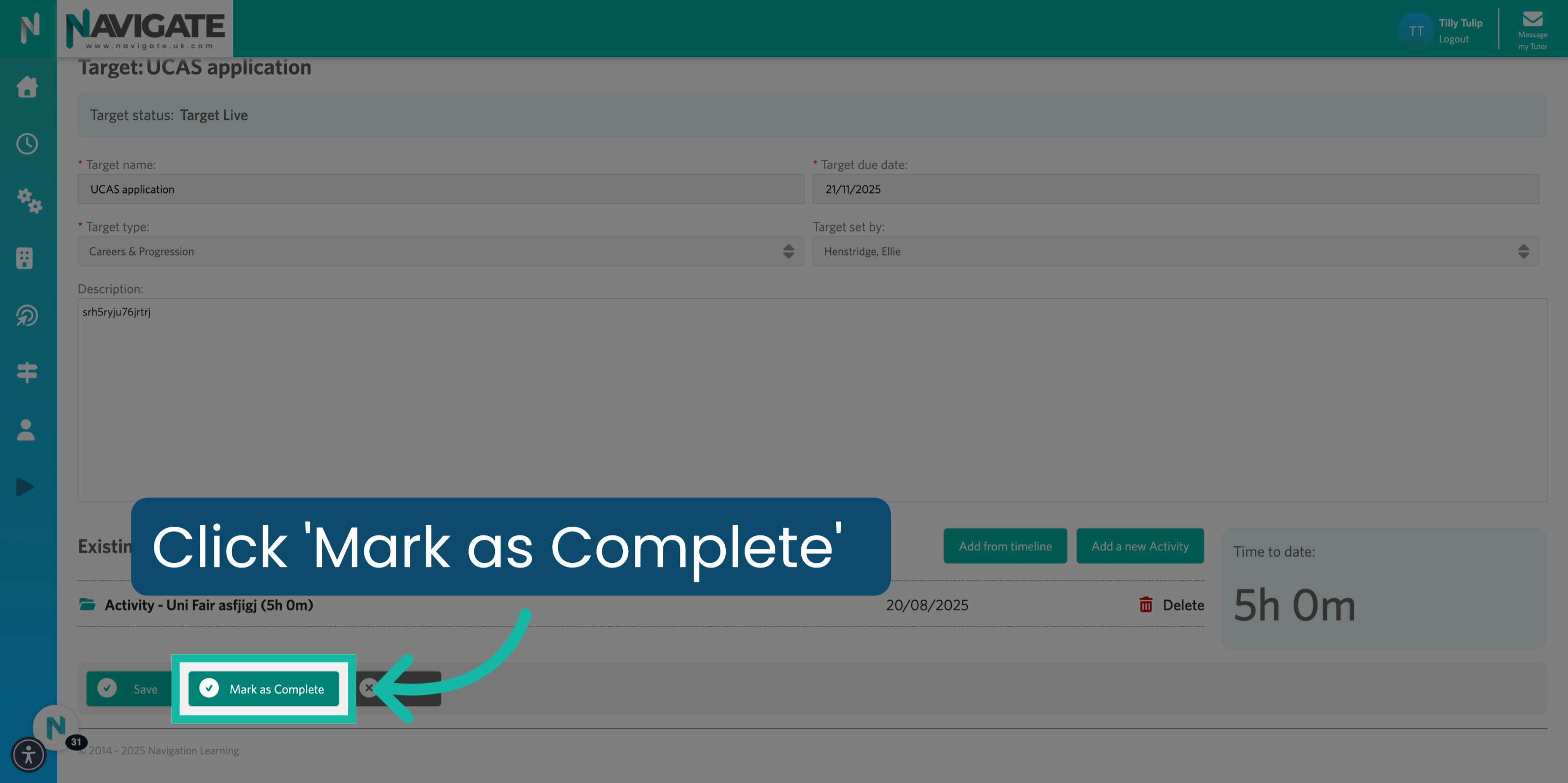
11. Click 'Mark as Complete'
When you have completed the target, click 'Mark as Complete' to submit it for approval.
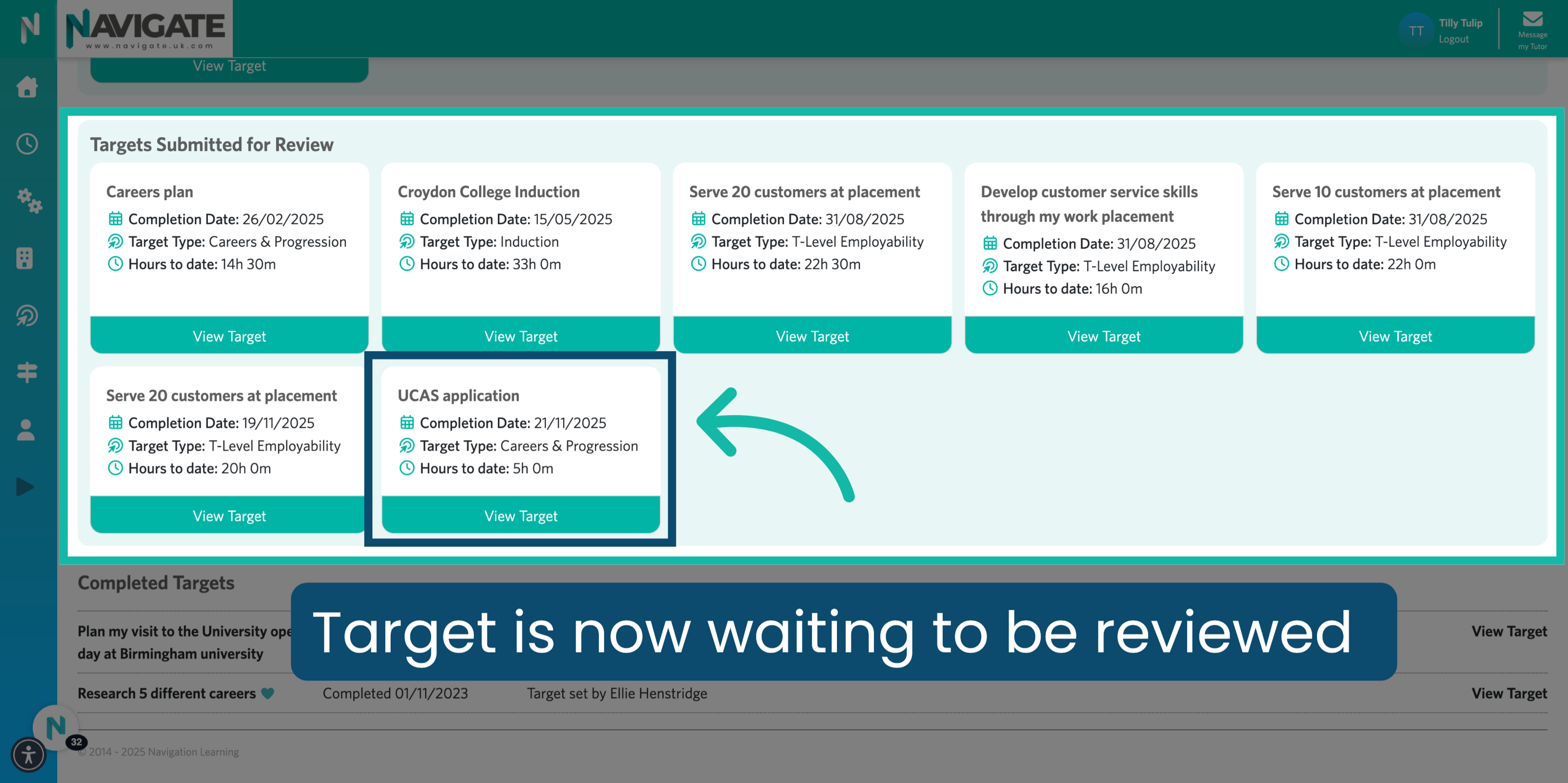
12. Target Submitted for Review
Your target has now been submitted for review.
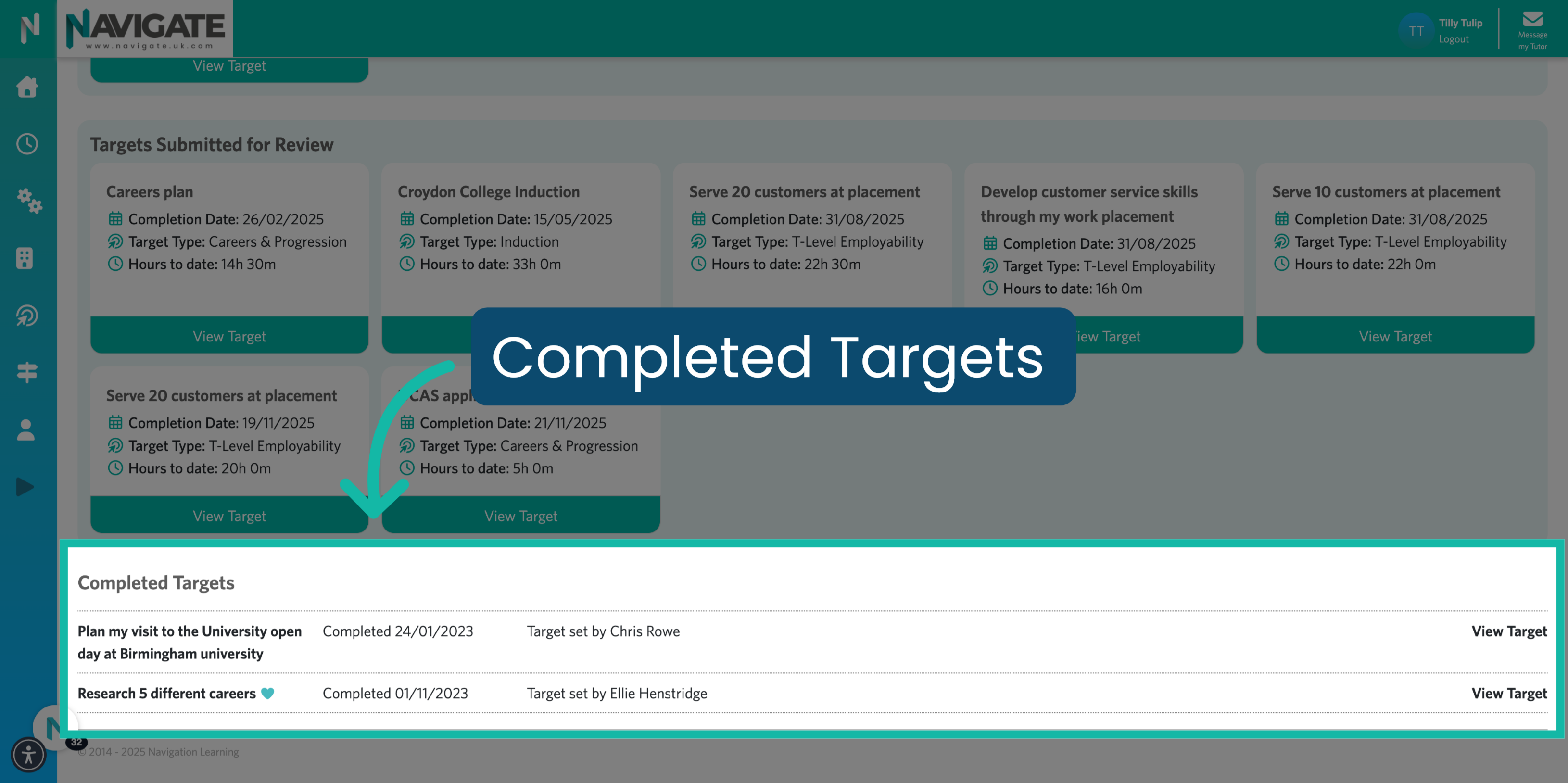
13. Completed targets
You can view all completed targets in the section located at the bottom of your target page.
Was this article helpful?
That’s Great!
Thank you for your feedback
Sorry! We couldn't be helpful
Thank you for your feedback
Feedback sent
We appreciate your effort and will try to fix the article