Go to login.navigate.uk.com
1. Access Employer Engagement module
Once logged in, to create and manage employer-related goals, open the employer engagement module.
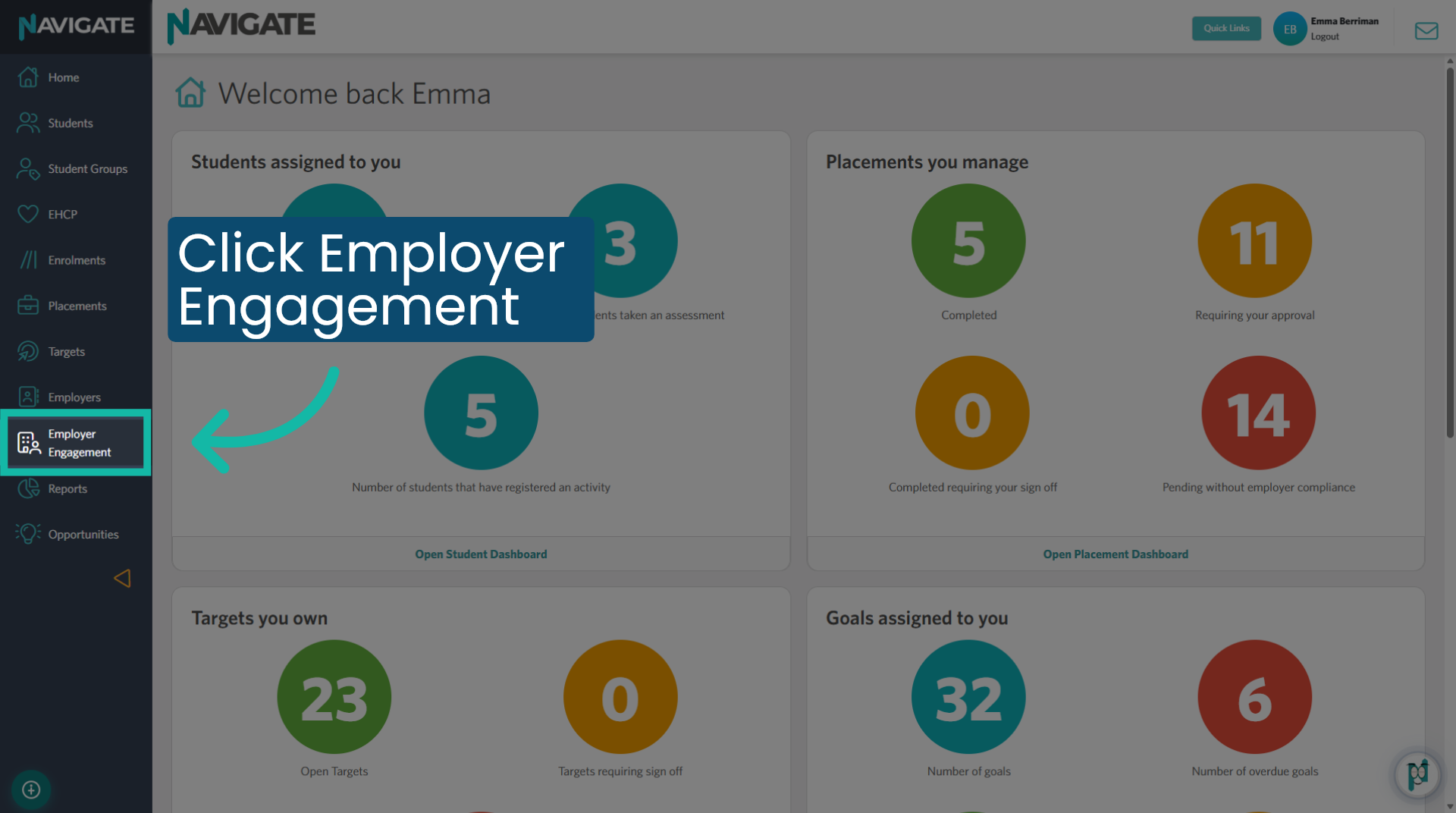
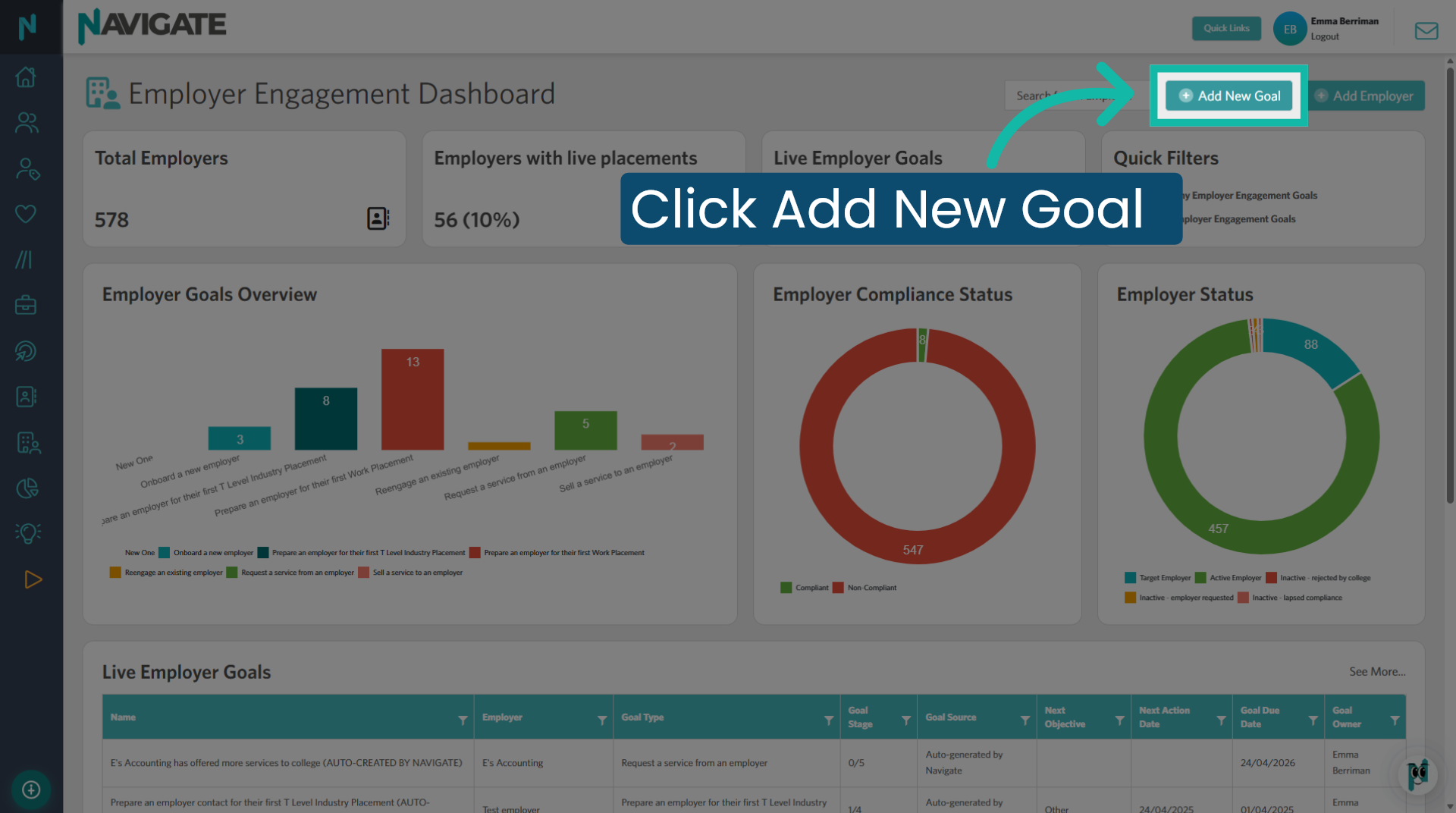
2. Add New Employer Goal
Click add new goal to add a goal for an existing employer in your database.
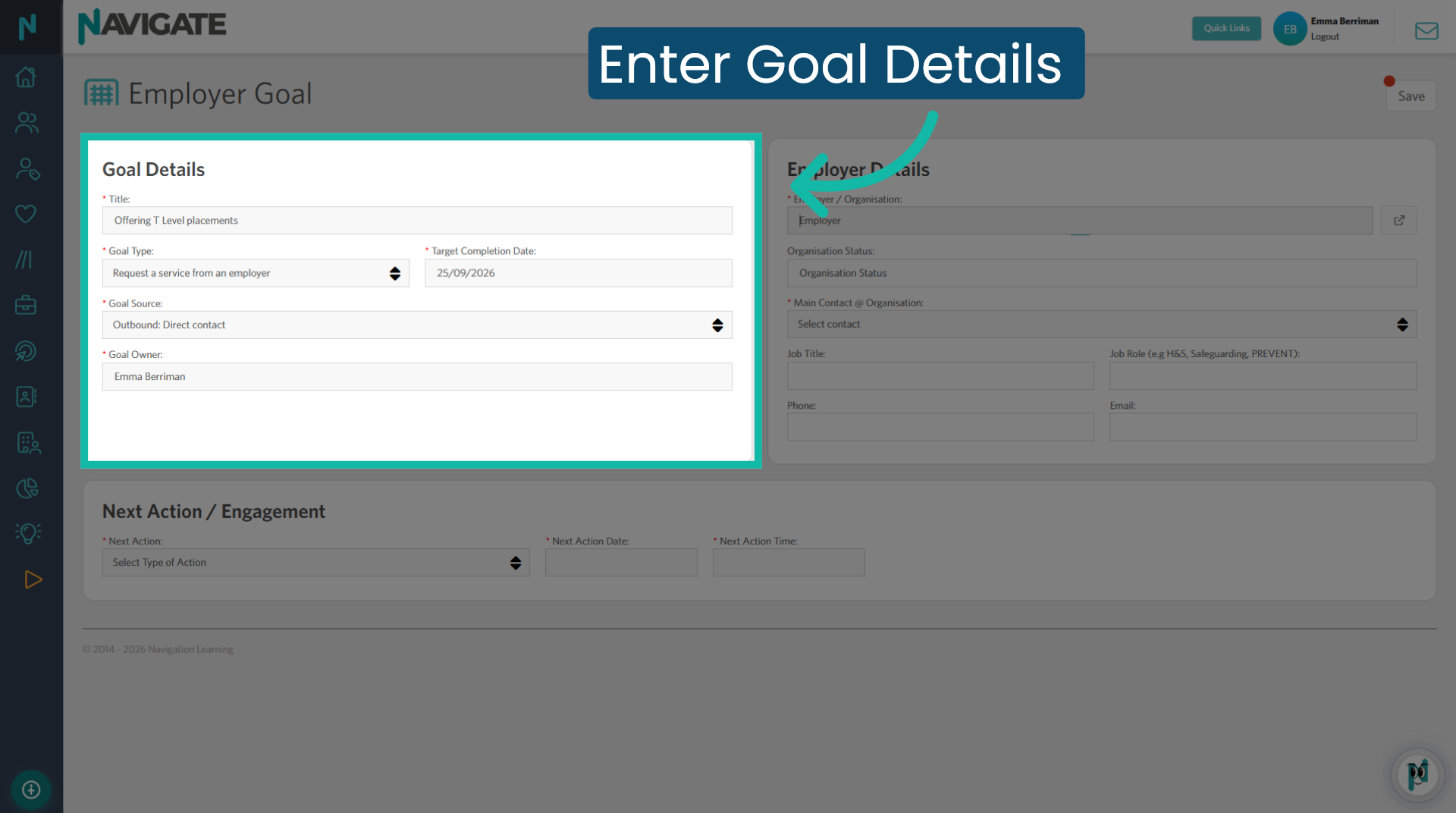
3. Add the Goal Details
Complete the details of the goal.
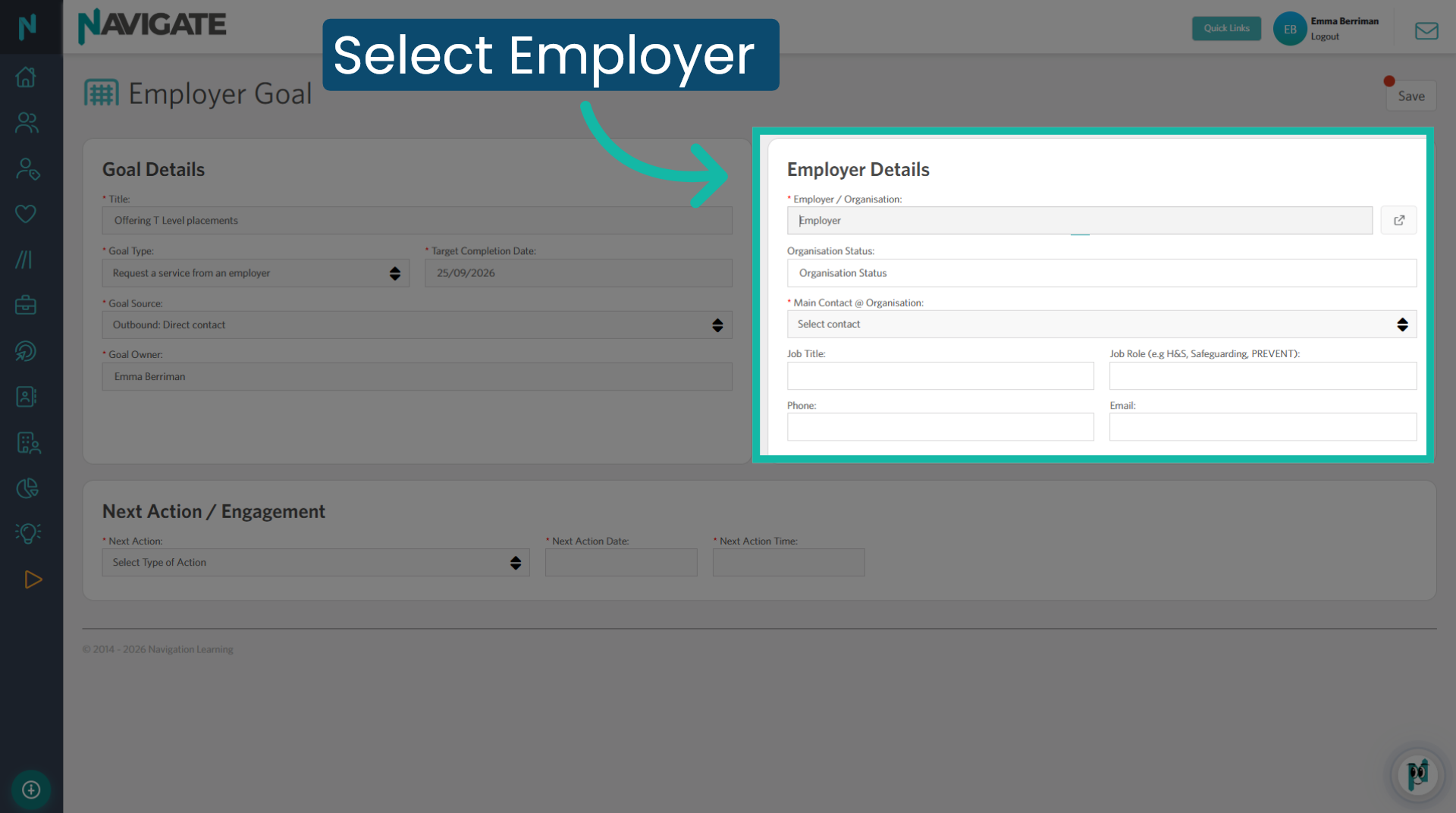
4. Select Employer
Select the employer from your database and choose the appropriate contact from the organisation you are collaborating with to achieve the goal.
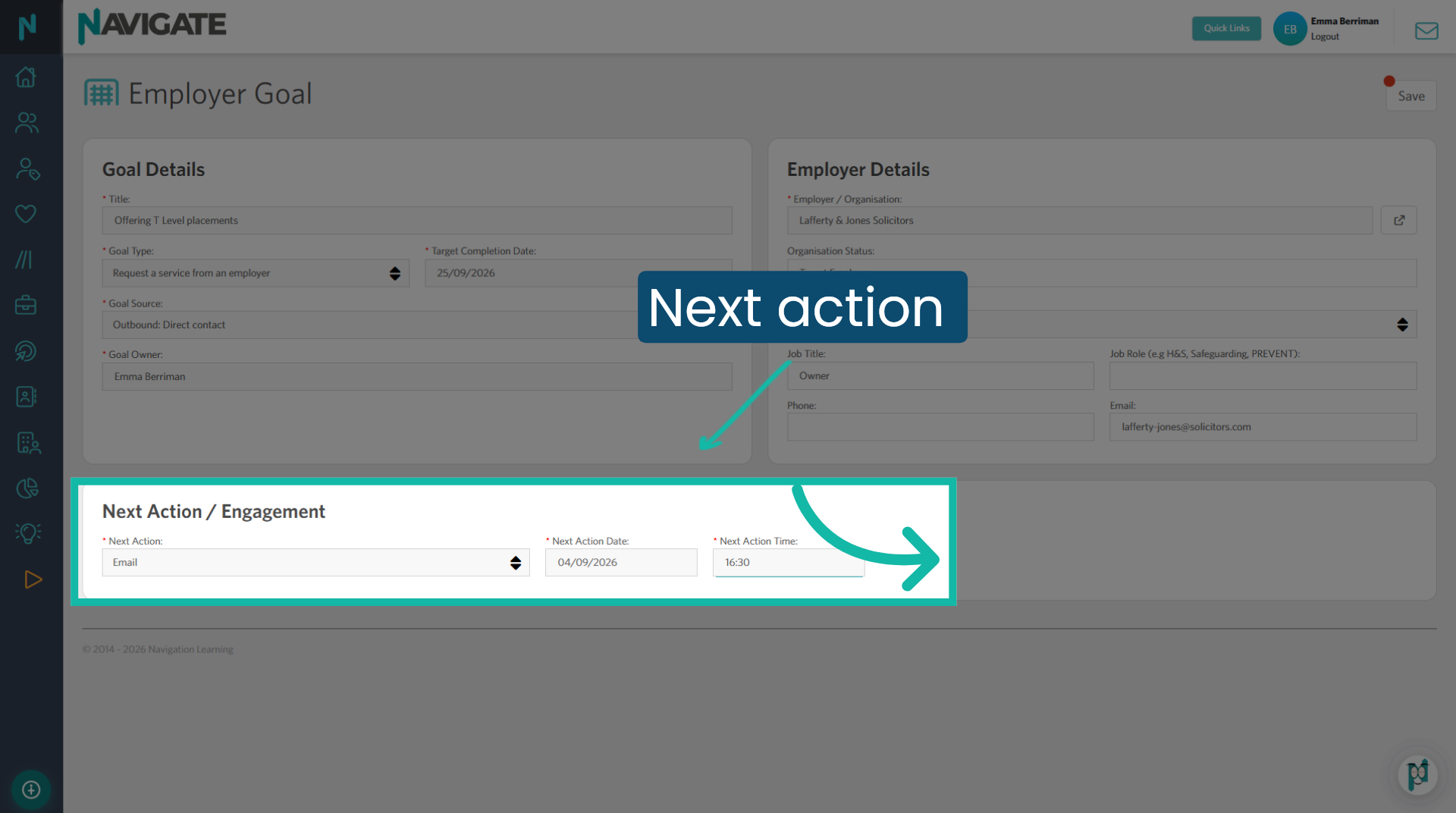
5. Add the Next Action
Add the next planned action or engagement. For example, send an email to the employer detailing the T Levels we offer.
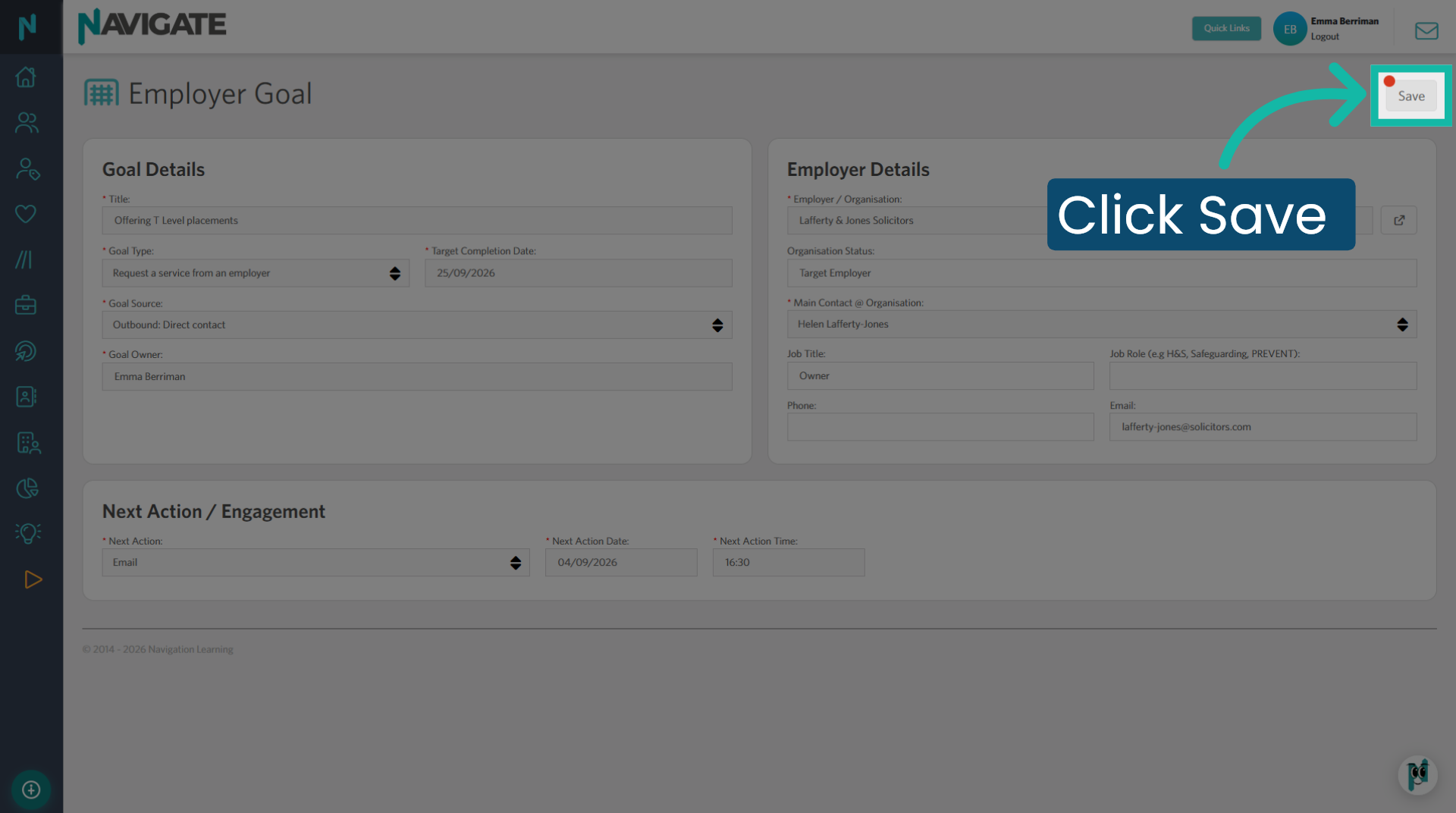
6. Save Employer Goal
Click save to record the goal you have created, with the first action that needs to be completed.
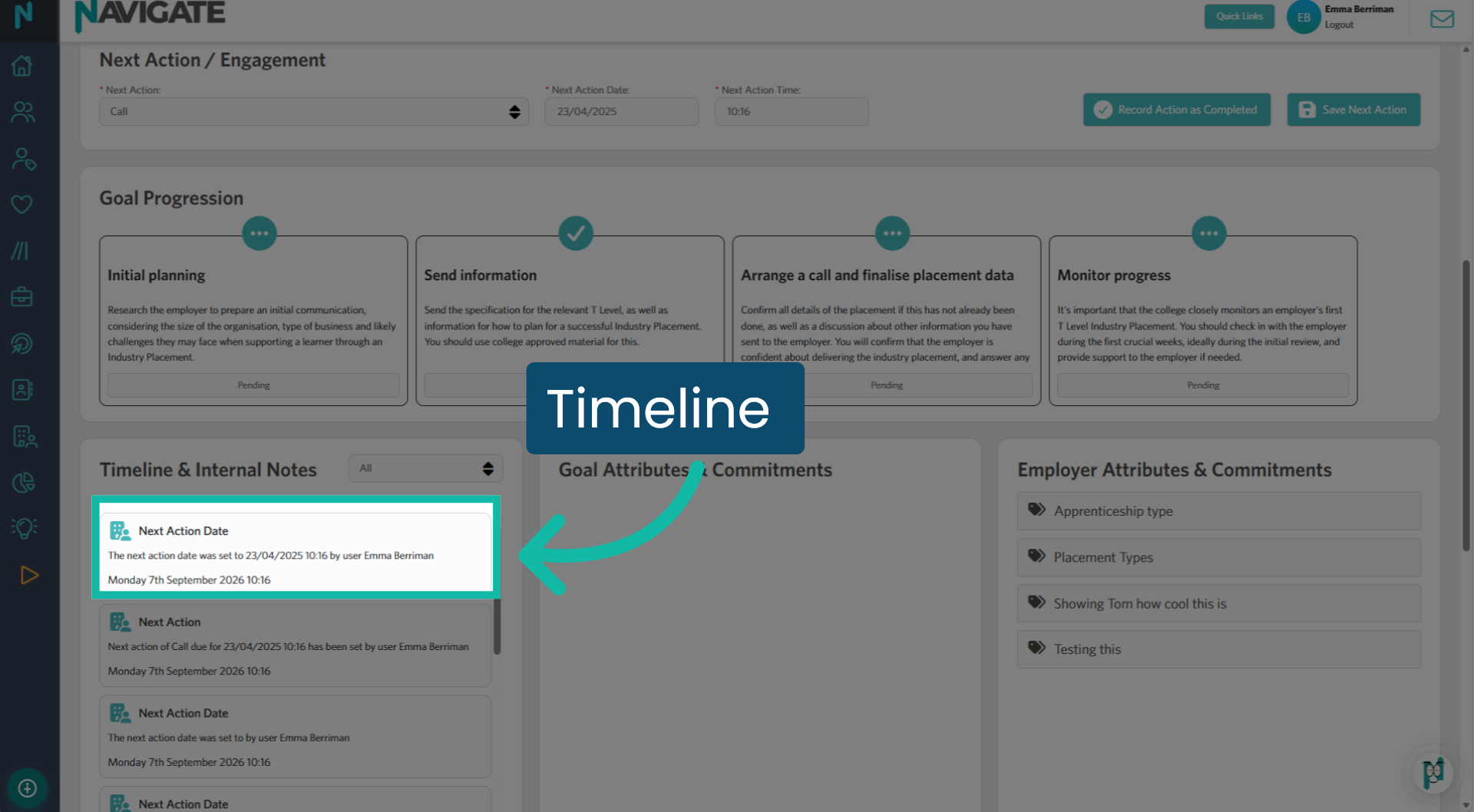
7. Action recorded
The next action is documented on the timeline as next action date with all relevant details.
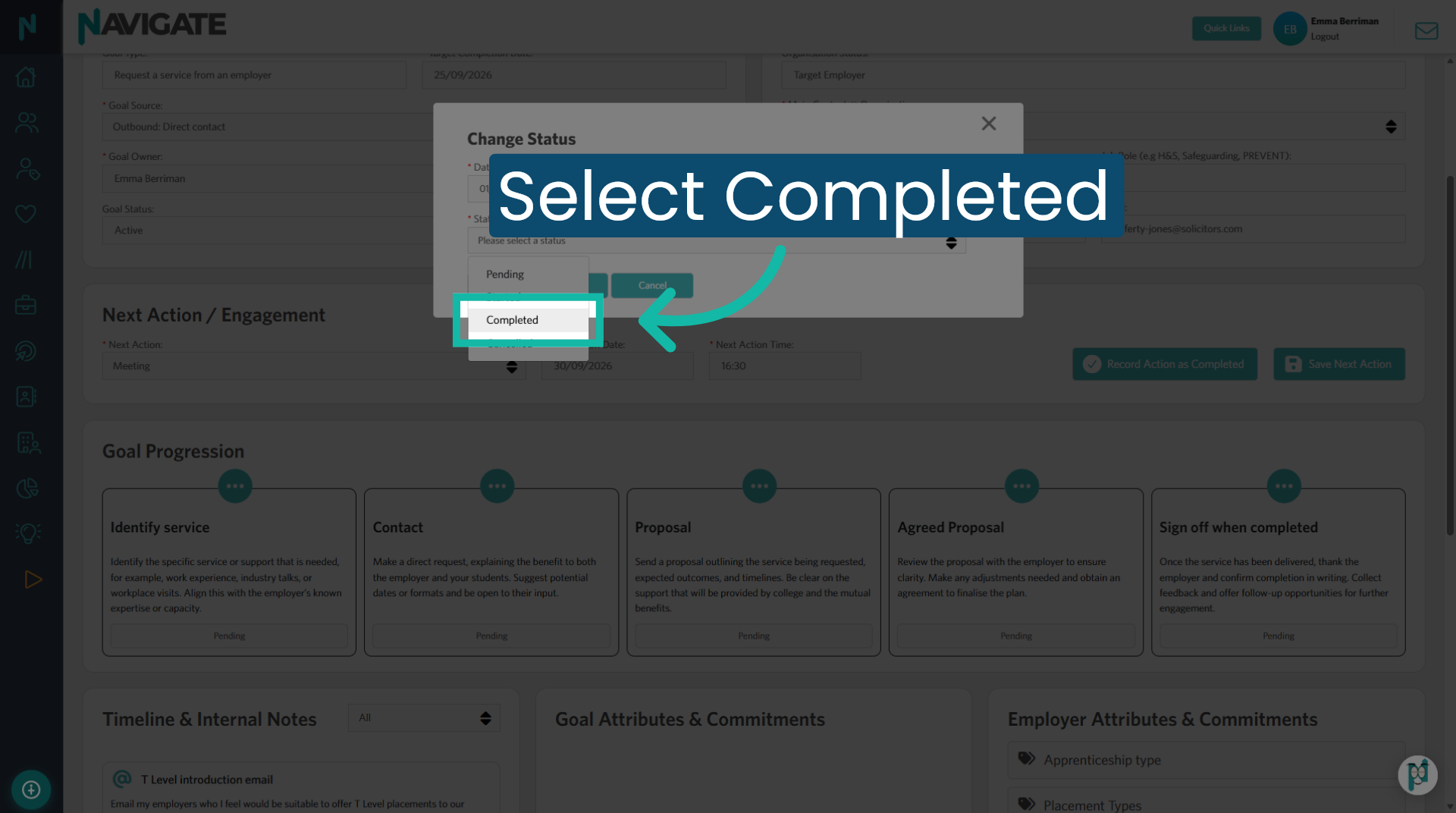
8. Choose Completed Status
Choose the completed status to indicate that the interaction or goal has been finished.
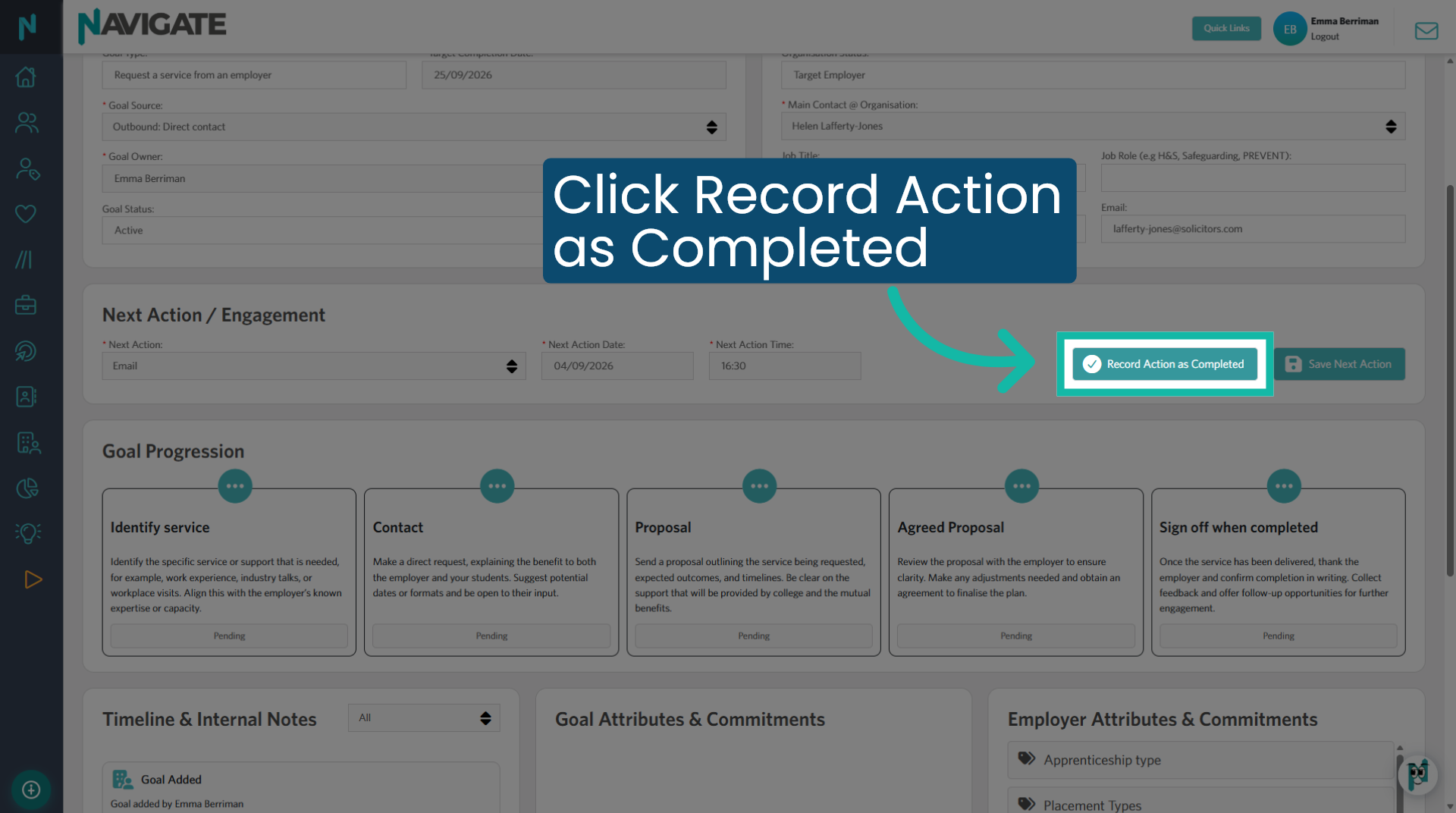
9. Completing an Action
Once you have completed an action, you must now document the details and mark it as complete.
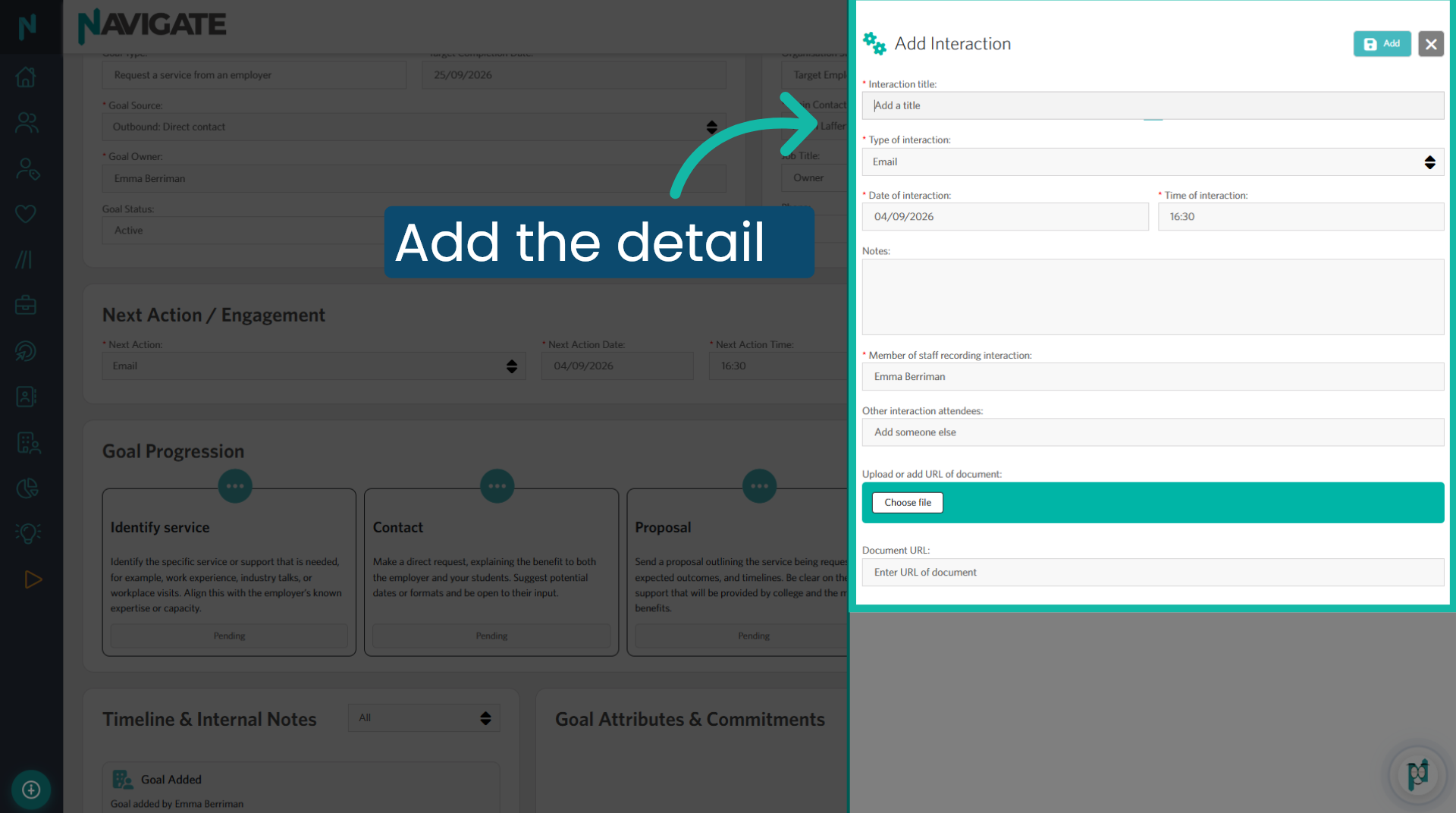
10. Add the details
Complete the form with the details of the action you took. Include any relevant information or files to help your collaborators understand the progress of the goal.
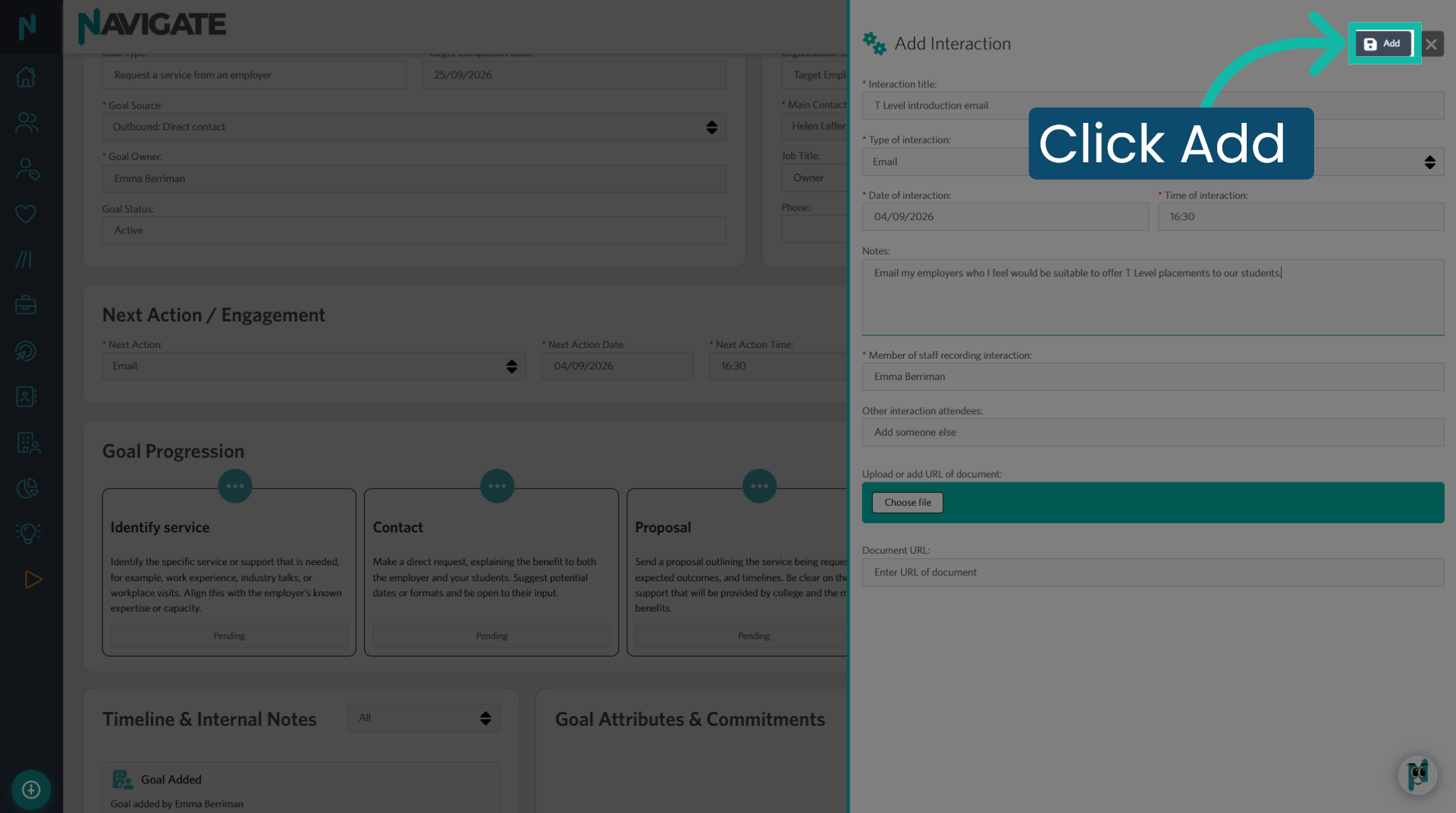
11. Click Add
Click add to record the action, which is now marked as complete. You will then be forced to create a new next action.
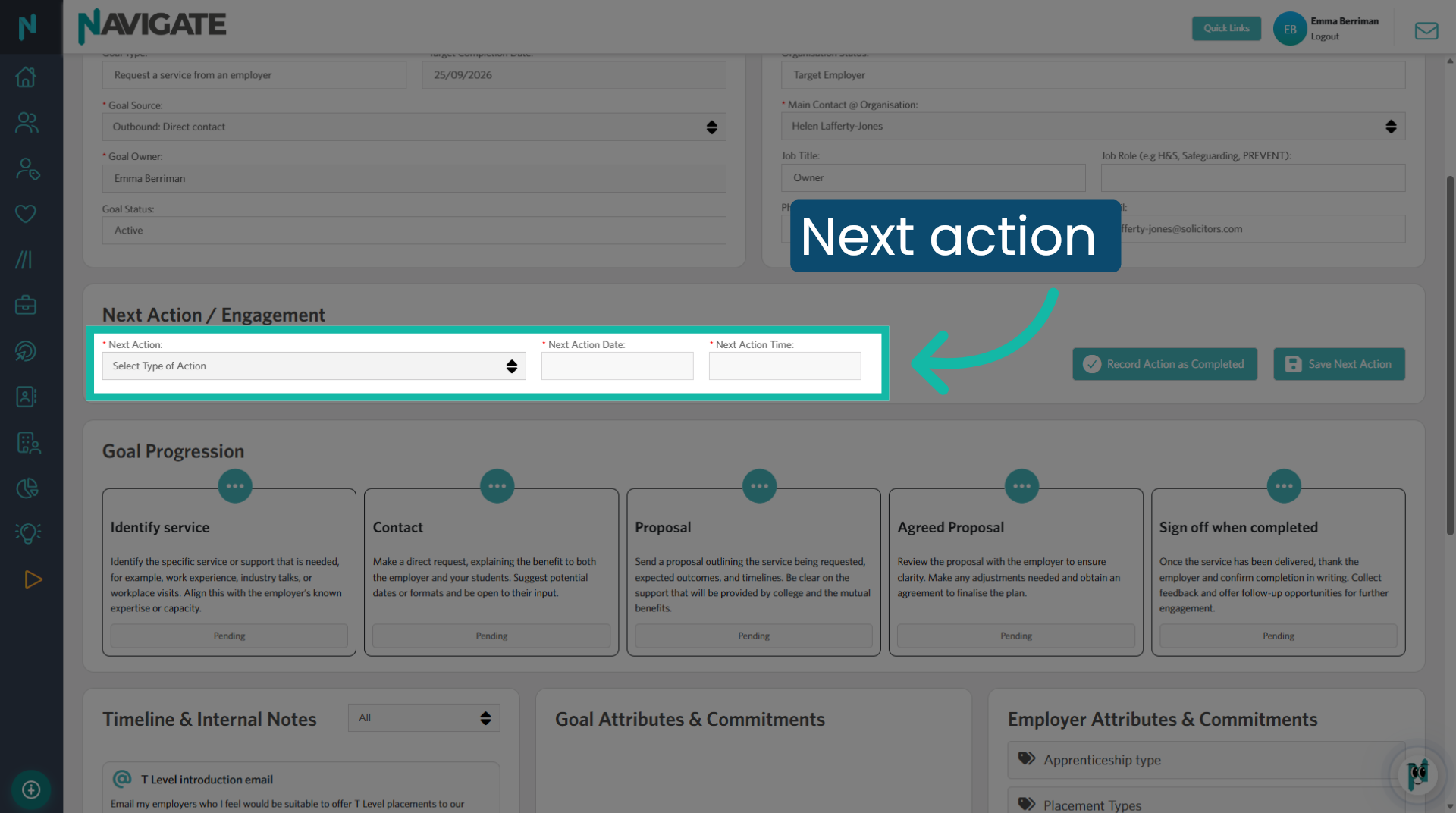
12. Add a 'Next Action'
Add a next action to inform you and your collaborators about the necessary steps ahead. You will be able to view the required actions in each step of the goal progression.
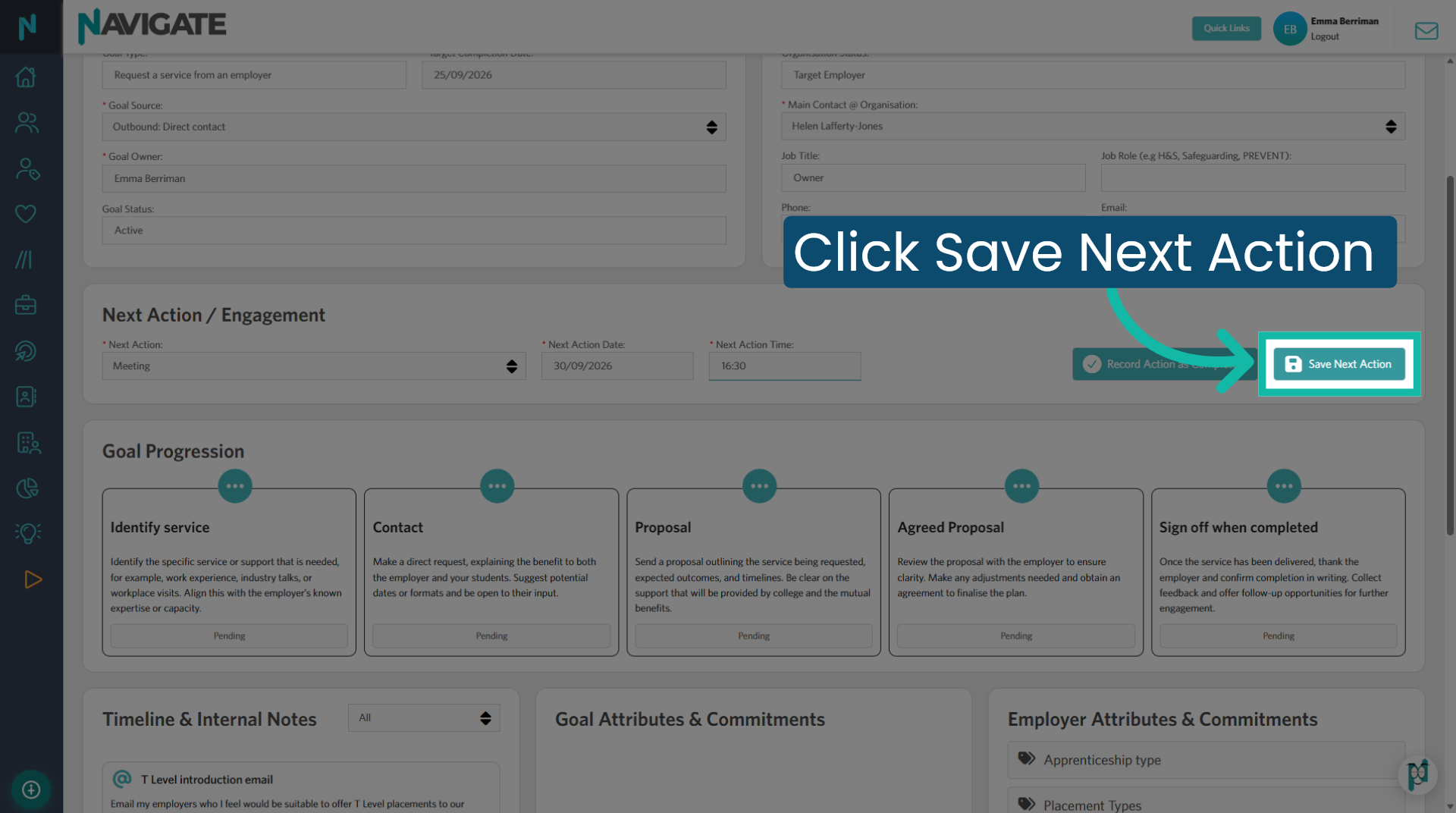
13. Save Next Action
Save the next action details to update the interaction schedule and maintain progress towards the goal.
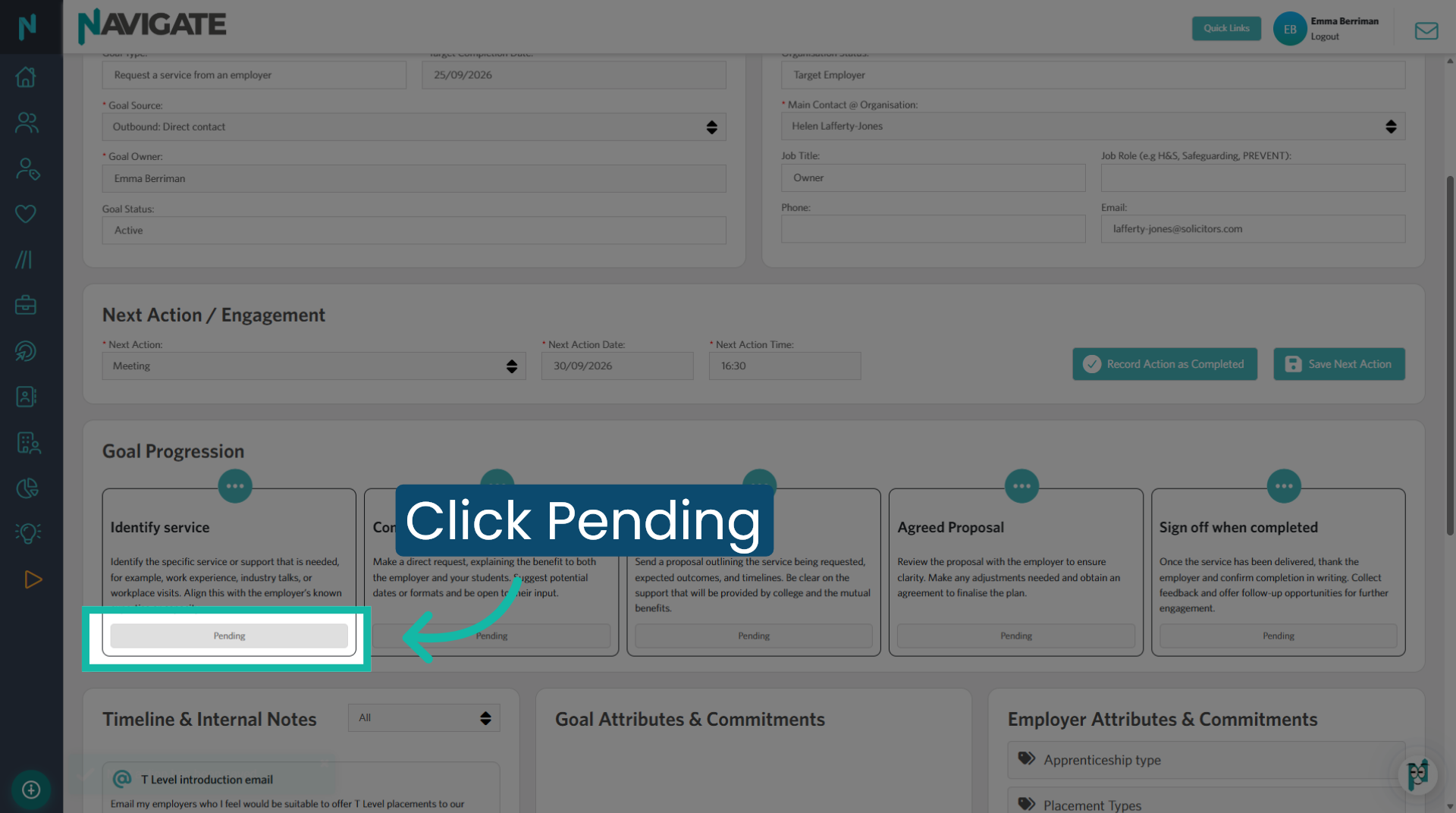
14. Change Goal stage status
Now that you have started the goal, you need to update the status of the goal stage. Click on the word 'Pending'.
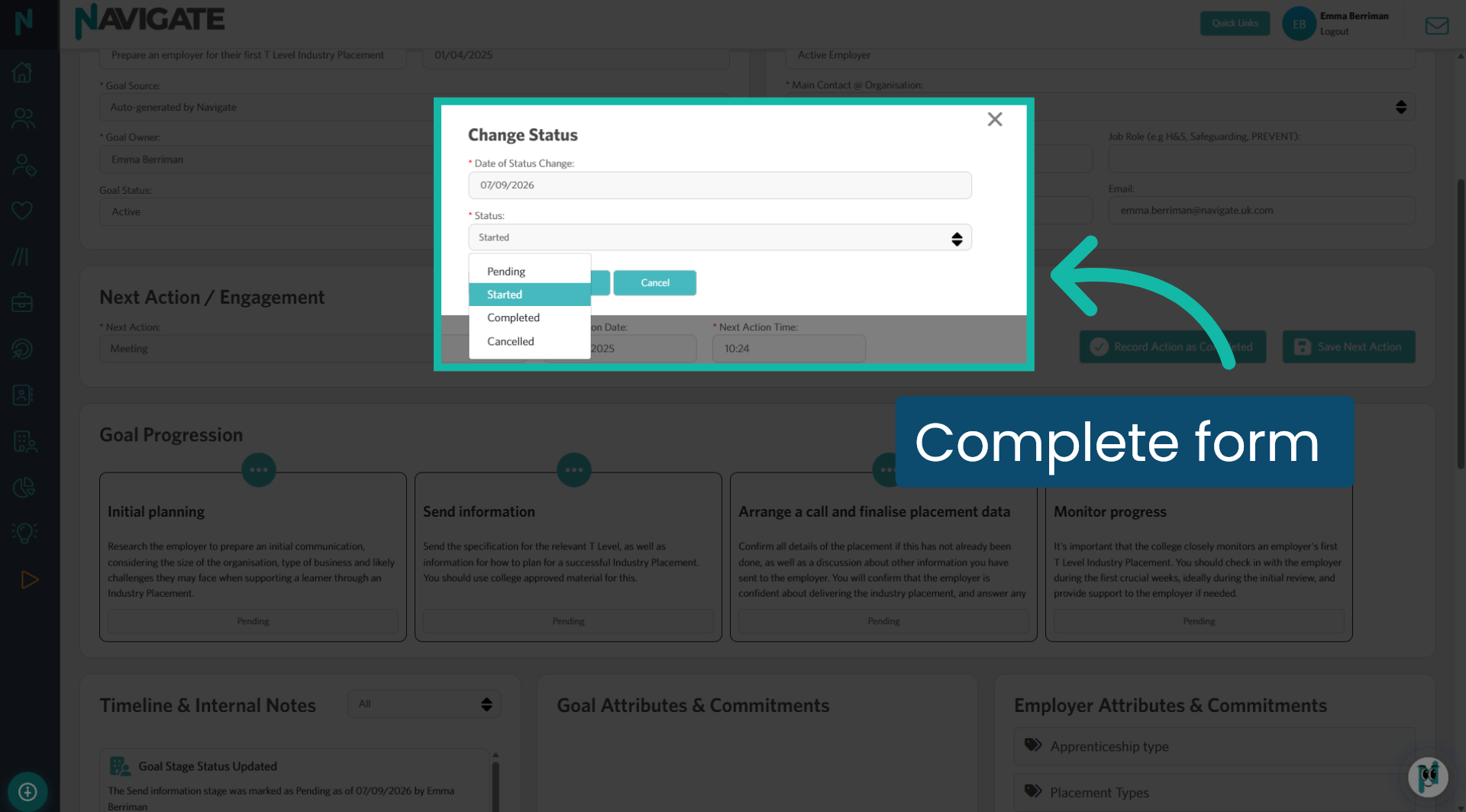
15. Complete form
Change the status to 'Started'.
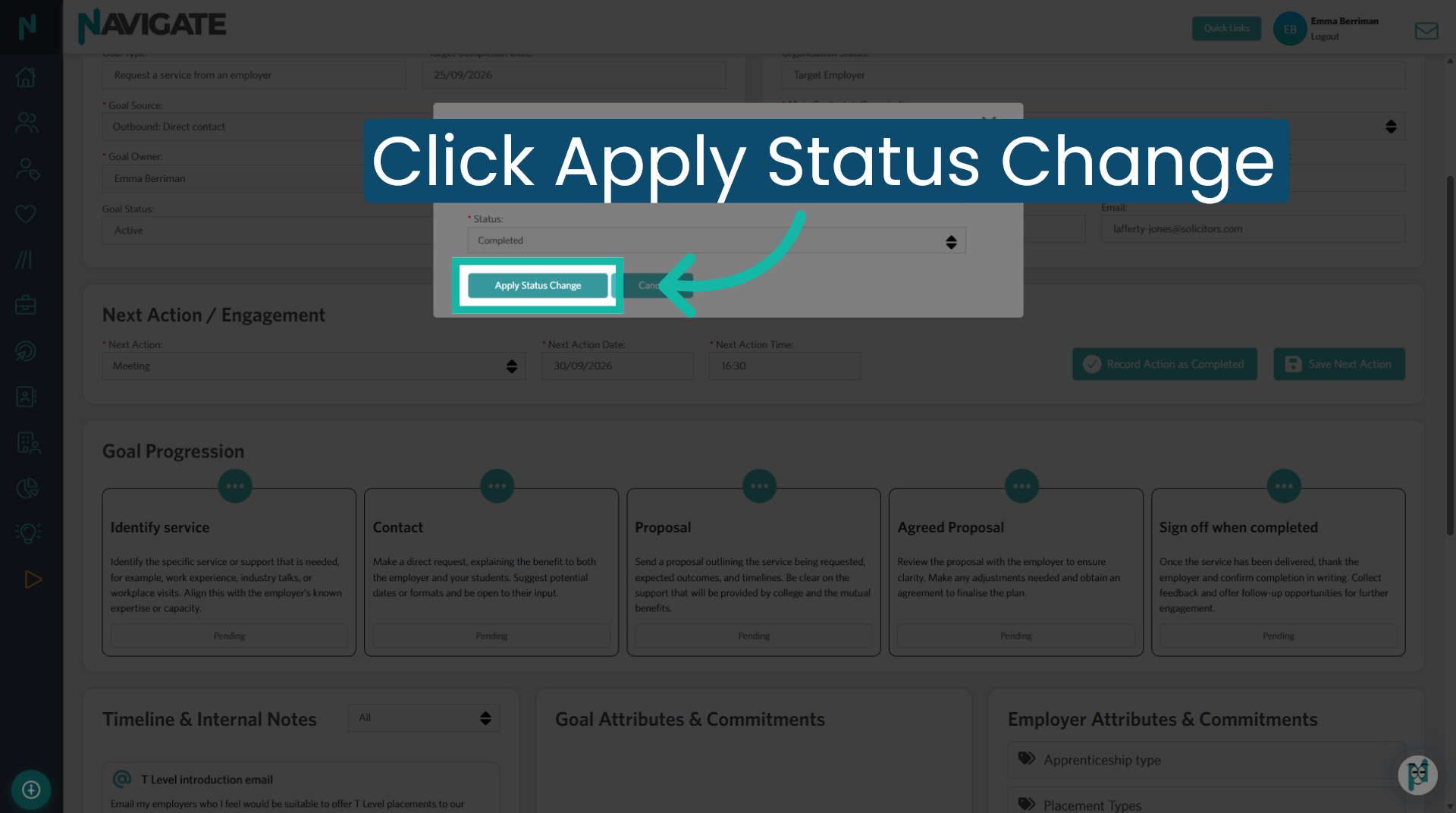
16. Apply Status Change
Apply the selected status change to update the record accordingly.
Was this article helpful?
That’s Great!
Thank you for your feedback
Sorry! We couldn't be helpful
Thank you for your feedback
Feedback sent
We appreciate your effort and will try to fix the article