Go to login.navigate.uk.com
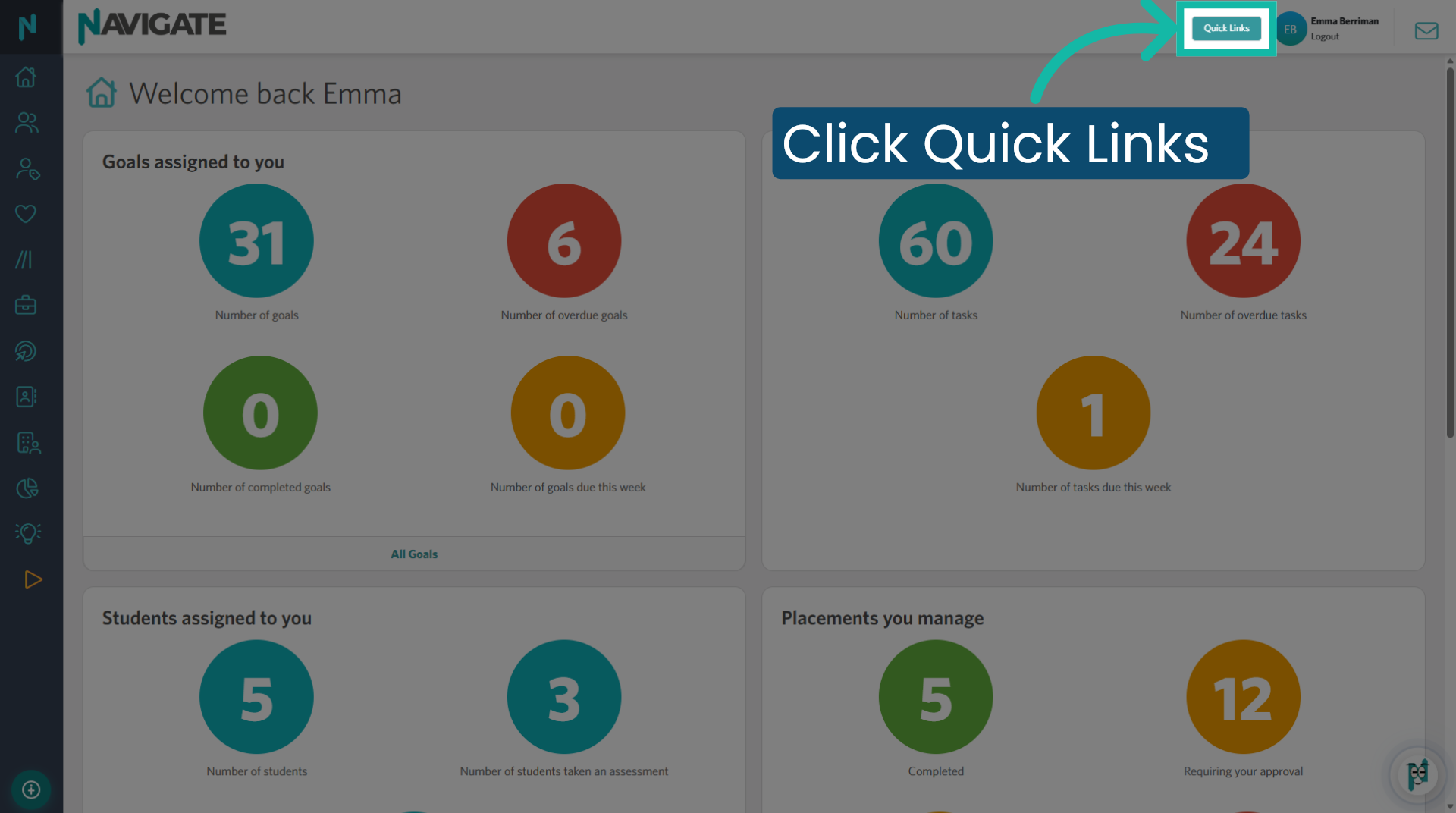
1. Access Quick Links Menu
Once logged in click quick links to navigate to the student module.
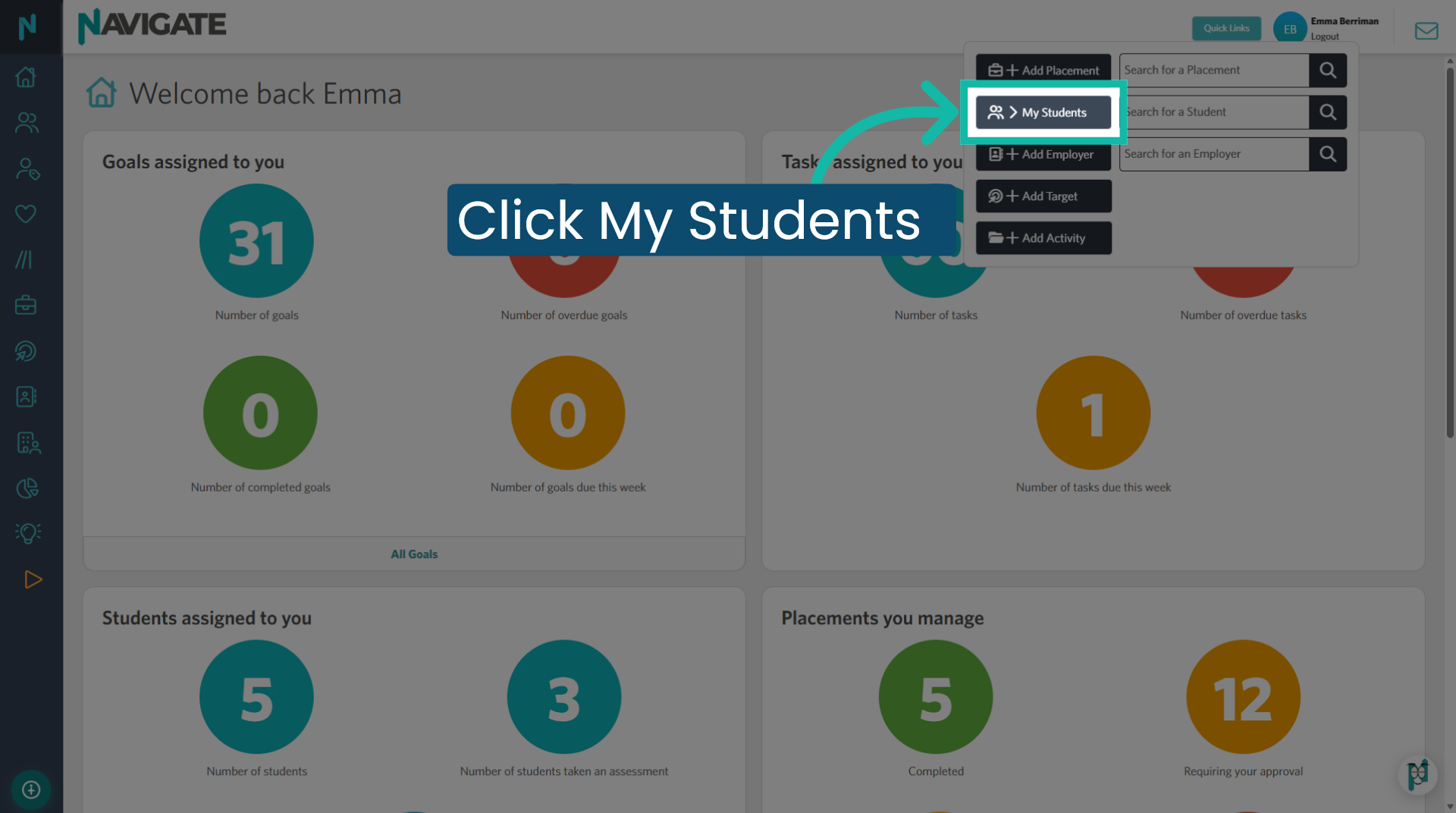
2. Click 'My Students'
Click my students to view the list of students assigned to you.
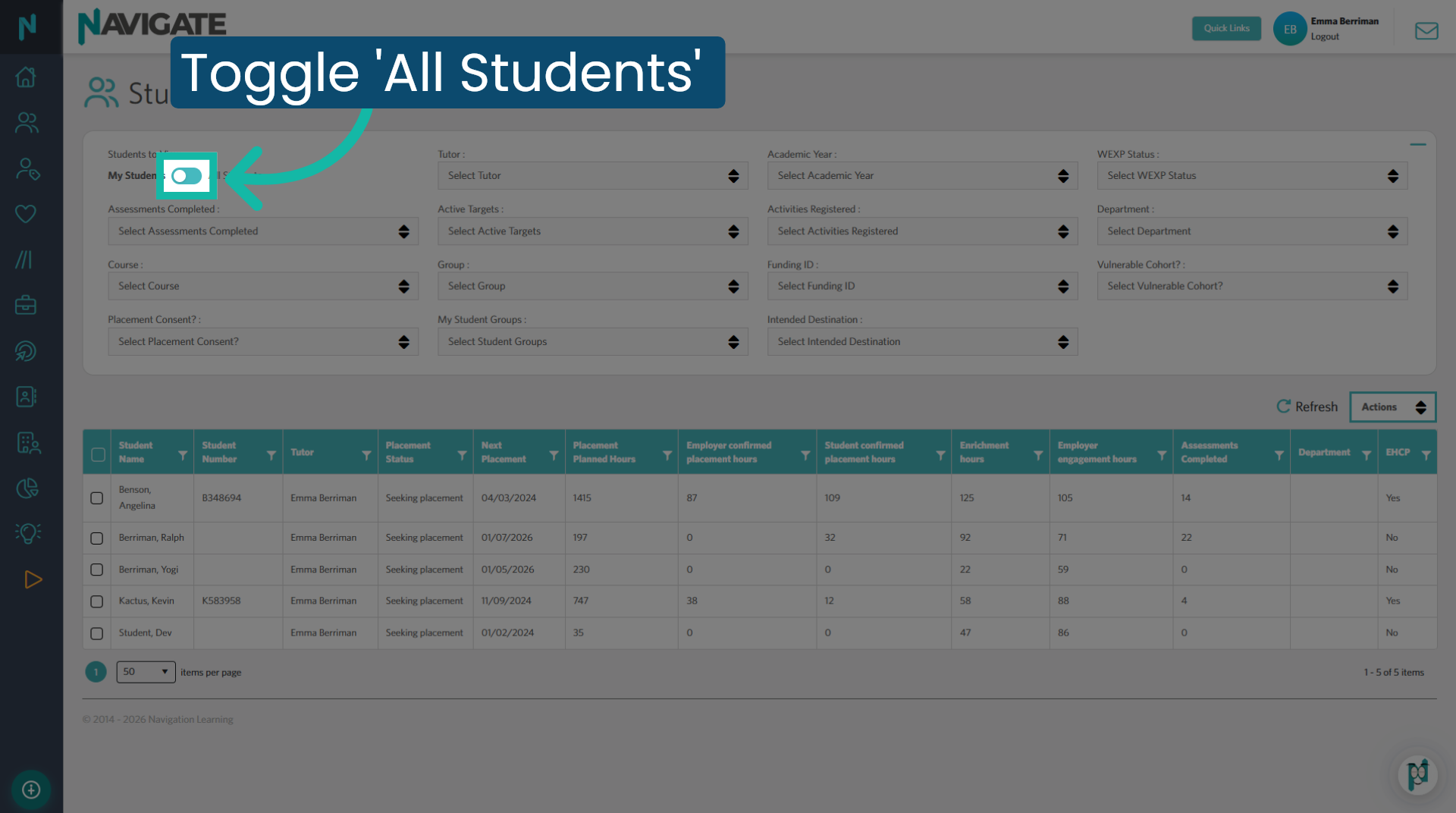
3. Toggle for 'All Students'
Students assigned to you will automatically be listed on this page. To select students who are not allocated to you. toggle to all students
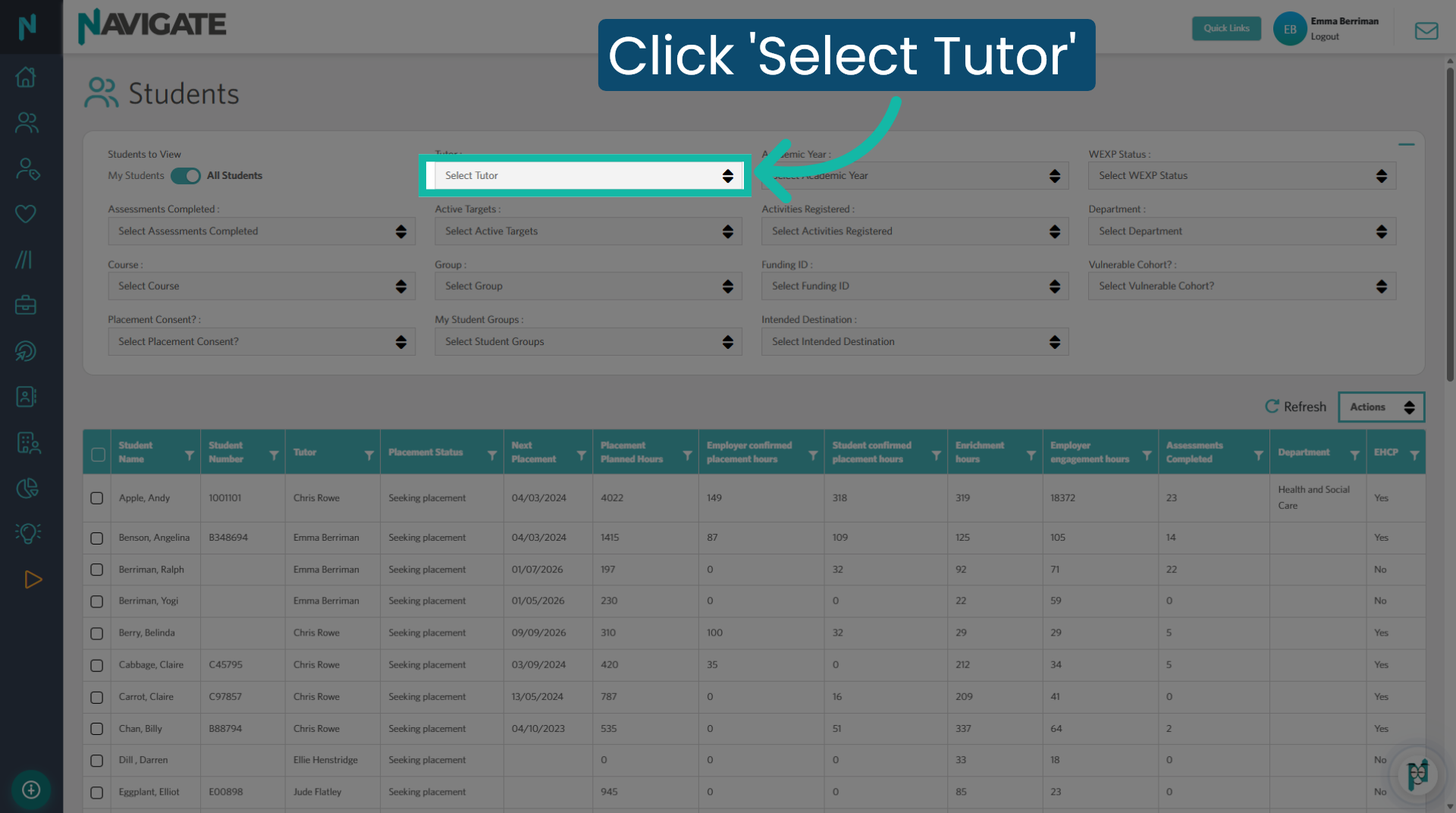
4. Filter by 'Tutor'
You can utilise any of the filters to select a cohort. For this demonstration I am choosing a tutor.
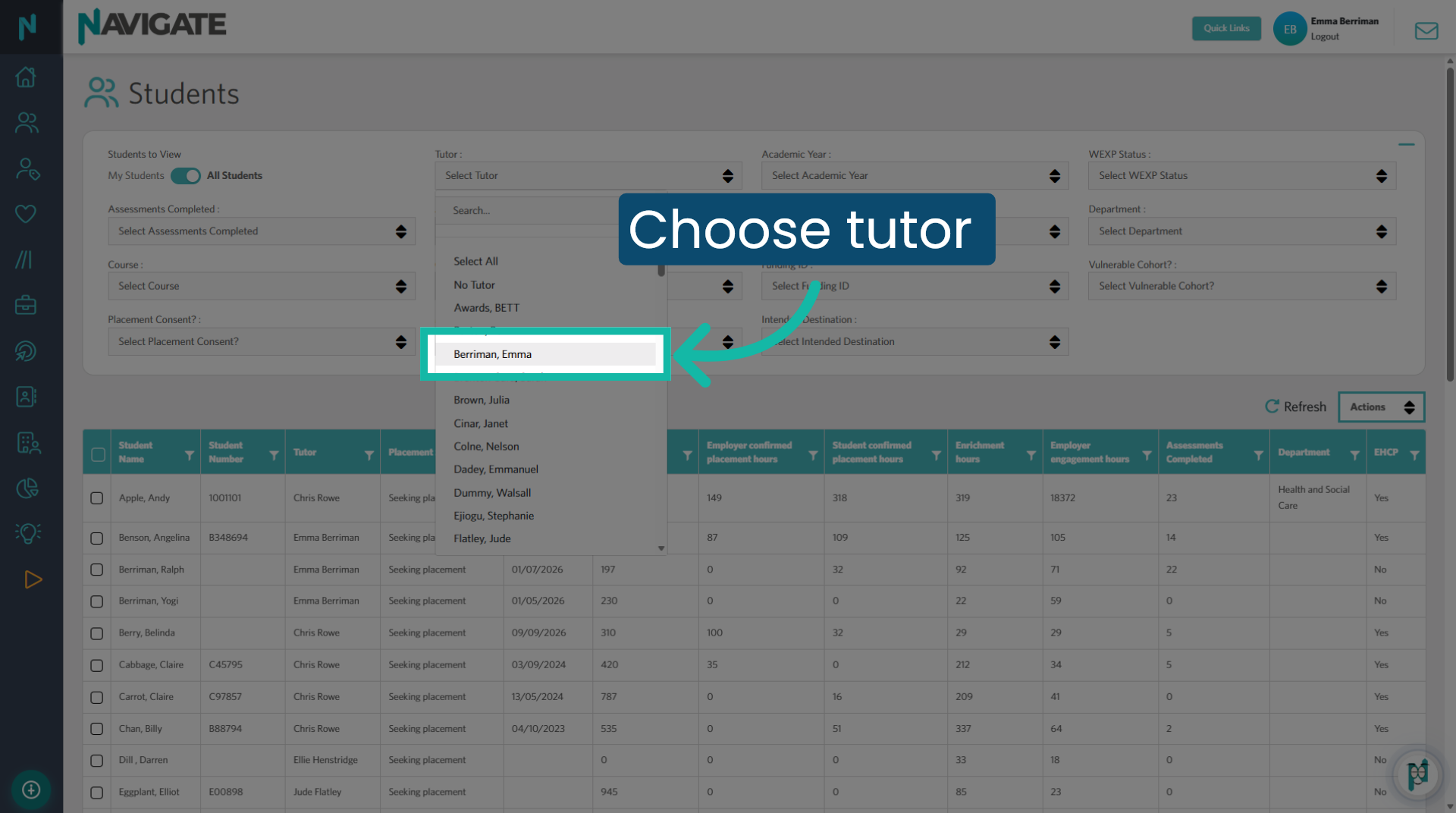
5. Choose 'Tutor'
Select the tutor for the cohort you wish to view.
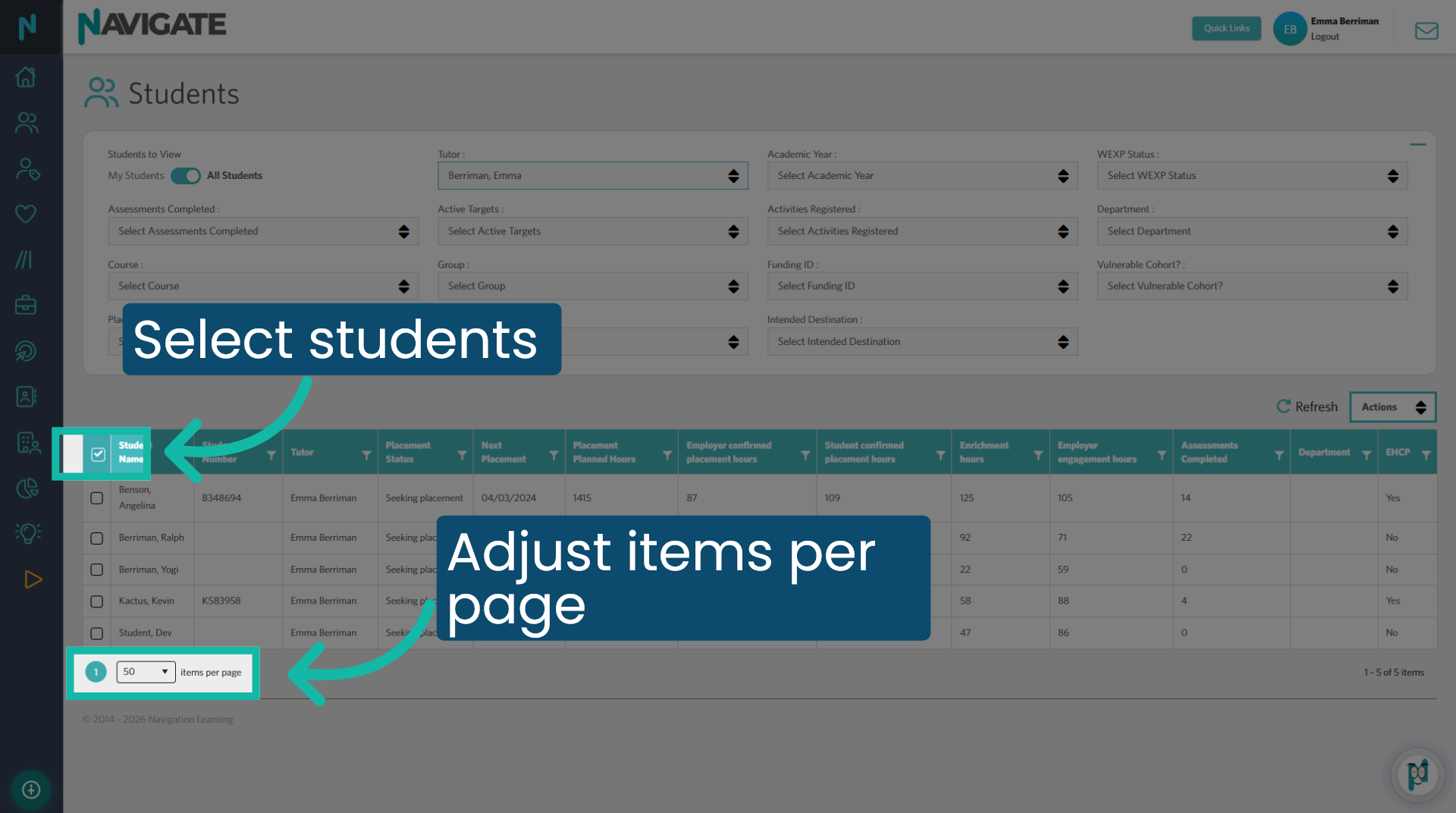
6. Select 'All Students'
To select all students on the page. click the top left check box if you need to select more than 50. Make sure to adjust the items per page selector at the bottom.
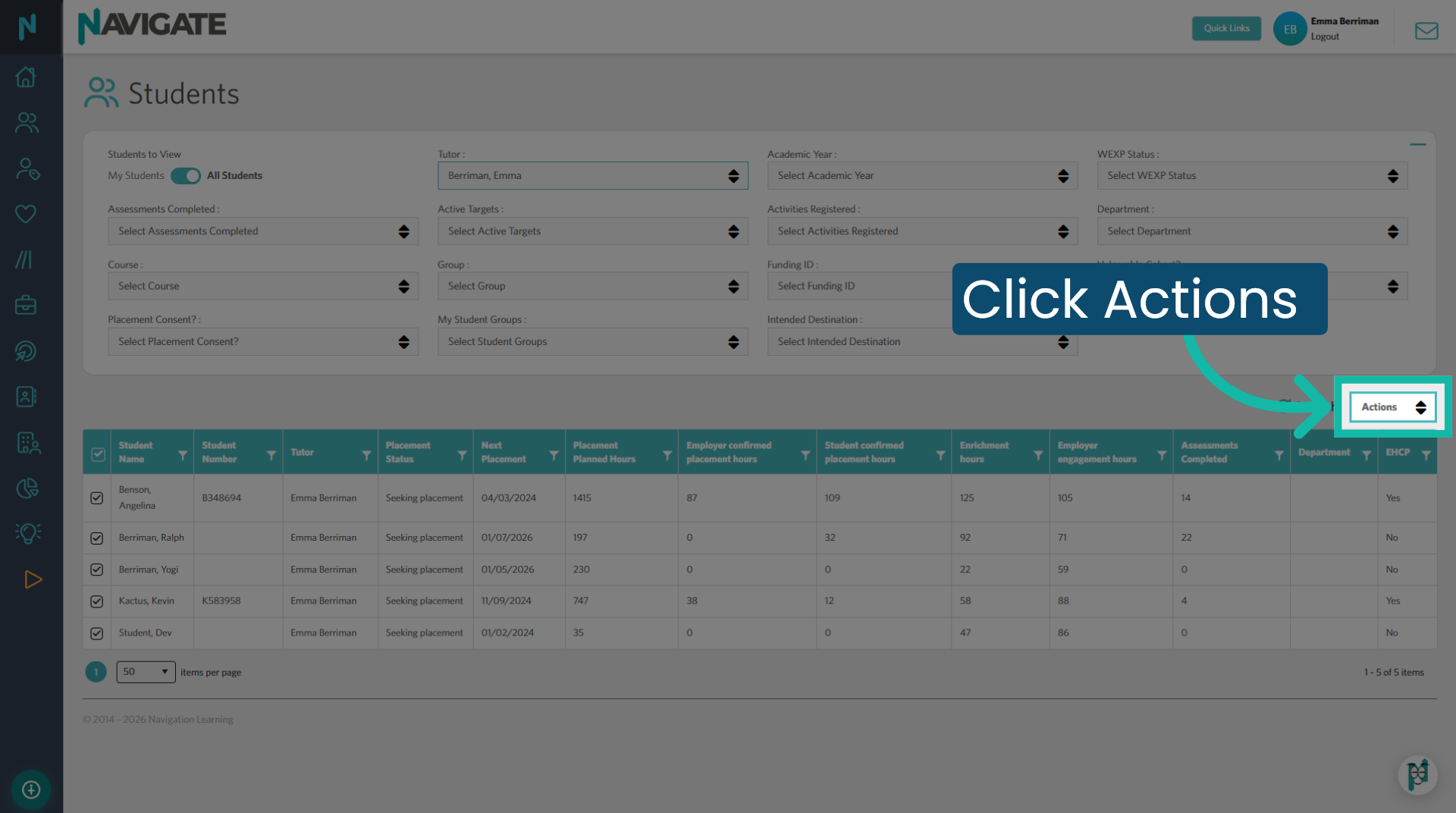
7. Open Actions Menu
Once students are selected, click actions to assess the dropdown options
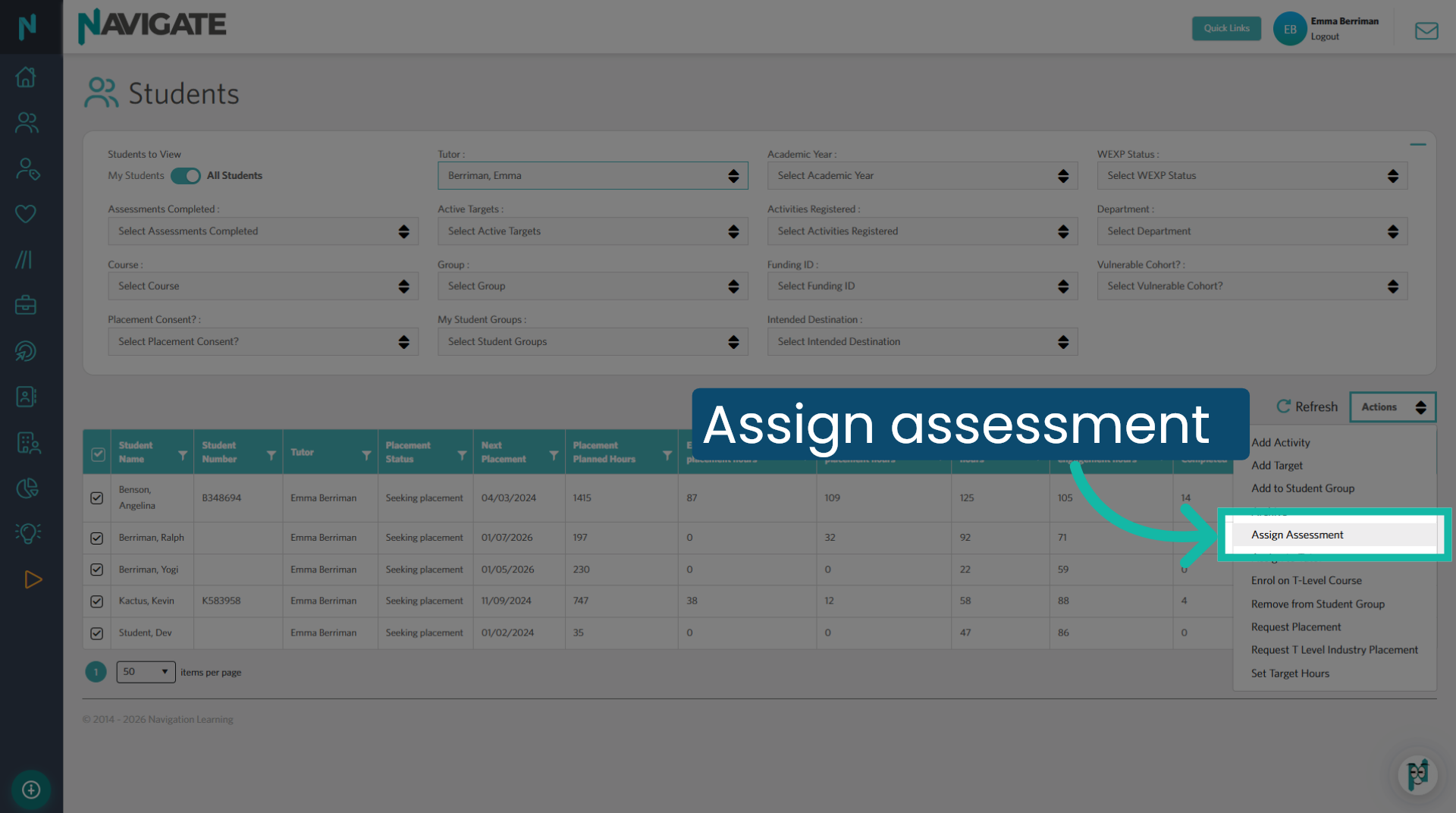
8. Select Assign Assessment
Then click "assign assessment" to begin assigning an assessment to the selected students.
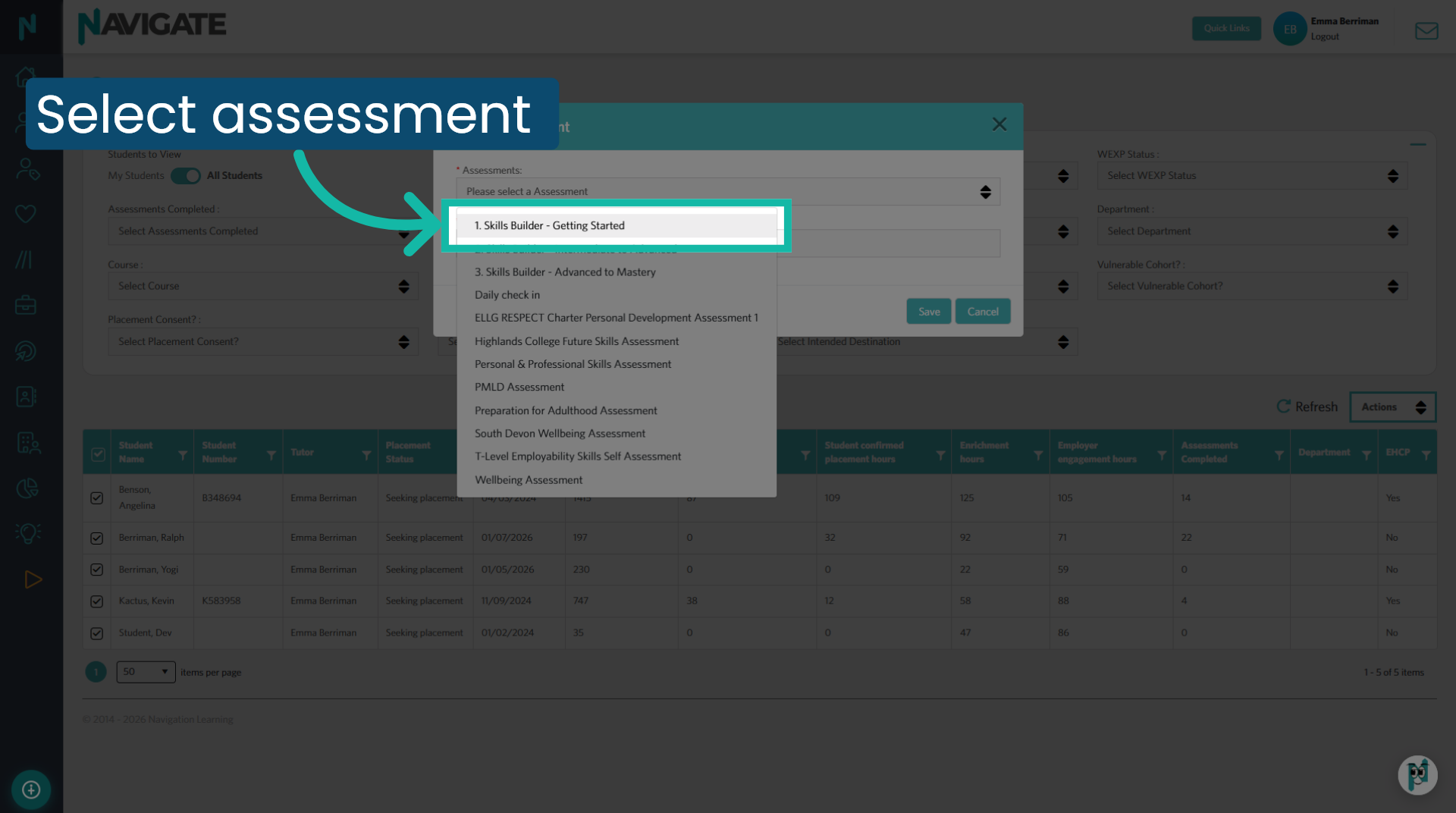
9. Choose assessment
Click the assessment you wish to assign from your assessments drop down.
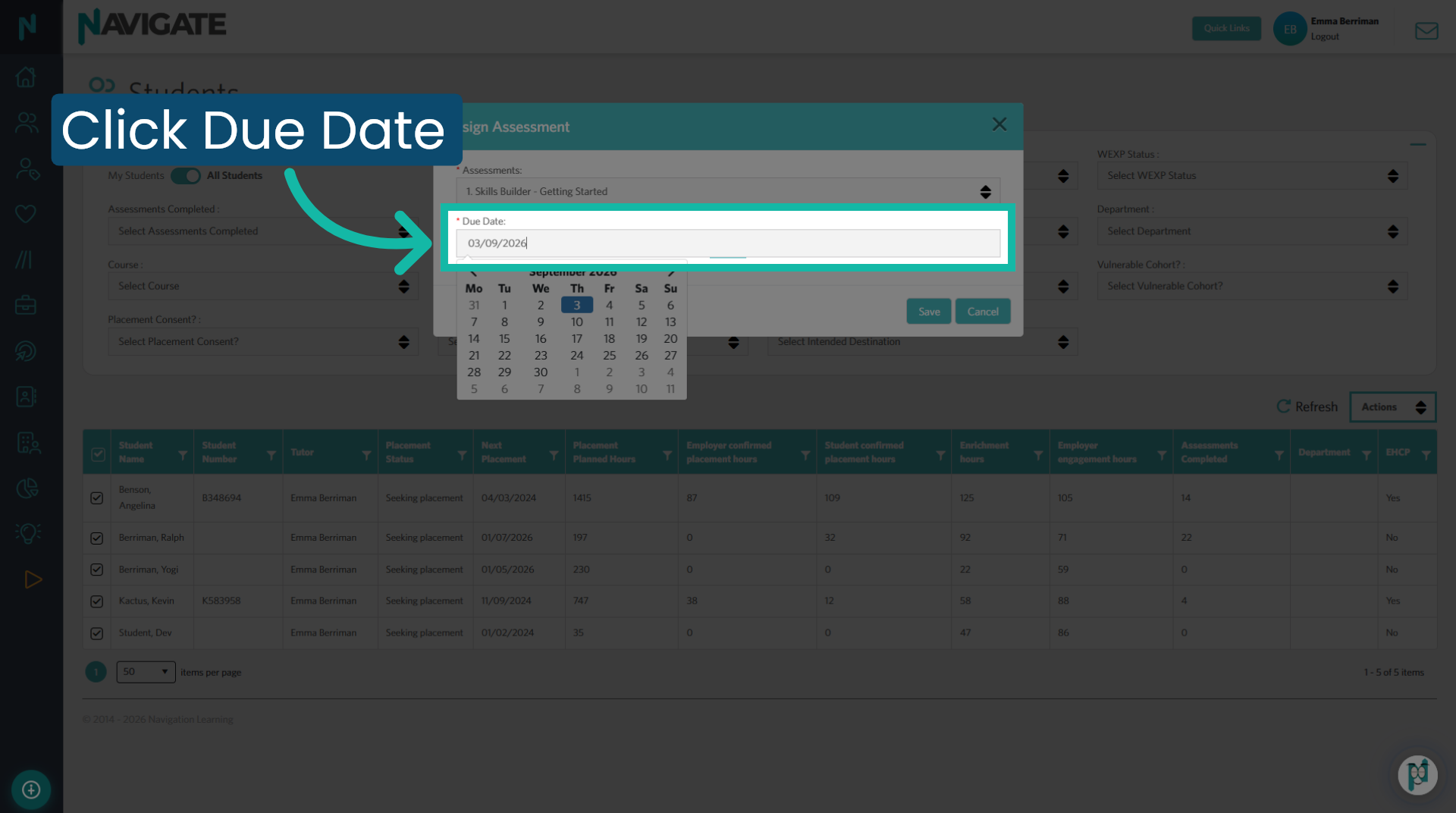
10. Set Assessment Due Date
Click on due date to specify when the assessment should be completed by.
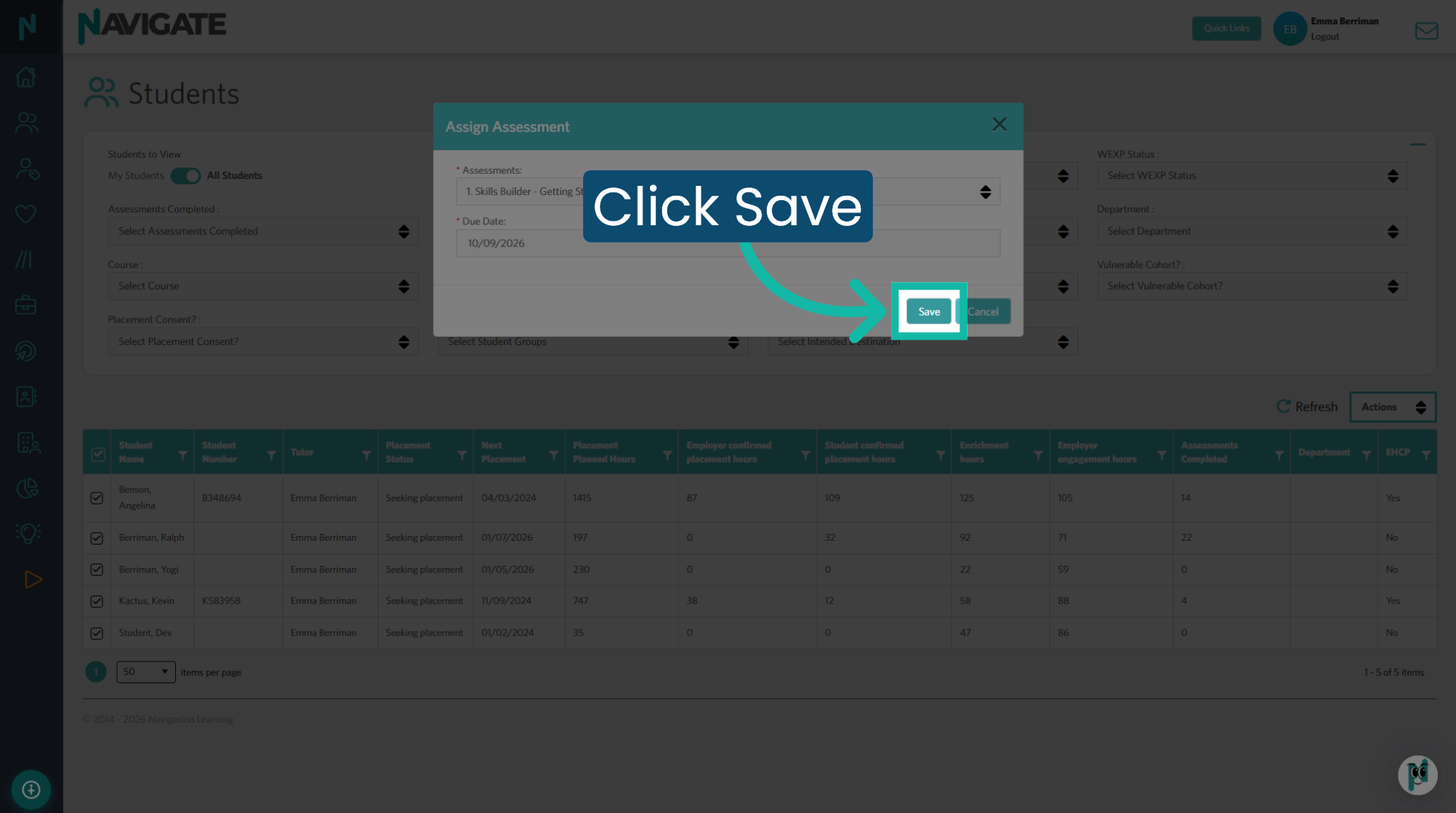
11. Save Assessment Assignment
Then click save to confirm and save the assessment assignment to the students displayed in the window.
12. Close window
Finally click close to exit the assignment window and return to the student list.
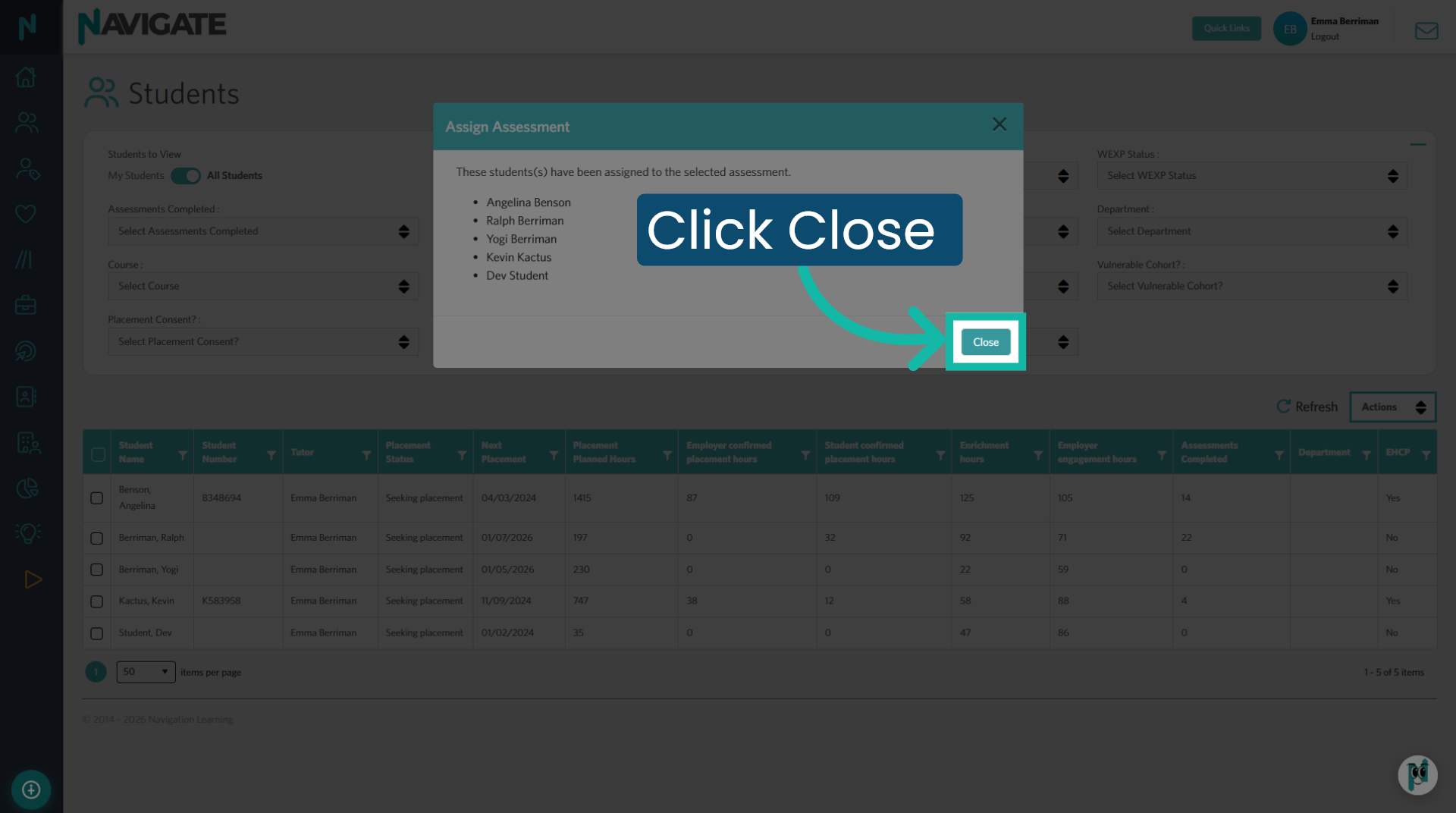
You have successfully assigned the skills builder assessment to selected students and set a due date. You can now monitor their progress or assign additional assessments as needed.
Was this article helpful?
That’s Great!
Thank you for your feedback
Sorry! We couldn't be helpful
Thank you for your feedback
Feedback sent
We appreciate your effort and will try to fix the article