Go to login.navigate.uk.com
1. Click into the Placement module
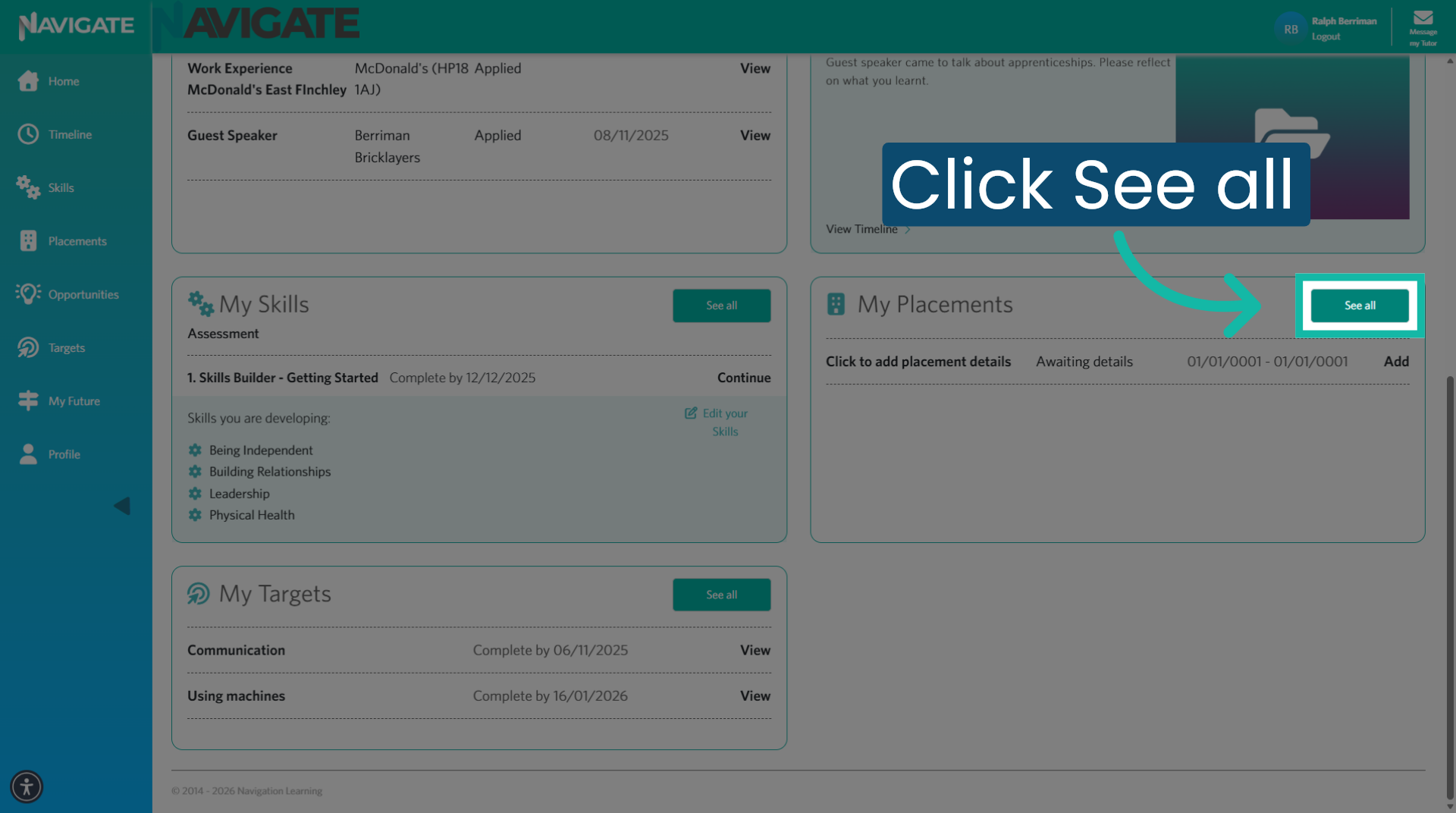
Once logged in, click 'See all' in the placement section to access the placement module.
2. Add Placement details
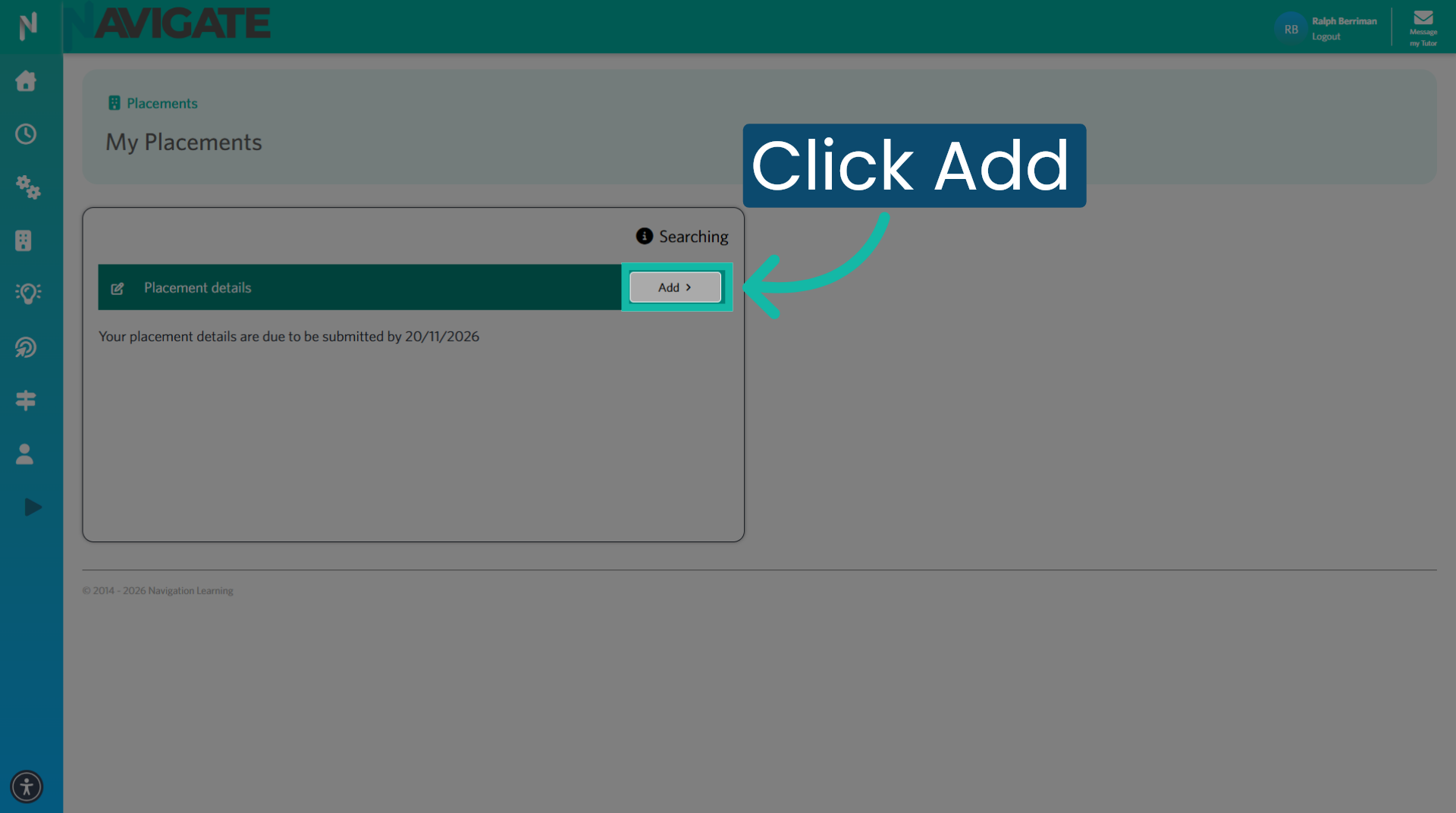
Click 'add' to start adding your placement details.
3. Placement description
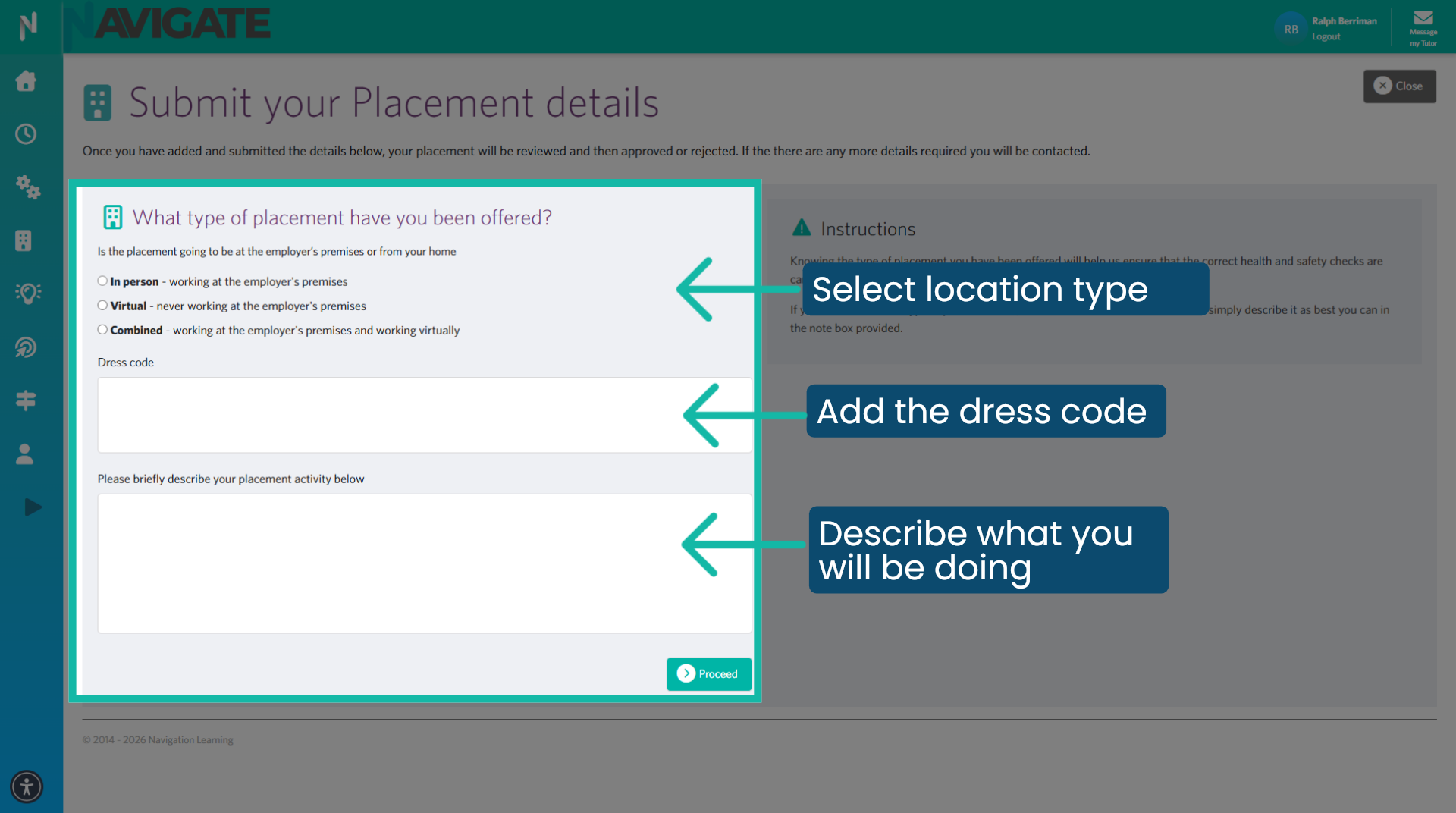
Choose the location type. What dress code is required, and describe the activities you will be completing.
4. Proceed to next page
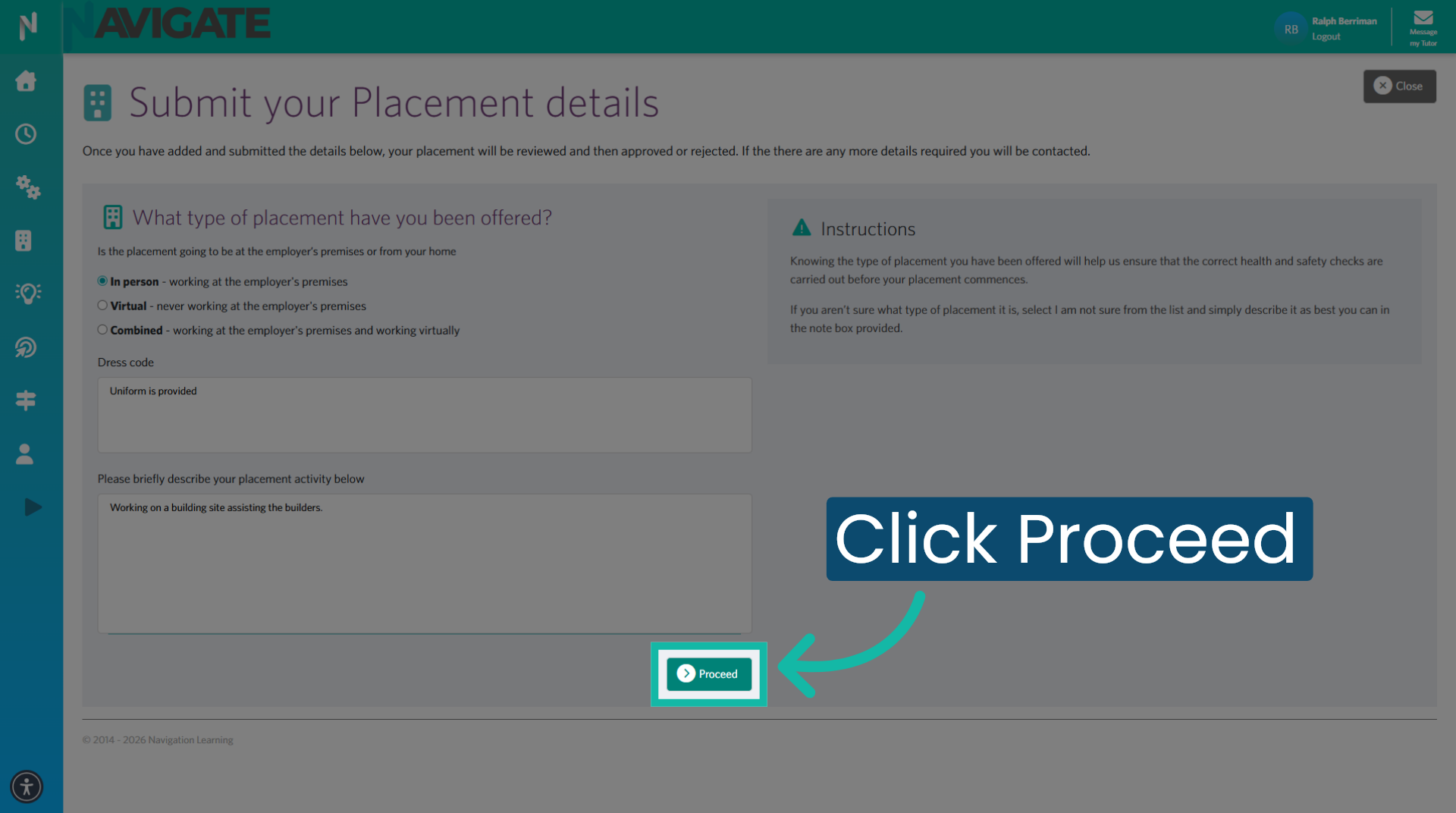
Click 'Proceed' to continue to the next page.
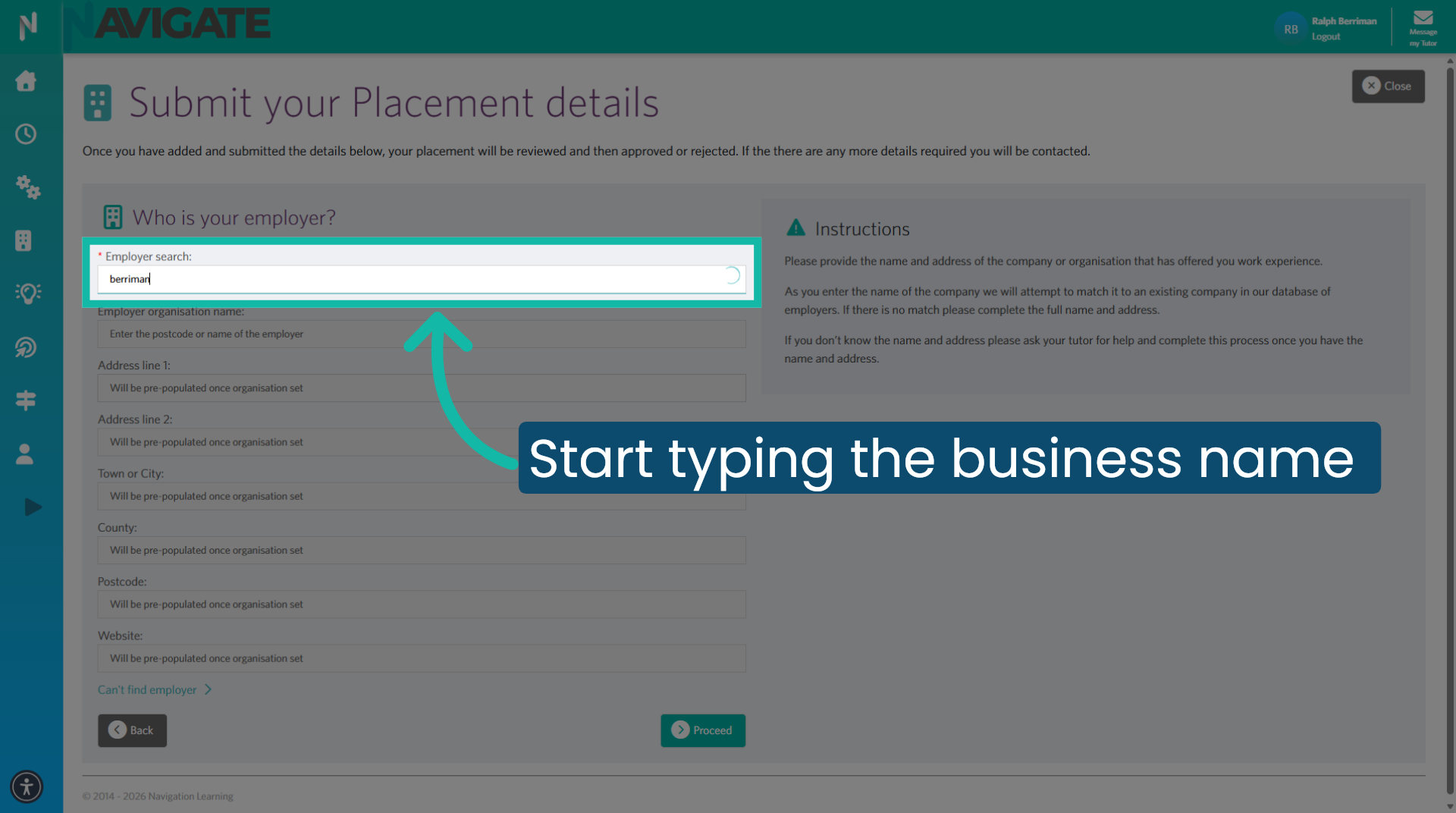
5. Search for employer
Type the name of the employer to find the employer in Navigate.
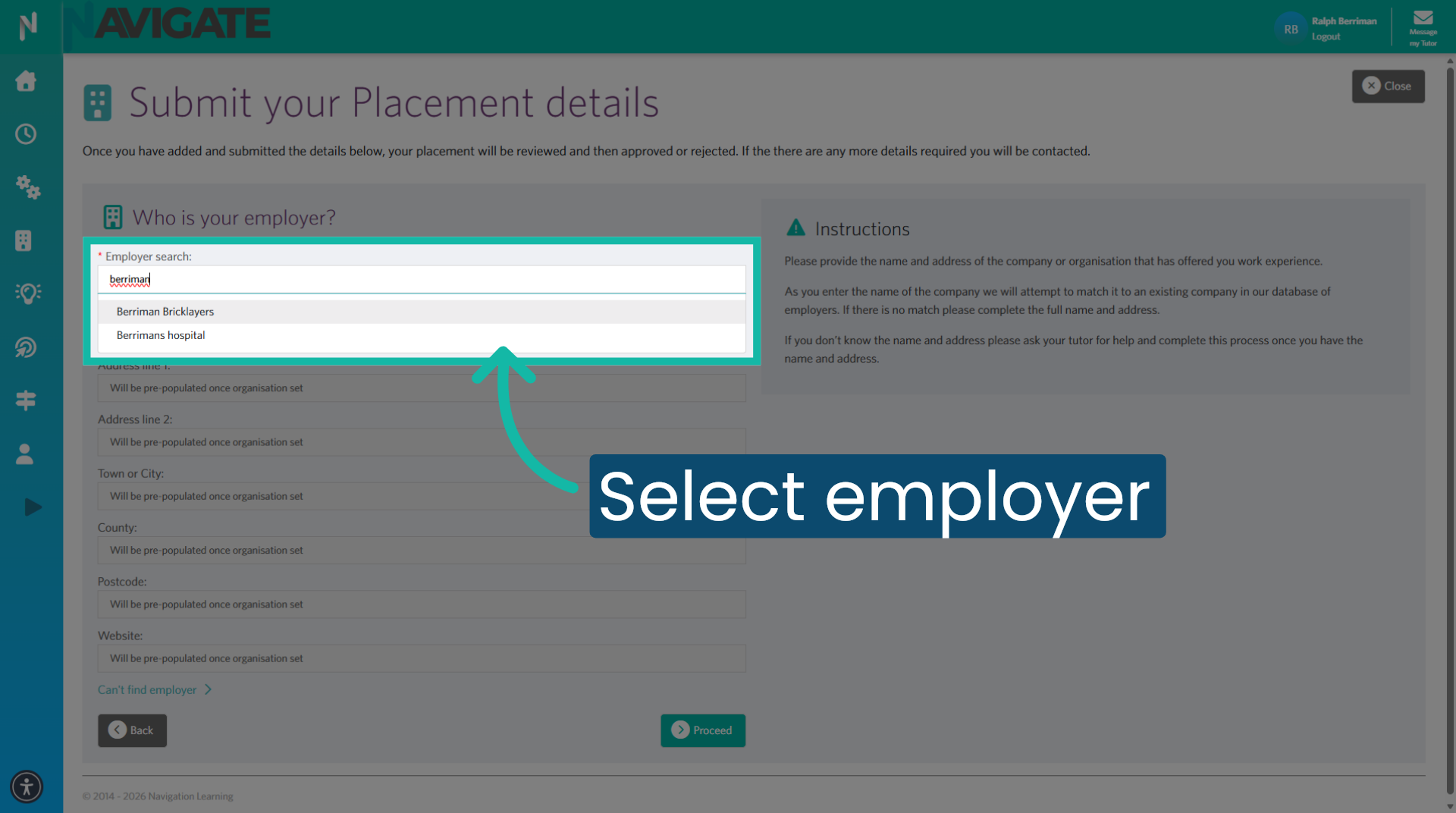
6. Select Employer
Click on the desired employer in the search results to select it.
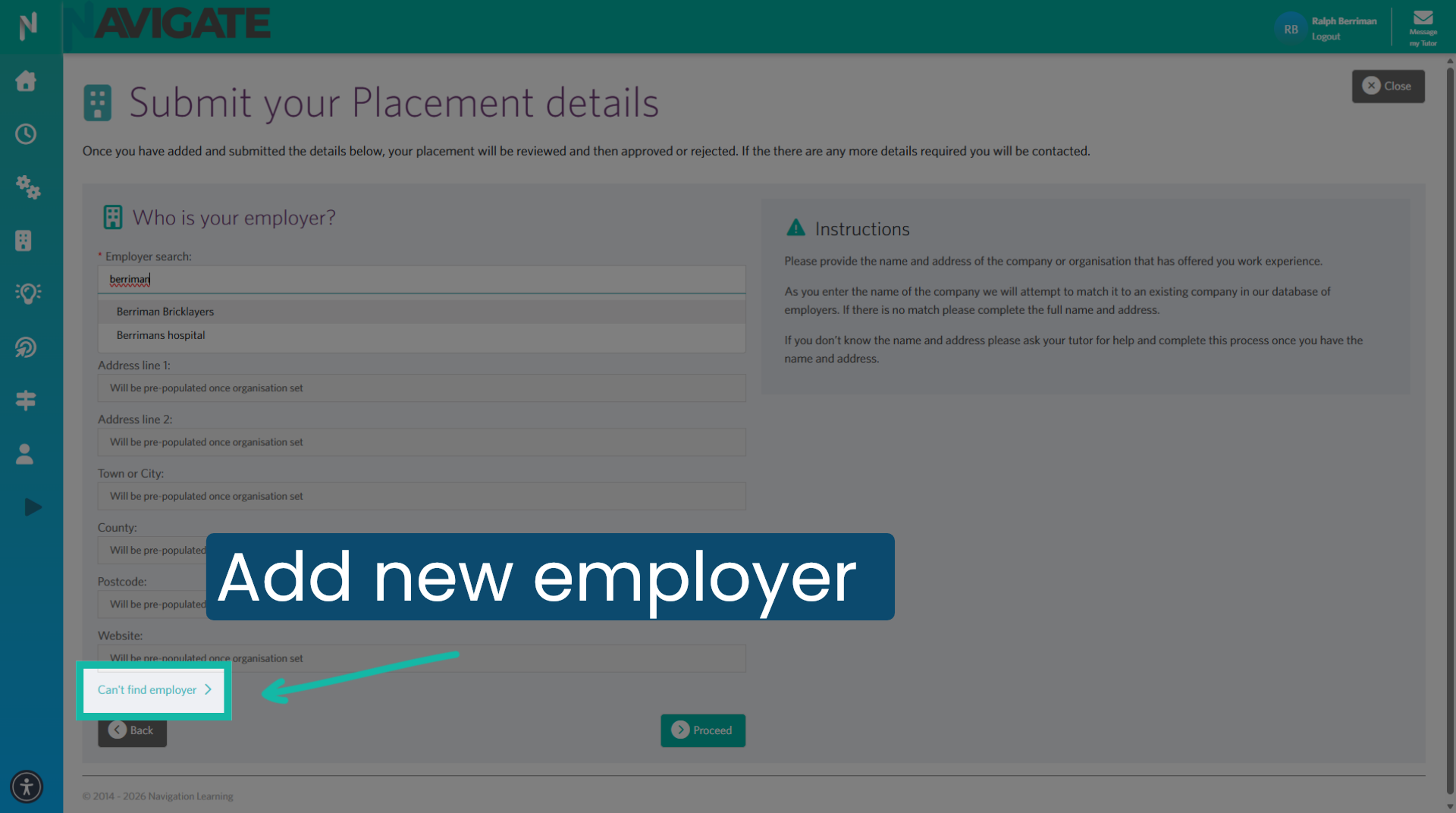
7. Add new employer
If the employer doesn't exist, you can add them by clicking on 'Can't find employer' and adding the employer's details.
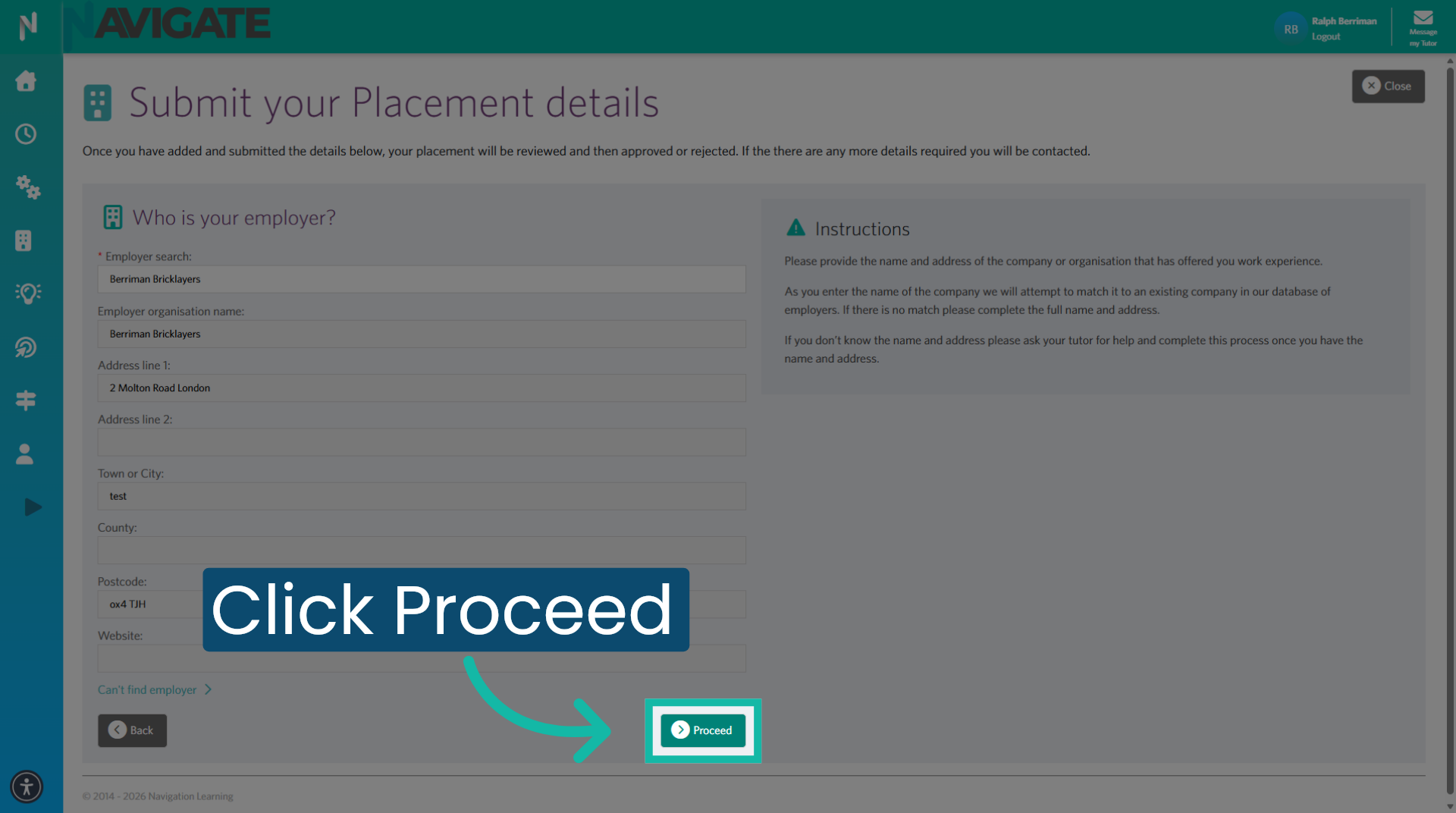
8. Proceed After Employer Selection
Once the employer is selected or added, click 'Proceed' to confirm the employer and continue.
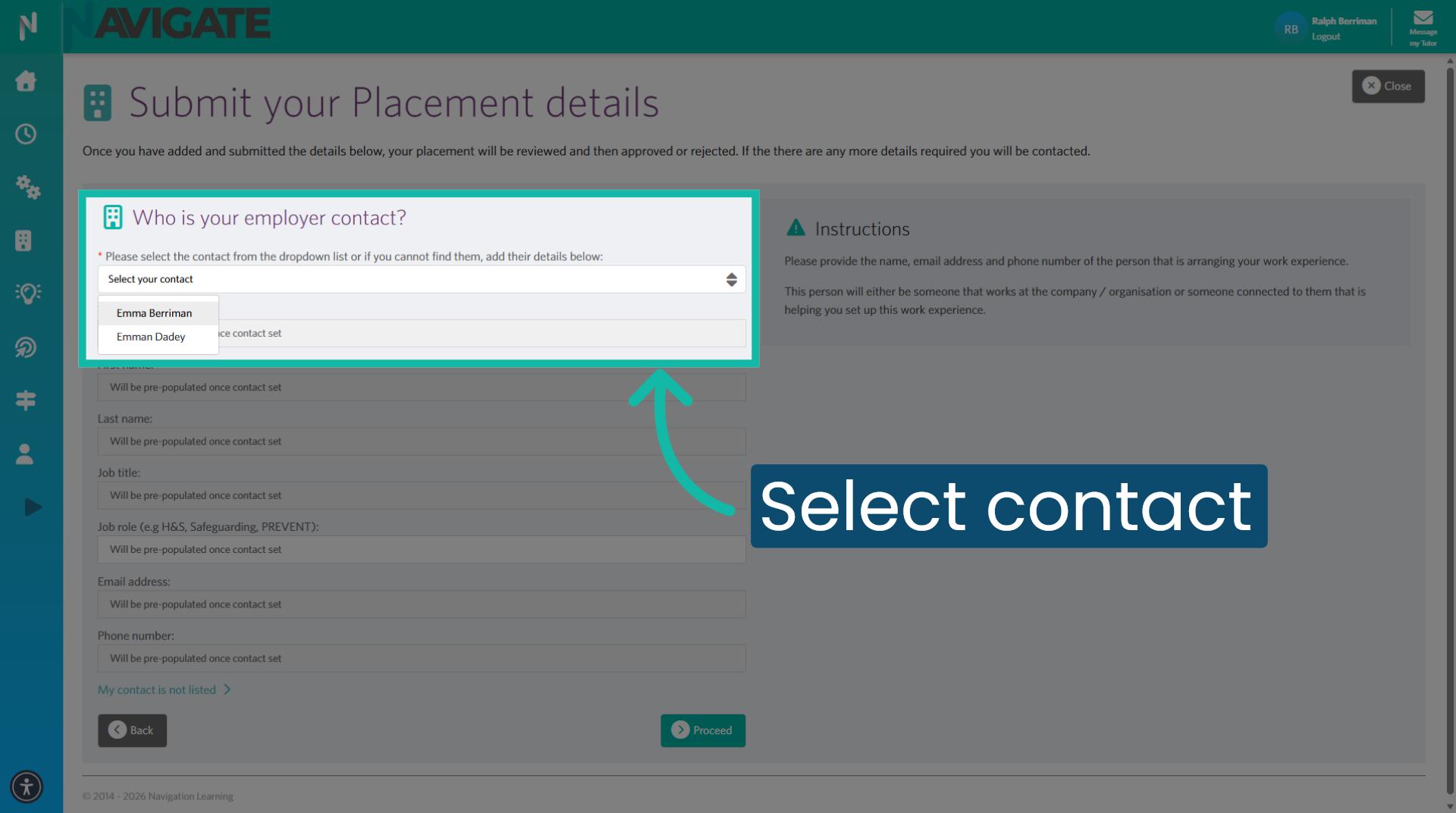
9. Choose Contact
Select the contact person from the drop-down list for this placement.
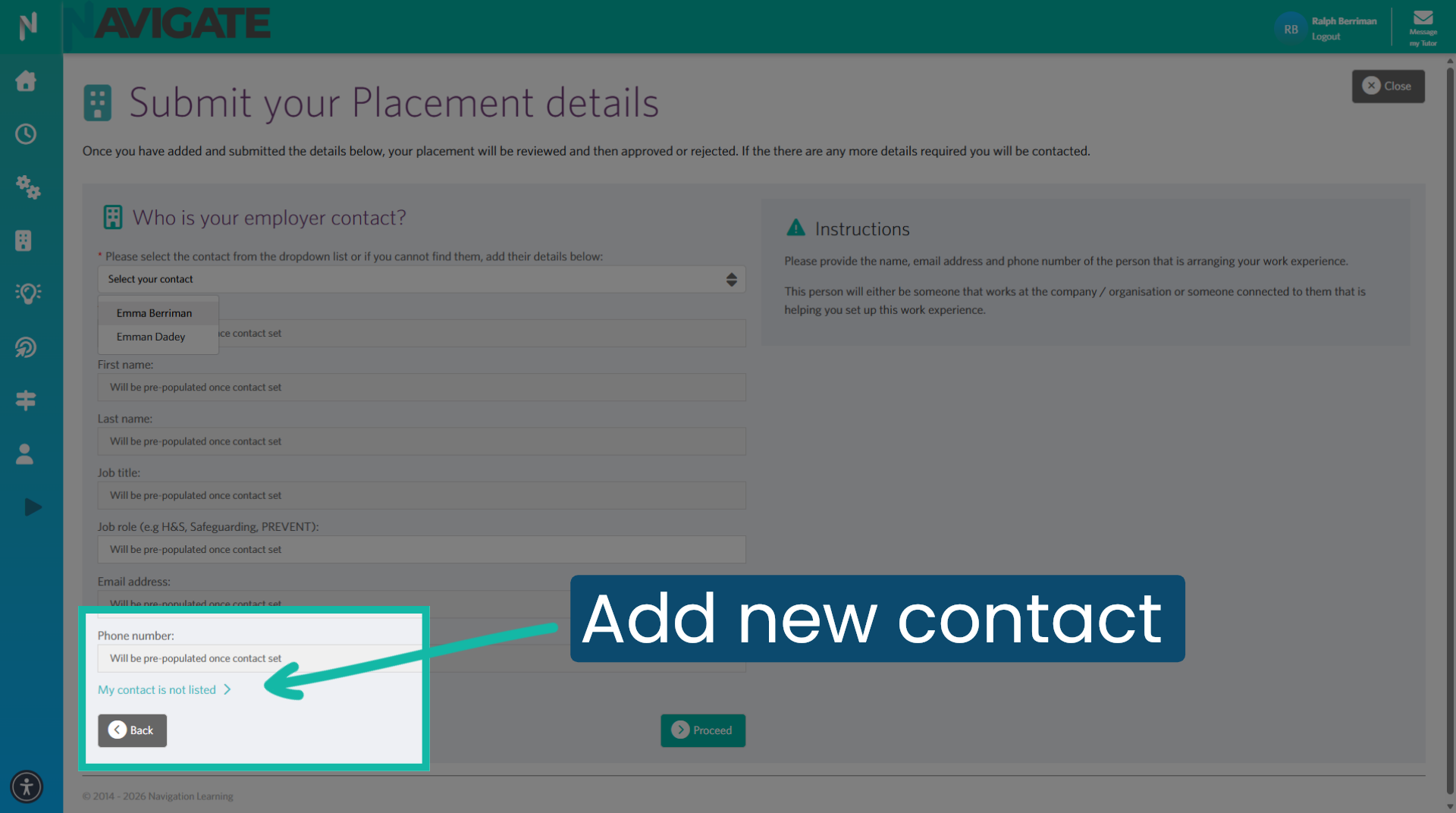
10. Add new contact
If they are not listed, you can add them by clicking on 'My contact is not listed'.
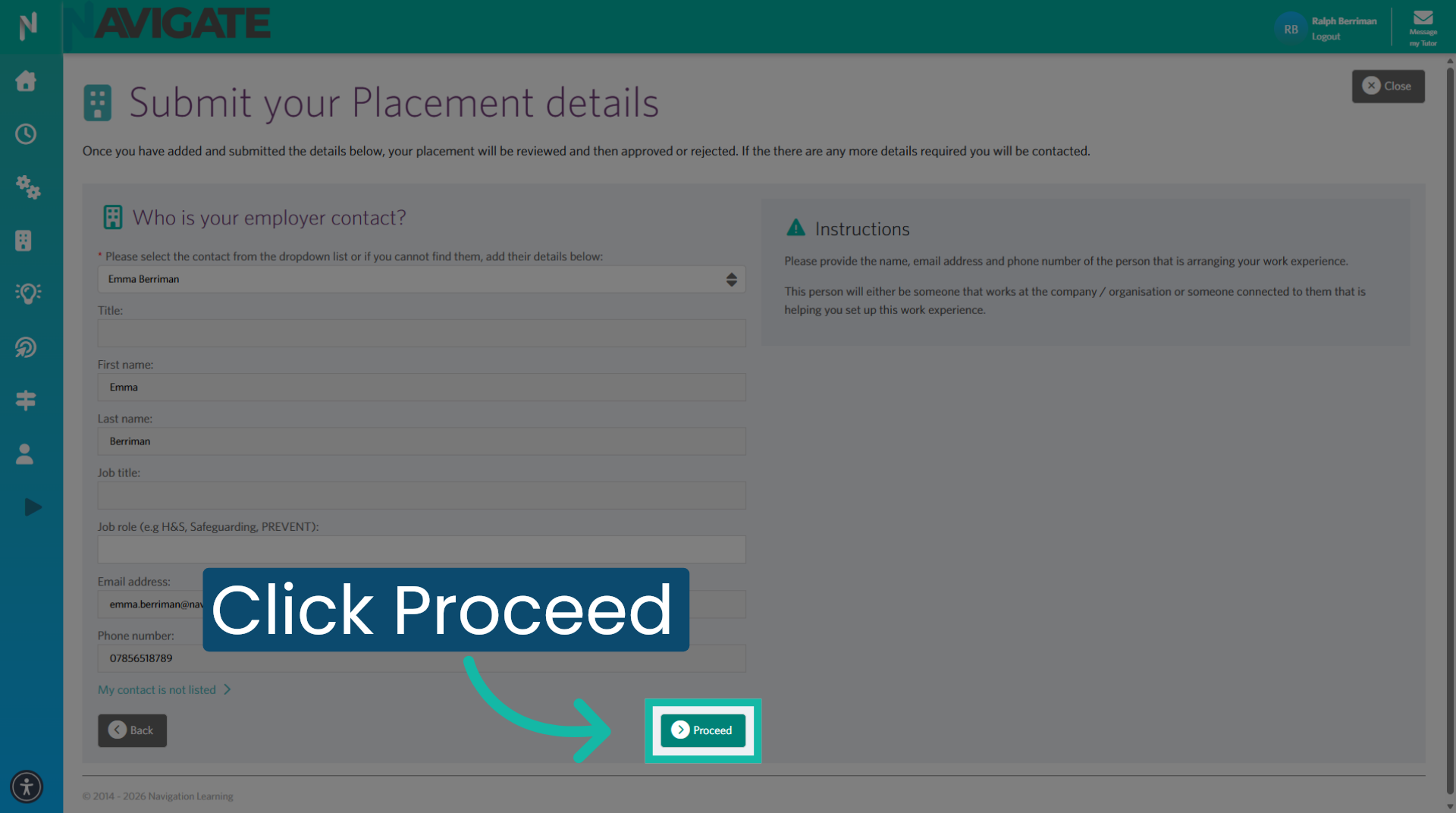
11. Proceed After Contact Selection
Once the employer's contact is selected or added, click 'Proceed' to confirm it and move forward.
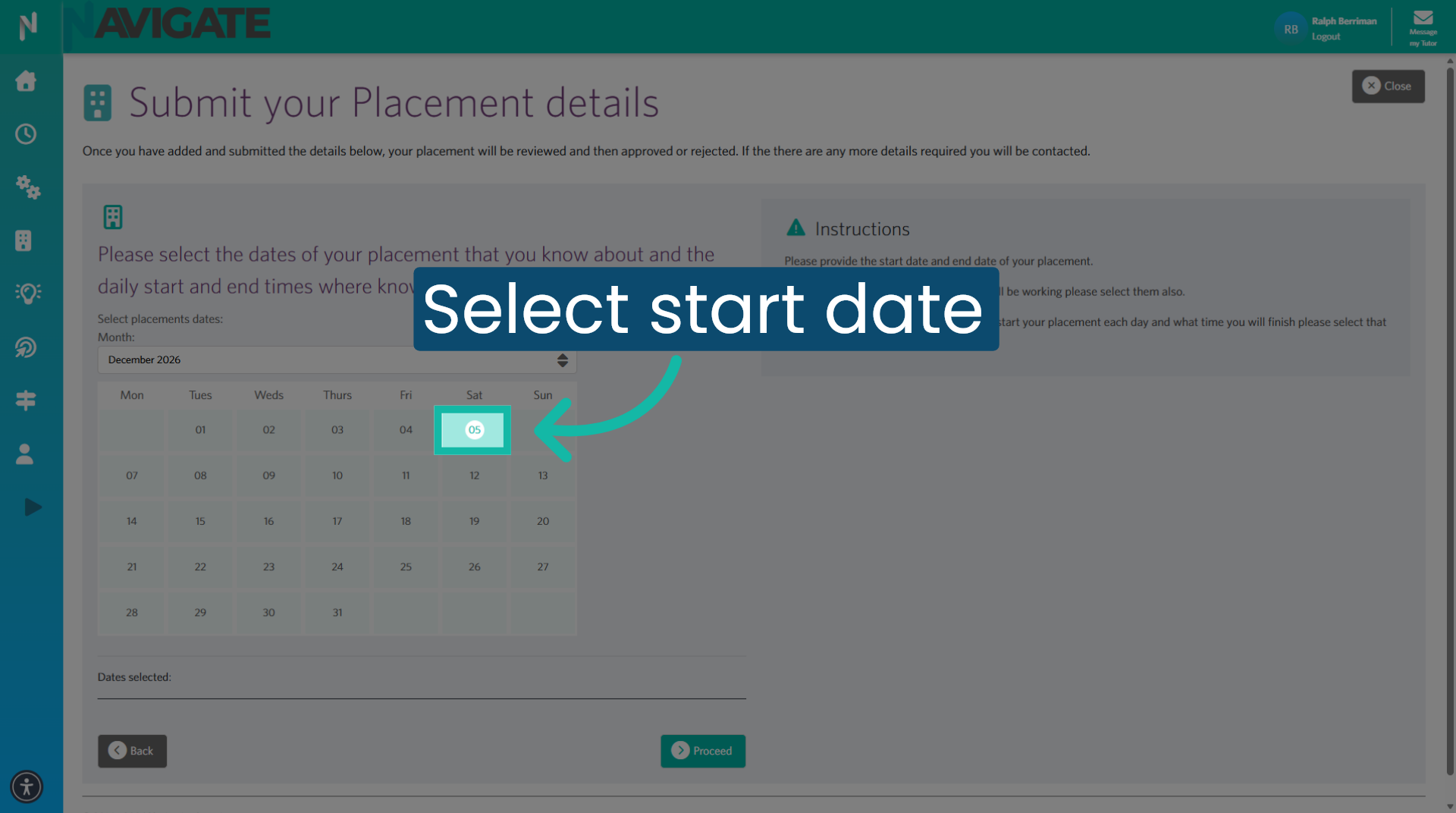
12. Select your placement start date
Next select the placement start date.
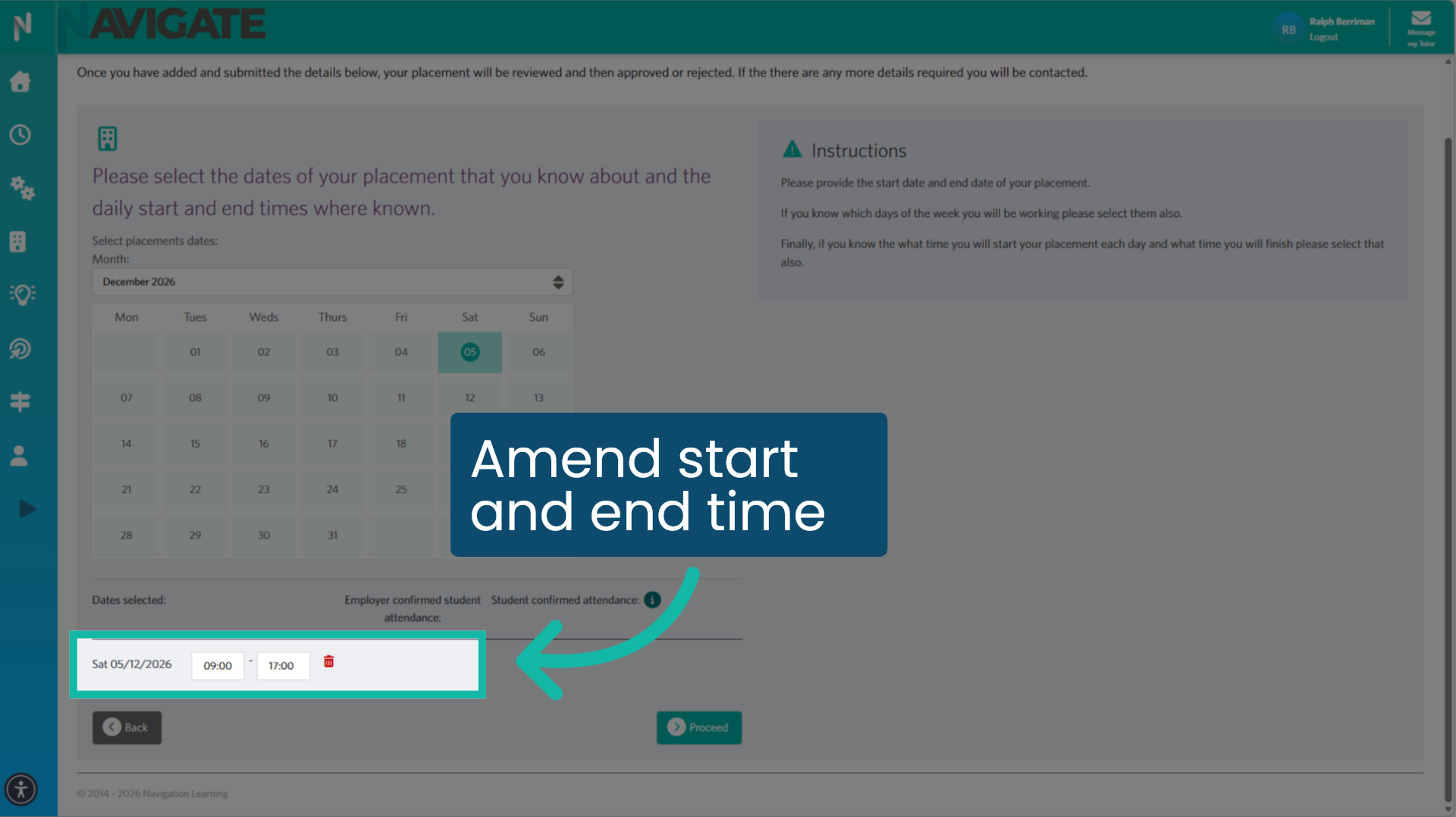
13. Amend time
Then amend the start and end times if necessary.
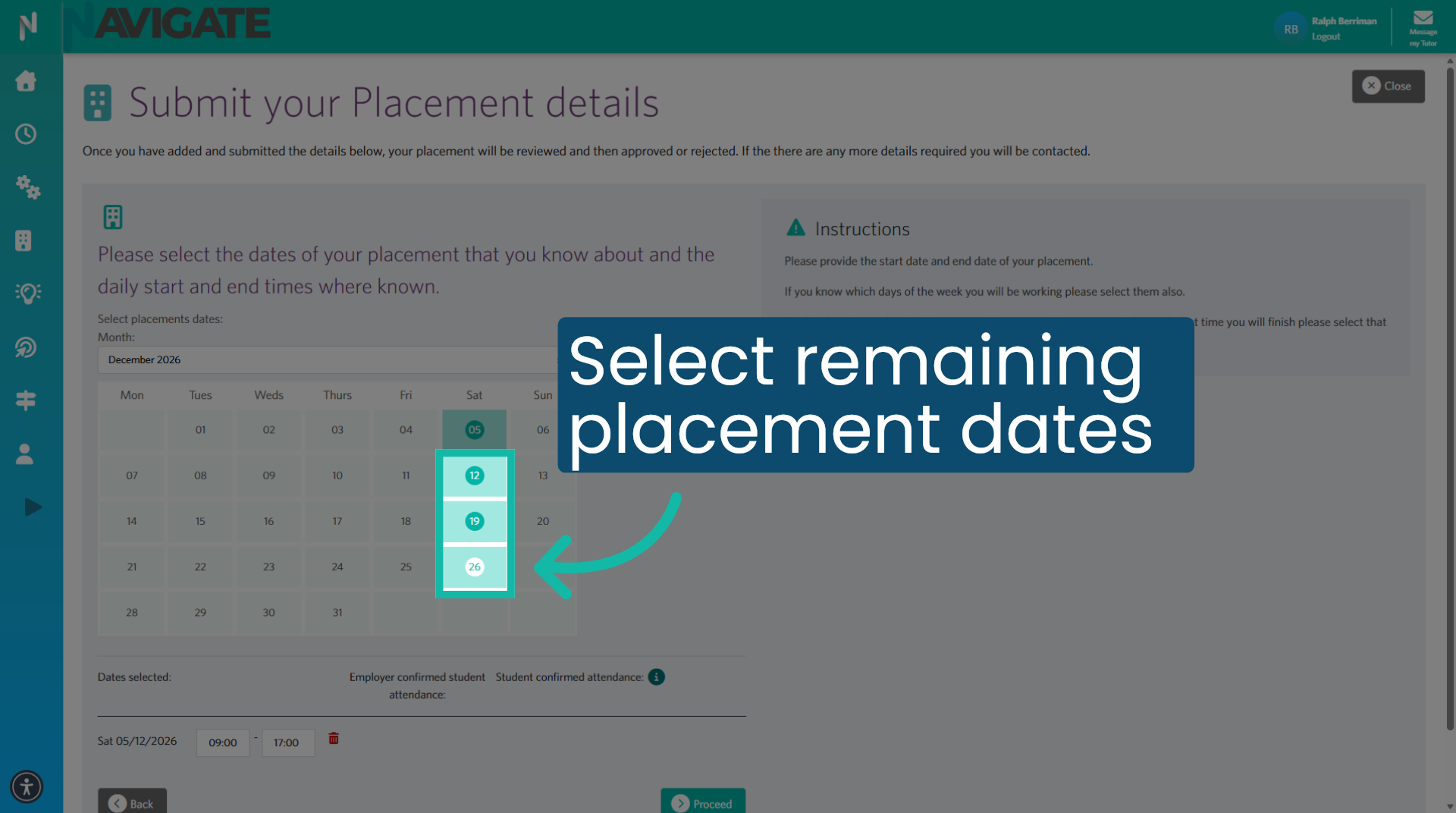
14. Select rest of placement dates
Select and add the remaining placement dates.
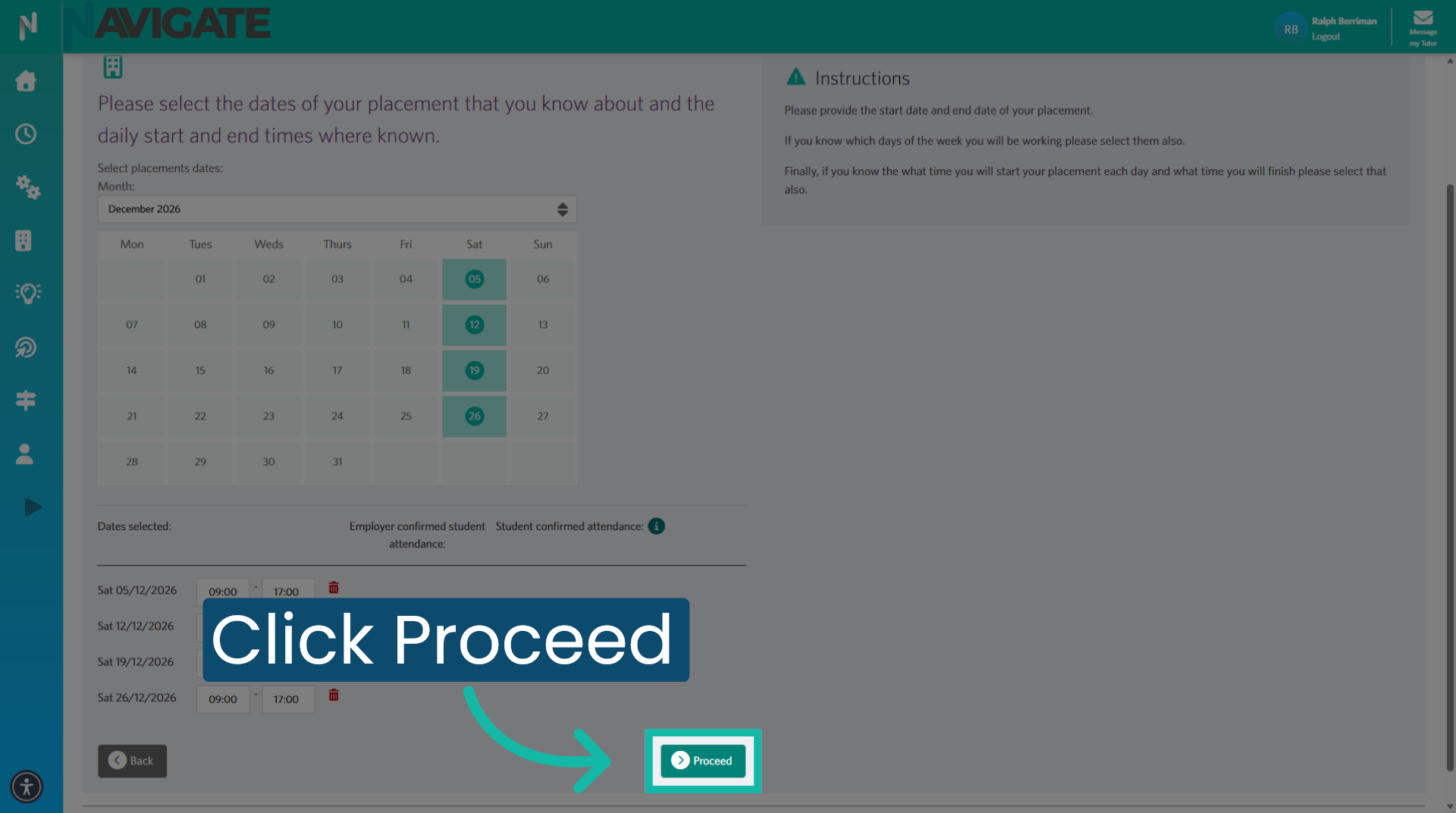
15. Proceed after Date Selection
Click Proceed to continue after setting the placement dates.
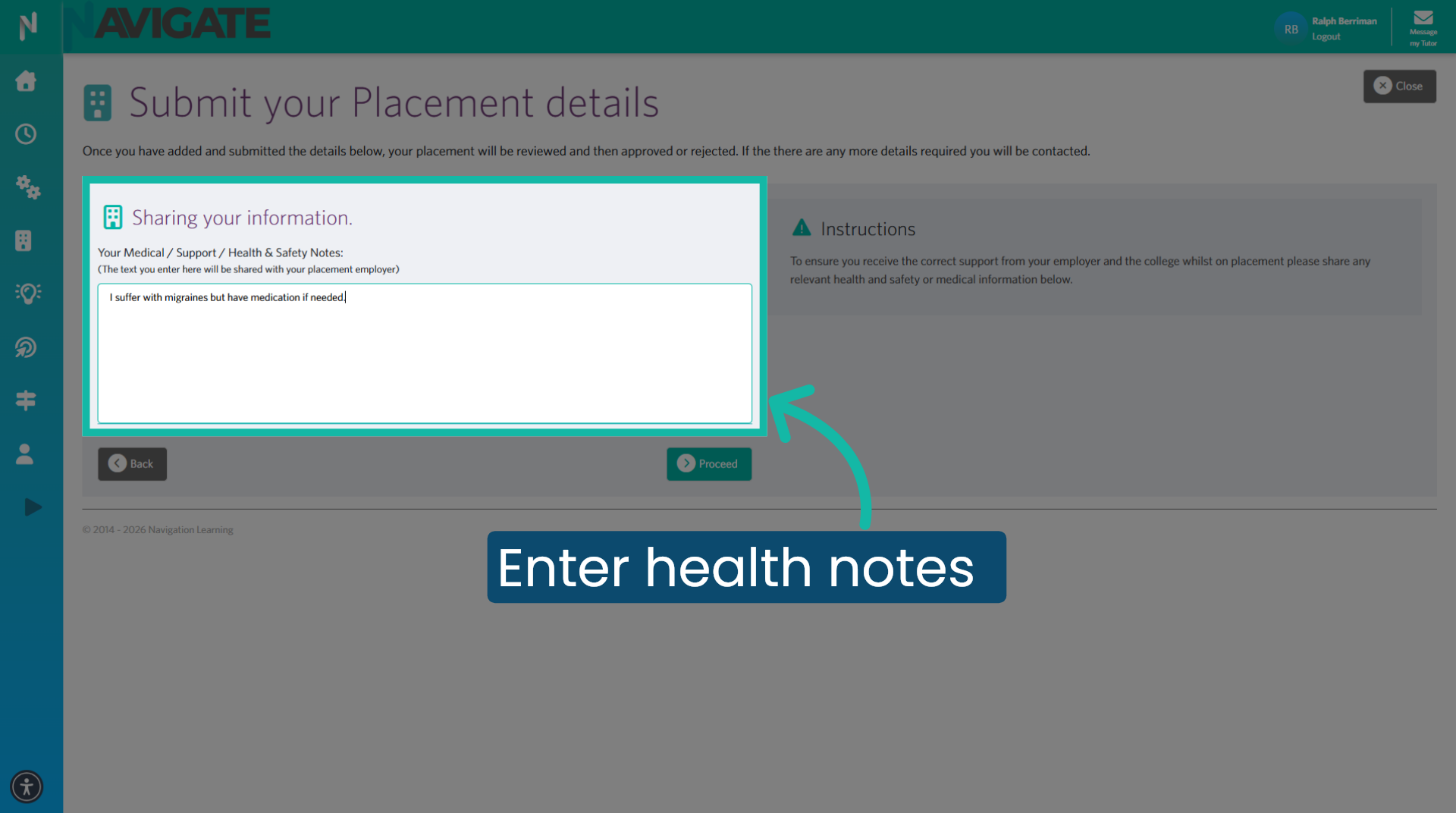
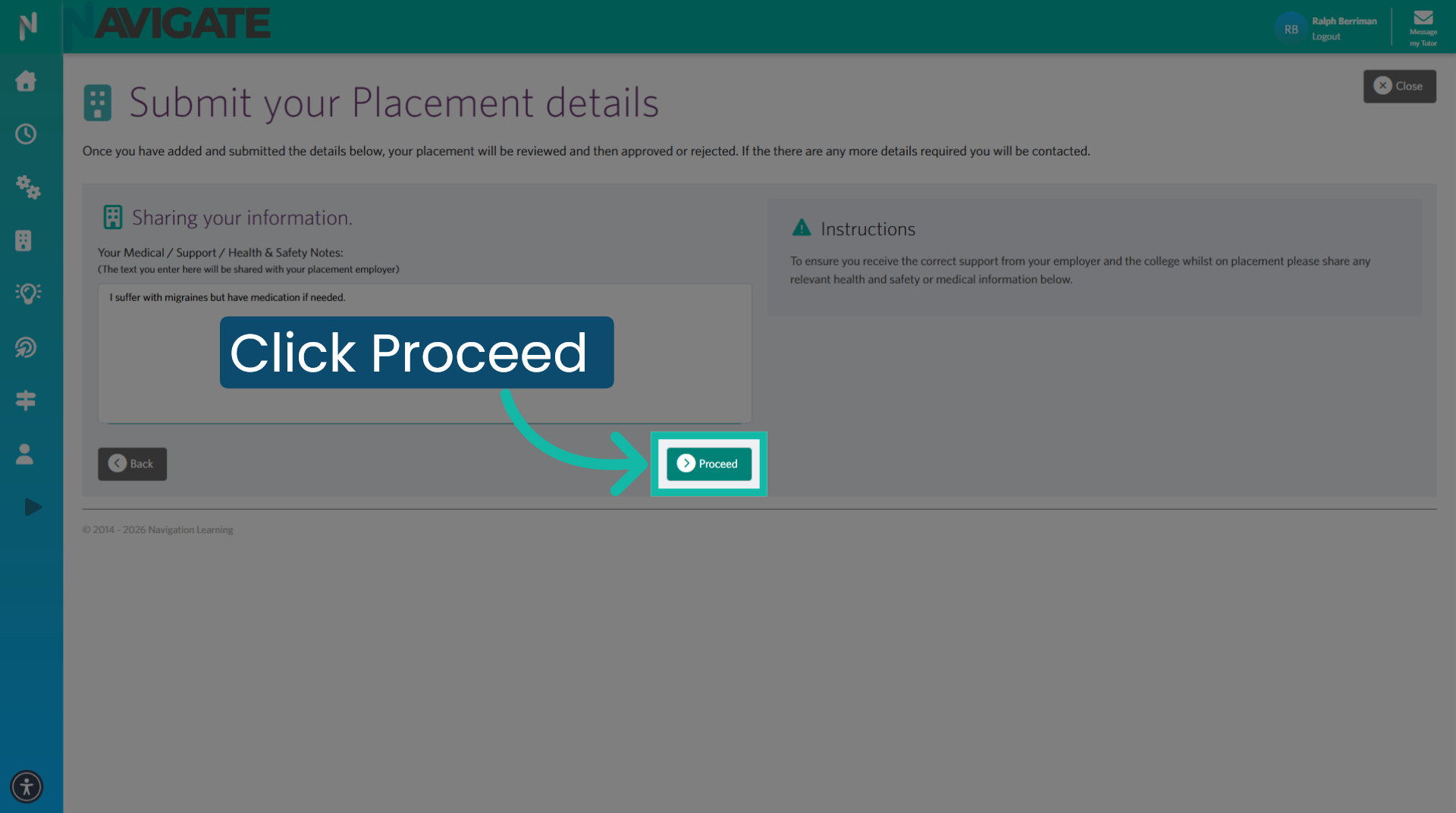
16. Enter Health Information
Add any health or support notes you wish the employer to be aware of.
17. Proceed After Health Notes
Then click 'Proceed' to save and continue.
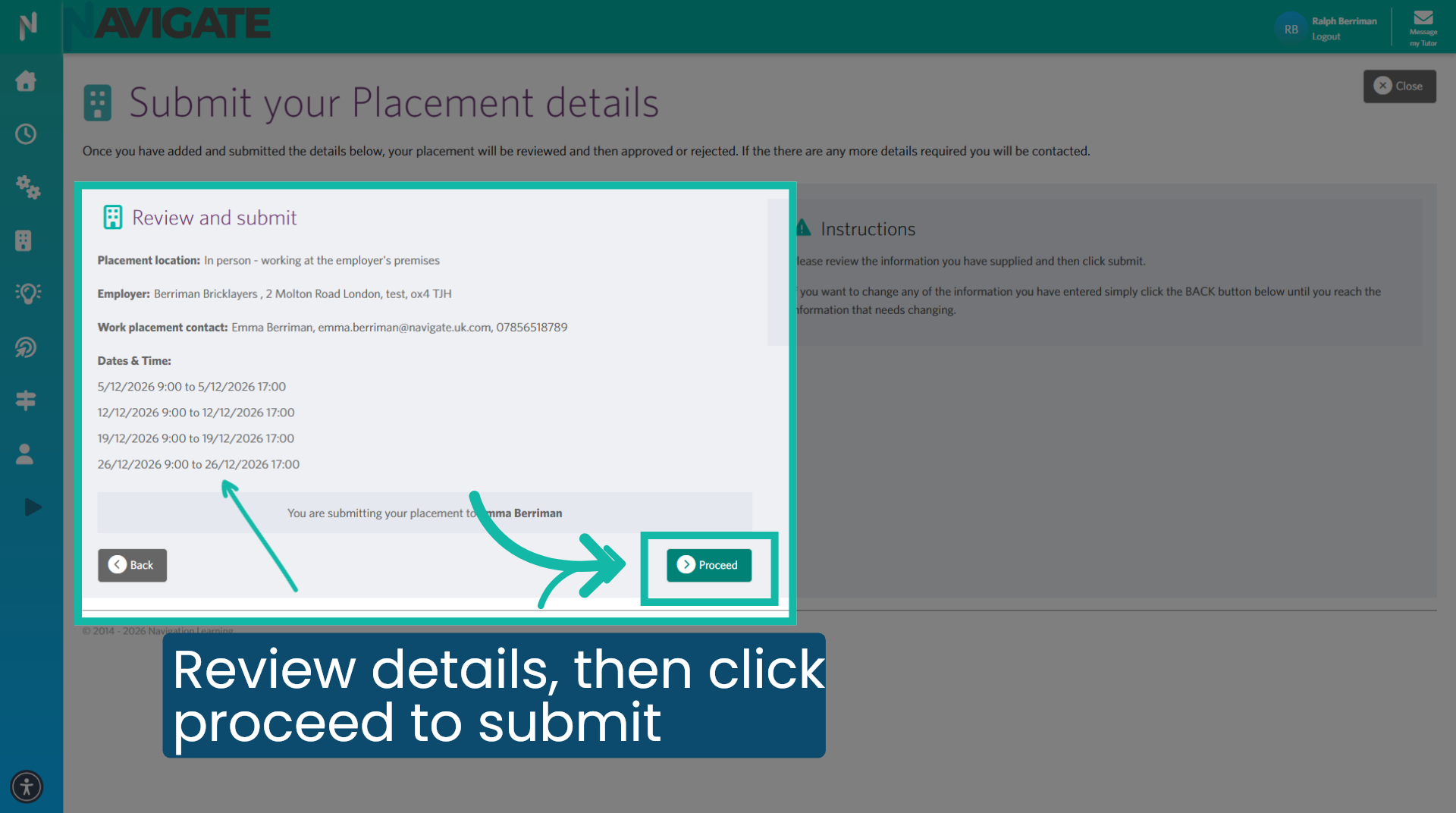
18. Review the placement details
Review that the details are correct, then click Proceed to submit the placement for approval.
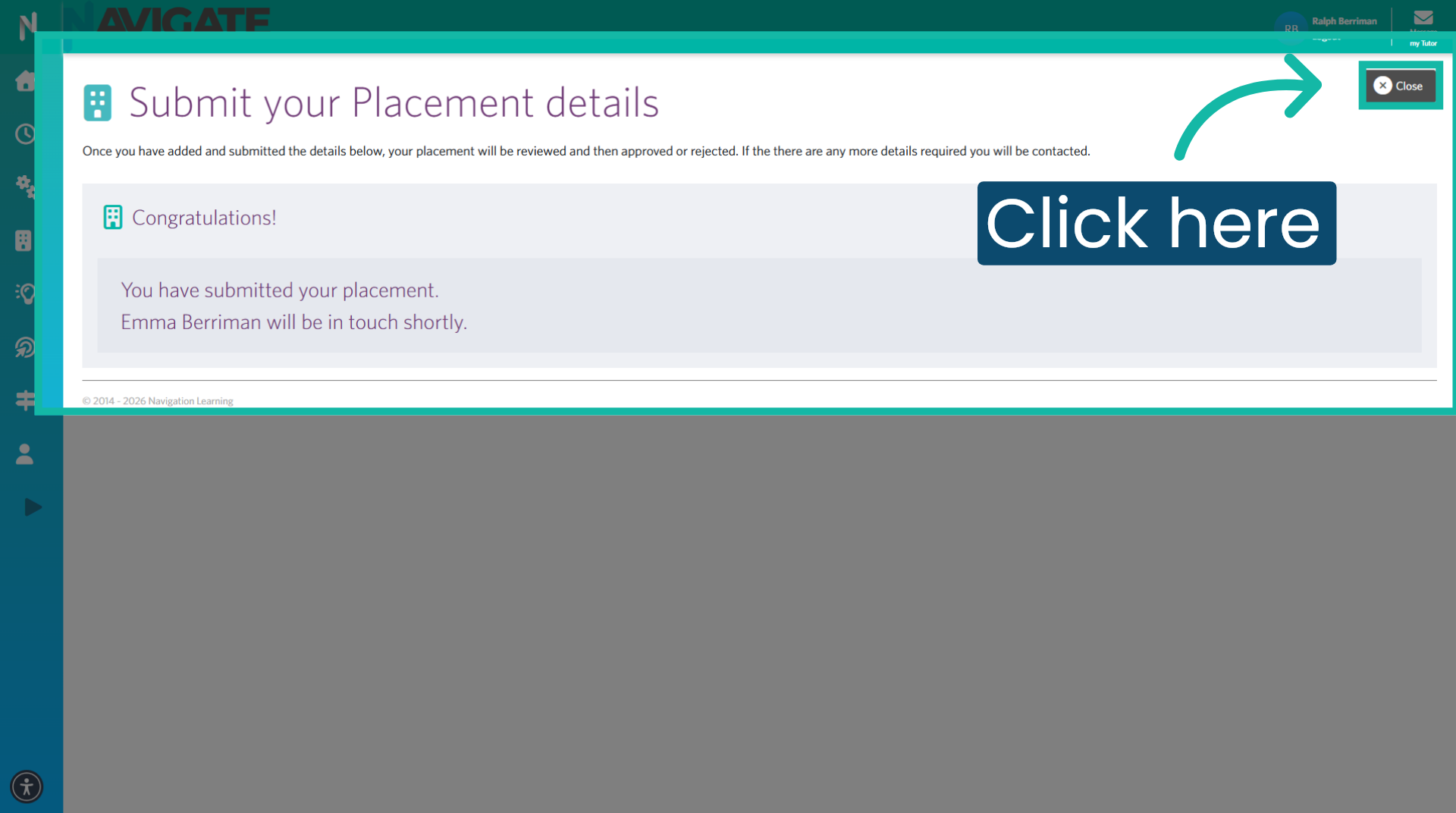
19. Complete Placement Submission
Your placement has now been submitted. Your placement coordinator will be in touch shortly. Click close to exit.
Was this article helpful?
That’s Great!
Thank you for your feedback
Sorry! We couldn't be helpful
Thank you for your feedback
Feedback sent
We appreciate your effort and will try to fix the article