Go to login.navigate.uk.com
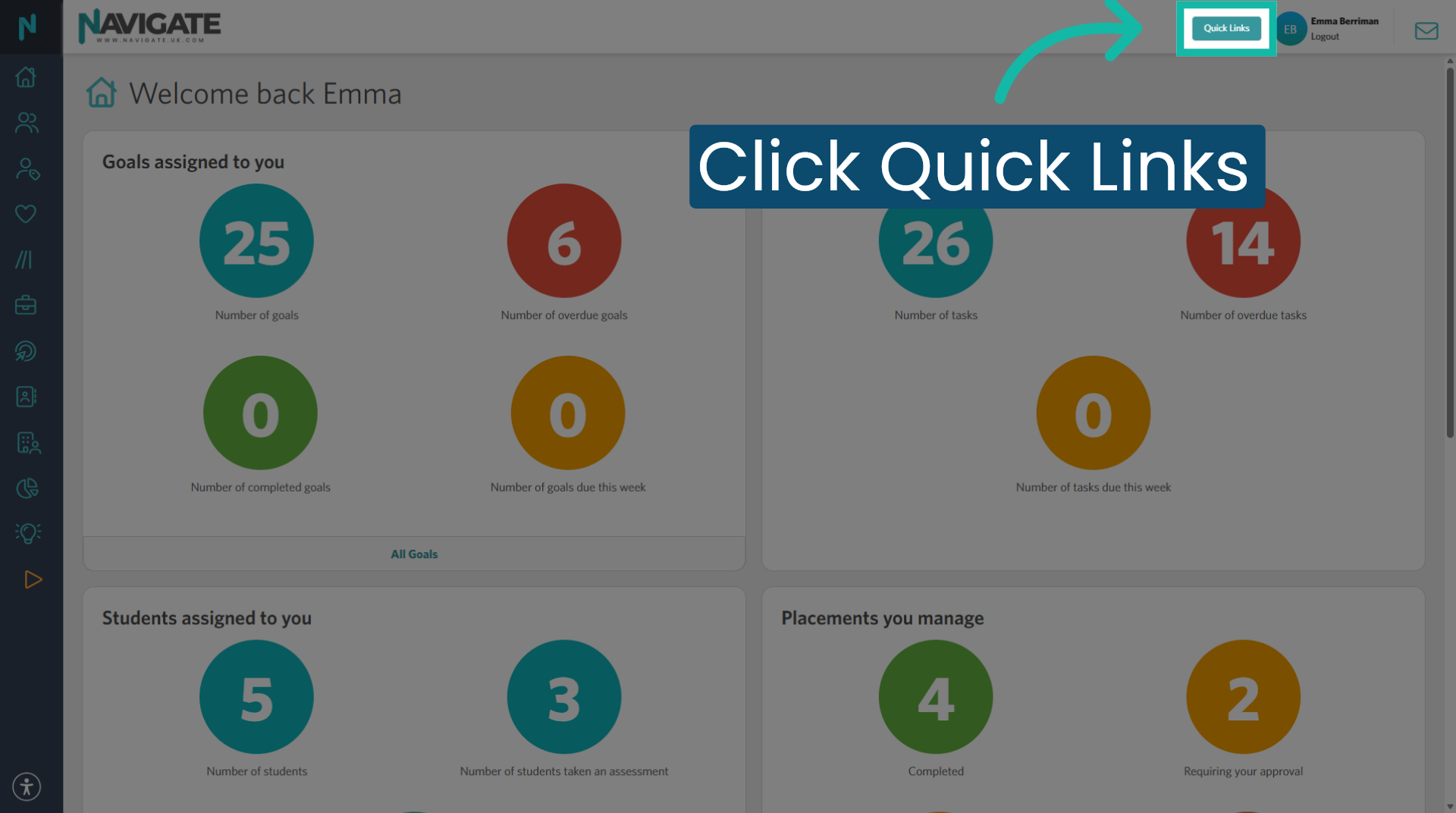
1. Access Quick Links Menu
Once logged in, click 'Quick Links'.
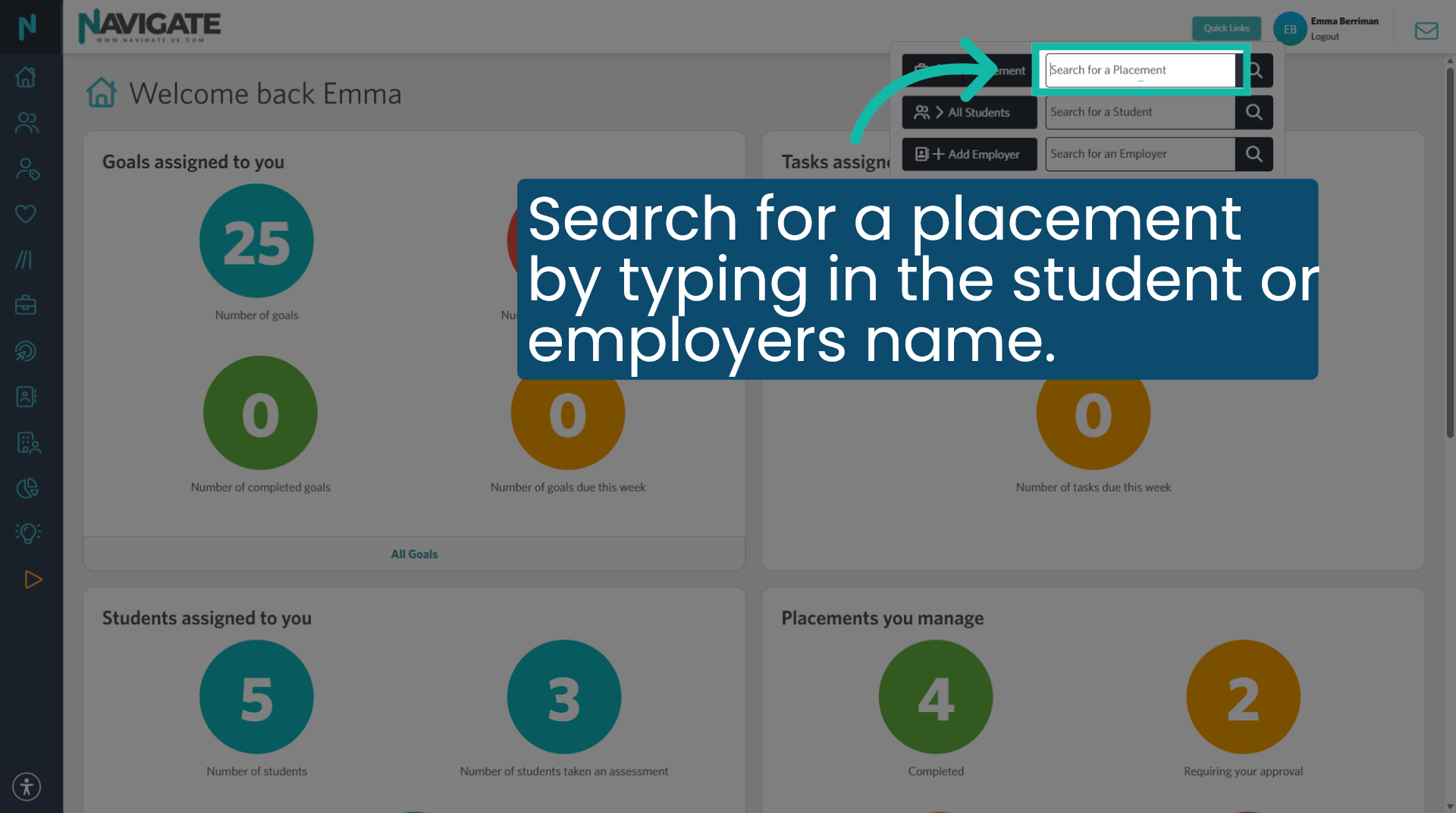
2. Search for placement
Click 'search for a placement' and type in the students or employers name.
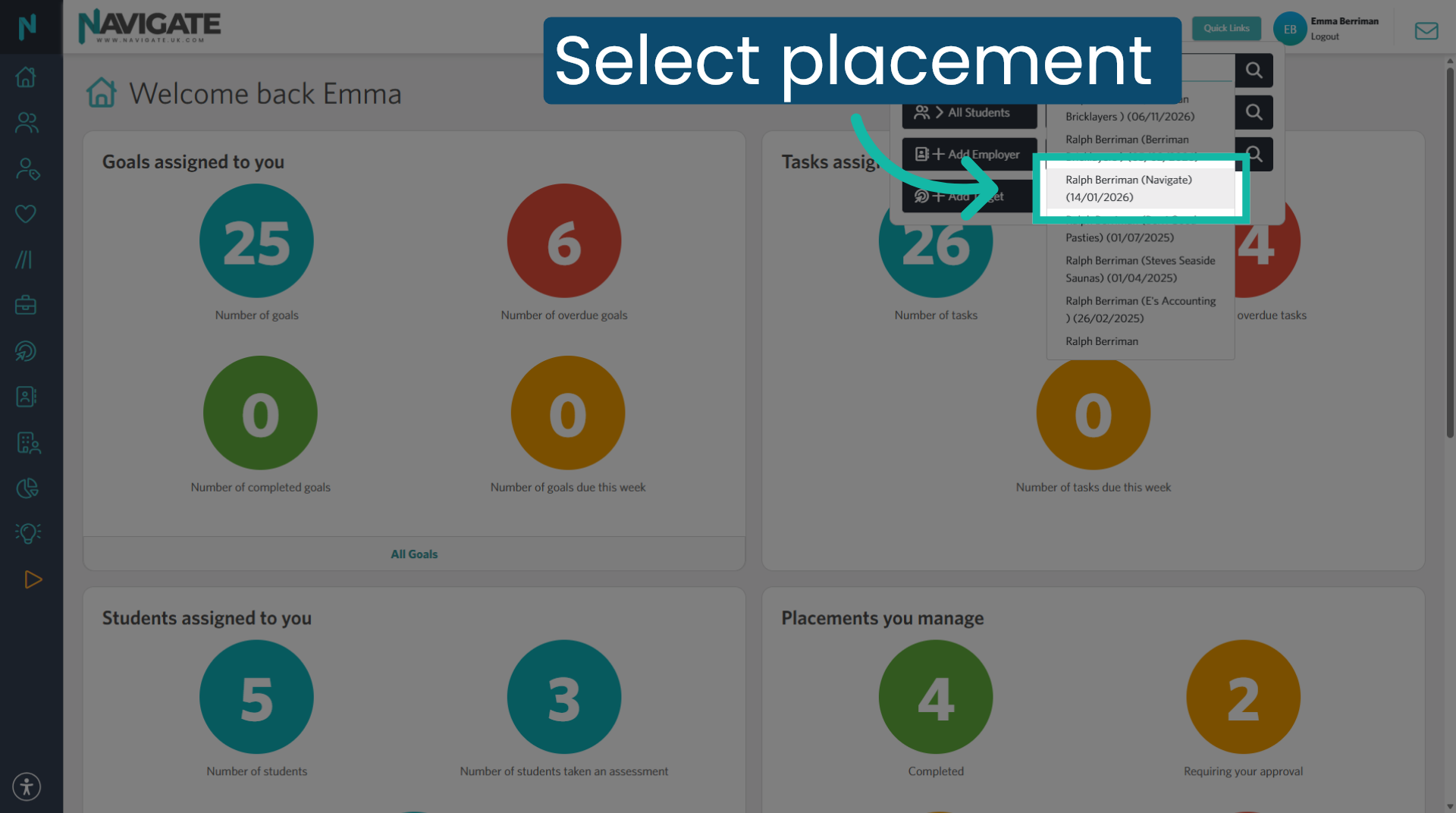
3. Select Specific Placement
Select the correct placement from the drop-down.
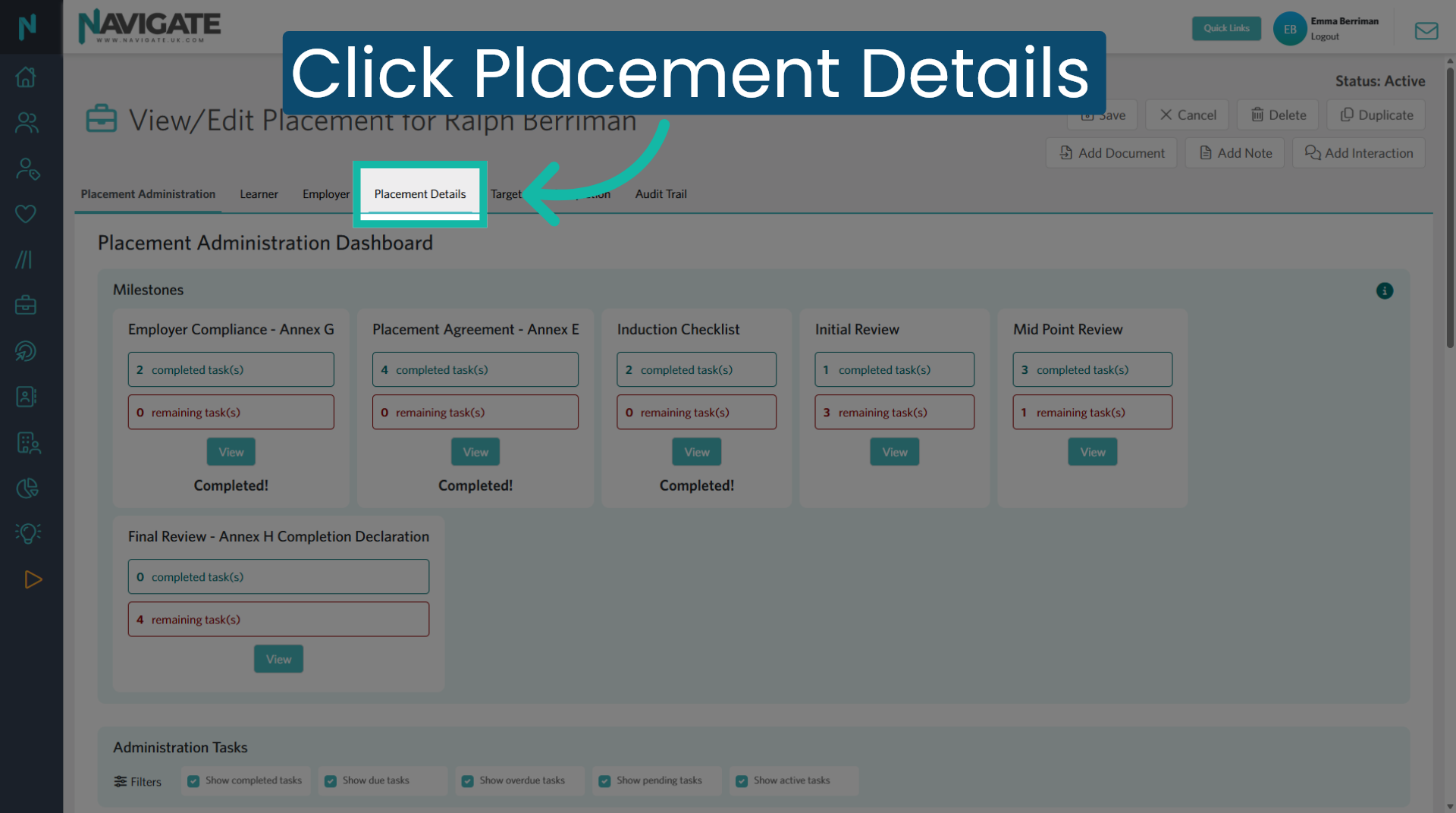
4. Open Placement Details tab
Then click the placement details tab to view and edit the information related to the selected placement.
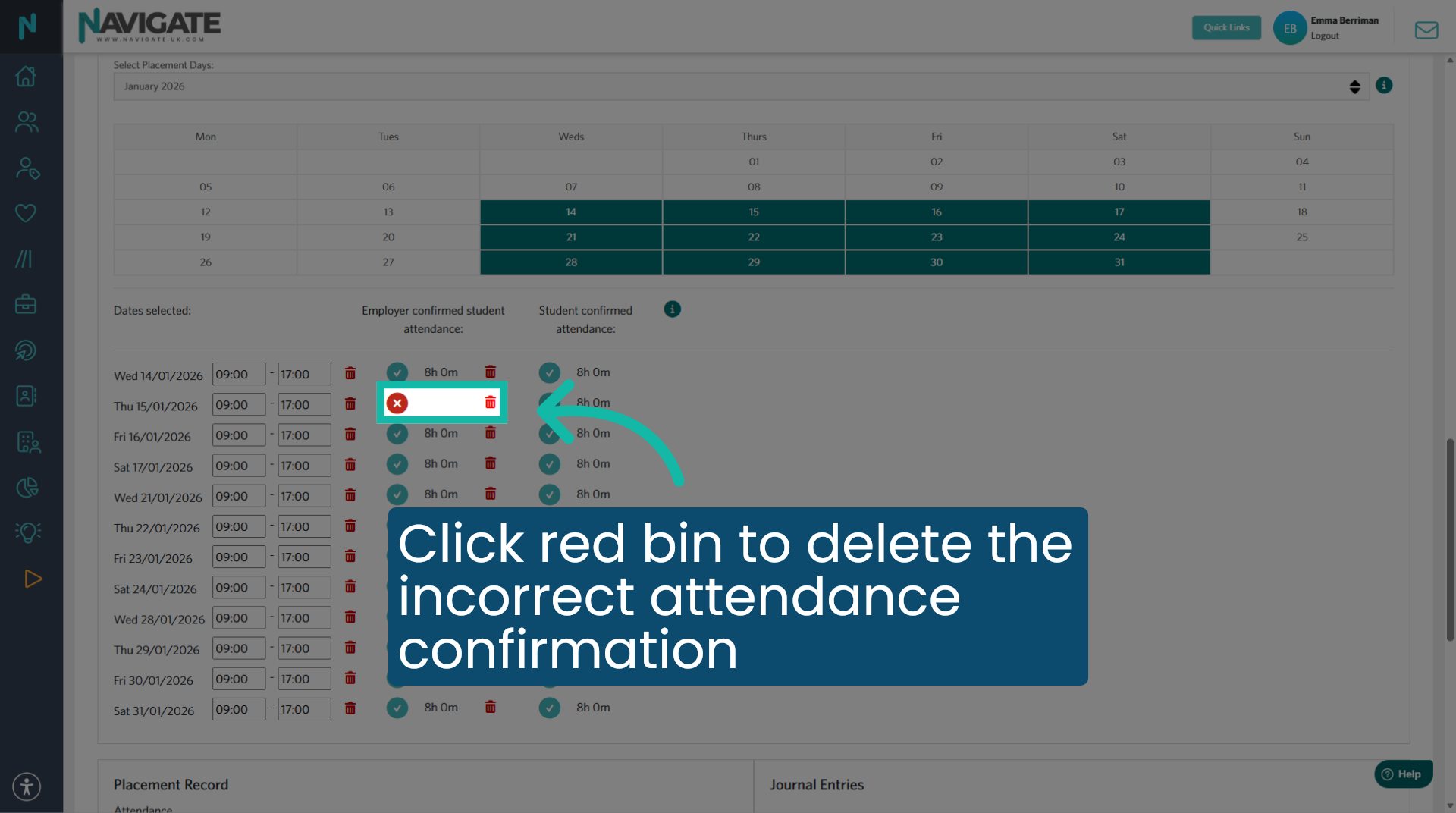
5. Delete incorrect hours
Click on the red bin icon to delete the incorrect attendance confirmation day.
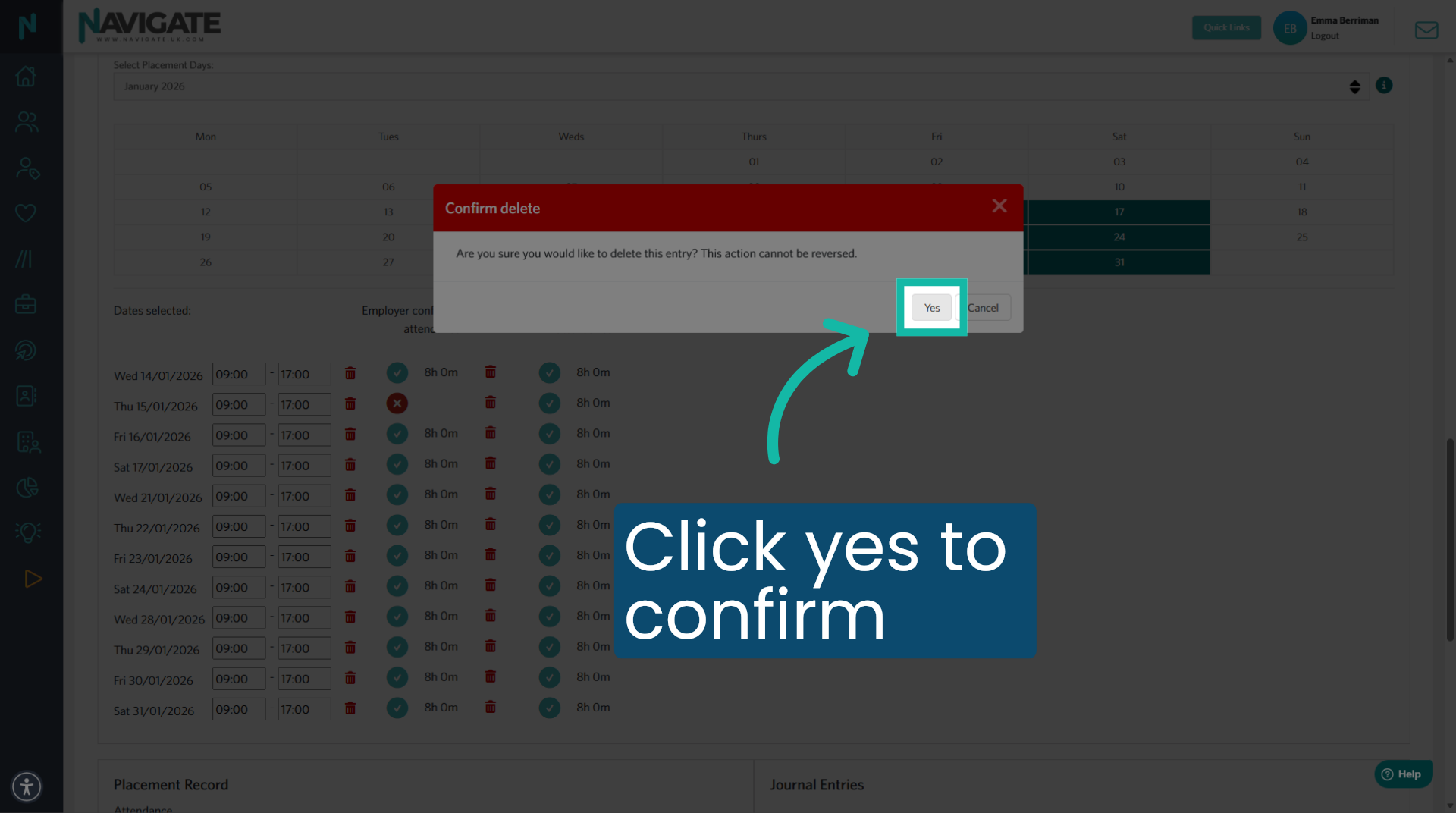
6. Click yes to confirm
Click yes to confirm.
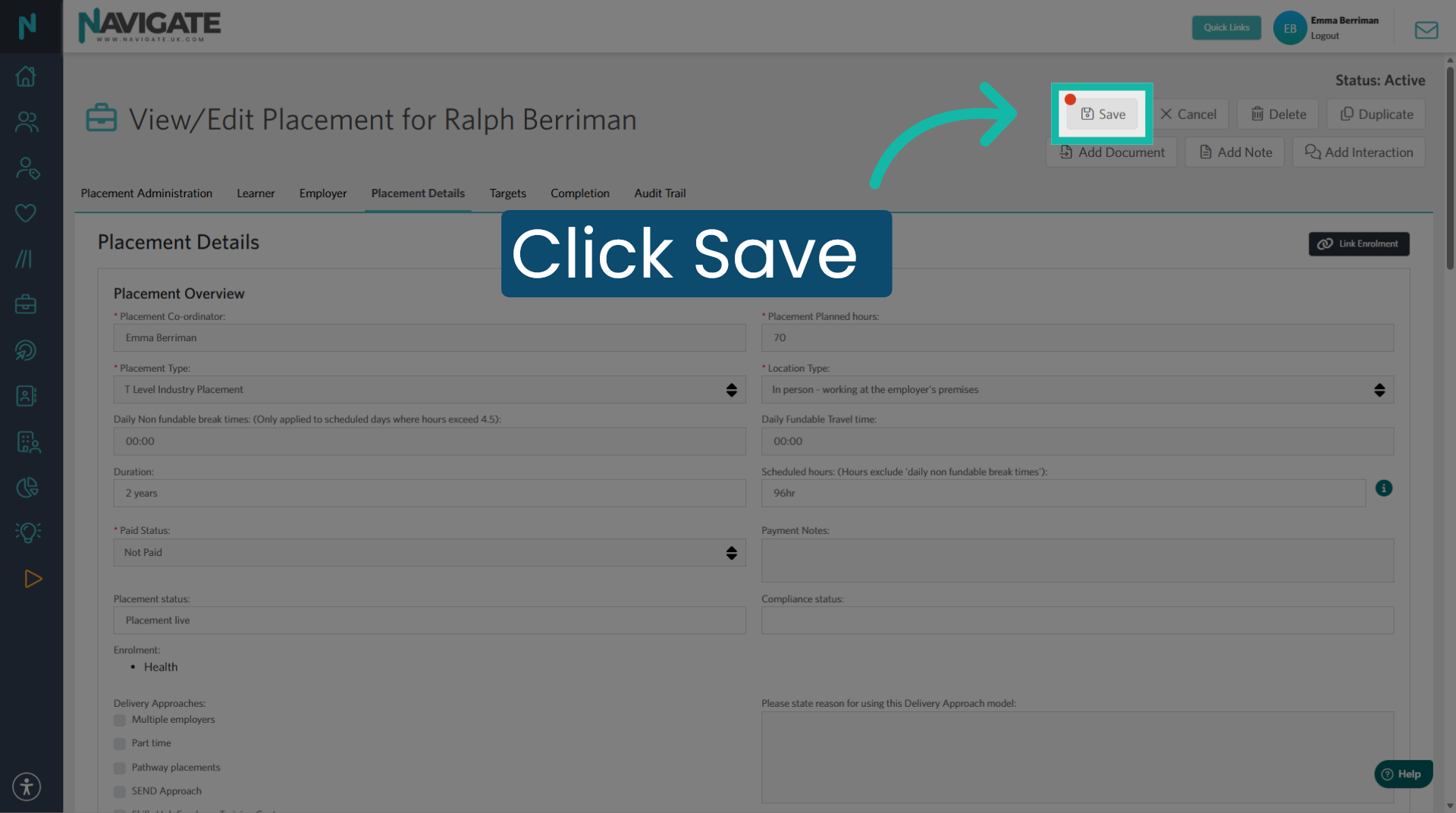
7. Save
Click 'Save Changes' to apply and store the updates made to the placement details.
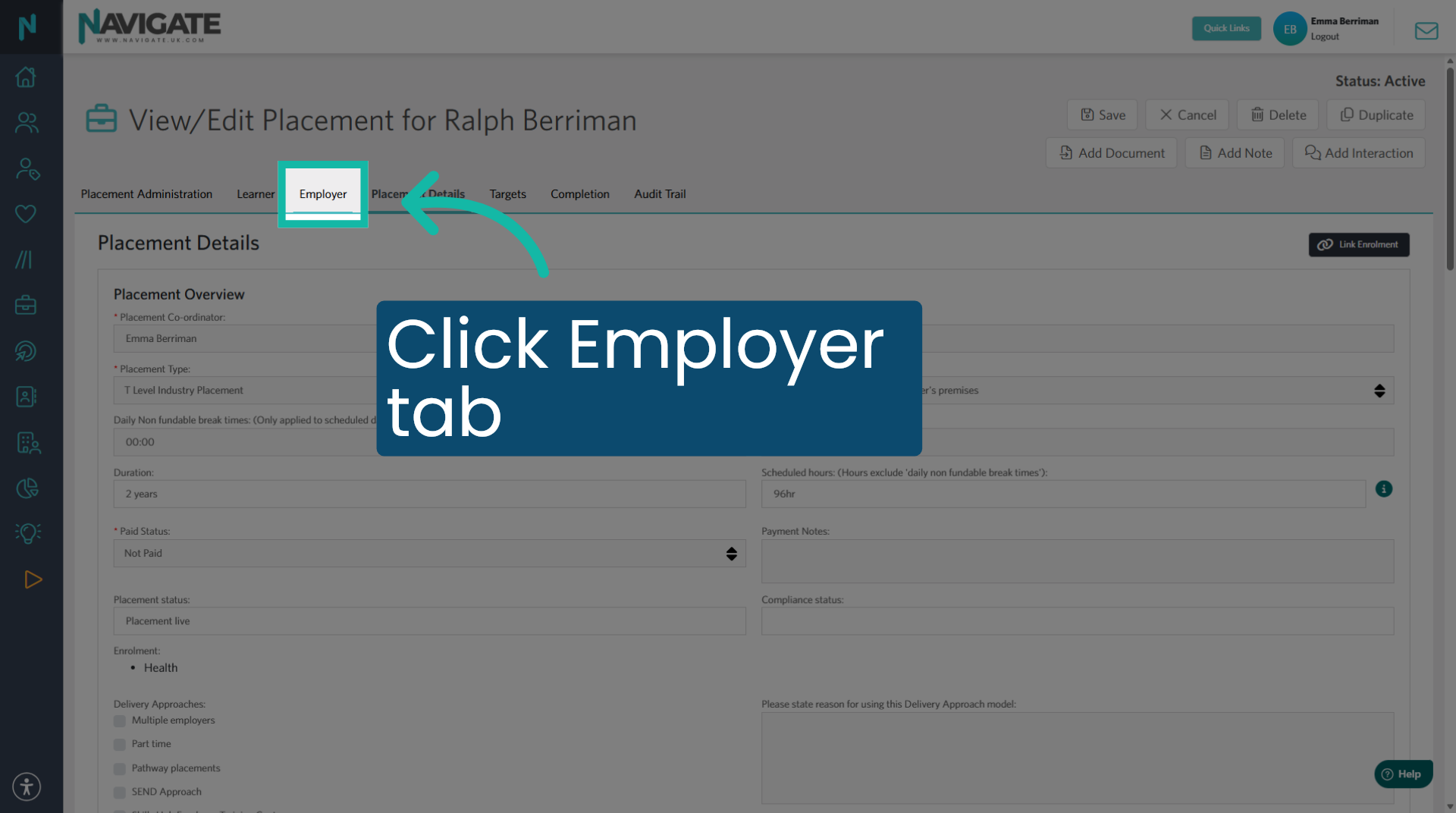
8. Click into the employer tab
Then return to the employer table.
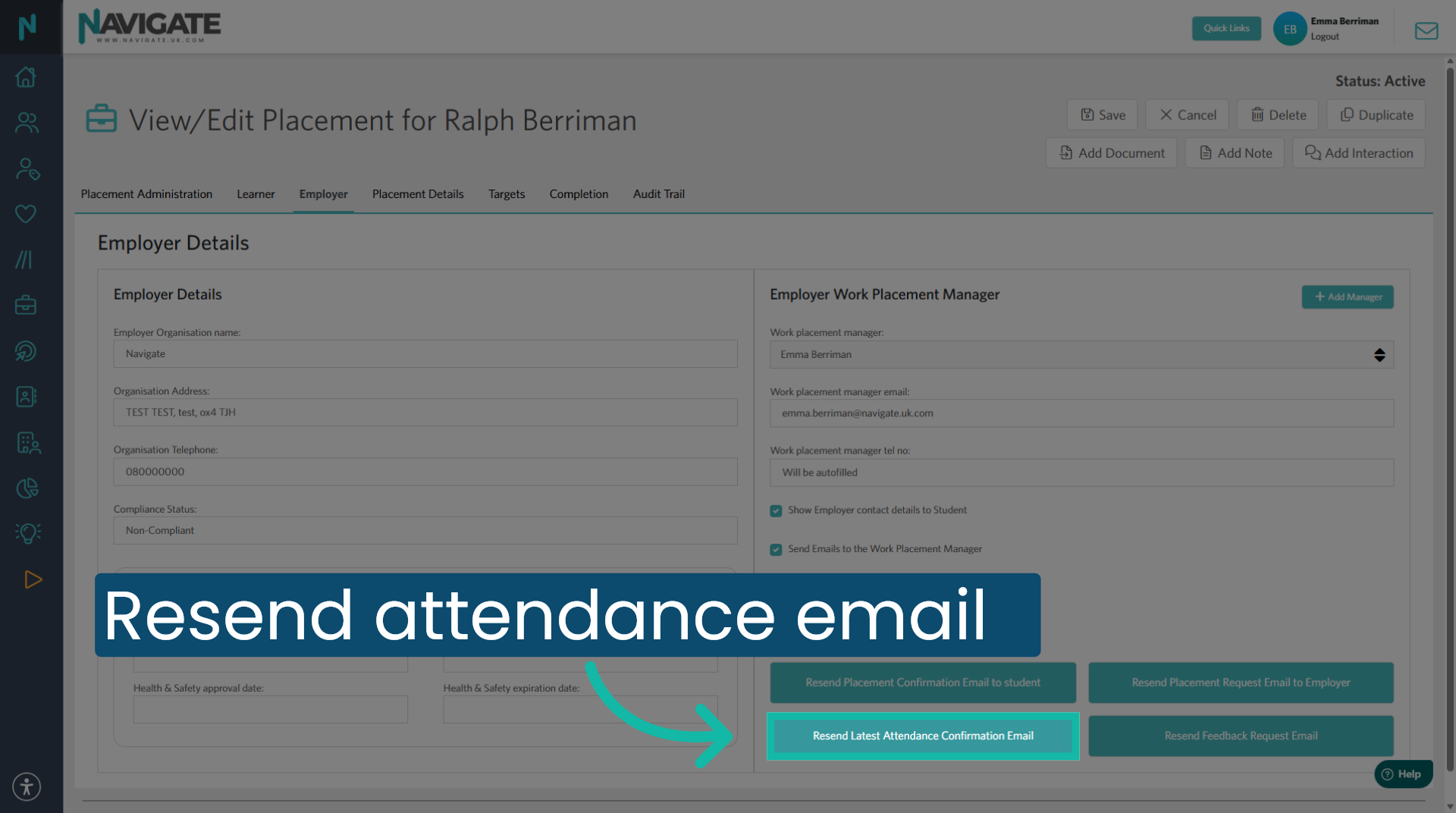
9. Resend Attendance Confirmation
Click 'Resend latest attendance confirmation email' to send the most recent attendance confirmation to the employer for them to confirm and approve.
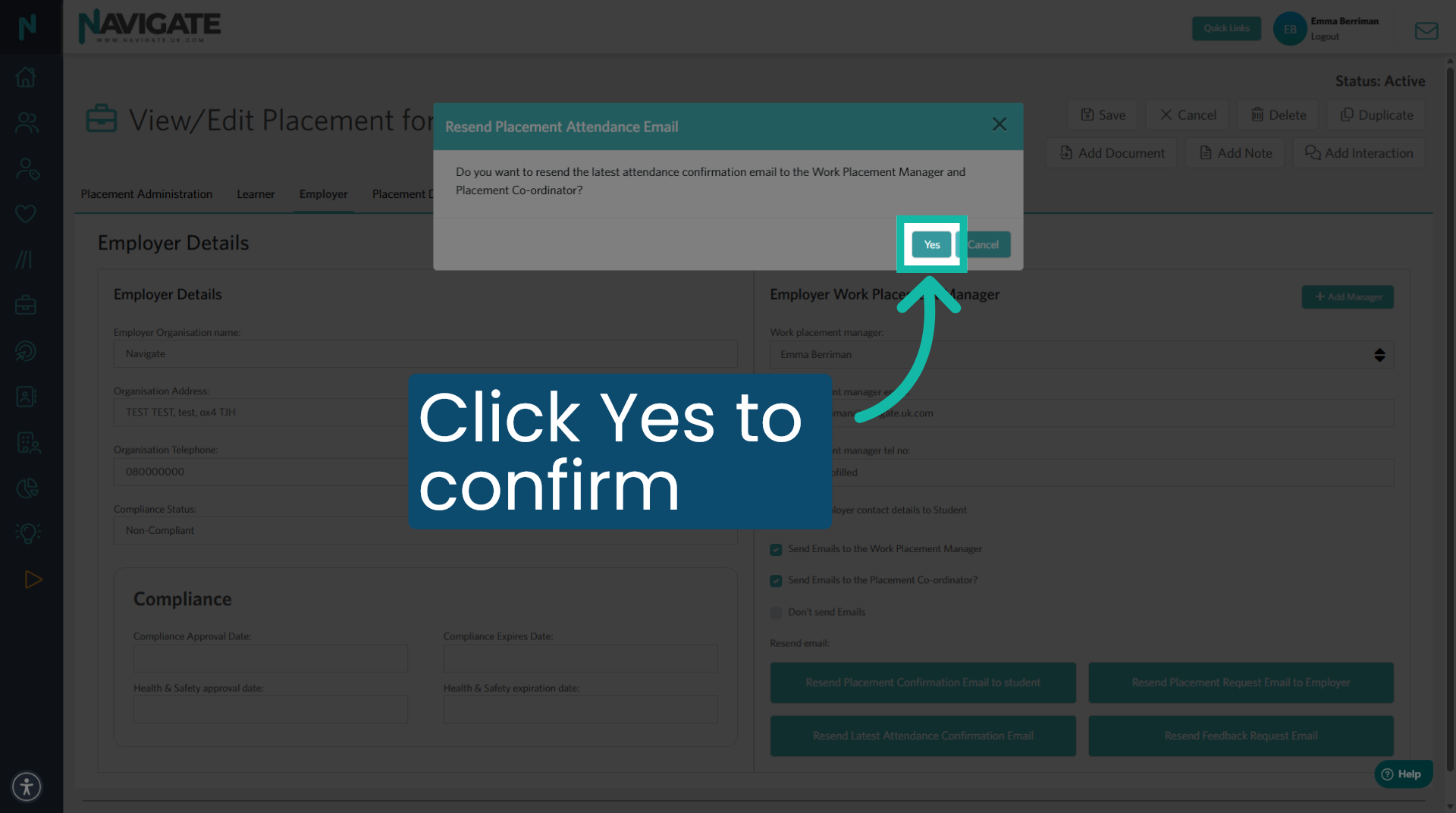
10. Confirm Resend Action
Click yes to confirm the resend.
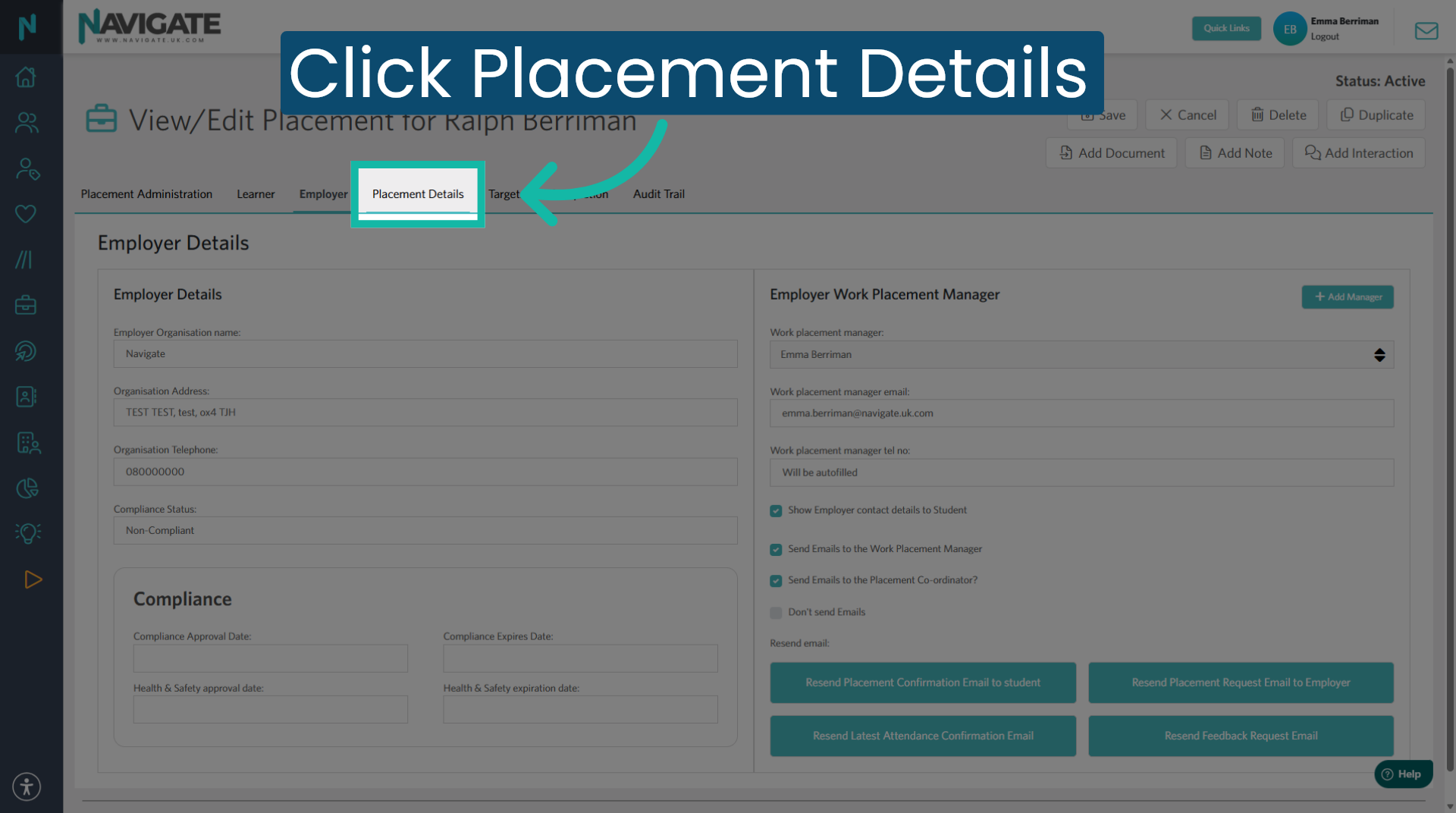
11. Return to Placement Details
Click placement details to return to the main Details page of the placement.
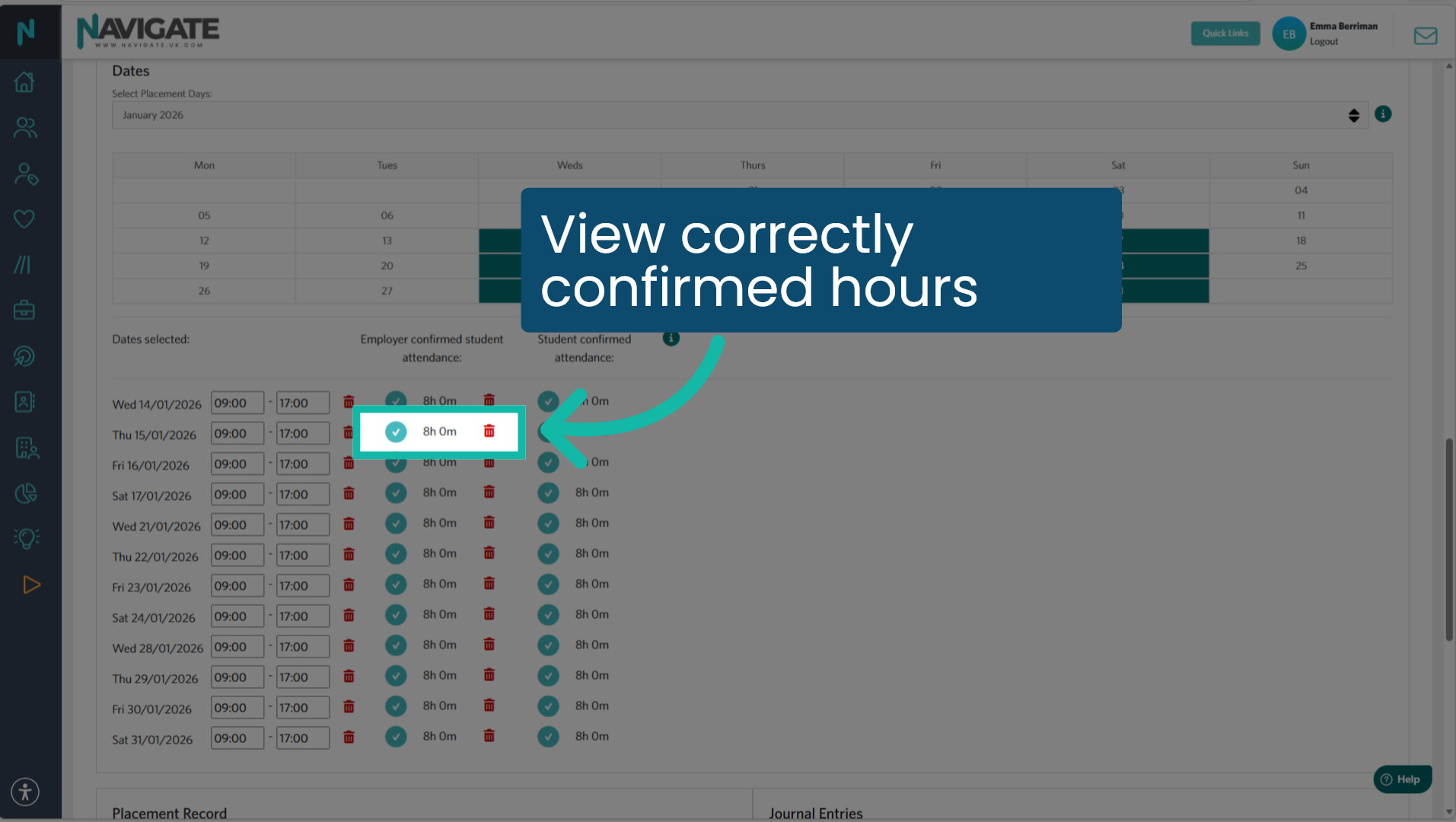
12. View corrected attendance
Once the employer has confirmed the amended attendance hours, you will see it correctly displayed.
Was this article helpful?
That’s Great!
Thank you for your feedback
Sorry! We couldn't be helpful
Thank you for your feedback
Feedback sent
We appreciate your effort and will try to fix the article