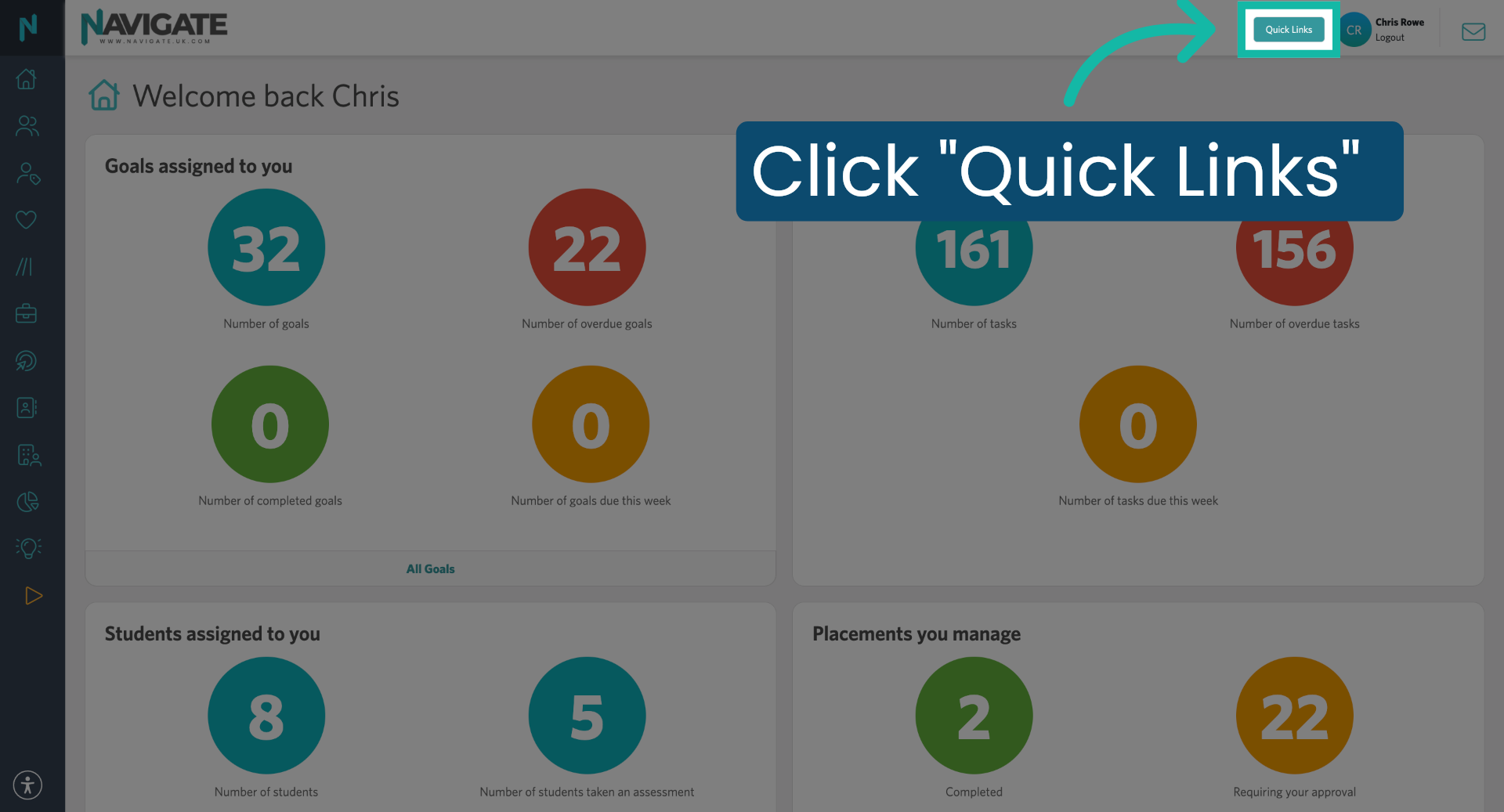
1. Open Quick Links Menu
Once logged in, click the Quick Links menu.
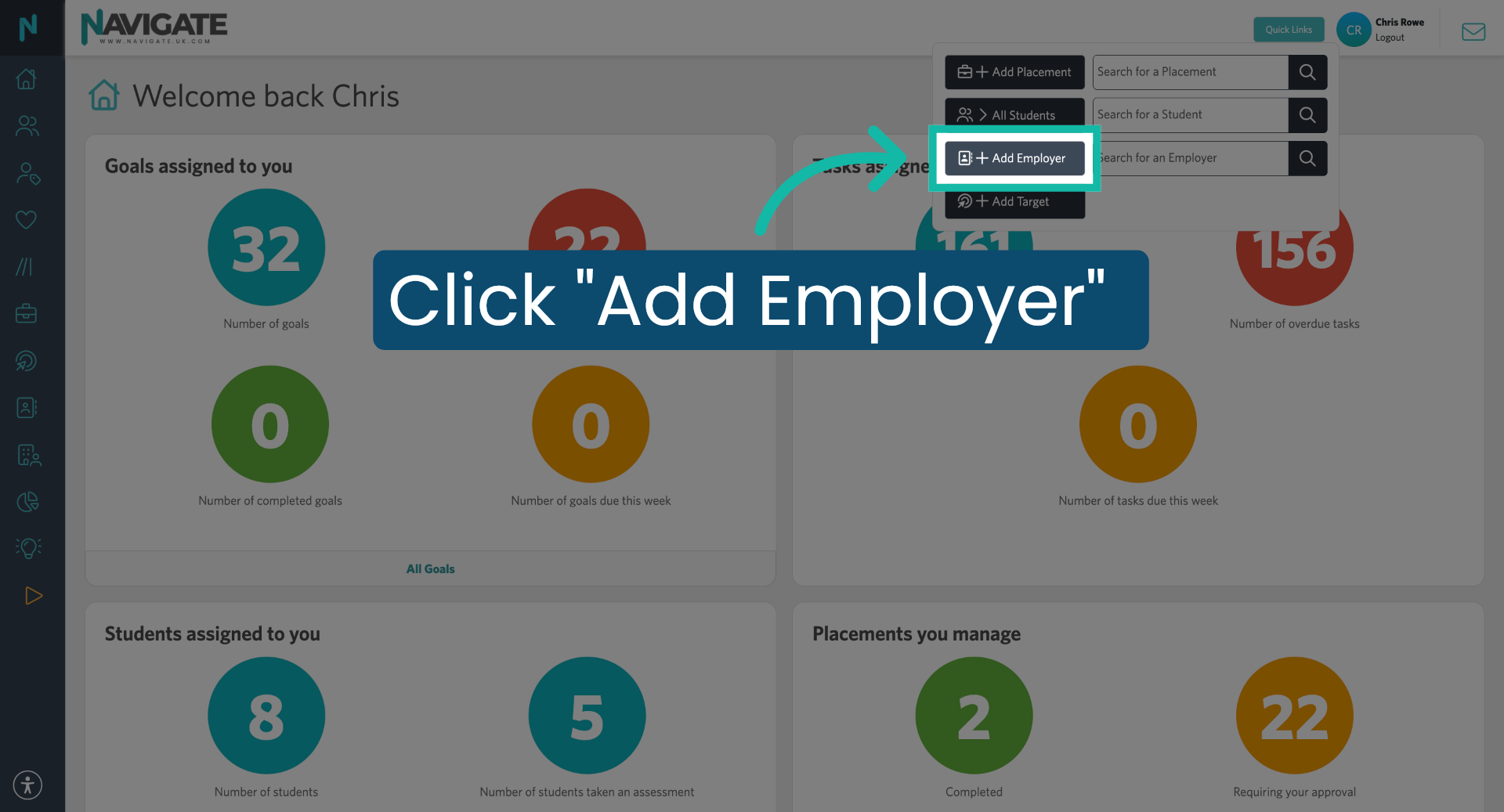
2. Click Add Employer Option
Click on 'Add Employer'.
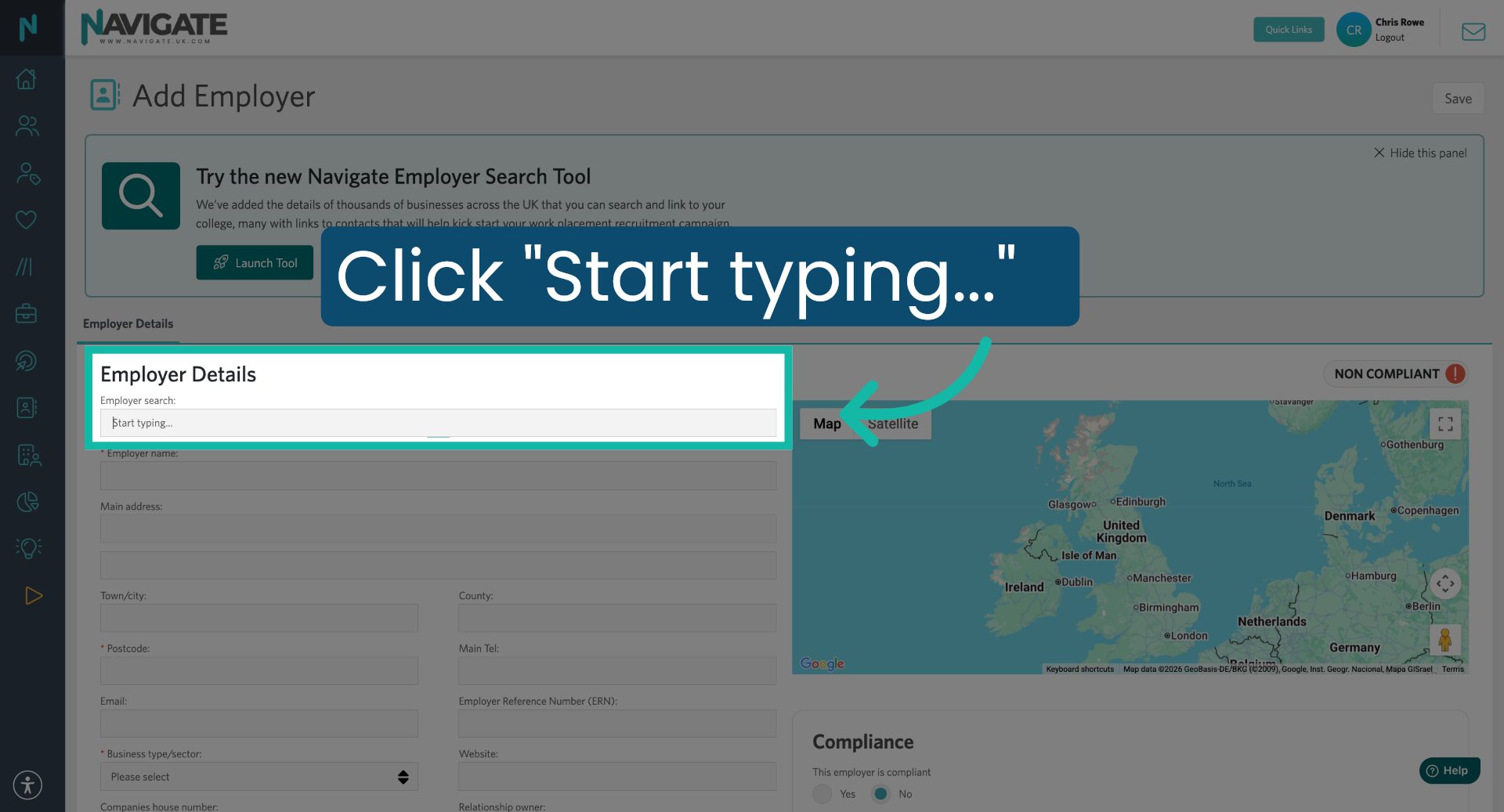
3. Check Employer Record
You first need to check if the employer already exists in your database. To do this, click into the 'Employer search' box and type the name of the employer; if they already exist, select them from the dropdown, and the rest of the form fields will auto-populate.
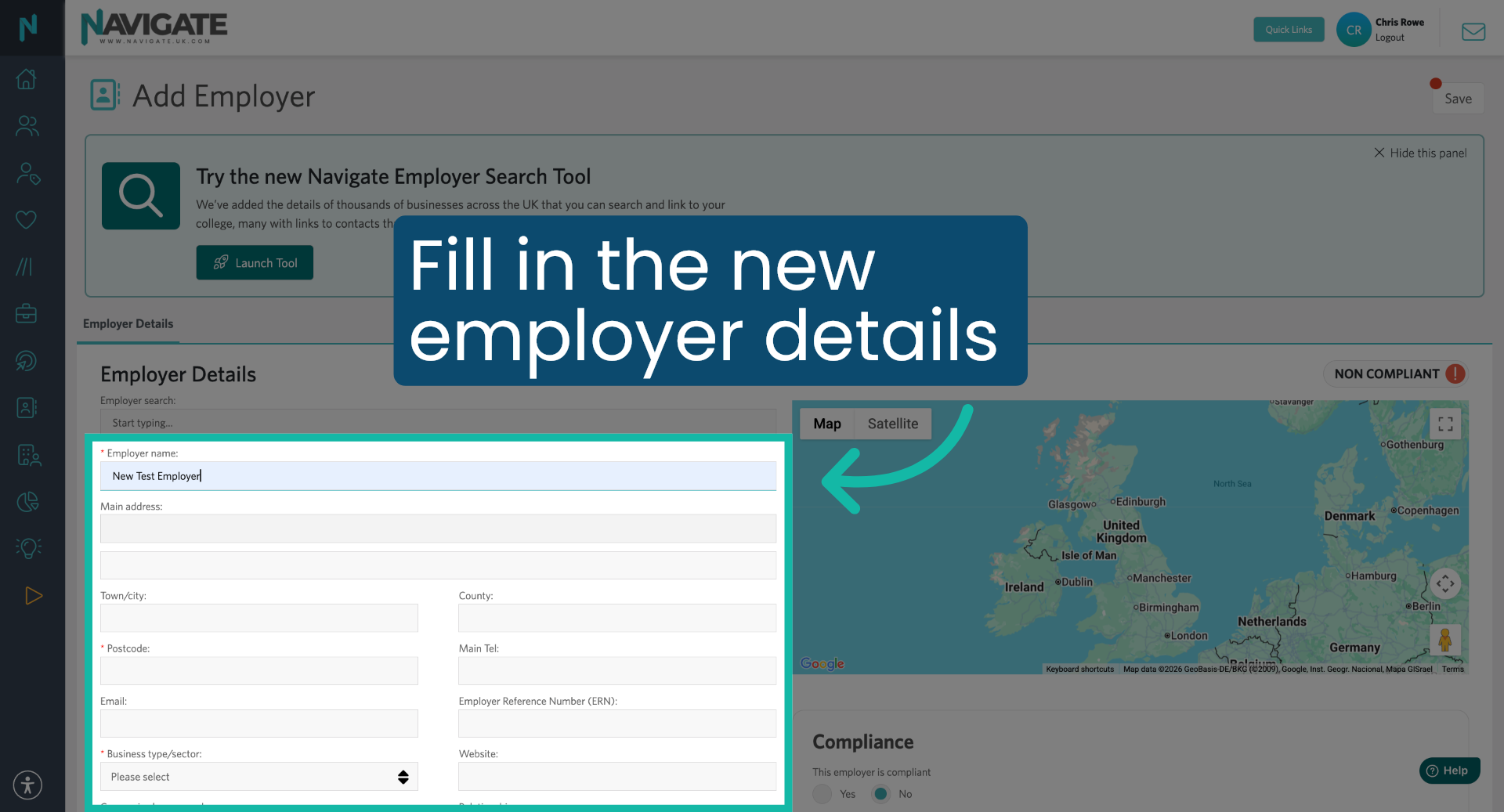
4. Add New Employer Details
After checking, if the employer doesn't exist, enter the employer's details into the fields below.
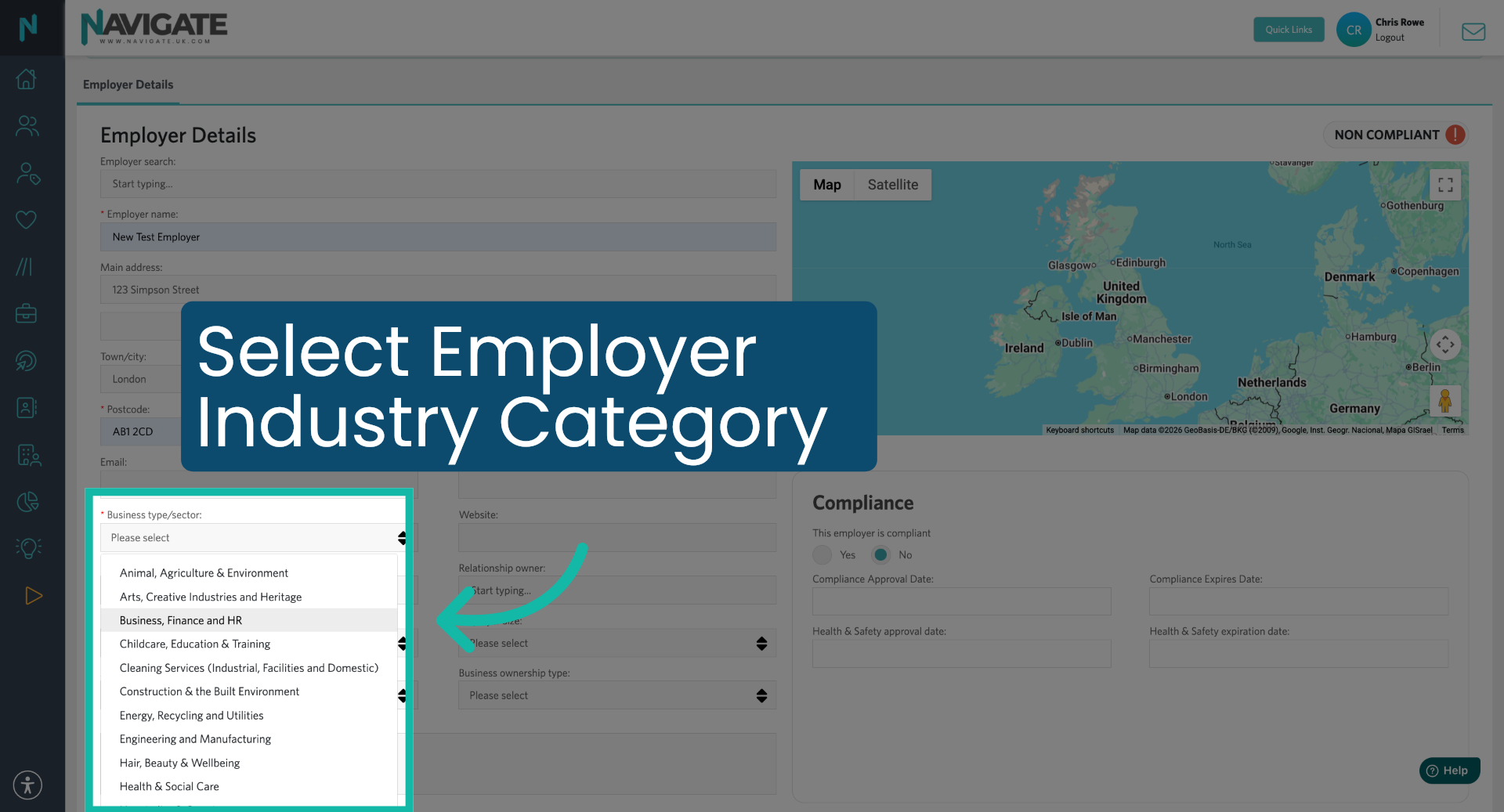
5. Select Employer Industry Category
Click into the 'Business type/sector' option and select from the dropdown menu.
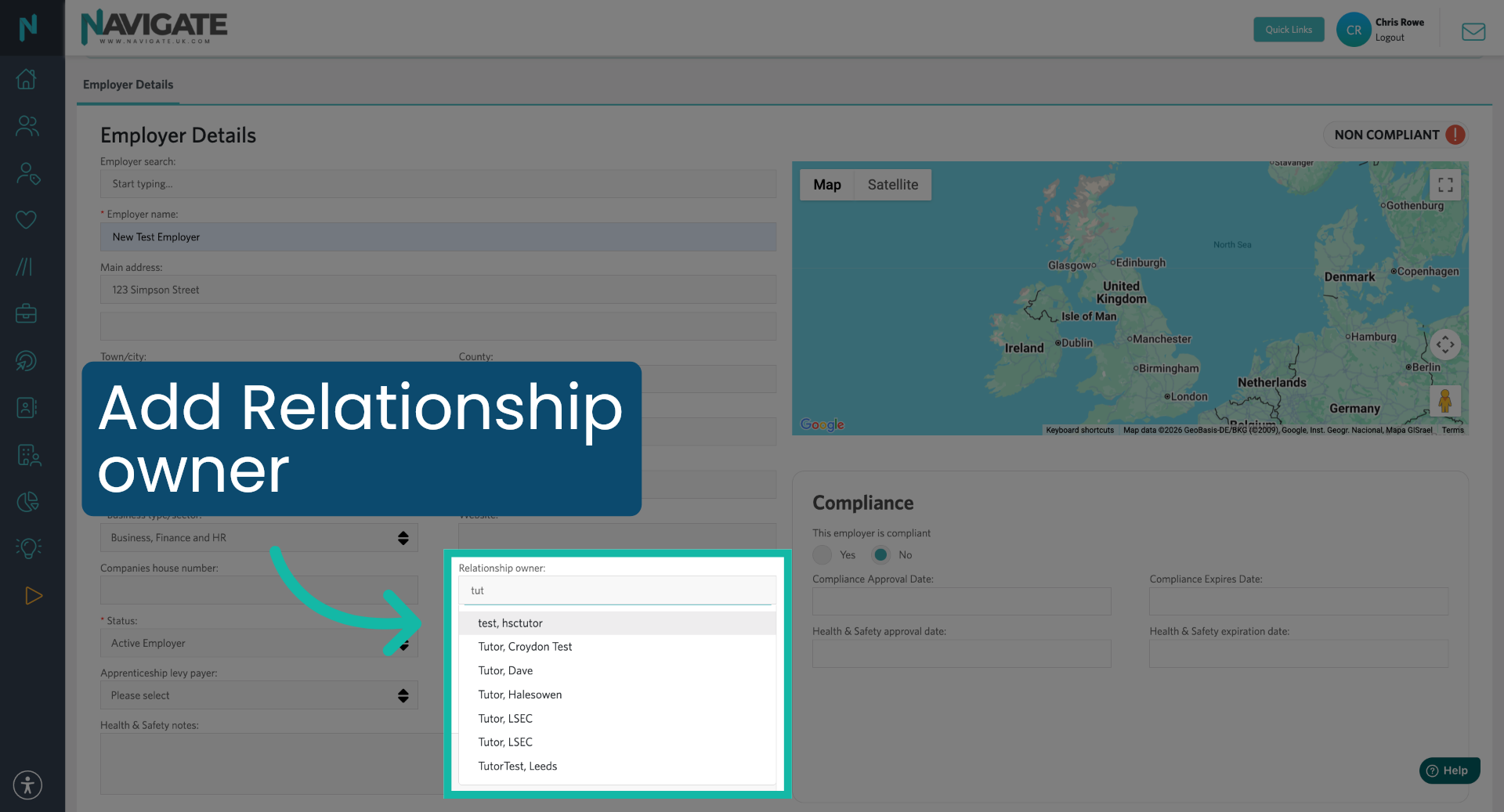
6. Add Responsible Person
Add the college staff member who will be responsible for communicating with this employer.
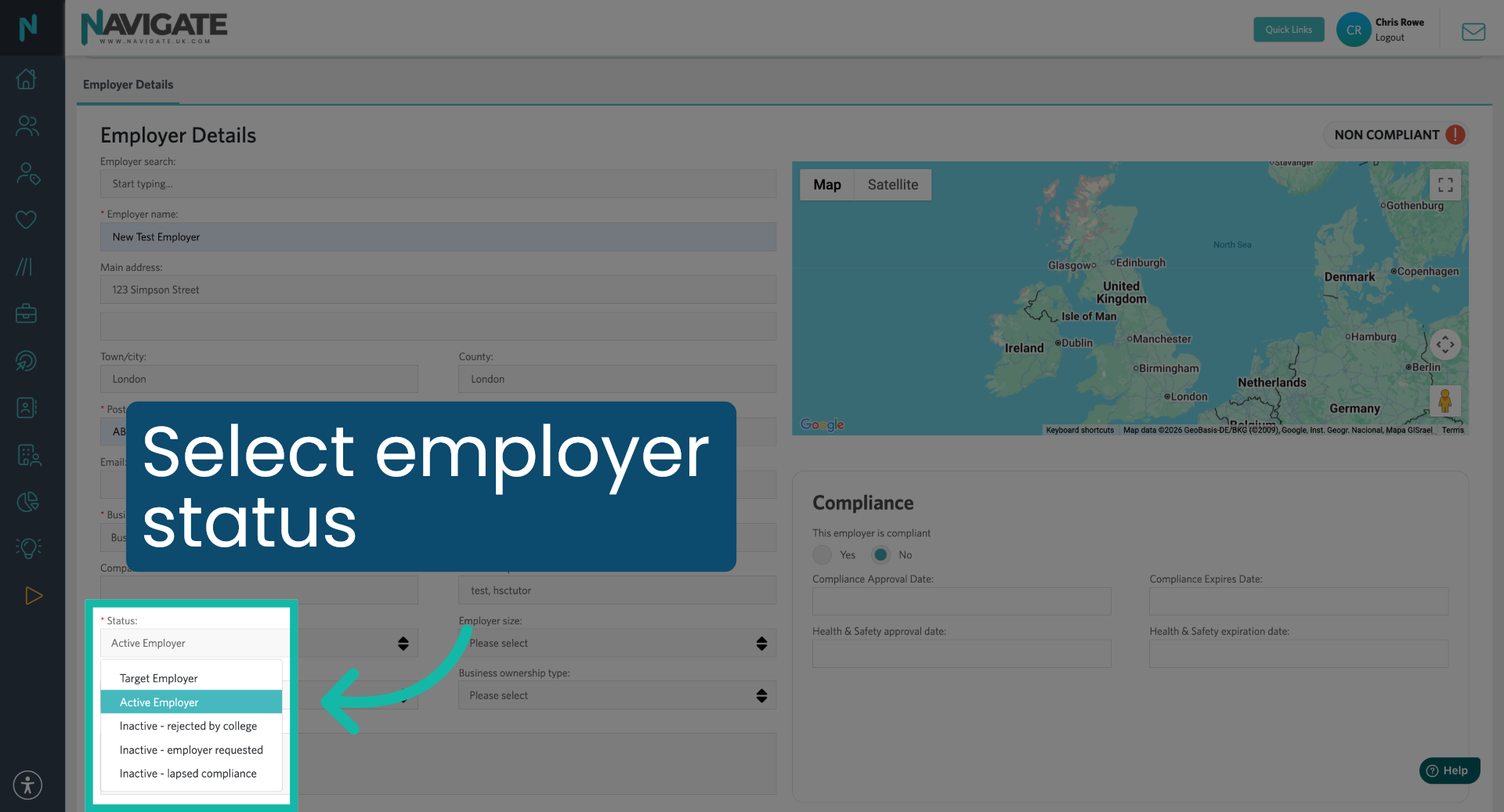
7. Activate Employer Status
Click the 'Active Employer' option to set the employer's status; if you are actively working with the employer, select 'active'.
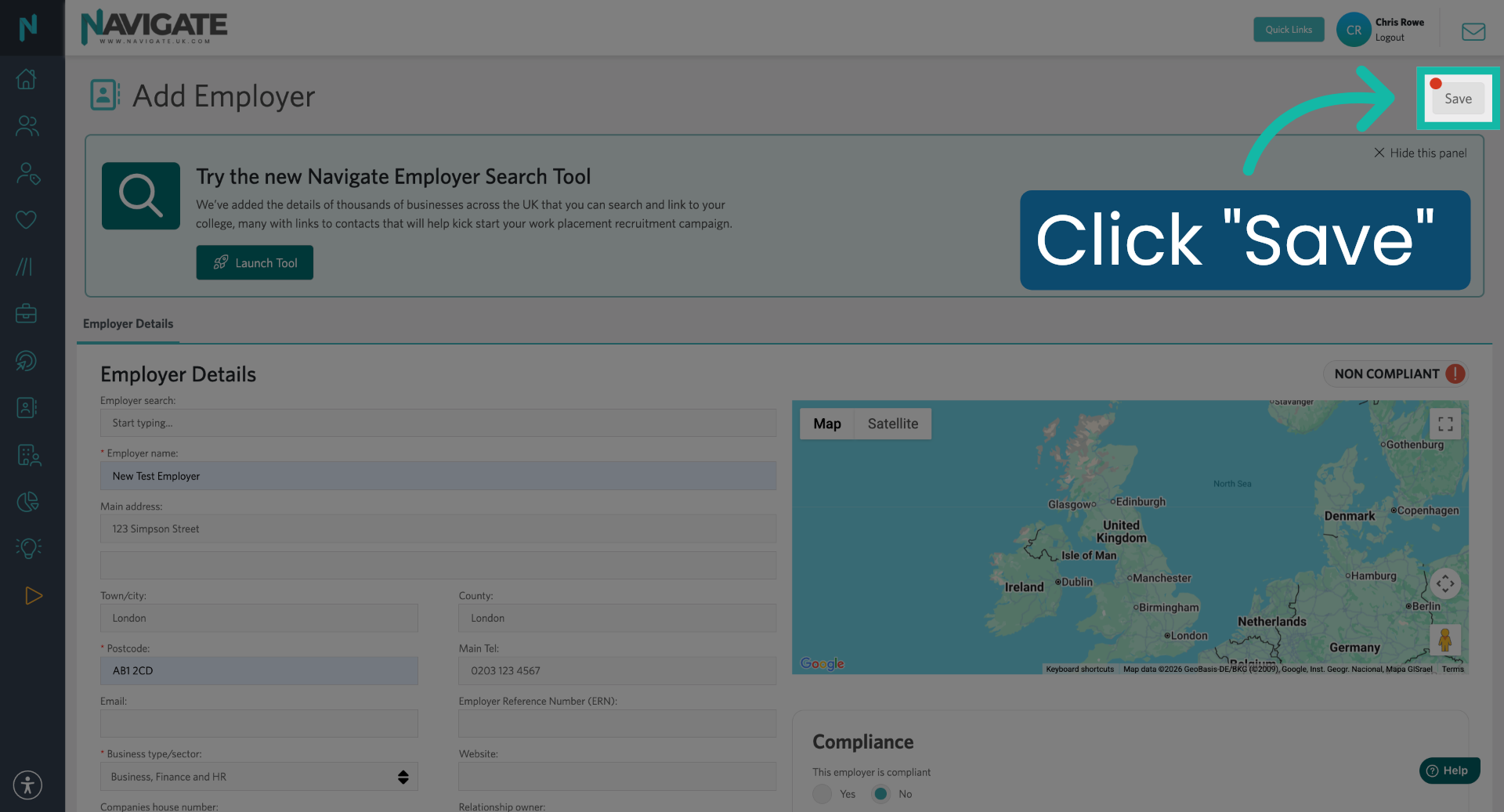
8. Save Employer Details
Click Save to store the entered new employer details into Navigate.
9. Add Employer Contacts
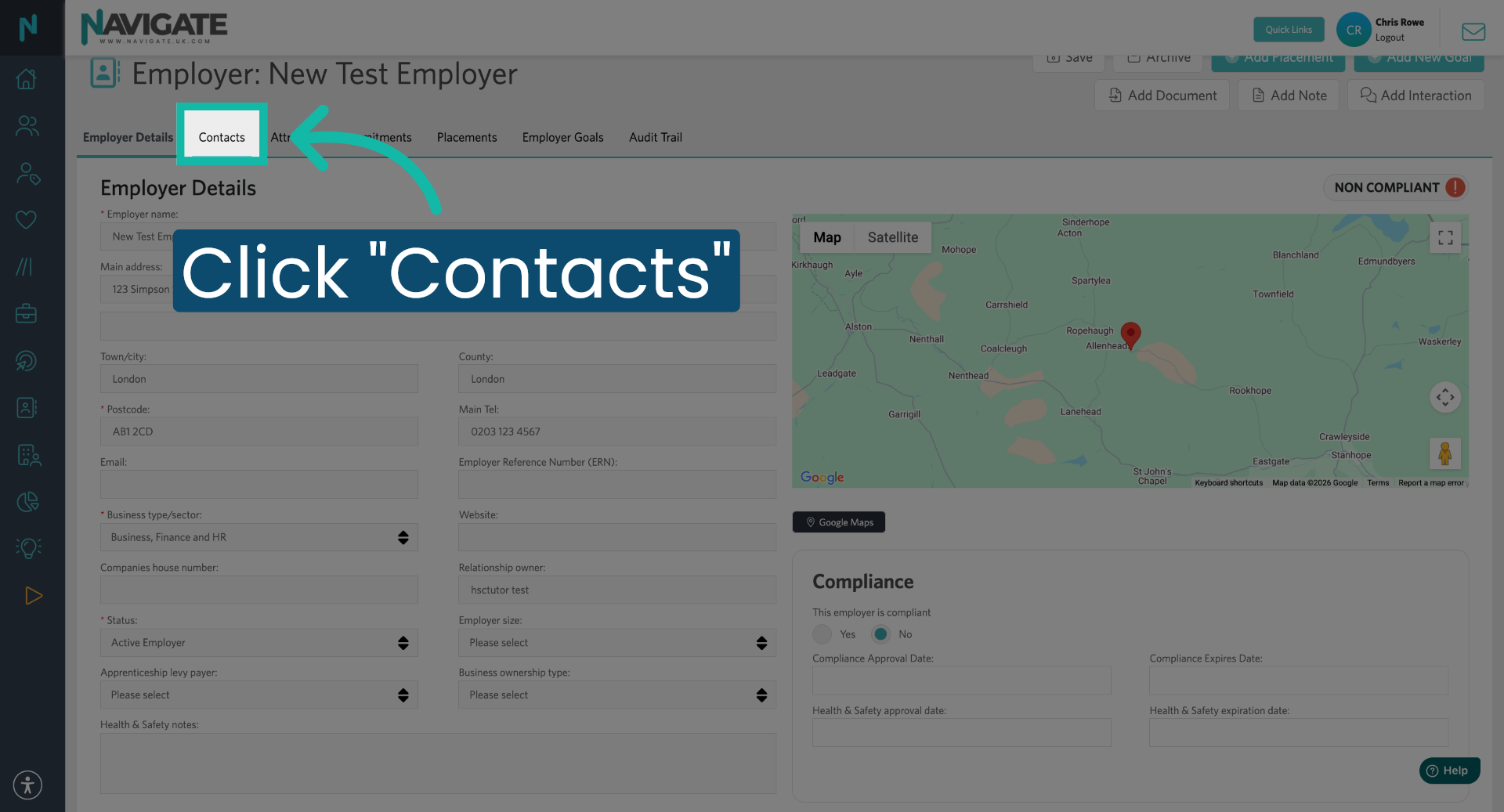
Click the 'Contacts' tab to start adding contacts to the employer.
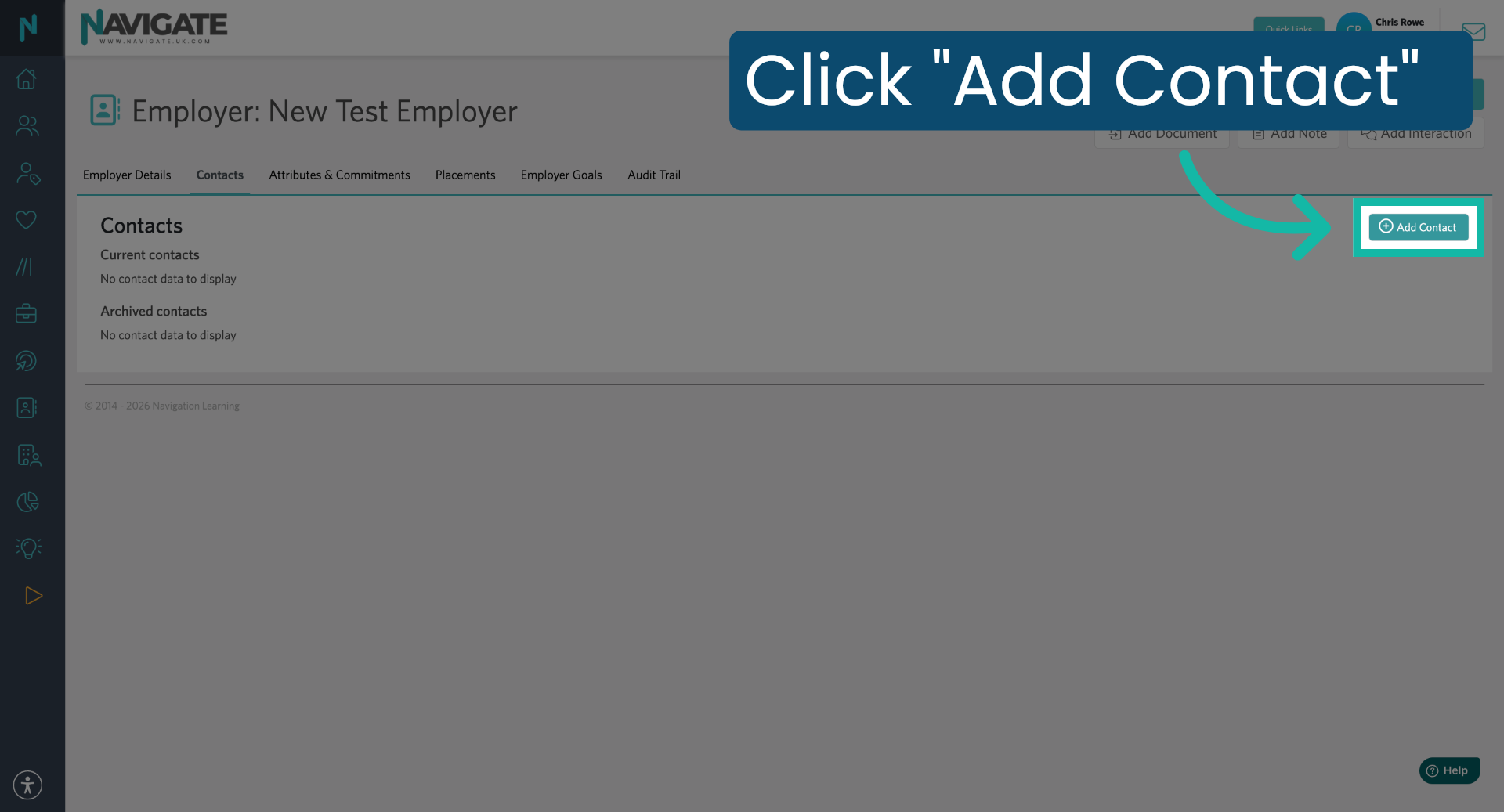
10. Add New Contact
Click 'Add Contact'.
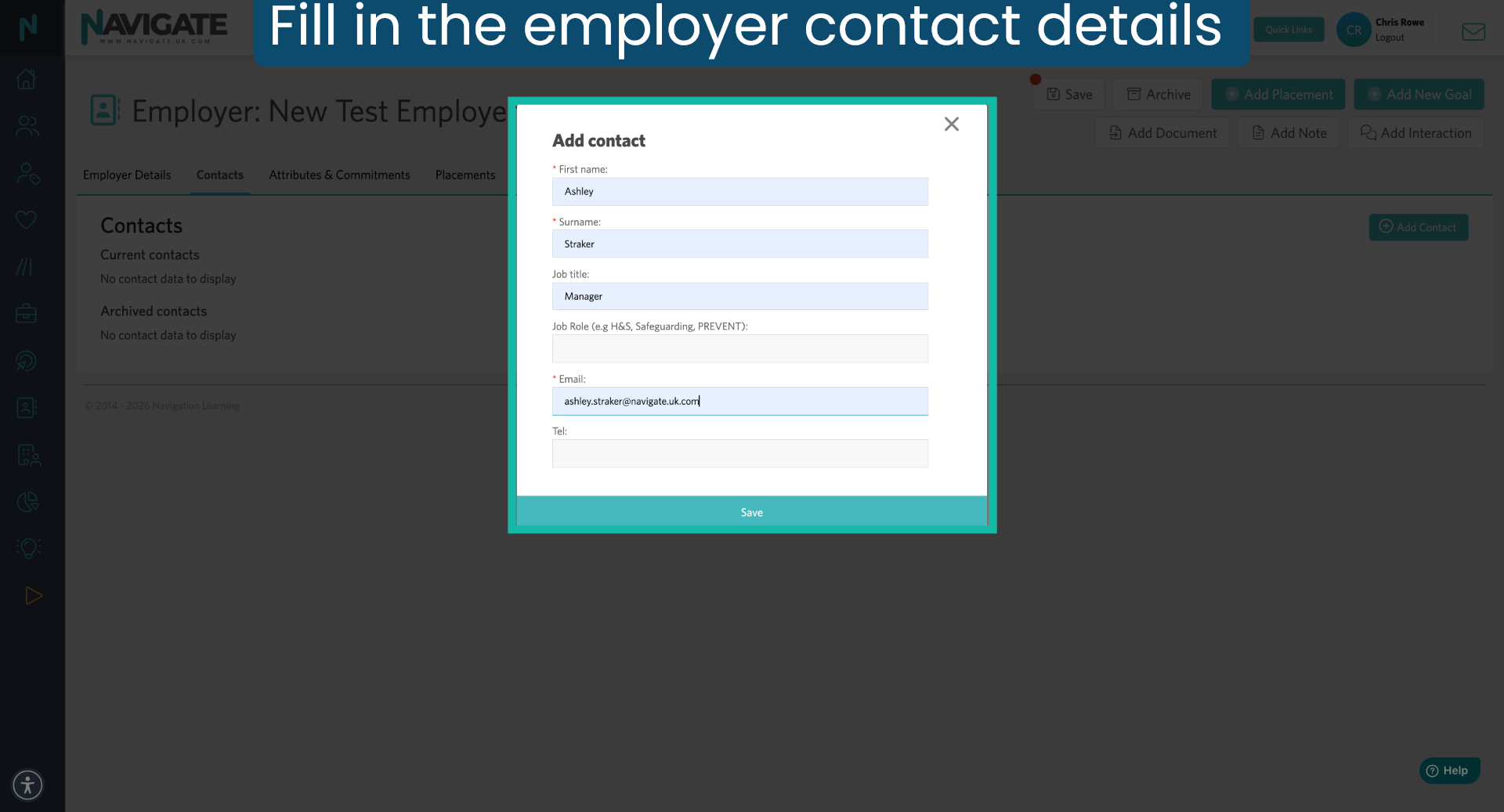
11. Enter Contact Email
Enter the contact person's email address for communication purposes.
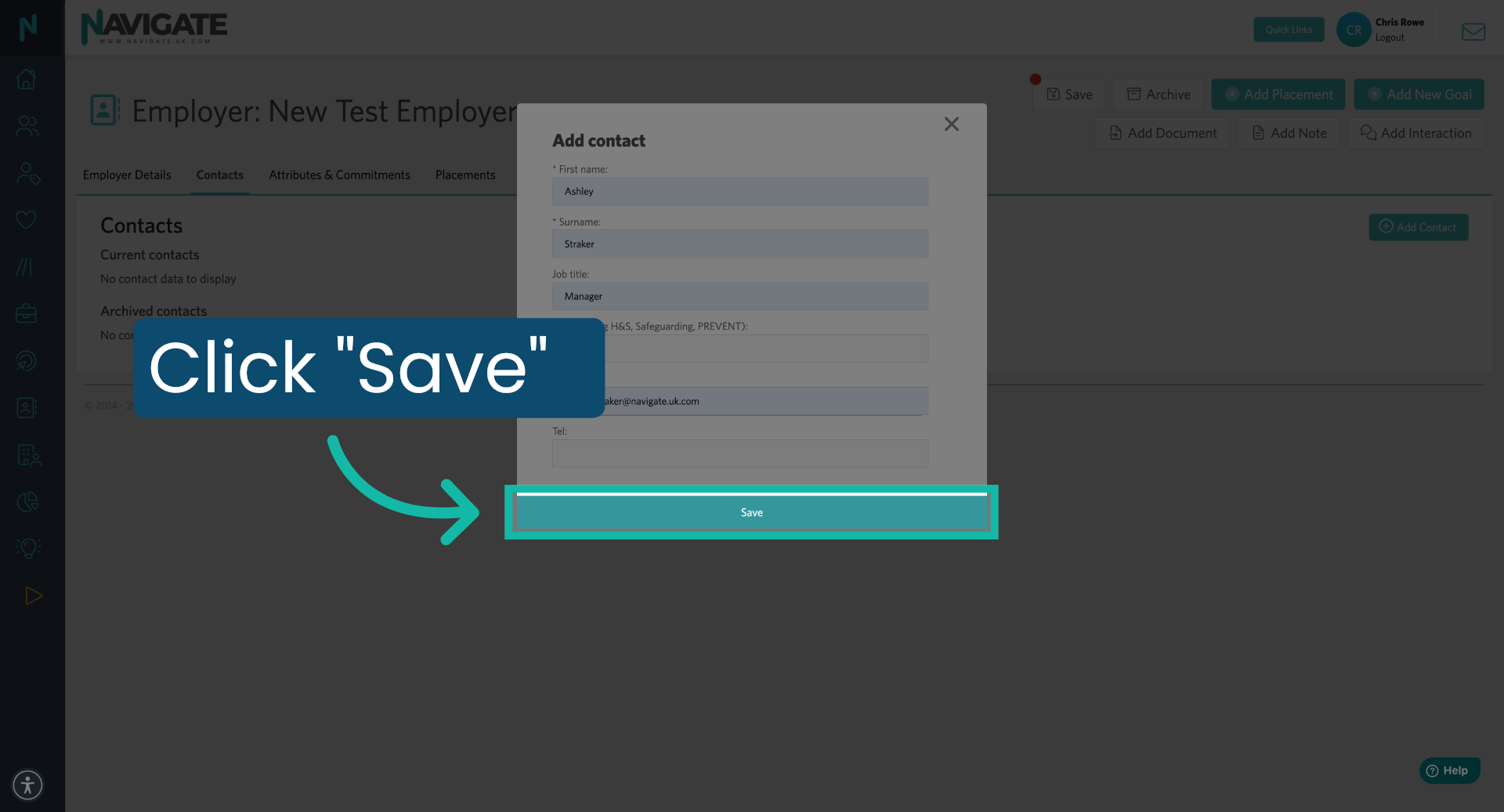
12. Save Contact Information
Click 'Save' to store the new contact's details within the employer profile.
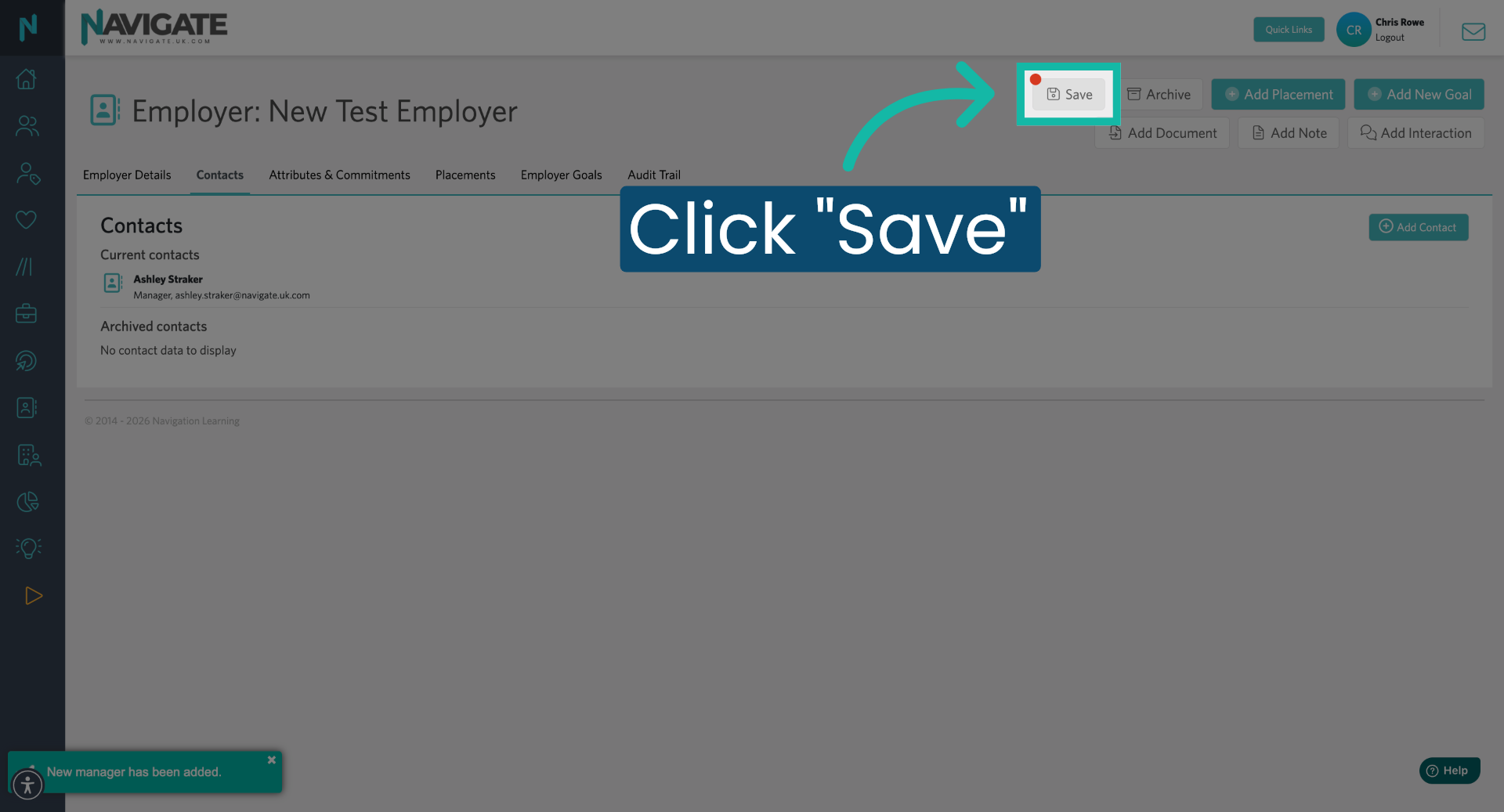
13. Save New Employer
Click 'Save' again to finalise and save all employer and contact information.
Was this article helpful?
That’s Great!
Thank you for your feedback
Sorry! We couldn't be helpful
Thank you for your feedback
Feedback sent
We appreciate your effort and will try to fix the article