Go to login.navigate.uk.com
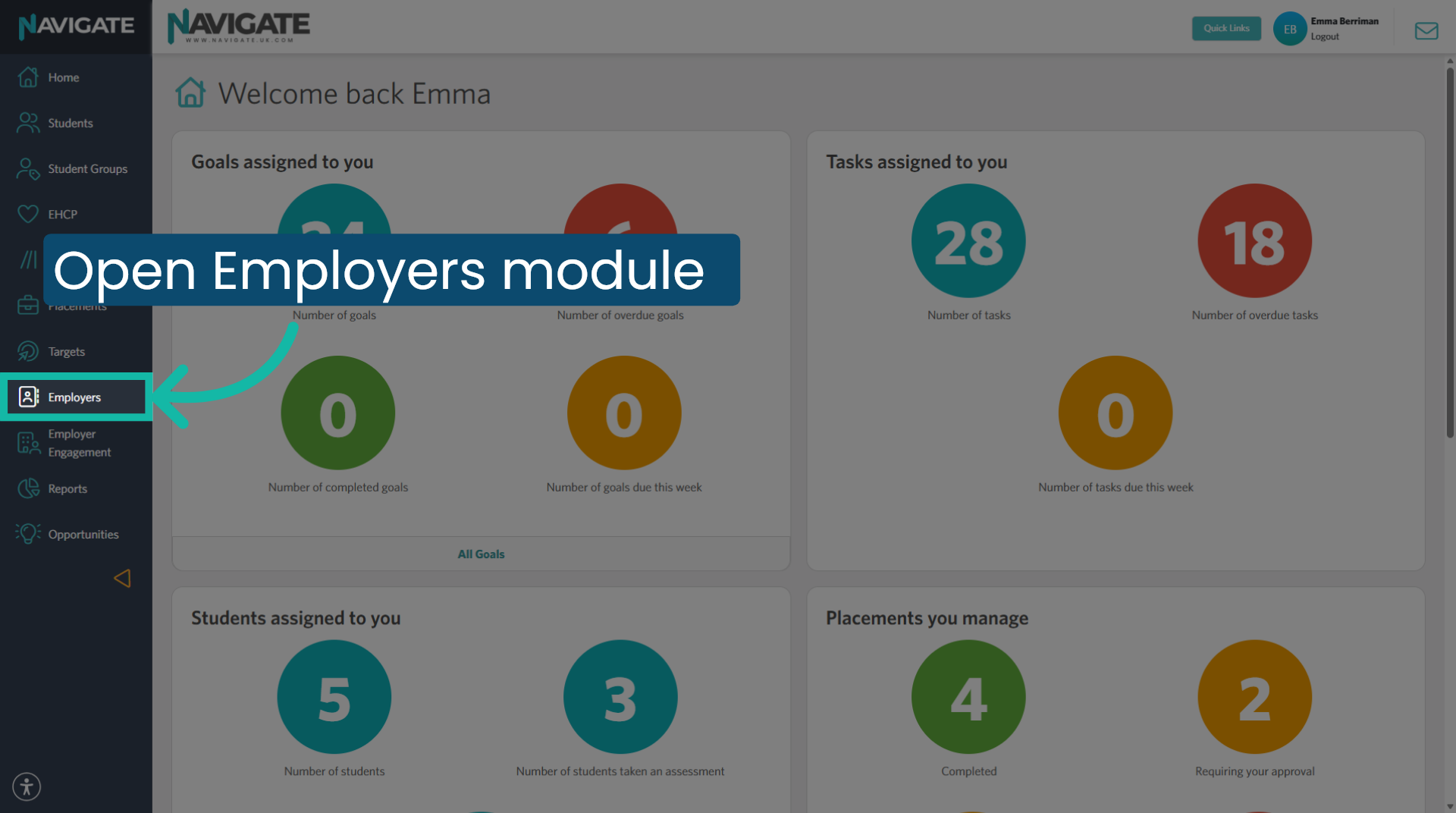
1. Open Employers module
Once logged in, click the employer's menu to access the employer module.
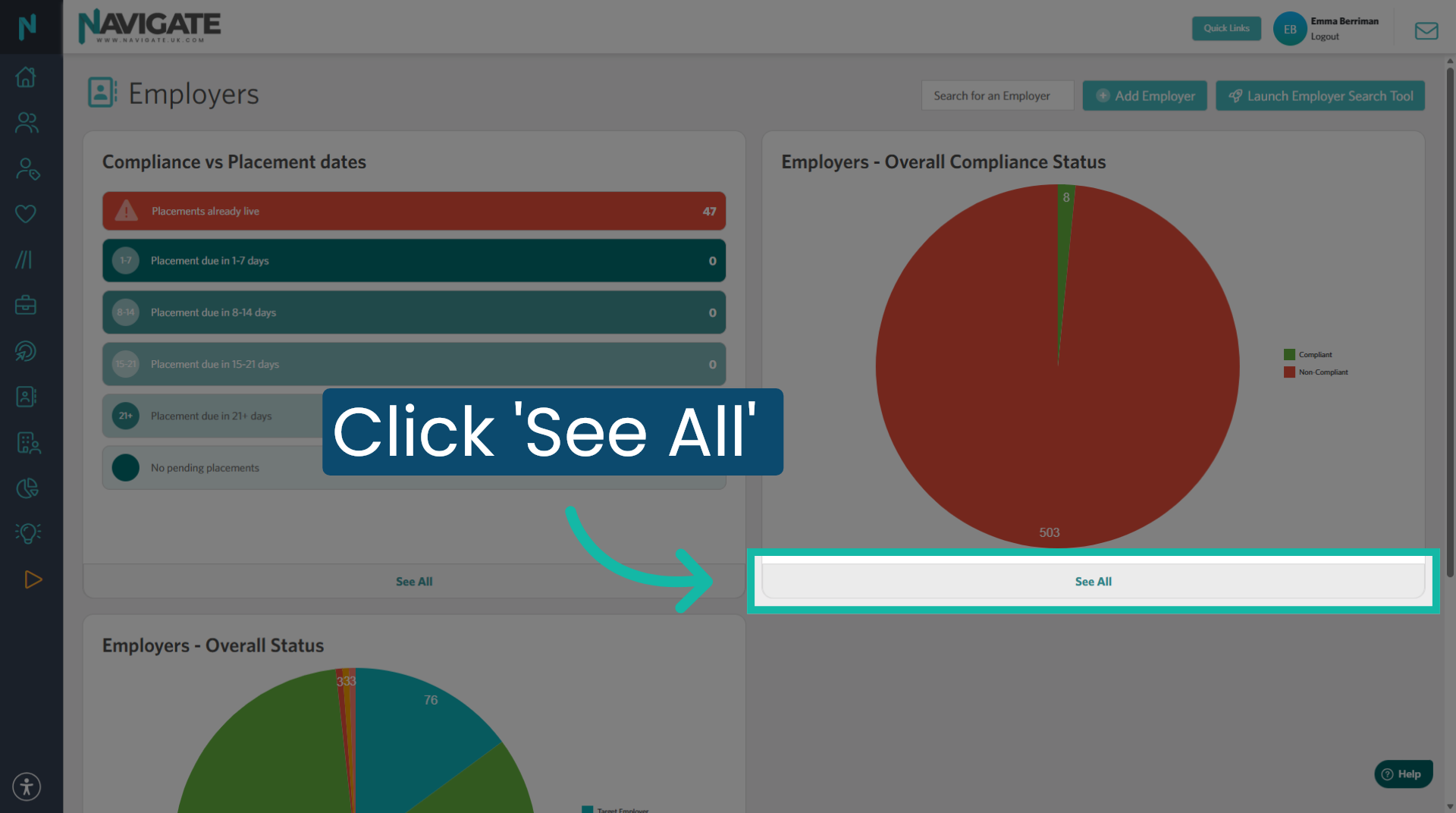
2. View All Employers in grid view
Click 'see all' to display the full list of employers on the employer dashboard.
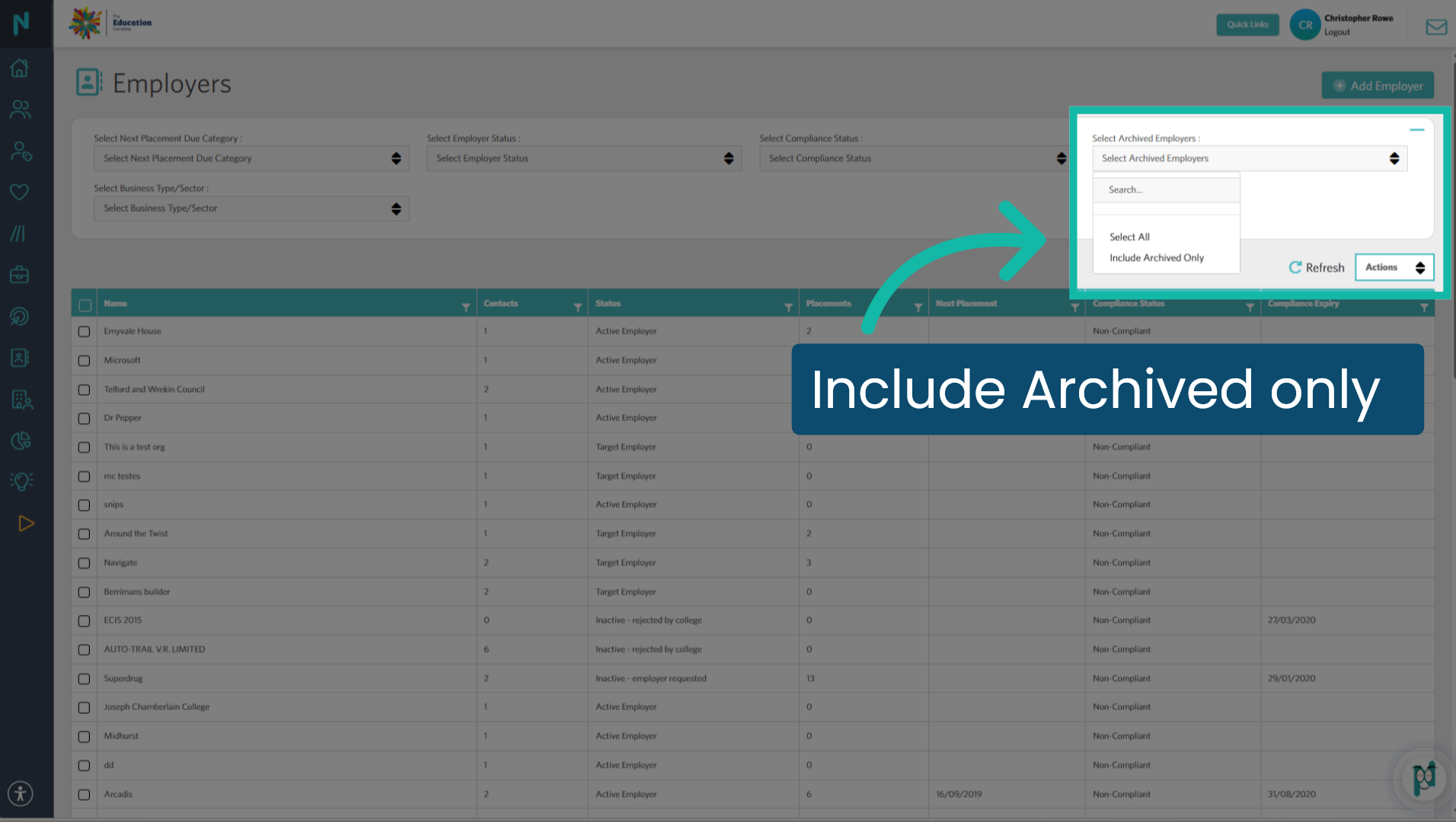
3. Include Archived Employers
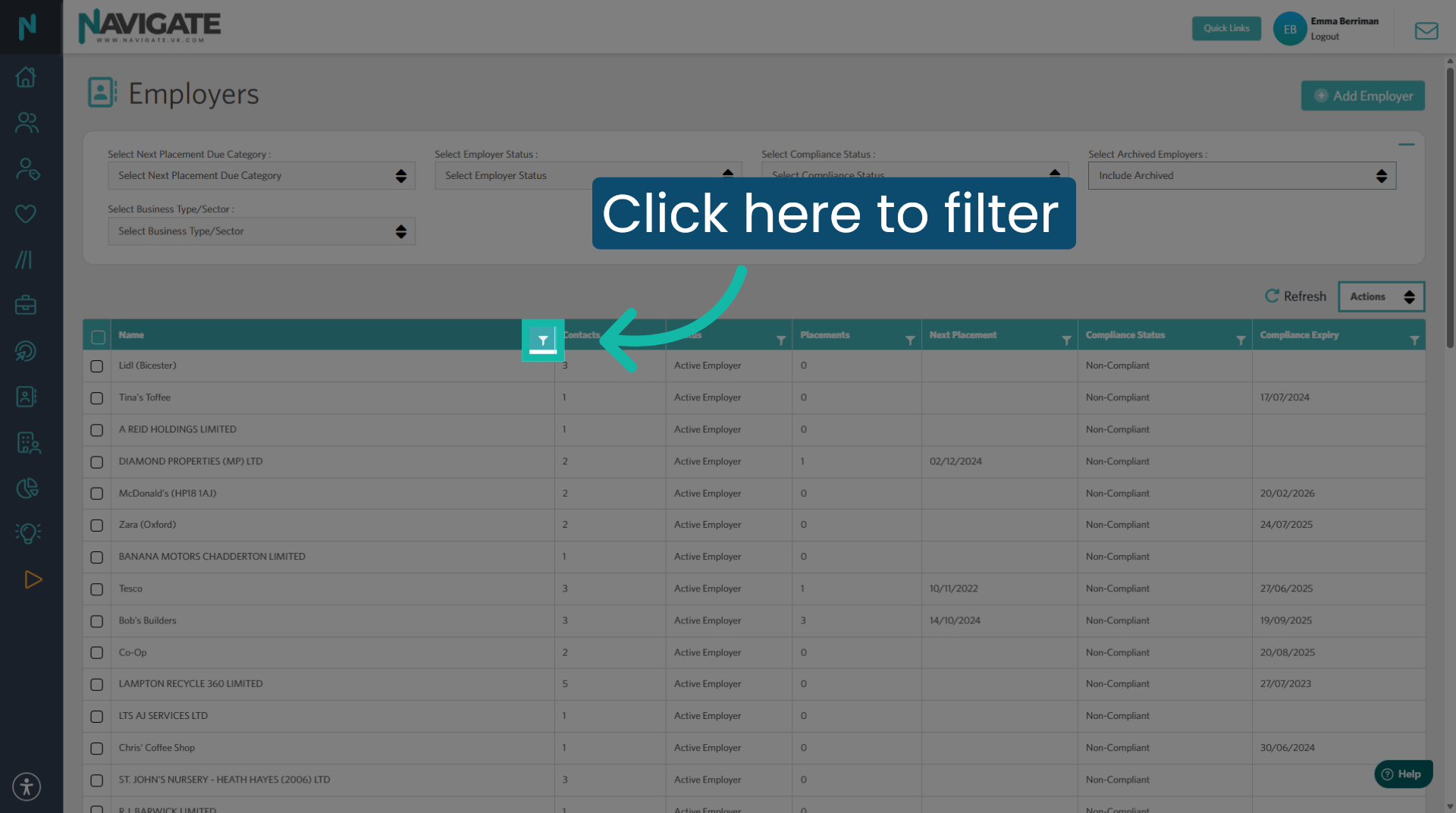
4. Filter by employer name
Click the filter icon at the top of the name column.
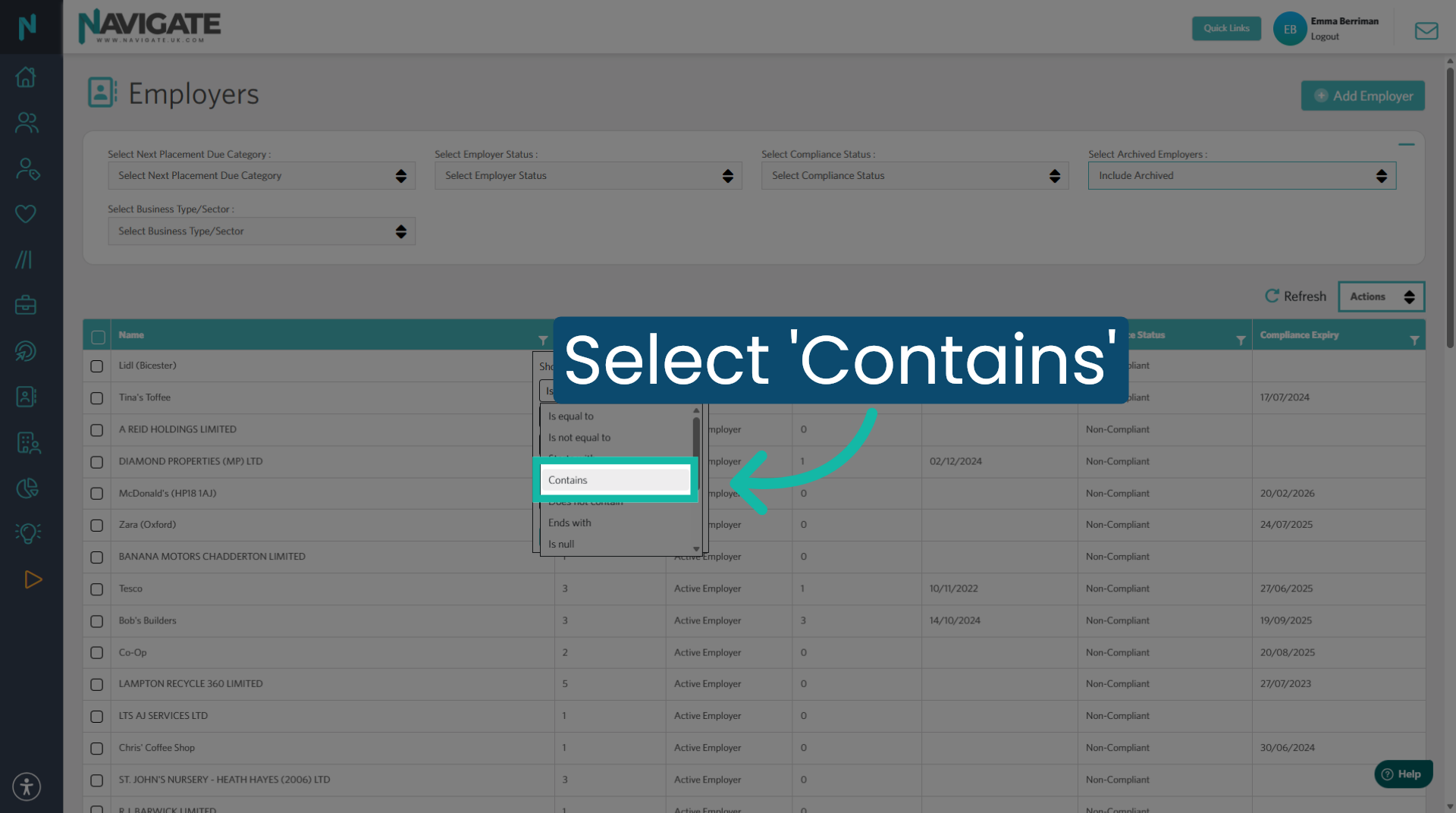
5. Select 'contains'.
Click on 'contains' to set the filter.
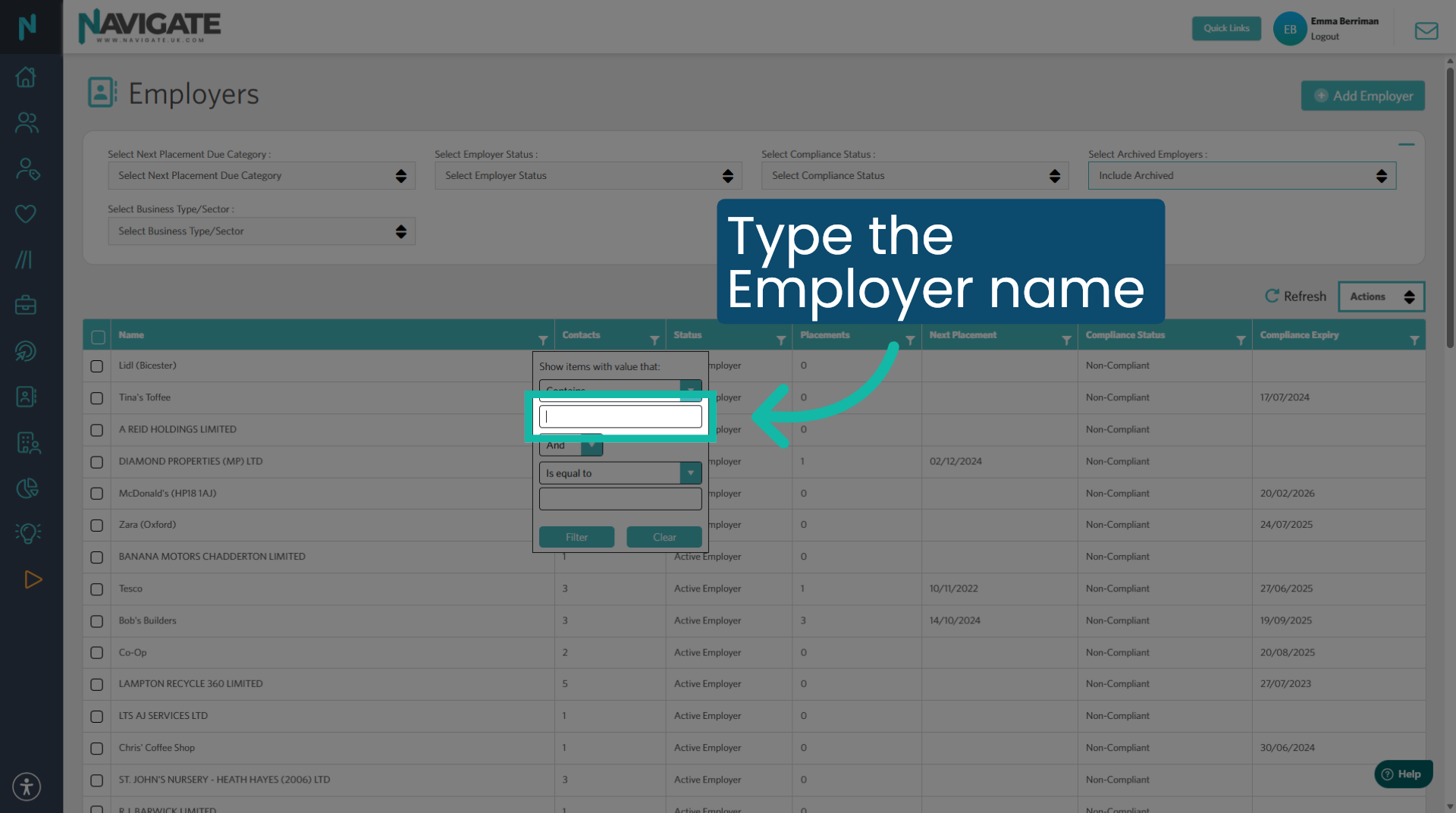
6. Add the employer name you wish to view records for.
Type the employer name you wish to see active and archived records for.
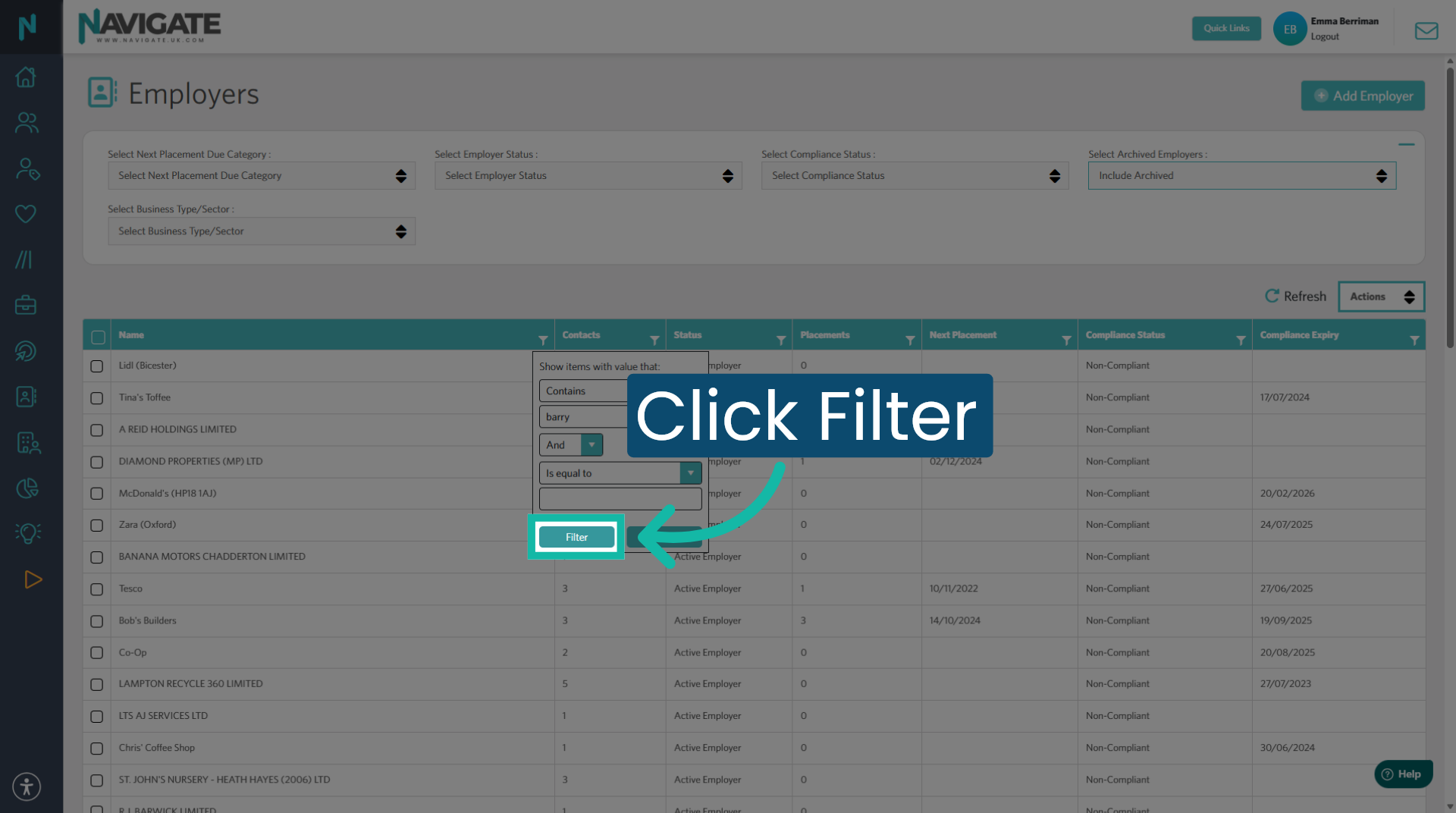
7. Apply Search Filter
Click 'filter' to apply the search.
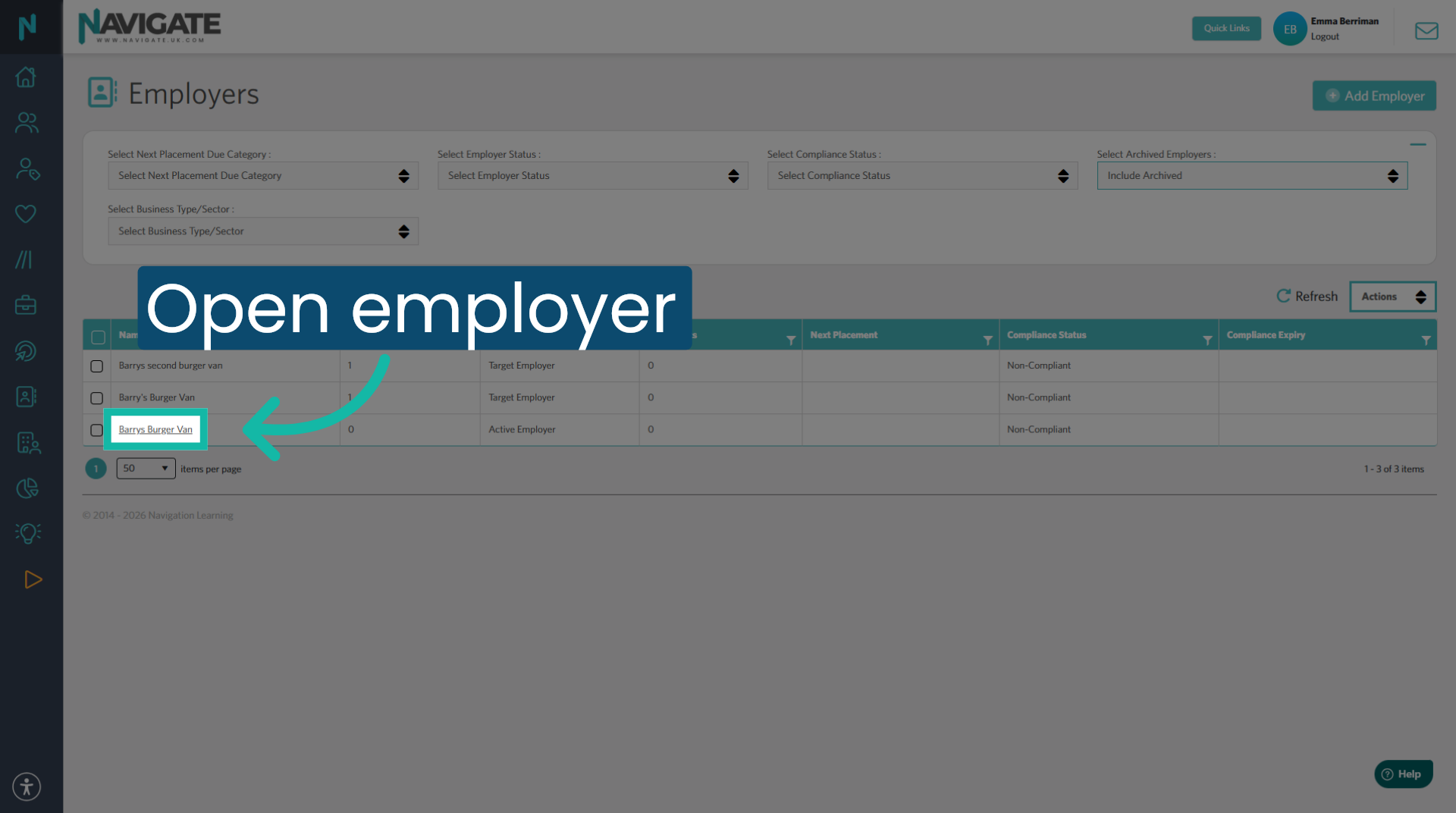
8. Open Employer Details
Select the employer.
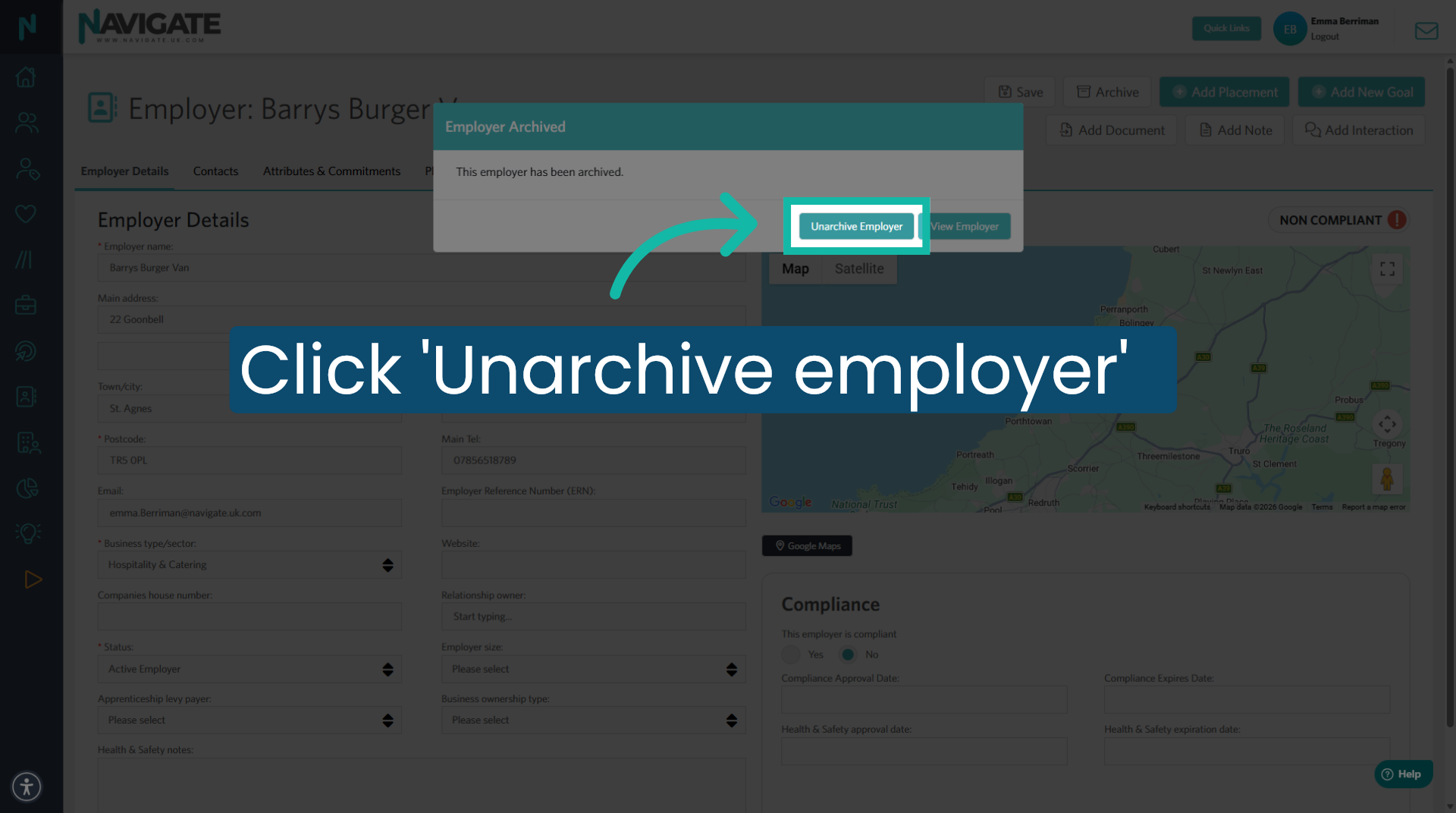
9. Restore Archived Employer
Click 'Unarchive Employer' to change the status of this employer back to active.
Was this article helpful?
That’s Great!
Thank you for your feedback
Sorry! We couldn't be helpful
Thank you for your feedback
Feedback sent
We appreciate your effort and will try to fix the article