Go to login.navigate.uk.com
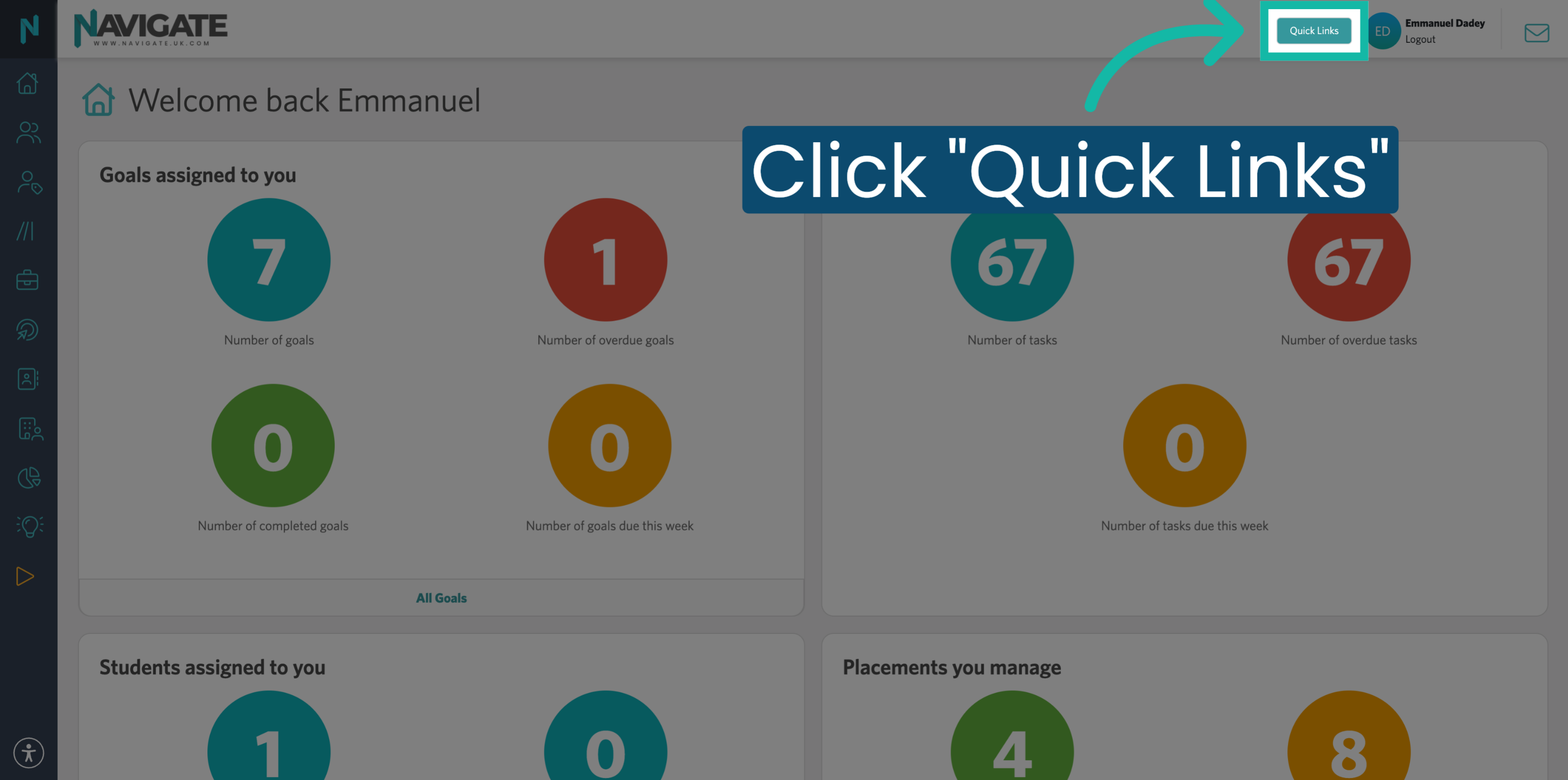
1. Open Quick Links Menu
Once logged in, click the Quick Links menu.
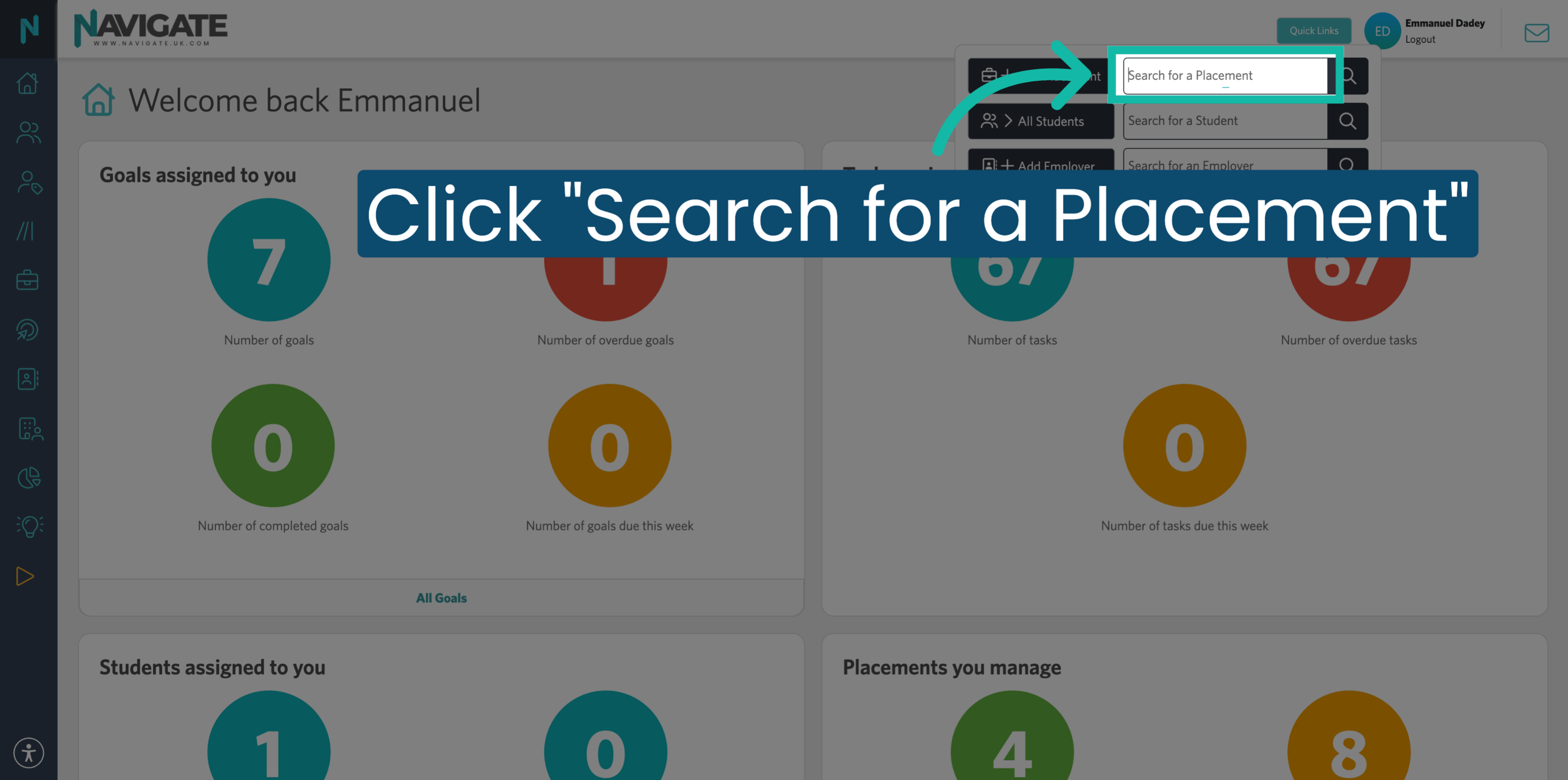
2. Select Search for Placement
Click Search for a Placement to find the specific placement you want to link.
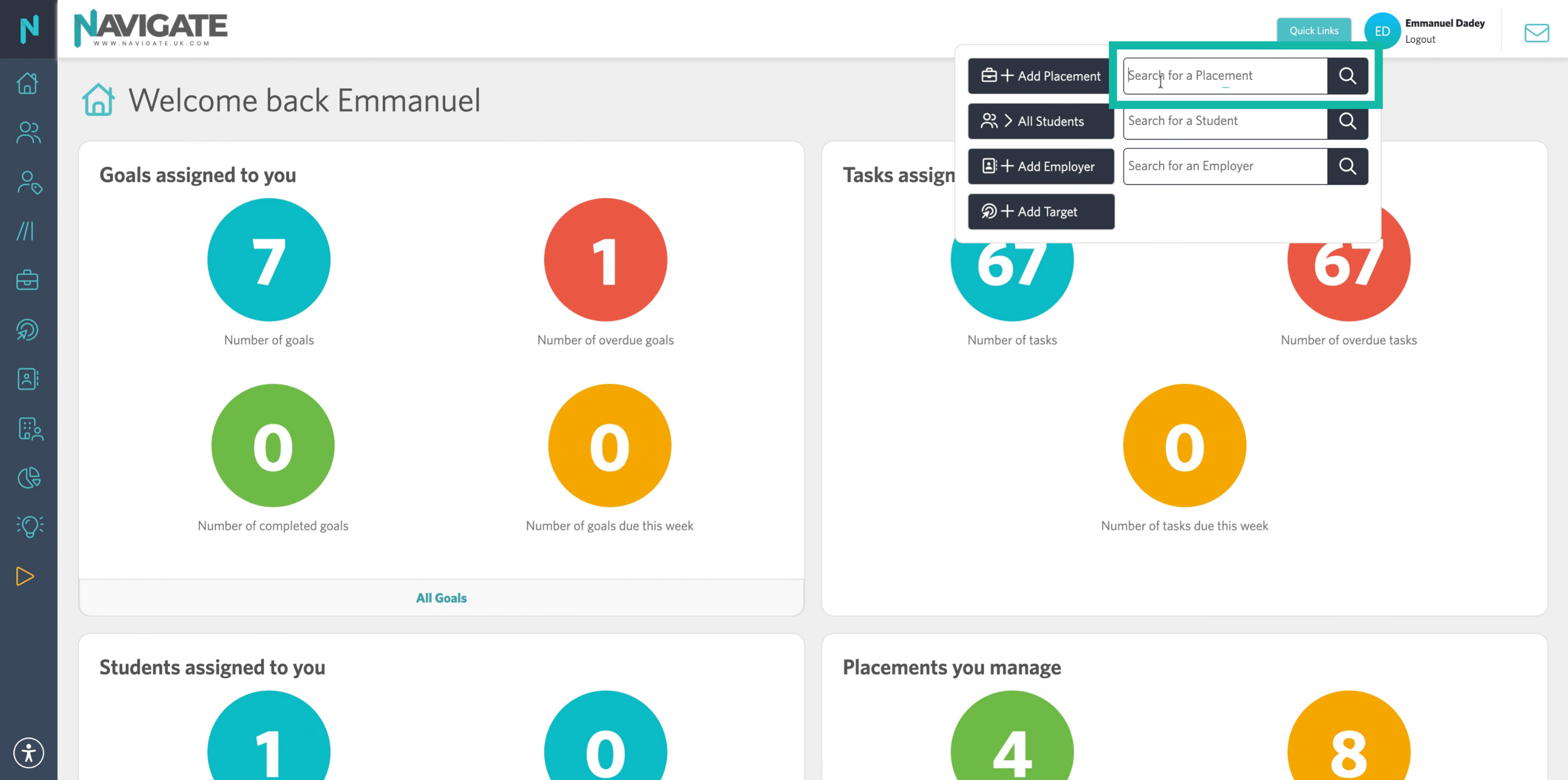
3. Enter the Student or Employer name
Enter the student or employer name to locate the relevant placement record.
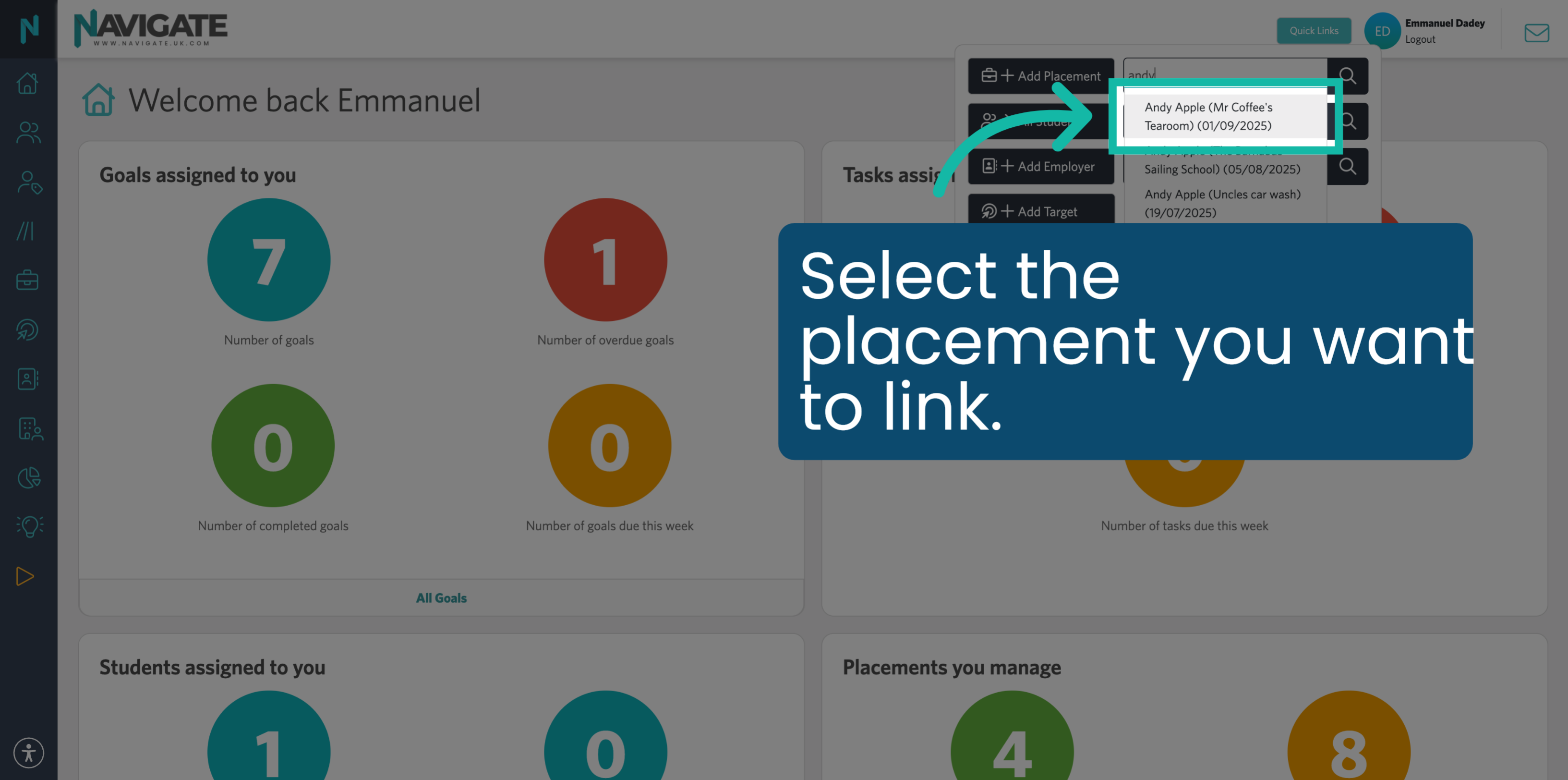
4. Choose Specific Placement
Select the placement you want to link.
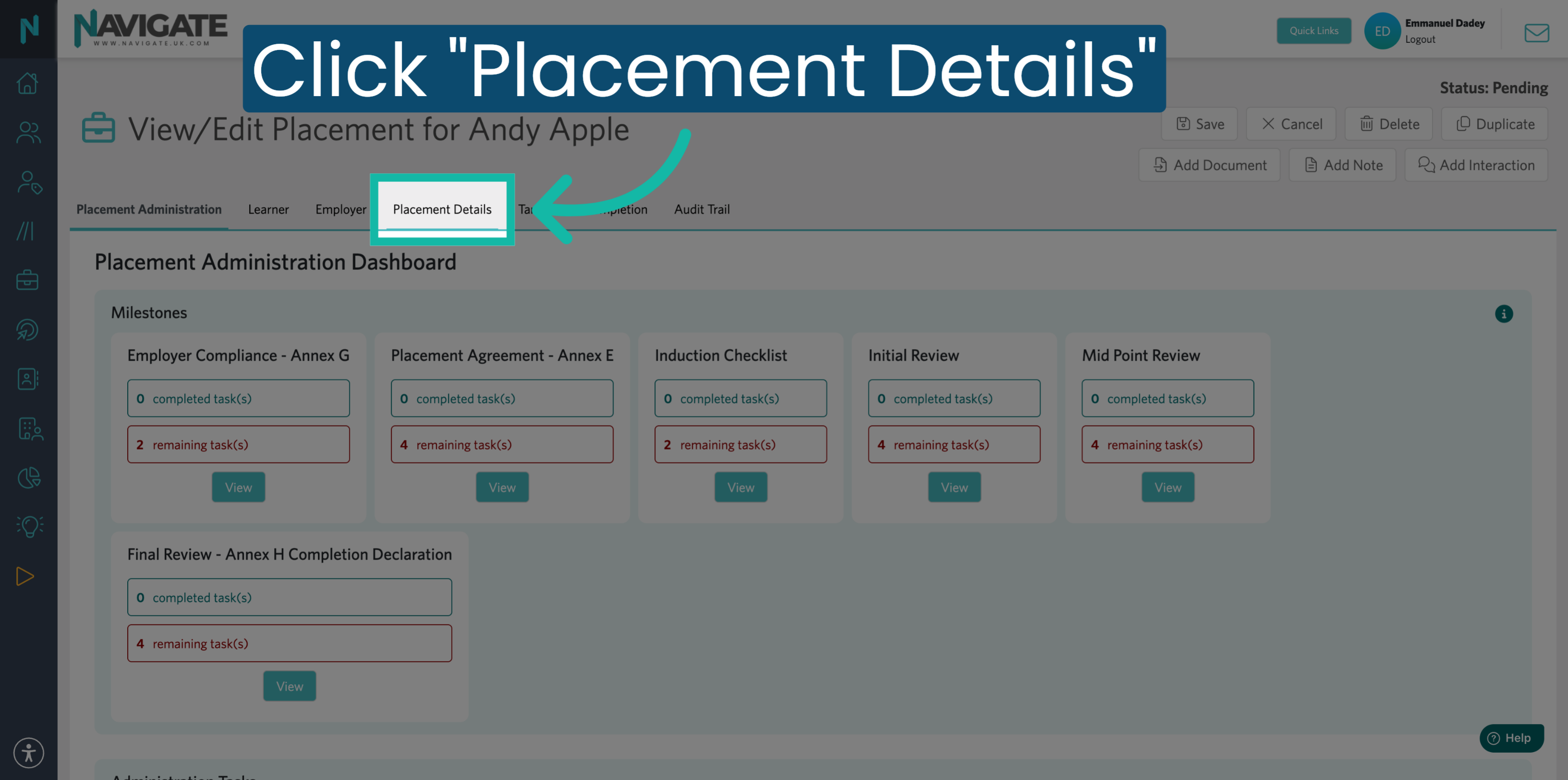
5. Click Placement Details Tab
In the placement record, click the Placement Details tab to view the details about the placement.
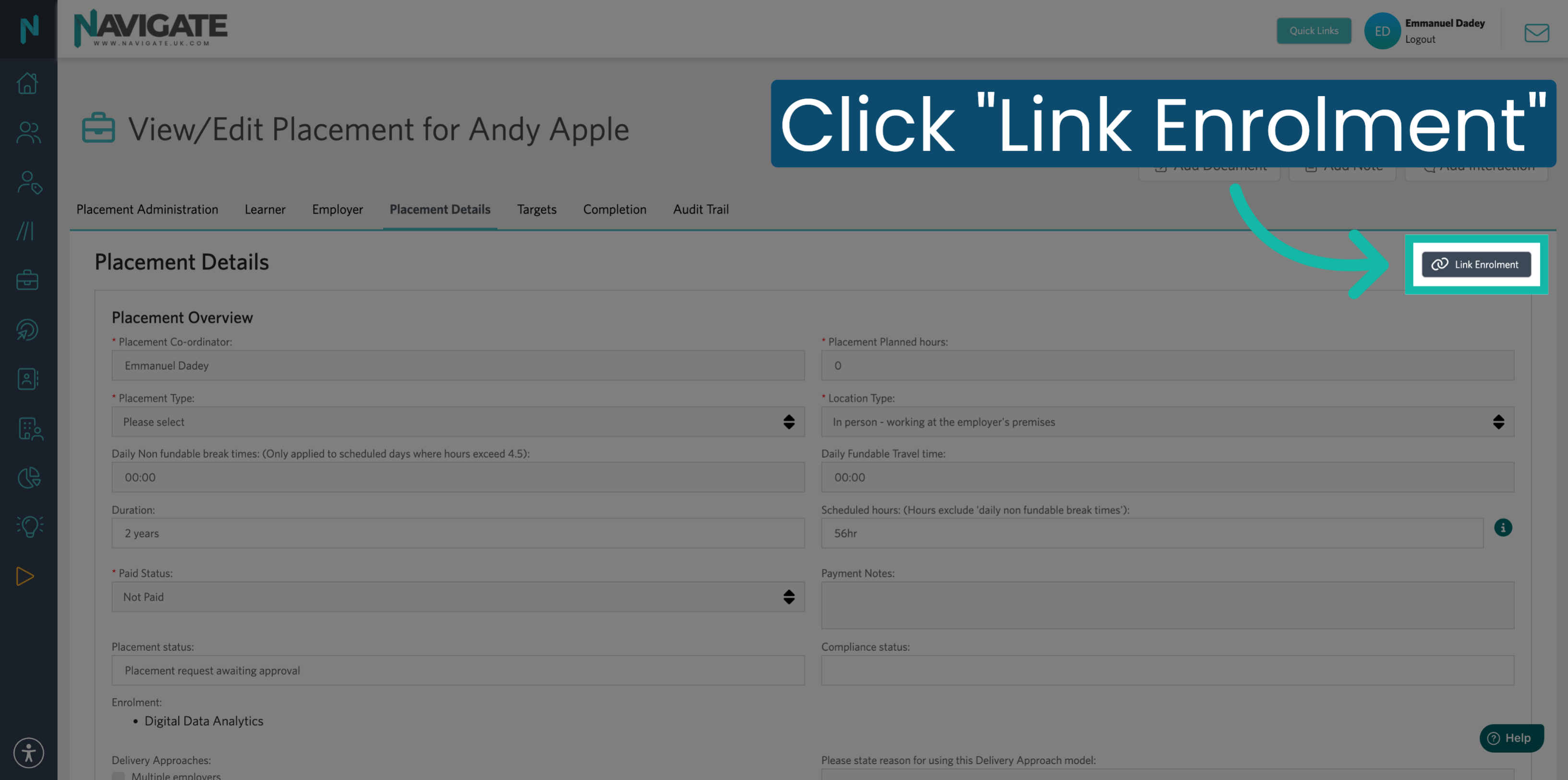
6. Link Enrolment
In the top right corner, click on Link Enrolment. This option is available only if it has been set up as a T Level placement. To convert a work experience placement record to a T Level and enable linking to enrolment, continue to slide nine.
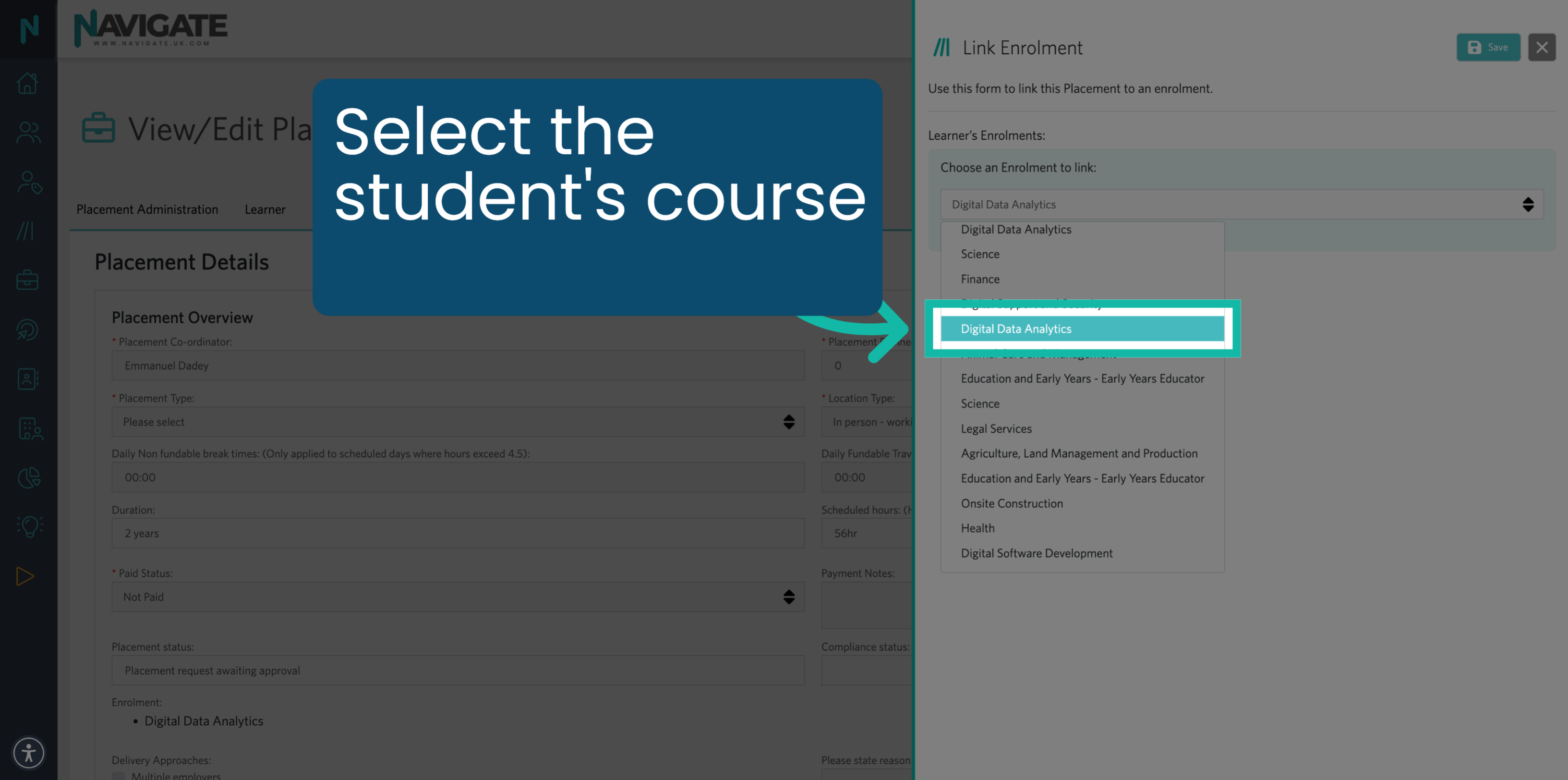
7. Pick Enrolment Course
Click on the dropdown menu and select the course the student is enrolled in.
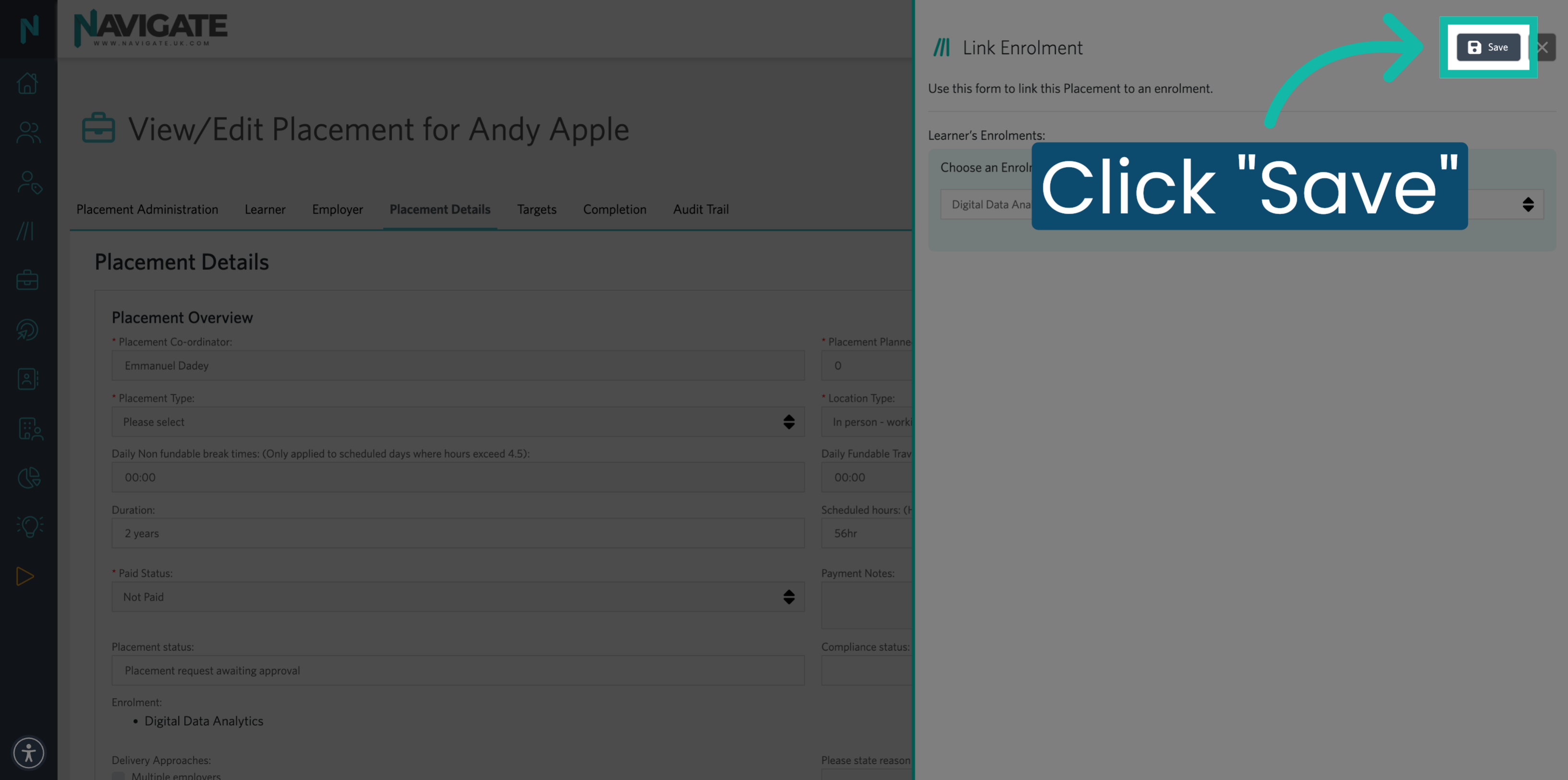
8. Save Linked Enrolment
Click Save to confirm and complete linking the enrolment to the placement.
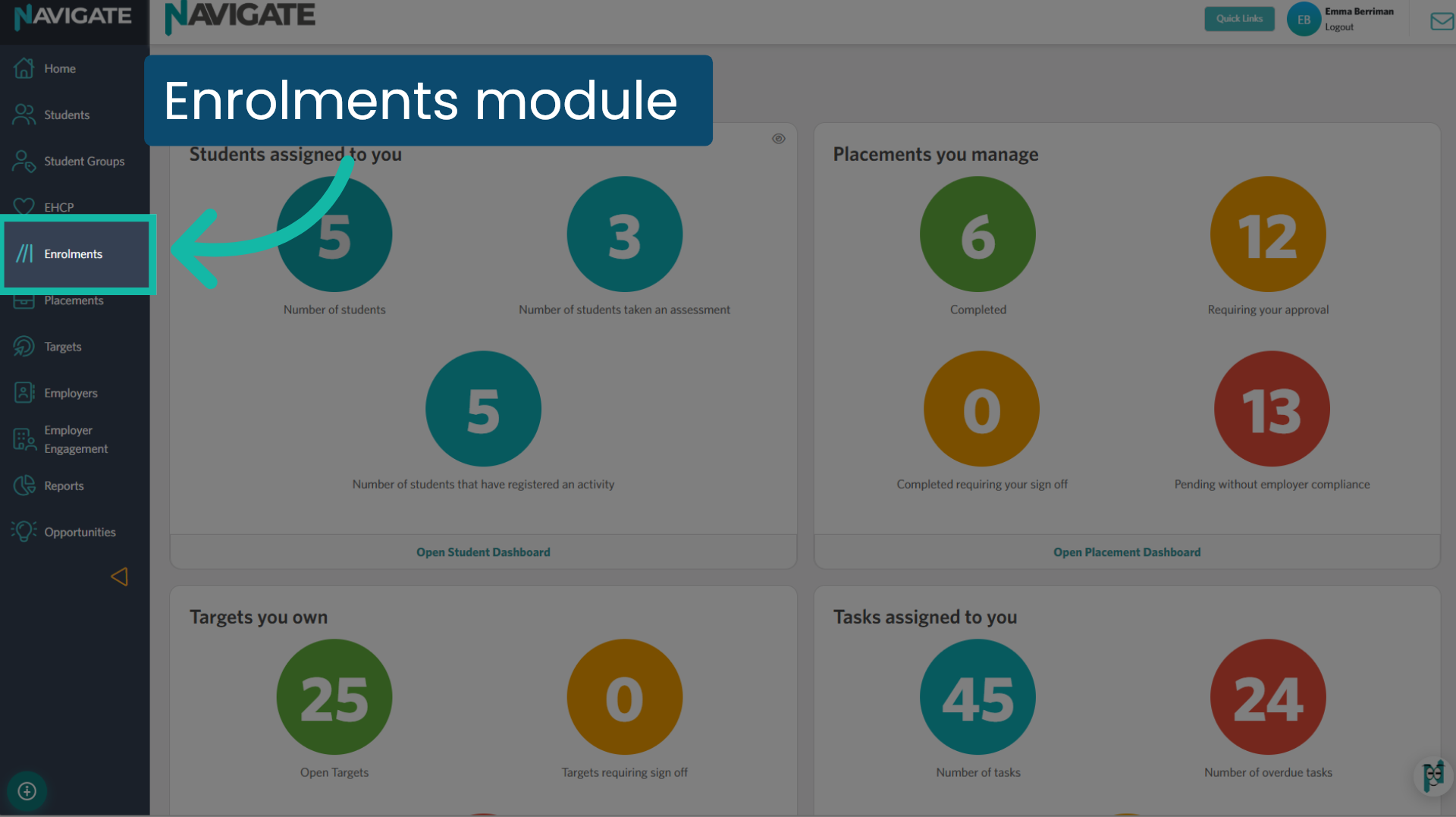
9. Click into the Enrolments Module
To convert a work experience placement into a T Level placement, you'll need to do this from the Enrolment module. Click into the module to start.
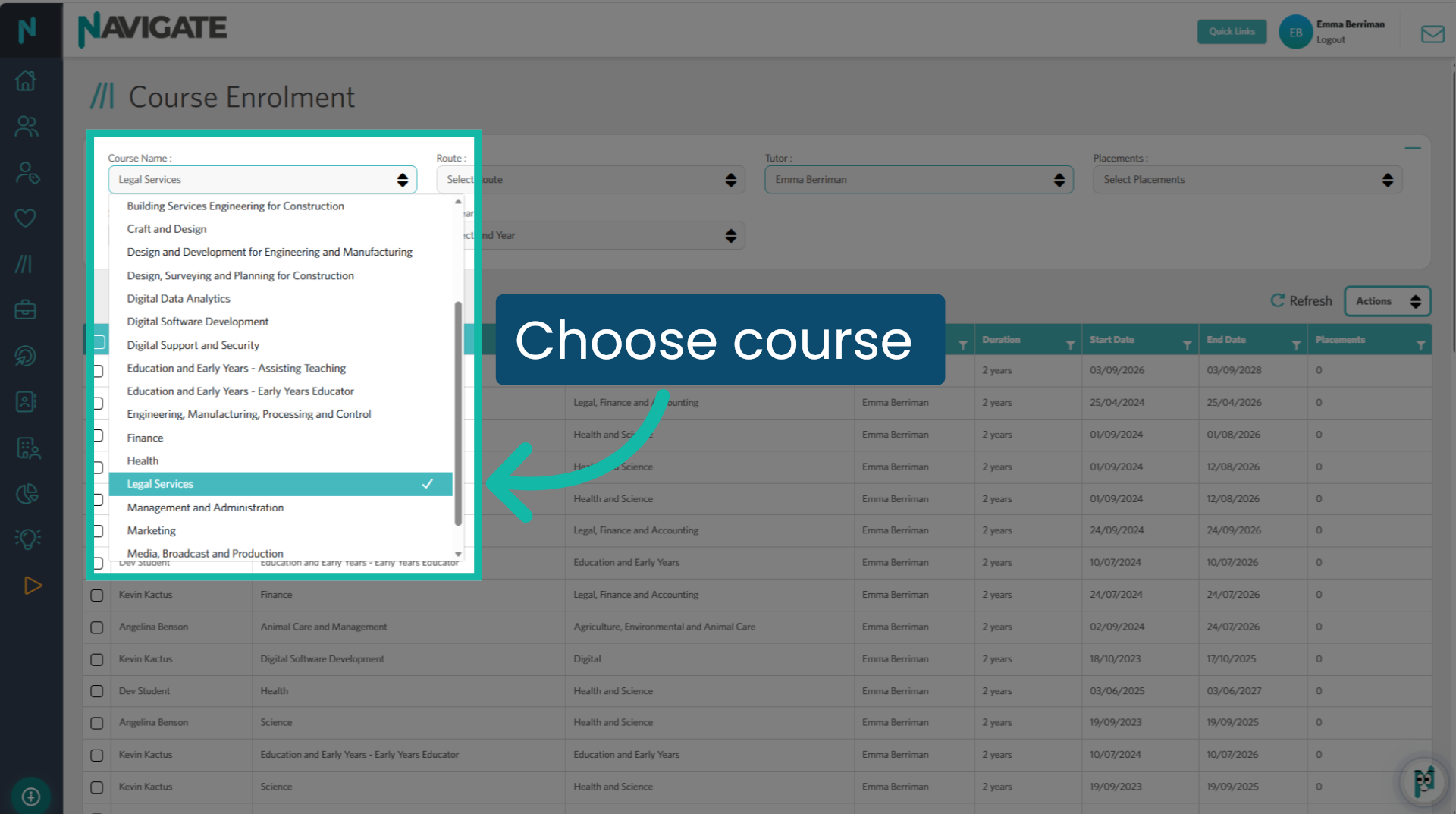
10. Choose course
Select the course the student is enrolled in from the Course name dropdown.
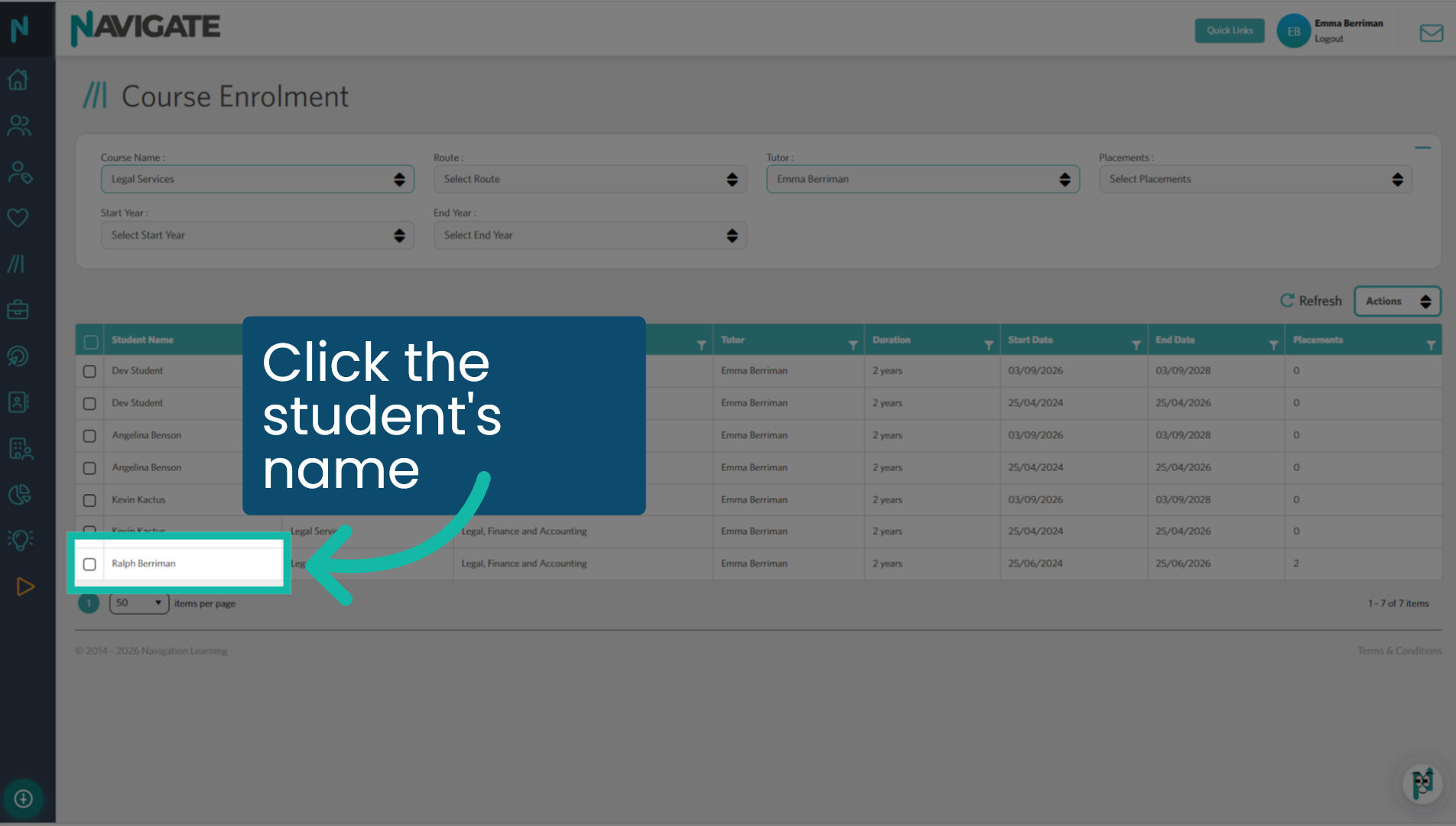
11. Click the student's name
Click the student's name.
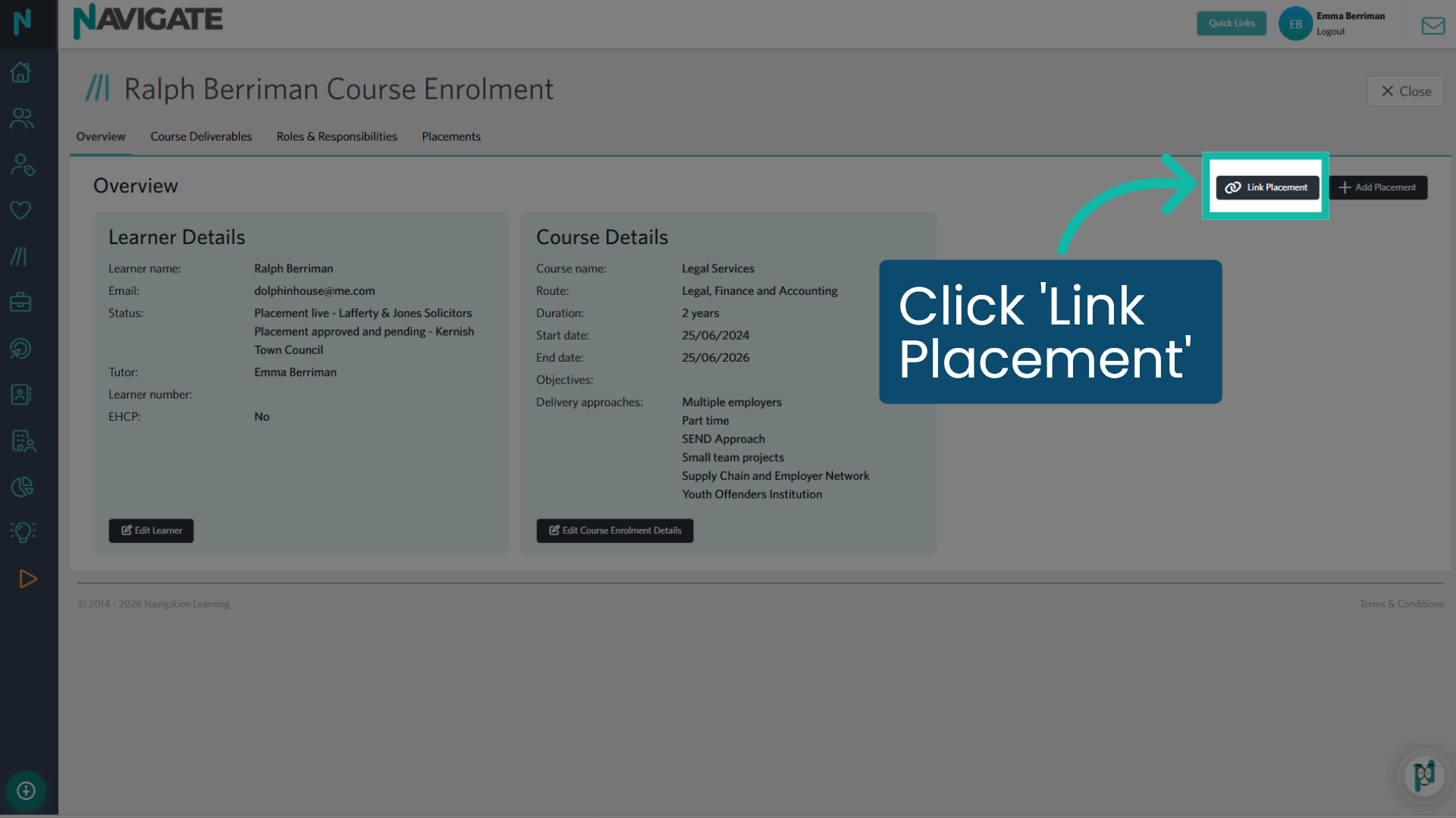
12. Click 'Link Placement'
From the course enrolment page, select the Link Placement button.
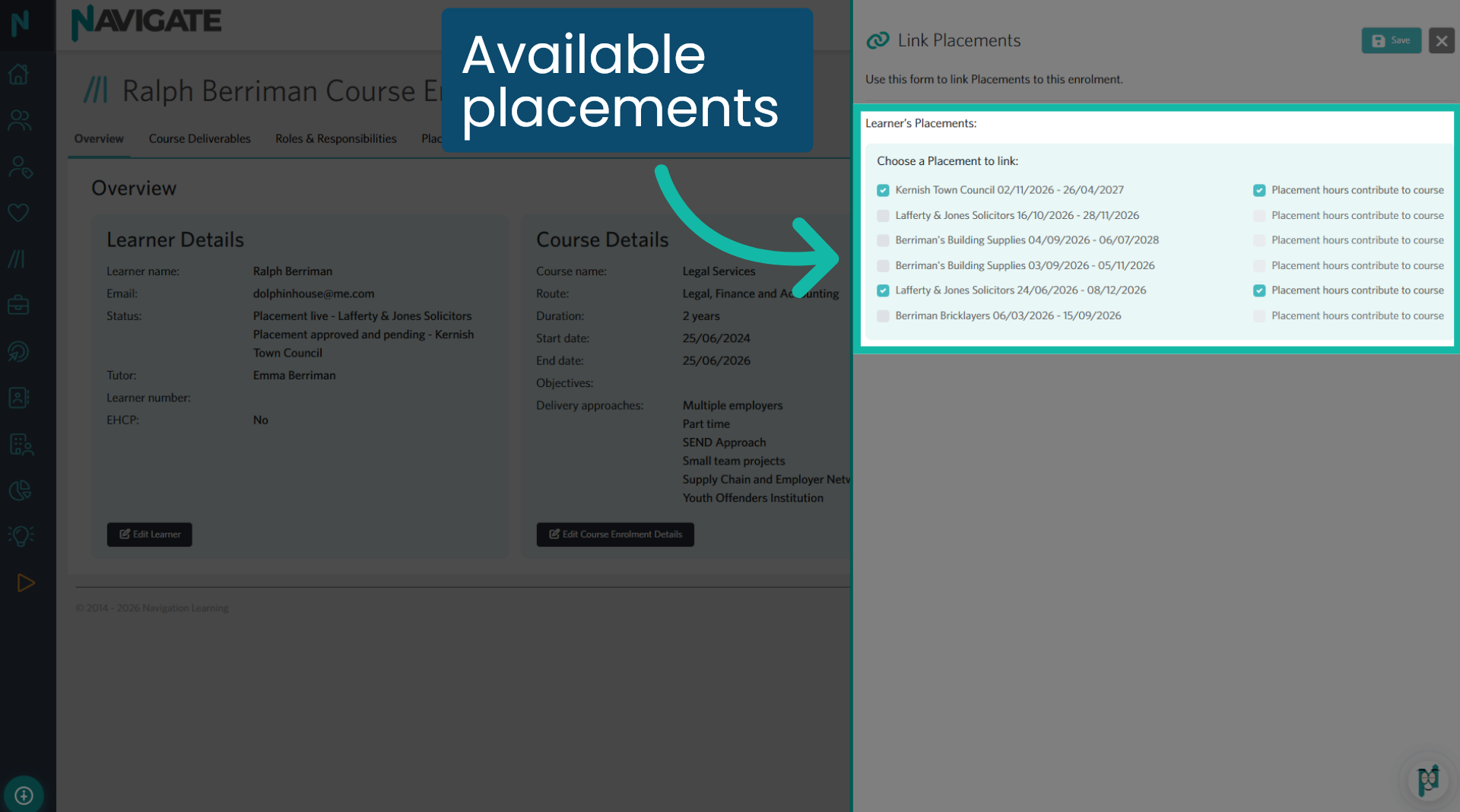
13. Available placements
All available placements for linking are displayed here, including any work experience placements. You can also view placements that are already linked to the enrolment. Additionally, this section allows you to unlink placements from an enrolment.
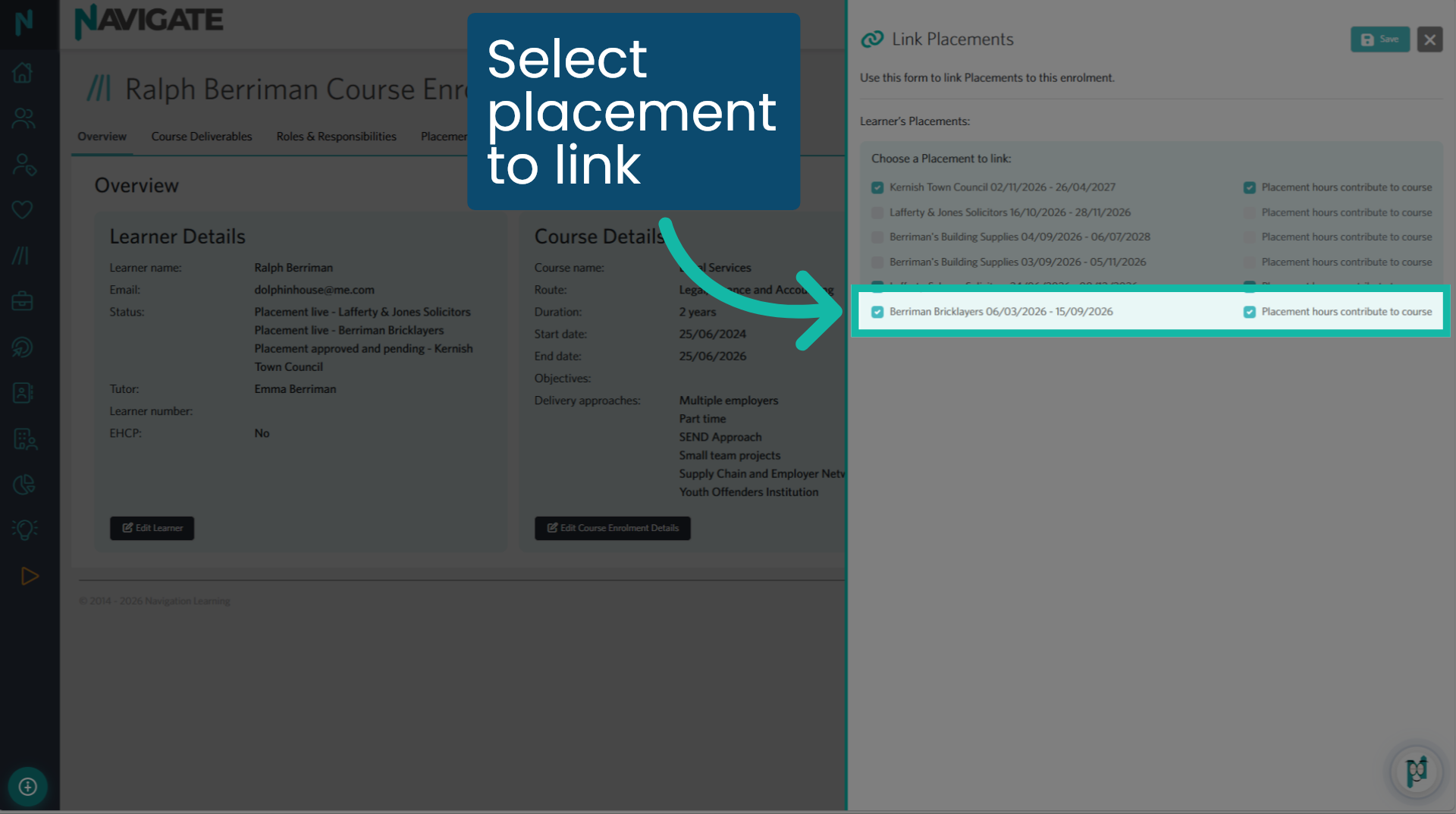
14. Select placement to link
Select the placement you wish to link. It will automatically allocate any accrued hours from this placement towards the T Level enrolment hours. Click Save.
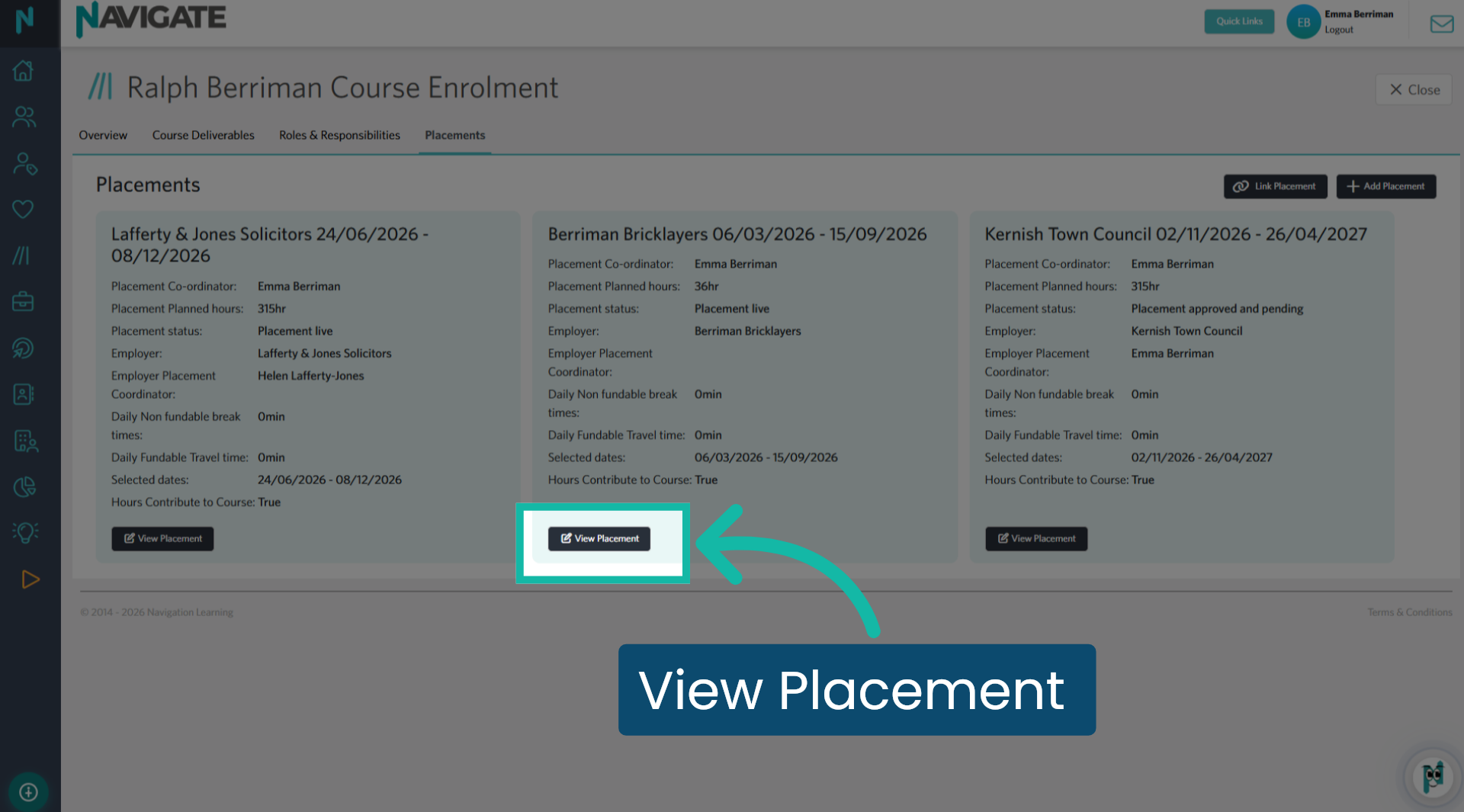
15. View Placement
The placement has now been linked to the enrolment. Click View Placement to see the placement details.
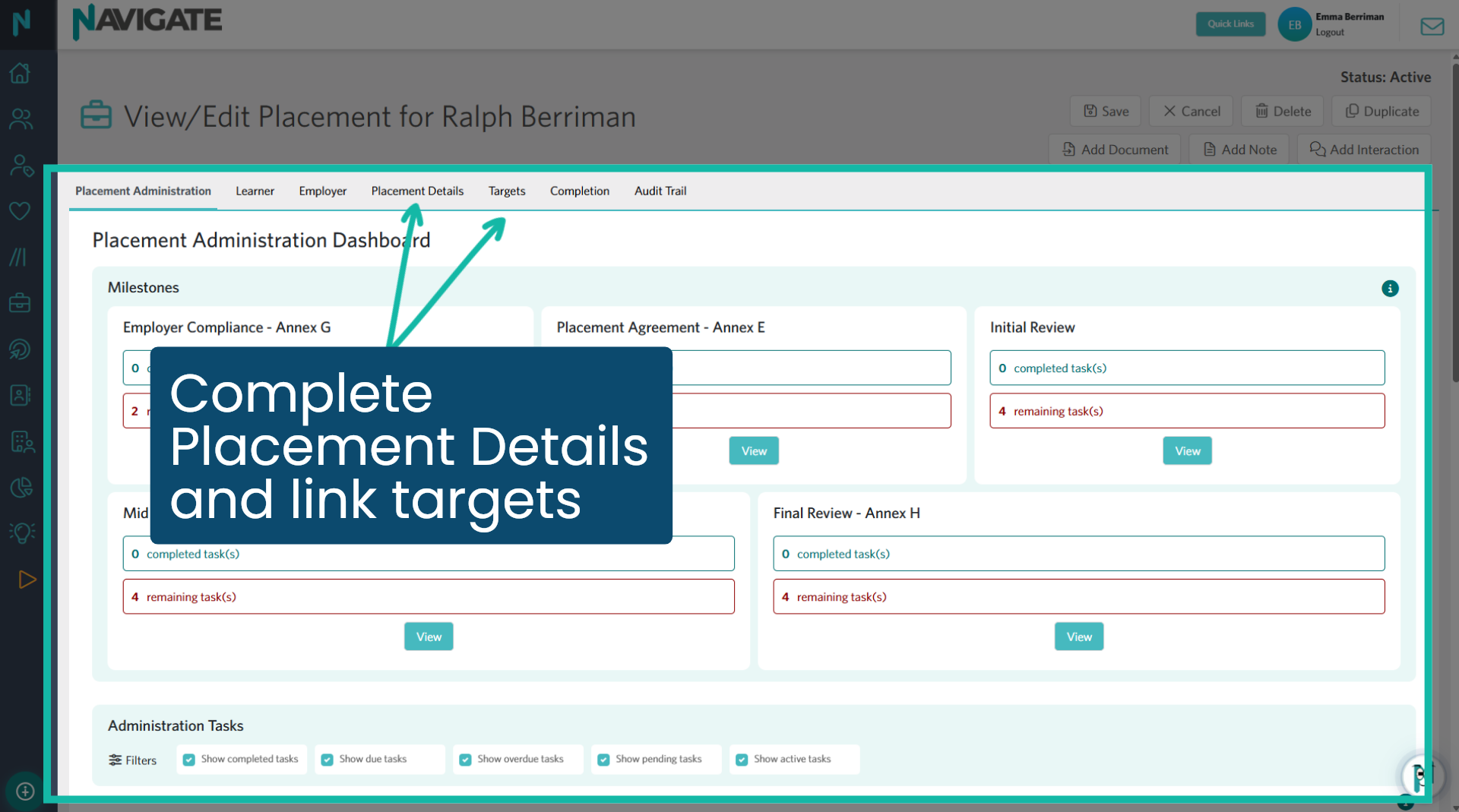
16. Complete all tabs
The work experience placement has now been transformed into a T Level placement. It now includes the Placement Administration Dashboard and the targets tab. Please ensure that you have completed all the necessary elements in the Placement Details tab and linked any T Level targets to this placement.
Was this article helpful?
That’s Great!
Thank you for your feedback
Sorry! We couldn't be helpful
Thank you for your feedback
Feedback sent
We appreciate your effort and will try to fix the article