This tutorial shows tutors how to view the students assigned to them in Navigate, interpret the student grid and filter activity for an academic year.
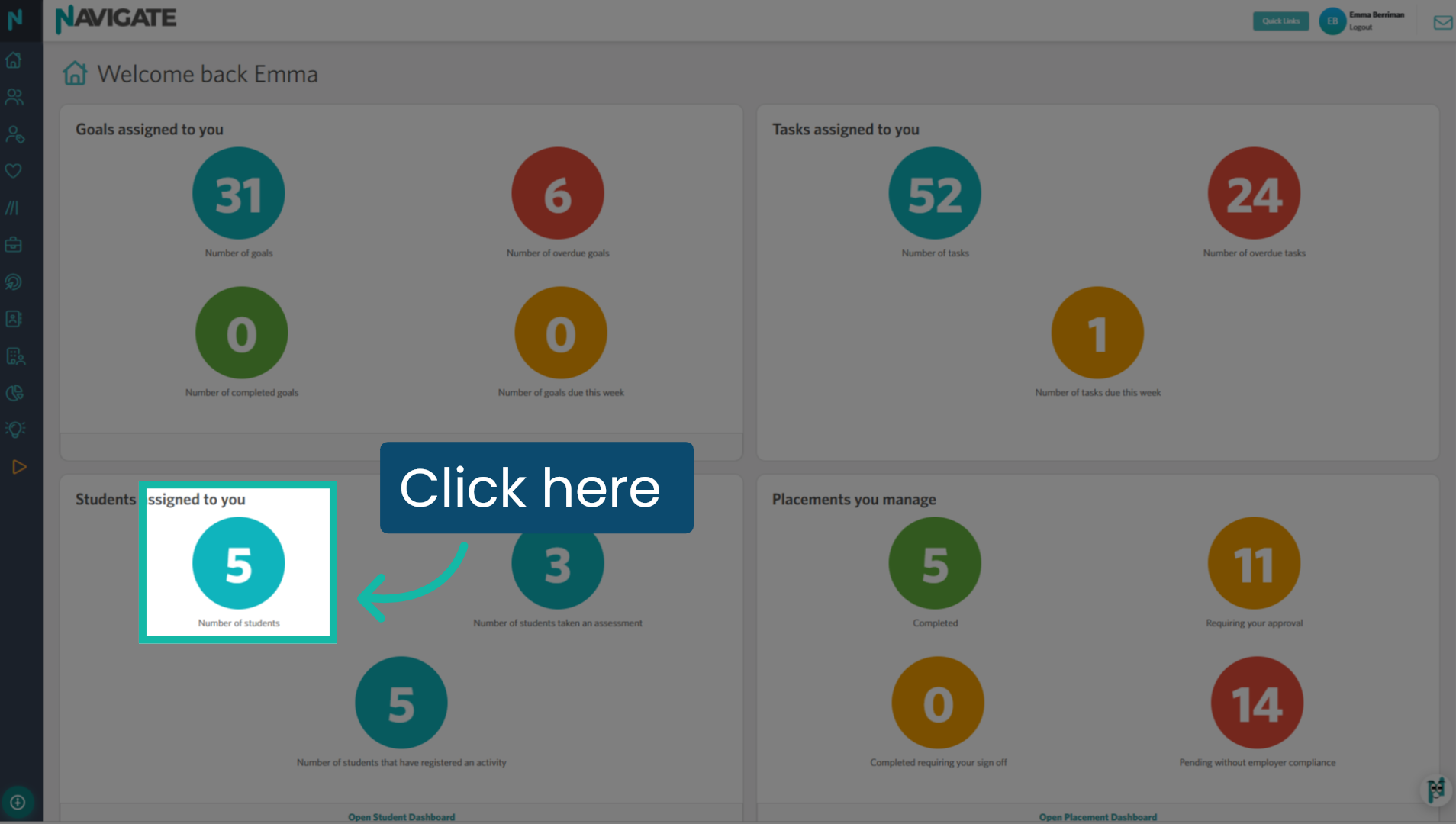
1. Students assigned to you
This tile features three quick action buttons for your daily checks. Click 'Number of Students' to access the student grid.
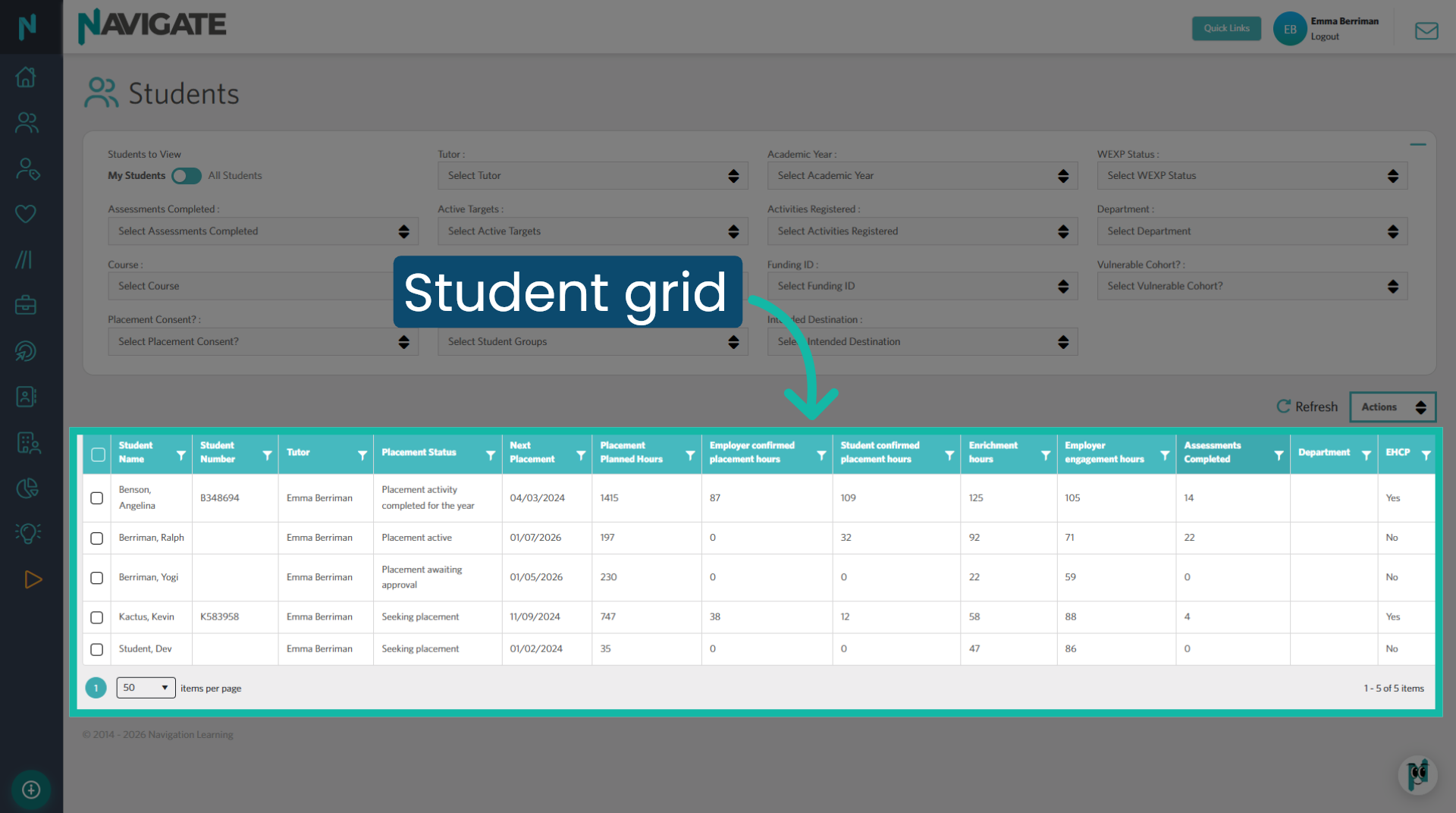
2. Student grid
Here, you can view the students assigned to you as a 'Tutor'. From this grid, you can check your students' placement status and any other activities they have completed while using Navigate. This displays the total activity hours and assessments completed by the students since they started using the platform.
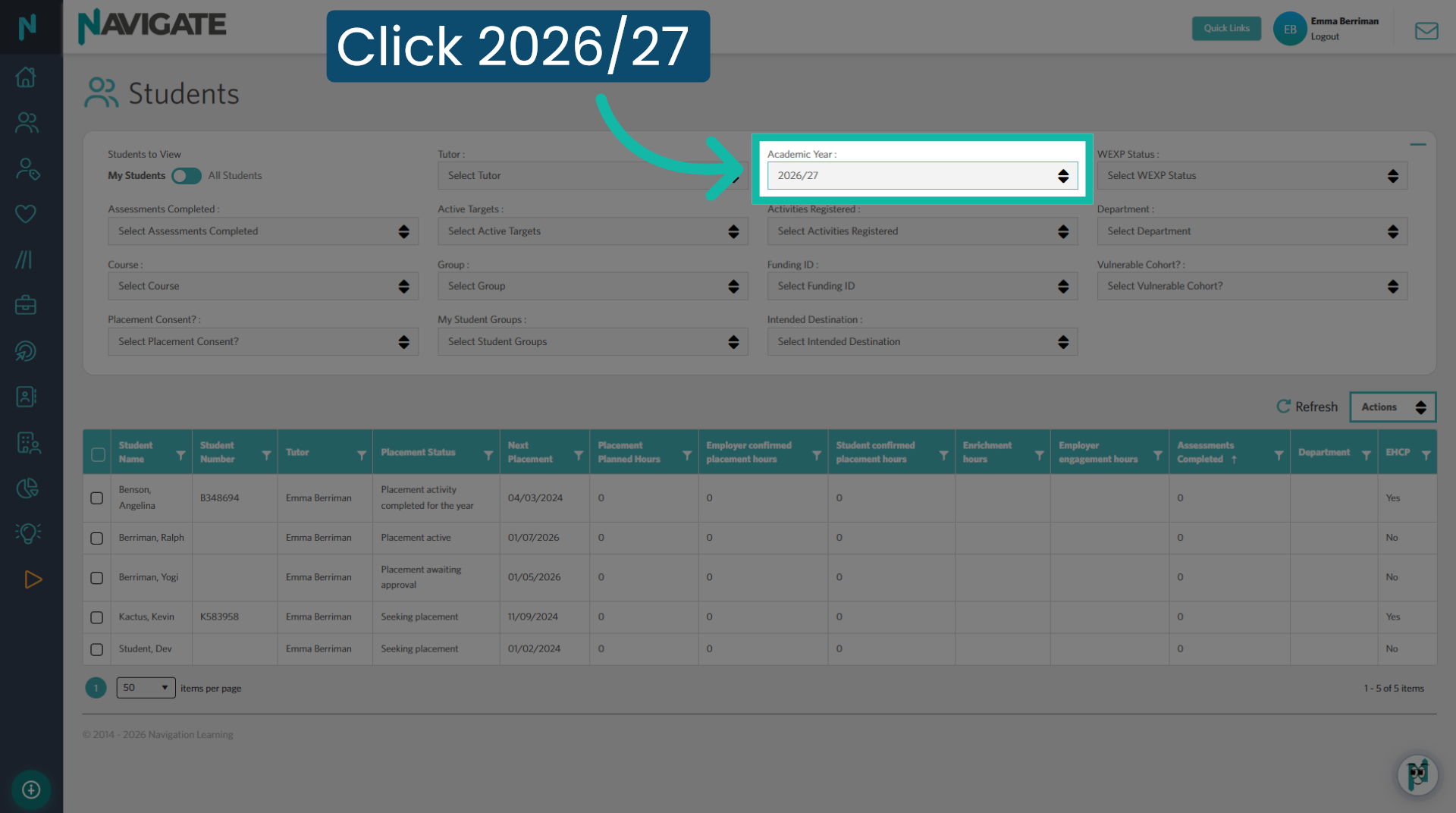
3. Select Academic Year 2026/27
To view the activity hours and assessments completed during this academic year, use the 'Academic Year' filter and select the current academic year for which you wish to view data.
4. Placement Status
The placement status column displays where the student is at in their placement journey.
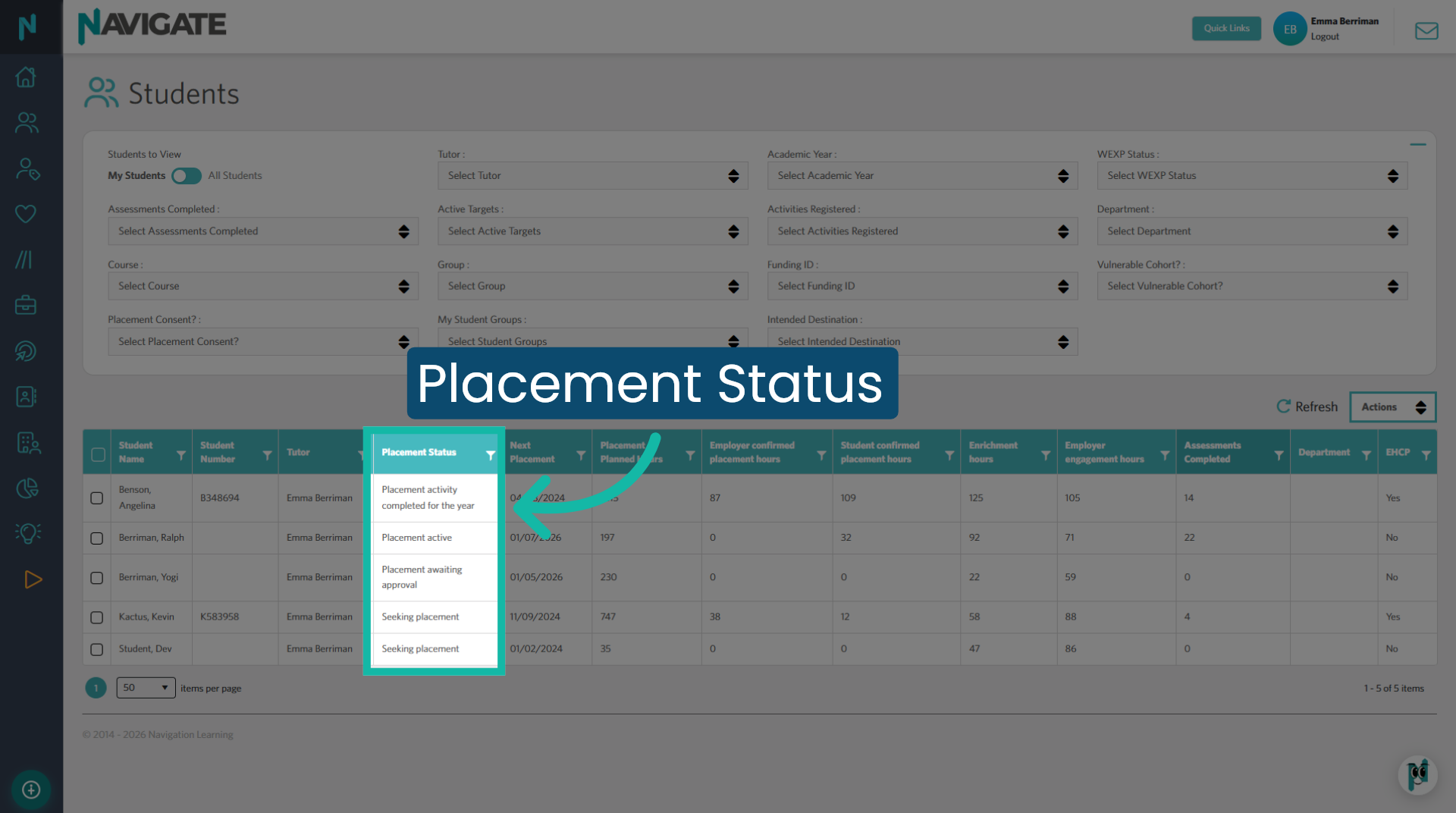
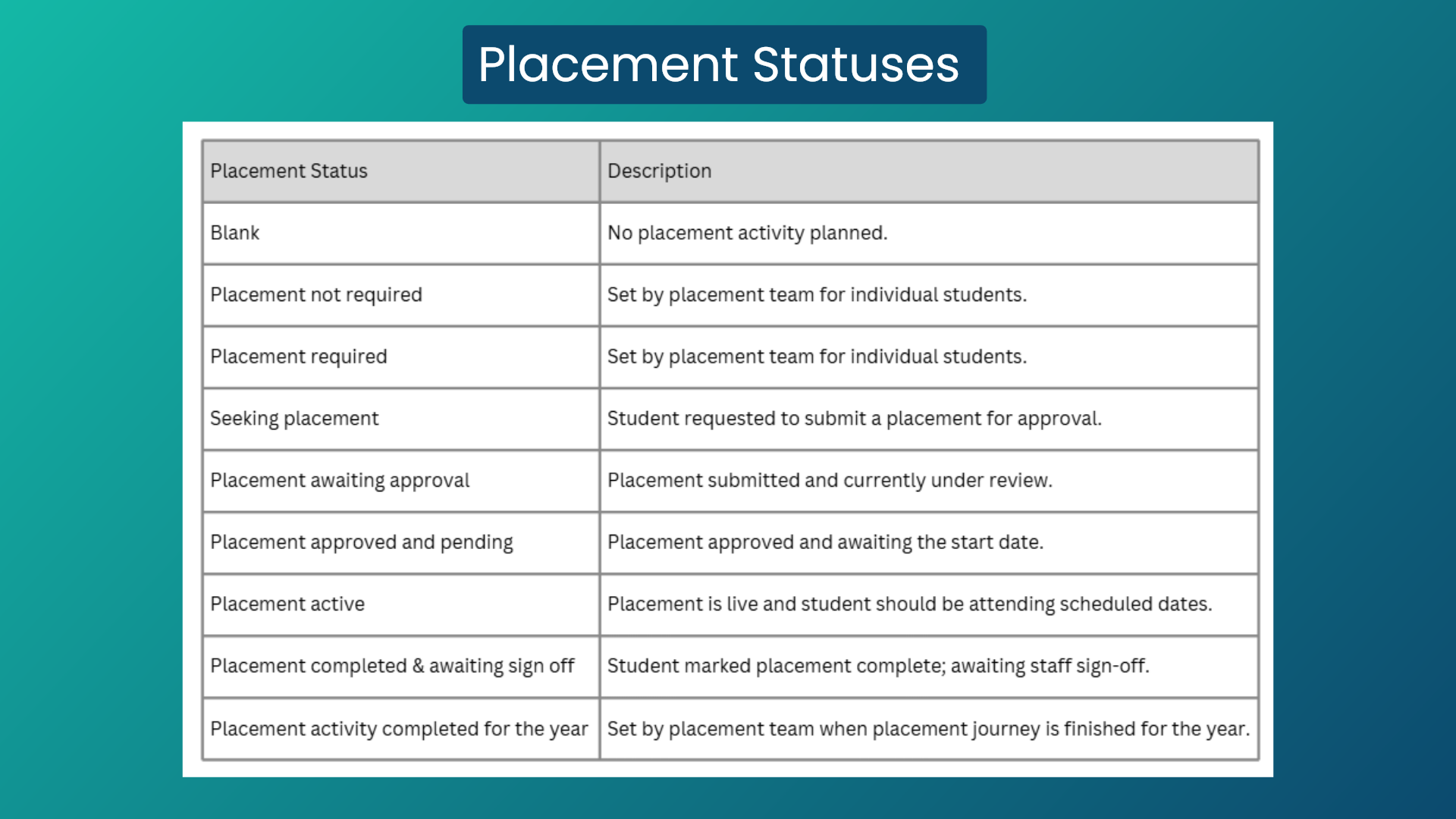
5. Placement Statuses explained
Here are all the placement statuses and what they mean.
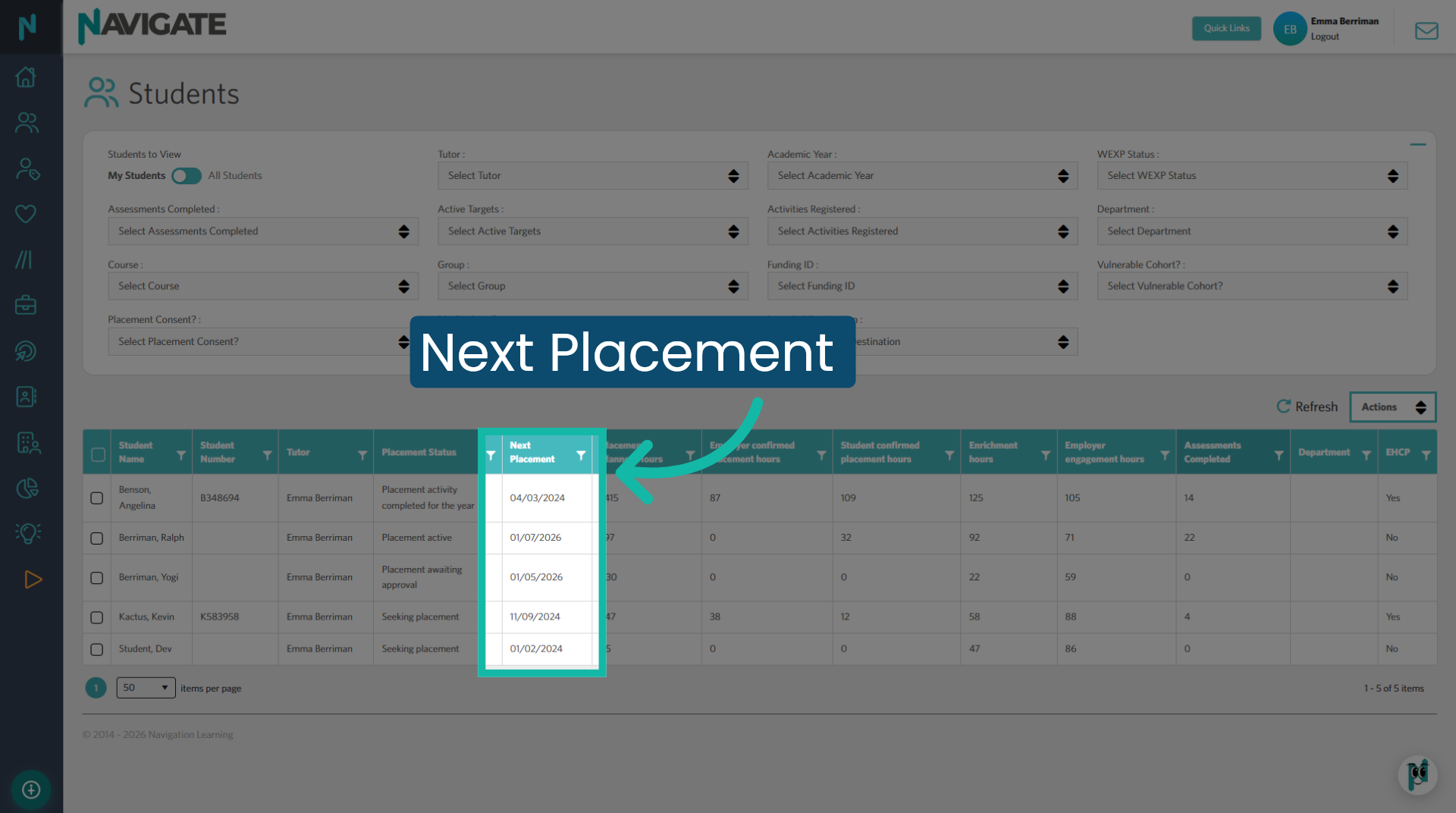
6. Next placement
Next placement will show the start date of the student's placement.
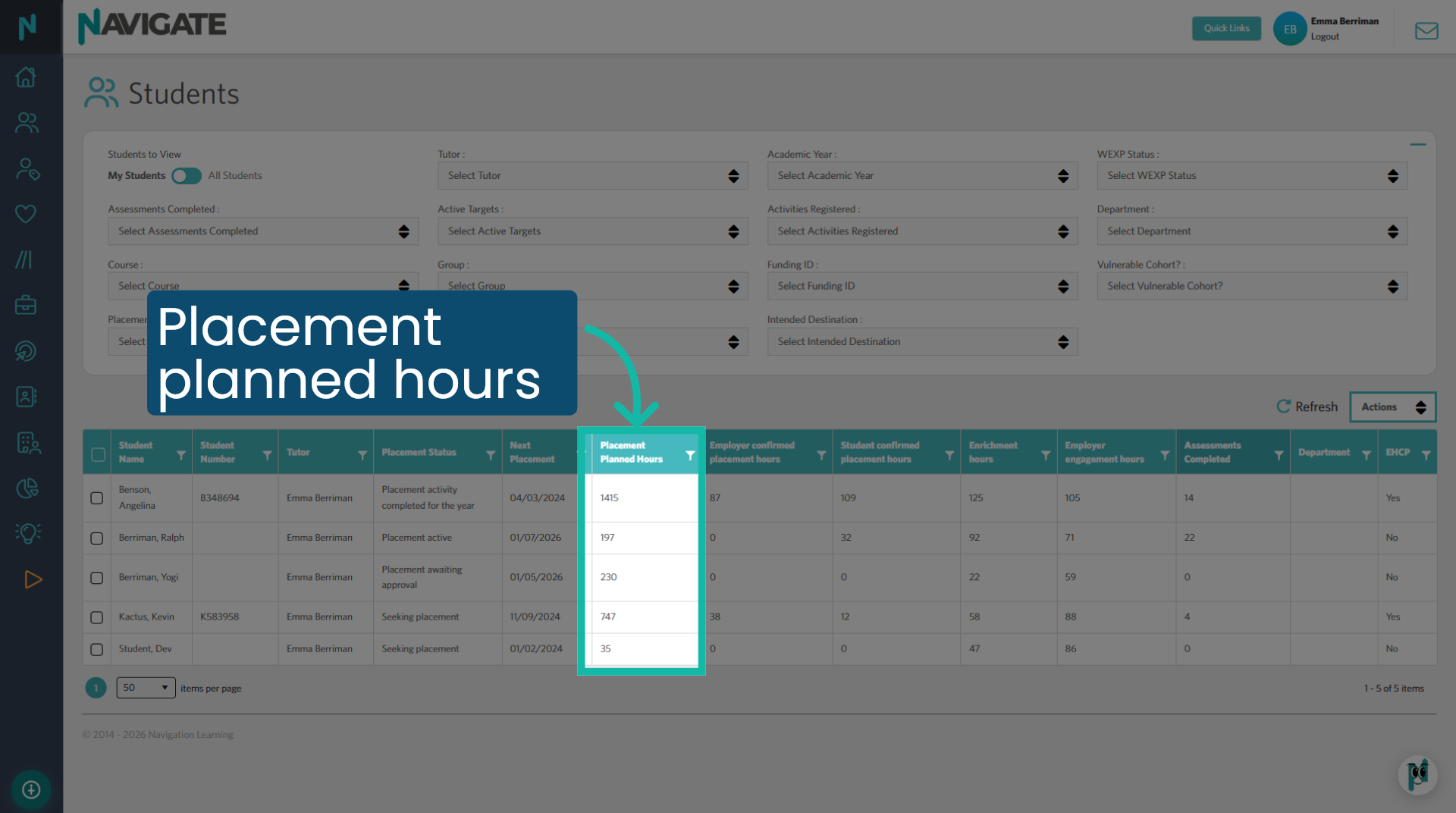
7. Placement planned hours
Placement planned hours will show the total number of hours the student plans to complete in their placement(s).
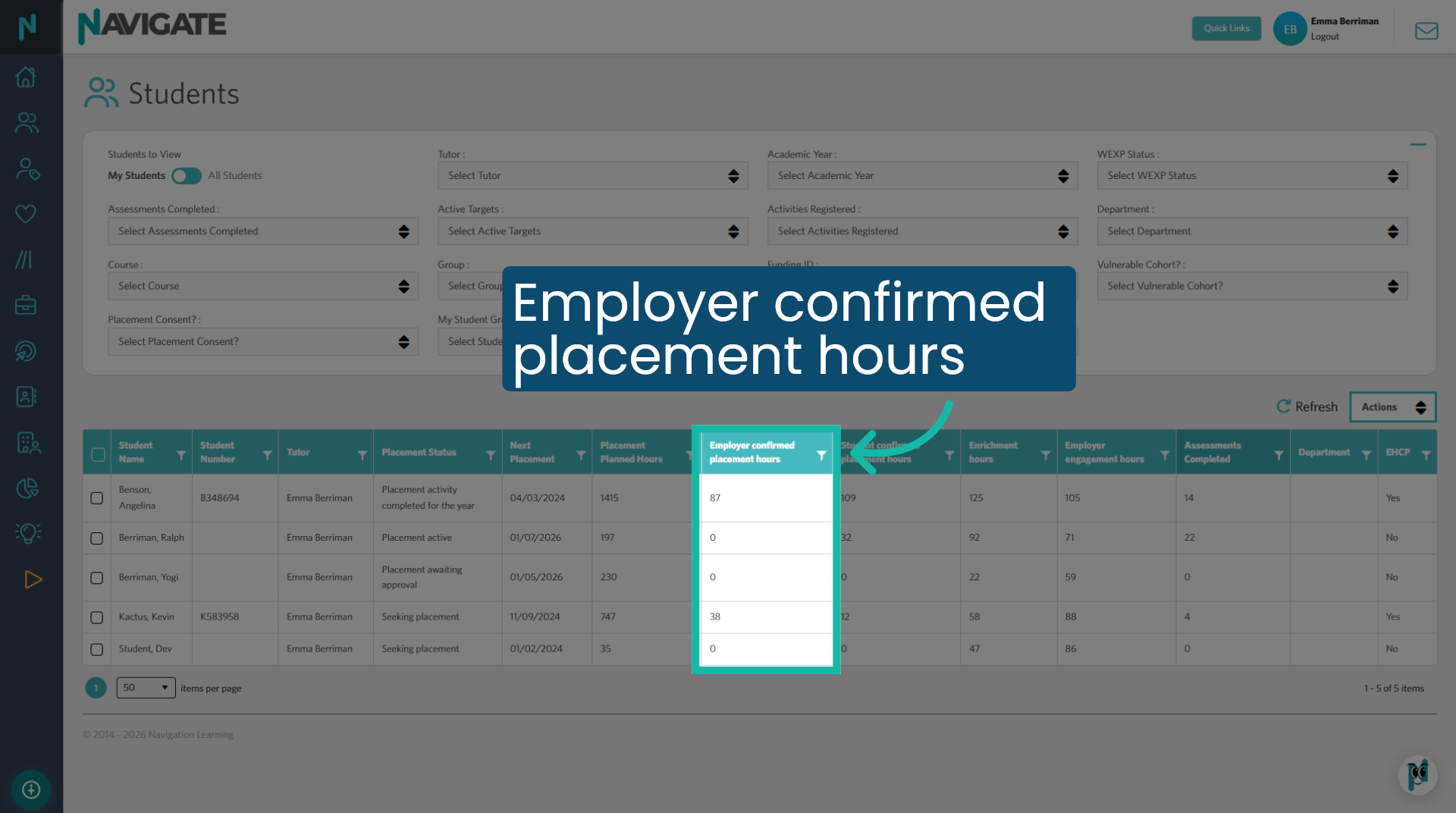
8. Employer confirmed placement hours
When the placement is active, the employer receives weekly attendance emails to confirm the students' attendance based on scheduled placement dates.
9. Student confirmed placement hours
On each scheduled placement day, students confirm their attendance and write in their journals. The number of confirmed hours from both employers and students should be similar. If there is a discrepancy, with one being higher than the other, it indicates that either the employer or the student is not confirming the hours.
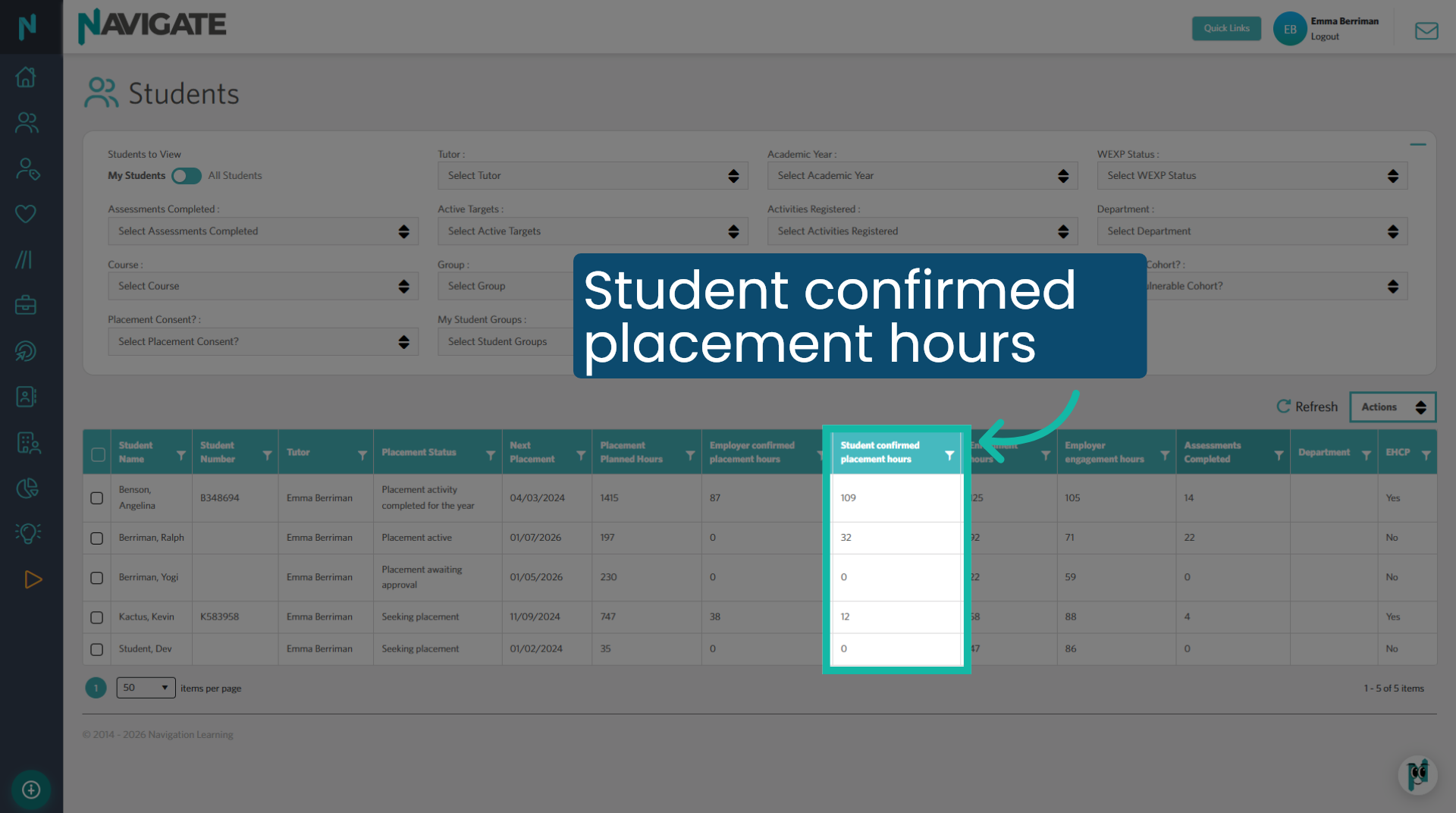
10. Enrichment hours
Displays the total number of enrichment activity hours logged by the student and/or staff members for that student.
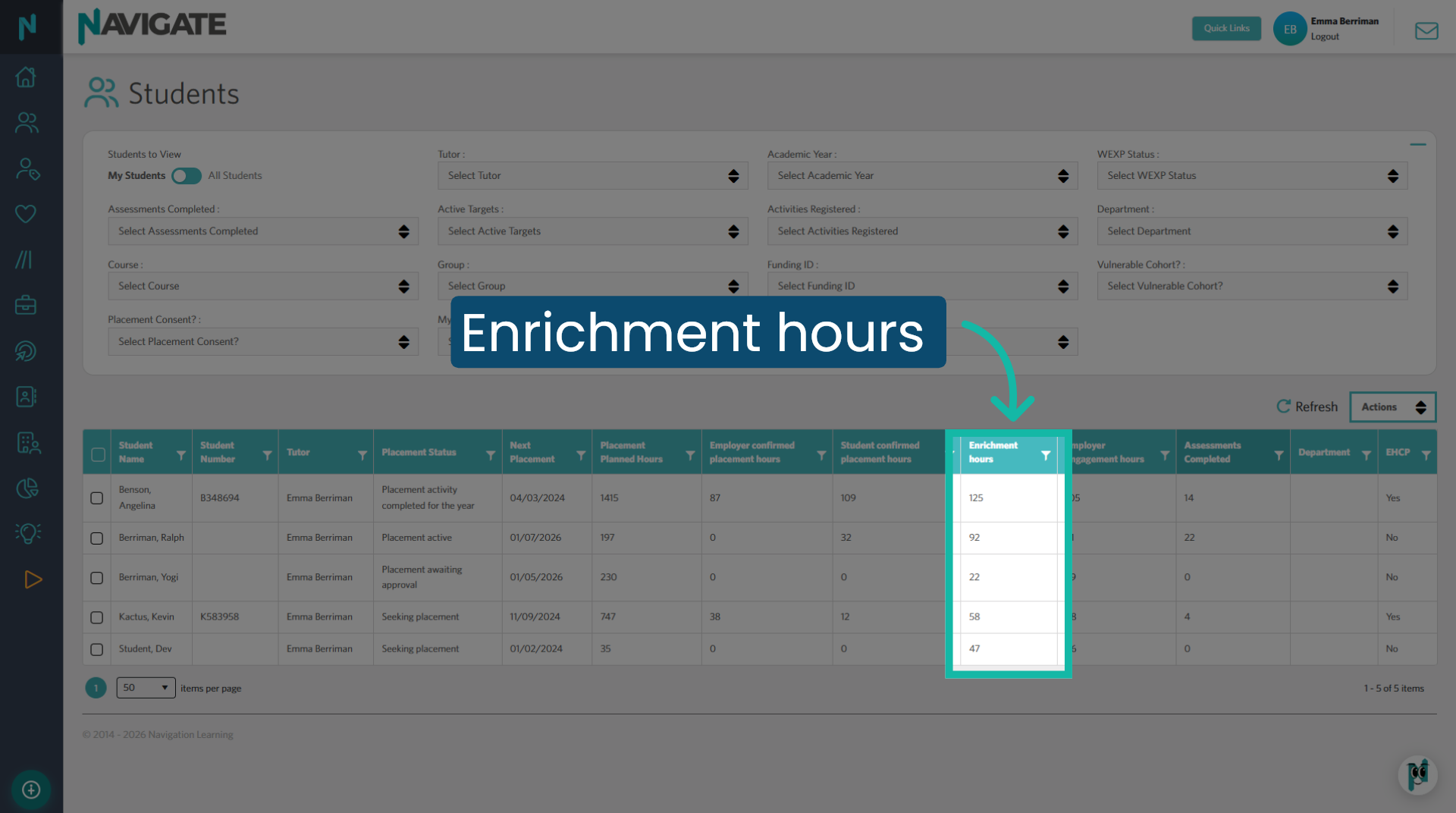
11. Employer engagement hours
Displays the total number of employer engagement activity hours logged by the student and/or staff members for that student.
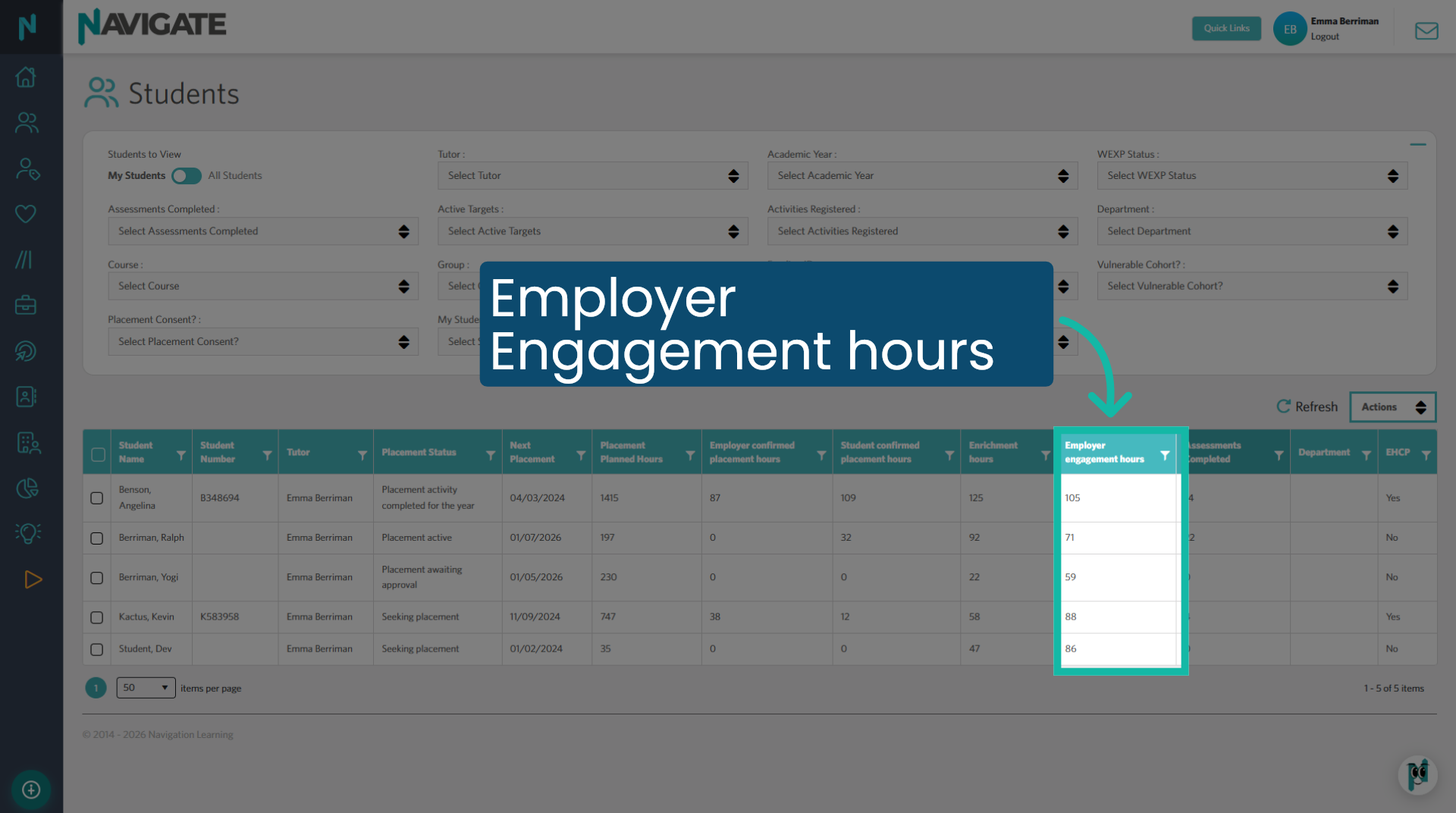
12. Assessments completed
Assessments completed displays the total number of skills assessments completed by the student.
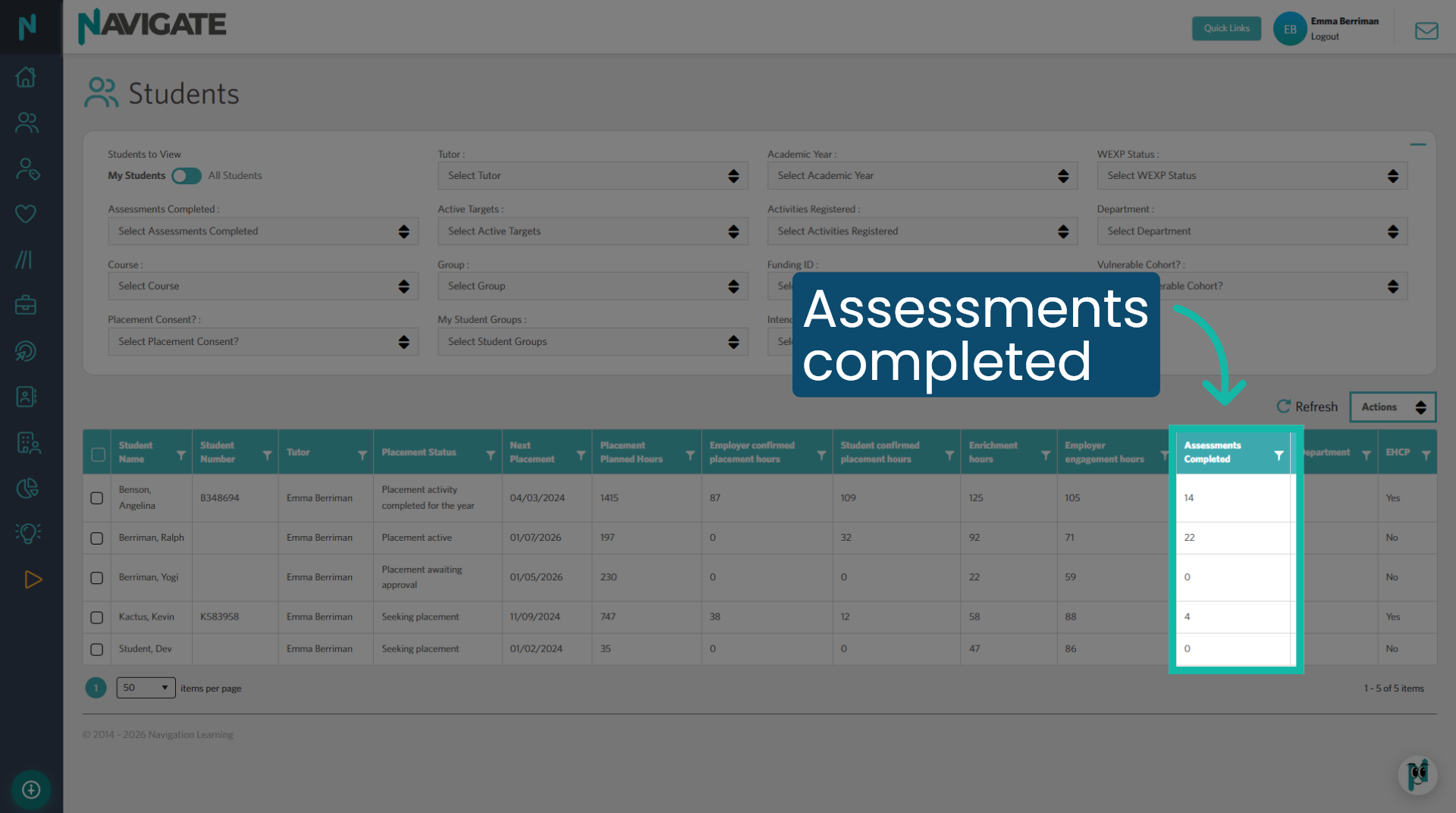
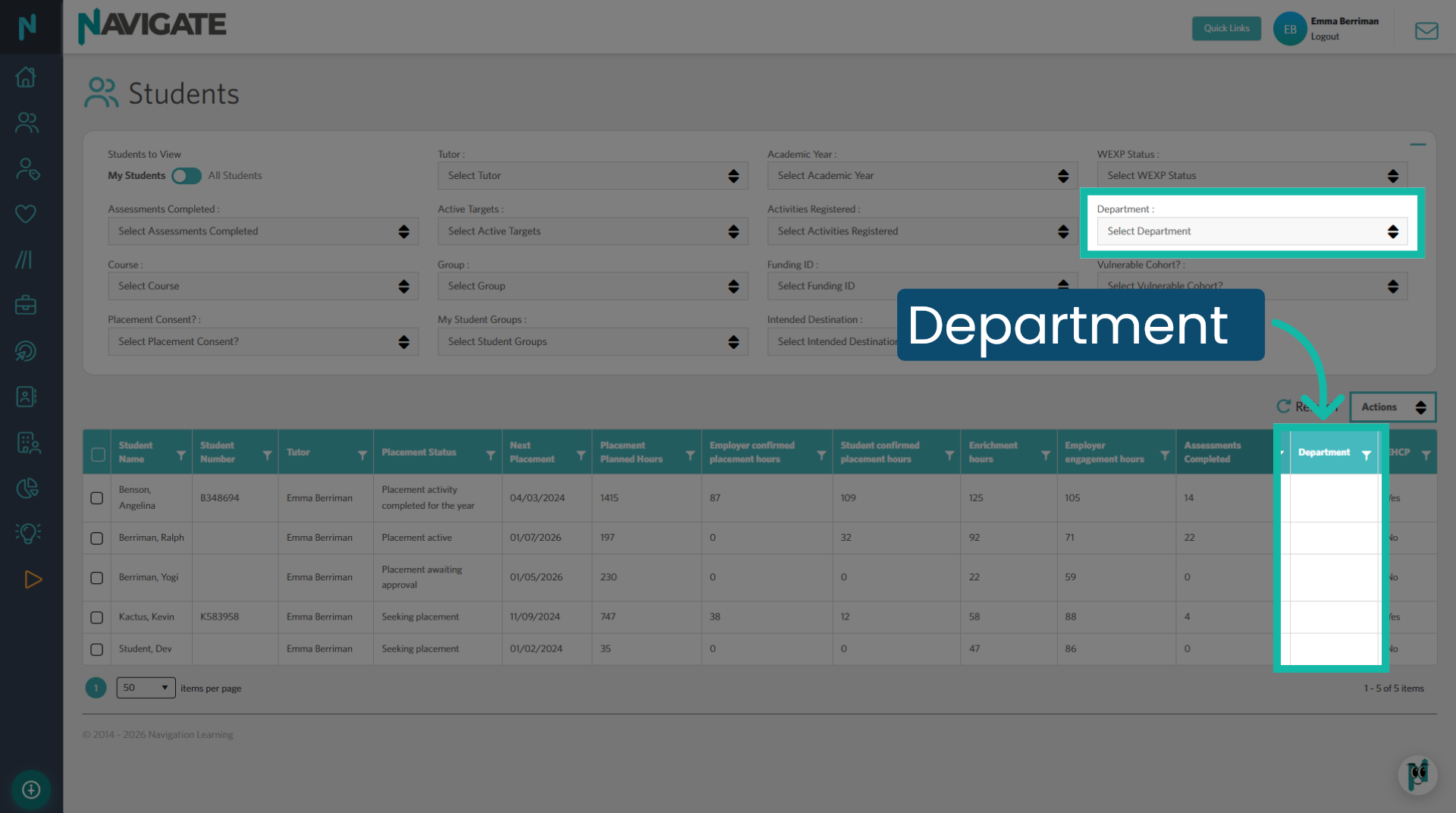
13. Department
This shows the title of the first selected college filter for your site. In this case, it is the department.
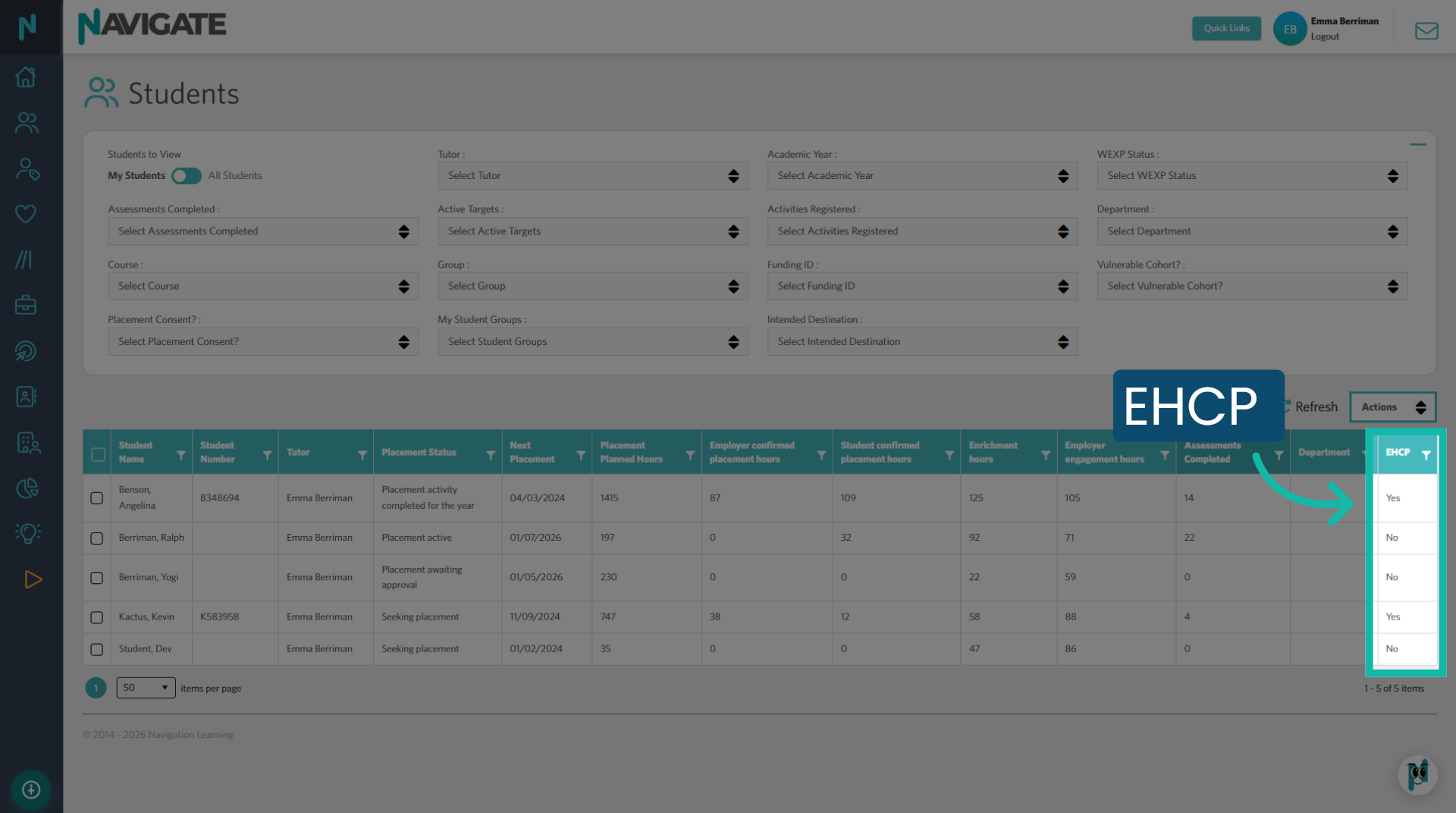
14. EHCP
If your college has the EHCP module added to your site, you will notice an additional column. This column indicates whether the student has an EHCP or not.
This tutorial shows tutors how to view the students assigned to them in Navigate, interpret the student grid and filter activity for an academic year.
1. Students assigned to you
This tile features three quick action buttons for your daily checks. Click 'Number of Students' to access the student grid.
2. Student grid
Here, you can view the students assigned to you as a 'Tutor'. From this grid, you can check your students' placement status and any other activities they have completed while using Navigate. This displays the total activity hours and assessments completed by the students since they started using the platform.
3. Select Academic Year 2026/27
To view the activity hours and assessments completed during this academic year, use the 'Academic Year' filter and select the current academic year for which you wish to view data.
4. Placement Status
The placement status column displays where the student is at in their placement journey.
5. Placement Statuses explained
Here are all the placement statuses and what they mean.
6. Next placement
Next placement will show the start date of the student's placement.
7. Placement planned hours
Placement planned hours will show the total number of hours the student plans to complete in their placement(s).
8. Employer confirmed placement hours
When the placement is active, the employer receives weekly attendance emails to confirm the students' attendance based on scheduled placement dates.
9. Student confirmed placement hours
On each scheduled placement day, students confirm their attendance and write in their journals. The number of confirmed hours from both employers and students should be similar. If there is a discrepancy, with one being higher than the other, it indicates that either the employer or the student is not confirming the hours.
10. Enrichment hours
Displays the total number of enrichment activity hours logged by the student and/or staff members for that student.
11. Employer engagement hours
Displays the total number of employer engagement activity hours logged by the student and/or staff members for that student.
12. Assessments completed
Assessments completed displays the total number of skills assessments completed by the student.
13. Department
This shows the title of the first selected college filter for your site. In this case, it is the department.
14. EHCP
If your college has the EHCP module added to your site, you will notice an additional column. This column indicates whether the student has an EHCP or not.
Was this article helpful?
That’s Great!
Thank you for your feedback
Sorry! We couldn't be helpful
Thank you for your feedback
Feedback sent
We appreciate your effort and will try to fix the article