00:00: This tutorial demonstrates, how to enroll students using the navigate platform.
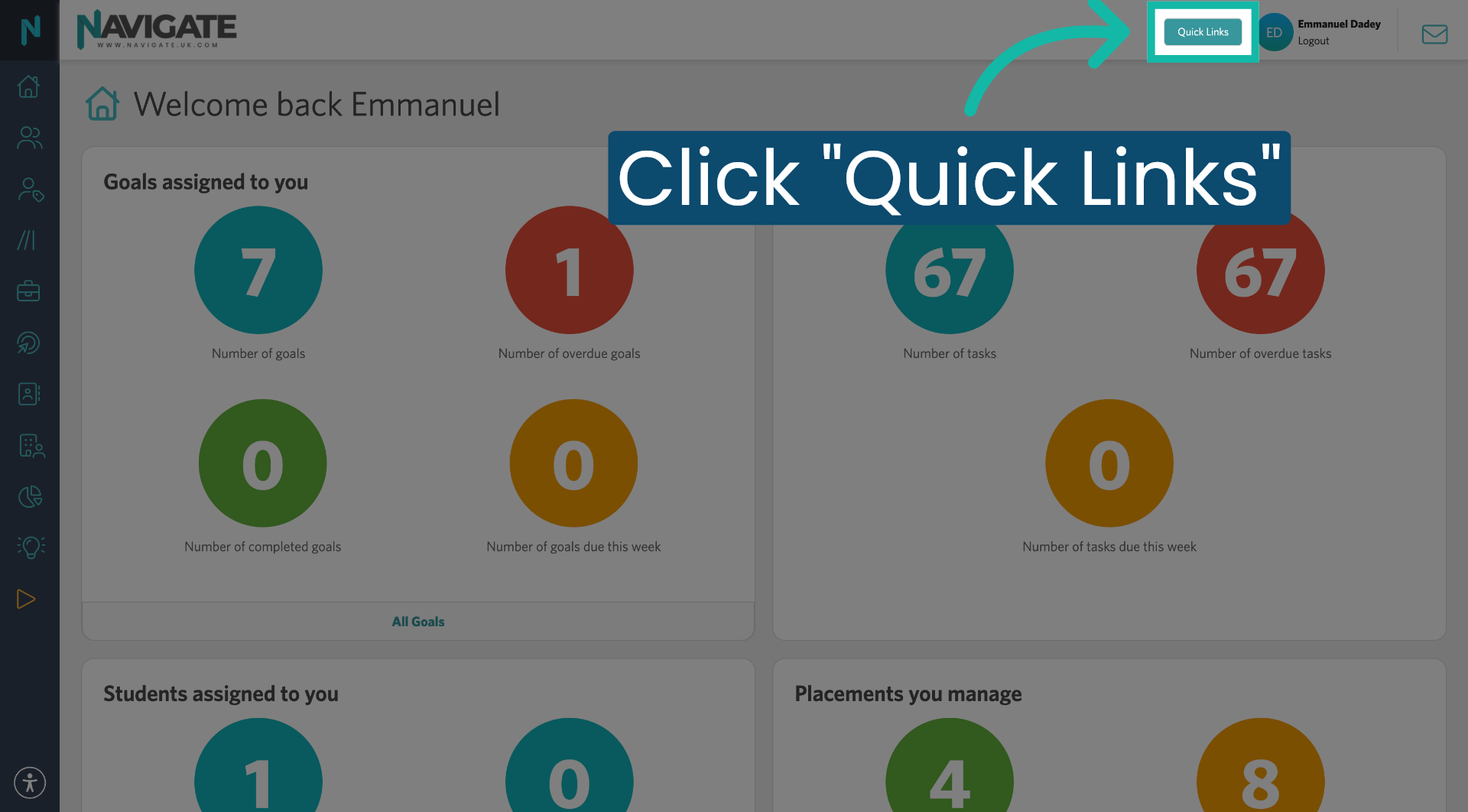
00:01: Once logged in to find your students, click the quick links menu.
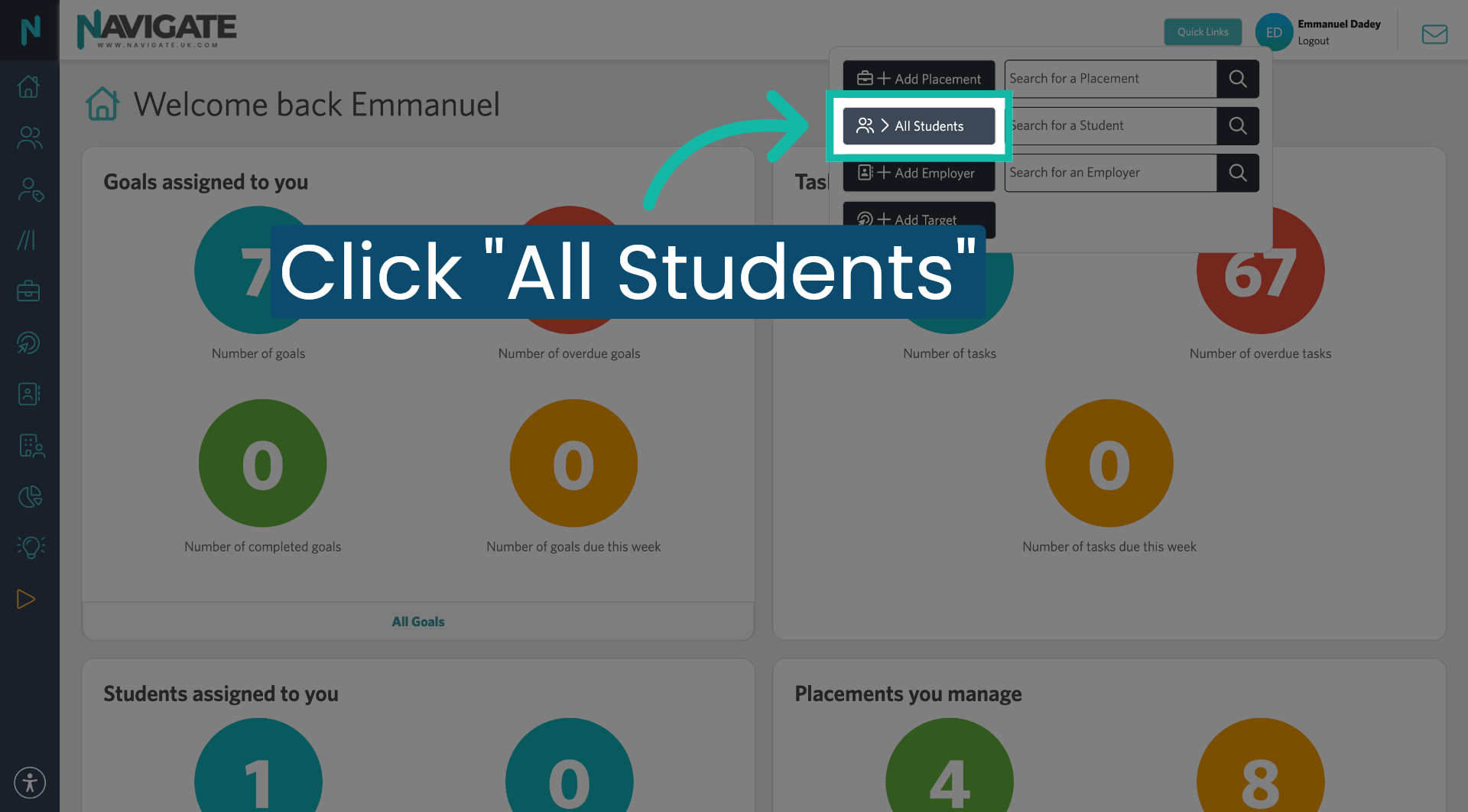
00:05: Click all students.
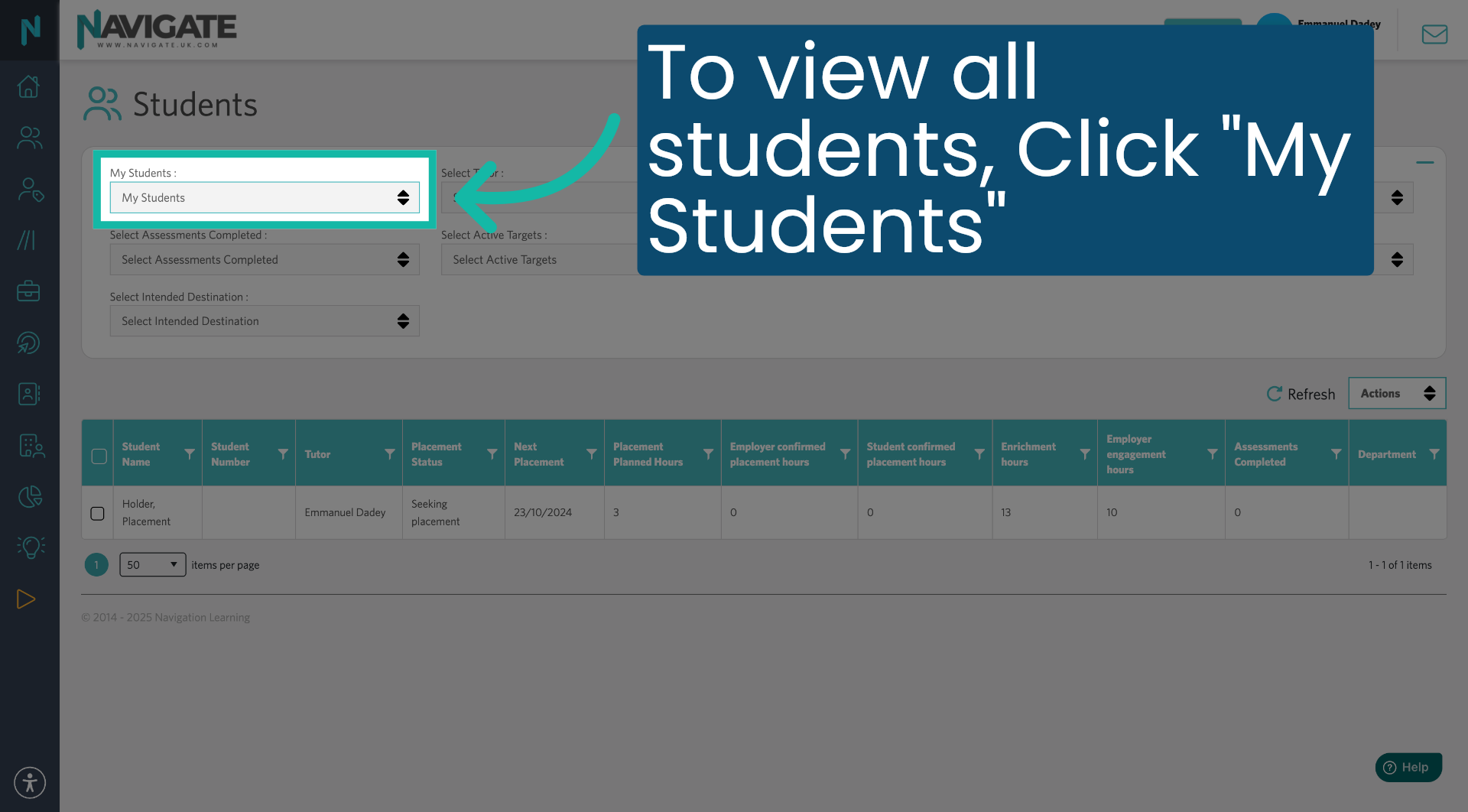
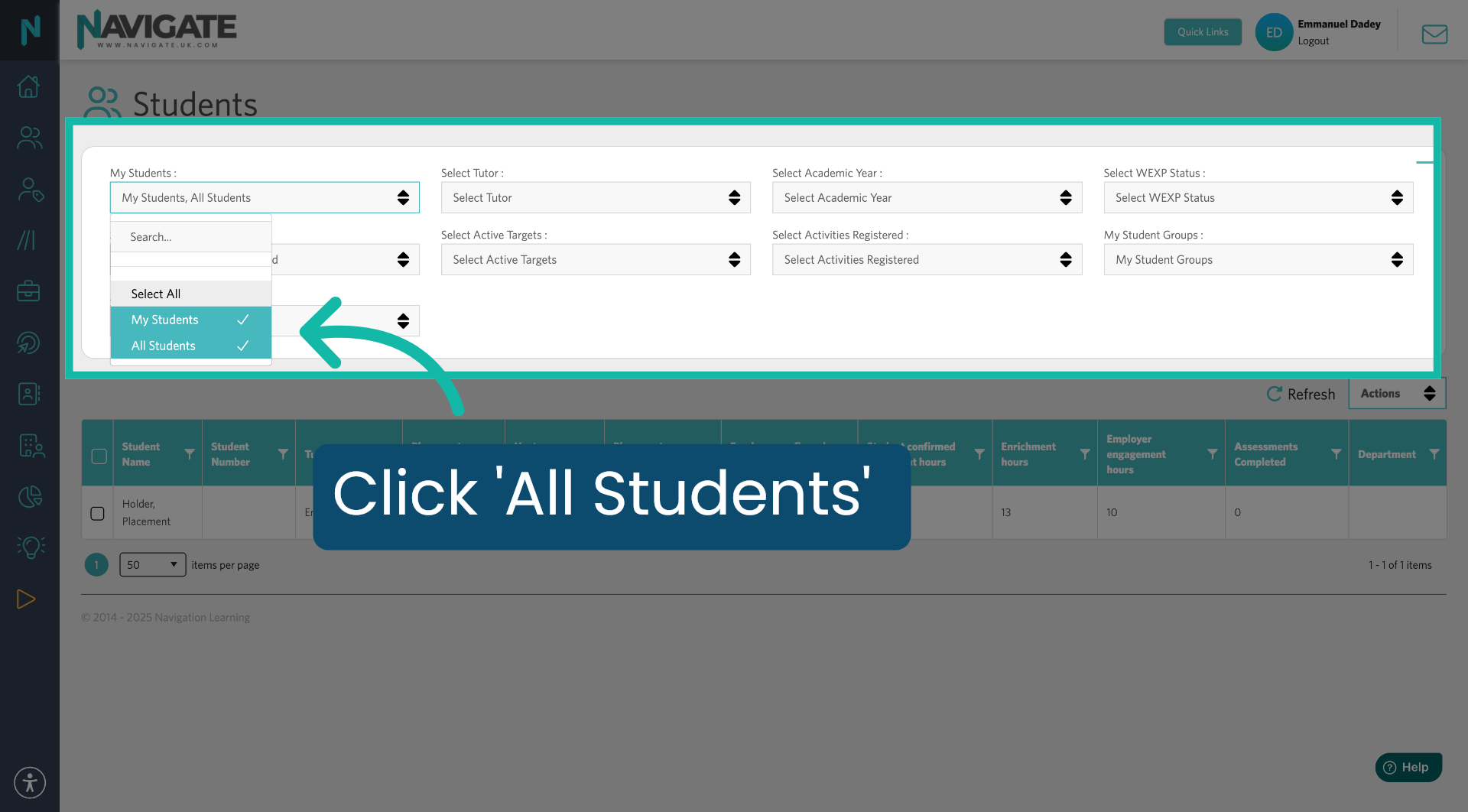
00:07: To view all students, click on my students.
00:10: Click select all to display. All your students in navigate.
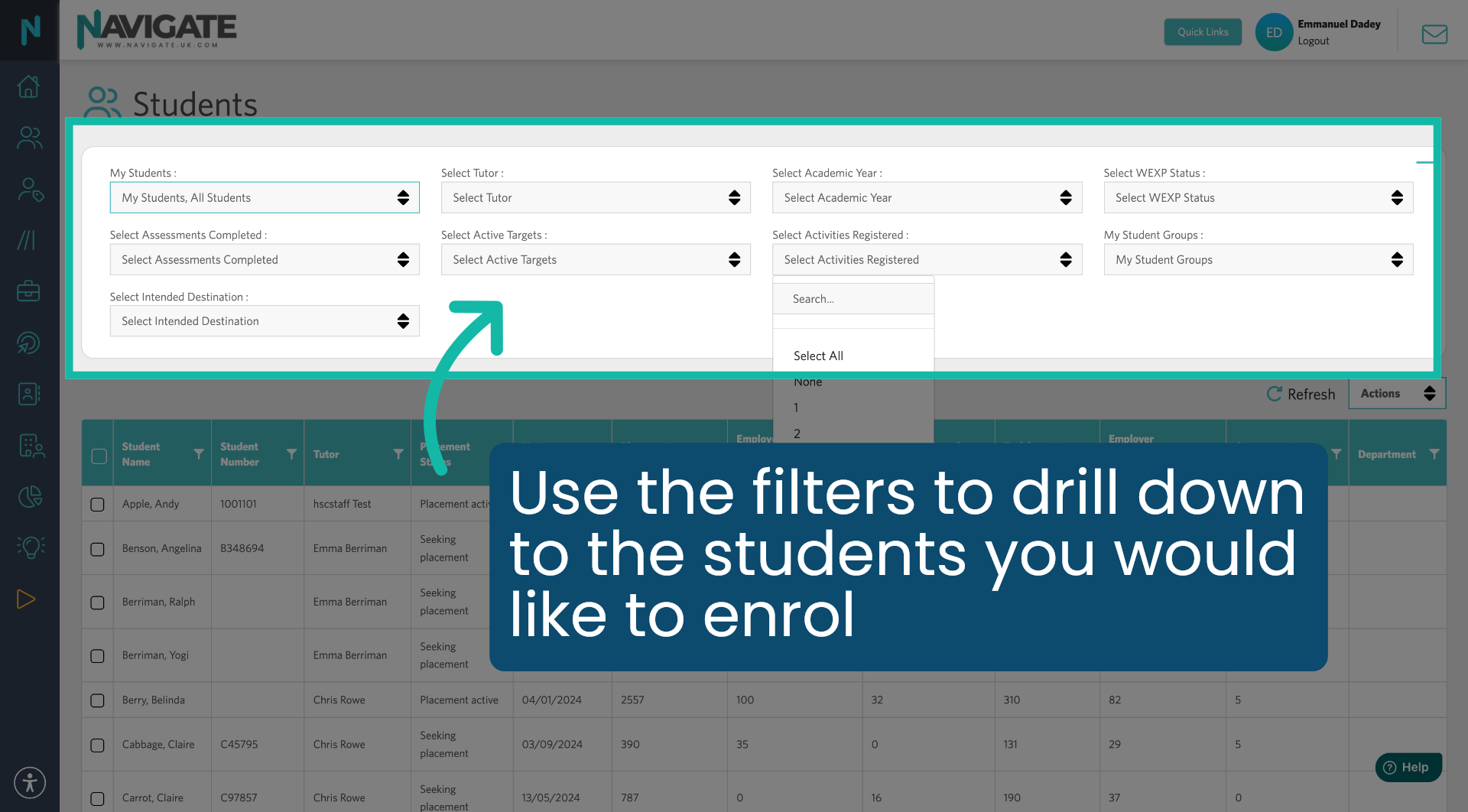
00:15: Use the filters to drill down to the students. You would like to enroll.
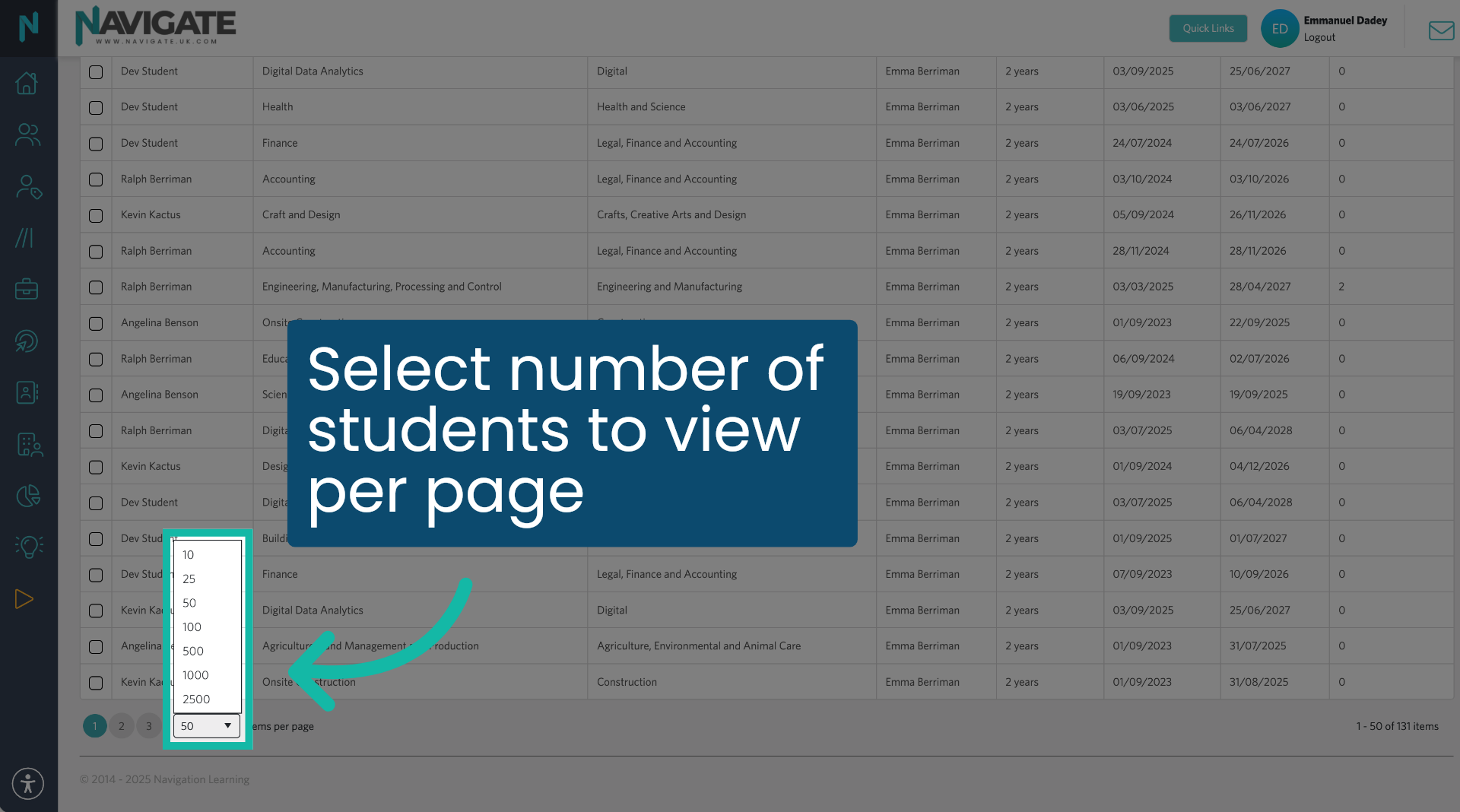
00:19: To view more than the 50 default. Students per page, scroll down to the bottom and select the number of students to view per page.
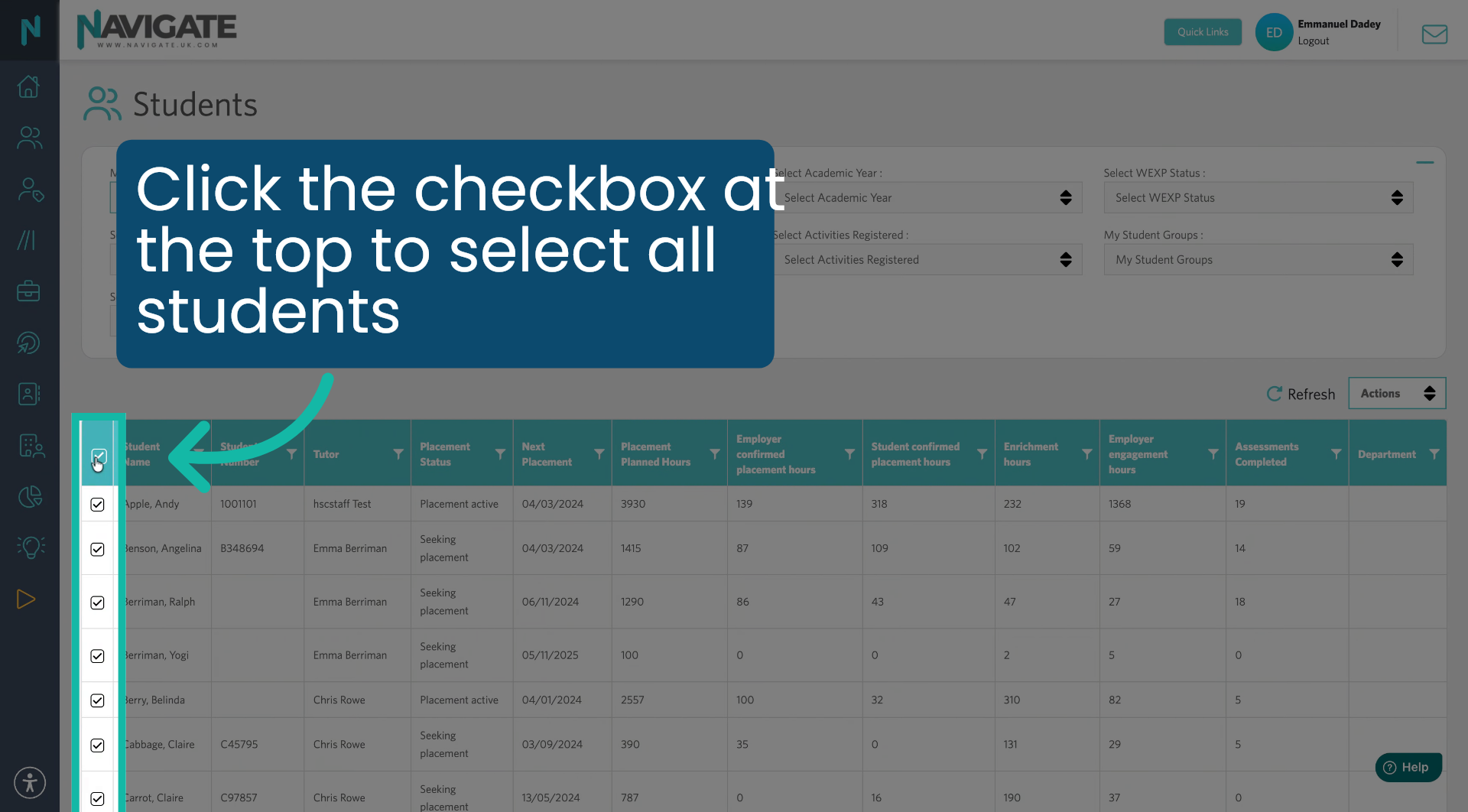
00:27: At the top of the page, click the checkbox to select all students.
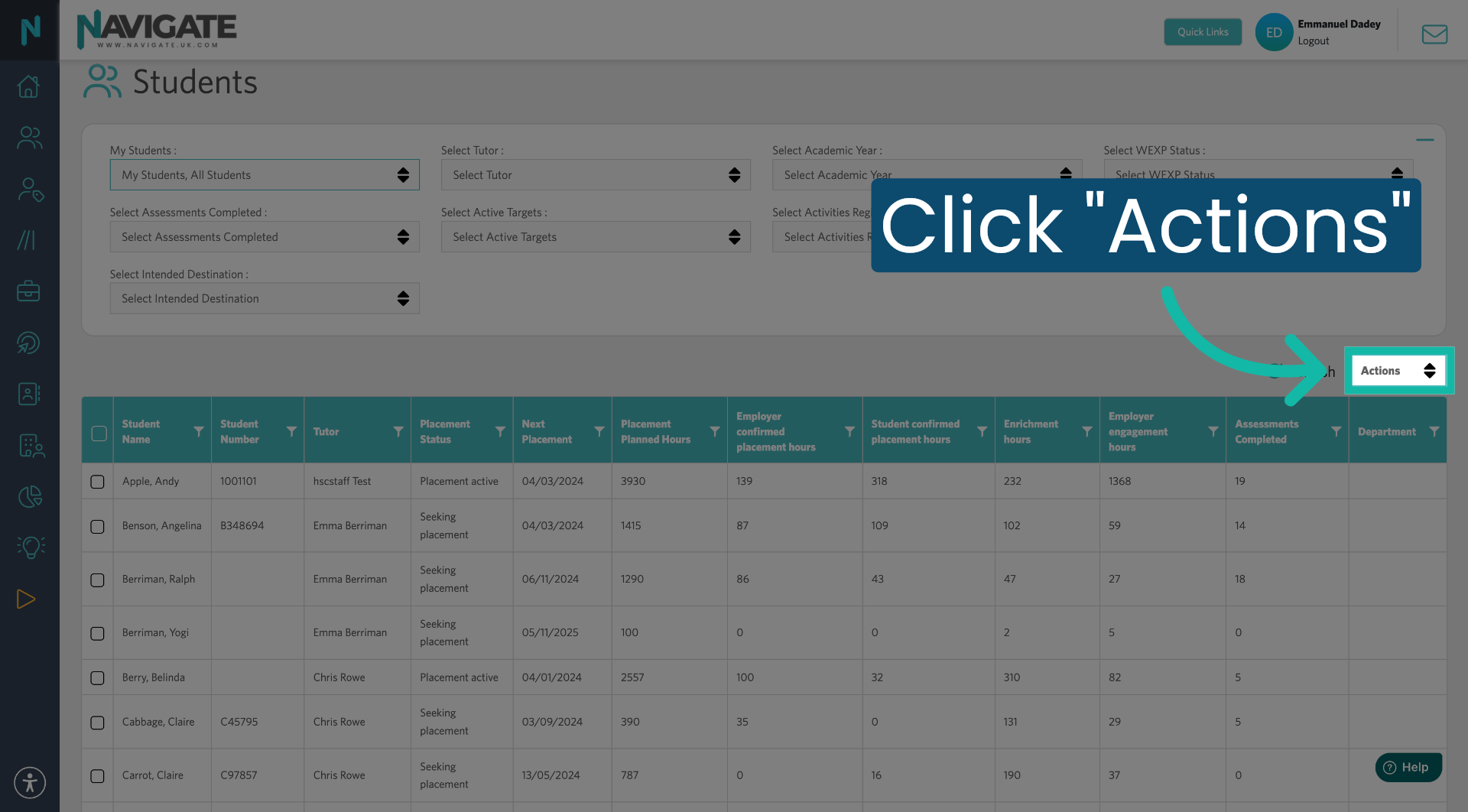
00:31: Click actions.
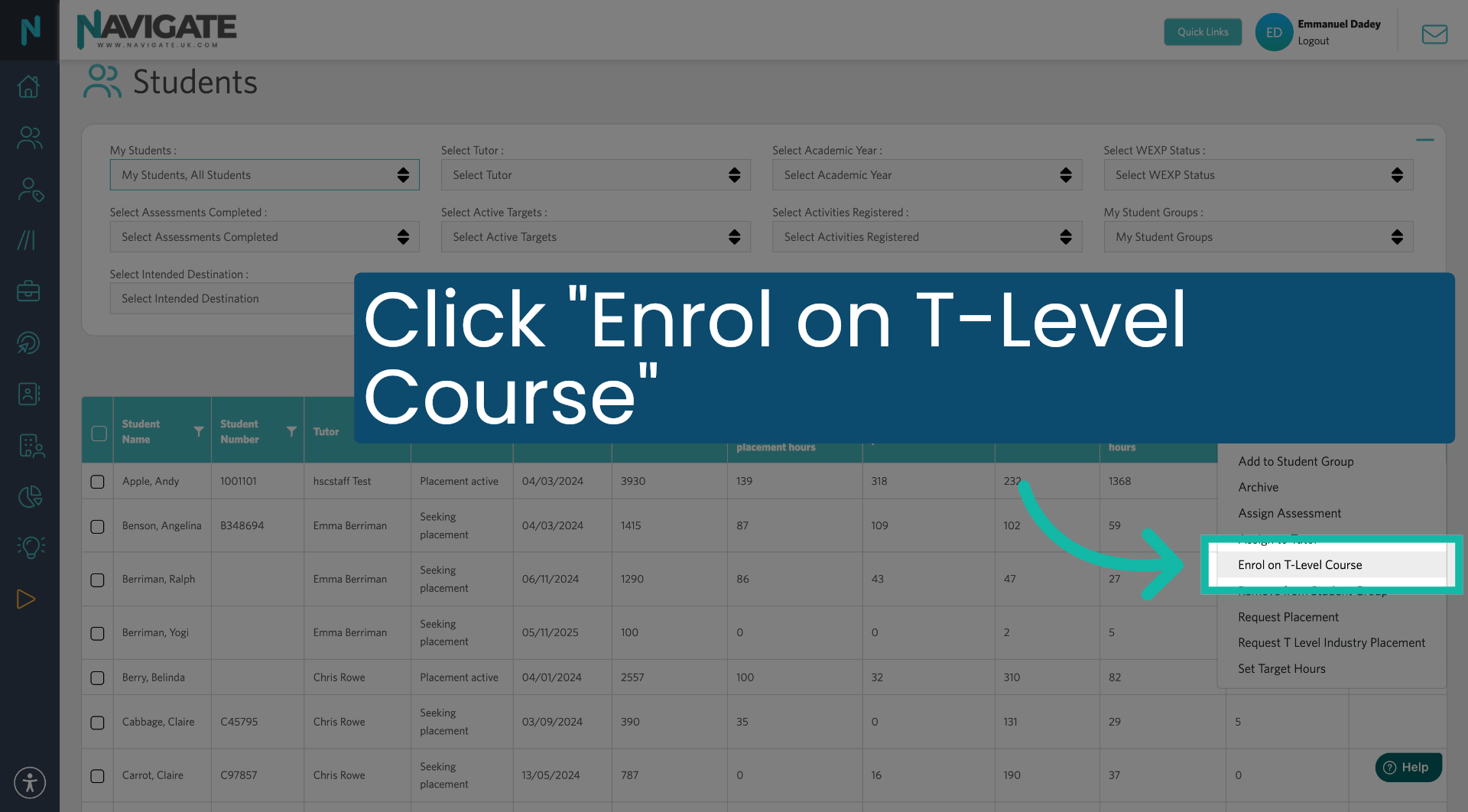
00:33: Click enroll on t-level course to begin the enrollment process for the selected students.
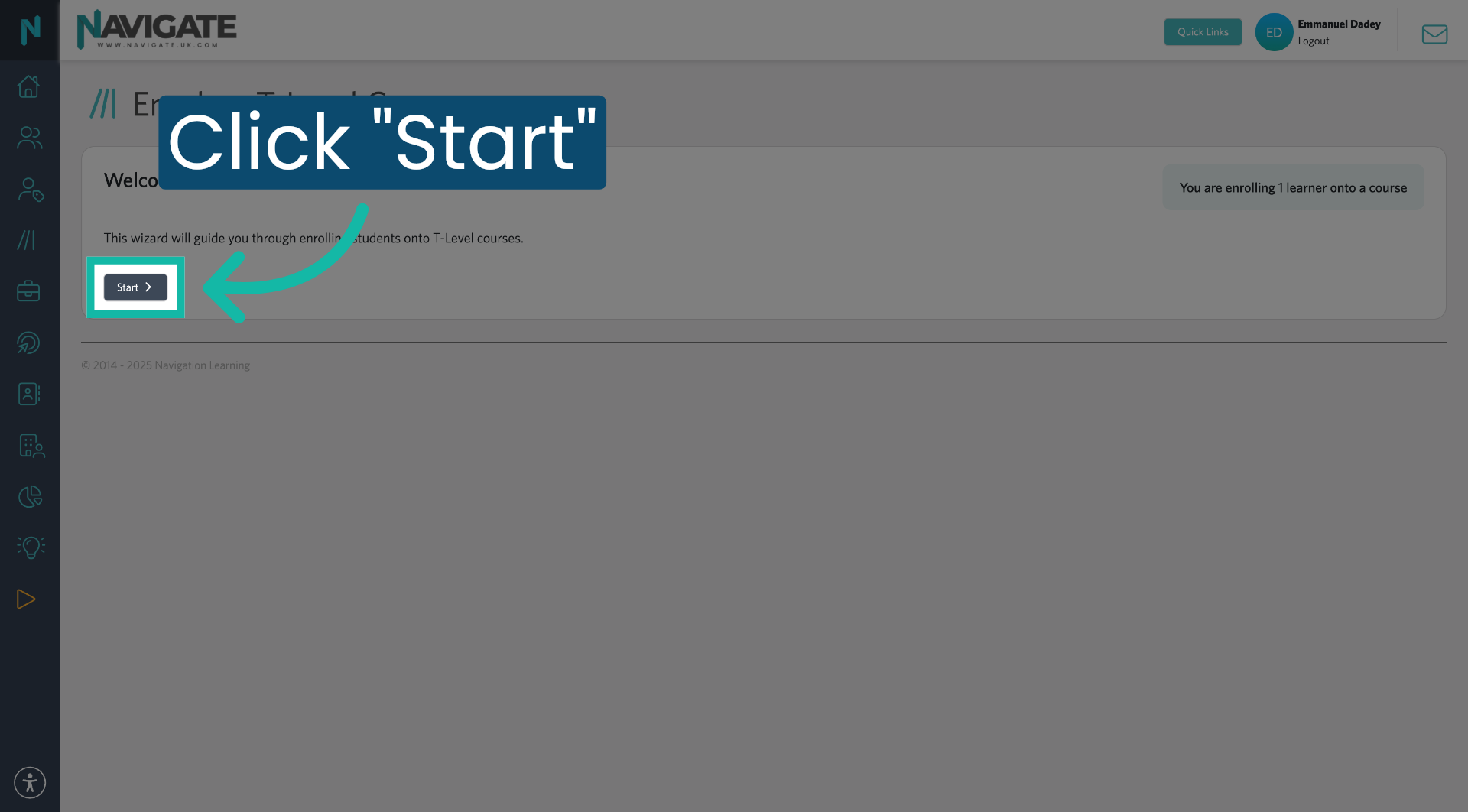
00:39: Click Start to begin, the course enrollment process.
00:42: Select the t-level course. You want to enroll the Learners onto.
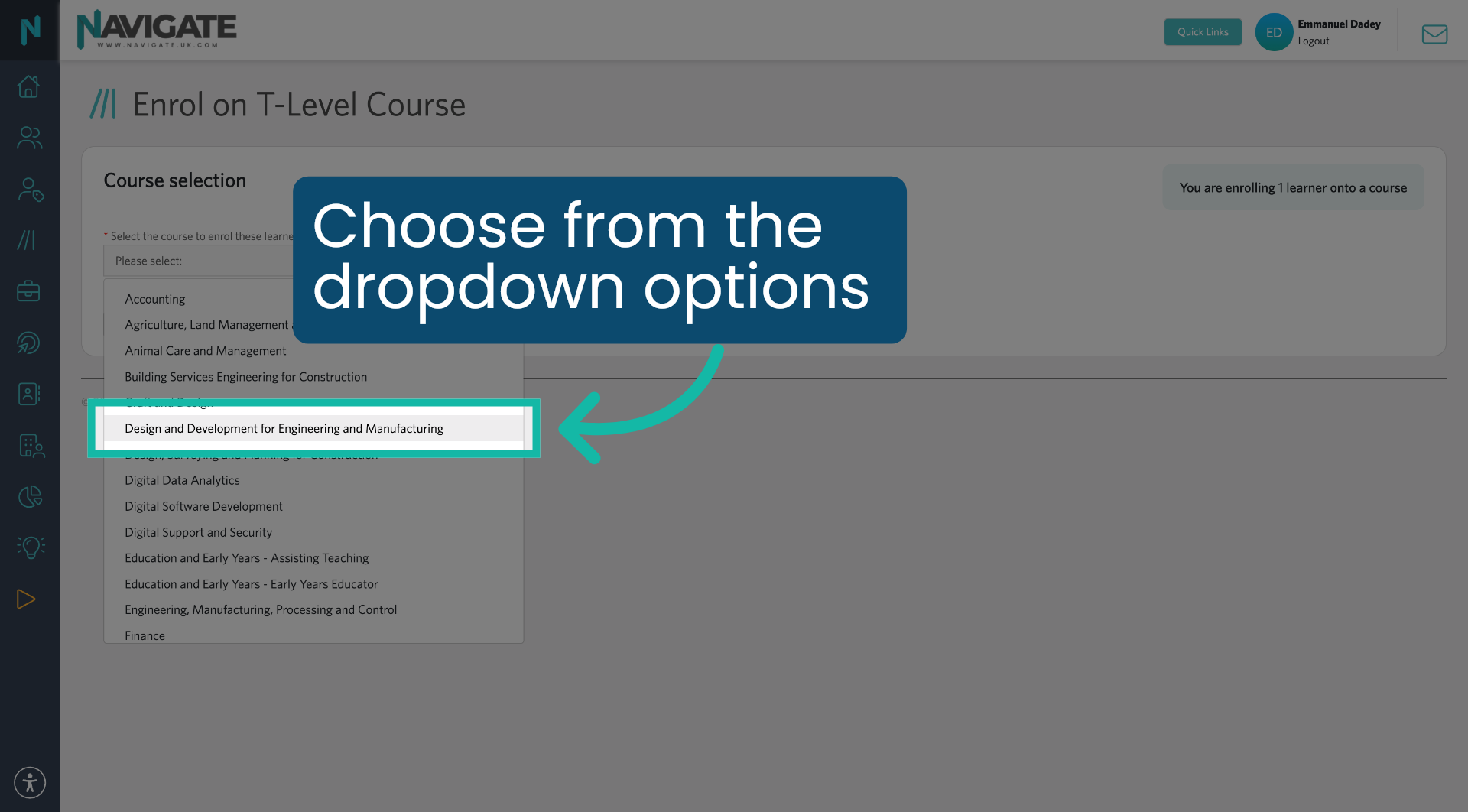
00:46: Choose from the drop-down options.
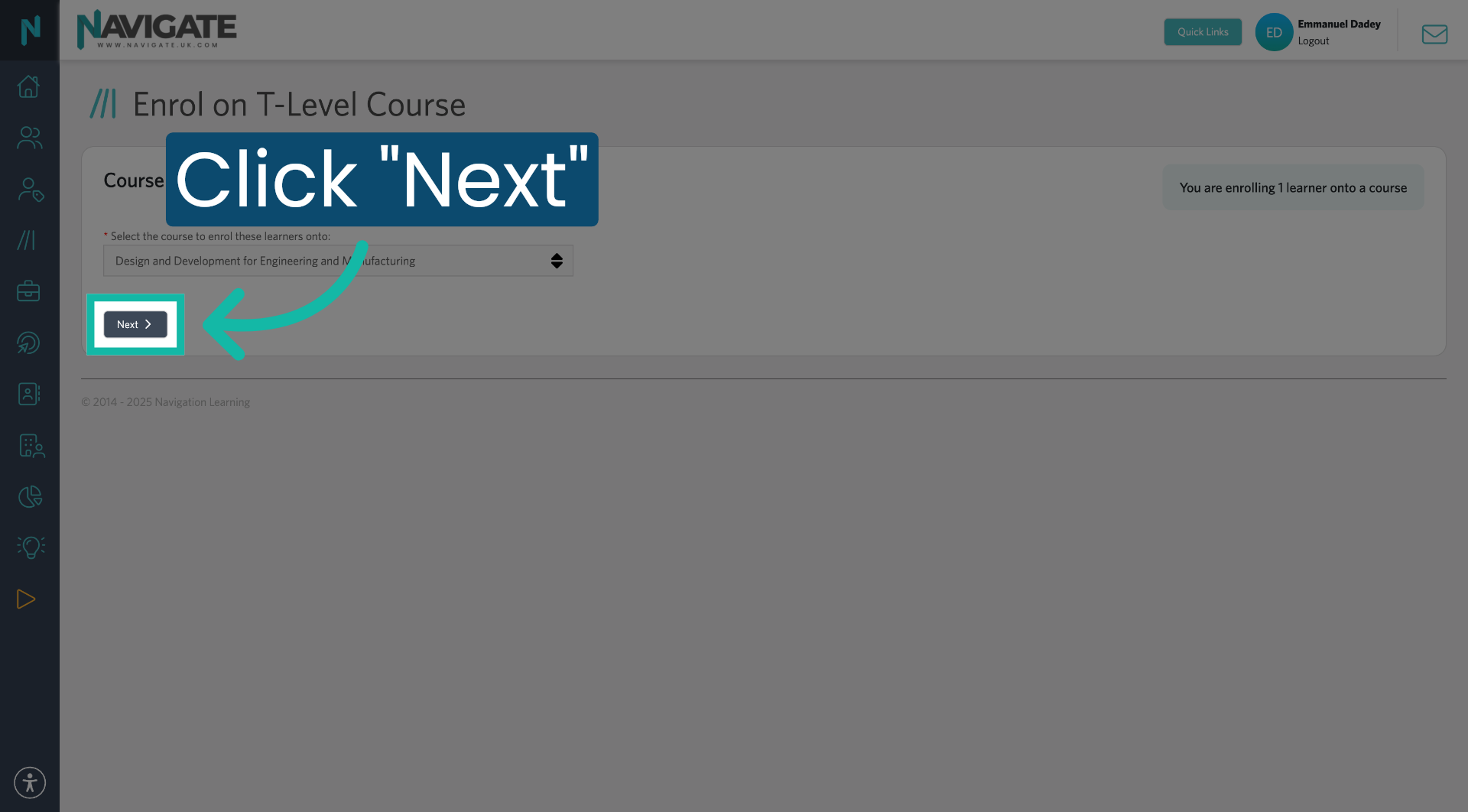
00:49: Click next to continue.
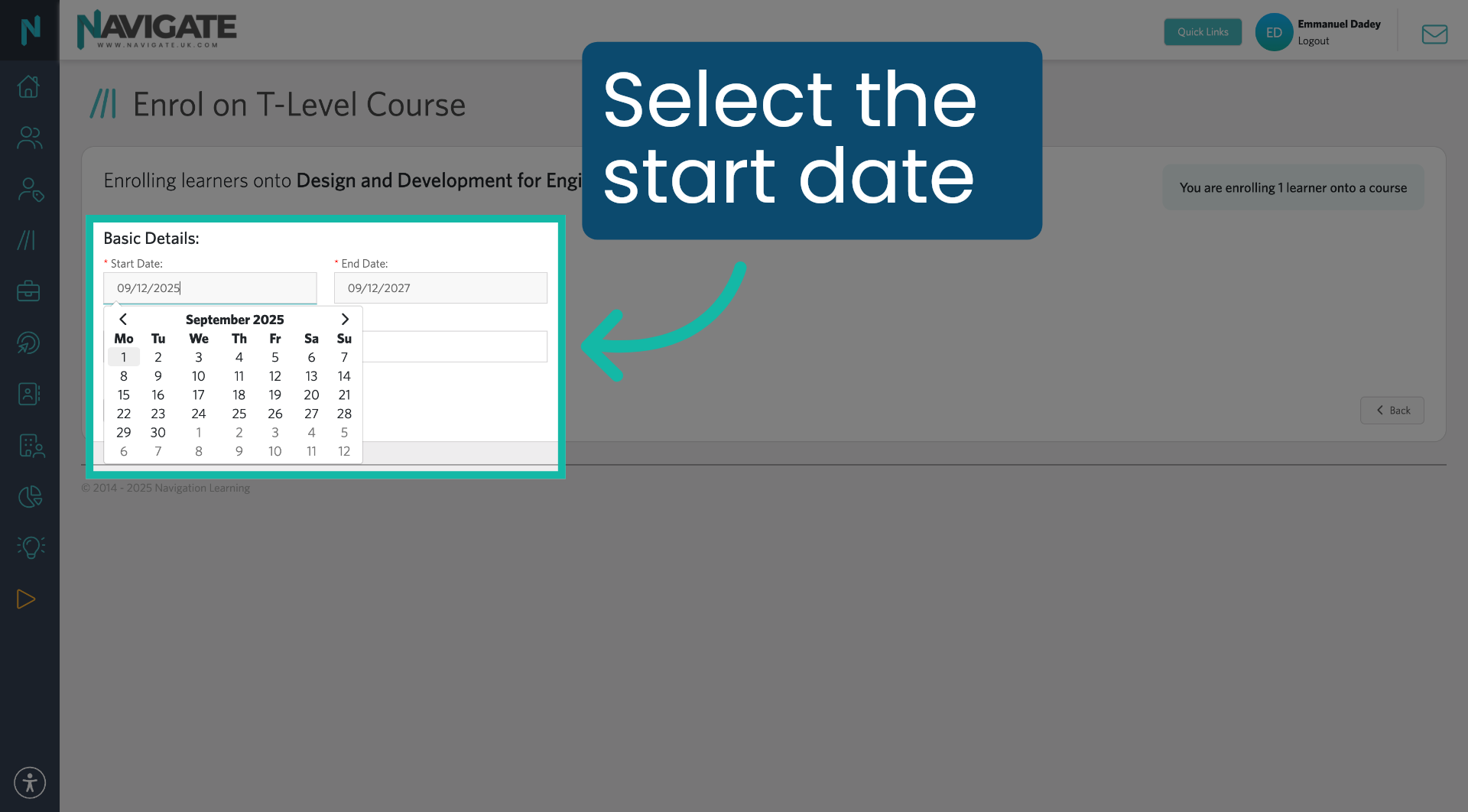
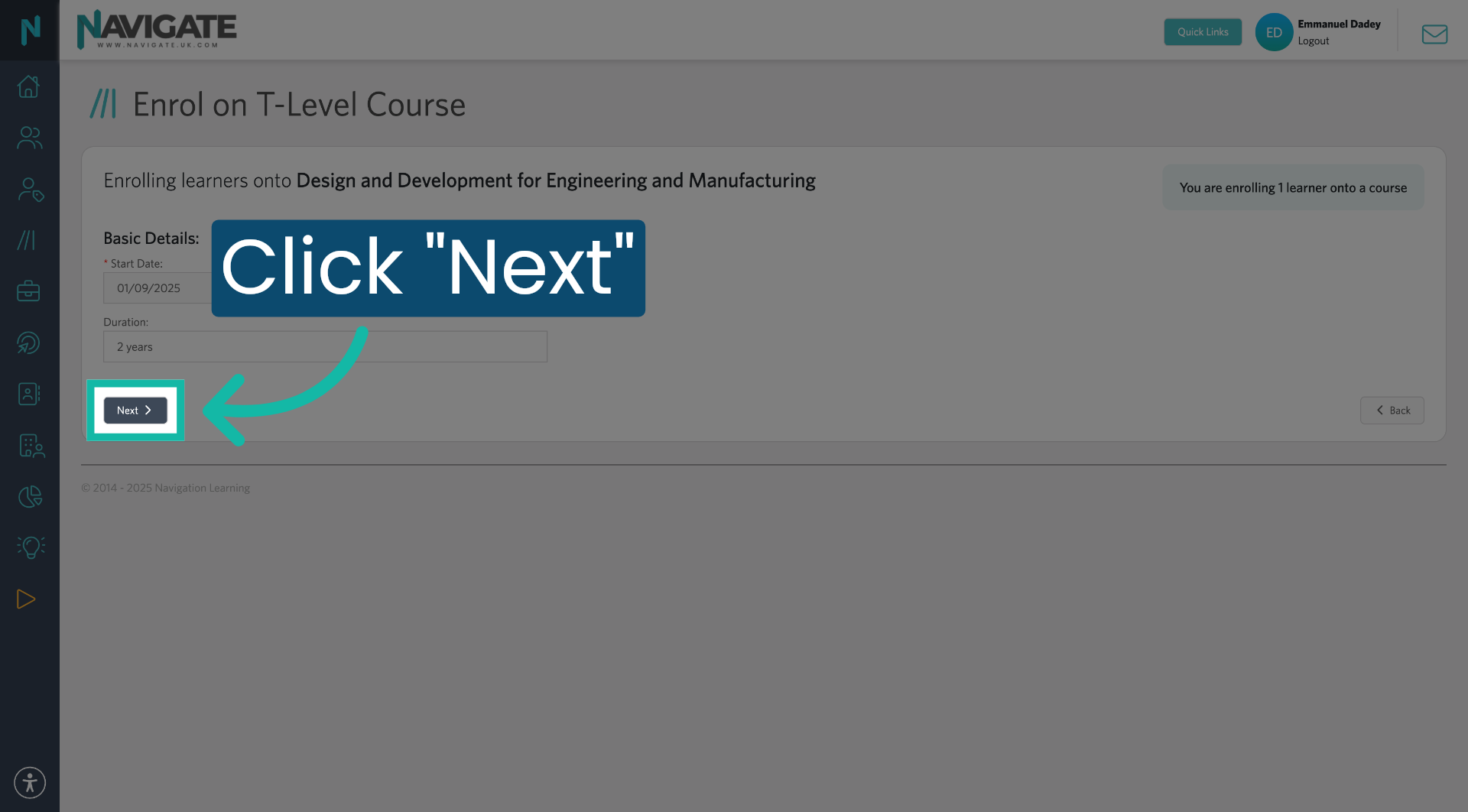
00:51: Select the course start date. This doesn't have to match college enrollment dates, exactly.
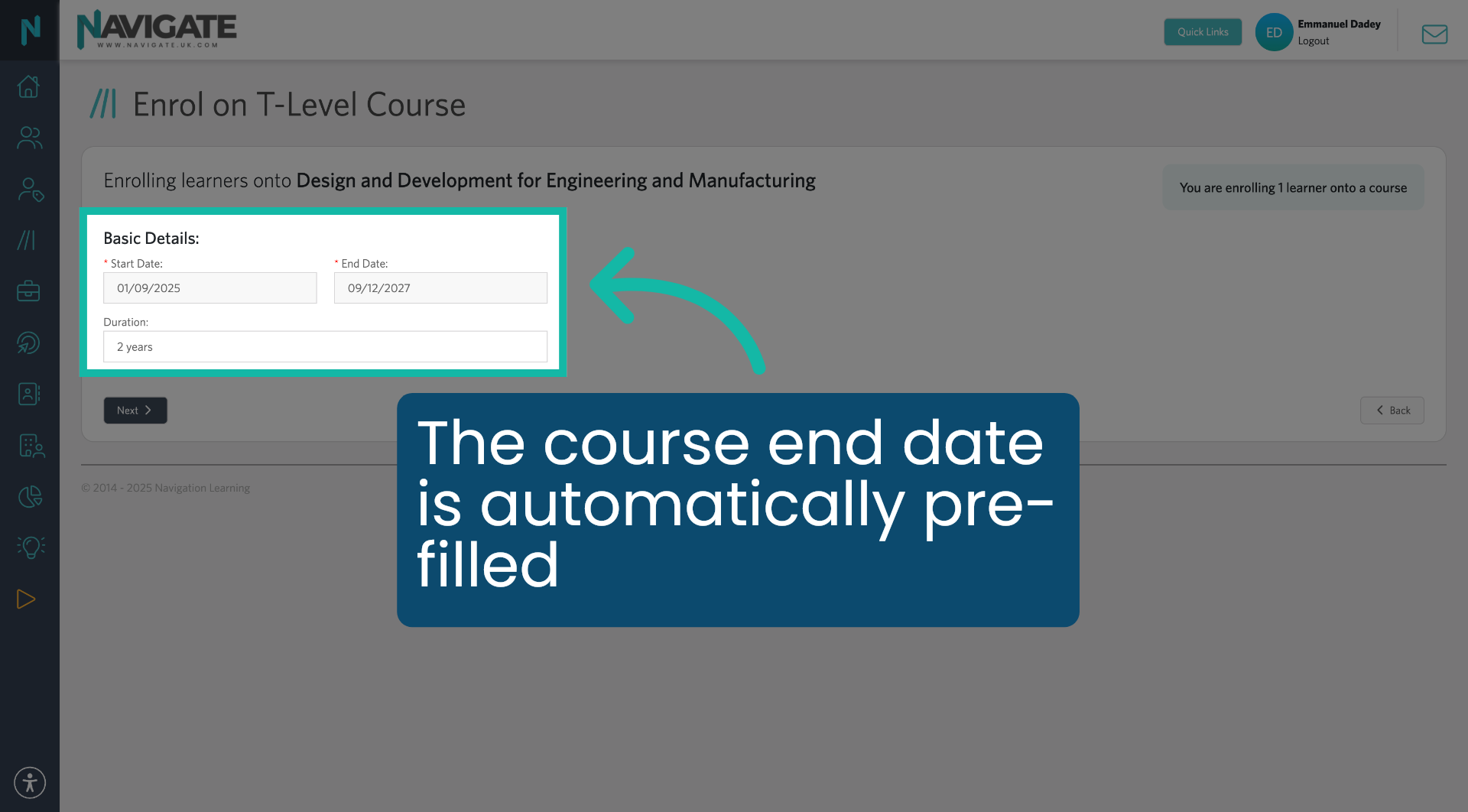
00:57: The course end date is pre-filled but can be adjusted if needed to match the date. The student is due to finish their program.
01:05: Once complete click next.
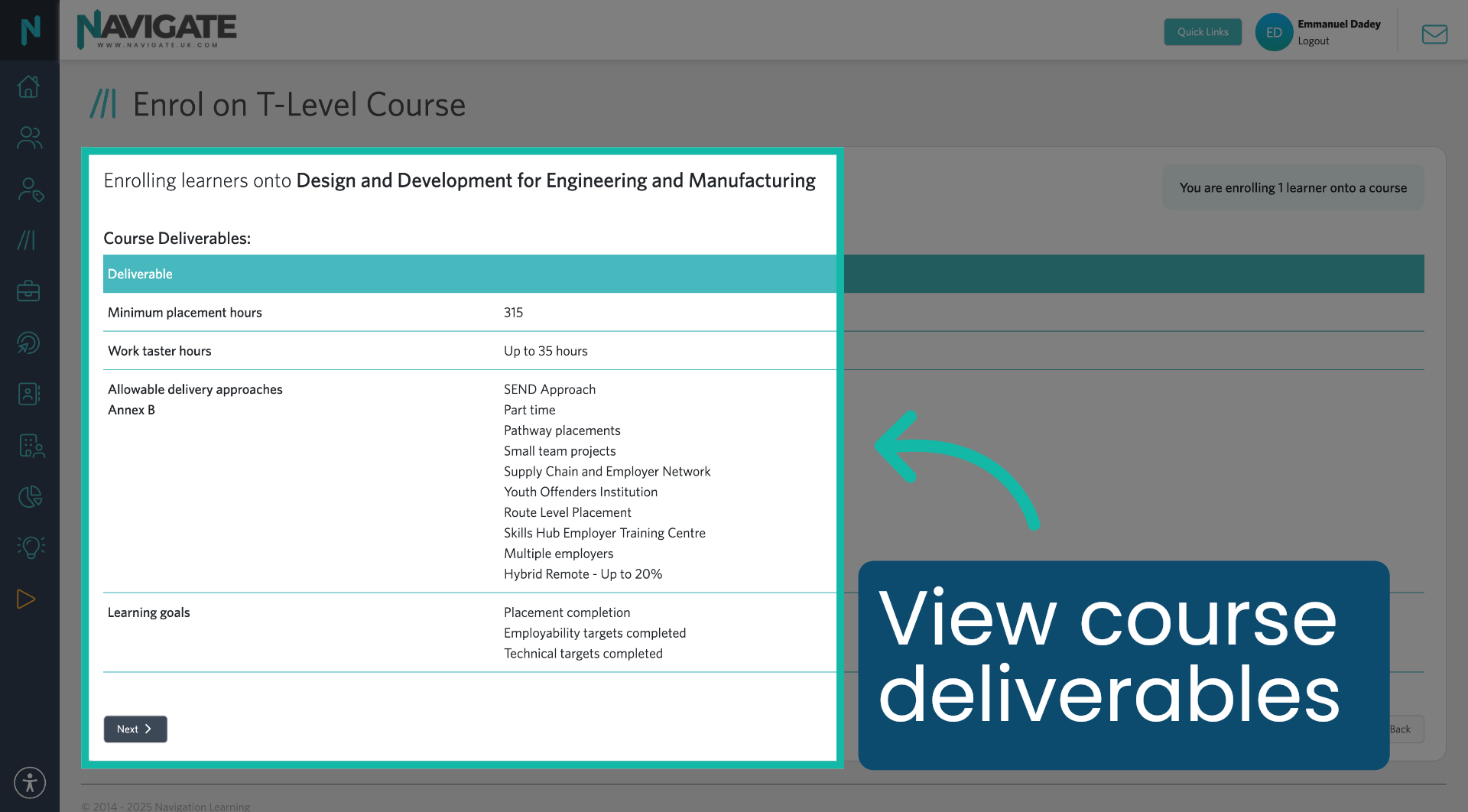
01:07: You will now see the course, deliverables.
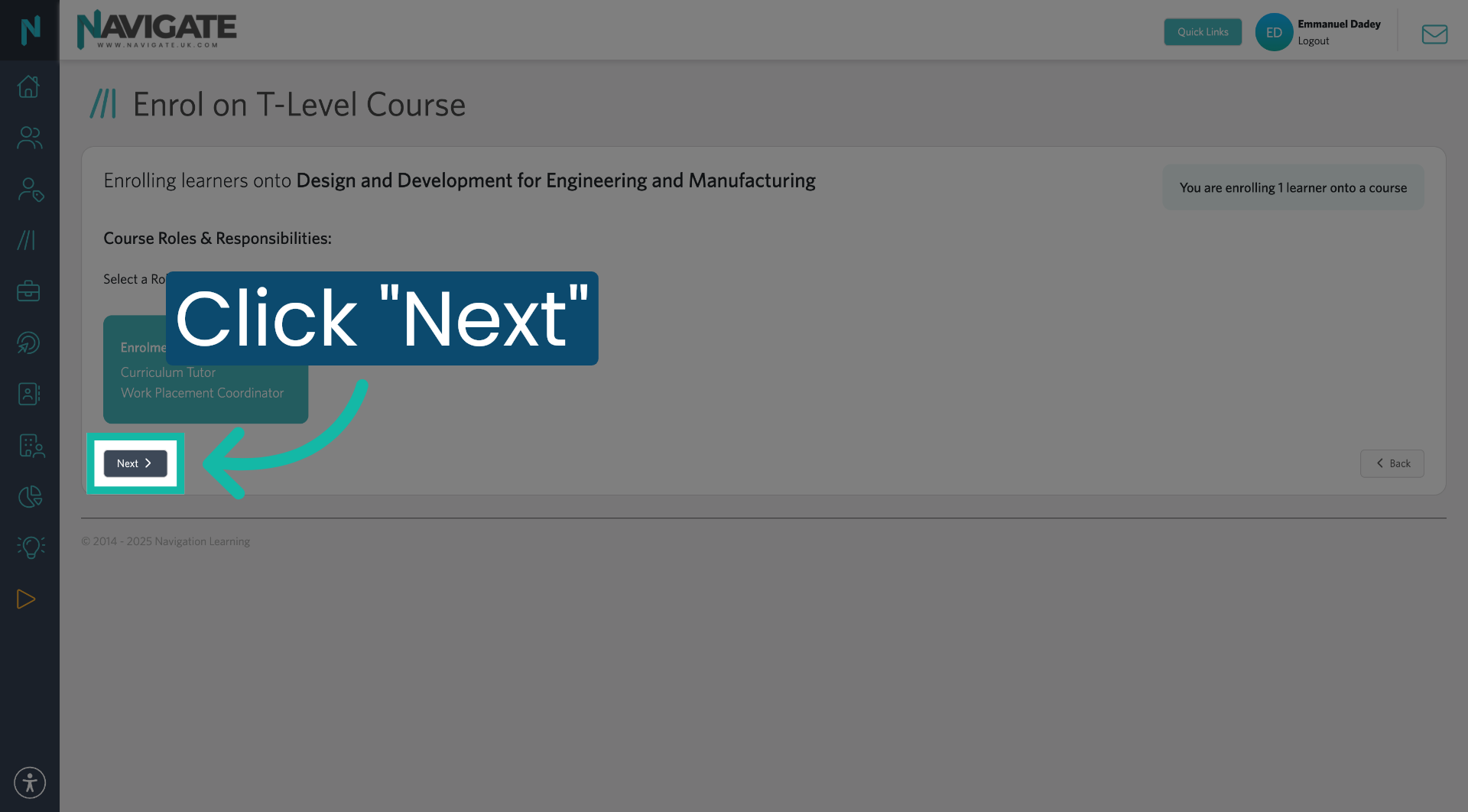
01:10: This next stage doesn't require any information. Click next to continue,
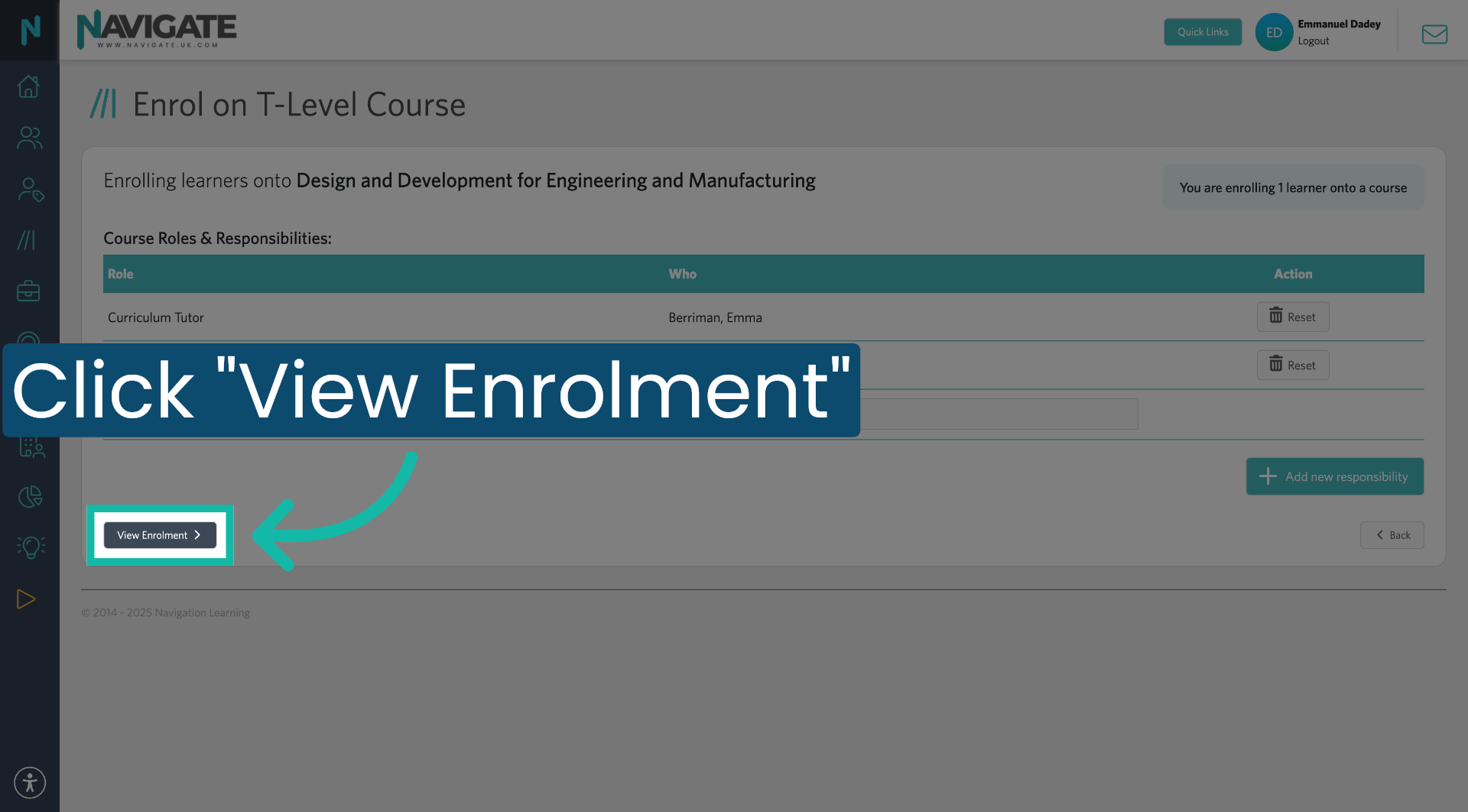
01:15: Click view enrollment to review the students current course enrollment information.
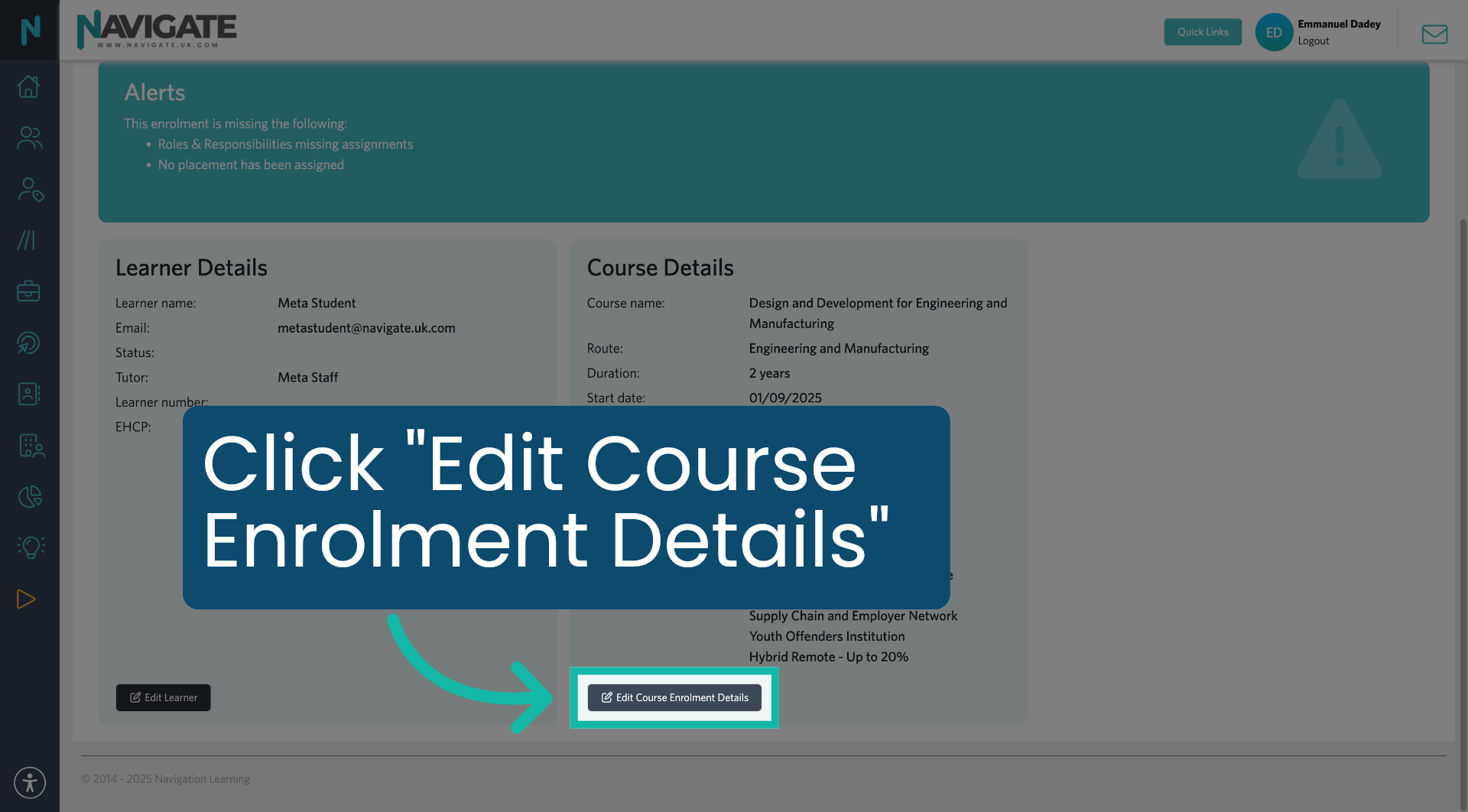
01:20: Click edit course, enrolment details to update the students course information. If needed.
01:26: you have successfully enrolled students on the navigate platform by selecting students assigning courses and managing enrollment details
01:34: To further manage Student Records, explore additional features like updating enrollments or linking placements.
00:00: This tutorial demonstrates, how to enroll students using the navigate platform.
00:01: Once logged in to find your students, click the quick links menu.
00:05: Click all students.
00:07: To view all students, click on my students.
00:10: Click select all to display. All your students in navigate.
00:15: Use the filters to drill down to the students. You would like to enroll.
00:19: To view more than the 50 default. Students per page, scroll down to the bottom and select the number of students to view per page.
00:27: At the top of the page, click the checkbox to select all students.
00:31: Click actions.
00:33: Click enroll on t-level course to begin the enrollment process for the selected students.
00:39: Click Start to begin, the course enrollment process.
00:42: Select the t-level course. You want to enroll the Learners onto.
00:46: Choose from the drop-down options.
00:49: Click next to continue.
00:51: Select the course start date. This doesn't have to match college enrollment dates, exactly.
00:57: The course end date is pre-filled but can be adjusted if needed to match the date. The student is due to finish their program.
01:05: Once complete click next.
01:07: You will now see the course, deliverables.
01:10: This next stage doesn't require any information. Click next to continue,
01:15: Click view enrollment to review the students current course enrollment information.
01:20: Click edit course, enrolment details to update the students course information. If needed.
01:26: you have successfully enrolled students on the navigate platform by selecting students assigning courses and managing enrollment details
01:34: To further manage Student Records, explore additional features like updating enrollments or linking placements.
1. Open Quick Links Menu
Once logged in, to find your students, click the quick links menu.
2. Access All Students List
Click all students.
3. View All Students
To view all students, click on my students.
4. Select All Students
Click select all to display. All your students in navigate.
5. Filter For Your Students
Use the filters to drill down to the students. You would like to enroll.
6. Number of students per page
To view more than the 50 default. Students per page: scroll down to the bottom and select the number of students to view per page.
7. Select All Students
At the top of the page, click the checkbox to select all students.
8. Open Actions Menu
Click actions.
9. Choose Enrol on T-Level Course
Click "Enrol on T-level course" to begin the enrolment process for the selected students.
10. Start Enrolment Process
Click Start to begin the course enrolment process.
11. Select Course
Select the T-level course you want to enrol the learners onto.
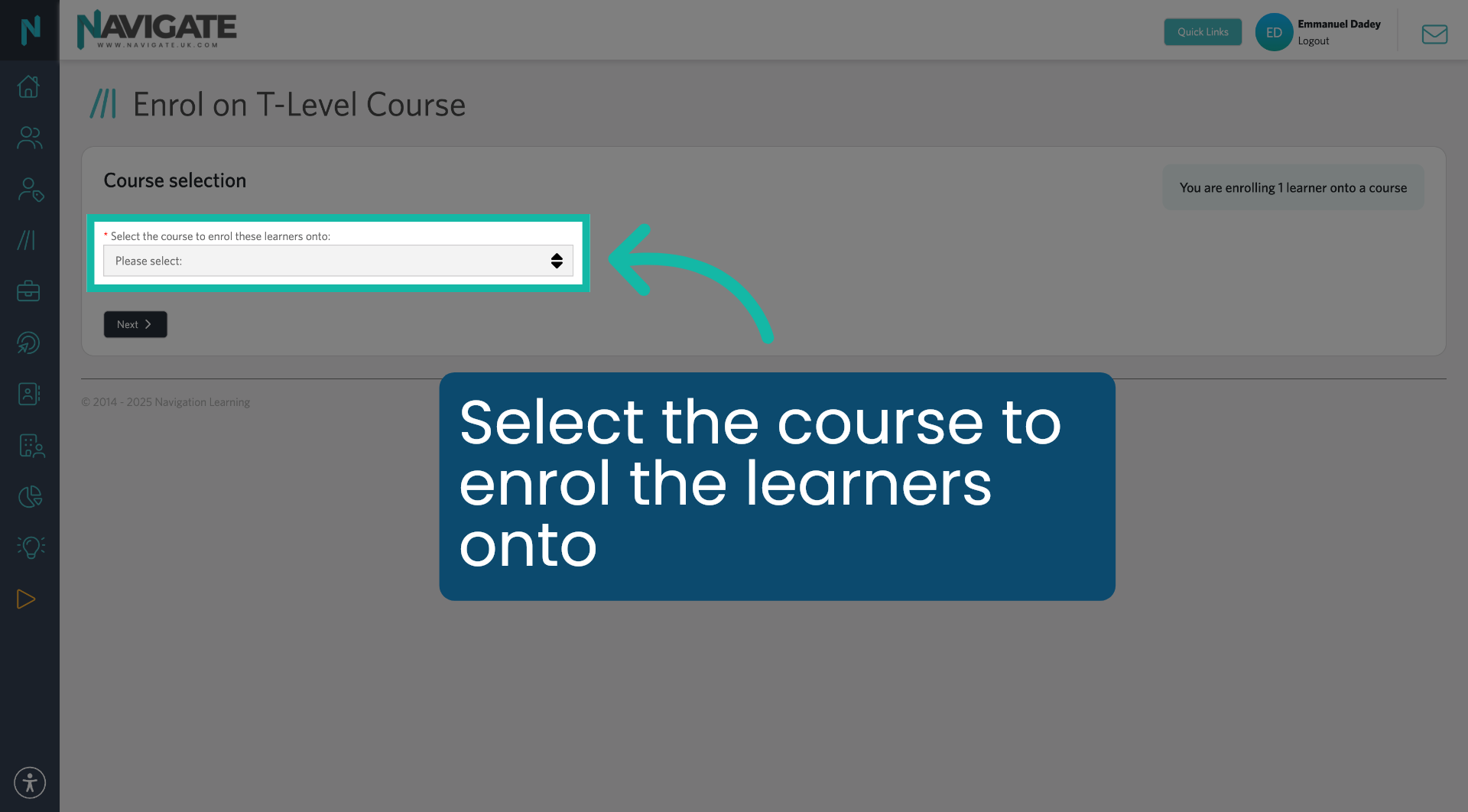
12. Choose From the Dropdown
Choose from the drop-down options.
13. Proceed to Next Step
Click next to continue.
14. Choose Start Date Value
Select the course start date. This doesn't have to match college enrolment dates exactly.
15. Confirm End Date
The course end date is pre-filled but can be adjusted if needed to match the date. The student is due to finish their program.
16. Click Next
Once complete, click next.
17. View Course Deliverables
You will now see the course deliverables.
18. Proceed After Tutor Selection
This next stage doesn't require any information. Click next to continue.
19. View Enrolment Details
Click "View Enrolment'' to review the student's current course enrolment information.
20. Edit Course Enrolment Details
Click "Edit Course" and "Enrolment Details" to update the student's course information if needed.