Go to login.navigate.uk.com
1. Introduction
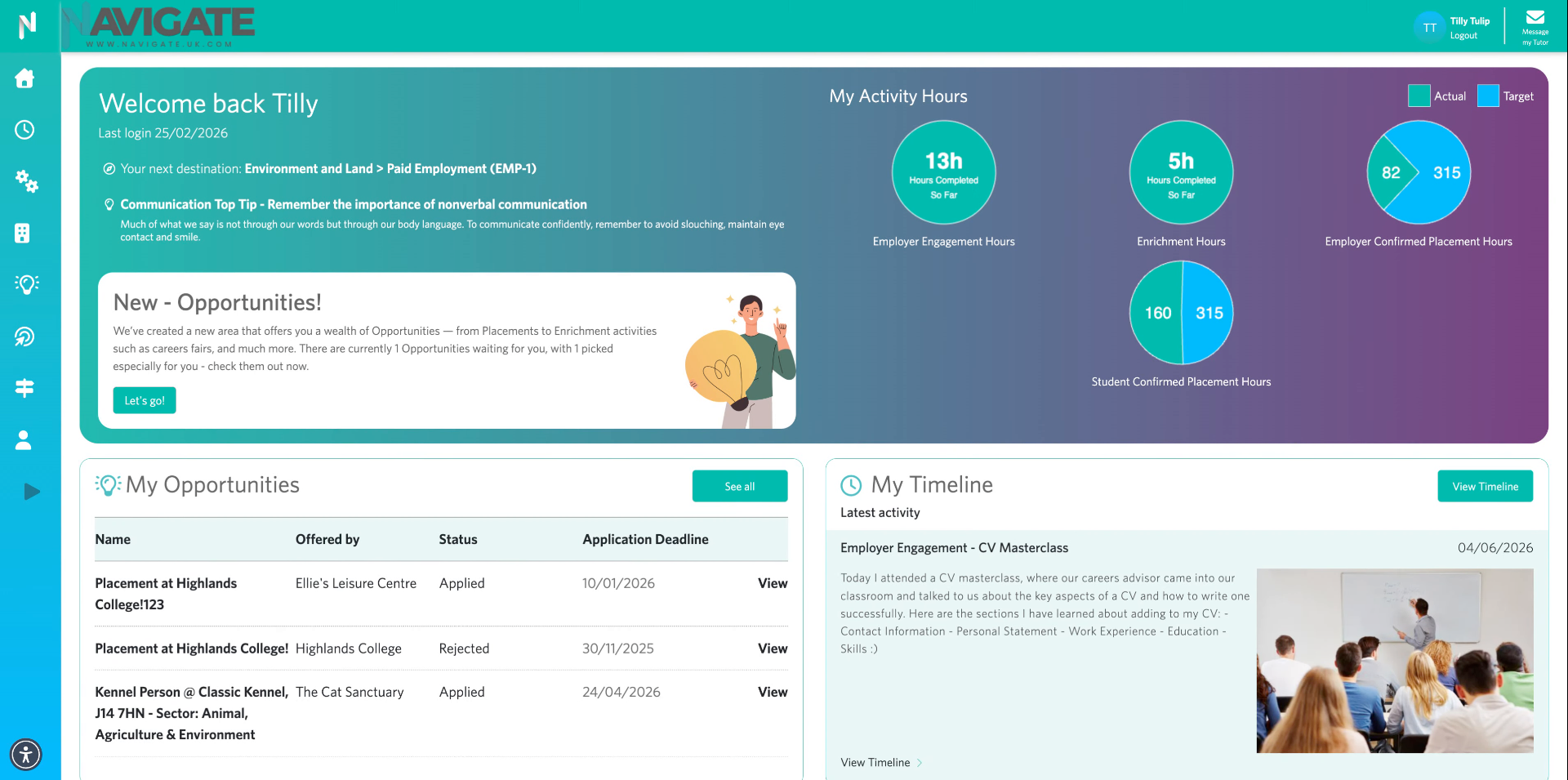
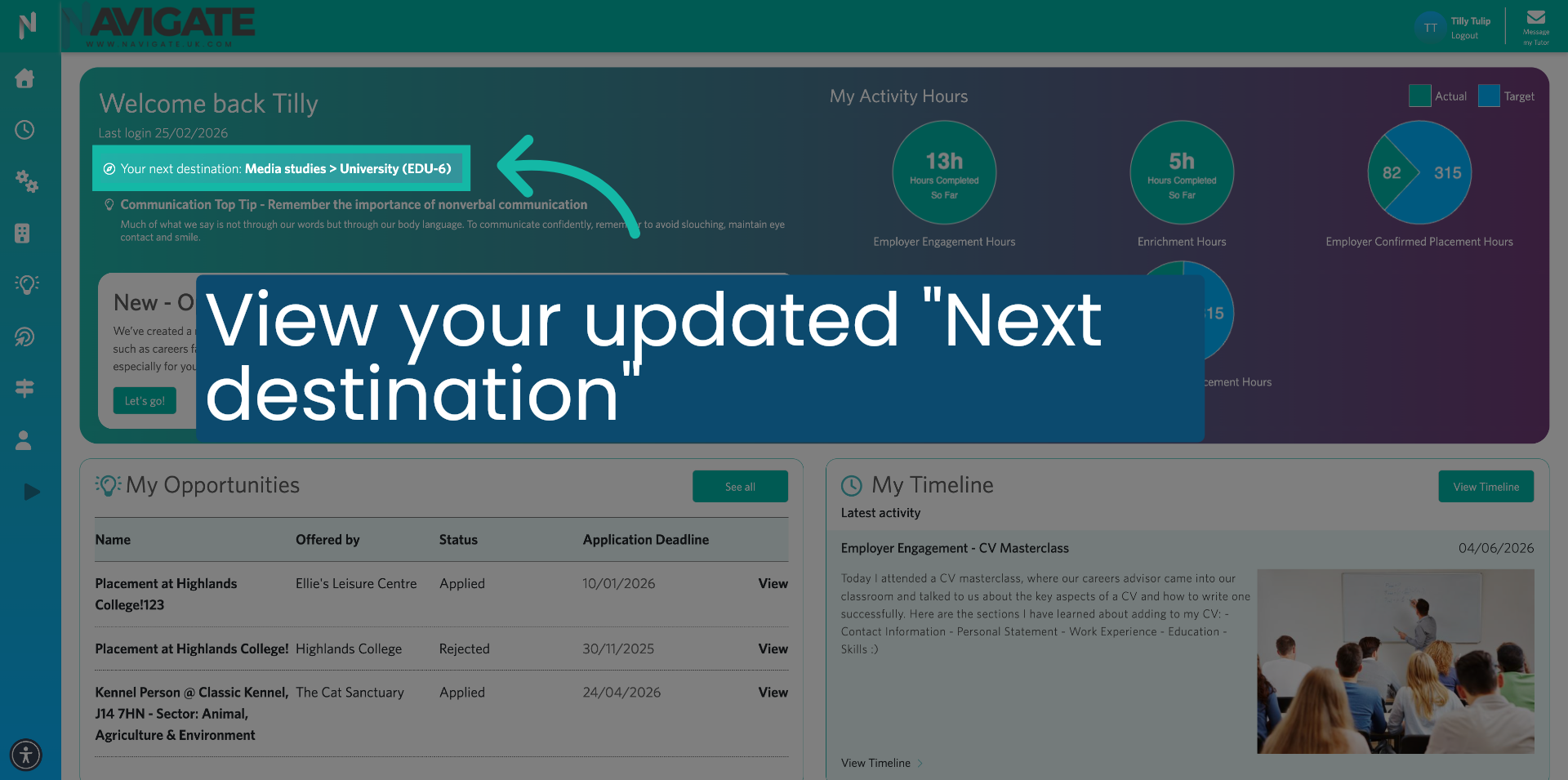
Your next destination is what you want to be doing in the near future, such as university, a gap year or an apprenticeship. Your next destination sits at the top of your homepage as a constant reminder every time you log in.
2. Access Profile Settings
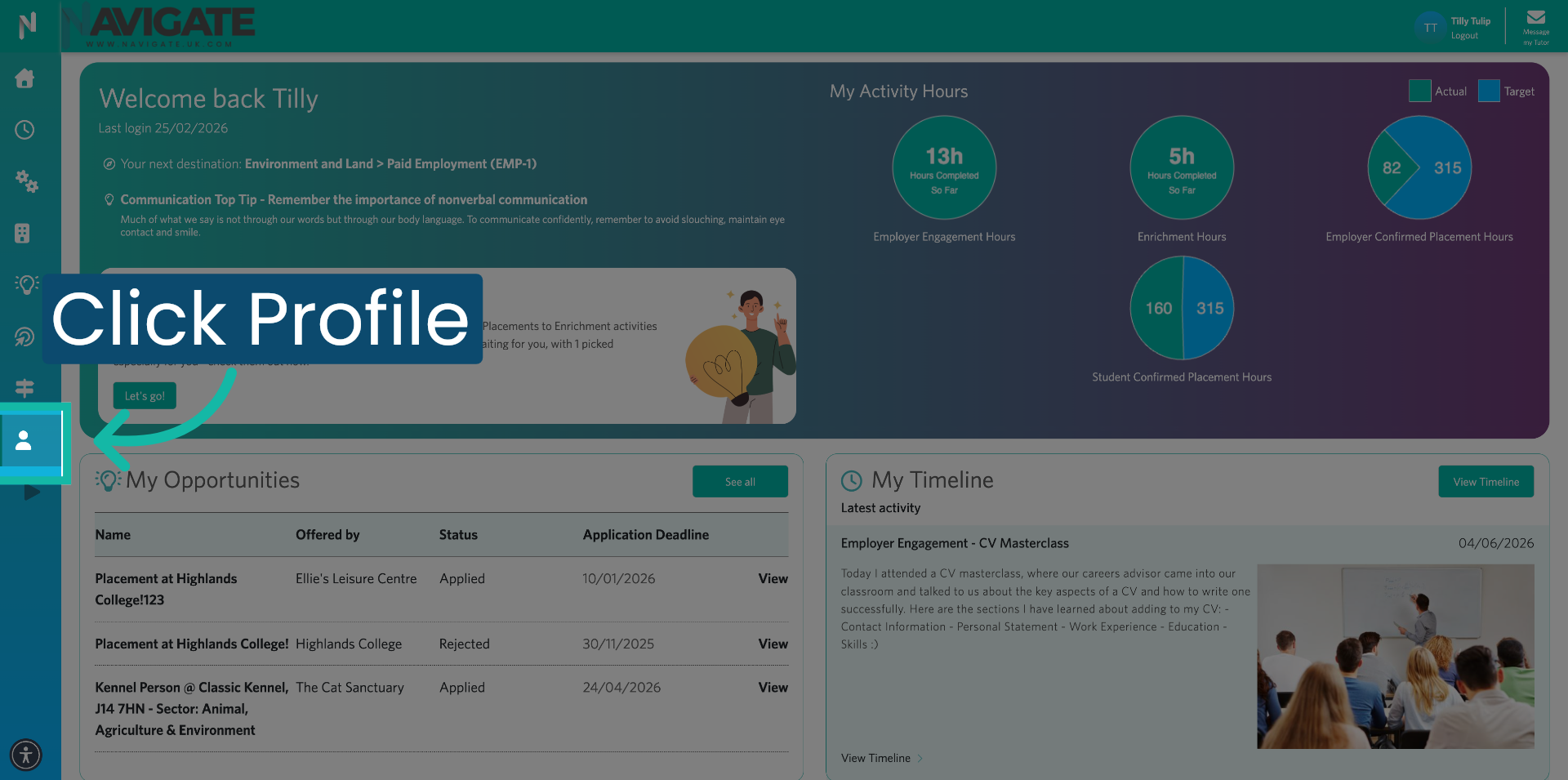
Once logged in, click on 'My Profile', the person icon along the left of your screen.
3. Your Next Destination Section
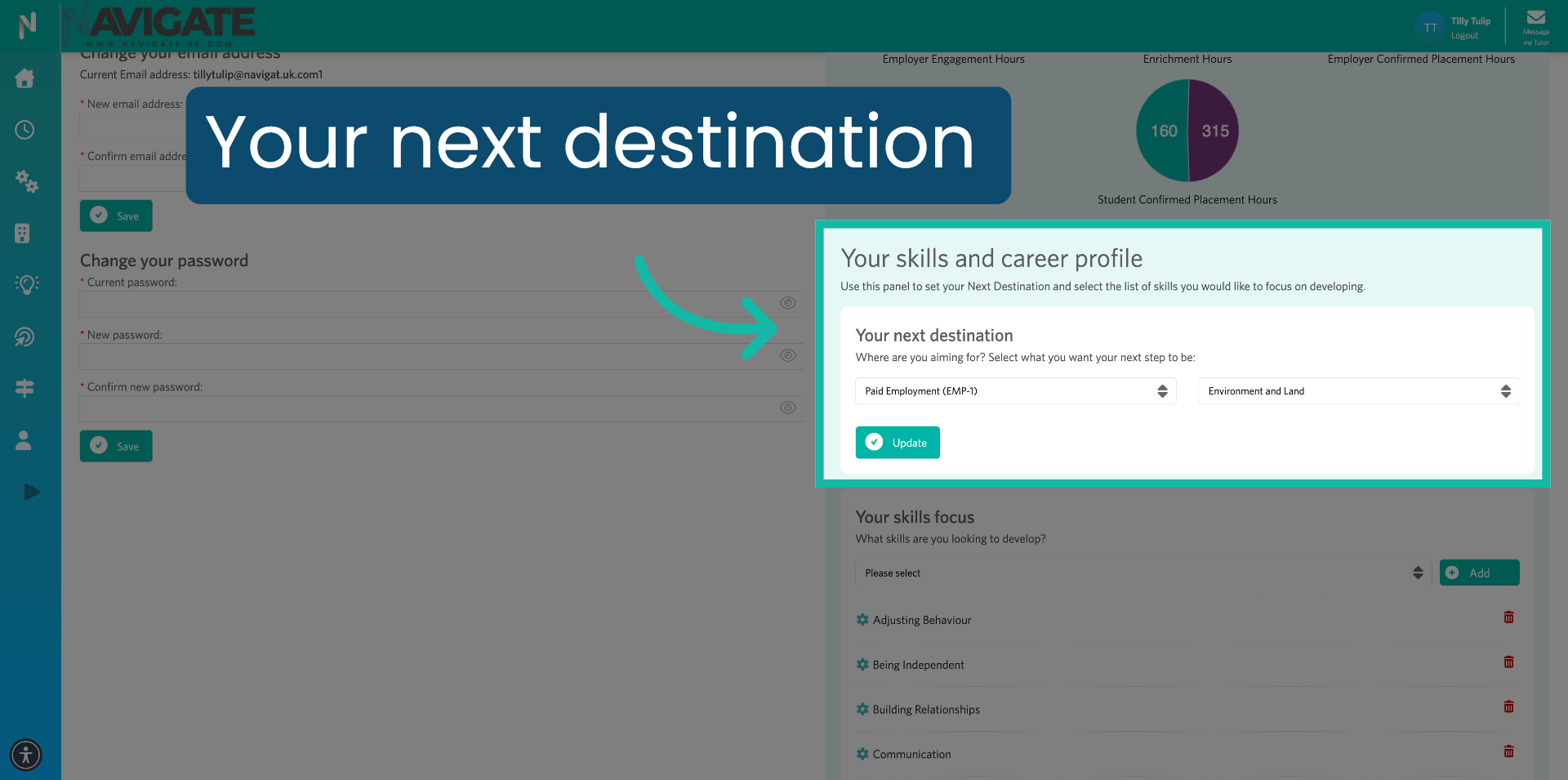
Under the 'Your Skills and Career Profile' panel, you will see a section called 'Your Next Destination'.
4. Select Destination Category
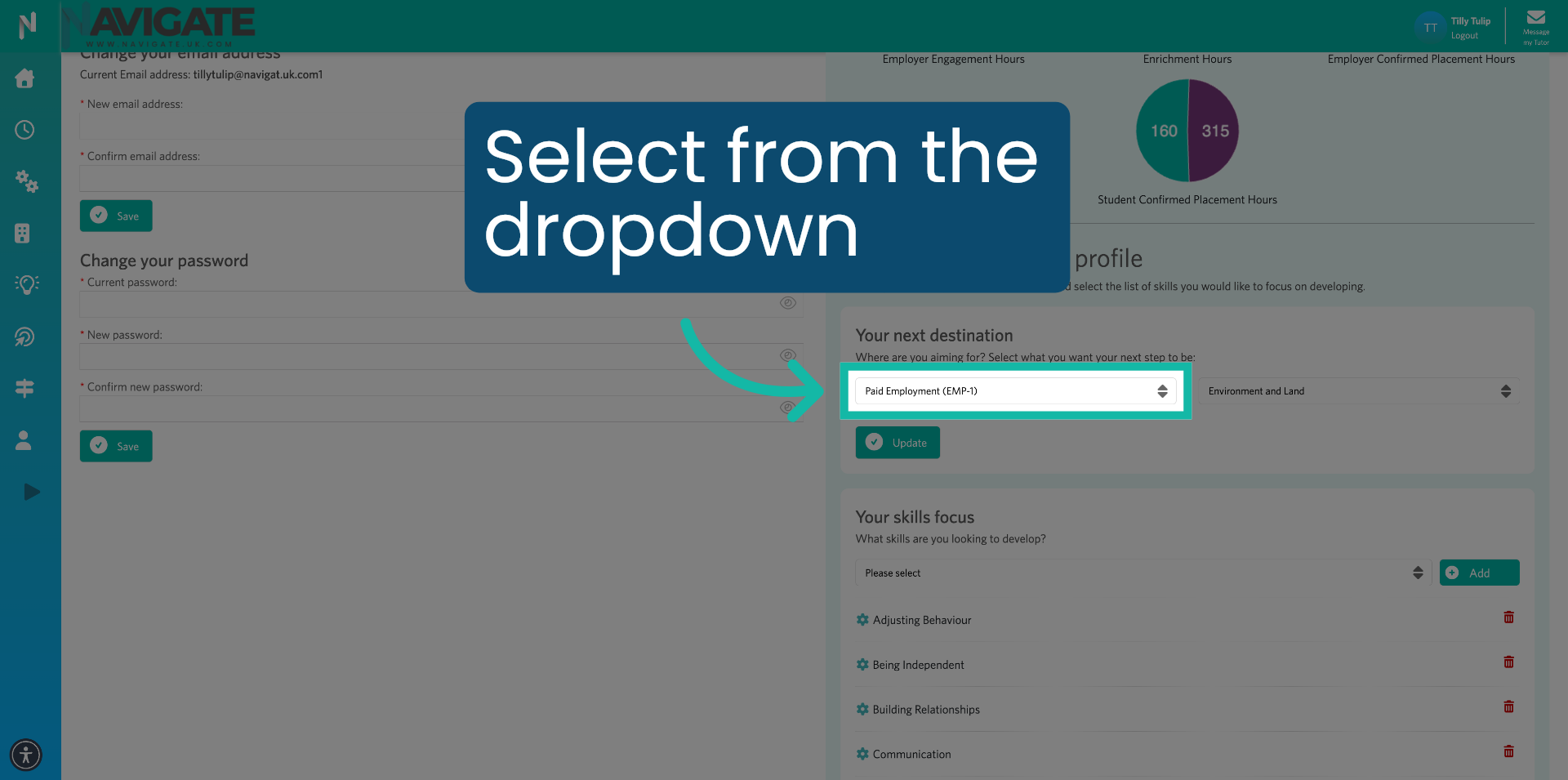
Click on the drop-down menus and select your next destination.
5. Choose Your Option
For example, if you wish to progress to university, select 'University'.
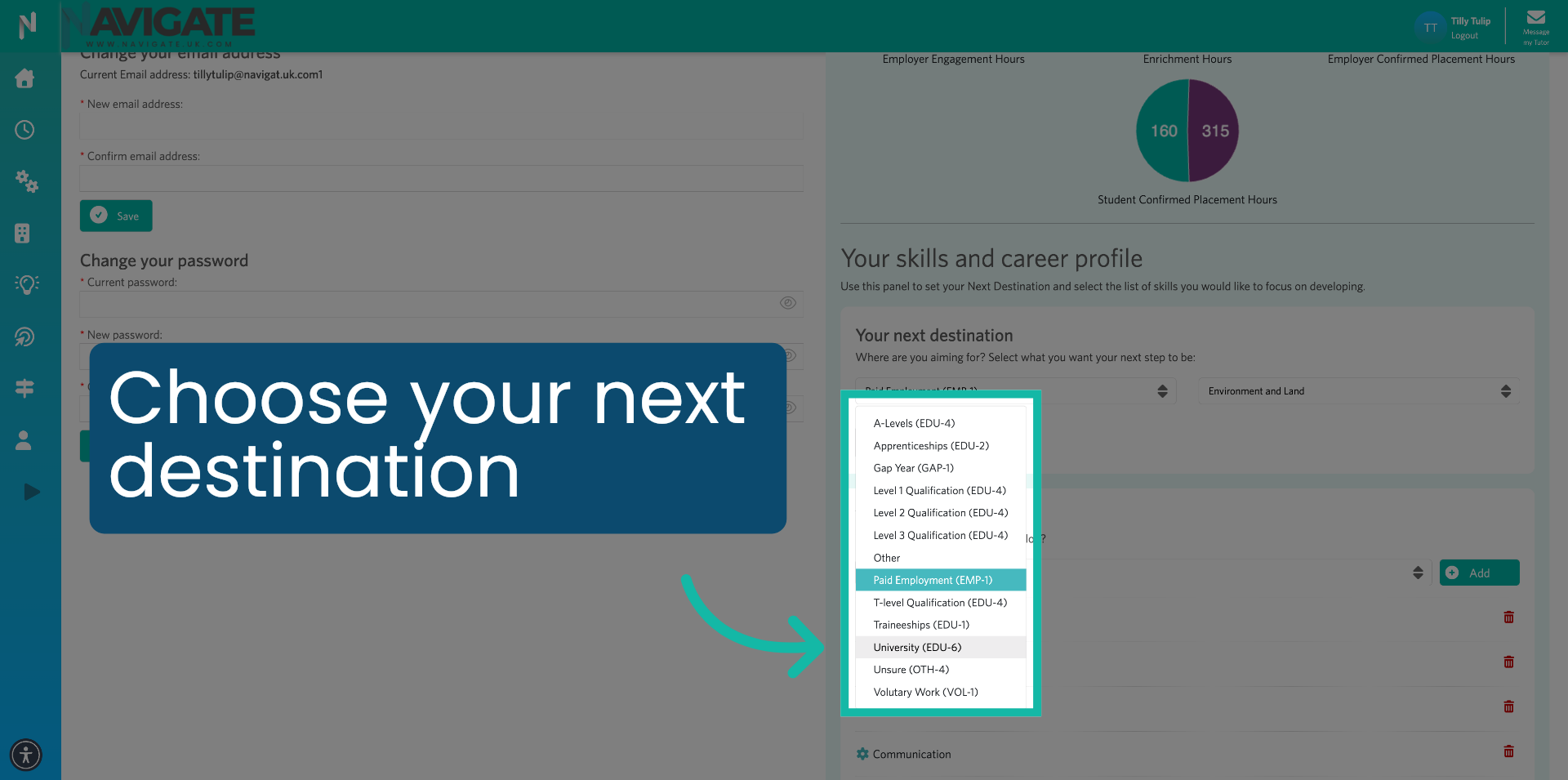
6. Select Field of Study
In the next drop-down, select the area or field of study.
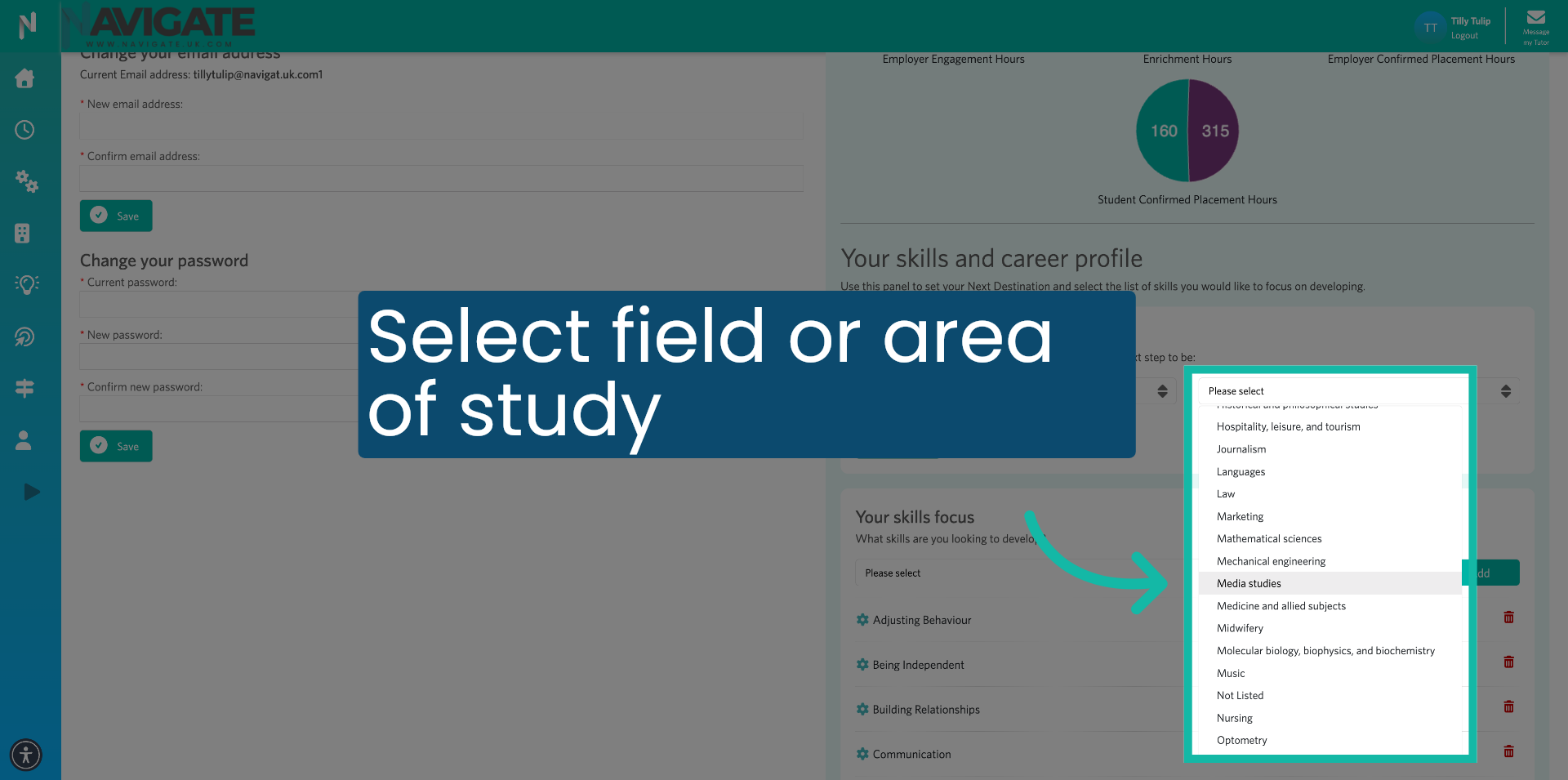
7. Save Destination Update
Click 'Update' to save your changes and apply the new Next Destination information to your profile.
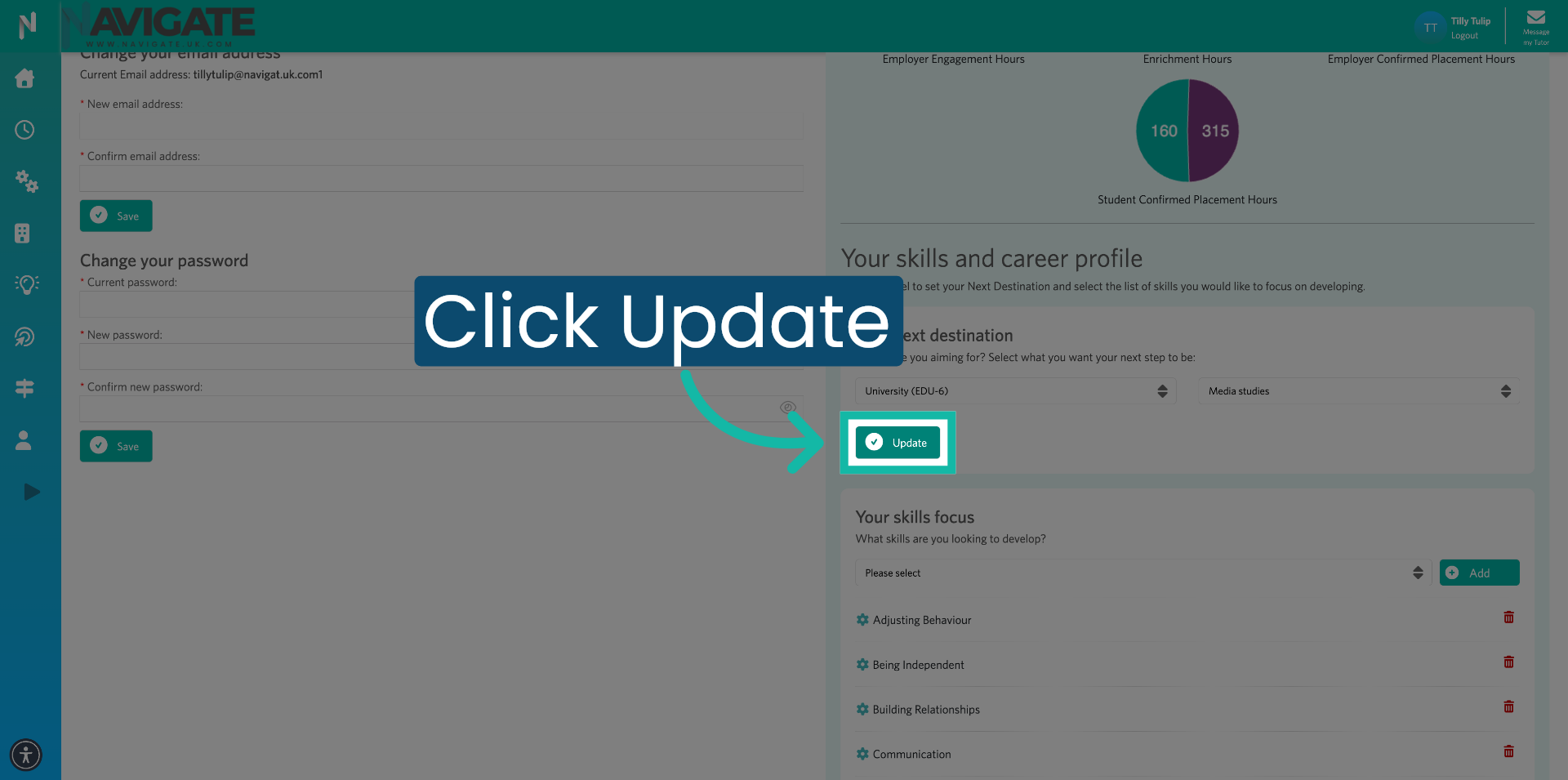
8. Confirm Update
To check the update has been added successfully, click into your homepage.
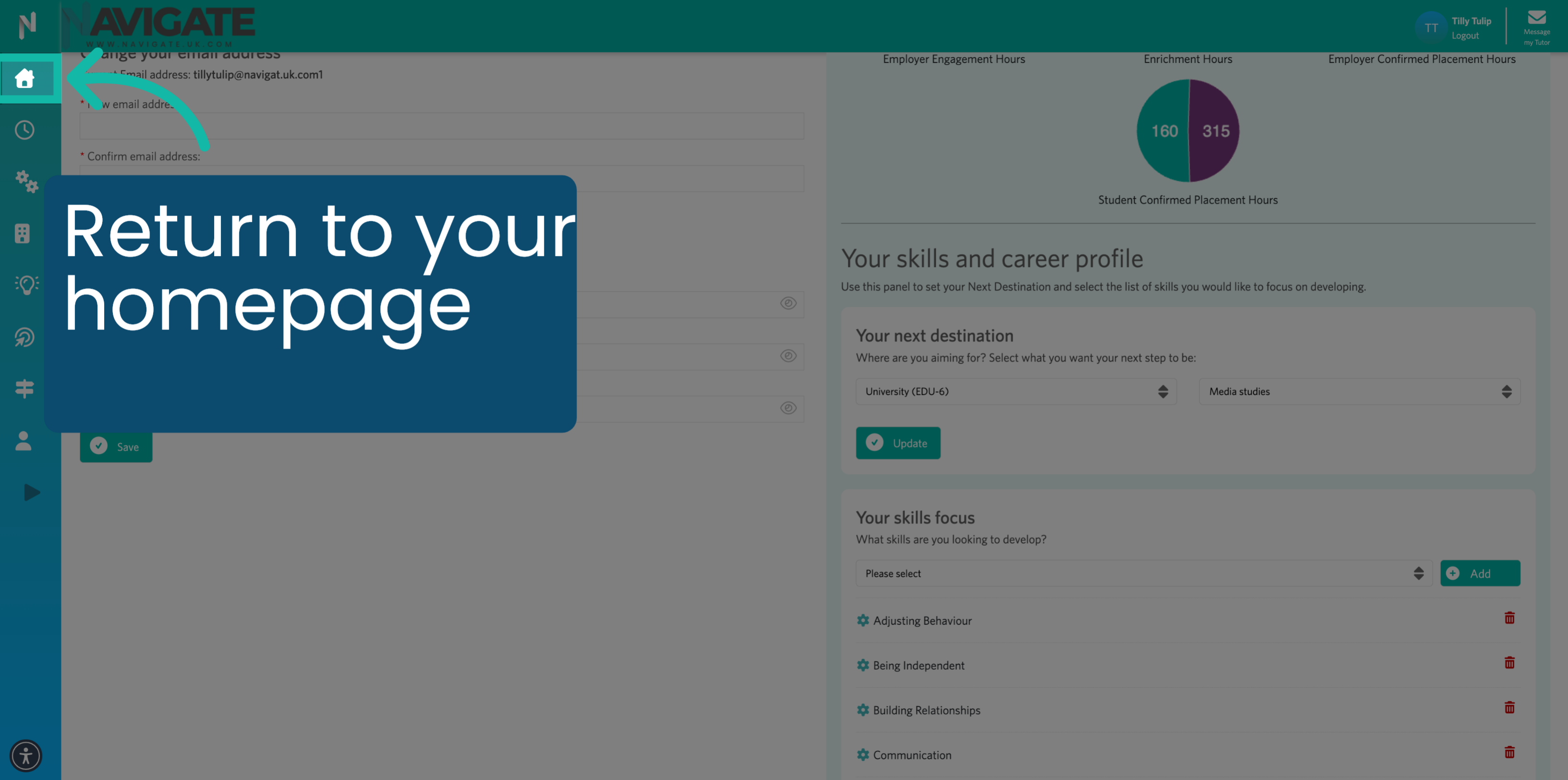
9. Review Updated Destination
Your next destination will now sit at the top of the page.
Was this article helpful?
That’s Great!
Thank you for your feedback
Sorry! We couldn't be helpful
Thank you for your feedback
Feedback sent
We appreciate your effort and will try to fix the article