This interactive demo shows how to configure target hours for students in Navigate. Please click on the steps shown on screen to progress.
Go to login.navigate.uk.com
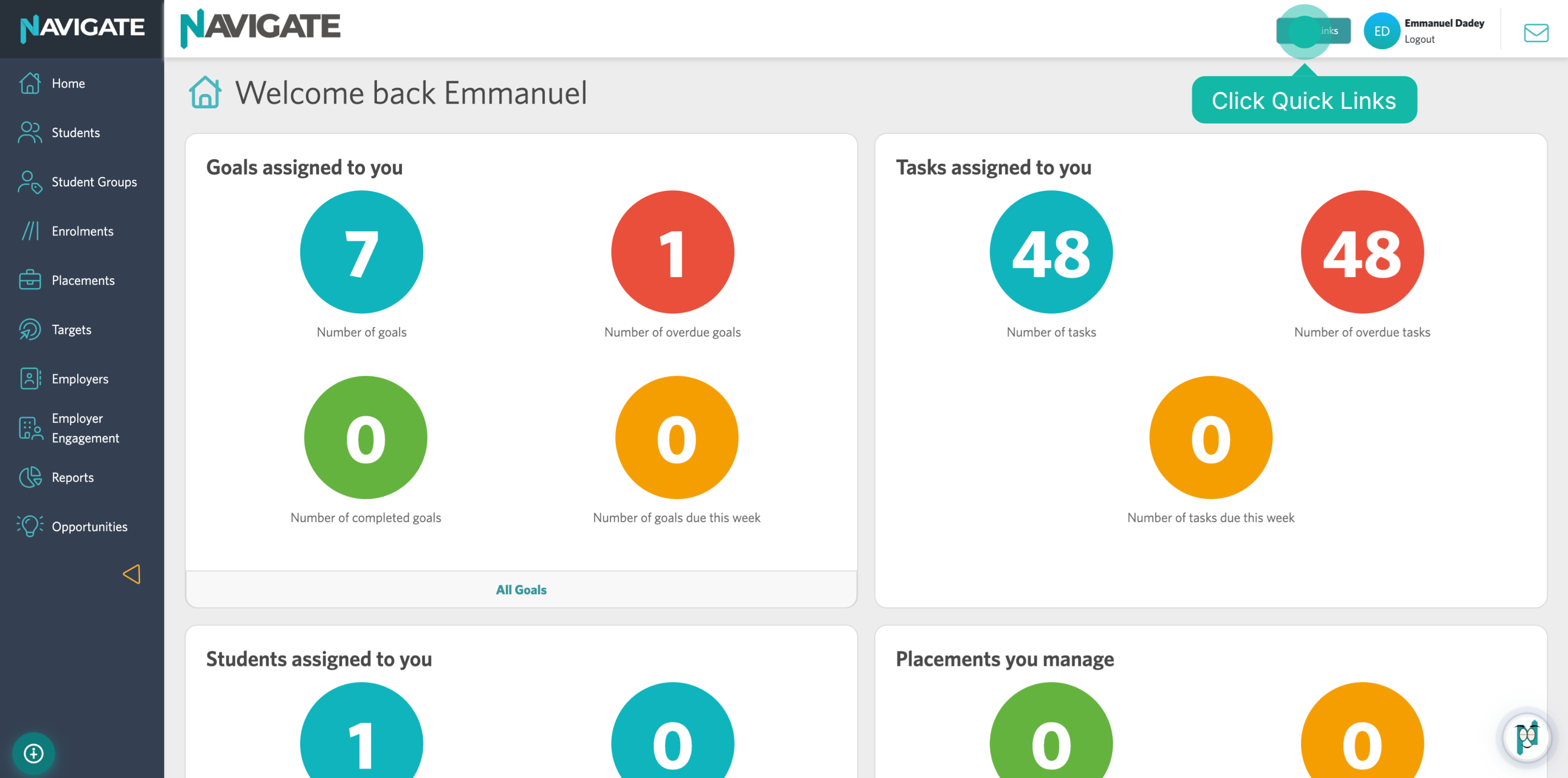
1. Access Quick Links Menu
Once logged in, click the Quick Links menu.
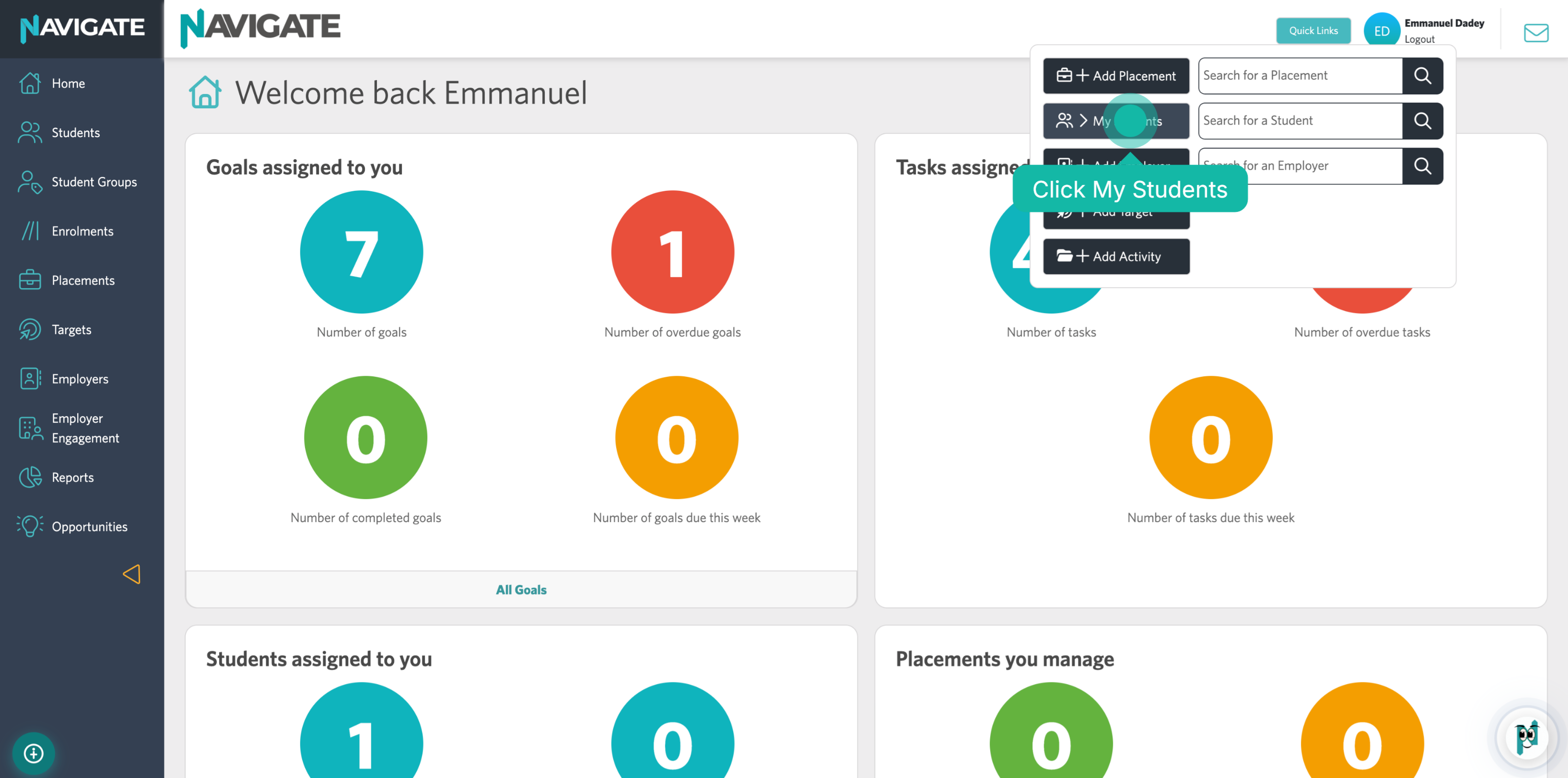
2. Navigate to My Students Section
Click on My Students section to view and manage your student list.
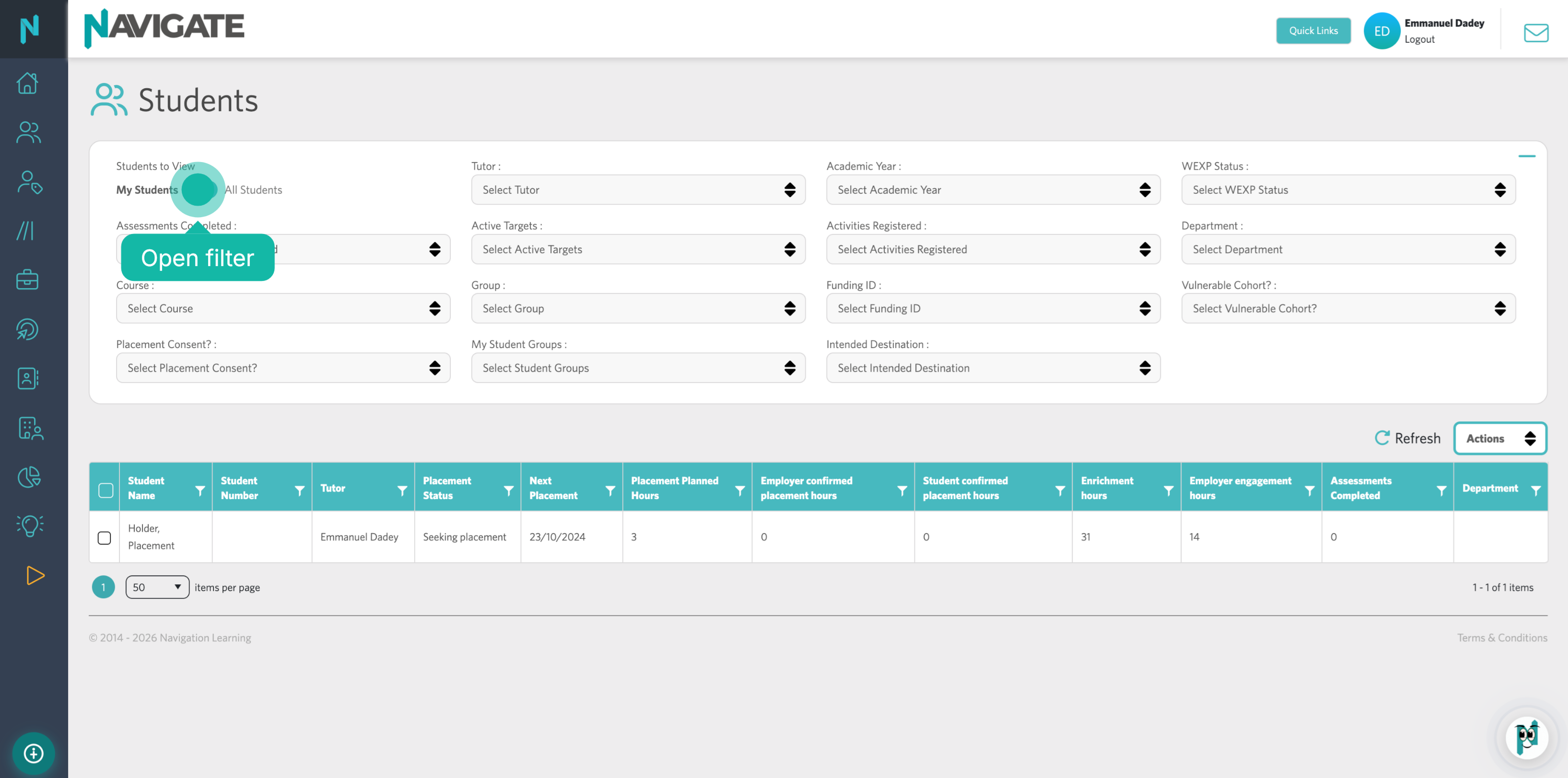
3. View All Students
Click the toggle to switch to the 'All students' view.
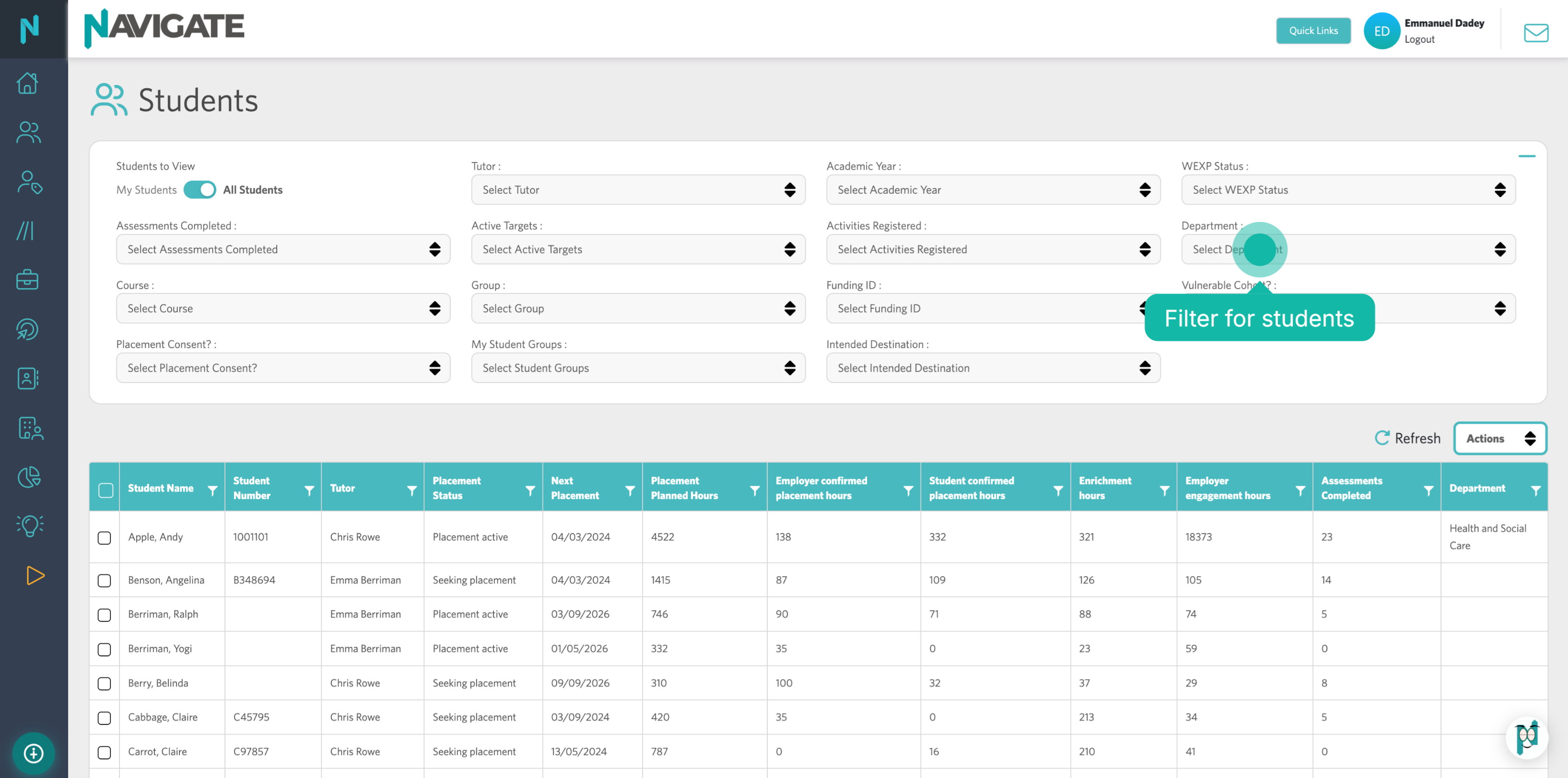
4. Filter For Students
Use the filters to select the correct group of students. Once selected, the students will appear in the grid below.
5. Select Students
Then click the 'tick-box' in the top left-hand corner of the grid. This will highlight all students that are displayed in the grid. If you don't want to set these target hours against any of the selected learners, simply deselect them.
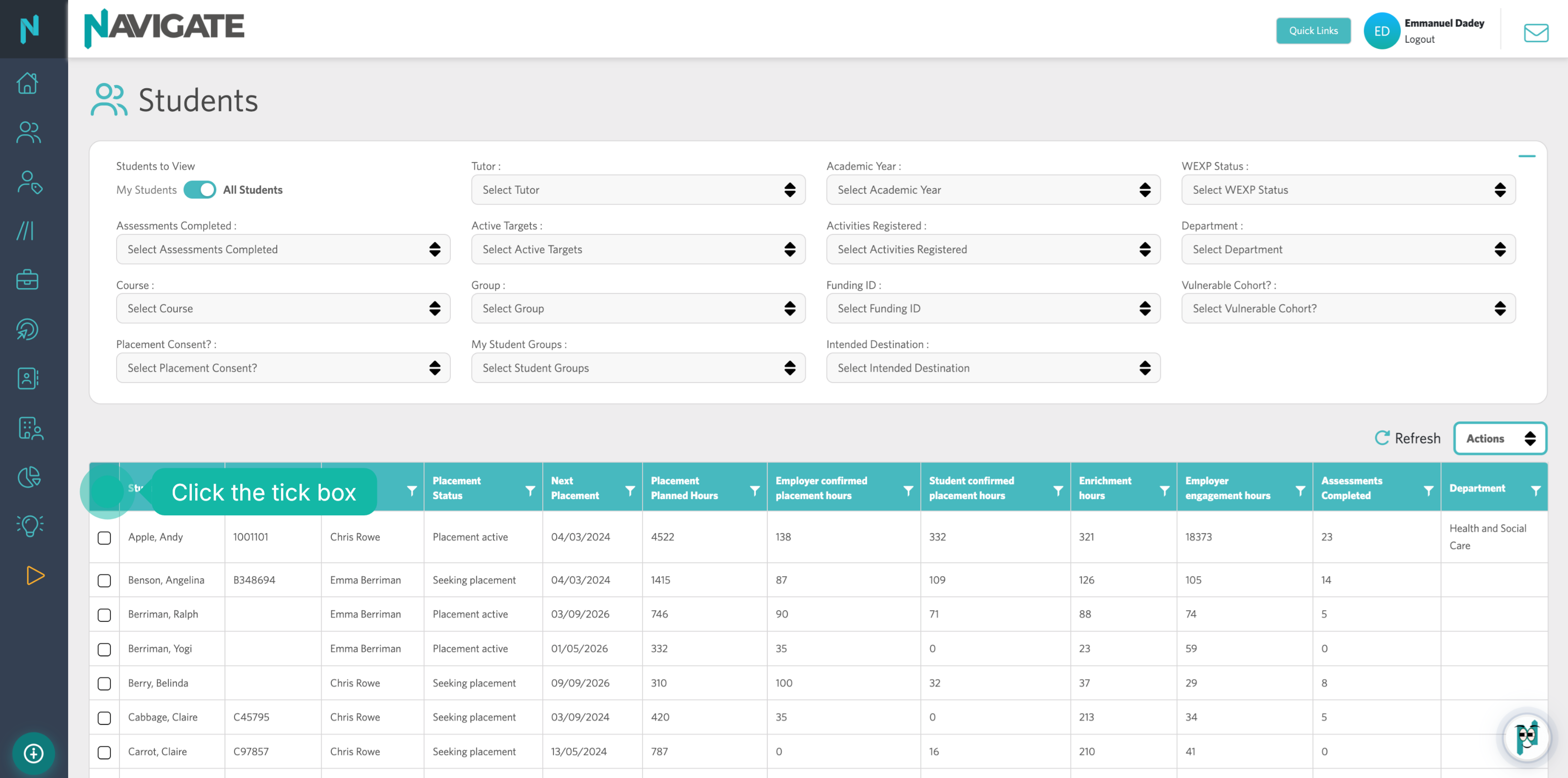
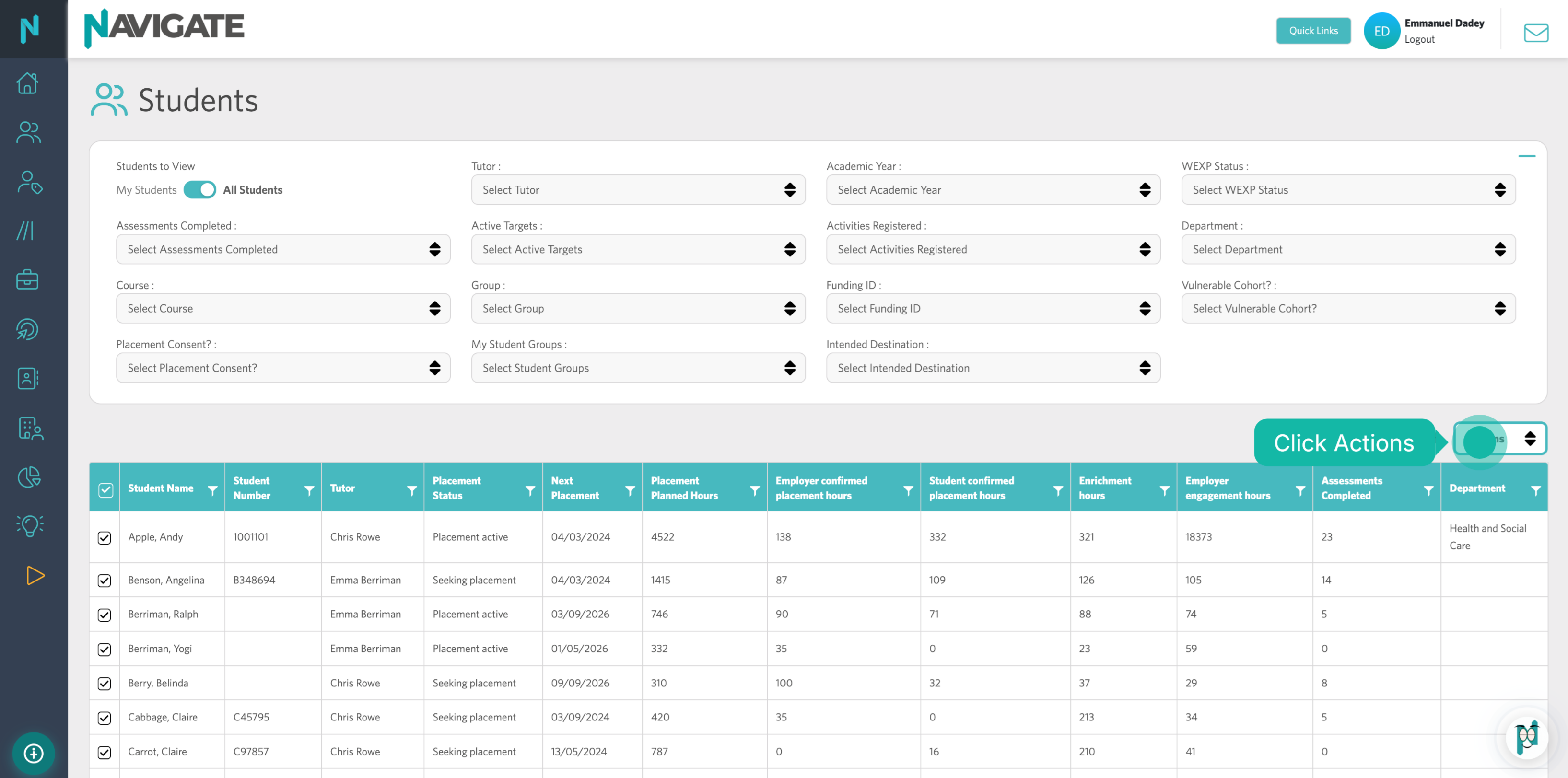
6. Open Actions Menu
Click the Actions menu.
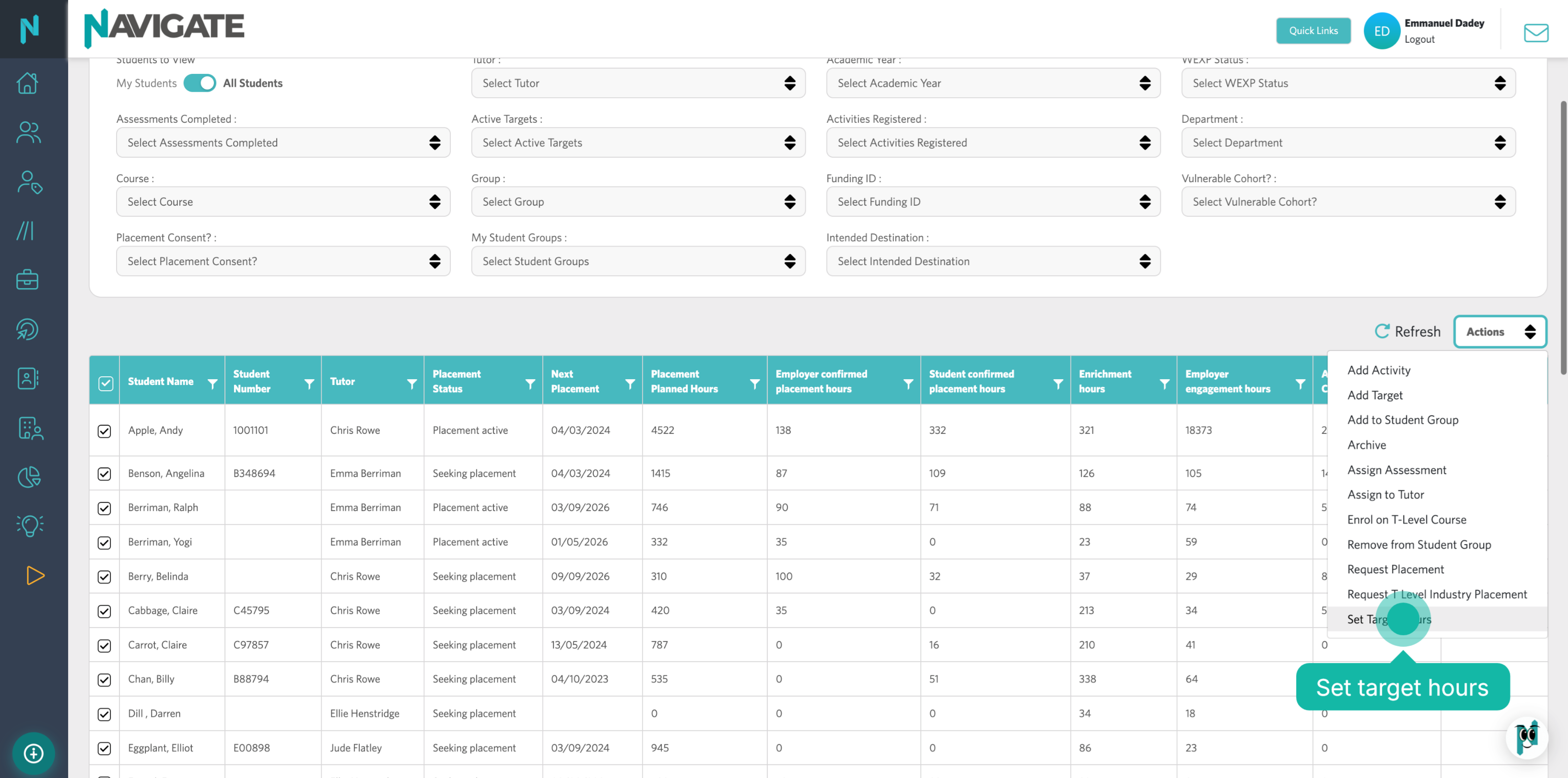
7. Choose Set Target Hours Option
Select the Set Target Hours option to add target hours for students.
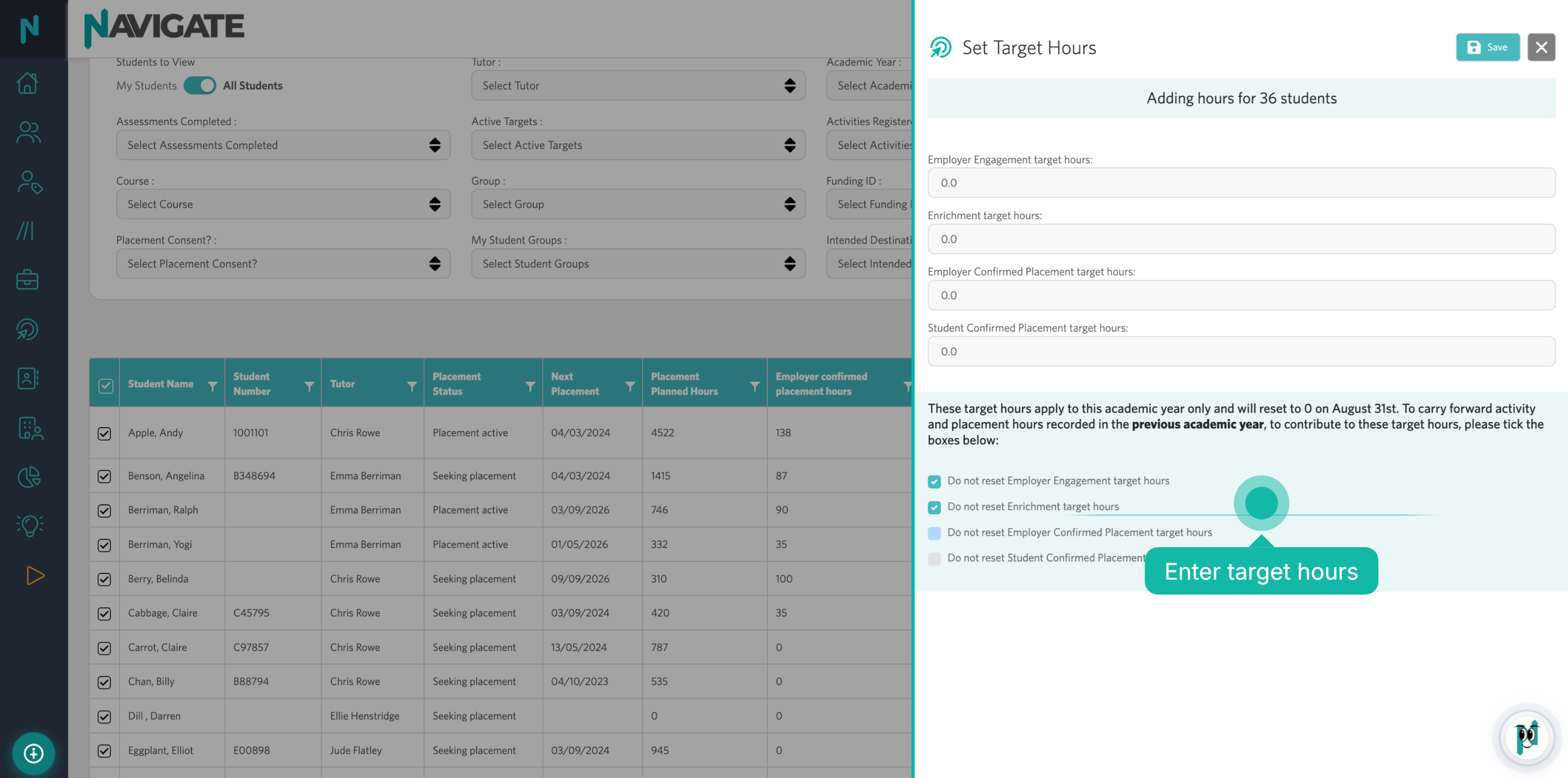
8. Set Target Hours
You can now complete the short form, setting target hours against your selected learners.
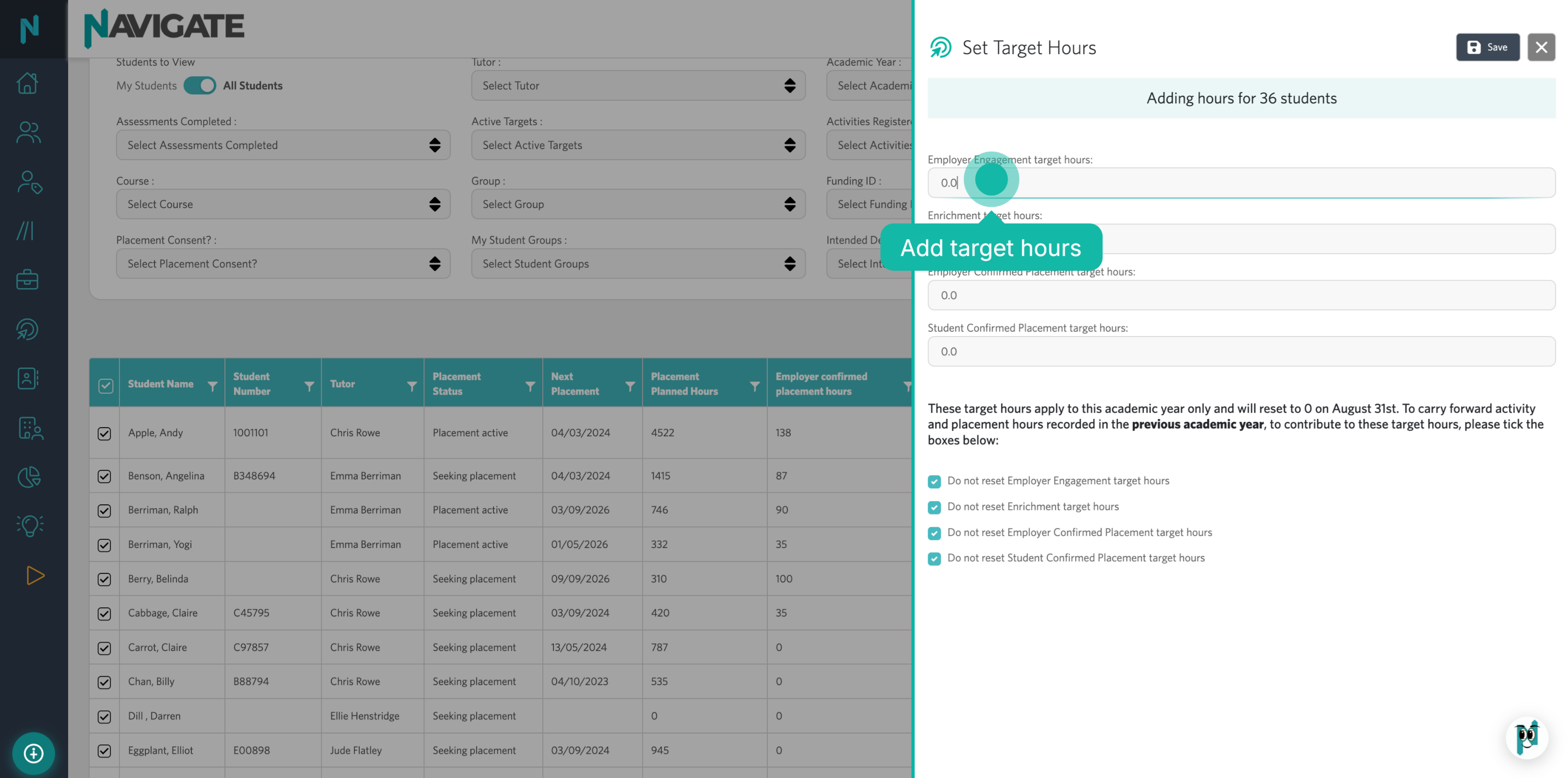
9. Do Not Reset for Returning Students
Remember to click 'Do Not Reset Target Hours' if the student is on a two-year course. This will ensure that all enrichment, employer engagement, and work placement hours will count up over their time at the college, rather than reset per year.
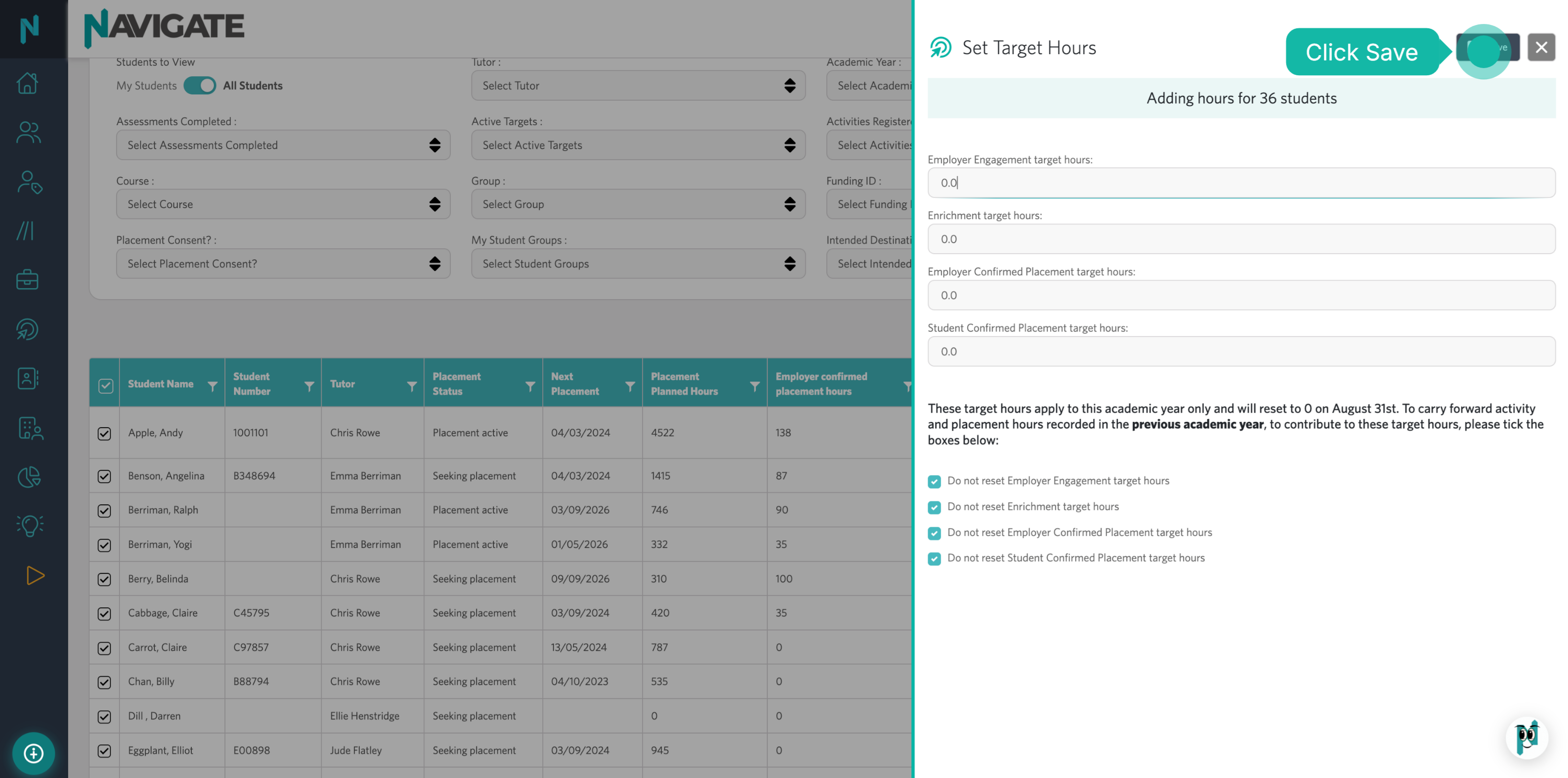
10. Save Target Hours Settings
Save all changes to target hours to apply the new settings for the students.
Was this article helpful?
That’s Great!
Thank you for your feedback
Sorry! We couldn't be helpful
Thank you for your feedback
Feedback sent
We appreciate your effort and will try to fix the article