This tutorial provides step-by-step instructions for configuring your Navigate dashboard and finding the accessibility settings.
Go to navigate.uk.com
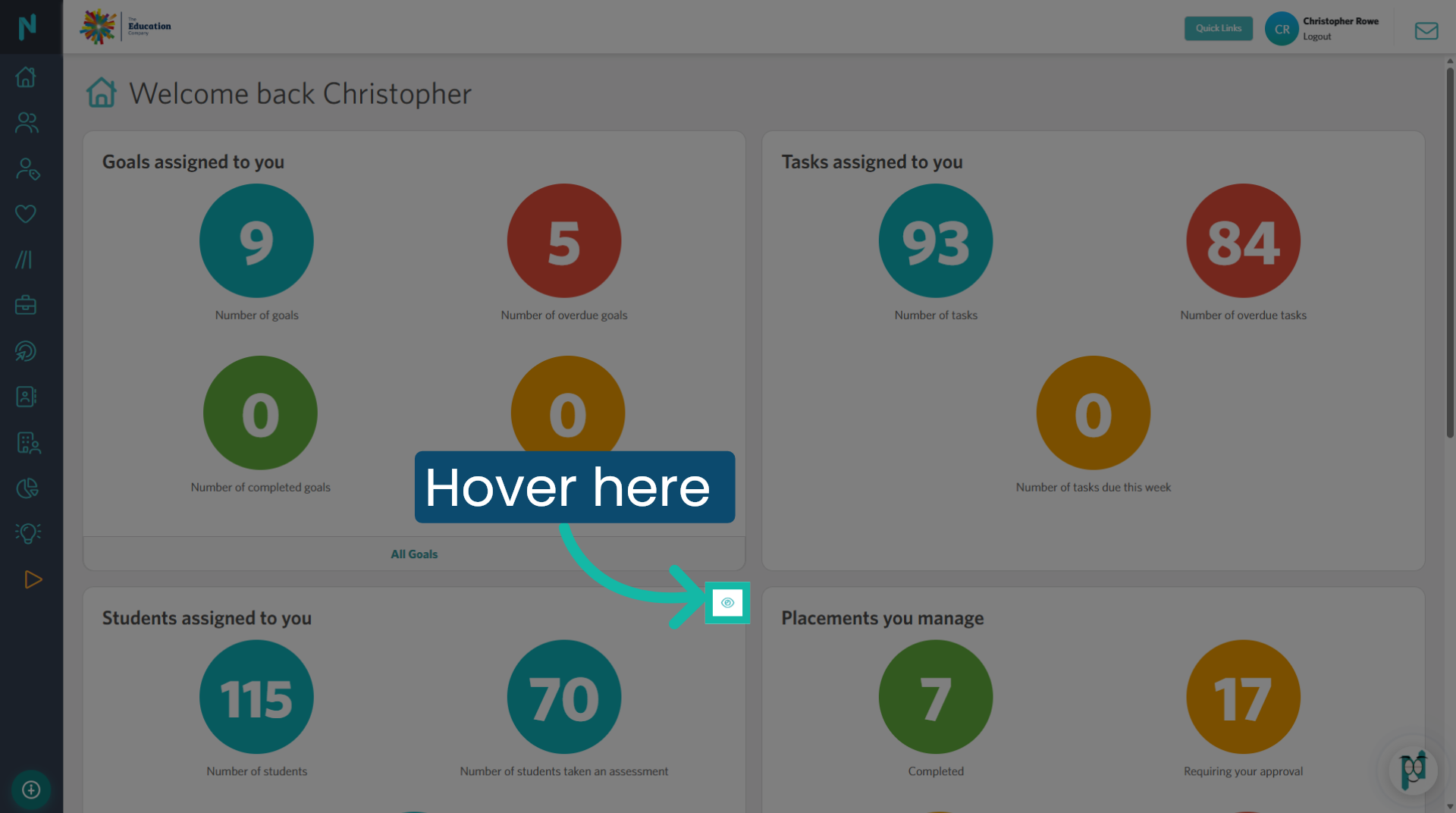
1. Tile 'View' icon
Each dashboard tile includes an 'eye/view' icon positioned in the top right corner of each tile. Hover over this area to locate it.
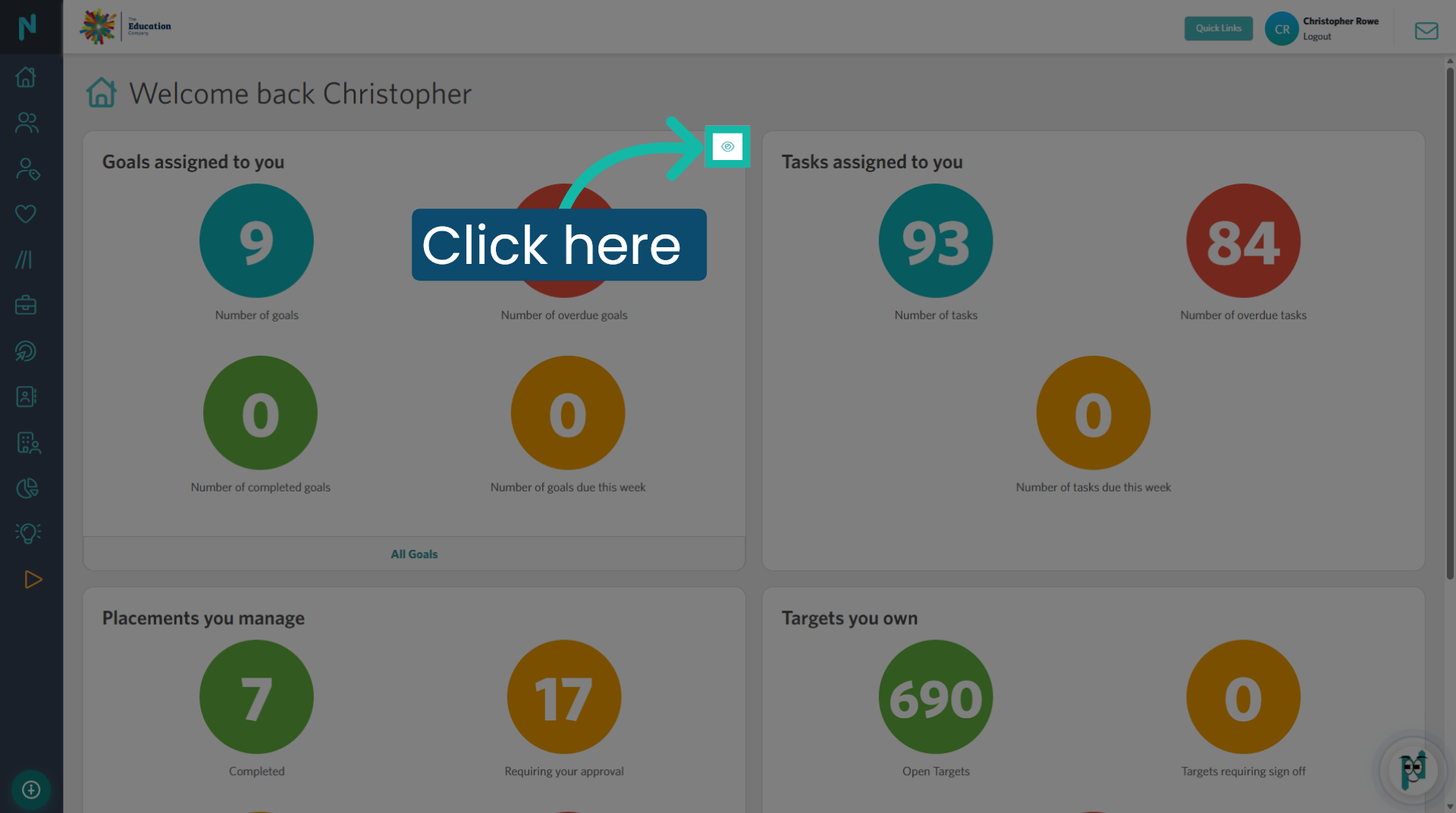
2. Click icon
Click the 'icon' to remove the tile from your dashboard.
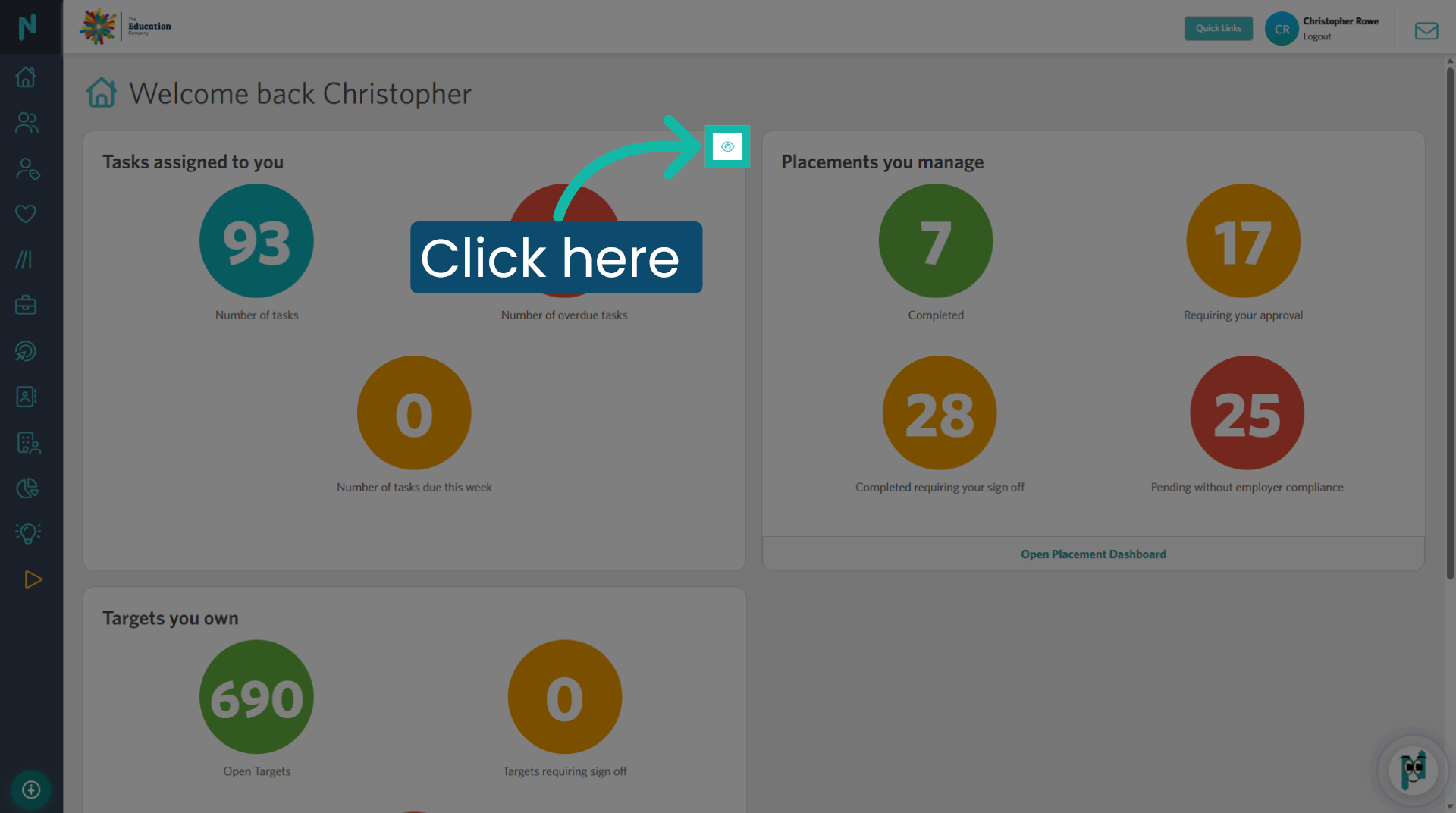
3. Repeat as required
Continue this process until you have only the necessary tiles required to navigate your daily tasks.
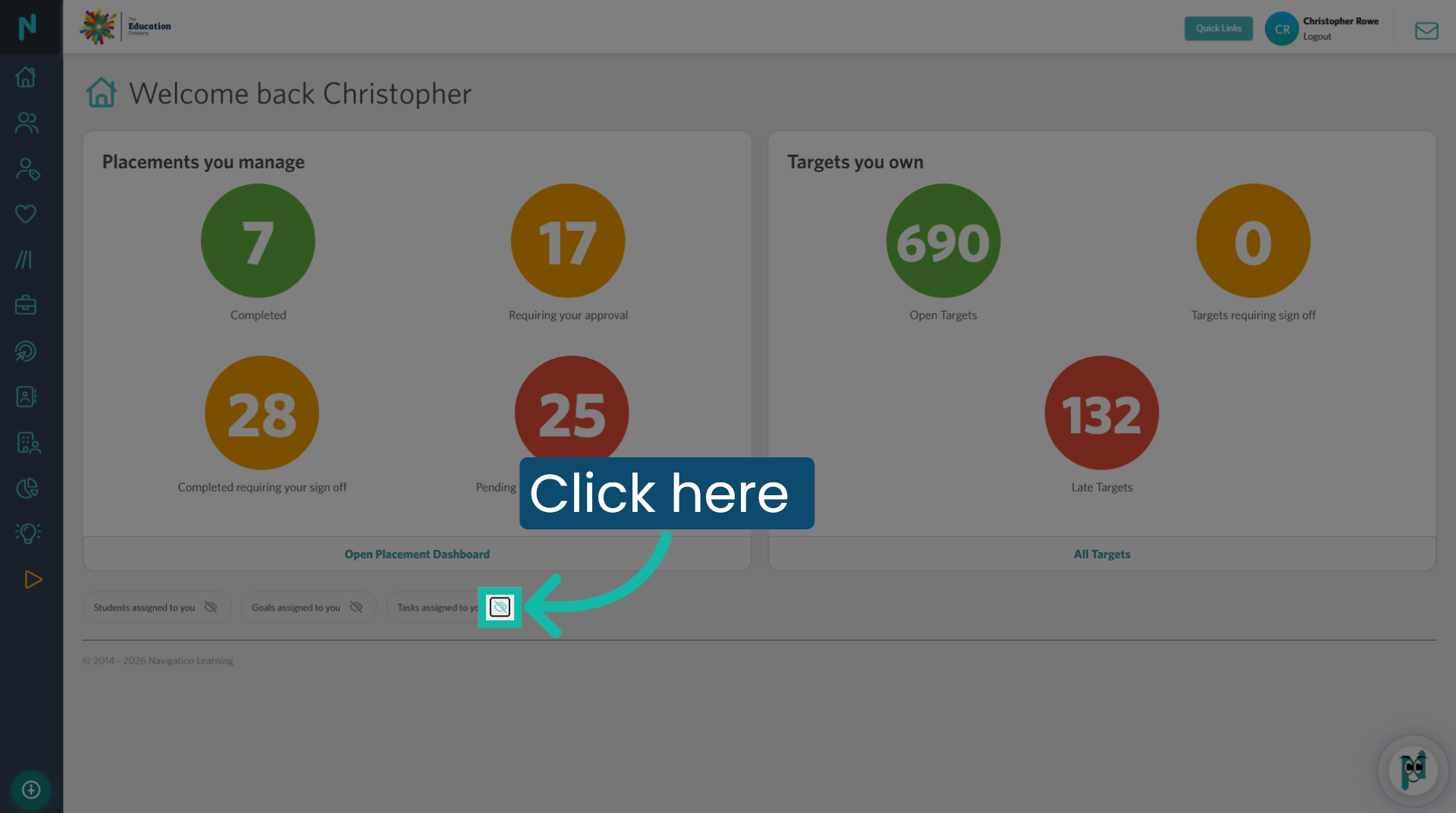
4. Hidden tiles
The 'hidden tiles' can be found at the bottom of your homescreen. Just click the 'icon' on the panel you want to restore to your dashboard.
5. Open Late Targets Section
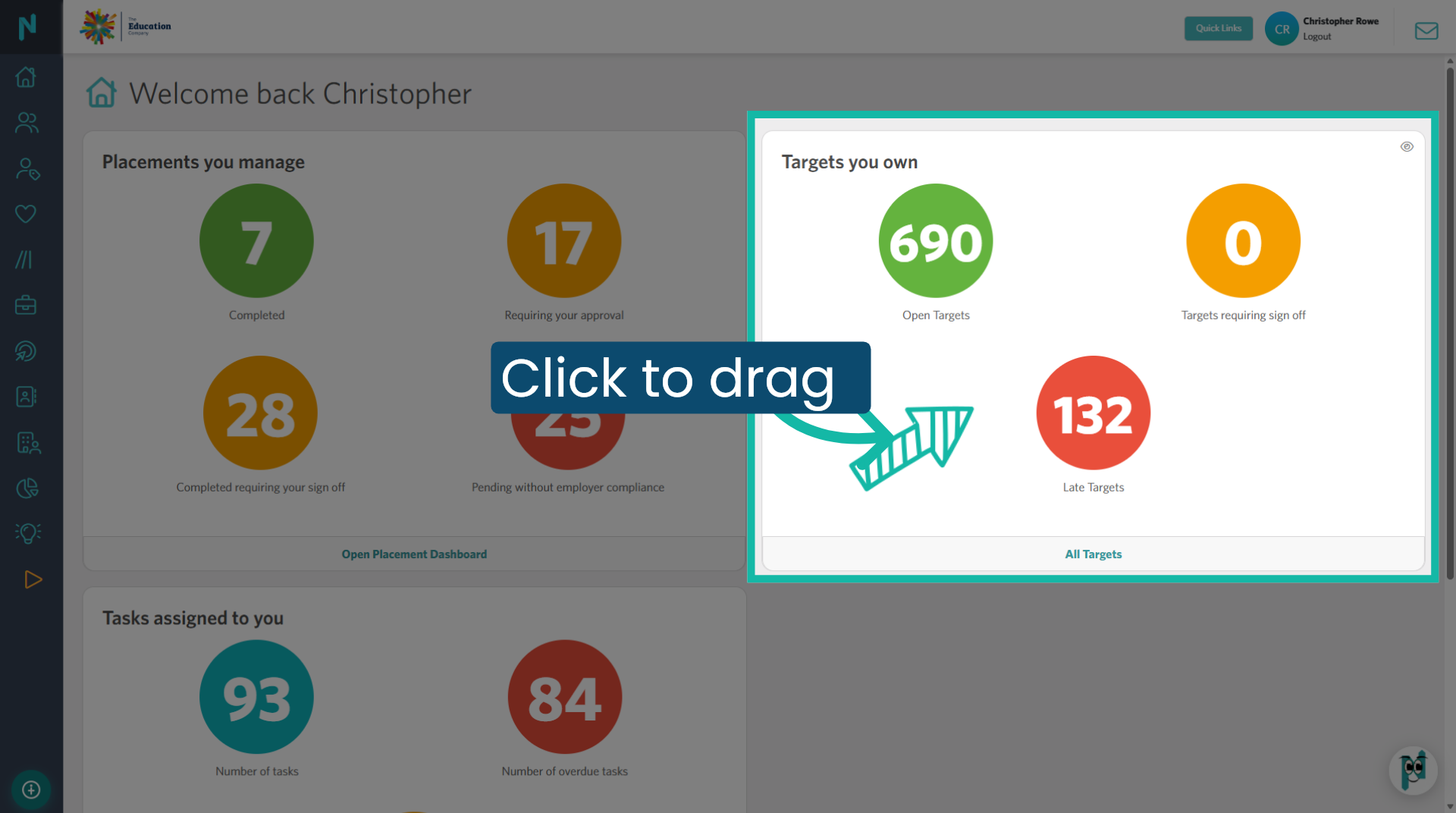
You can now arrange the position of your tiles according to your preference. Simply click and hold your cursor on a tile, then drag it to a different location.
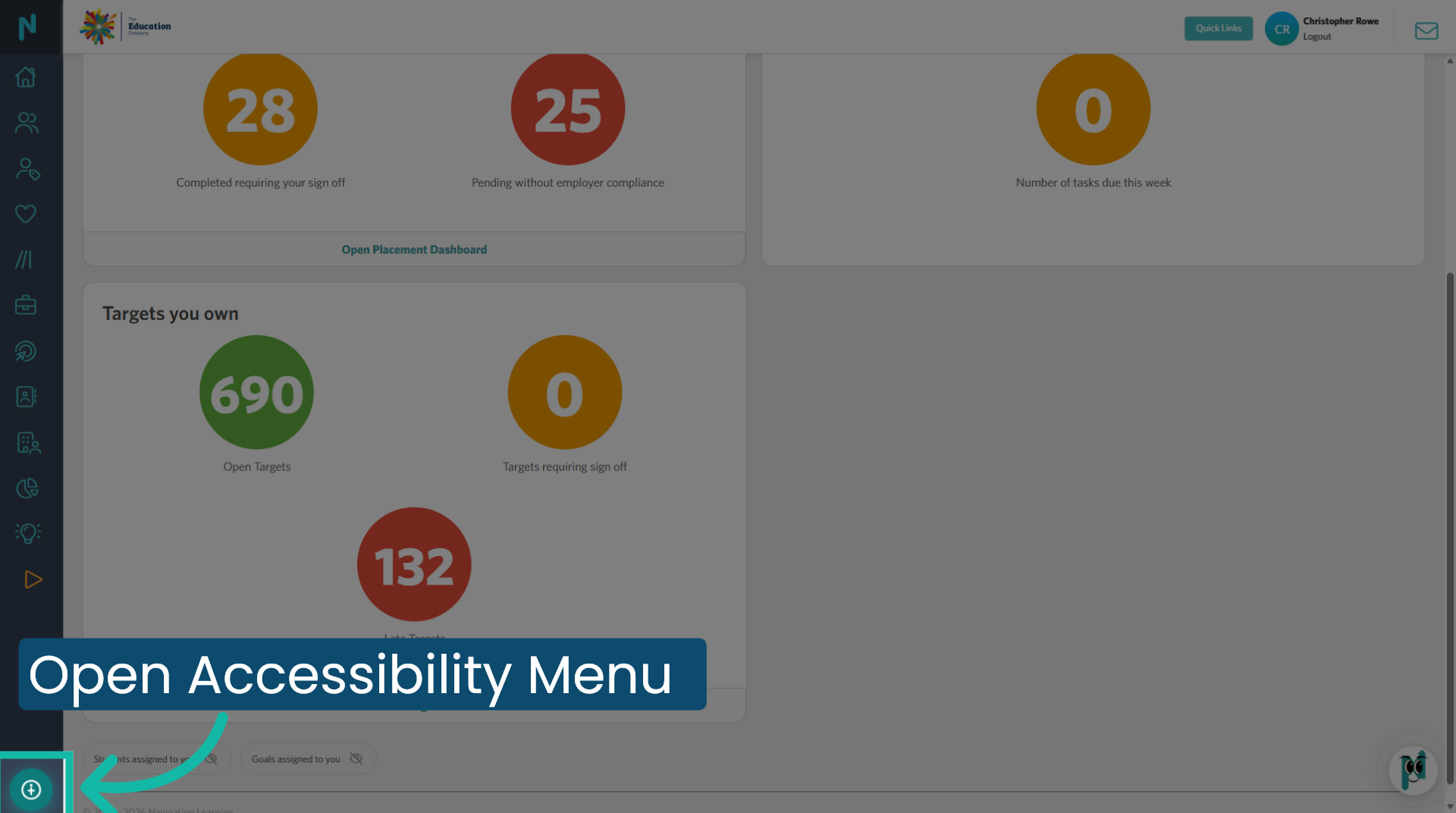
6. Open Accessibility Menu
Click to open the 'accessibility widget.' You can configure the settings within the widget to suit your specific needs or preferences.
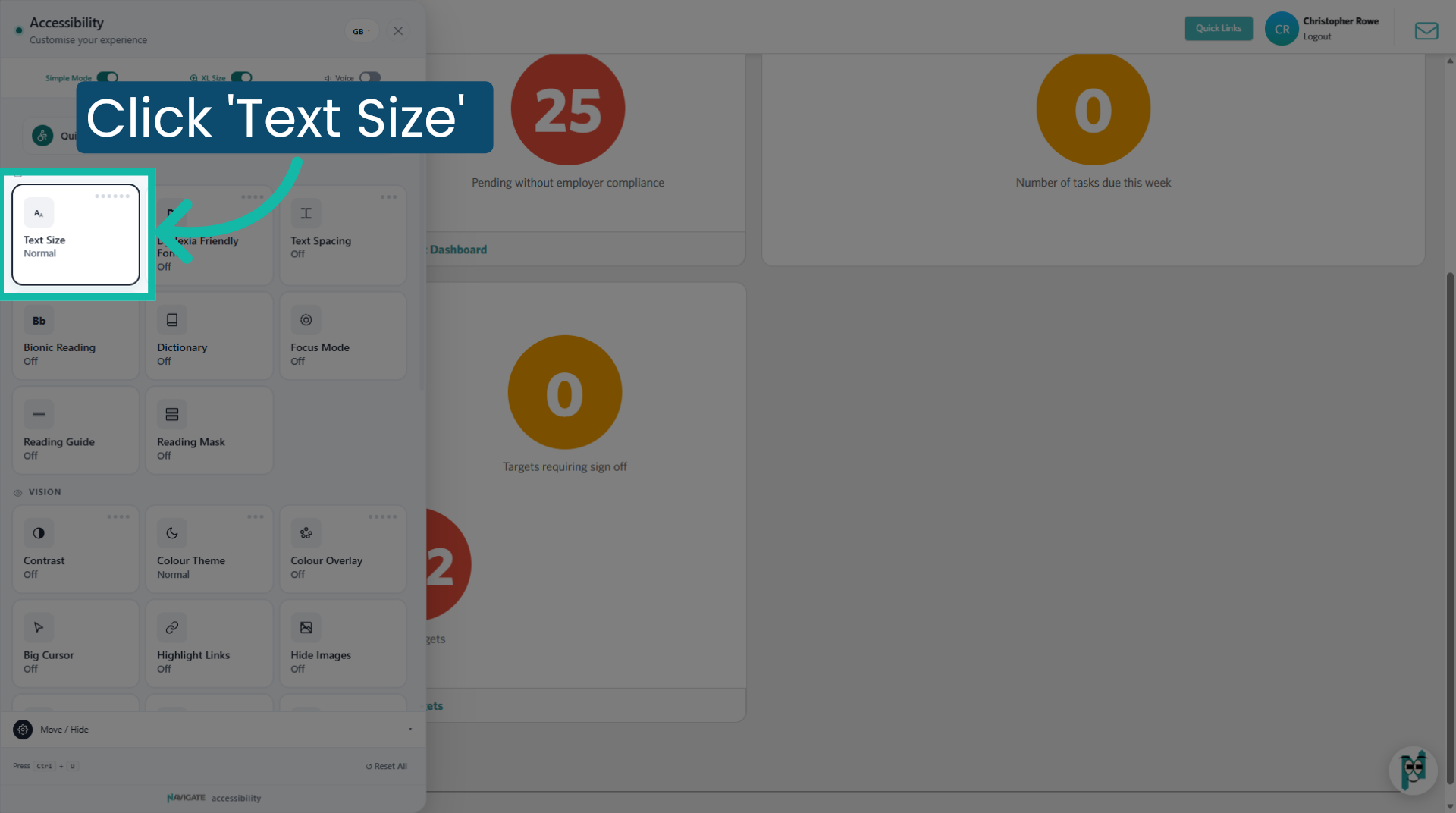
7. Adjust Text Size Settings
Click the 'Text Size' tile once to increase the text size. It will display the current size of your text beneath the title. Continue clicking the tile to progress through the available sizes. The ellipses indicator in the top right corner will show you how many options are available and your current position among them. Once you reach the last option, it will revert to the default size.
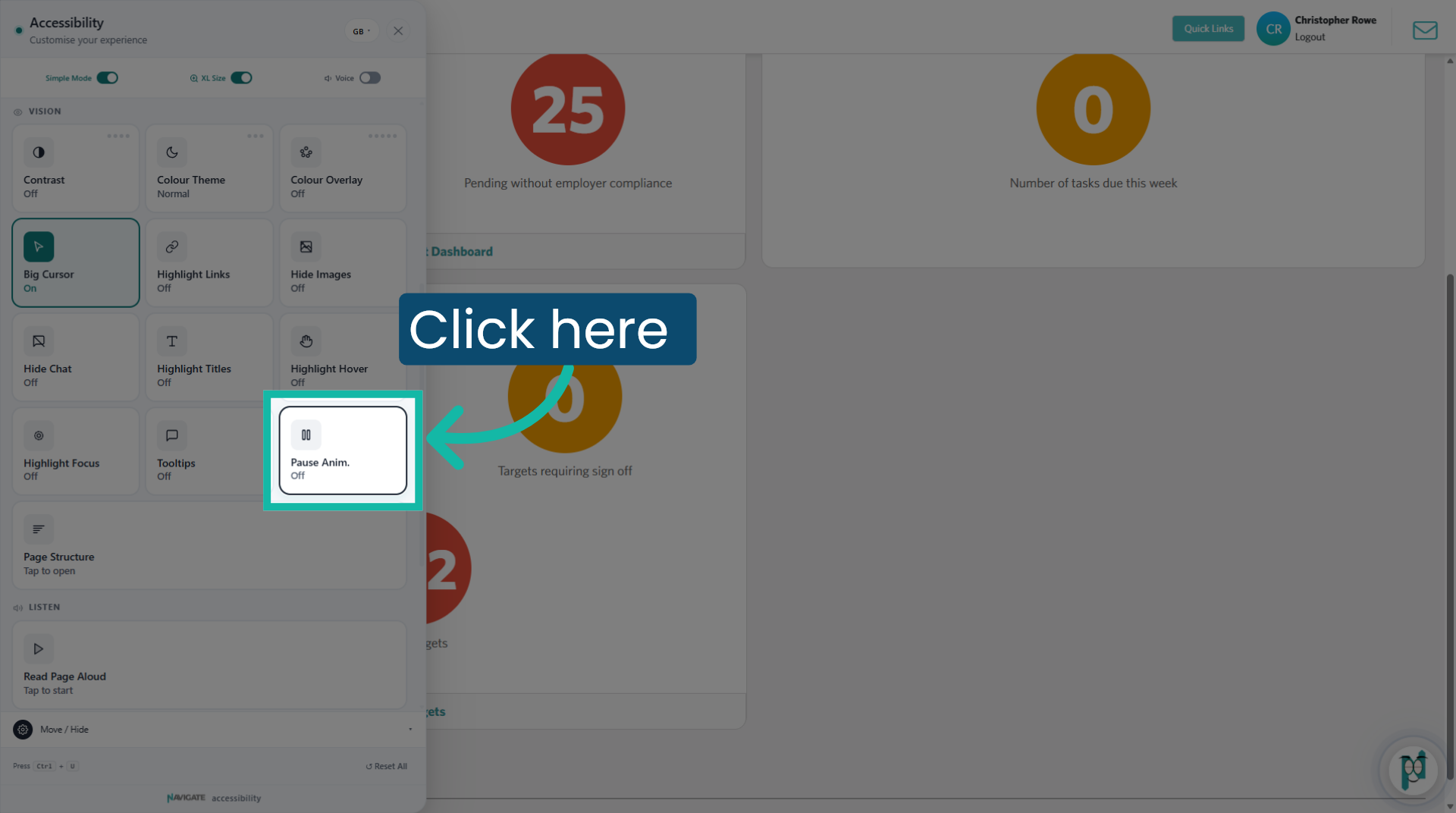
8. Pause Animations
Click this tile to 'pause animations.' This will stop all moving elements on the screen, including 'Navbot,' to provide a static viewing experience.
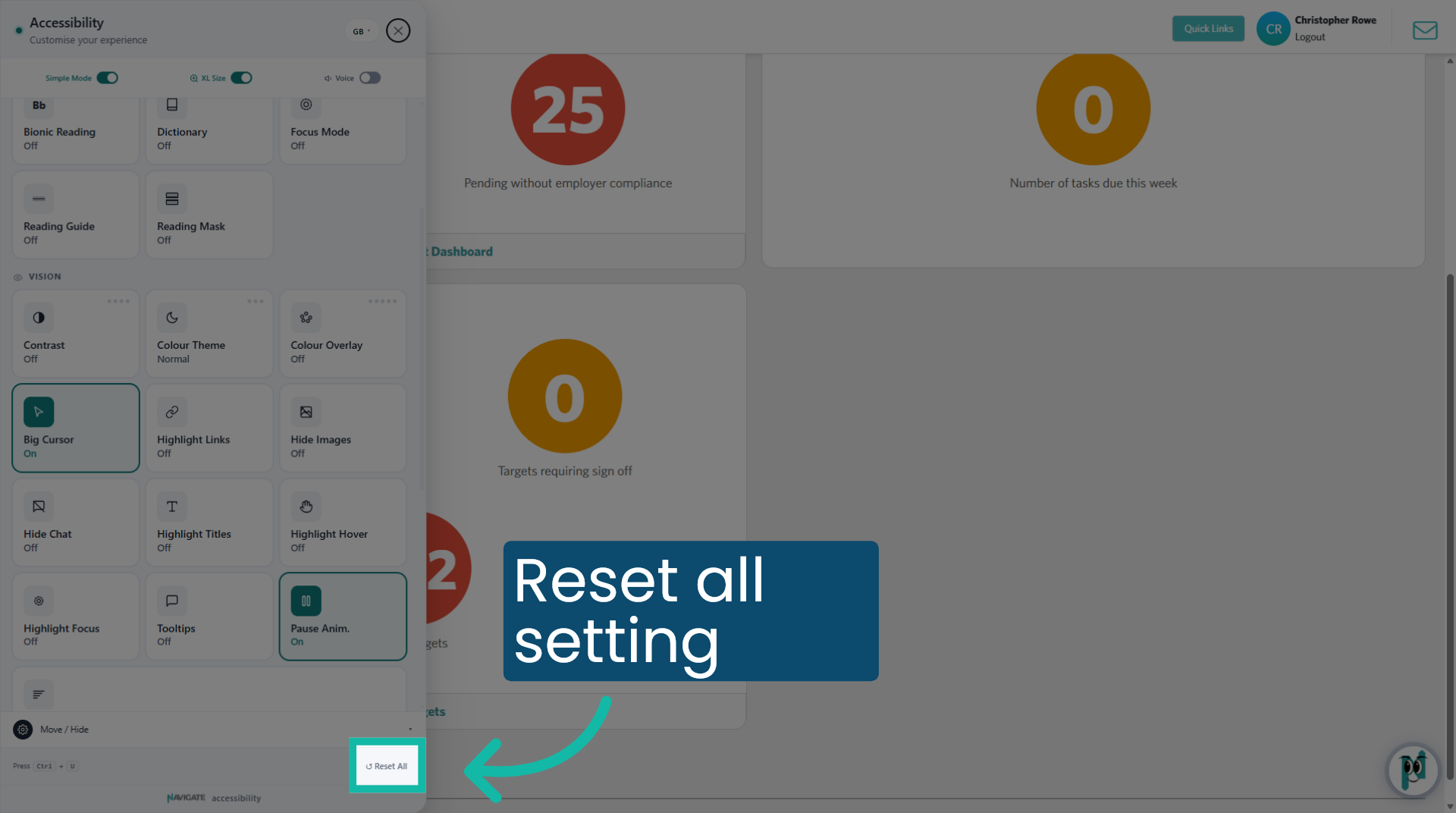
9. Reset Changes
To reset all your changes, click on the 'Reset All' at the bottom.
10. Close Accessibility Menu
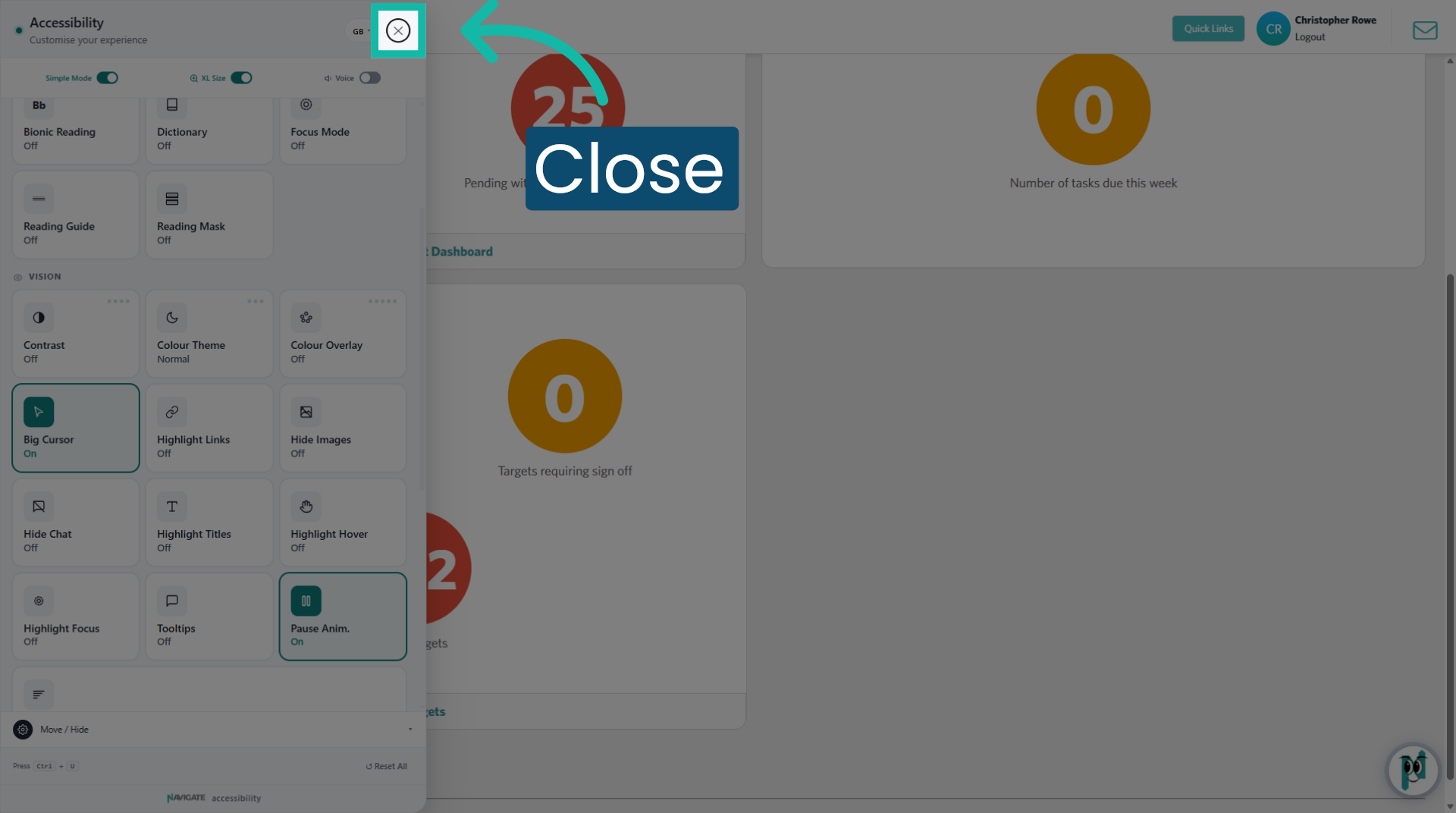
Once set, click the X to close the accessibility menu. Your preferences will be saved to your browser cache and will automatically load on your next sign-in.
Was this article helpful?
That’s Great!
Thank you for your feedback
Sorry! We couldn't be helpful
Thank you for your feedback
Feedback sent
We appreciate your effort and will try to fix the article