This tutorial explains how to understand your skills assessment results.
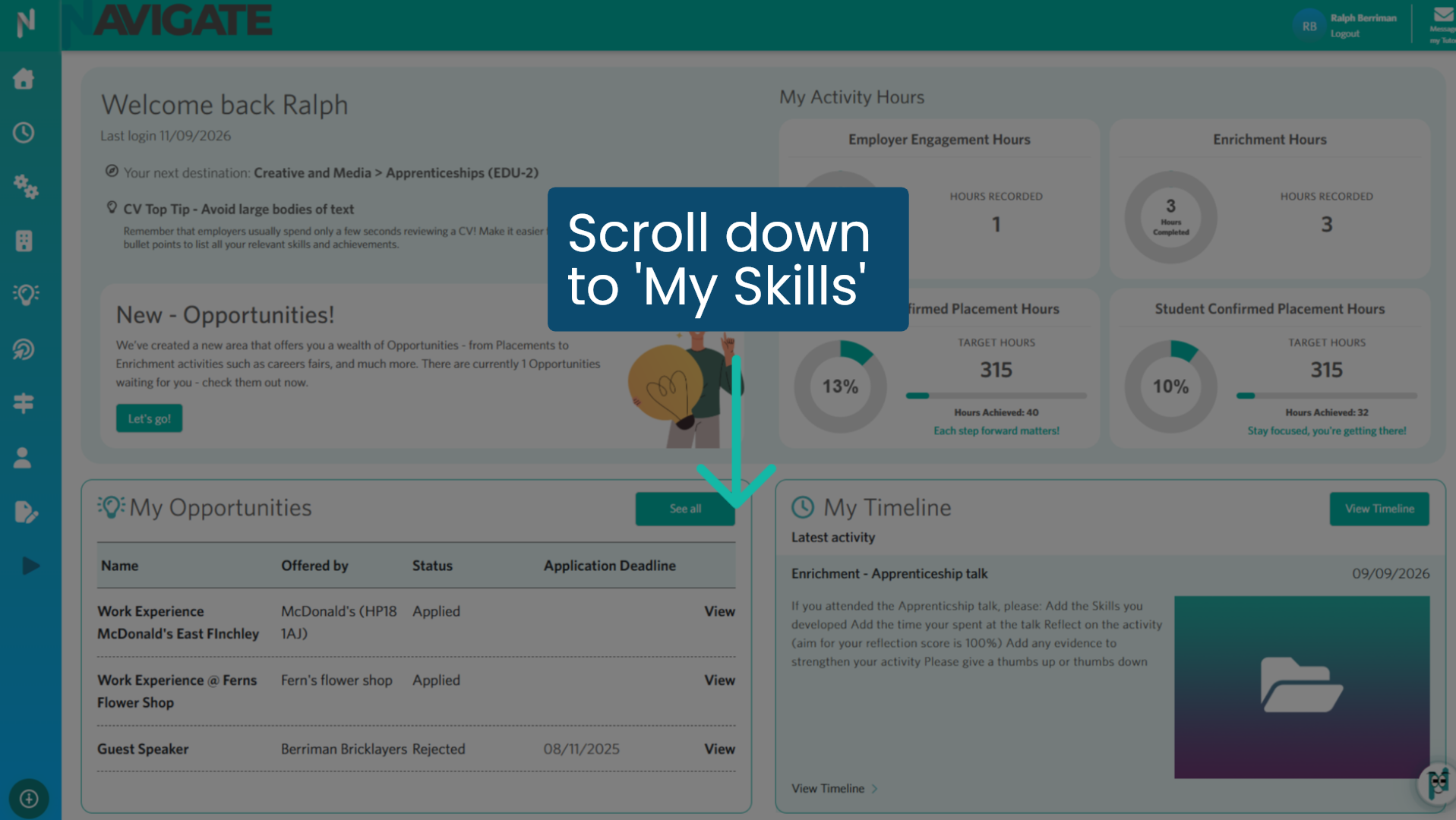
1. Scroll to the 'My Skills' module
Once logged in, scroll down on your homepage to the 'My Skills' module.
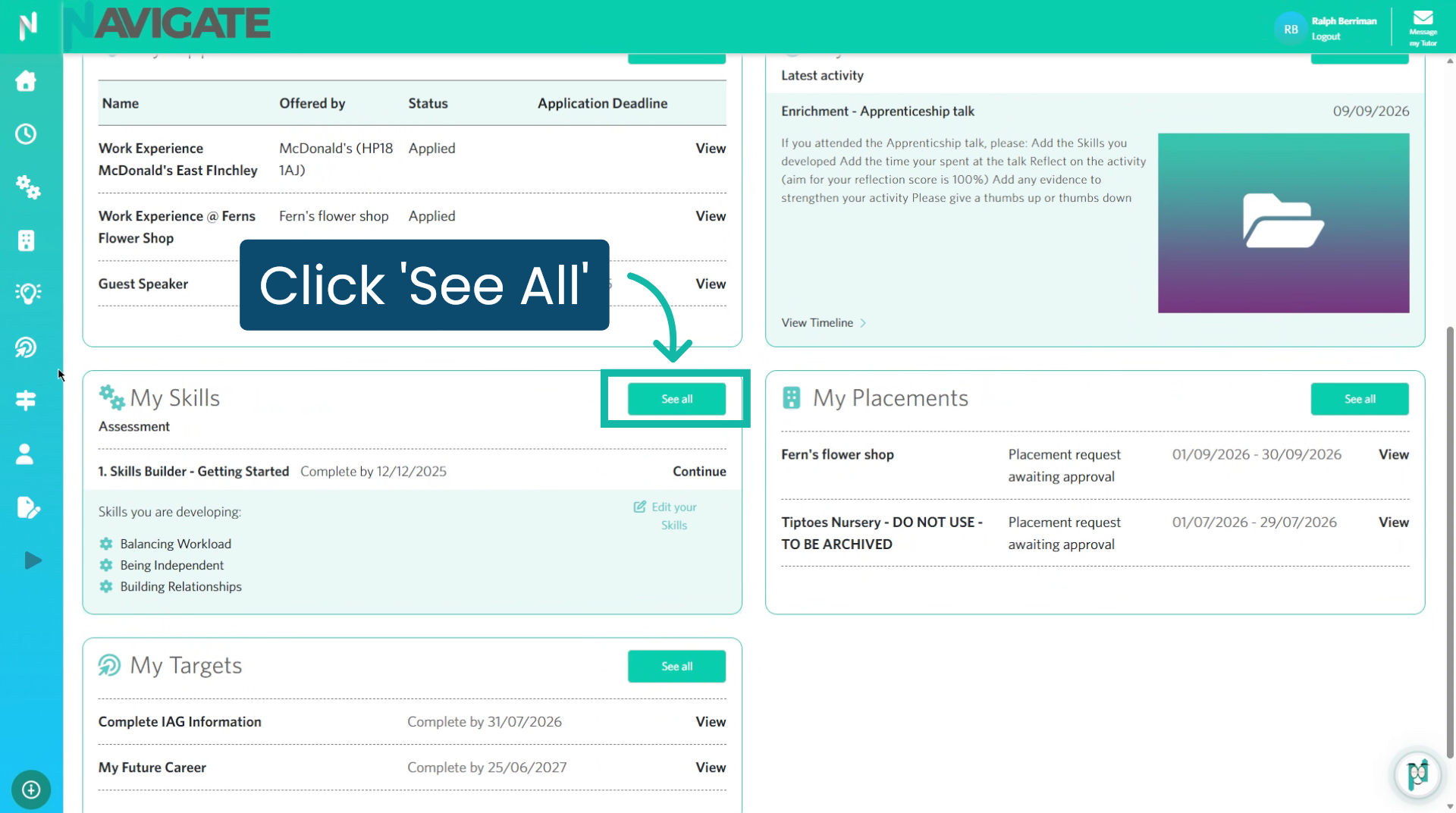
2. 'My Skills' module.
Click 'See all' to view all your assessments.
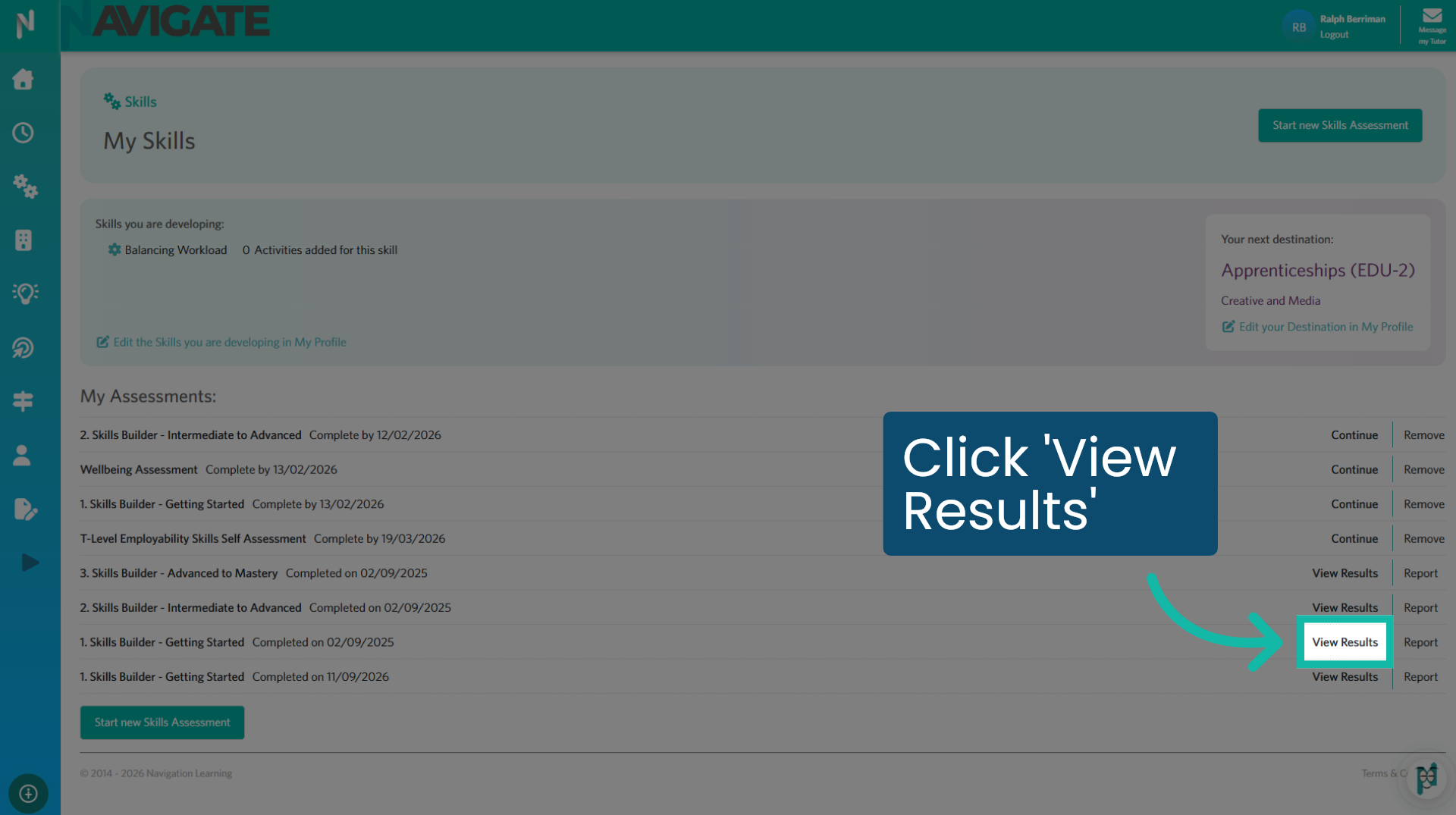
3. Click 'View results'
Click 'View results' to see your results.
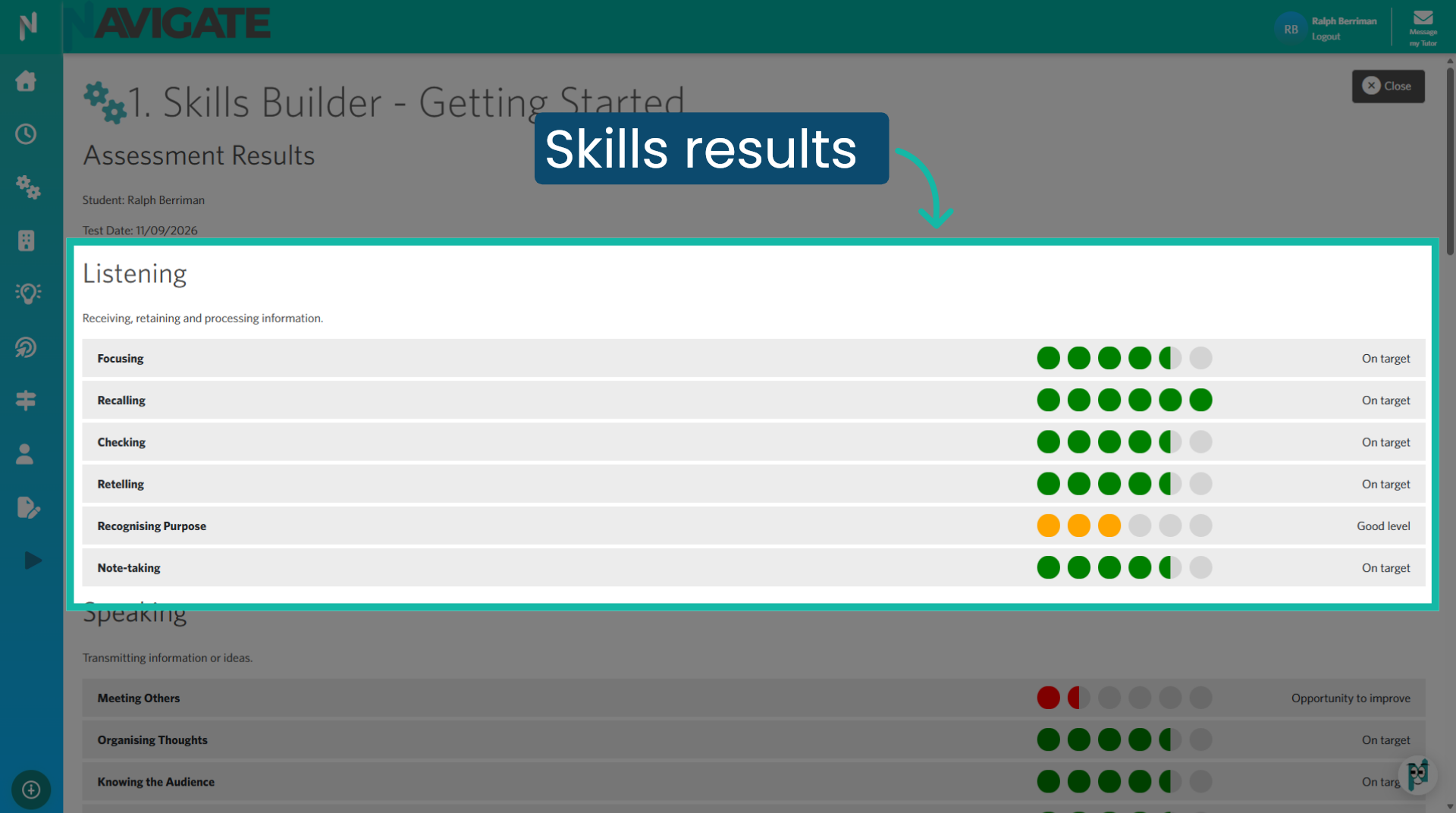
4. Understanding your results
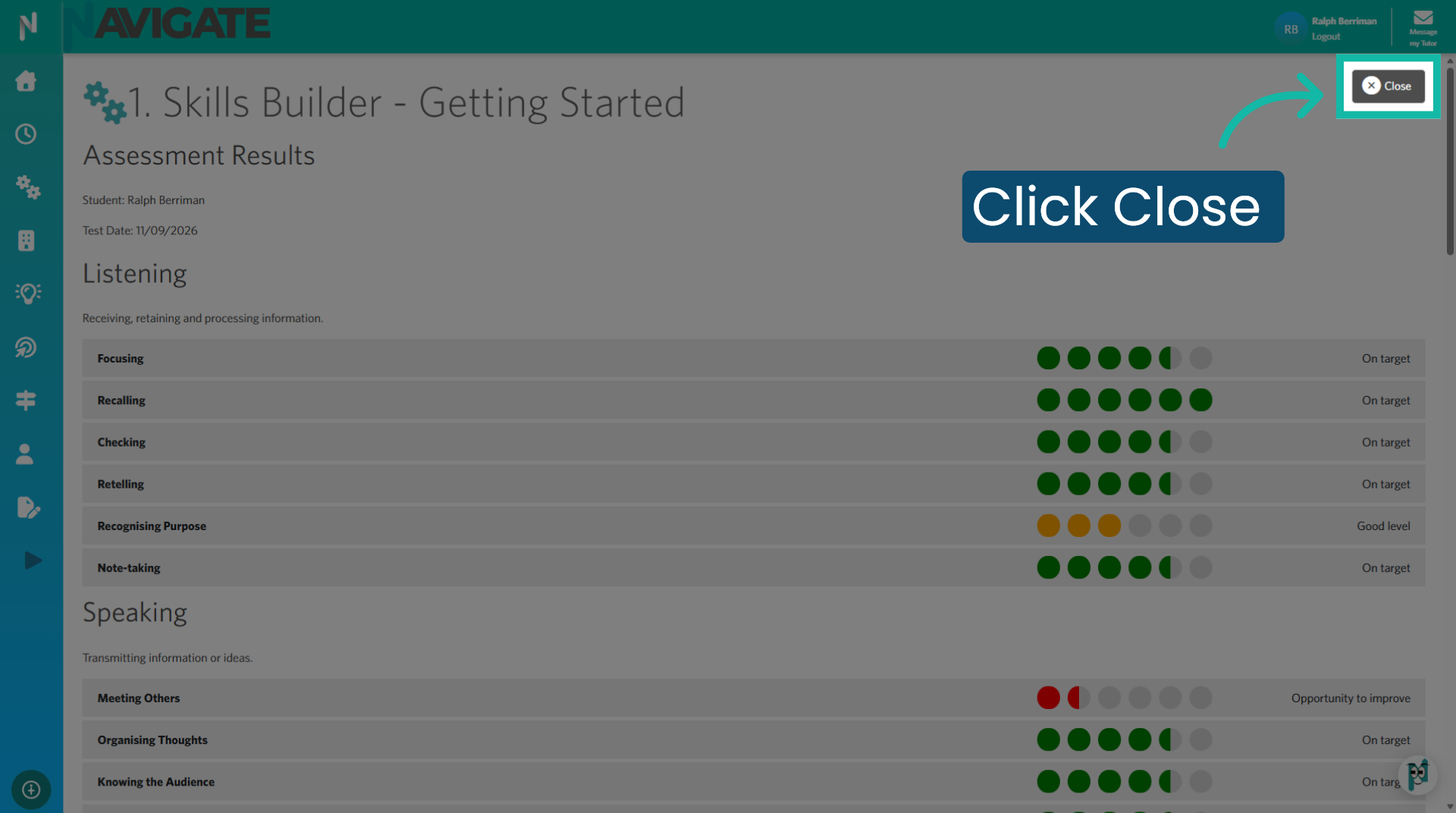
Each assessment will feature distinct categories associated with relevant skills. Your results highlight your strengths and areas for growth. Celebrate your green 'On Target' strengths, identify amber 'Good Level' skills to enhance, and transform red 'Opportunity to Improve' skills into your next gaols. Add any skills you wish to develop to your Skills Focus in the My Profile module.
5. Close Results
Click close to return to your My Skills module.
Was this article helpful?
That’s Great!
Thank you for your feedback
Sorry! We couldn't be helpful
Thank you for your feedback
Feedback sent
We appreciate your effort and will try to fix the article