Go to login.navigate.uk.com
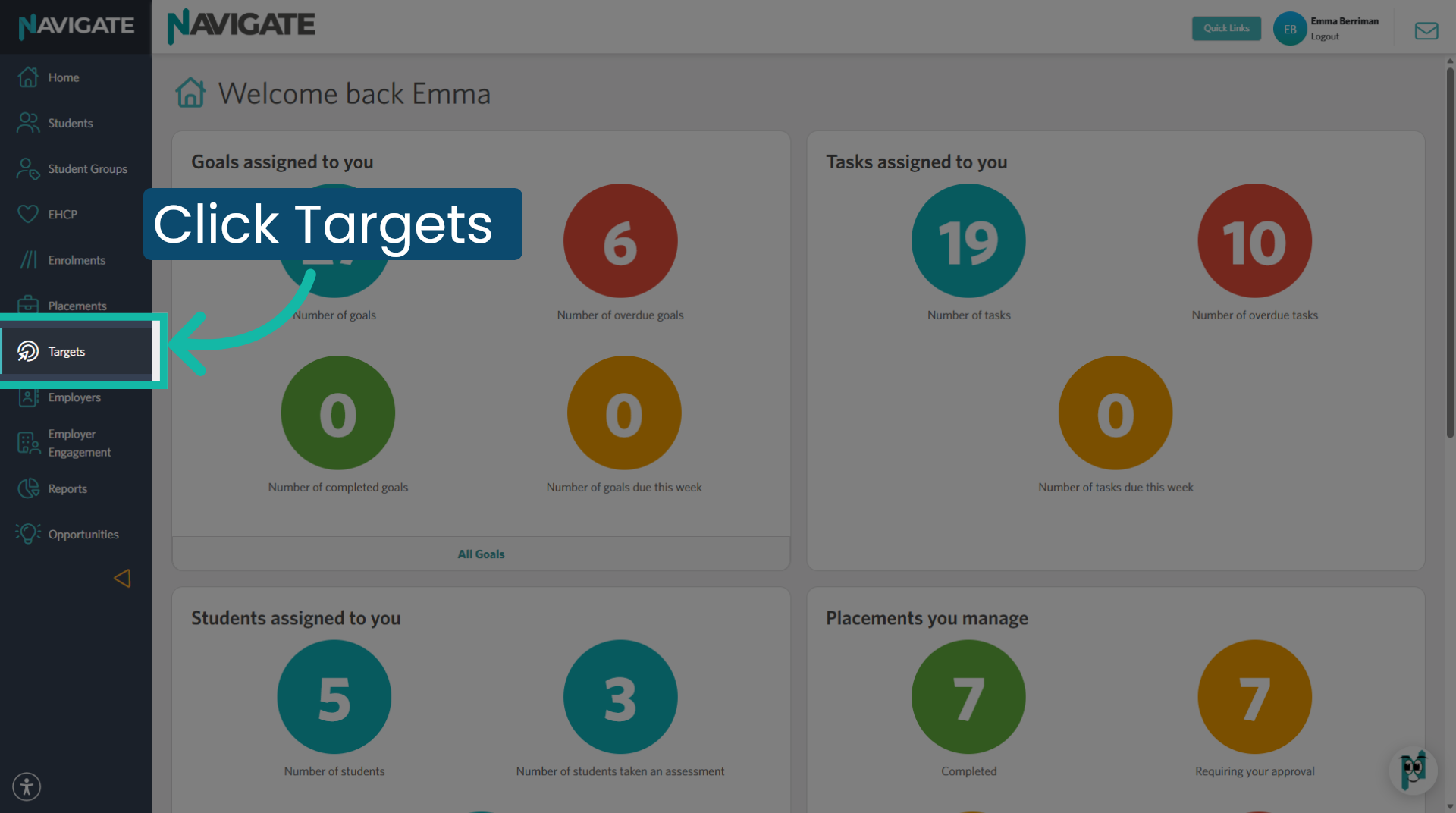
1. Access Targets Module
Once logged in, click into the target's module from the module index. For this demonstration, I want to change the status of all the late work experience targets I own. That have no evidence to the status of target rejected.
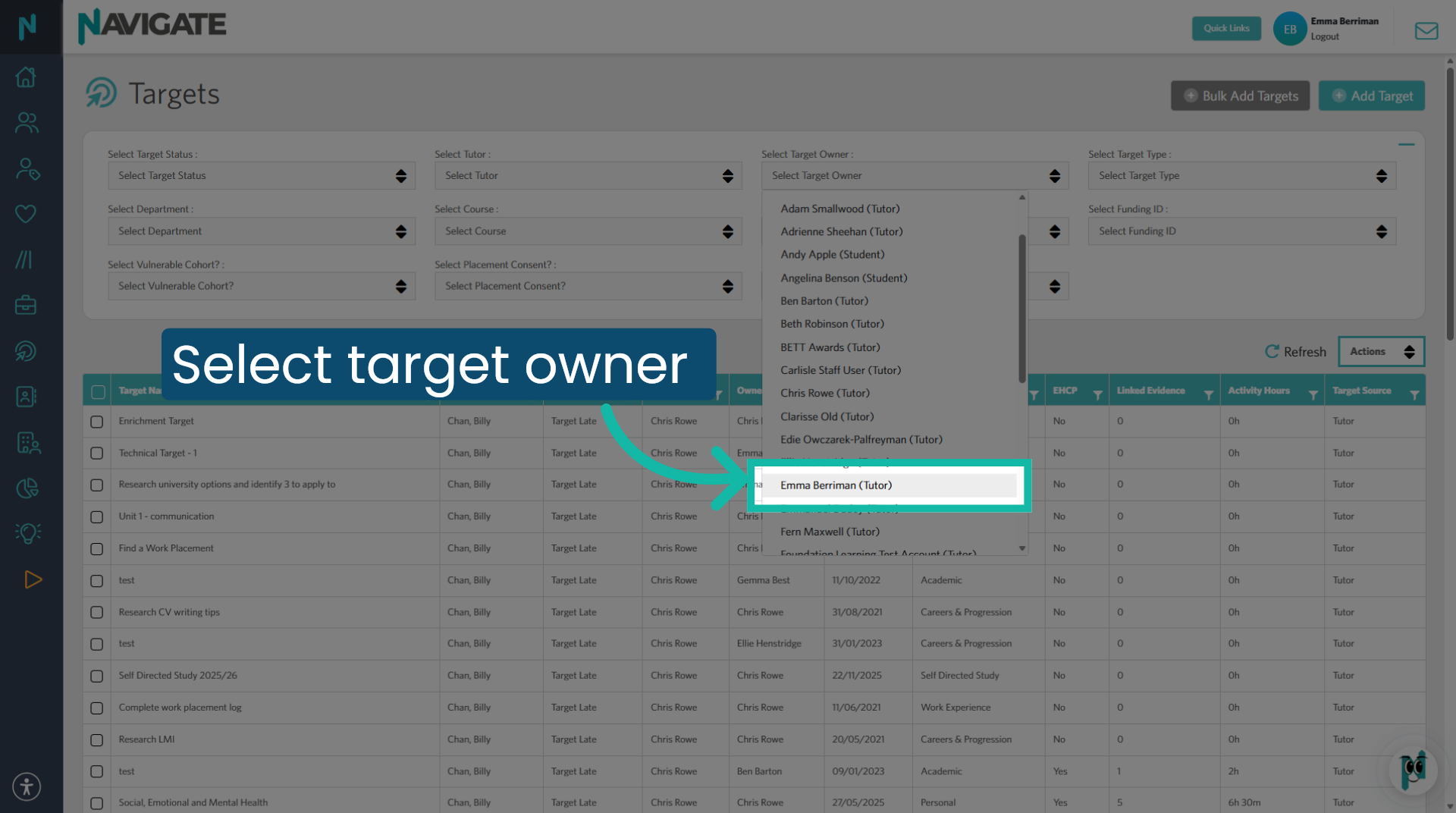
2. Choose Target Owner
Use the filters to select the target owner from the drop-down.
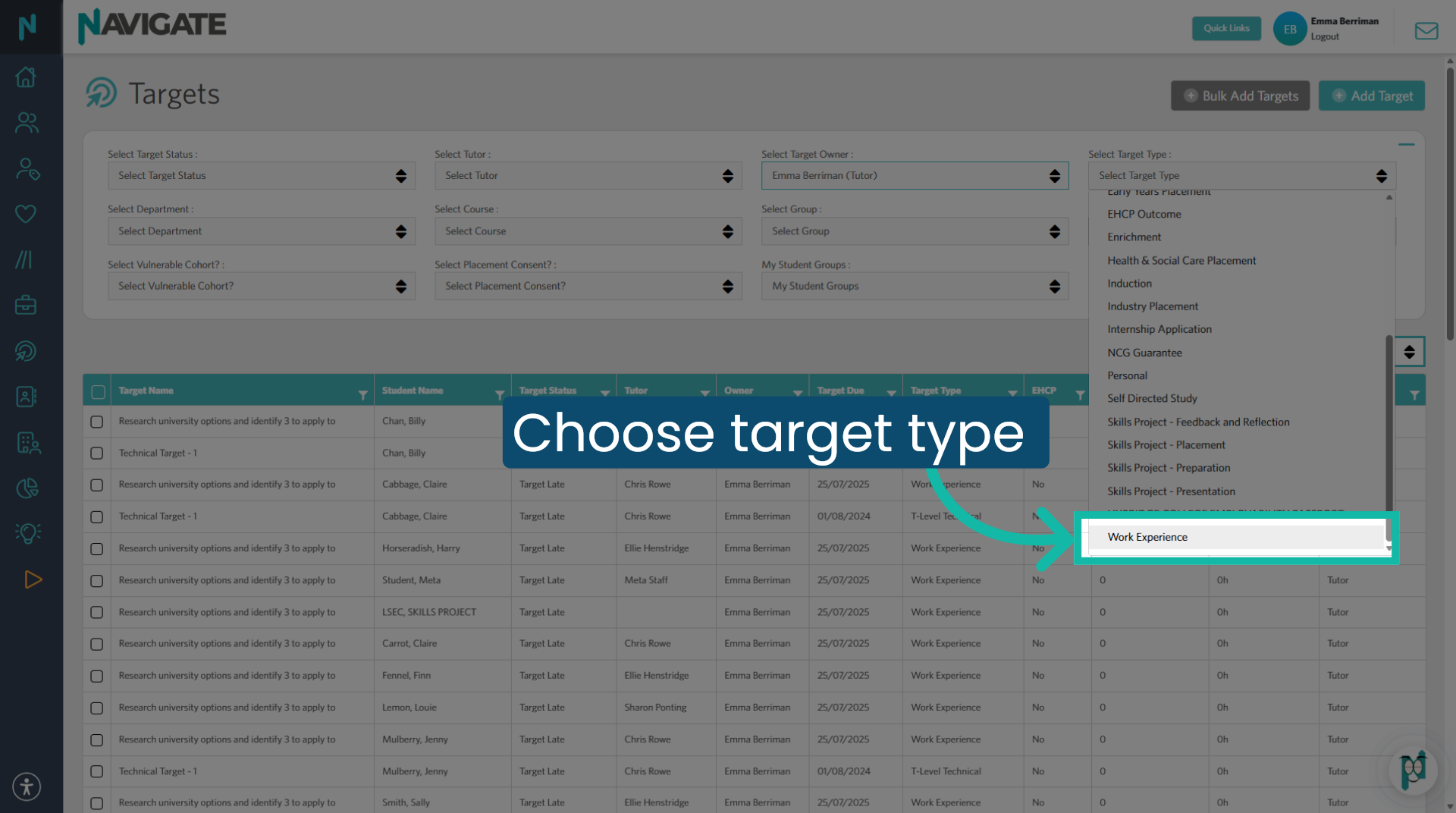
3. Choose Target Type
Then select the target type from the target type dropdown.
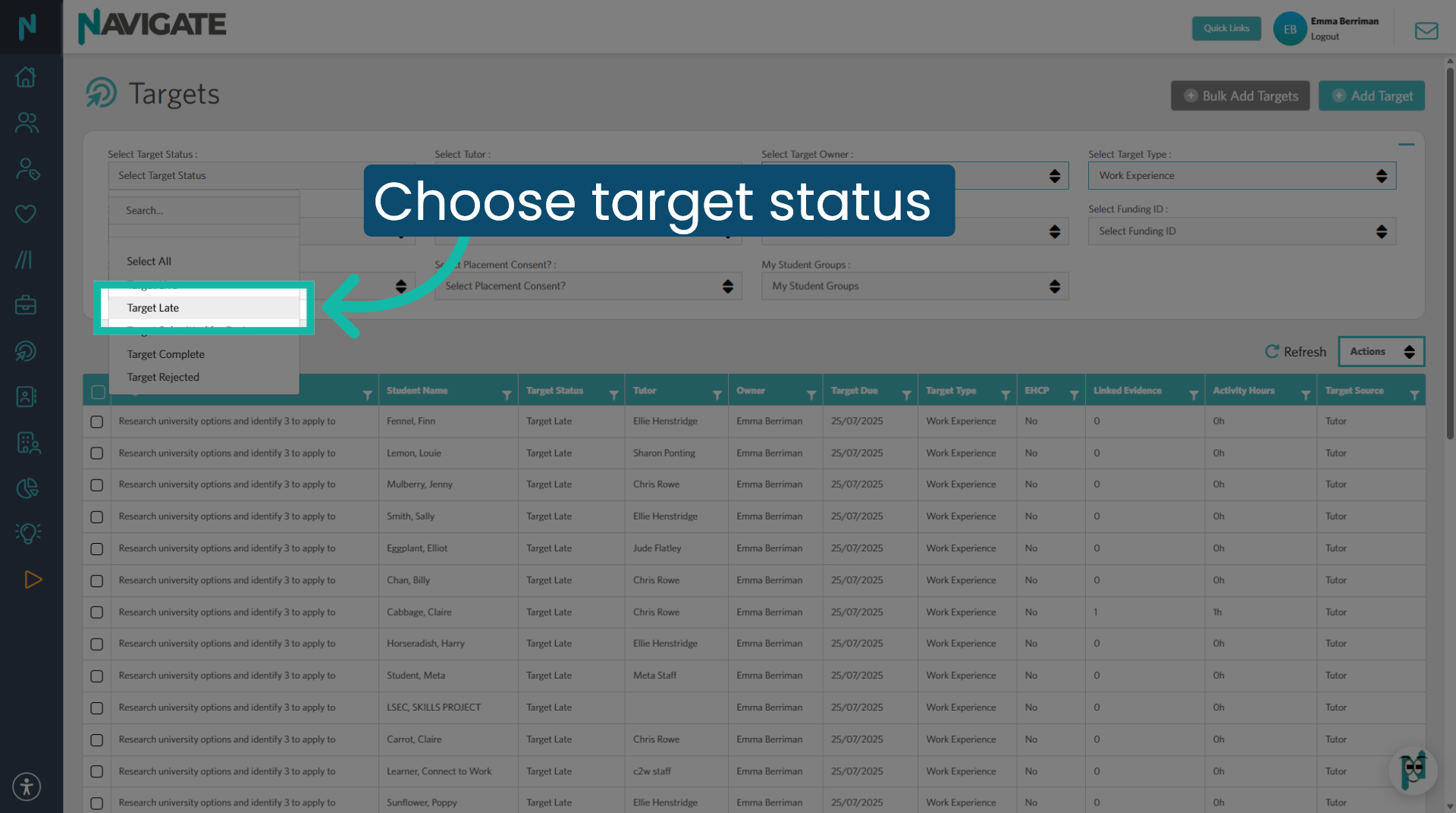
4. Choose Target Status
Use the filters to select the target status from the dropdown. For example, if you are looking for late targets, click target latest the status type.
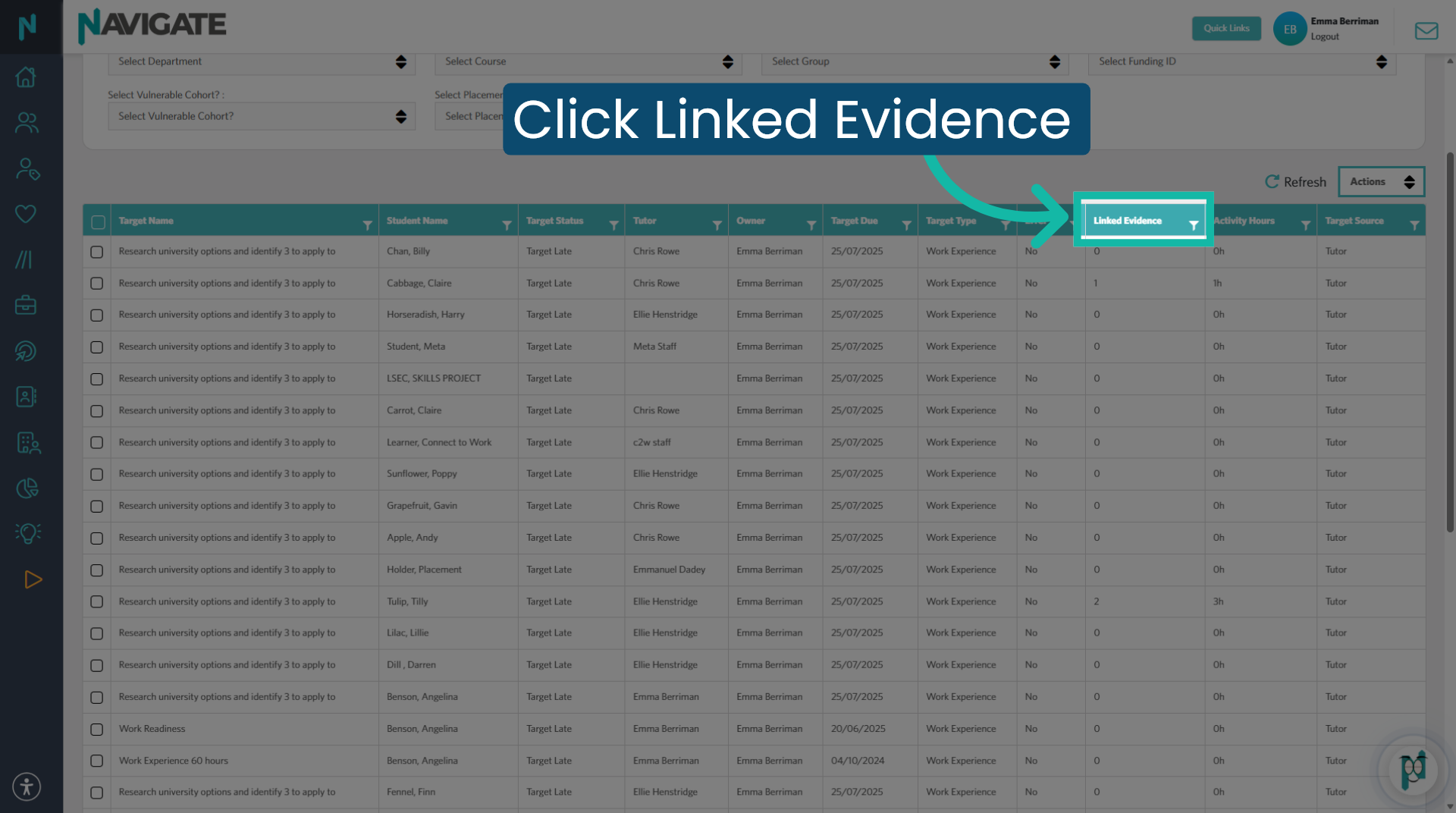
5. Filter Linked Evidence column
Clicking on the linked evidence column header, you can see the lowest to highest number, or use the filter for more options. This example displays the lowest number at the top.
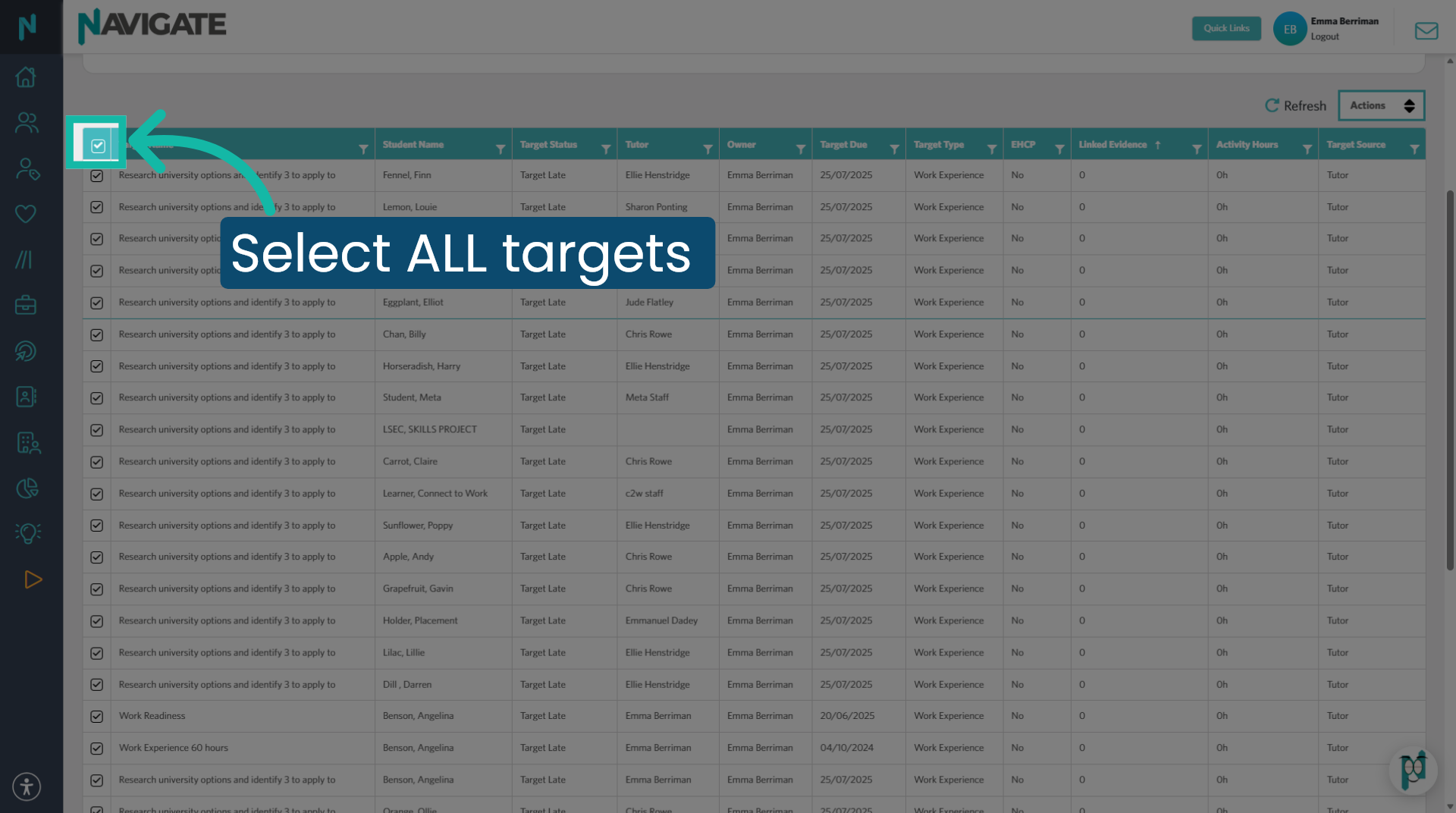
6. Select all targets
If there are many targets that require the status changed, click on the checkbox at the top to select them all. You can then deselect the few that don't need to be changed.
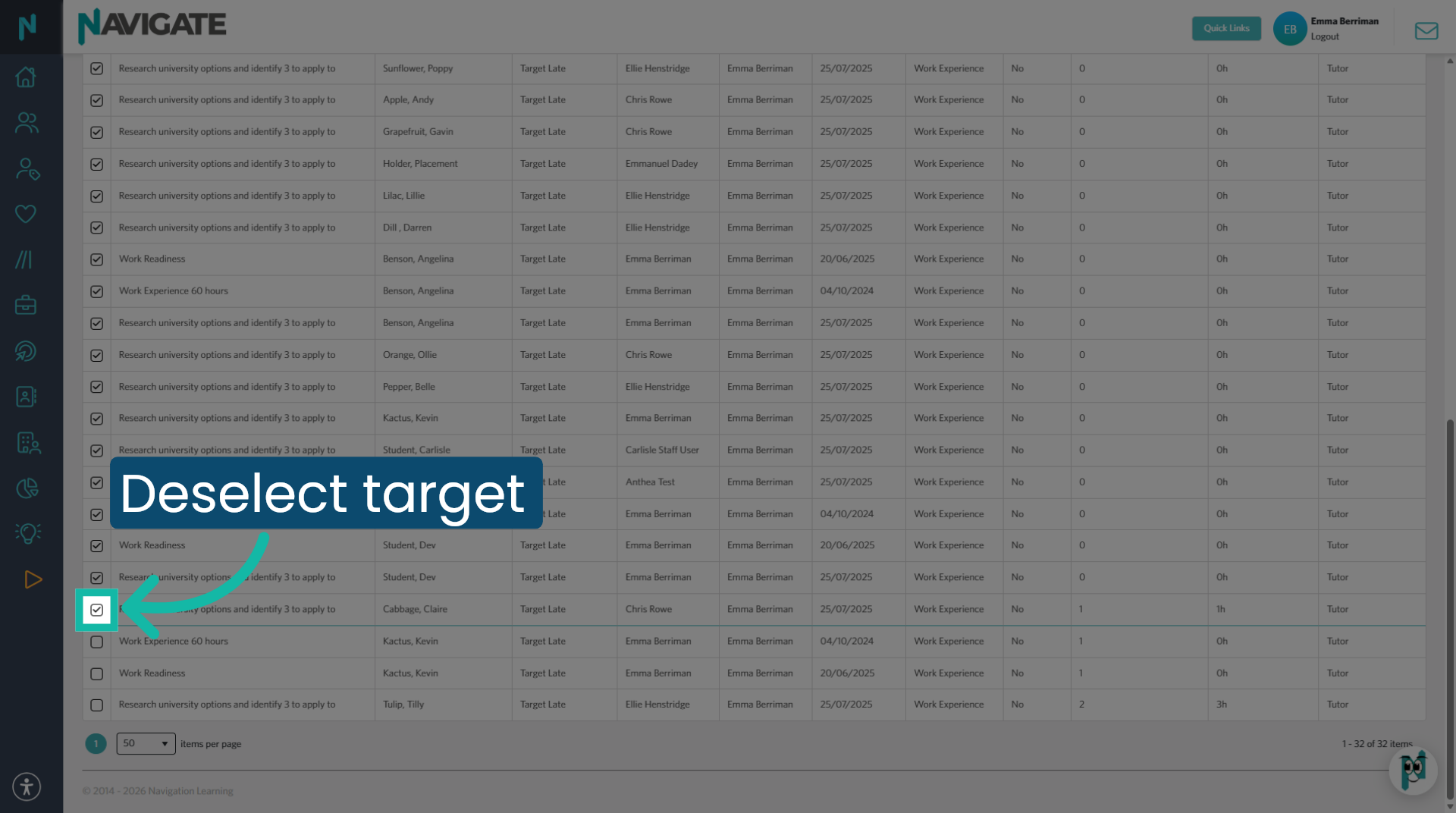
7. Deselect targets
Click on the individual checkbox to deselect the target that you do not wish to change.
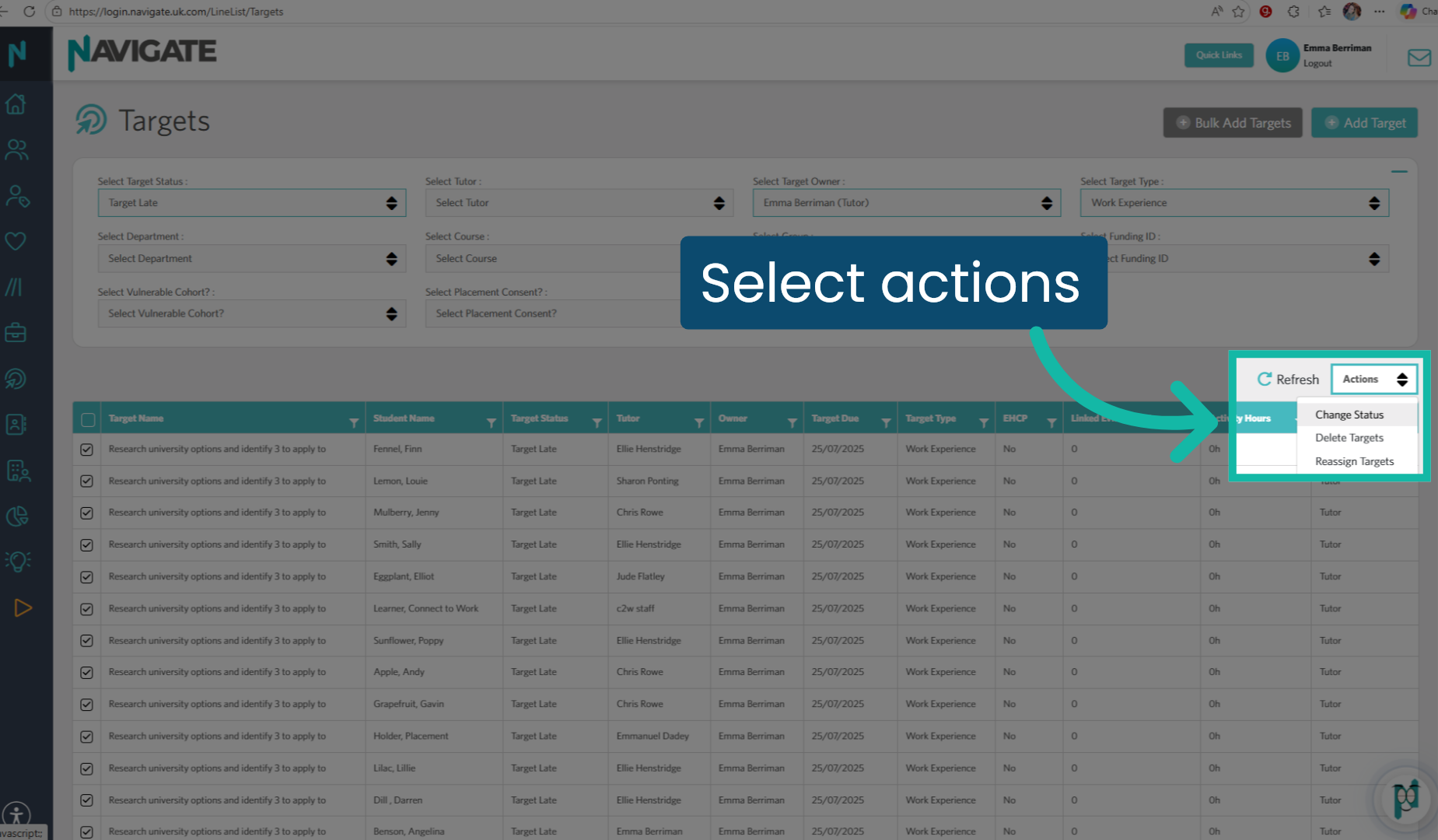
8. Select actions
Select the actions drop down menu.
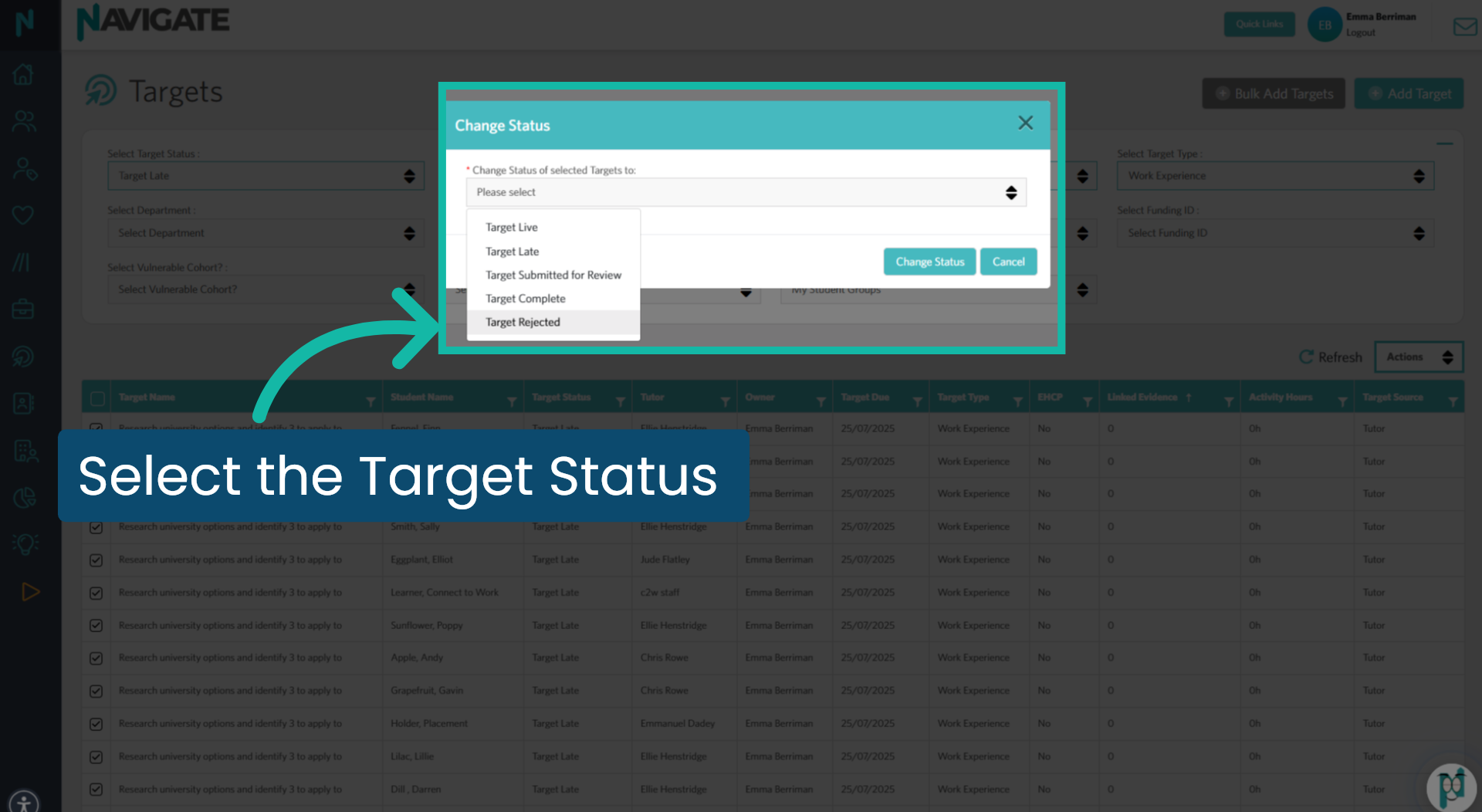
9. Select the Target status
Select the target status you wish to bulk change the selected targets to. In this example, I am selecting 'target rejected', as these targets are overdue and have no evidence linked to them.
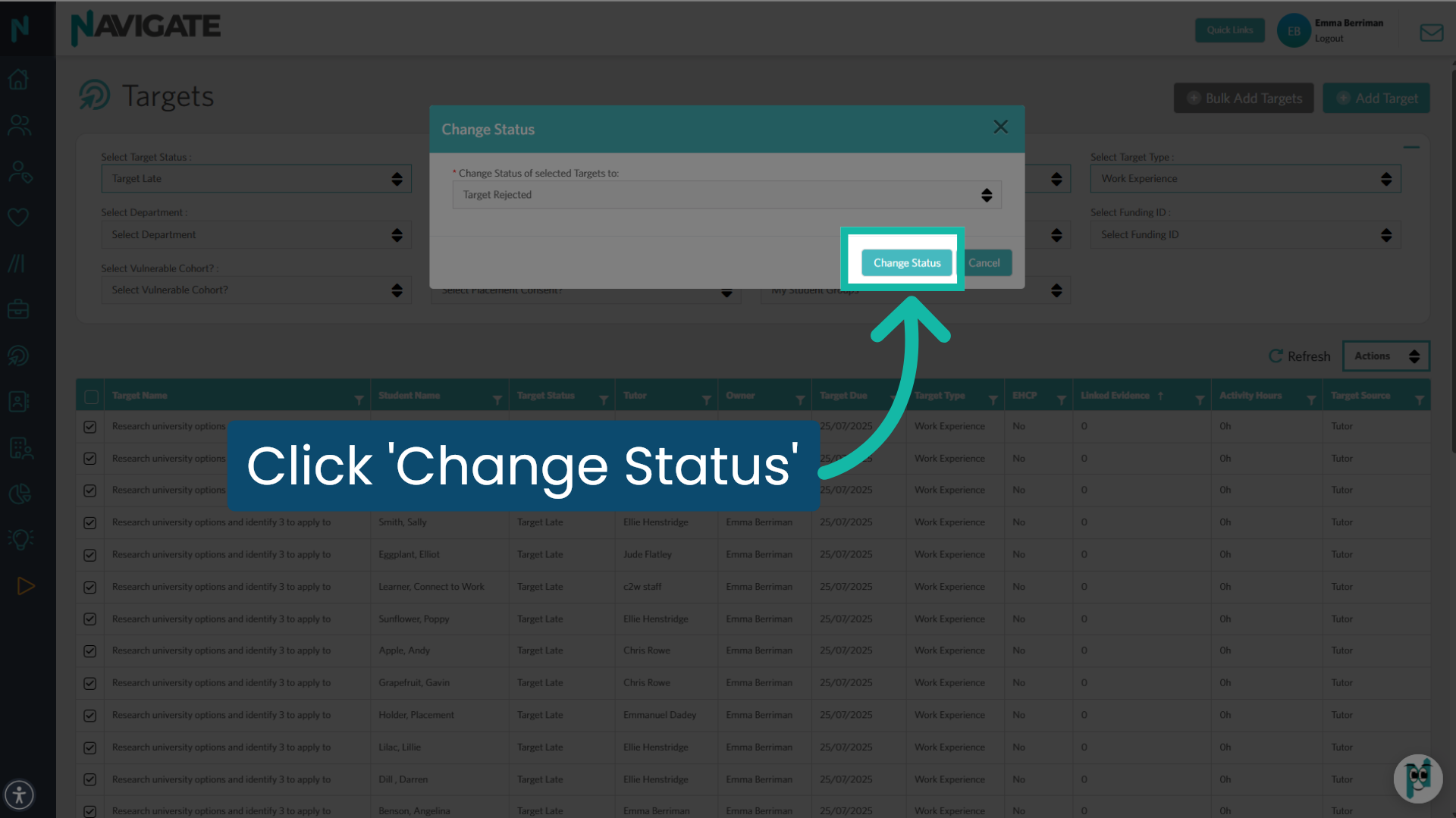
10. Click 'Change Status'
Click 'change status' to complete the bulk action status change.
Was this article helpful?
That’s Great!
Thank you for your feedback
Sorry! We couldn't be helpful
Thank you for your feedback
Feedback sent
We appreciate your effort and will try to fix the article