Complete a Target

Created by Chris Rowe, Modified on Fri, 19 Dec at 3:18 PM by Chris Rowe

00:00: This tutorial guides you through completing a target in navigate.

00:03: From logging into marking the target as complete.

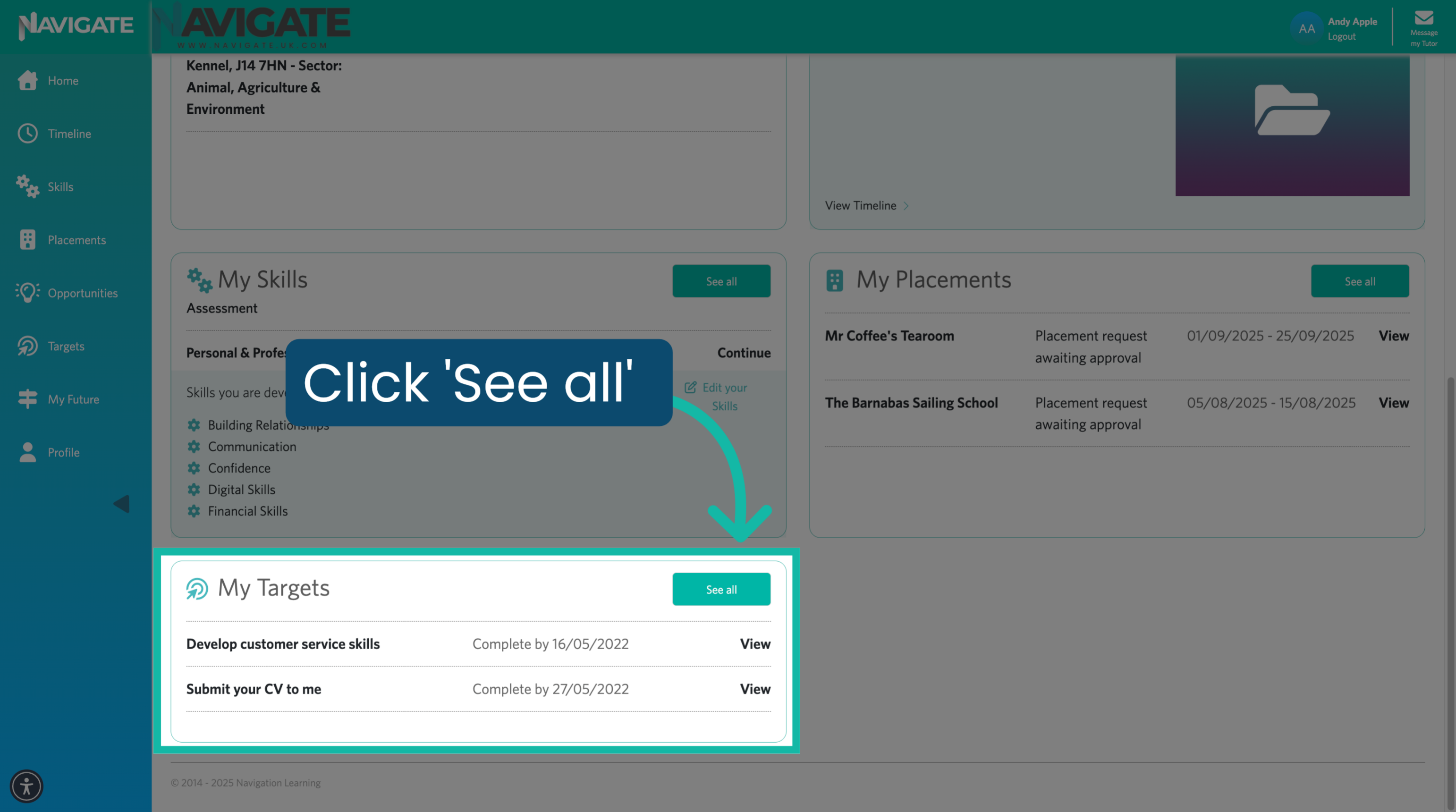
00:01: Once logged in scroll down to the my targets panel and click c.

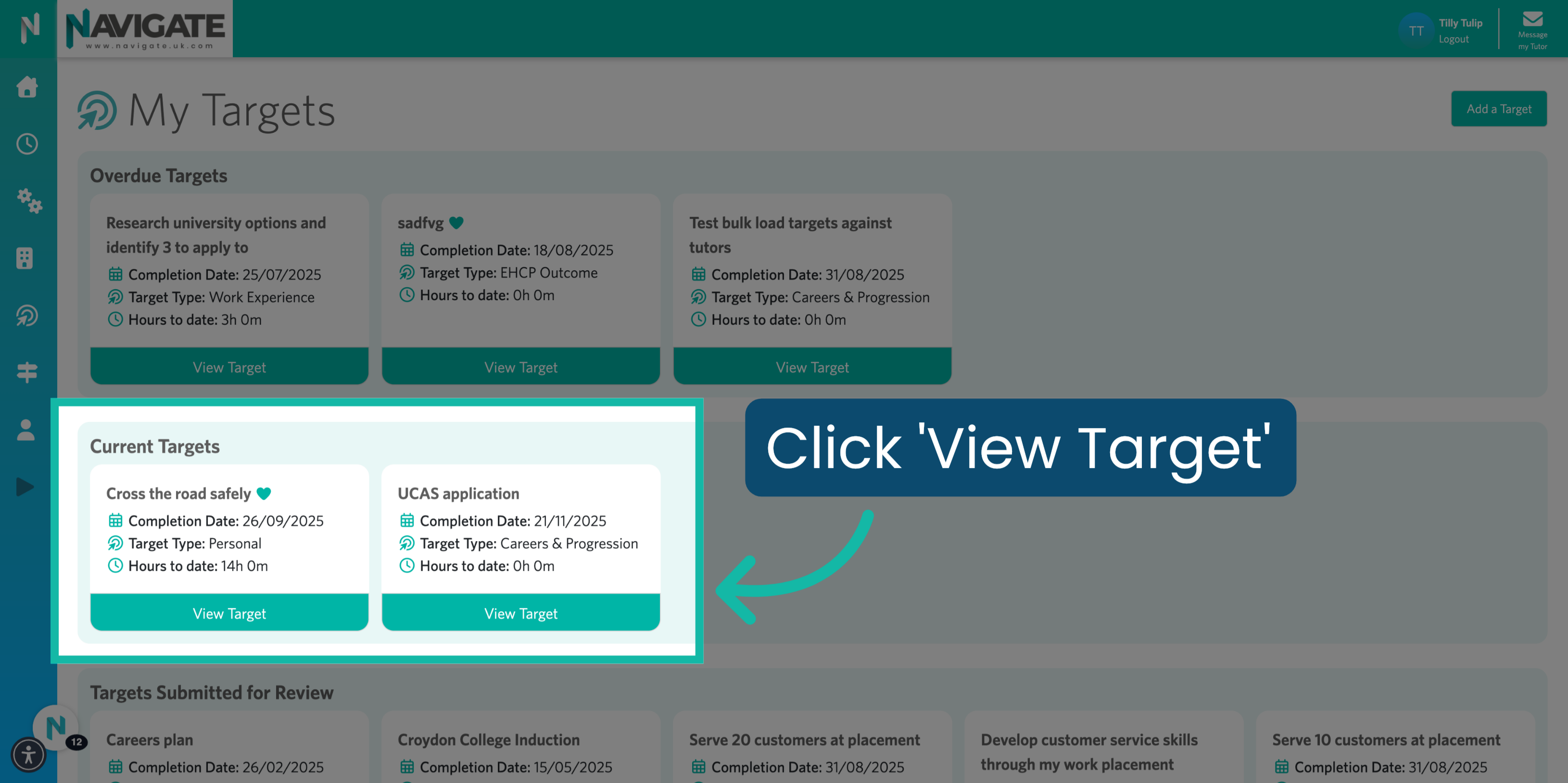
00:06: He will see your current targets. Select the target you would like to edit

00:10: by clicking on. View target

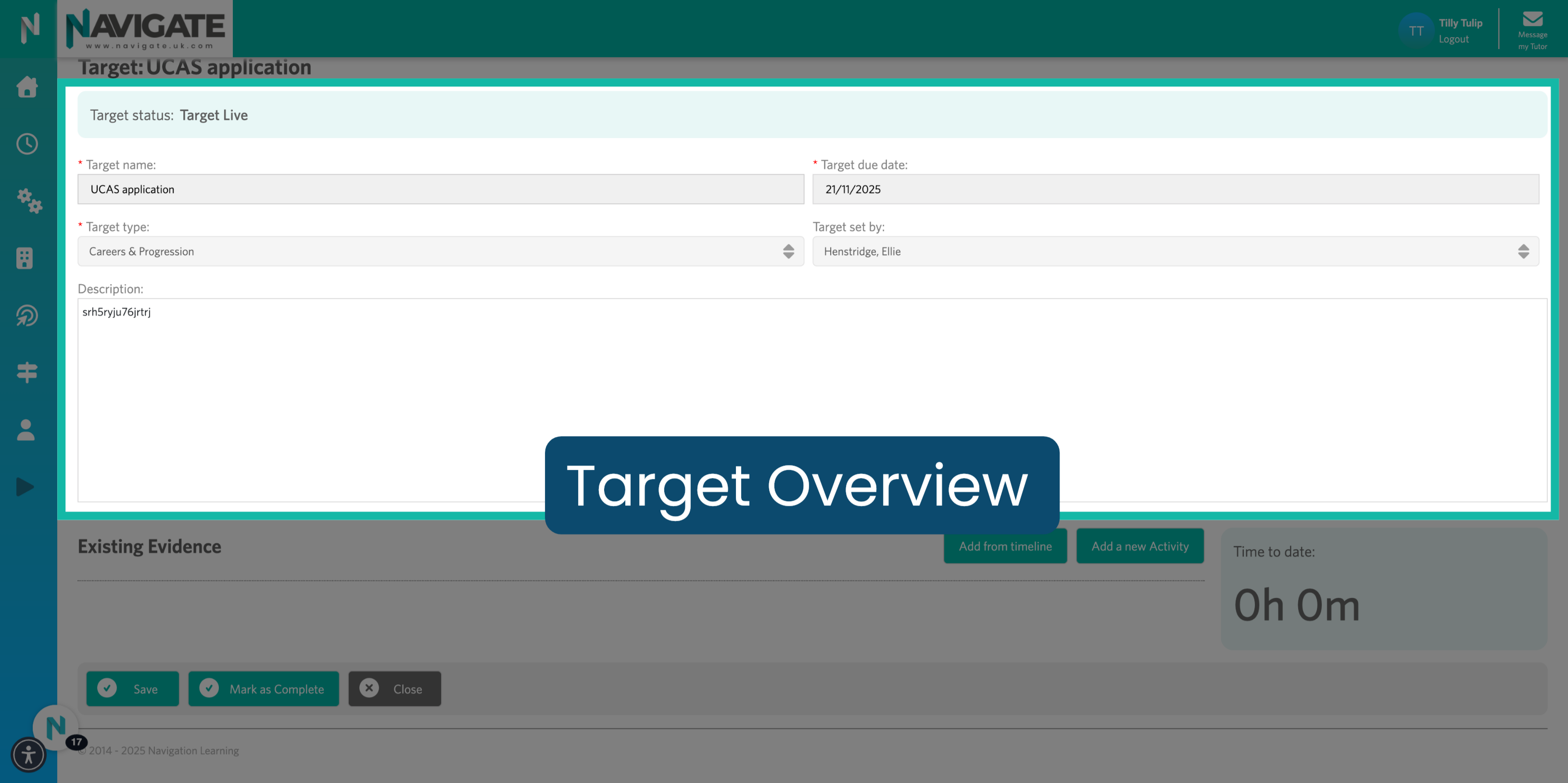
00:13: He will now see an overview of the target including the target name.

00:17: The target due Date the target type The member of staff that set the target

00:21: up for you and the target description

00:23: To complete a target you must one.

00:26: Link an existing activity to the target Or two Add

00:30: a new activity against the target. These should be activities that you think

00:35: have helped you to progress towards fulfilling the target.

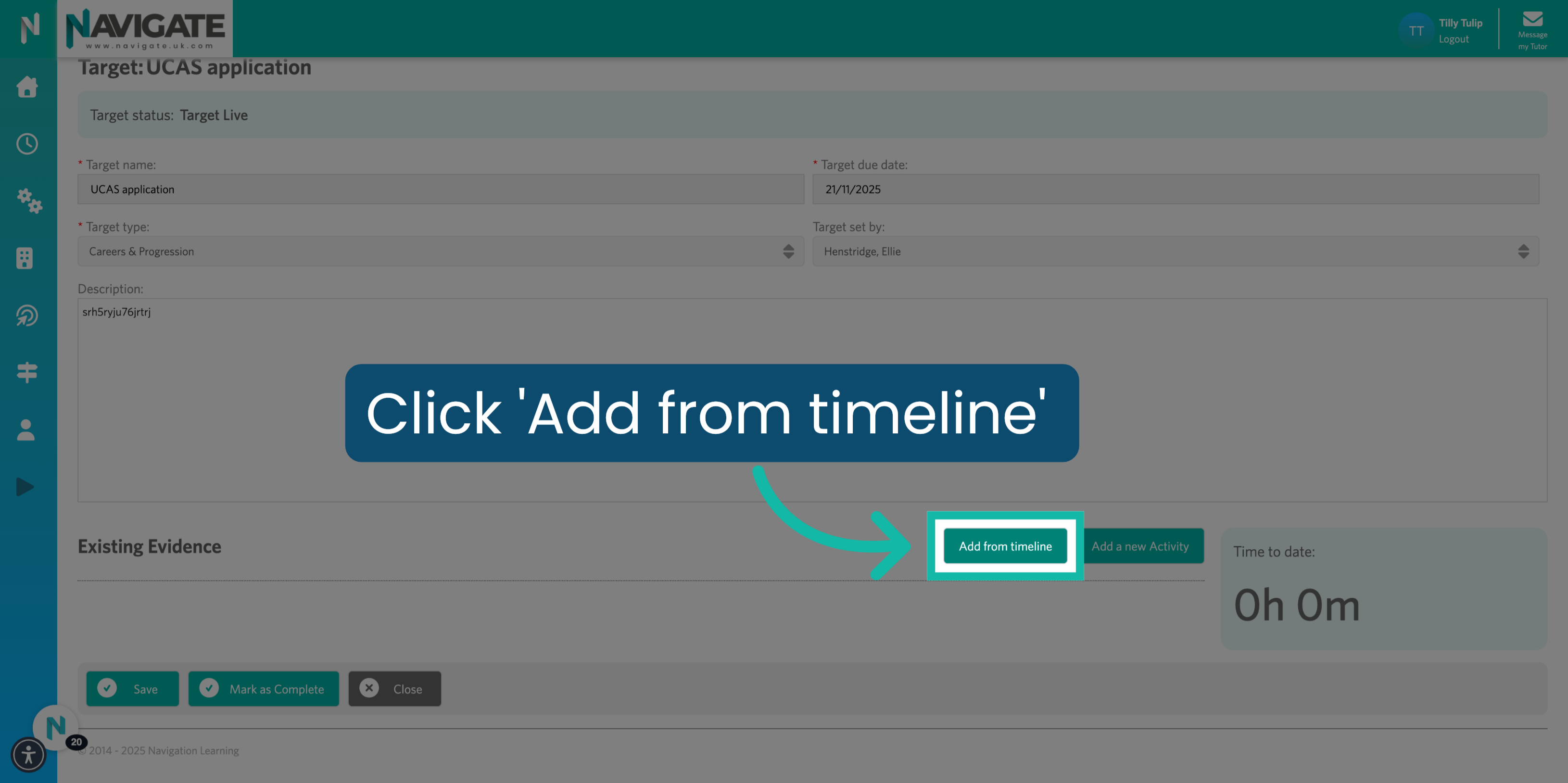
00:39: To link an existing activity click on add from timeline.

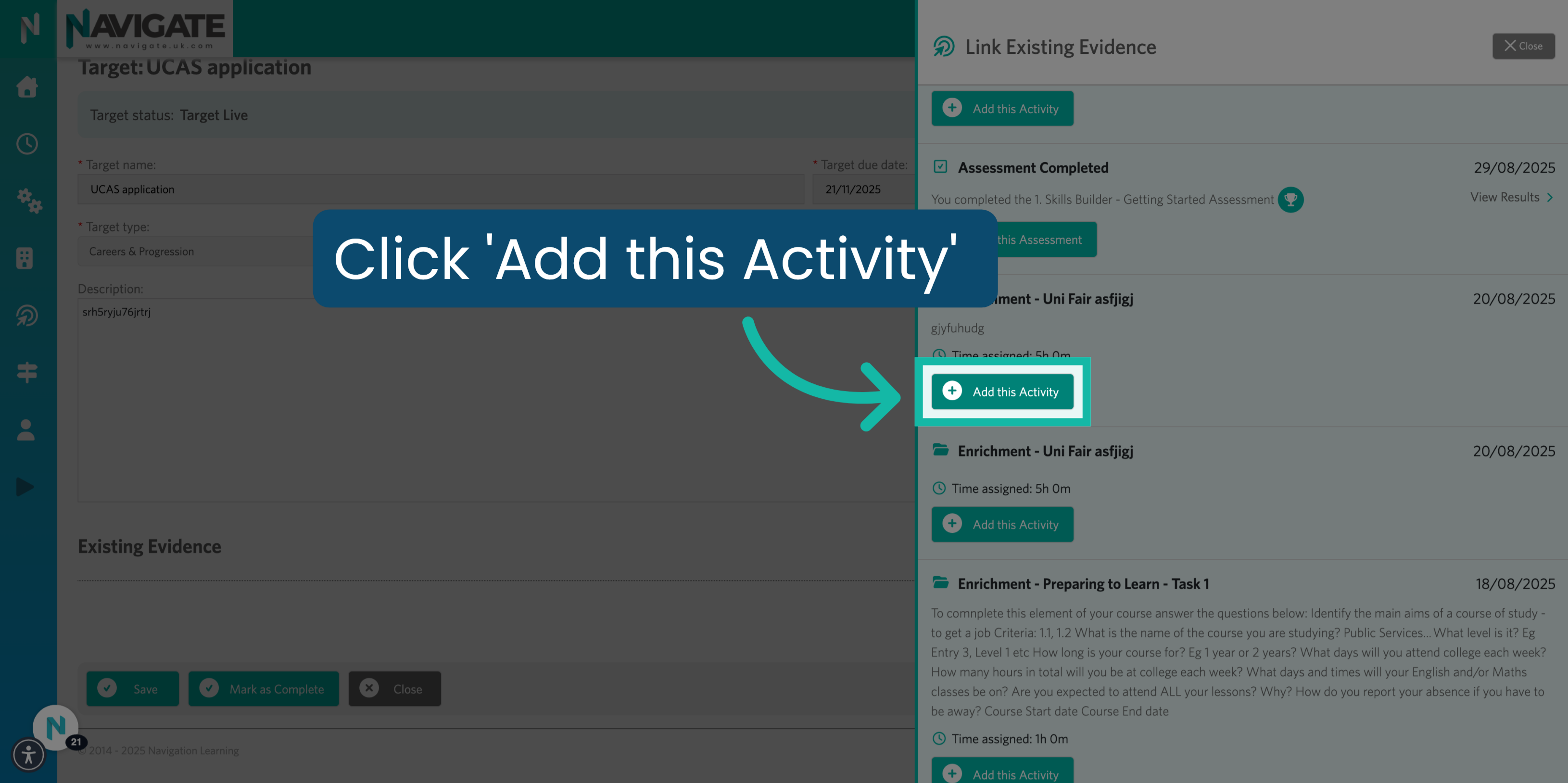
00:43: You will now see a pop-up of your timeline.

00:46: Click on add this activity to add the activity from your timeline against the target.

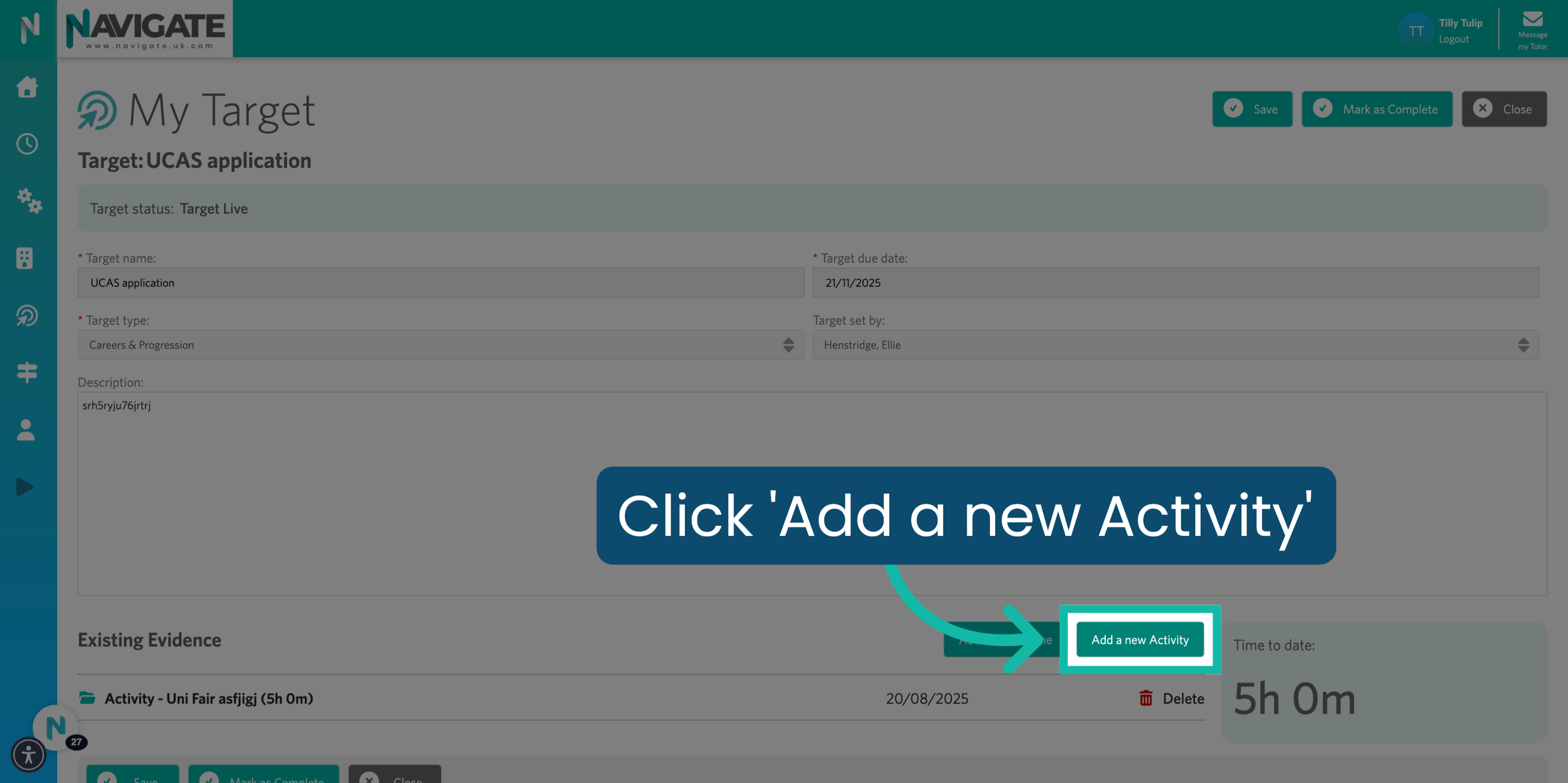
00:51: To add a completely new activity. Click on add a new activity.

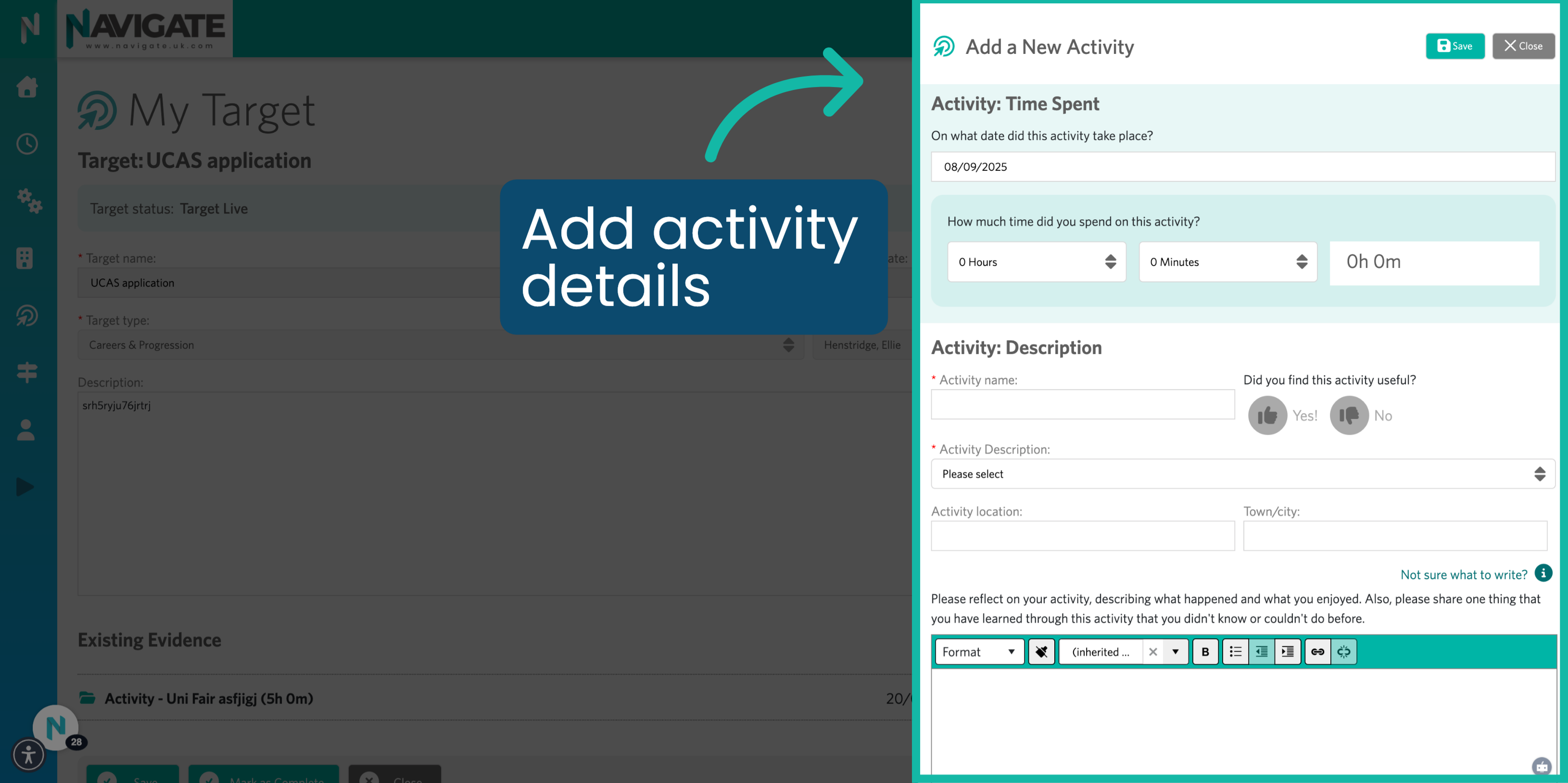
00:56: You will now see a pop-up of a blank activity form.

00:59: Where you can add the activity details? To find out how to add an

01:04: activity. Please see our how to add an activity to tutorial.

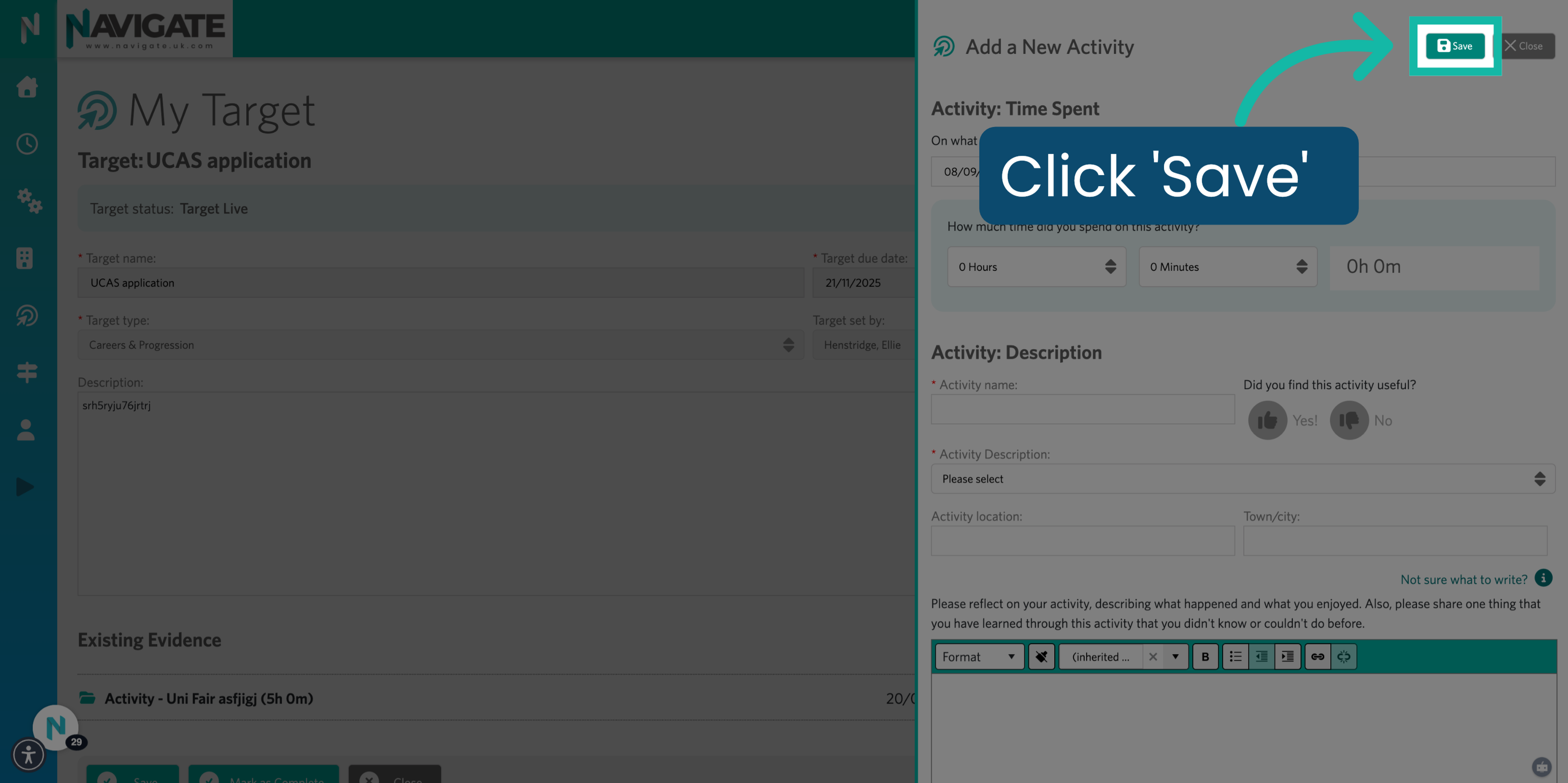
01:08: Once completed click save to add this activity to your target.

01:13: Once you've added all your relevant activities to the target.

01:16: Click on the save button.

01:18: The added activities will now appear under existing evidence in your target

01:22: page.

01:24: When you feel you have completed the target.

01:26: Click on Marcus complete To submit it for approval.

01:31: Your target has now been submitted for review.
01:34: You have successfully completed a target in Navigate by logging in,

01:38: managing your targets, adding and saving activities,

01:41: and marking the target as complete.

Go to login.navigate.uk.com

1. My Targets Panel.

Once logged in scroll down to the my targets panel and click c.

My Targets Panel.


2. Click "View Target."

He will see your current targets. Select the target you would like to edit by clicking on. View target.

Click 'View Target'


3. Target Overview.

He will now see an overview of the target including the target name. The target due Date the target type The member of staff that set the target up for you and the target description.

Target Overview


4. "Target Description."

To complete a target you must one. Link an existing activity to the target Or two Add a new activity against the target. These should be activities that you think have helped you to progress towards fulfilling the target.

'Target Description'


5. Click "Add from timeline."

To link an existing activity click on add from timeline.

Click 'Add from timeline'


6. Click "Add this Activity."

You will now see a pop-up of your timeline. Click on add this activity to add the activity from your timeline against the target.

Click 'Add this Activity'


7. Click "Add a new Activity."

To add a completely new activity. Click on add a new activity.

Click 'Add a new Activity'


8. Complete Activity Details.

You will now see a pop-up of a blank activity form. Where you can add the activity details? To find out how to add an activity. Please see our how to add an activity to tutorial.

Complete Activity Details


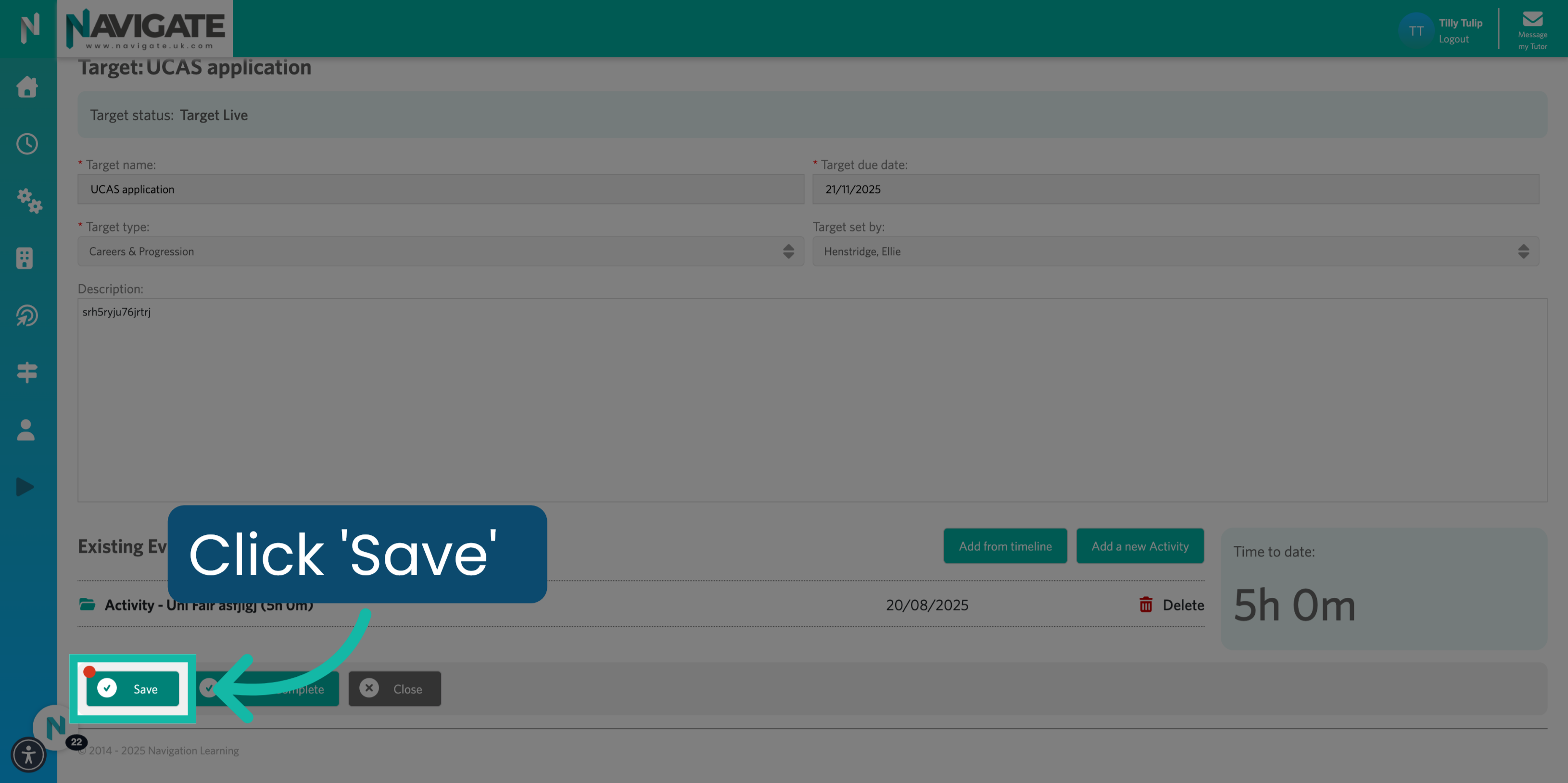
9. Click "Save."

Once completed click save to add this activity to your target.

Click 'Save'


10. Click "Save."

Once you've added all your relevant activities to the target. Click on the save button.

Click 'Save'


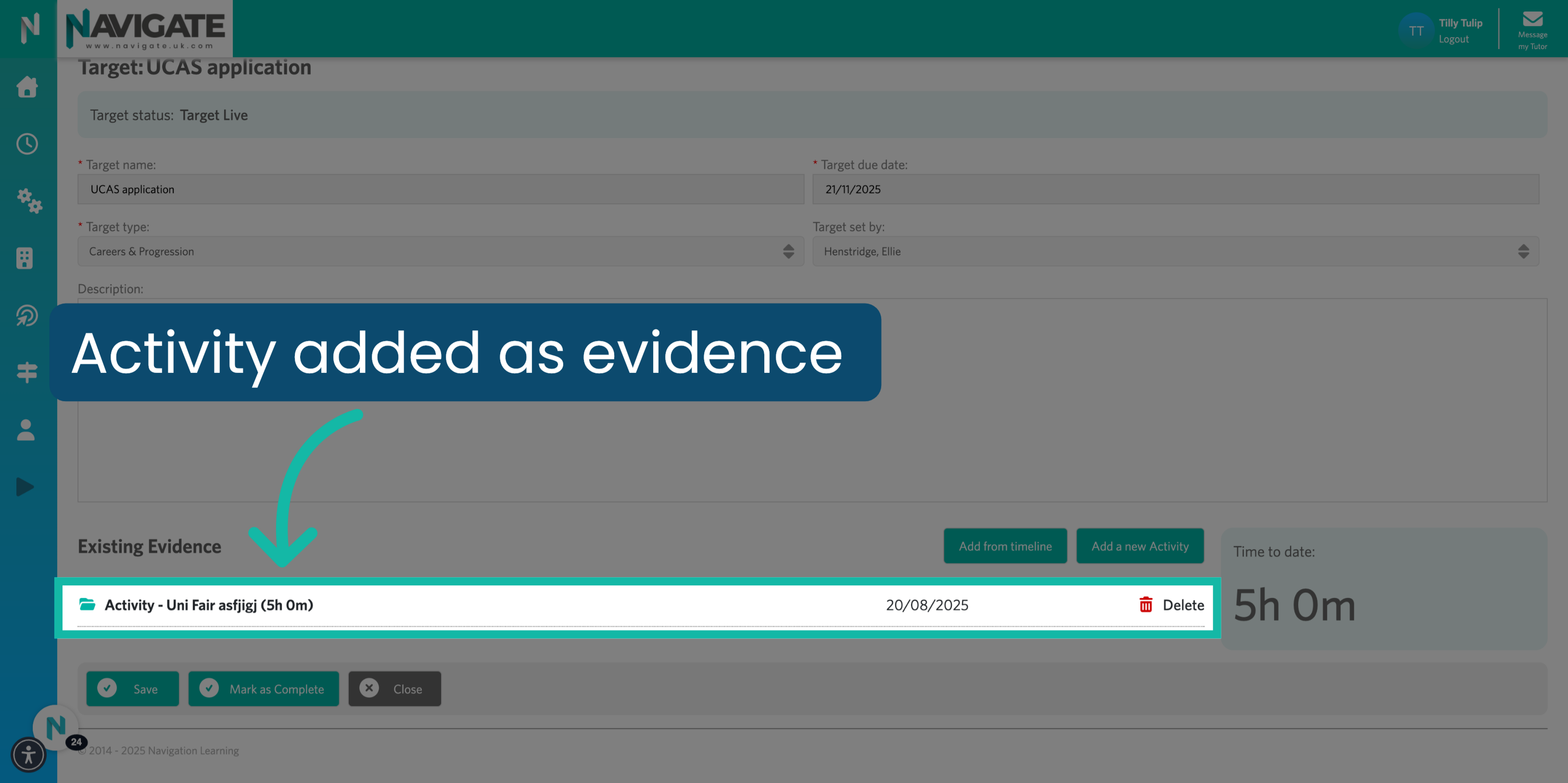
11. Click "Activity Displayed in Evidence."

The added activities will now appear under existing evidence in your target page.

Click 'Activity Displayed in Evidence'


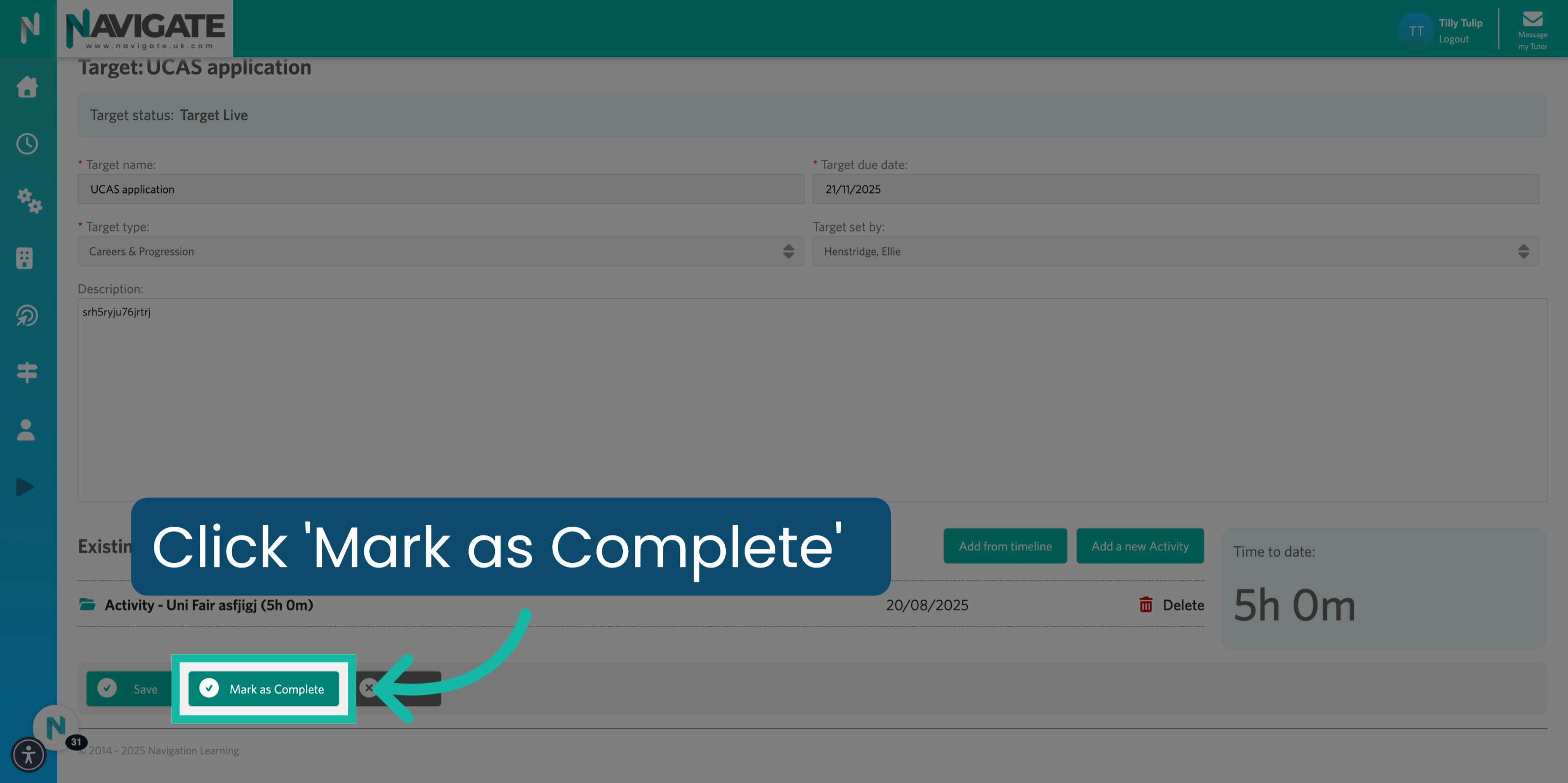
12. Click "Mark as Complete."

When you feel you have completed the target. Click on Marcus complete To submit it for approval.

Click 'Mark as Complete'


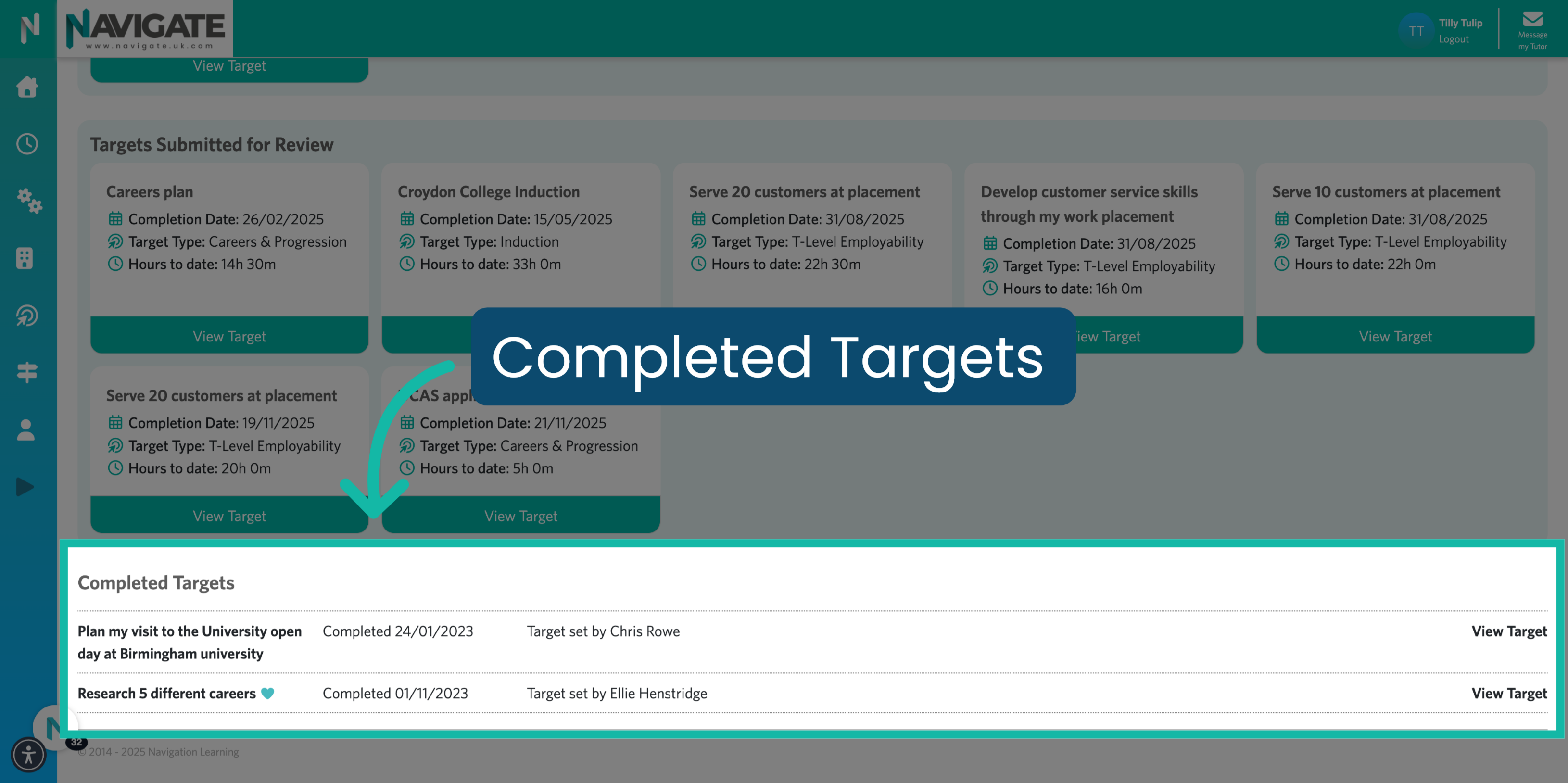
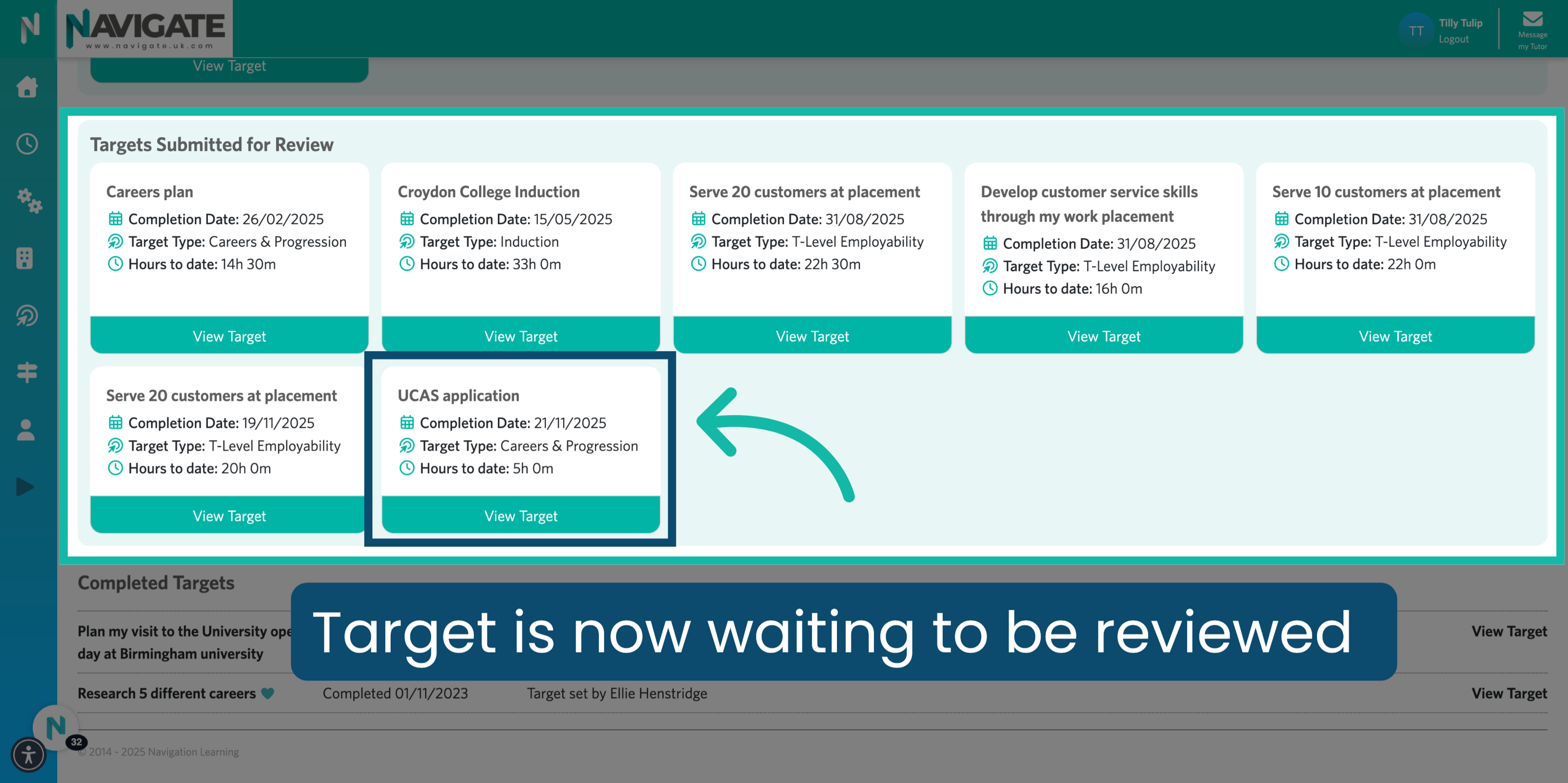
13. Target Submitted for Review.

Your target has now been submitted for review.

Target Submitted for Review


Was this article helpful?

That’s Great!

Thank you for your feedback

Sorry! We couldn't be helpful

Thank you for your feedback

Let us know how can we improve this article!

Select at least one of the reasons
CAPTCHA verification is required.

Feedback sent

We appreciate your effort and will try to fix the article